> ## Documentation Index
> Fetch the complete documentation index at: https://notes.kodekloud.com/llms.txt
> Use this file to discover all available pages before exploring further.
# Configuring Front Door
> Guide to configuring Azure Front Door from the portal covering origins, health probes, routing, rules, TLS, and a portal walkthrough using globally deployed App Services.
This guide explains how to configure Azure Front Door (AFD) from the Azure portal, preserving the step-by-step sequence used in a demo. It covers origins (backends), health probes, request flow, routing and rewrites, TLS, and a portal walkthrough that adds globally deployed App Services as origins. Follow the settings and examples below to get Front Door routing traffic to your backends reliably and securely.
## Key Front Door concepts (at a glance)
| Component | Purpose | Example / Notes |
| ---------------- | -------------------------------------------------------------: | ----------------------------------------------------------------------------- |
| Origin (backend) | Where Front Door forwards requests | App Service, Storage, API Management, Application Gateway, or custom hostname |
| Origin group | Logical group of origins for failover and load balancing | Add App Service instances across regions |
| Health probe | Determines origin health before forwarding traffic | Configure `Protocol`, `Path`, `Interval`, `Unhealthy threshold` |
| Route | Matches incoming requests and selects an origin group | Pattern: `/*`, or more specific like `/images/*` |
| Rules Engine | Rewrites, redirects, header transforms, and routing conditions | Use for path rewrites (e.g., `/docs/help` → `/docs/help.html`) |
| TLS / Certs | TLS termination at the edge and end-to-end encryption | Azure-managed certs or bring-your-own-certificate (BYOC) |
## Origins (Backends)
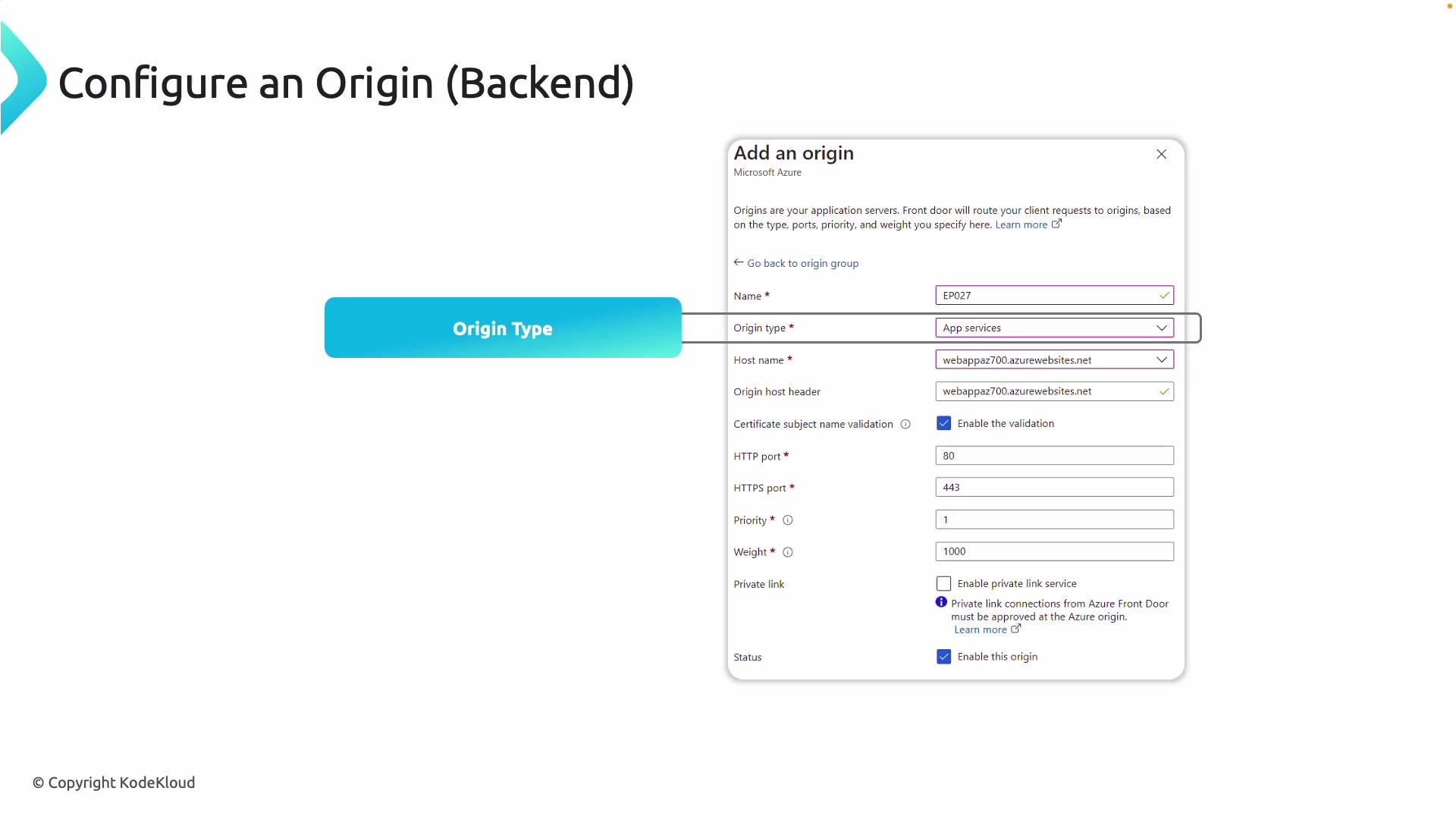
In Azure Front Door terminology, a backend is called an "origin." When you add an origin, configure the properties below so Front Door can reach and correctly route requests to it.
* Origin type: Select the resource type (e.g., App Service, Storage account, Application Gateway, API Management, or Custom).
* Origin hostname: For Azure resources this is often auto-populated; for external endpoints supply the fully qualified hostname.
* Host header: The hostname Front Door sends to the origin. This must match what your backend expects (for example an App Service may require the app's default host header).
* Ports and protocol: Specify origin ports (80/443) and whether to use HTTP or HTTPS.
* Priority and weight: Use `Priority` for failover order, and `Weight` to distribute traffic among origins sharing the same priority.
* TLS settings: Enable end-to-end TLS if you want HTTPS between Front Door and the origin.
 After adding origins, configure health probes so Front Door directs traffic only to healthy backends.
## Health Probes
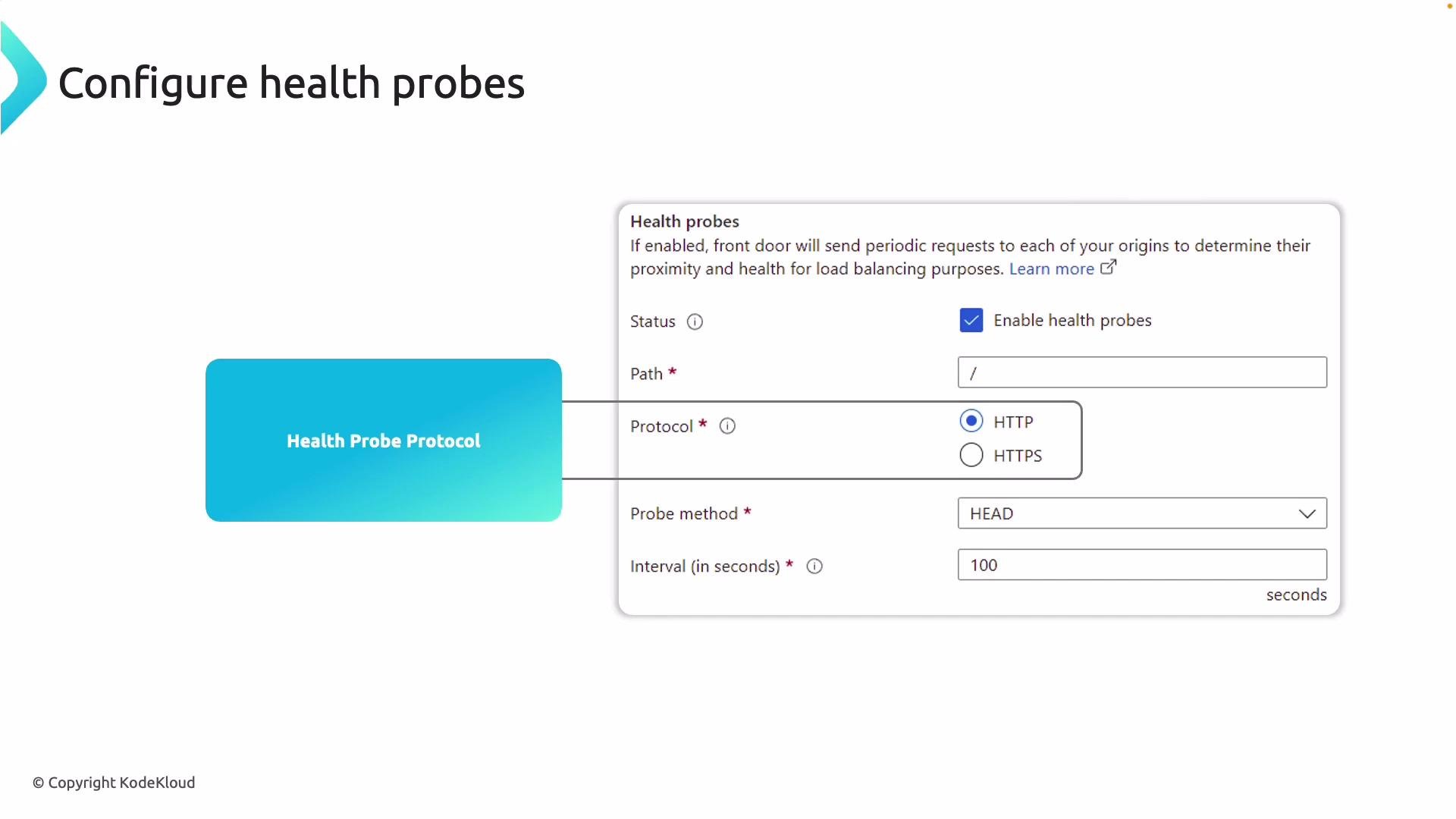
Health probes determine origin availability. Configure probes to match an endpoint that reliably returns success (2xx) when the application is healthy.
Important probe settings:
* Protocol: `HTTP` or `HTTPS`.
* Probe path: e.g., `/health.html`, `/status`, or `/`.
* Probe interval: How often Front Door probes the origin.
* Unhealthy threshold: Number of failed probes before marking an origin unhealthy.
Example health probe configuration:
```text theme={null}
Protocol: HTTPS
Path: /health
Interval: 30 seconds
Unhealthy threshold: 3
Method: GET
```
Correct probe configuration ensures traffic is routed to only healthy origins, improving uptime and failover behavior.
After adding origins, configure health probes so Front Door directs traffic only to healthy backends.
## Health Probes
Health probes determine origin availability. Configure probes to match an endpoint that reliably returns success (2xx) when the application is healthy.
Important probe settings:
* Protocol: `HTTP` or `HTTPS`.
* Probe path: e.g., `/health.html`, `/status`, or `/`.
* Probe interval: How often Front Door probes the origin.
* Unhealthy threshold: Number of failed probes before marking an origin unhealthy.
Example health probe configuration:
```text theme={null}
Protocol: HTTPS
Path: /health
Interval: 30 seconds
Unhealthy threshold: 3
Method: GET
```
Correct probe configuration ensures traffic is routed to only healthy origins, improving uptime and failover behavior.
 ## Request Flow Through Azure Front Door
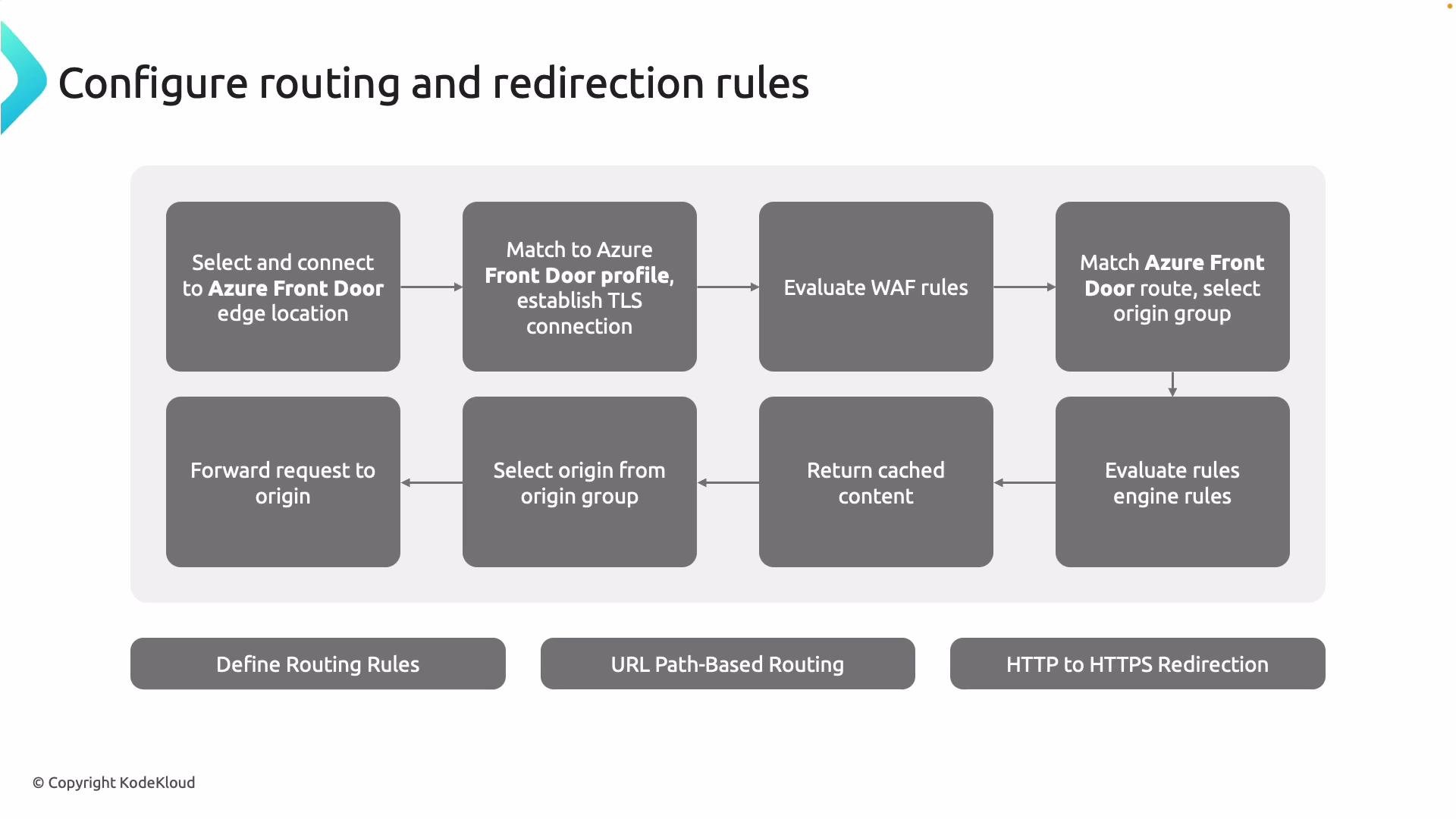
The typical end-to-end request flow:
1. Client request lands at the nearest Azure Front Door edge location to minimize latency.
2. Front Door matches the request to your Front Door profile and negotiates TLS if required.
3. If a Web Application Firewall (WAF) is configured, the request is evaluated against security policies.
4. The request is matched to a specific route, which identifies the origin group.
5. Rules Engine conditions (rewrites, redirects, header modifications) are evaluated.
6. If content is cached at the edge, Front Door can return it immediately.
7. If not cached, Front Door selects the best origin from the origin group (considering health, priority, and weight) and forwards the request.
Routes connect frontend endpoints to origin groups, similar to rule-based routing in other load balancers.
## Request Flow Through Azure Front Door
The typical end-to-end request flow:
1. Client request lands at the nearest Azure Front Door edge location to minimize latency.
2. Front Door matches the request to your Front Door profile and negotiates TLS if required.
3. If a Web Application Firewall (WAF) is configured, the request is evaluated against security policies.
4. The request is matched to a specific route, which identifies the origin group.
5. Rules Engine conditions (rewrites, redirects, header modifications) are evaluated.
6. If content is cached at the edge, Front Door can return it immediately.
7. If not cached, Front Door selects the best origin from the origin group (considering health, priority, and weight) and forwards the request.
Routes connect frontend endpoints to origin groups, similar to rule-based routing in other load balancers.
 ## Routing, Redirects, and Rewrites
* Routes distribute requests to origin pools by URL patterns, HTTP methods, or other match conditions (e.g., route `/images/*` to image servers).
* Rules Engine supports redirects (for example, redirect HTTP → HTTPS) and URL/path rewrites.
* Rules Engine can also rewrite headers, set or remove cookies, and change HTTP methods.
Example route pattern:
```text theme={null}
Route name: fdwebroute
Accepted protocols: HTTPS
Patterns to match: /*
Forwarding protocol: Match incoming request
```
## SSL / TLS and Certificate Management
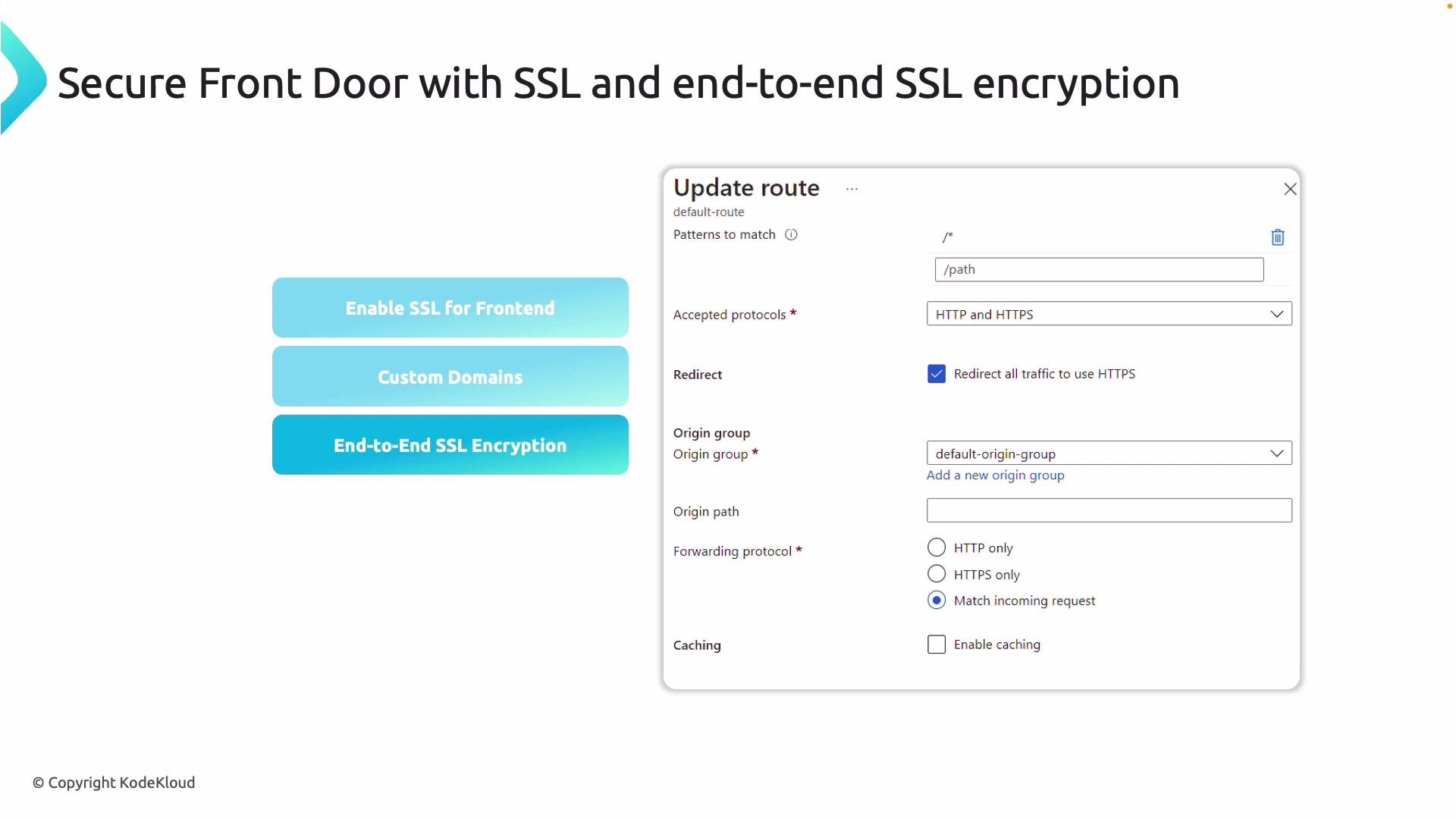
Front Door supports TLS termination at the edge and optional end-to-end TLS to origins.
* Custom domains: Bind custom domains to Front Door and enable TLS using Azure-managed certificates or bring your own certificate.
* End-to-end TLS: Configure Front Door to use HTTPS to the origin for encrypted transport from client to origin.
* Certificate rotation: Use Azure-managed certs for automated issuance and renewal; BYOC requires you to manage renewal and keys.
## Routing, Redirects, and Rewrites
* Routes distribute requests to origin pools by URL patterns, HTTP methods, or other match conditions (e.g., route `/images/*` to image servers).
* Rules Engine supports redirects (for example, redirect HTTP → HTTPS) and URL/path rewrites.
* Rules Engine can also rewrite headers, set or remove cookies, and change HTTP methods.
Example route pattern:
```text theme={null}
Route name: fdwebroute
Accepted protocols: HTTPS
Patterns to match: /*
Forwarding protocol: Match incoming request
```
## SSL / TLS and Certificate Management
Front Door supports TLS termination at the edge and optional end-to-end TLS to origins.
* Custom domains: Bind custom domains to Front Door and enable TLS using Azure-managed certificates or bring your own certificate.
* End-to-end TLS: Configure Front Door to use HTTPS to the origin for encrypted transport from client to origin.
* Certificate rotation: Use Azure-managed certs for automated issuance and renewal; BYOC requires you to manage renewal and keys.
 With origins, origin groups, health probes, routes, rules, and TLS configured, Front Door is ready to serve traffic globally.
***
The following section walks through configuring Front Door in the Azure portal using globally distributed App Services as origins.
## Portal Walkthrough: Create Front Door and Add Origins
The demo uses multiple App Service instances hosting identical content across regions (Southeast Asia, East US, Australia East, West Europe, etc.). Begin by confirming your App Services are running and reachable.
With origins, origin groups, health probes, routes, rules, and TLS configured, Front Door is ready to serve traffic globally.
***
The following section walks through configuring Front Door in the Azure portal using globally distributed App Services as origins.
## Portal Walkthrough: Create Front Door and Add Origins
The demo uses multiple App Service instances hosting identical content across regions (Southeast Asia, East US, Australia East, West Europe, etc.). Begin by confirming your App Services are running and reachable.
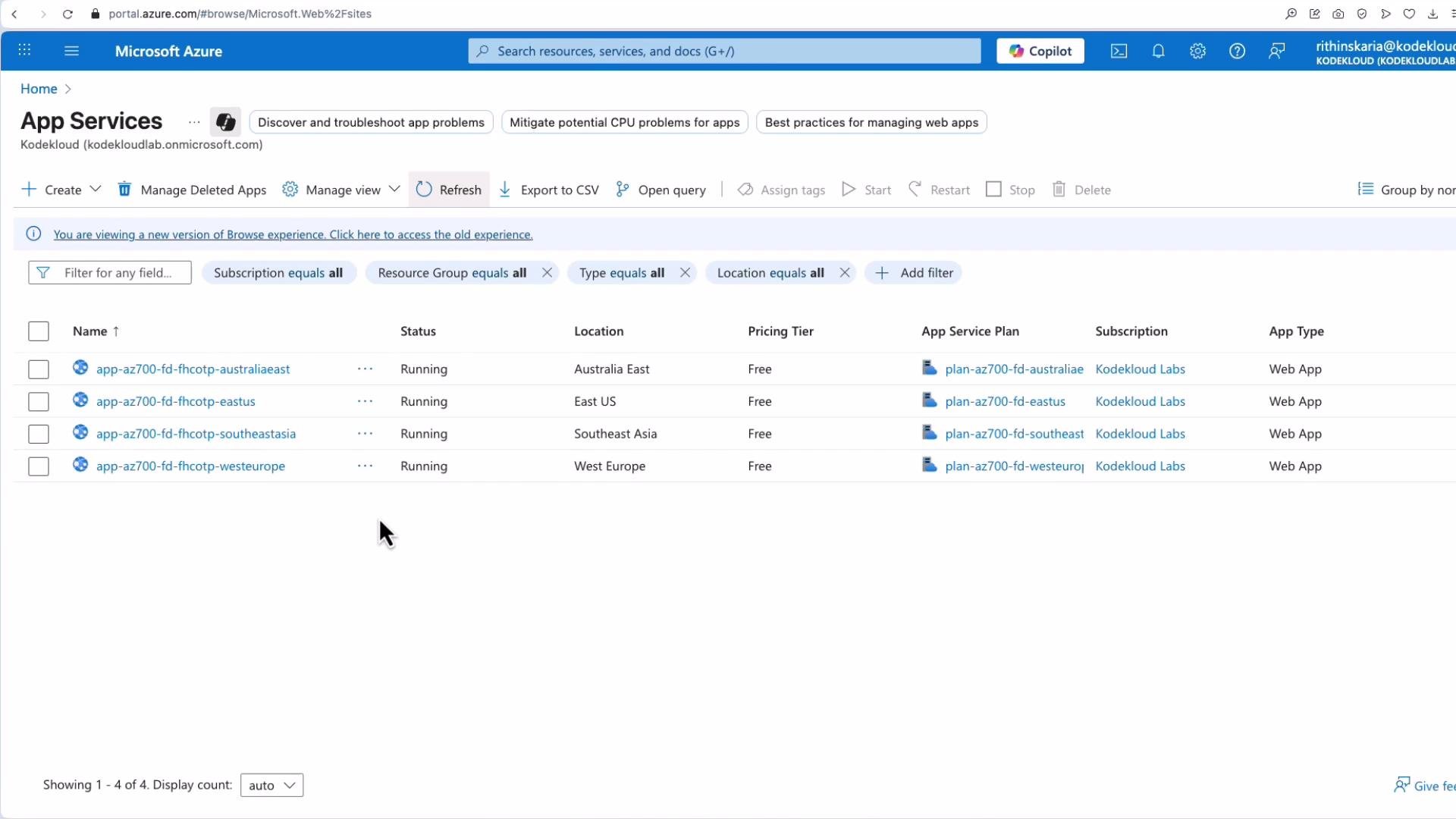 App Service overview pages and API endpoints will be used to verify routing and probe responses.
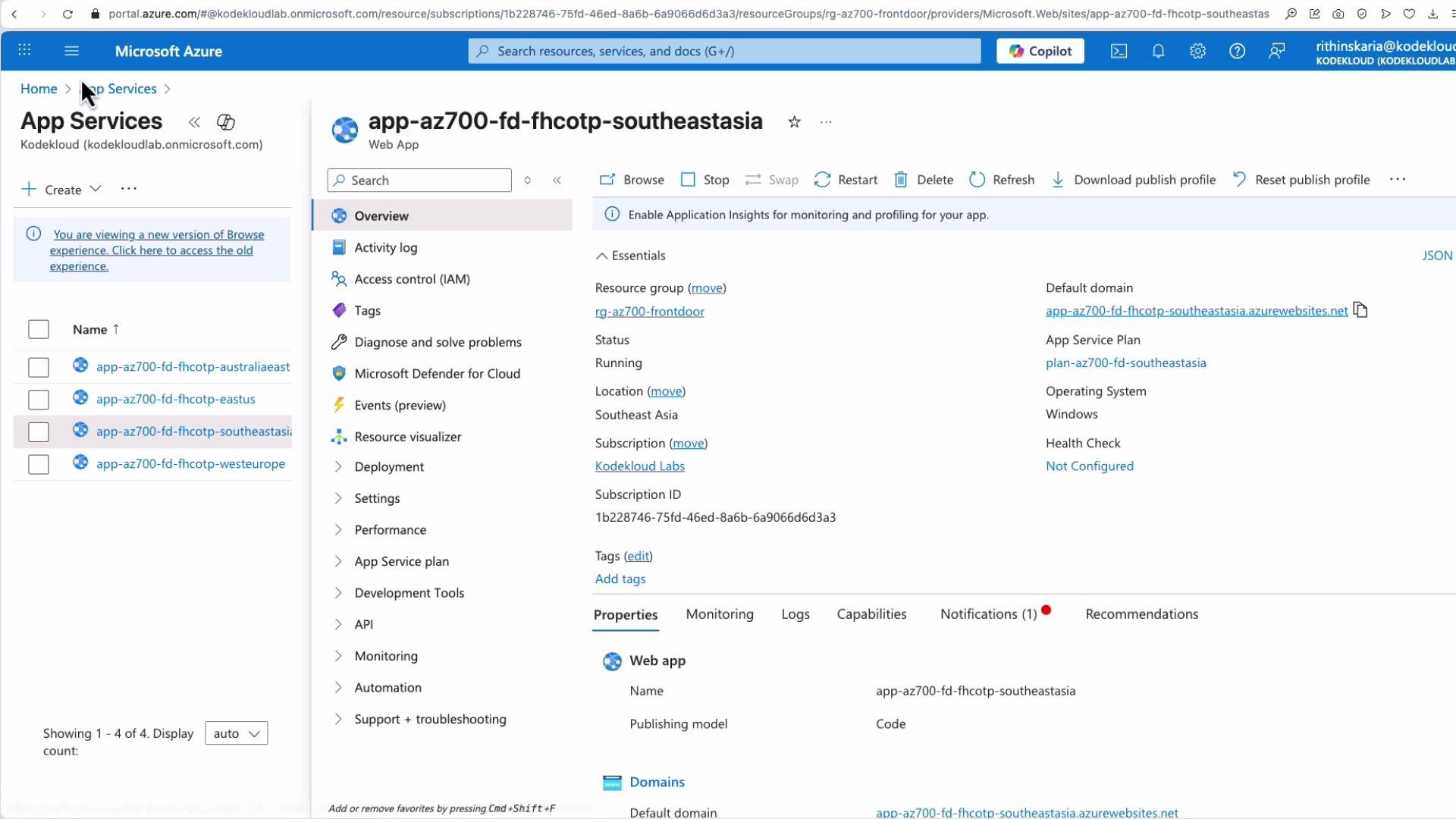
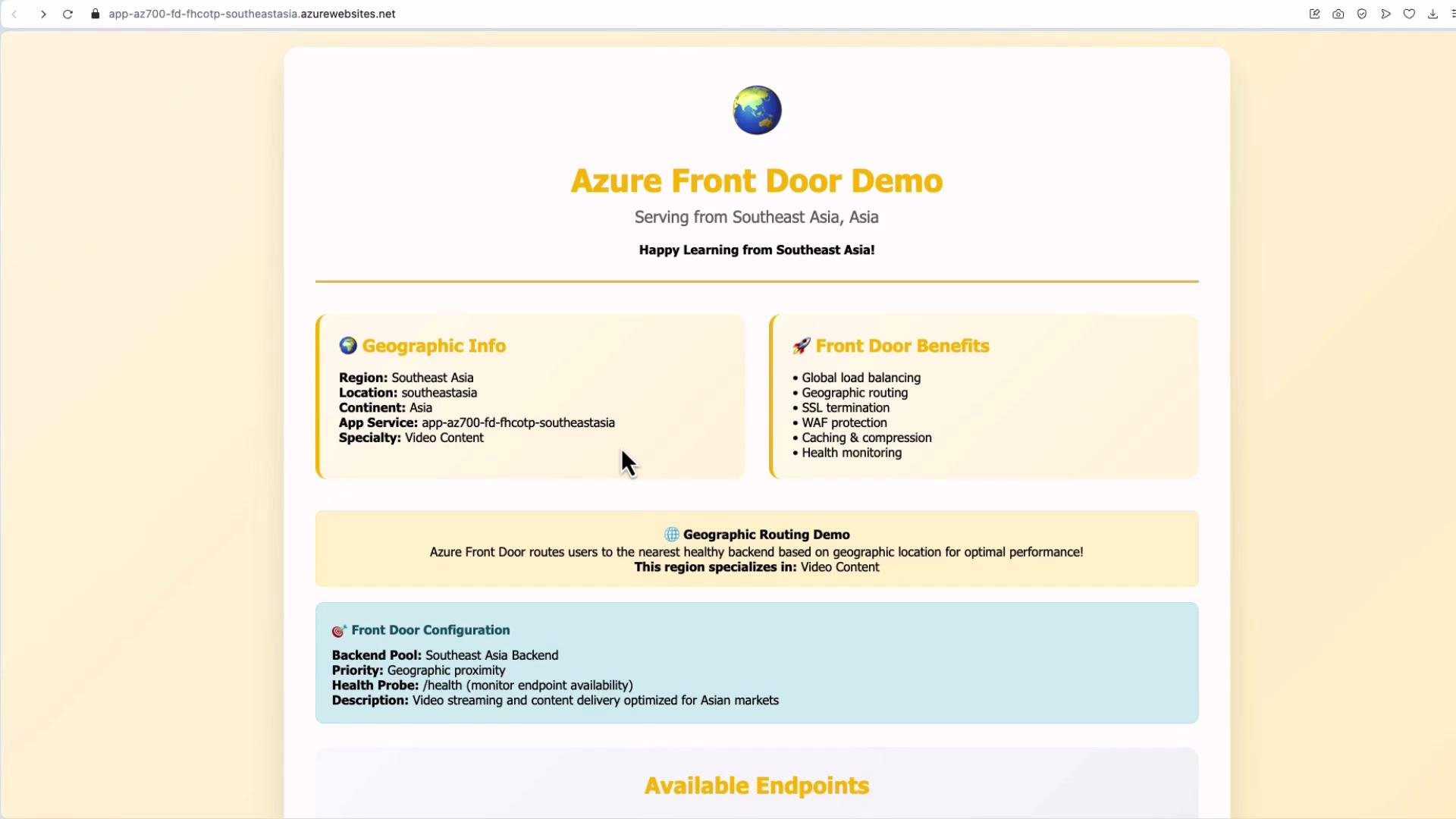 Open a specific App Service overview to check hostname and settings before adding it as an origin.
 Steps to create Front Door in the portal:
1. Search for "Front Door" and click Create.
2. Choose Quick Create for minimal setup or Custom Create to control all options. For learning and exam practice, use Custom Create.
3. Provide a resource group and a name (example: `AFD-AZ700`).
4. Select the SKU: Standard or Premium.
Choose Standard unless you need Premium-only features like advanced WAF, geofiltering, or Private Link integration.
5. Add an endpoint (frontend listener) — e.g., `AFD-EP-web` which becomes part of the `*.azurefd.net` domain.
Steps to create Front Door in the portal:
1. Search for "Front Door" and click Create.
2. Choose Quick Create for minimal setup or Custom Create to control all options. For learning and exam practice, use Custom Create.
3. Provide a resource group and a name (example: `AFD-AZ700`).
4. Select the SKU: Standard or Premium.
Choose Standard unless you need Premium-only features like advanced WAF, geofiltering, or Private Link integration.
5. Add an endpoint (frontend listener) — e.g., `AFD-EP-web` which becomes part of the `*.azurefd.net` domain.
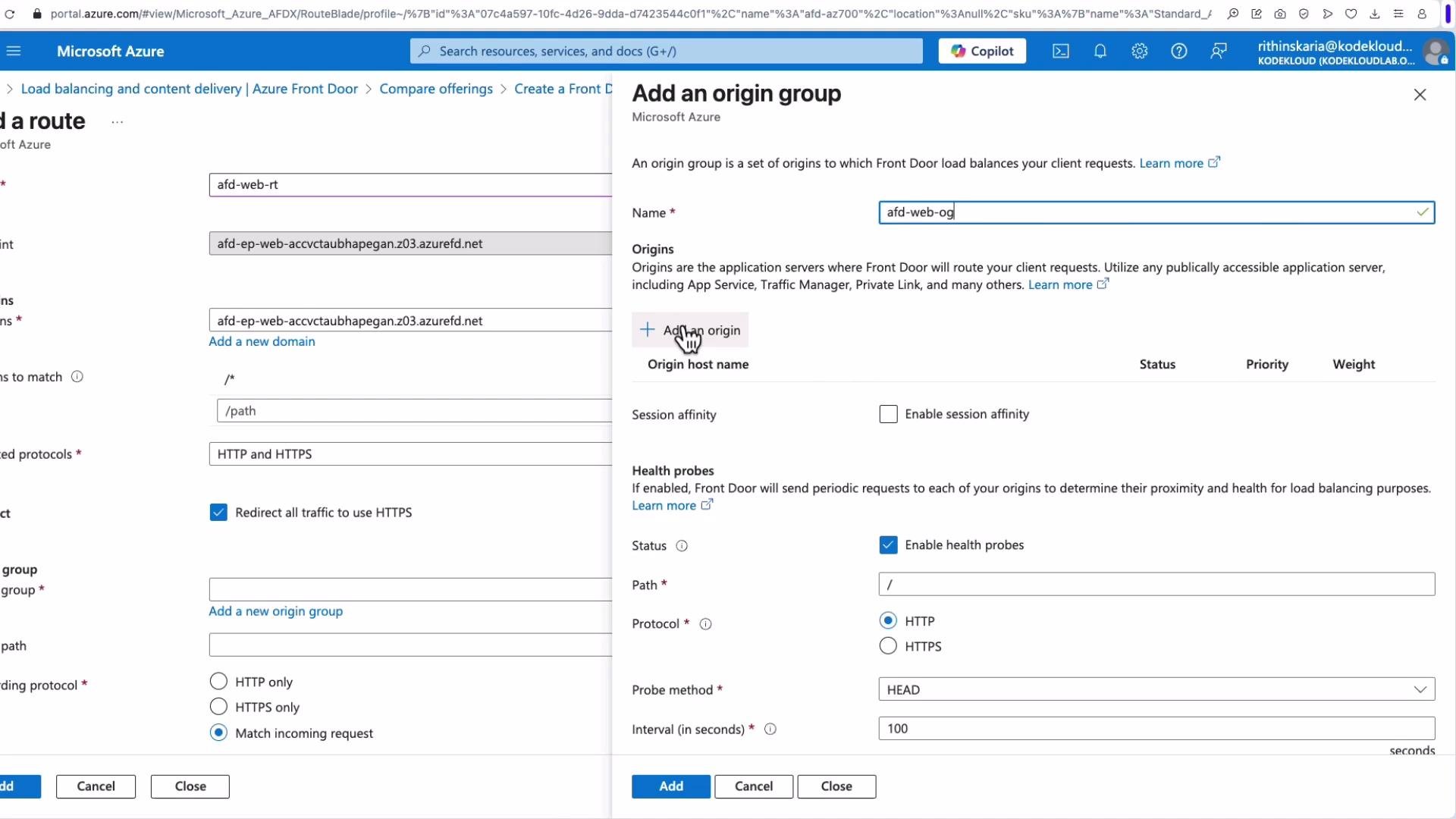 Next, add routes and origin groups:
* Create a route (equivalent to a rule in some other load balancers). Provide a route name (for example `fdwebroute`) and attach it to the endpoint.
* Specify patterns to match — the default `/*` is commonly used for root routing; add more specific patterns as needed.
* Choose accepted protocols (HTTP, HTTPS, or both). Optionally enable an HTTP-to-HTTPS redirect.
Origin groups:
* Create an origin group (for example `AFD Web Origin Group`) and add the App Service instances as origins.
* For each origin, select type `App Service`, choose the instance (East US, Southeast Asia, Australia East, West Europe), set priority and weight, and optionally enable TLS settings.
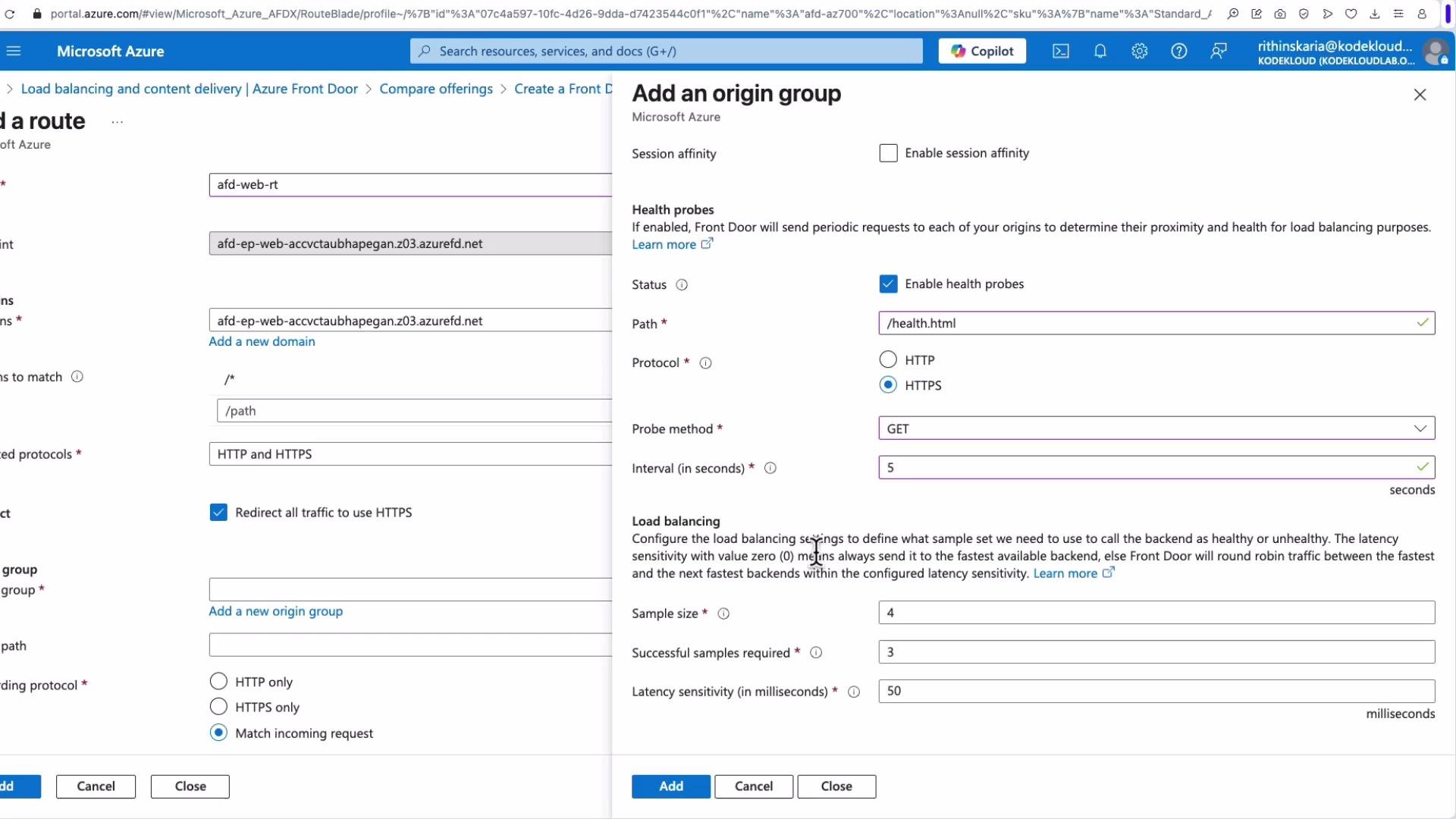
* Configure health probe settings and session affinity (sticky sessions) at the origin group level.
Next, add routes and origin groups:
* Create a route (equivalent to a rule in some other load balancers). Provide a route name (for example `fdwebroute`) and attach it to the endpoint.
* Specify patterns to match — the default `/*` is commonly used for root routing; add more specific patterns as needed.
* Choose accepted protocols (HTTP, HTTPS, or both). Optionally enable an HTTP-to-HTTPS redirect.
Origin groups:
* Create an origin group (for example `AFD Web Origin Group`) and add the App Service instances as origins.
* For each origin, select type `App Service`, choose the instance (East US, Southeast Asia, Australia East, West Europe), set priority and weight, and optionally enable TLS settings.
* Configure health probe settings and session affinity (sticky sessions) at the origin group level.
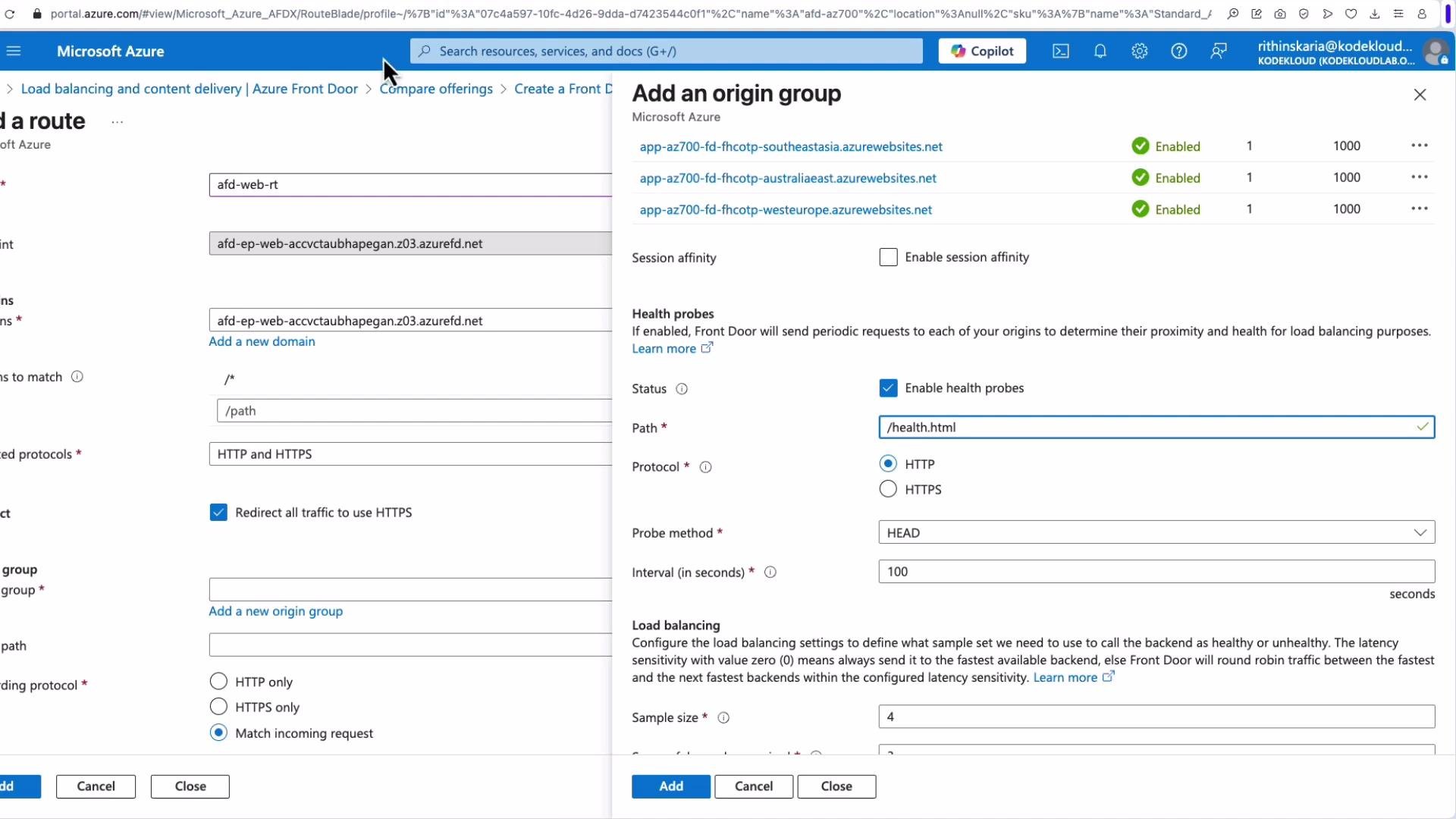 Tune probe details such as path (`health.html`), protocol (HTTP/HTTPS), method (`GET`), interval, sample size, and required successful samples. These options vary by SKU and portal version.
 When configuring the forwarding protocol—how Front Door connects to your origin—choose one of:
* `Match incoming request` — Forward the same protocol the client used.
* `HTTPS only` — Force HTTPS to the origin.
* `HTTP only` — Force HTTP to the origin (not recommended for production).
For production workloads, prefer `HTTPS only` or `Match incoming request` with end-to-end TLS enabled to maintain encryption between the edge and your origin.
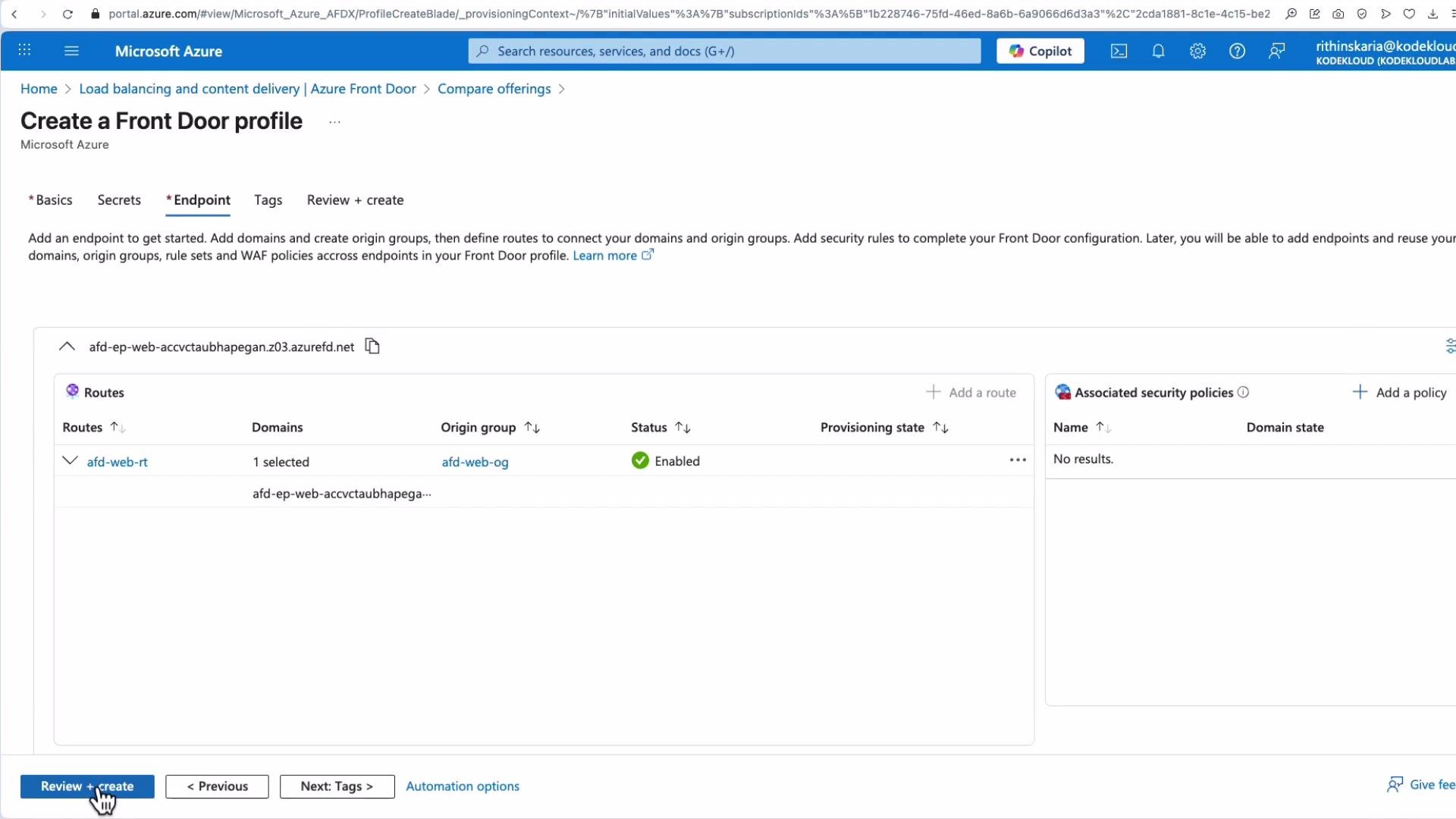
Also configure caching, response compression, and rule sets as needed. Review and Create; deployment typically takes 10–15 minutes.
When configuring the forwarding protocol—how Front Door connects to your origin—choose one of:
* `Match incoming request` — Forward the same protocol the client used.
* `HTTPS only` — Force HTTPS to the origin.
* `HTTP only` — Force HTTP to the origin (not recommended for production).
For production workloads, prefer `HTTPS only` or `Match incoming request` with end-to-end TLS enabled to maintain encryption between the edge and your origin.
Also configure caching, response compression, and rule sets as needed. Review and Create; deployment typically takes 10–15 minutes.
 ## Testing the Deployed Front Door
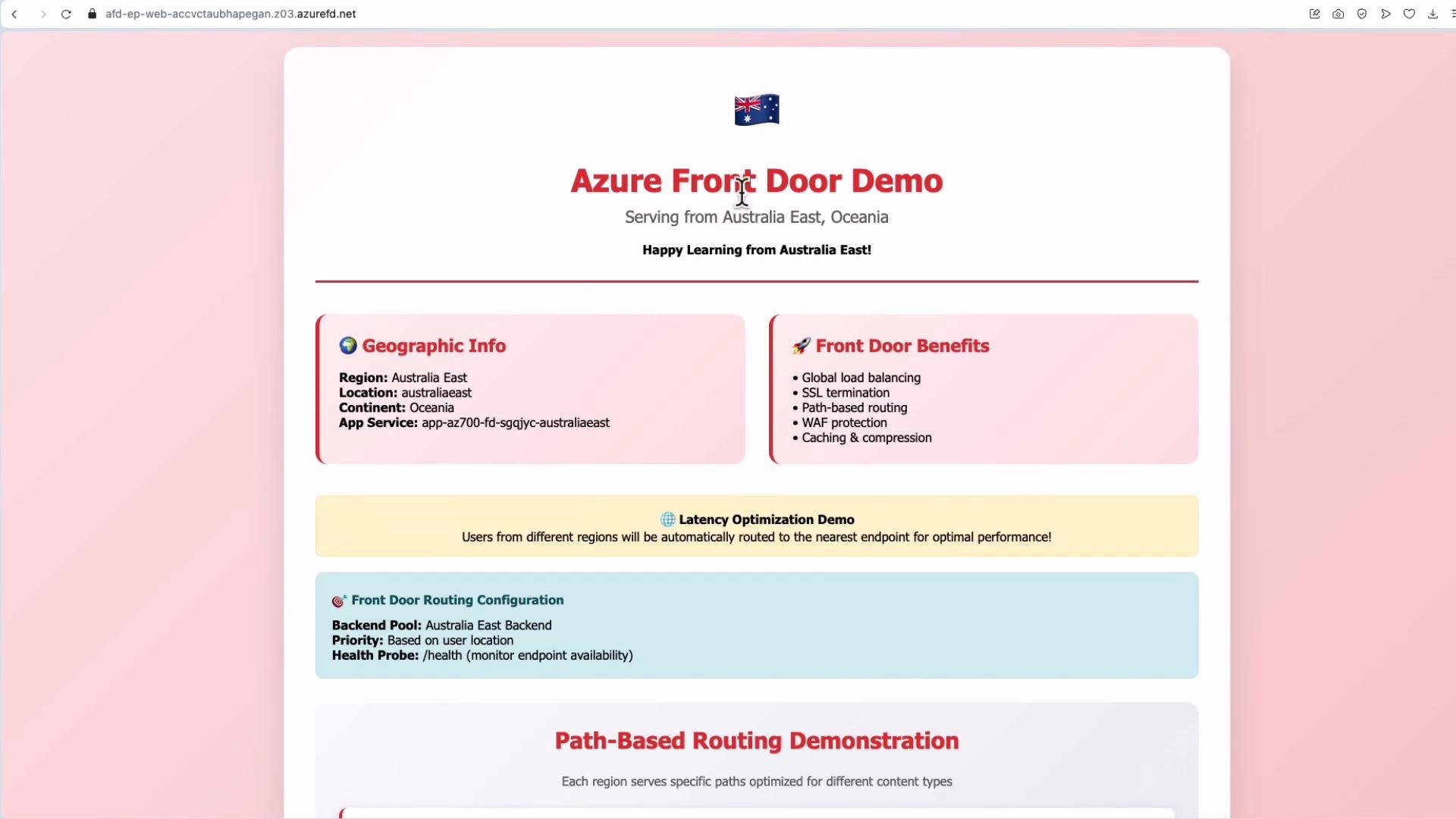
After deployment, open the Front Door endpoint URL (the `*.azurefd.net` domain). The edge will route you to the nearest healthy origin — e.g., Australia East in the demo.
## Testing the Deployed Front Door
After deployment, open the Front Door endpoint URL (the `*.azurefd.net` domain). The edge will route you to the nearest healthy origin — e.g., Australia East in the demo.
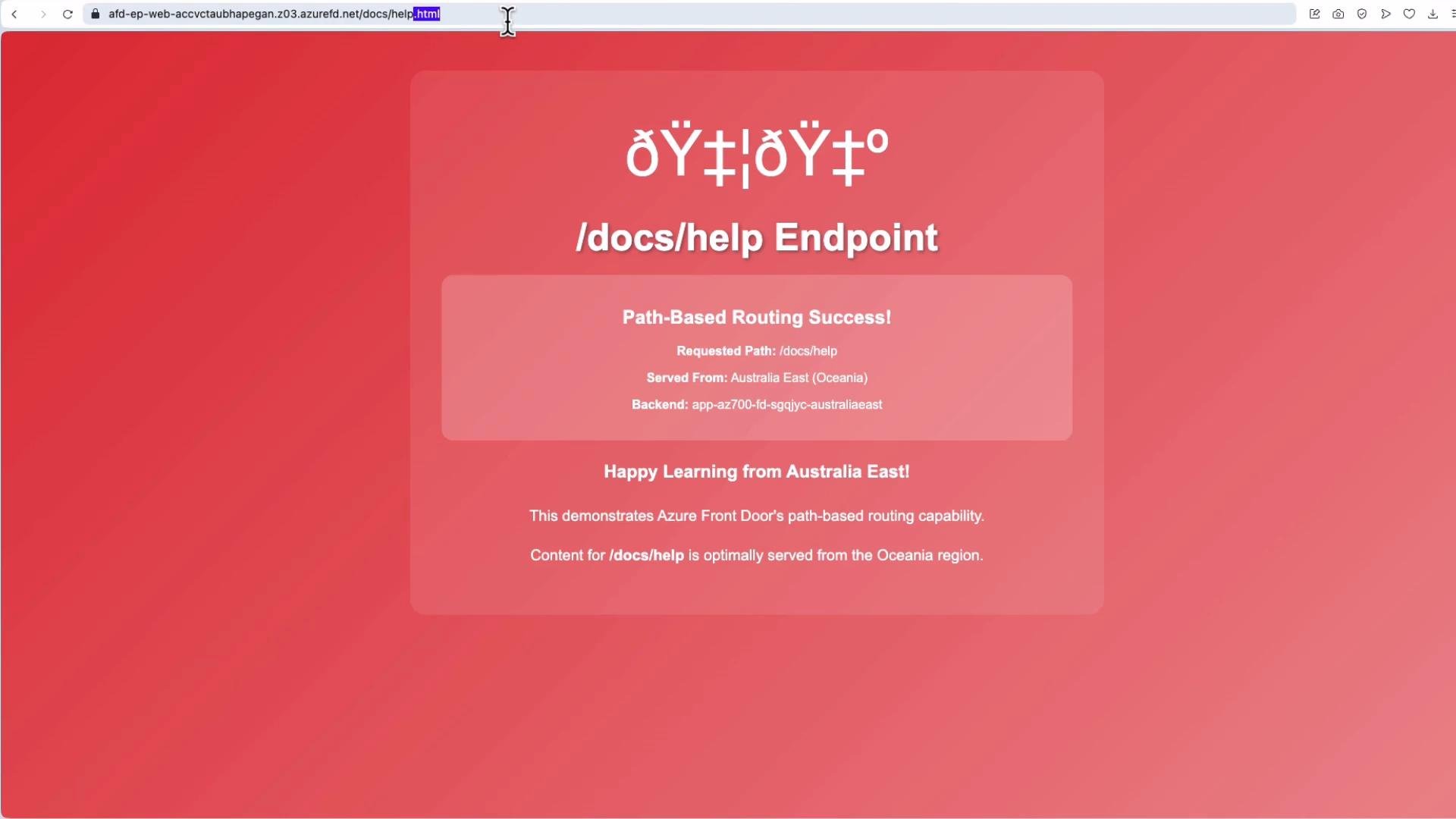
 If your backend requires a `.html` suffix (e.g., `docs/help.html`) but users request `/docs/help`, use the Rules Engine to rewrite the path before forwarding to the origin.
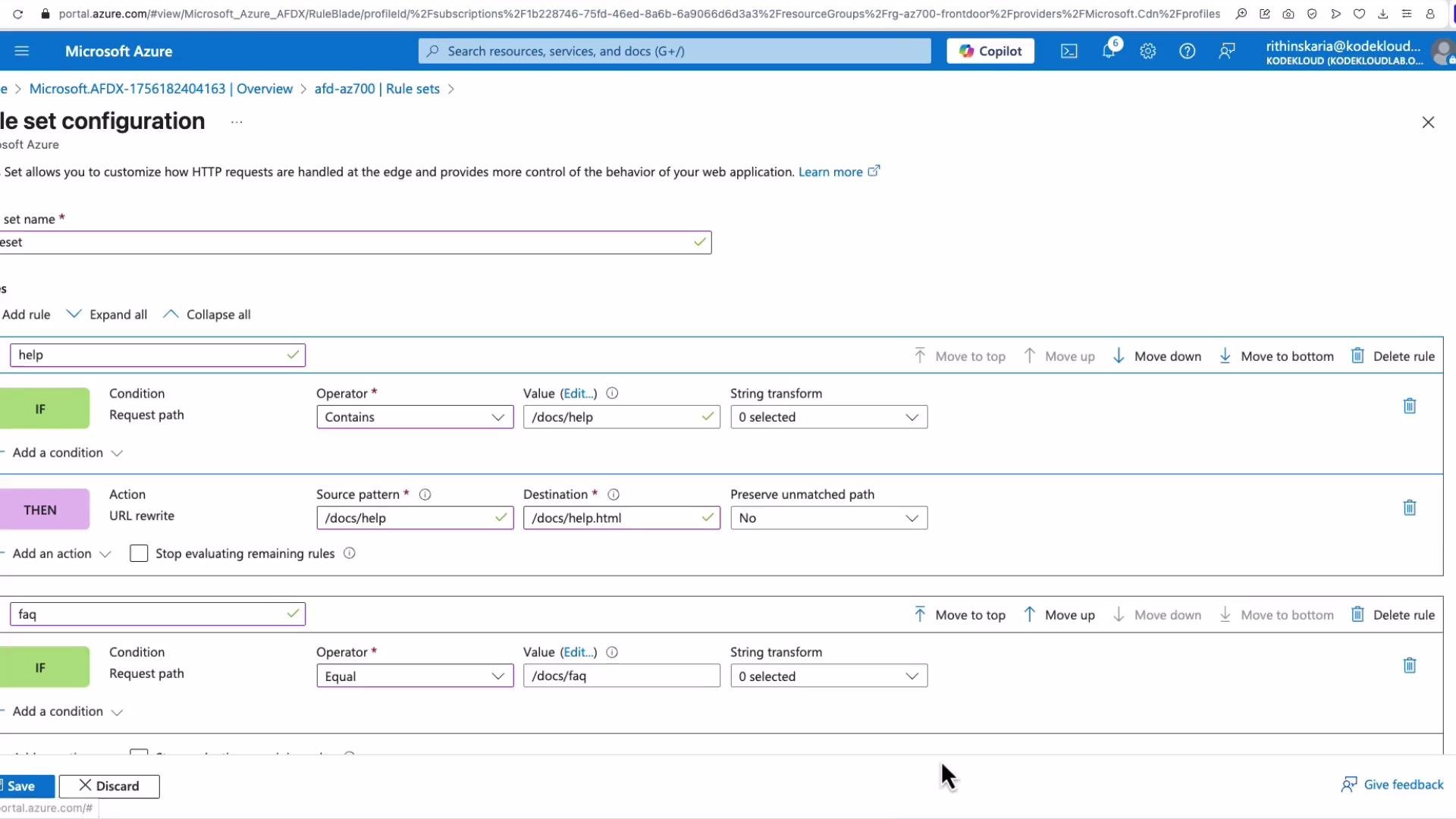
 ## Rules Engine: URL Rewrite Example
To create a URL rewrite rule:
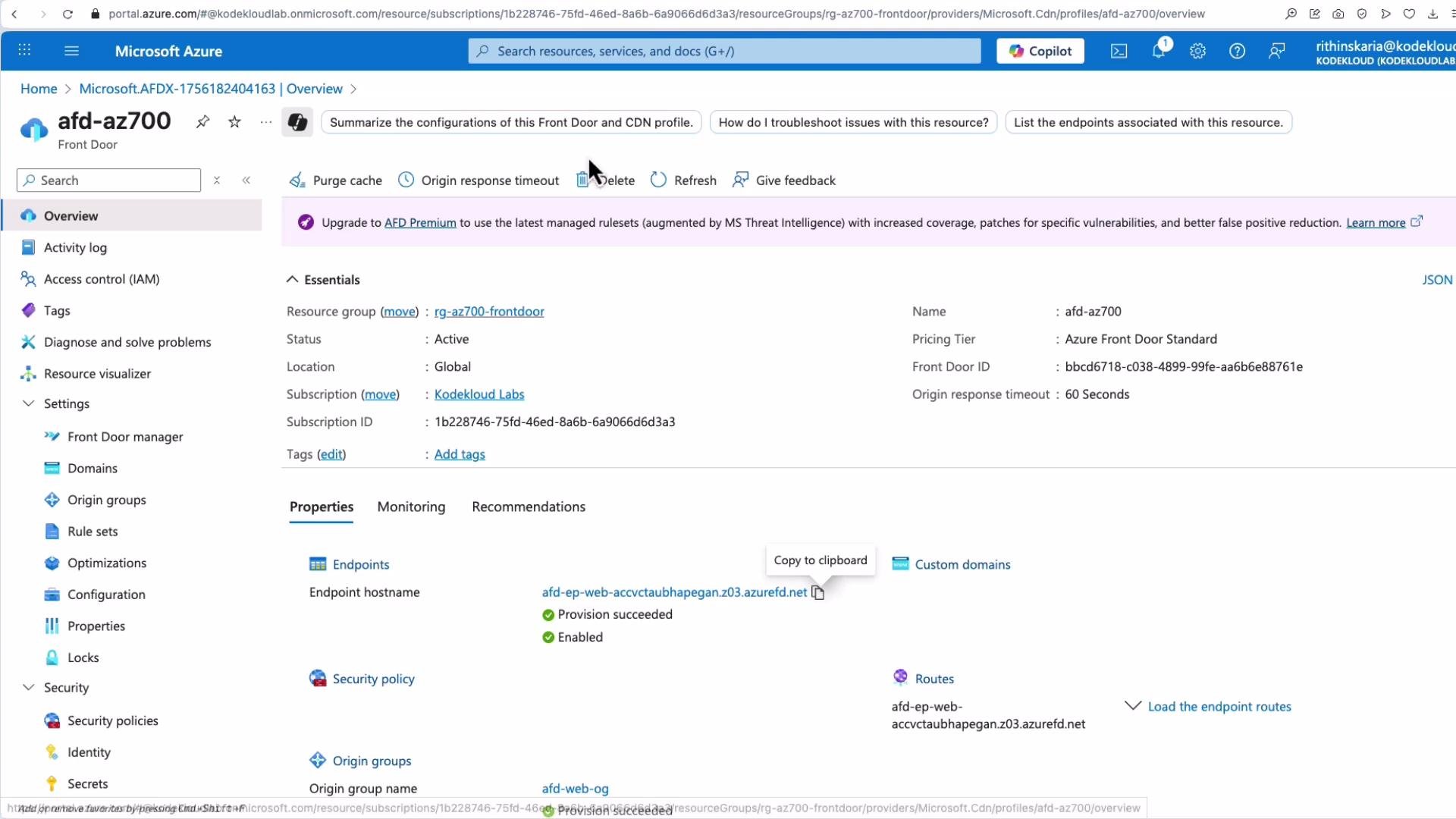
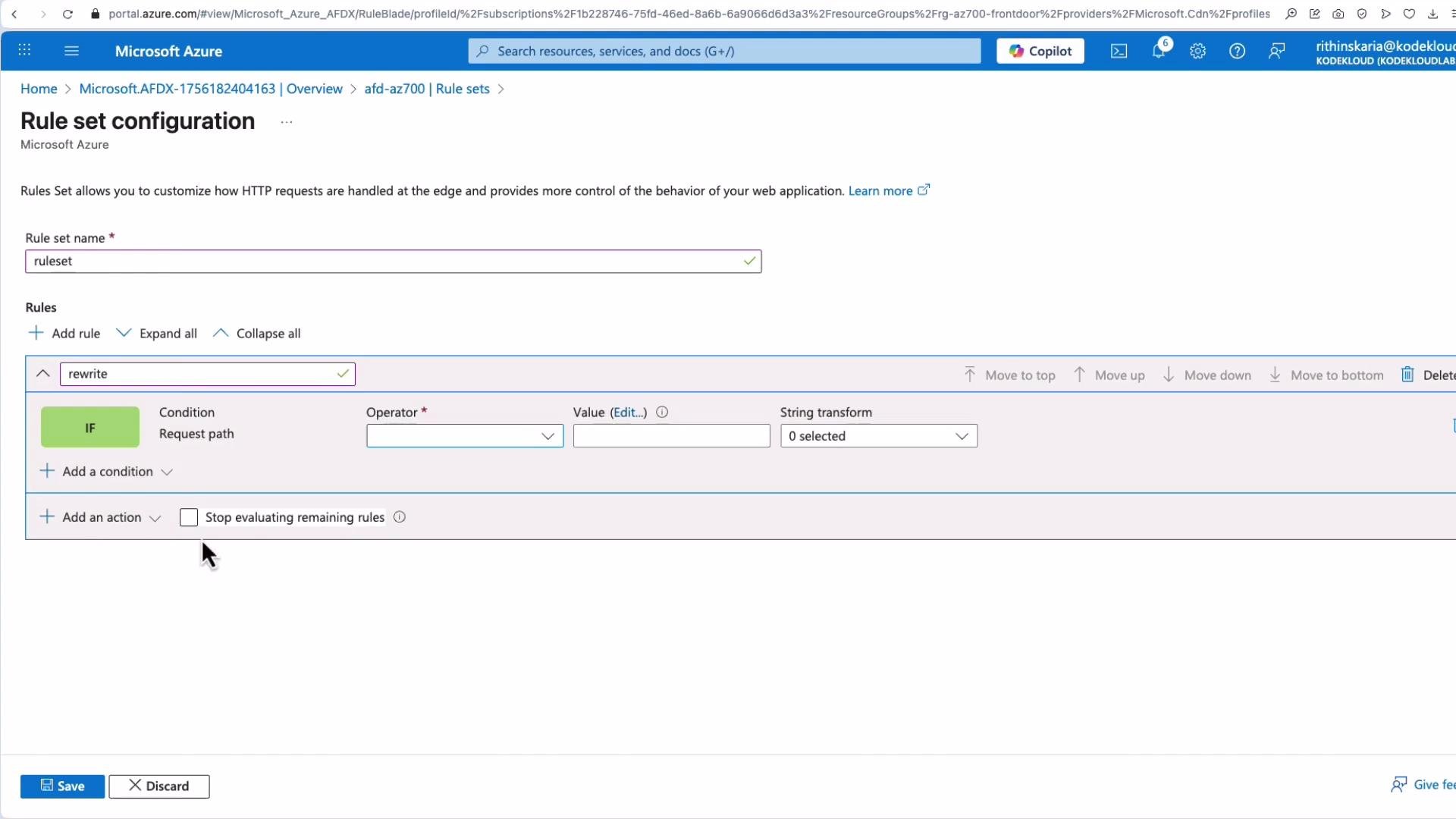
1. Navigate to Front Door > Rule sets.
2. Create a rule set (example name: `rewrite`) and add a rule.
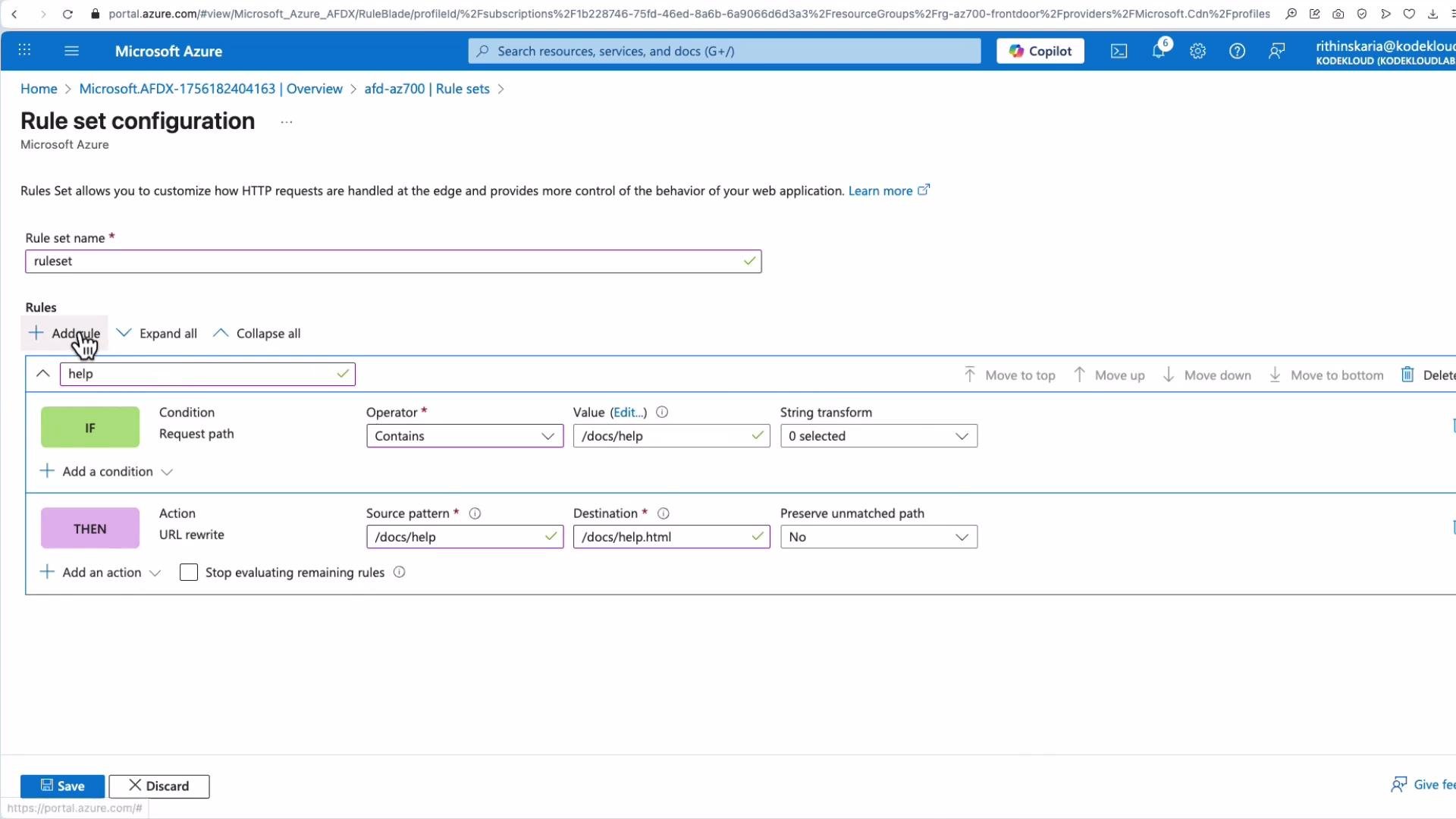
3. Add a condition — for example match when the request path `Equals` or `Begins with` `docs/help`.
4. Add an action: `URL rewrite`. Set the source pattern and destination pattern.
Example rewrite configuration:
```text theme={null}
Rule name: help
Condition: If Request.Path Begins with /docs/help
Action: URL rewrite
Source pattern: /docs/help
Destination: /docs/help.html
Stop further processing: True
```
Repeat for other mappings (e.g., `/docs/FAQ` → `/docs/FAQ.html`). Test after saving.
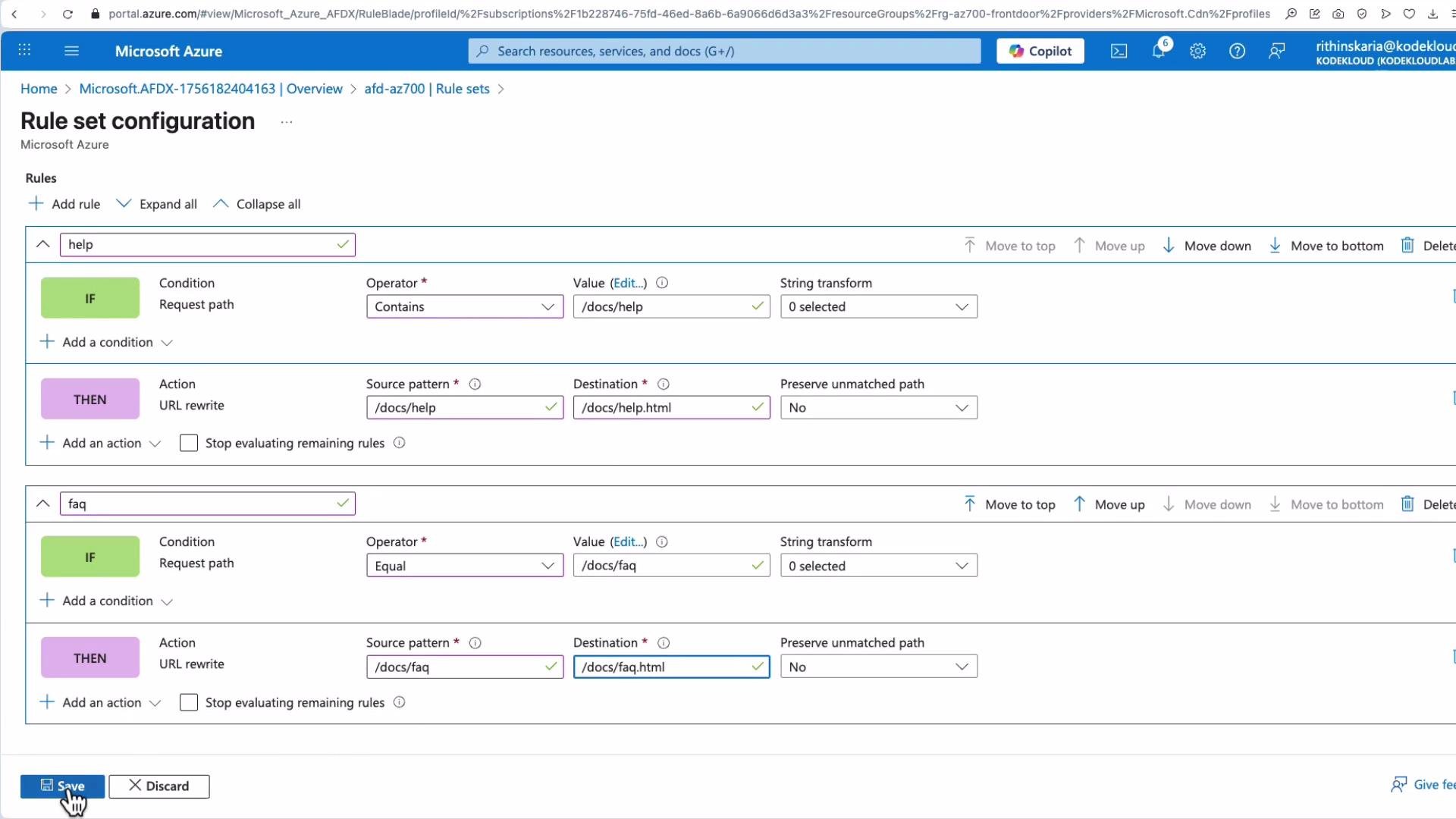
## Rules Engine: URL Rewrite Example
To create a URL rewrite rule:
1. Navigate to Front Door > Rule sets.
2. Create a rule set (example name: `rewrite`) and add a rule.
3. Add a condition — for example match when the request path `Equals` or `Begins with` `docs/help`.
4. Add an action: `URL rewrite`. Set the source pattern and destination pattern.
Example rewrite configuration:
```text theme={null}
Rule name: help
Condition: If Request.Path Begins with /docs/help
Action: URL rewrite
Source pattern: /docs/help
Destination: /docs/help.html
Stop further processing: True
```
Repeat for other mappings (e.g., `/docs/FAQ` → `/docs/FAQ.html`). Test after saving.
 After saving the rule set, associate it with the route:
* Open the rule set, click the ellipsis (three dots) and choose Associate a route.
* Select the endpoint and route, set priority if multiple rule sets exist, and associate.
After saving the rule set, associate it with the route:
* Open the rule set, click the ellipsis (three dots) and choose Associate a route.
* Select the endpoint and route, set priority if multiple rule sets exist, and associate.
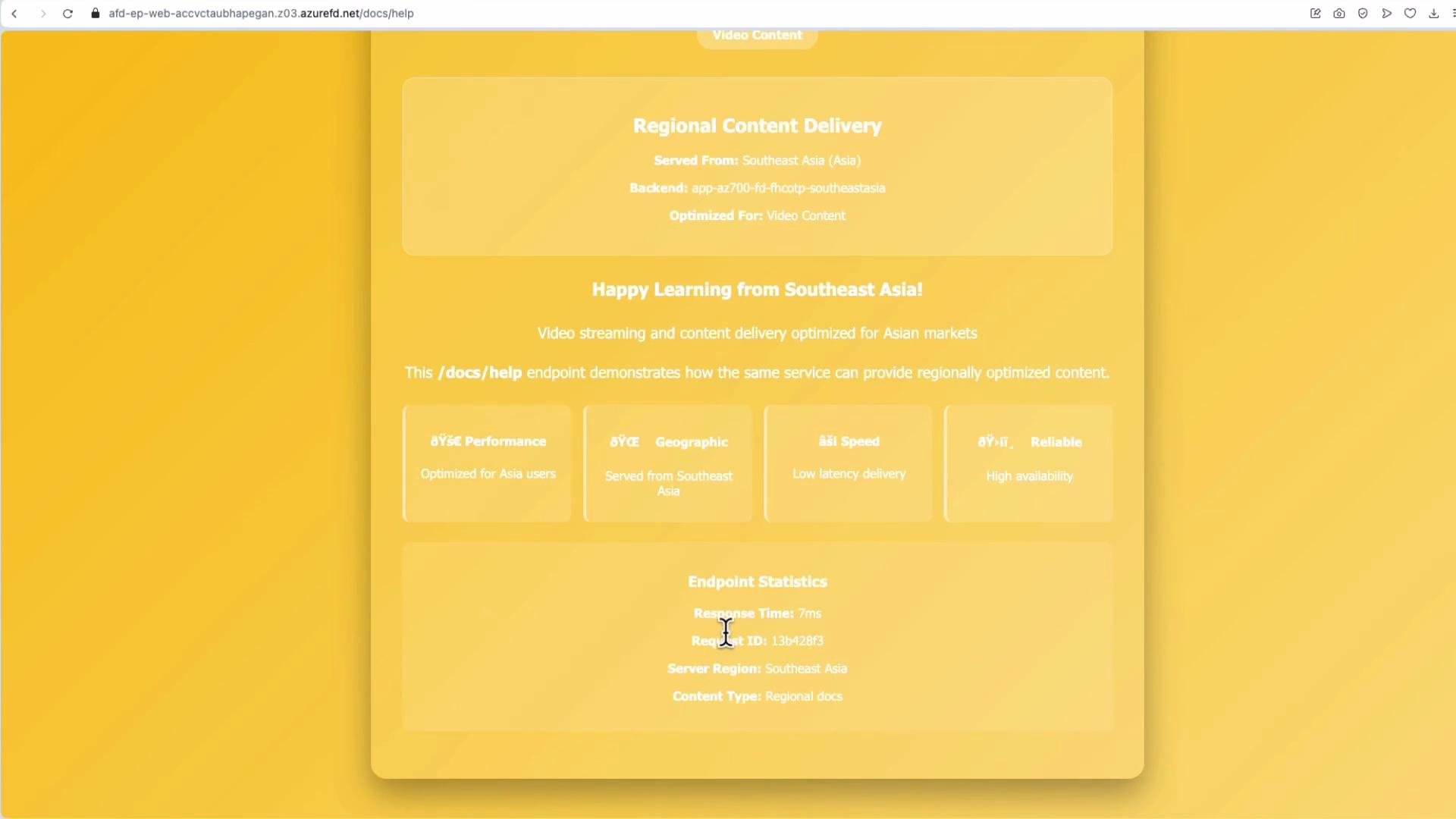
 Test by requesting `/docs/help` (without `.html`). The rewrite should return `docs/help.html` from the nearest healthy origin. Inspect response headers and timing to verify origin region and latency.
 Operational test: stop an App Service in one region (for example Southeast Asia). Front Door probes will detect the unhealthy origin and route traffic to the next available healthy origin according to your priority and weight settings. Use this method to validate failover behavior and probe configuration.
***
This completes the Front Door configuration walkthrough. For further topics and advanced configurations (WAF tuning, diagnostics, premium features), refer to the links below.
## Links and references
* [Azure Front Door documentation](https://learn.microsoft.com/azure/frontdoor/)
* [Front Door rules engine overview](https://learn.microsoft.com/azure/frontdoor/standard-premium/front-door-rules-engine)
* [Azure App Service documentation](https://learn.microsoft.com/azure/app-service/)
* [Azure TLS/SSL documentation](https://learn.microsoft.com/azure/app-service/configure-ssl-certificate)
Operational test: stop an App Service in one region (for example Southeast Asia). Front Door probes will detect the unhealthy origin and route traffic to the next available healthy origin according to your priority and weight settings. Use this method to validate failover behavior and probe configuration.
***
This completes the Front Door configuration walkthrough. For further topics and advanced configurations (WAF tuning, diagnostics, premium features), refer to the links below.
## Links and references
* [Azure Front Door documentation](https://learn.microsoft.com/azure/frontdoor/)
* [Front Door rules engine overview](https://learn.microsoft.com/azure/frontdoor/standard-premium/front-door-rules-engine)
* [Azure App Service documentation](https://learn.microsoft.com/azure/app-service/)
* [Azure TLS/SSL documentation](https://learn.microsoft.com/azure/app-service/configure-ssl-certificate)