> ## Documentation Index
> Fetch the complete documentation index at: https://notes.kodekloud.com/llms.txt
> Use this file to discover all available pages before exploring further.
# Configure DNS Settings Inside a VNet
> Guide to configuring Azure VNet DNS using Private DNS zones, virtual network links, DNS servers and forwarding, with security, hub and spoke patterns, and testing examples
Configuring DNS inside an Azure virtual network (VNet) is essential for enterprise and hybrid environments that require custom name resolution. This guide shows recommended architectures, Azure Private DNS zone usage, and step‑by‑step examples to get a simple test environment running.
At a high level, the diagram below illustrates two Azure VNets (VNet1 and VNet2), each hosting VMs and a DNS server, plus an on‑premises DNS. DNS queries from on‑premises and between VNets can be forwarded to the appropriate DNS server or to Azure's platform resolver at `168.63.129.16` when required.
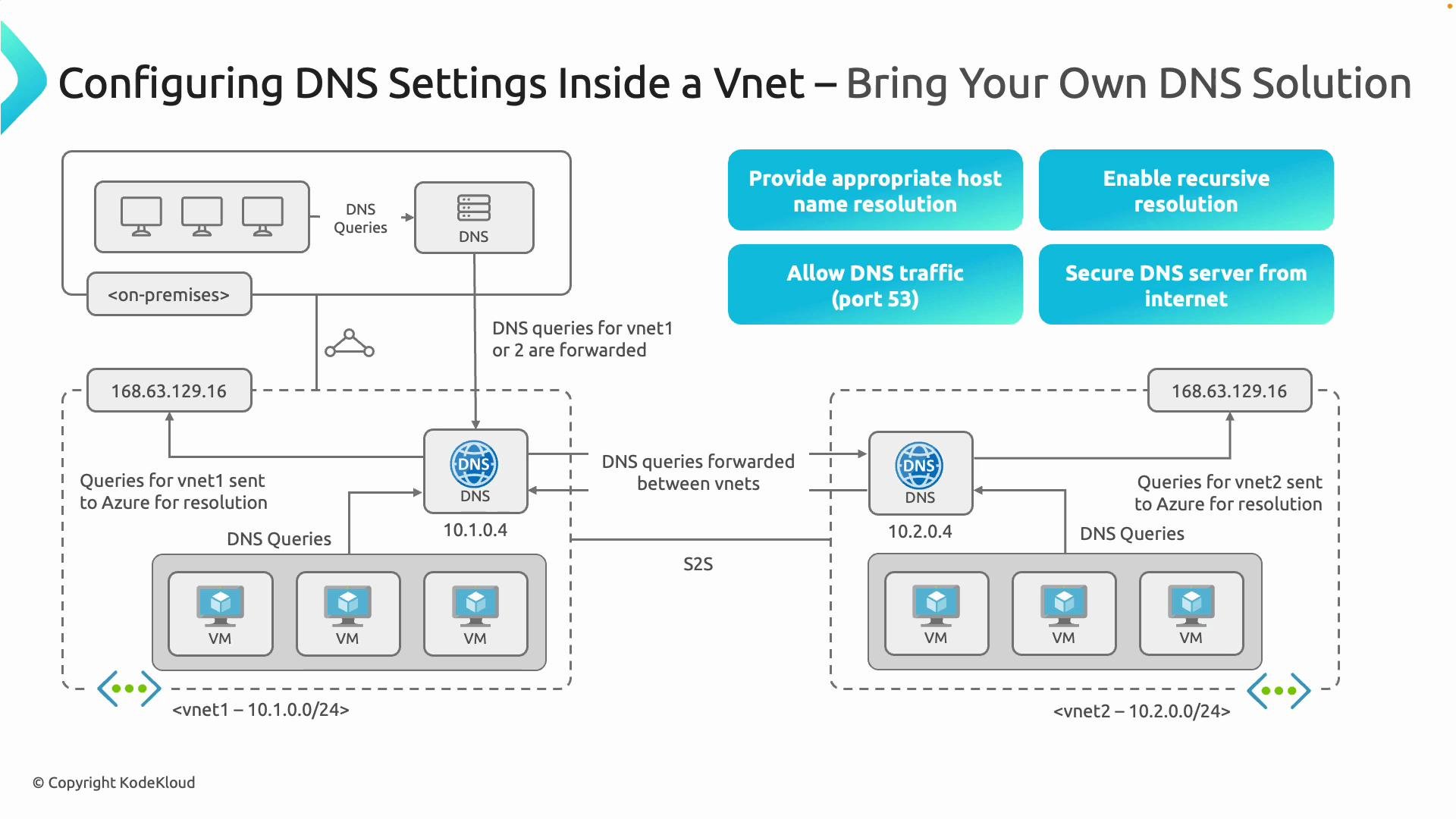 Key takeaways from the architecture diagram:
* Each VNet can host its own DNS server (for example `10.1.0.4` in VNet1 and `10.2.0.4` in VNet2). VMs inside that VNet point to the local DNS server for resolution.
* If a DNS server cannot resolve a name locally, it forwards queries across peering/site‑to‑site/ExpressRoute links or to Azure's platform DNS resolver at `168.63.129.16` if configured.
* Ensure appropriate firewall/NSG rules for DNS (UDP/TCP port `53`) and that recursive resolution or forwarders are configured.
* Do not expose internal DNS servers directly to the public internet; always place them behind network controls.
Design your DNS for recursive resolution using forwarders or direct recursion. Use hub‑and‑spoke or centralized DNS patterns: place DNS servers in a hub VNet and have spokes forward queries (via peering or conditional forwarders). Link the Private DNS zone to the hub instead of linking every spoke directly.
Essentials for a working custom DNS deployment
* DNS servers must have records or forwarders for all relevant zones (private zones, conditional forwarders).
* Allow UDP/TCP port `53` between clients, DNS servers, and across networks where resolution must traverse.
* Secure internal DNS servers with NSGs, firewalls, or private endpoints — do not publish them to the public internet.
DNS traffic and port summary:
| Protocol | Port | Use case |
| -------- | ---- | ------------------------------------------------------------------------ |
| UDP | `53` | Standard DNS queries and responses (most lookups) |
| TCP | `53` | Zone transfers, large responses and fallbacks |
| — | — | Ensure NSGs and firewalls permit both directions where DNS must traverse |
Do not publish internal DNS servers directly to the internet. Restrict access using NSGs, firewalls, or private connectivity and use Azure platform DNS (`168.63.129.16`) where appropriate.
Walkthrough: create a simple test environment
This walkthrough creates a minimal foundation: resource group, two VNets with subnets, and an example public IP. Extend this to add NICs and VMs as needed.
PowerShell example to create resource group, two VNets and subnets:
```powershell theme={null}
# Variables
$resourceGroup = "rg-az700-private-dns"
$locationEUS = "eastus"
$locationWUS = "westus"
$username = "kodakloud"
$password = "@dm1nP@ssW0rd"
# VM 1 (East US)
$vmName1 = "vm-az700-eus-01"
$netName1 = "vnet-az700-eus"
$subnetName1 = "subnet-az700-eus"
$ipName1 = "ip-az700-eus"
$nicName1 = "nic-az700-eus"
$addressPrefix1 = "10.10.0.0/16"
$subnetPrefix1 = "10.10.1.0/24"
# VM 2 (West US)
$vmName2 = "vm-az700-wus-01"
$netName2 = "vnet-az700-wus"
$subnetName2 = "subnet-az700-wus"
$ipName2 = "ip-az700-wus"
$nicName2 = "nic-az700-wus"
$addressPrefix2 = "10.20.0.0/16"
$subnetPrefix2 = "10.20.1.0/24"
# Create Resource Group
New-AzResourceGroup -Name $resourceGroup -Location $locationEUS
# Create Subnet configurations
$subnet1 = New-AzVirtualNetworkSubnetConfig -Name $subnetName1 -AddressPrefix $subnetPrefix1
$subnet2 = New-AzVirtualNetworkSubnetConfig -Name $subnetName2 -AddressPrefix $subnetPrefix2
# Create VNets
New-AzVirtualNetwork -Name $netName1 -ResourceGroupName $resourceGroup -Location $locationEUS -AddressPrefix $addressPrefix1 -Subnet $subnet1
New-AzVirtualNetwork -Name $netName2 -ResourceGroupName $resourceGroup -Location $locationWUS -AddressPrefix $addressPrefix2 -Subnet $subnet2
# Create a Public IP (example)
New-AzPublicIpAddress -Name $ipName1 -ResourceGroupName $resourceGroup -Location $locationEUS -AllocationMethod Static
```
Create a Private DNS zone
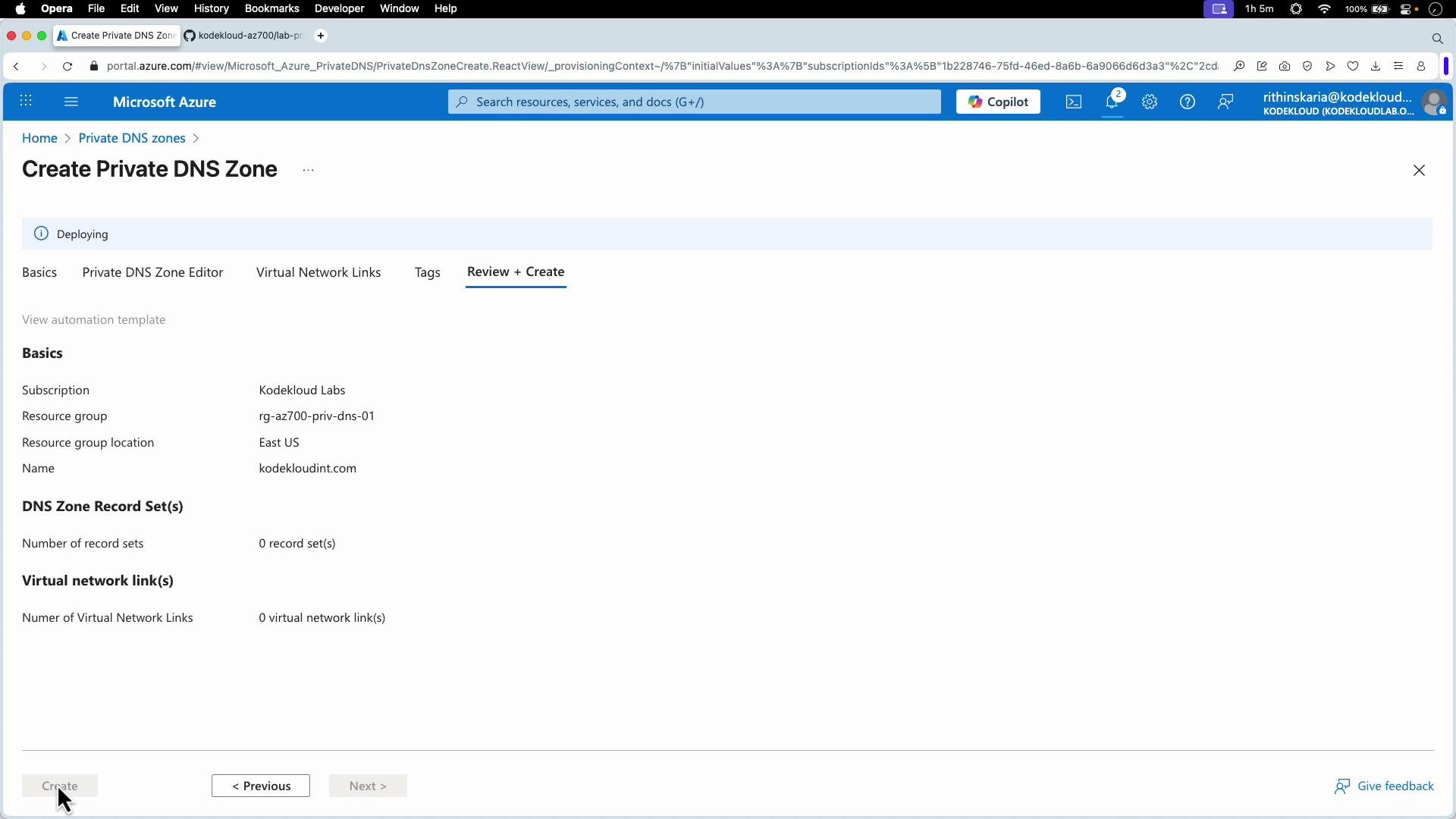
* In the Azure portal go to Private DNS zones and create a new zone (example: `kodekloudint.com`) in a resource group such as `RG-AZ700-PRIV-DNS-01`. Private DNS zones are global resources; the resource group location stores metadata only.
Key takeaways from the architecture diagram:
* Each VNet can host its own DNS server (for example `10.1.0.4` in VNet1 and `10.2.0.4` in VNet2). VMs inside that VNet point to the local DNS server for resolution.
* If a DNS server cannot resolve a name locally, it forwards queries across peering/site‑to‑site/ExpressRoute links or to Azure's platform DNS resolver at `168.63.129.16` if configured.
* Ensure appropriate firewall/NSG rules for DNS (UDP/TCP port `53`) and that recursive resolution or forwarders are configured.
* Do not expose internal DNS servers directly to the public internet; always place them behind network controls.
Design your DNS for recursive resolution using forwarders or direct recursion. Use hub‑and‑spoke or centralized DNS patterns: place DNS servers in a hub VNet and have spokes forward queries (via peering or conditional forwarders). Link the Private DNS zone to the hub instead of linking every spoke directly.
Essentials for a working custom DNS deployment
* DNS servers must have records or forwarders for all relevant zones (private zones, conditional forwarders).
* Allow UDP/TCP port `53` between clients, DNS servers, and across networks where resolution must traverse.
* Secure internal DNS servers with NSGs, firewalls, or private endpoints — do not publish them to the public internet.
DNS traffic and port summary:
| Protocol | Port | Use case |
| -------- | ---- | ------------------------------------------------------------------------ |
| UDP | `53` | Standard DNS queries and responses (most lookups) |
| TCP | `53` | Zone transfers, large responses and fallbacks |
| — | — | Ensure NSGs and firewalls permit both directions where DNS must traverse |
Do not publish internal DNS servers directly to the internet. Restrict access using NSGs, firewalls, or private connectivity and use Azure platform DNS (`168.63.129.16`) where appropriate.
Walkthrough: create a simple test environment
This walkthrough creates a minimal foundation: resource group, two VNets with subnets, and an example public IP. Extend this to add NICs and VMs as needed.
PowerShell example to create resource group, two VNets and subnets:
```powershell theme={null}
# Variables
$resourceGroup = "rg-az700-private-dns"
$locationEUS = "eastus"
$locationWUS = "westus"
$username = "kodakloud"
$password = "@dm1nP@ssW0rd"
# VM 1 (East US)
$vmName1 = "vm-az700-eus-01"
$netName1 = "vnet-az700-eus"
$subnetName1 = "subnet-az700-eus"
$ipName1 = "ip-az700-eus"
$nicName1 = "nic-az700-eus"
$addressPrefix1 = "10.10.0.0/16"
$subnetPrefix1 = "10.10.1.0/24"
# VM 2 (West US)
$vmName2 = "vm-az700-wus-01"
$netName2 = "vnet-az700-wus"
$subnetName2 = "subnet-az700-wus"
$ipName2 = "ip-az700-wus"
$nicName2 = "nic-az700-wus"
$addressPrefix2 = "10.20.0.0/16"
$subnetPrefix2 = "10.20.1.0/24"
# Create Resource Group
New-AzResourceGroup -Name $resourceGroup -Location $locationEUS
# Create Subnet configurations
$subnet1 = New-AzVirtualNetworkSubnetConfig -Name $subnetName1 -AddressPrefix $subnetPrefix1
$subnet2 = New-AzVirtualNetworkSubnetConfig -Name $subnetName2 -AddressPrefix $subnetPrefix2
# Create VNets
New-AzVirtualNetwork -Name $netName1 -ResourceGroupName $resourceGroup -Location $locationEUS -AddressPrefix $addressPrefix1 -Subnet $subnet1
New-AzVirtualNetwork -Name $netName2 -ResourceGroupName $resourceGroup -Location $locationWUS -AddressPrefix $addressPrefix2 -Subnet $subnet2
# Create a Public IP (example)
New-AzPublicIpAddress -Name $ipName1 -ResourceGroupName $resourceGroup -Location $locationEUS -AllocationMethod Static
```
Create a Private DNS zone
* In the Azure portal go to Private DNS zones and create a new zone (example: `kodekloudint.com`) in a resource group such as `RG-AZ700-PRIV-DNS-01`. Private DNS zones are global resources; the resource group location stores metadata only.
 Linking VNets to the Private DNS zone
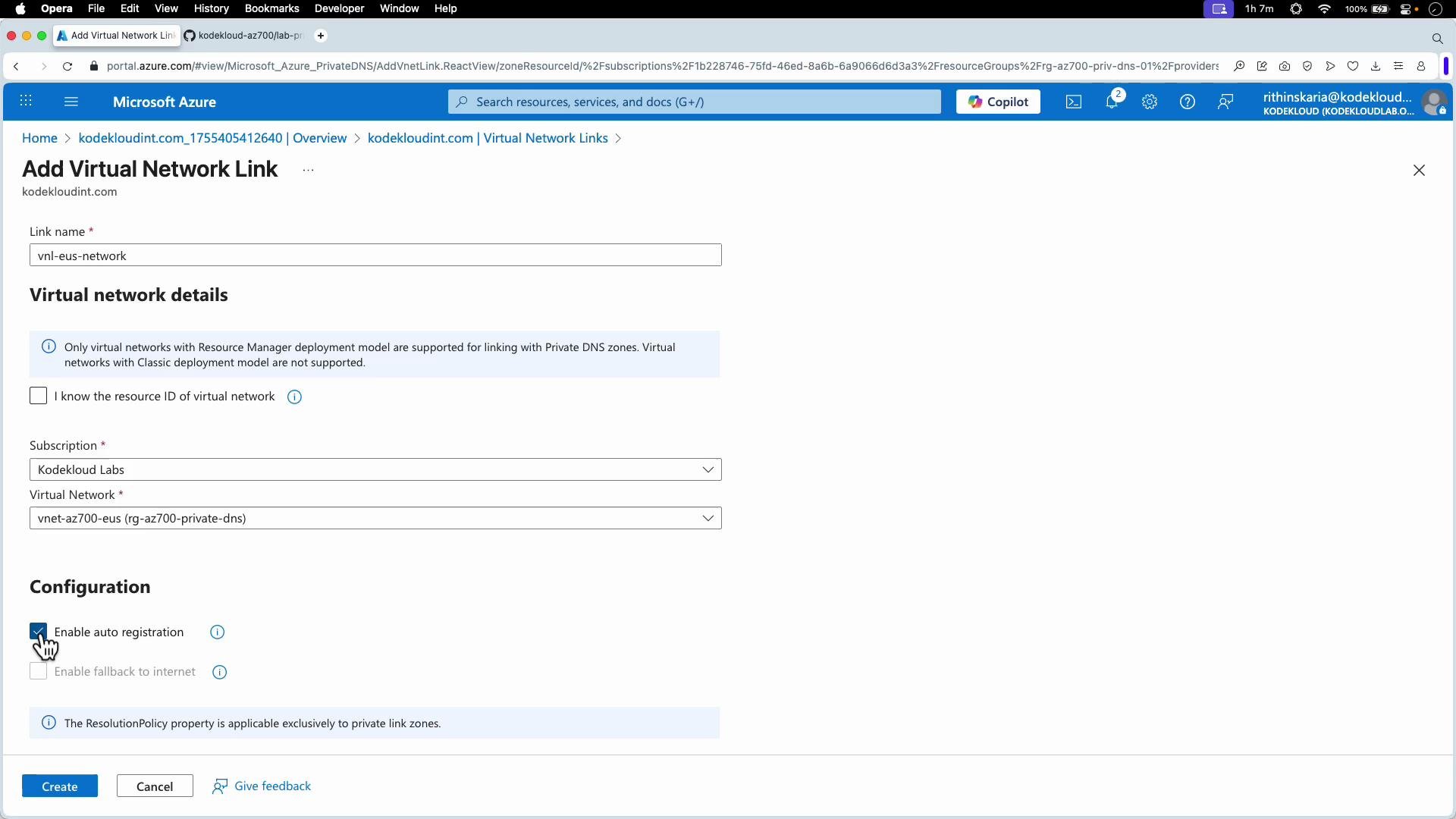
By default a private DNS zone is not linked to any virtual networks. To make a VNet resolve names in that zone, add a virtual network link.
* A Virtual Network Link tells Azure that the zone (for example `kodekloudint.com`) will be used for name resolution by that VNet.
* Enable "Auto registration" so that new VMs in the linked VNet automatically register host A records into the private zone.
In the portal, add a Virtual Network Link, select the target VNet, and enable auto‑registration as required.
Linking VNets to the Private DNS zone
By default a private DNS zone is not linked to any virtual networks. To make a VNet resolve names in that zone, add a virtual network link.
* A Virtual Network Link tells Azure that the zone (for example `kodekloudint.com`) will be used for name resolution by that VNet.
* Enable "Auto registration" so that new VMs in the linked VNet automatically register host A records into the private zone.
In the portal, add a Virtual Network Link, select the target VNet, and enable auto‑registration as required.
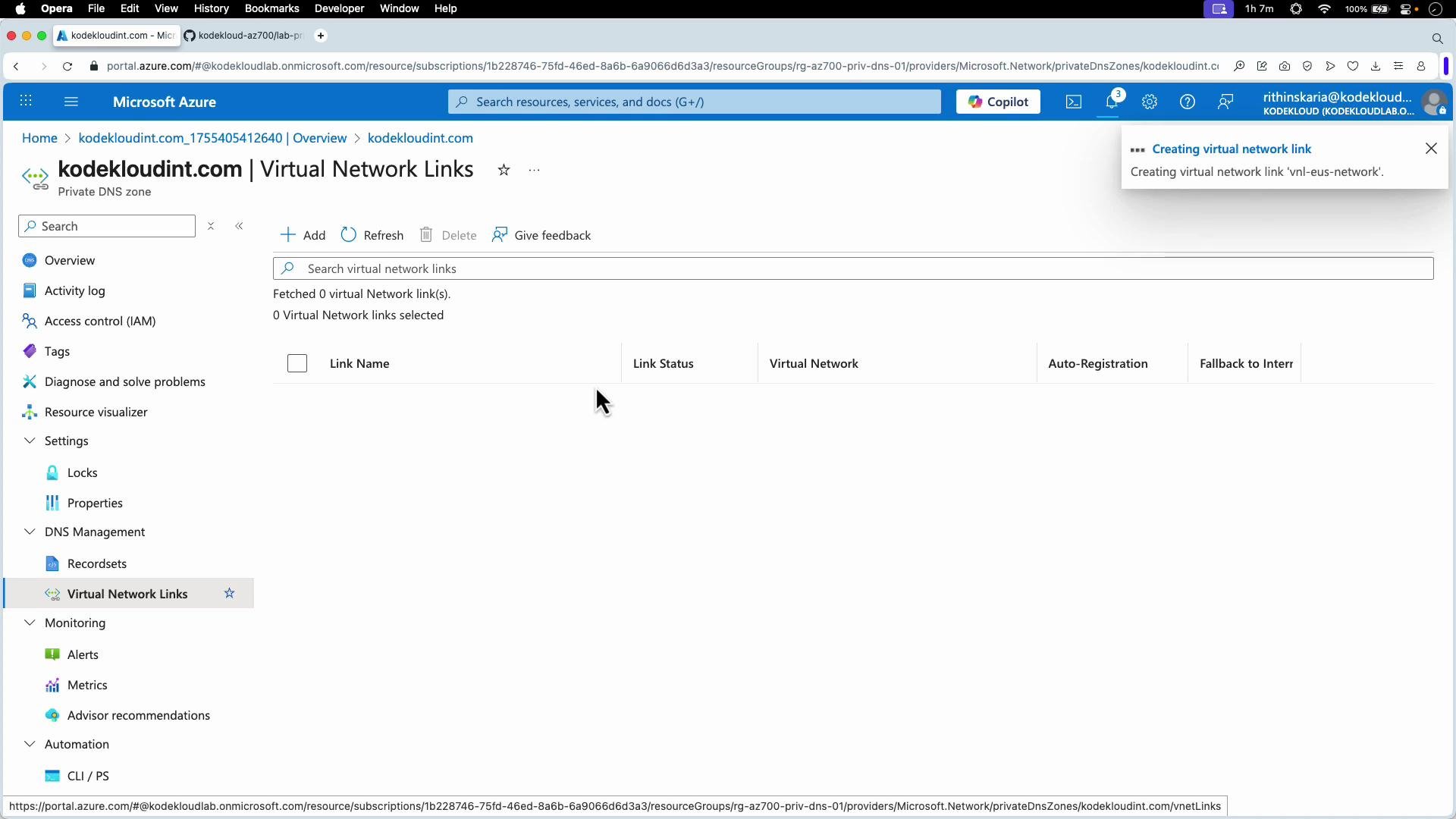
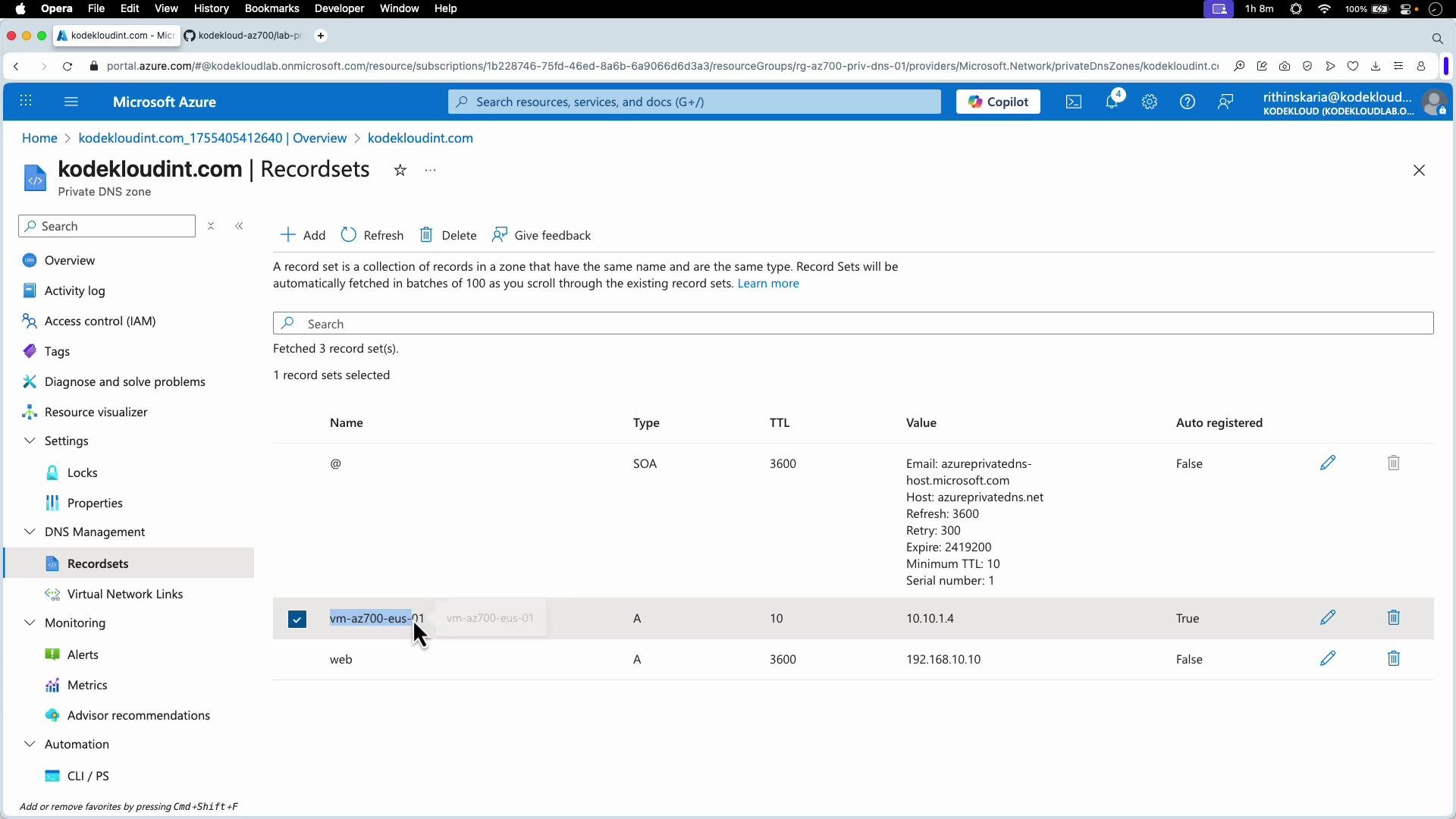
 After you create a virtual network link, the linked VNet can resolve records in the private DNS zone. Initially a private zone includes SOA and NS records only; with auto‑registration enabled, VM host A records appear automatically.
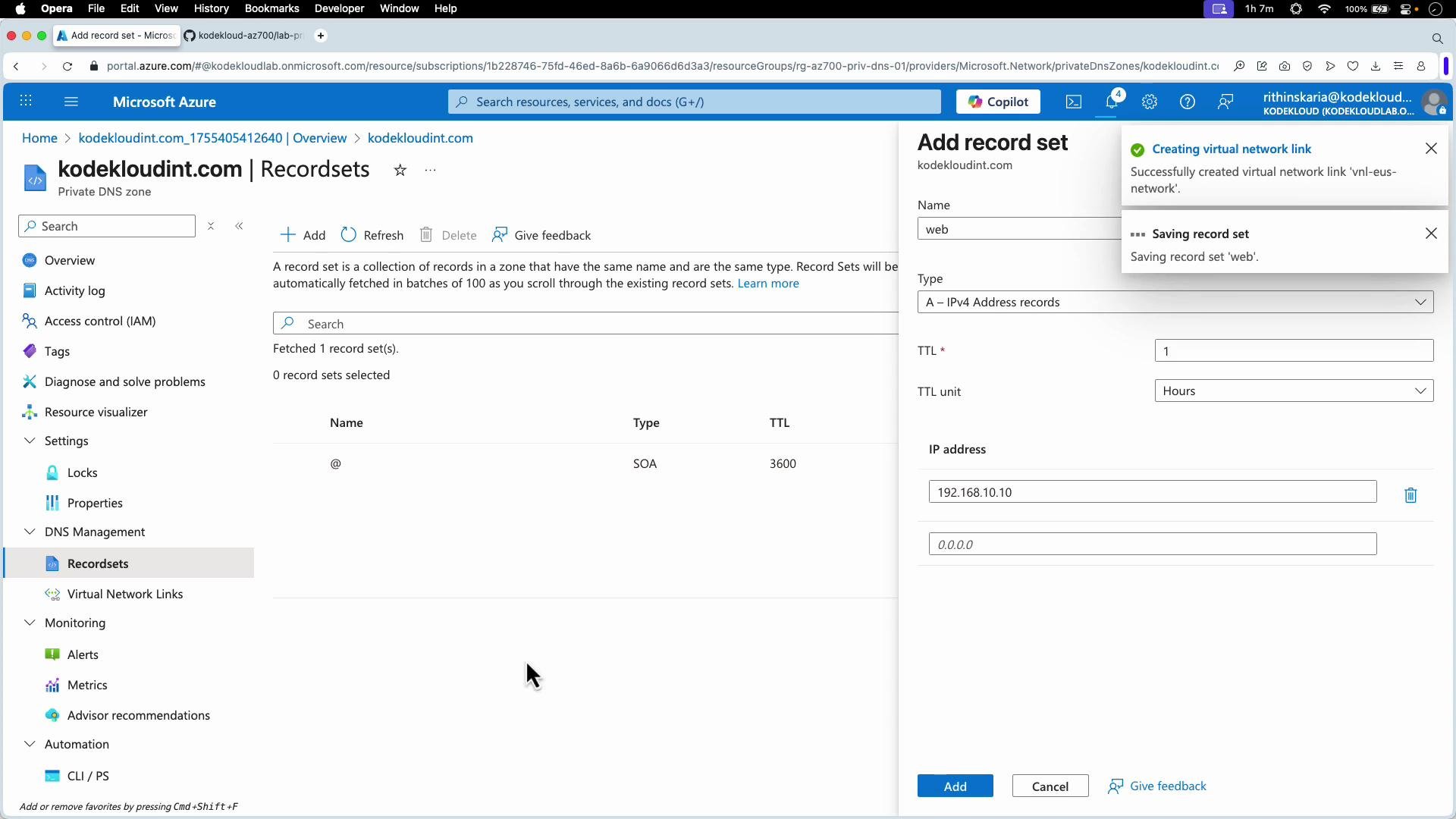
 Add manual record sets (optional)
You can manually add records to a Private DNS zone — for example, an A record `web.kodekloudint.com` pointing to `192.168.10.10`.
Add manual record sets (optional)
You can manually add records to a Private DNS zone — for example, an A record `web.kodekloudint.com` pointing to `192.168.10.10`.
 Over time you will see record types such as SOA, NS, manually created A records, and auto‑registered VM records listed in the zone.
 Testing from VMs
* If a VM is in a VNet linked to the private DNS zone, `nslookup` on the VM should return records from that zone.
* If a VM is in a VNet that is not linked, lookups for the private names will return `NXDOMAIN`.
Example: SSH to the East US VM (which has its VNet linked) and resolve the manually created `web.kodekloudint.com` record:
```bash theme={null}
ssh kodekloud@172.174.2.101
# On the remote VM:
kodekloud@vm-az700-eus-01:~$ nslookup web.kodekloudint.com
Server: 127.0.0.53
Address: 127.0.0.53#53
Non-authoritative answer:
Name: web.kodekloudint.com
Address: 192.168.10.10
```
From the West US VM (before linking its VNet), the same lookup returns `NXDOMAIN`:
```bash theme={null}
ssh kodekloud@20.253.255.34
# On the remote VM:
kodekloud@vm-az700-wus-01:~$ nslookup web.kodekloudint.com
Server: 127.0.0.53
Address: 127.0.0.53#53
** server can't find web.kodekloudint.com: NXDOMAIN
```
To fix that, add a Virtual Network Link for the West US VNet (enable auto‑registration if desired). After linking, the West US VM can resolve the East US VM's auto‑registered record:
Testing from VMs
* If a VM is in a VNet linked to the private DNS zone, `nslookup` on the VM should return records from that zone.
* If a VM is in a VNet that is not linked, lookups for the private names will return `NXDOMAIN`.
Example: SSH to the East US VM (which has its VNet linked) and resolve the manually created `web.kodekloudint.com` record:
```bash theme={null}
ssh kodekloud@172.174.2.101
# On the remote VM:
kodekloud@vm-az700-eus-01:~$ nslookup web.kodekloudint.com
Server: 127.0.0.53
Address: 127.0.0.53#53
Non-authoritative answer:
Name: web.kodekloudint.com
Address: 192.168.10.10
```
From the West US VM (before linking its VNet), the same lookup returns `NXDOMAIN`:
```bash theme={null}
ssh kodekloud@20.253.255.34
# On the remote VM:
kodekloud@vm-az700-wus-01:~$ nslookup web.kodekloudint.com
Server: 127.0.0.53
Address: 127.0.0.53#53
** server can't find web.kodekloudint.com: NXDOMAIN
```
To fix that, add a Virtual Network Link for the West US VNet (enable auto‑registration if desired). After linking, the West US VM can resolve the East US VM's auto‑registered record:
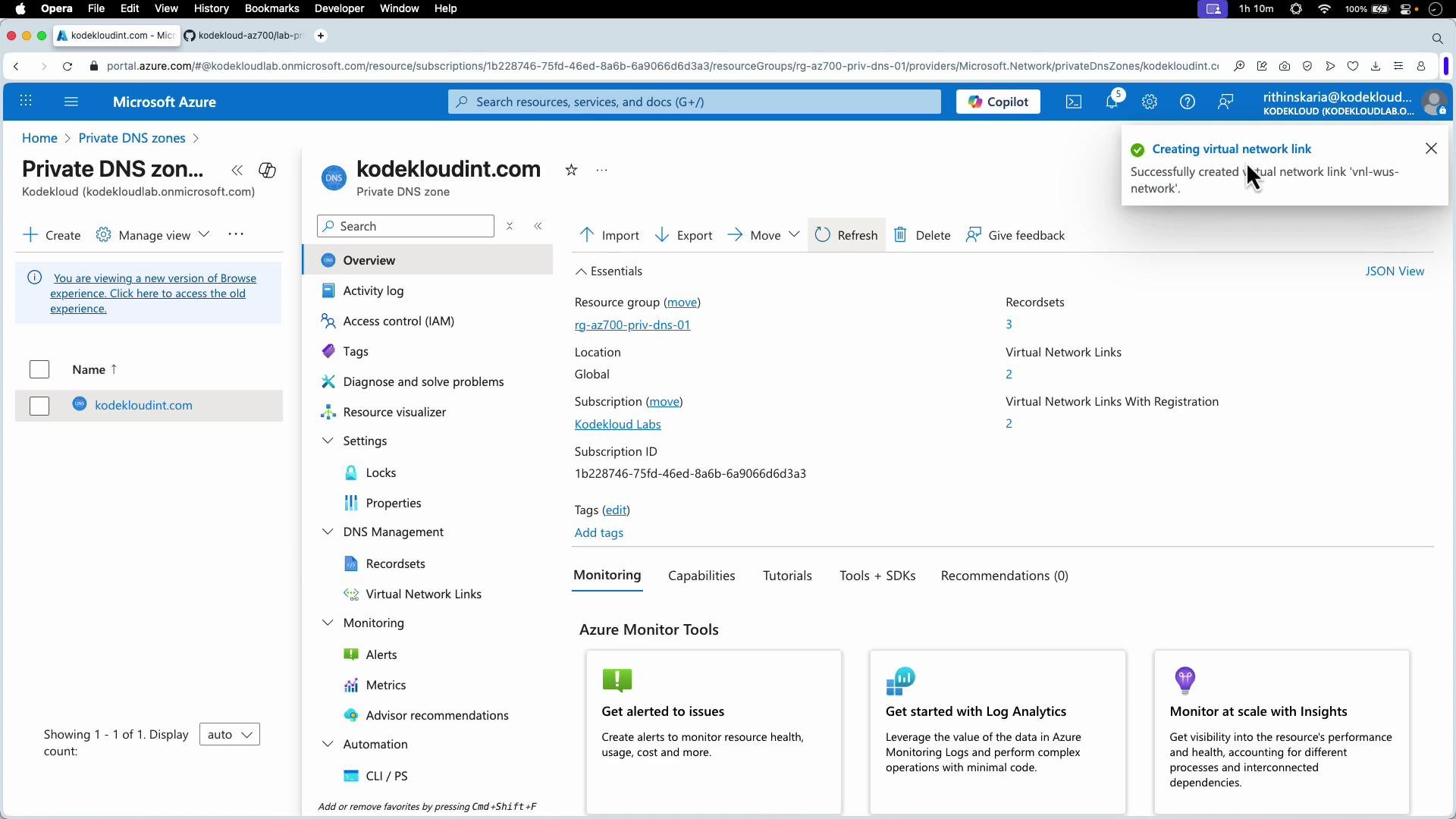 Example after linking:
```bash theme={null}
# On West US VM after linking its VNet to the private DNS zone:
kodekloud@vm-az700-wus-01:~$ nslookup vm-az700-eus-01.kodekloudint.com
Server: 127.0.0.53
Address: 127.0.0.53#53
Non-authoritative answer:
Name: vm-az700-eus-01.kodekloudint.com
Address: 10.10.1.4
# The name resolves, but connectivity depends on VNet connectivity (peering, VPN, etc.)
kodekloud@vm-az700-wus-01:~$ ping vm-az700-eus-01.kodekloudint.com
PING vm-az700-eus-01.kodekloudint.com (10.10.1.4) 56(84) bytes of data.
```
Important: name resolution does not guarantee reachability. If VNets are isolated (no peering, no VPN/ExpressRoute), DNS will resolve names but network traffic will not flow. To enable traffic, establish VNet peering or appropriate private connectivity.
Summary and recommended practices
* Use Azure Private DNS zones for private name resolution and link VNets with Virtual Network Links.
* Enable auto‑registration for dynamic VM record creation in linked VNets.
* For complex environments, use hub‑and‑spoke DNS placement and conditional forwarders to on‑premises DNS to avoid linking every spoke VNet to a zone.
* Secure your DNS servers and network access; do not expose internal DNS servers to the internet.
* Combine DNS configuration with proper network connectivity (peering, VPN, ExpressRoute) to provide both resolution and reachability.
Links and references
* Azure Private DNS zones: [https://learn.microsoft.com/azure/dns/private-dns-overview](https://learn.microsoft.com/azure/dns/private-dns-overview)
* Azure DNS recursive resolver: [https://learn.microsoft.com/azure/dns/dns-resolver-overview](https://learn.microsoft.com/azure/dns/dns-resolver-overview)
* VNet peering: [https://learn.microsoft.com/azure/virtual-network/virtual-network-peering](https://learn.microsoft.com/azure/virtual-network/virtual-network-peering)
For further examples on conditional forwarders and DNS forwarding between Azure and on‑premises, see the Azure DNS documentation and design guidance above.
Example after linking:
```bash theme={null}
# On West US VM after linking its VNet to the private DNS zone:
kodekloud@vm-az700-wus-01:~$ nslookup vm-az700-eus-01.kodekloudint.com
Server: 127.0.0.53
Address: 127.0.0.53#53
Non-authoritative answer:
Name: vm-az700-eus-01.kodekloudint.com
Address: 10.10.1.4
# The name resolves, but connectivity depends on VNet connectivity (peering, VPN, etc.)
kodekloud@vm-az700-wus-01:~$ ping vm-az700-eus-01.kodekloudint.com
PING vm-az700-eus-01.kodekloudint.com (10.10.1.4) 56(84) bytes of data.
```
Important: name resolution does not guarantee reachability. If VNets are isolated (no peering, no VPN/ExpressRoute), DNS will resolve names but network traffic will not flow. To enable traffic, establish VNet peering or appropriate private connectivity.
Summary and recommended practices
* Use Azure Private DNS zones for private name resolution and link VNets with Virtual Network Links.
* Enable auto‑registration for dynamic VM record creation in linked VNets.
* For complex environments, use hub‑and‑spoke DNS placement and conditional forwarders to on‑premises DNS to avoid linking every spoke VNet to a zone.
* Secure your DNS servers and network access; do not expose internal DNS servers to the internet.
* Combine DNS configuration with proper network connectivity (peering, VPN, ExpressRoute) to provide both resolution and reachability.
Links and references
* Azure Private DNS zones: [https://learn.microsoft.com/azure/dns/private-dns-overview](https://learn.microsoft.com/azure/dns/private-dns-overview)
* Azure DNS recursive resolver: [https://learn.microsoft.com/azure/dns/dns-resolver-overview](https://learn.microsoft.com/azure/dns/dns-resolver-overview)
* VNet peering: [https://learn.microsoft.com/azure/virtual-network/virtual-network-peering](https://learn.microsoft.com/azure/virtual-network/virtual-network-peering)
For further examples on conditional forwarders and DNS forwarding between Azure and on‑premises, see the Azure DNS documentation and design guidance above.