> ## Documentation Index
> Fetch the complete documentation index at: https://notes.kodekloud.com/llms.txt
> Use this file to discover all available pages before exploring further.
# Connect to Virtual Machines
> Guide to Azure Bastion for secure browser-based RDP and SSH to VMs using private IPs, deployment steps, subnet requirement, and SKU feature comparison.
Azure Bastion provides secure RDP and SSH connectivity to virtual machines directly from the Azure portal—without assigning public IP addresses to those VMs. Bastion tunnels RDP/SSH traffic over TLS (port 443), encrypting traffic end-to-end and allowing administrators to reach VMs using private IPs inside the virtual network.
Key benefits:
* No public IPs required on virtual machines.
* Browser-based RDP/SSH sessions over TLS (443).
* Centralized, auditable access to VMs from the Azure portal.
Azure Bastion must be deployed into a dedicated subnet named exactly `AzureBastionSubnet`. If the subnet name differs, Bastion cannot be deployed there—this name is mandatory.
High-level connectivity flow:
* An administrator signs into the Azure portal over the internet (TLS on port 443).
* Azure Bastion is deployed inside the virtual network in the `AzureBastionSubnet`.
* Bastion connects to target VMs using RDP or SSH over their private IP addresses.
* Because only private IPs are used, VMs do not expose public IPs.
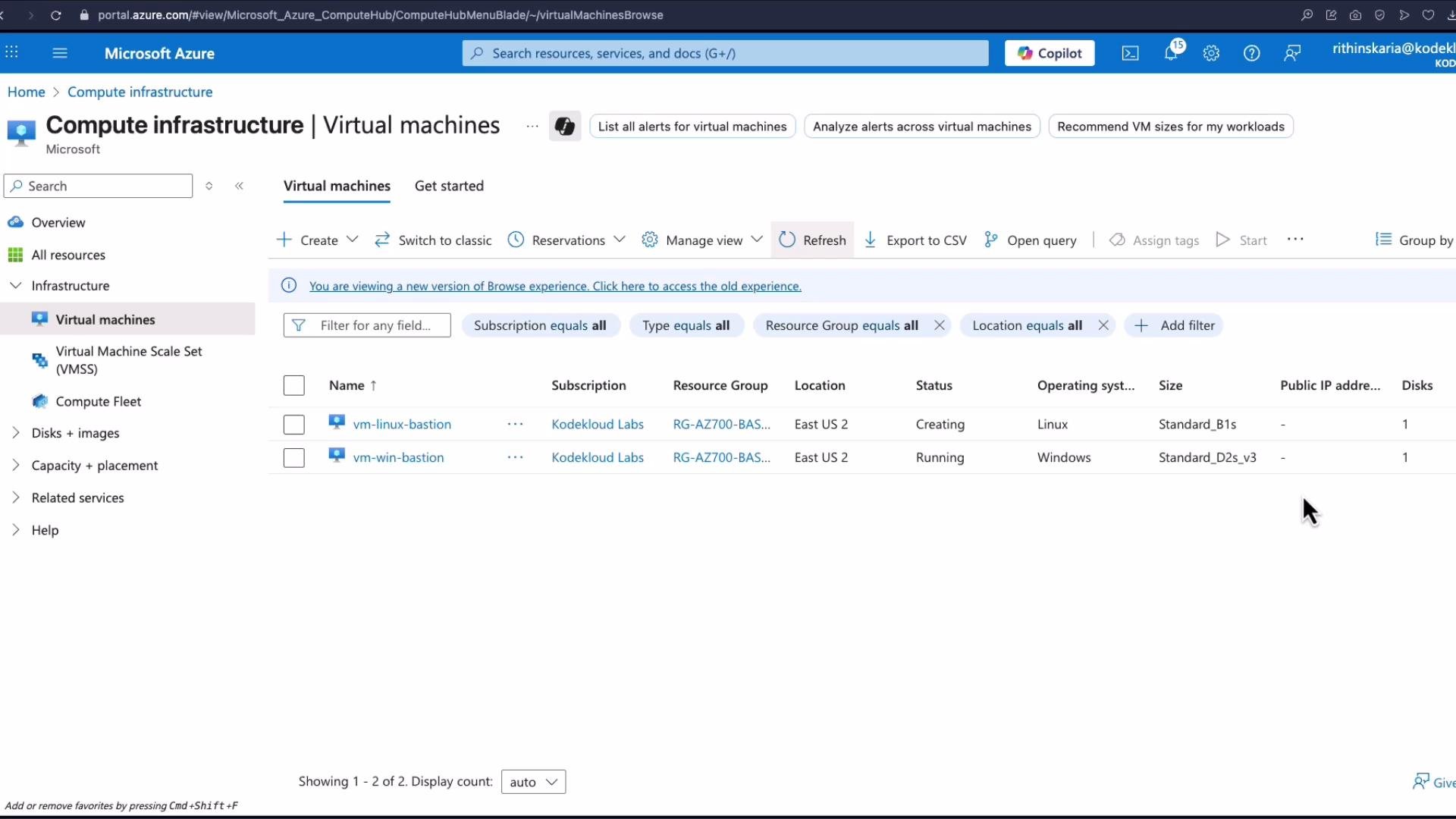
Example: An Azure subscription with two VMs (one Linux, one Windows) where neither VM has a public IP attached.
 ## Deploy Azure Bastion from the Azure portal
Follow these steps to create a Bastion host:
1. In the Azure portal, search for and open the **Bastion** service, then click **Create**.
2. Select (or create) a resource group and provide a name for the Bastion instance (for example: `Bastion-EastUS2`).
3. Choose the target virtual network that contains the VMs and ensure the `AzureBastionSubnet` exists and uses the correct name.
4. Select the SKU:
* Developer (for testing; limited features and concurrency)
* Standard (production)
* Premium (advanced features)
5. Under Advanced settings, review optional features: clipboard support (copy/paste), IP-based connections, and Kerberos authentication—feature availability depends on the selected SKU.
6. Add tags if required, then **Review + create** → **Create**.
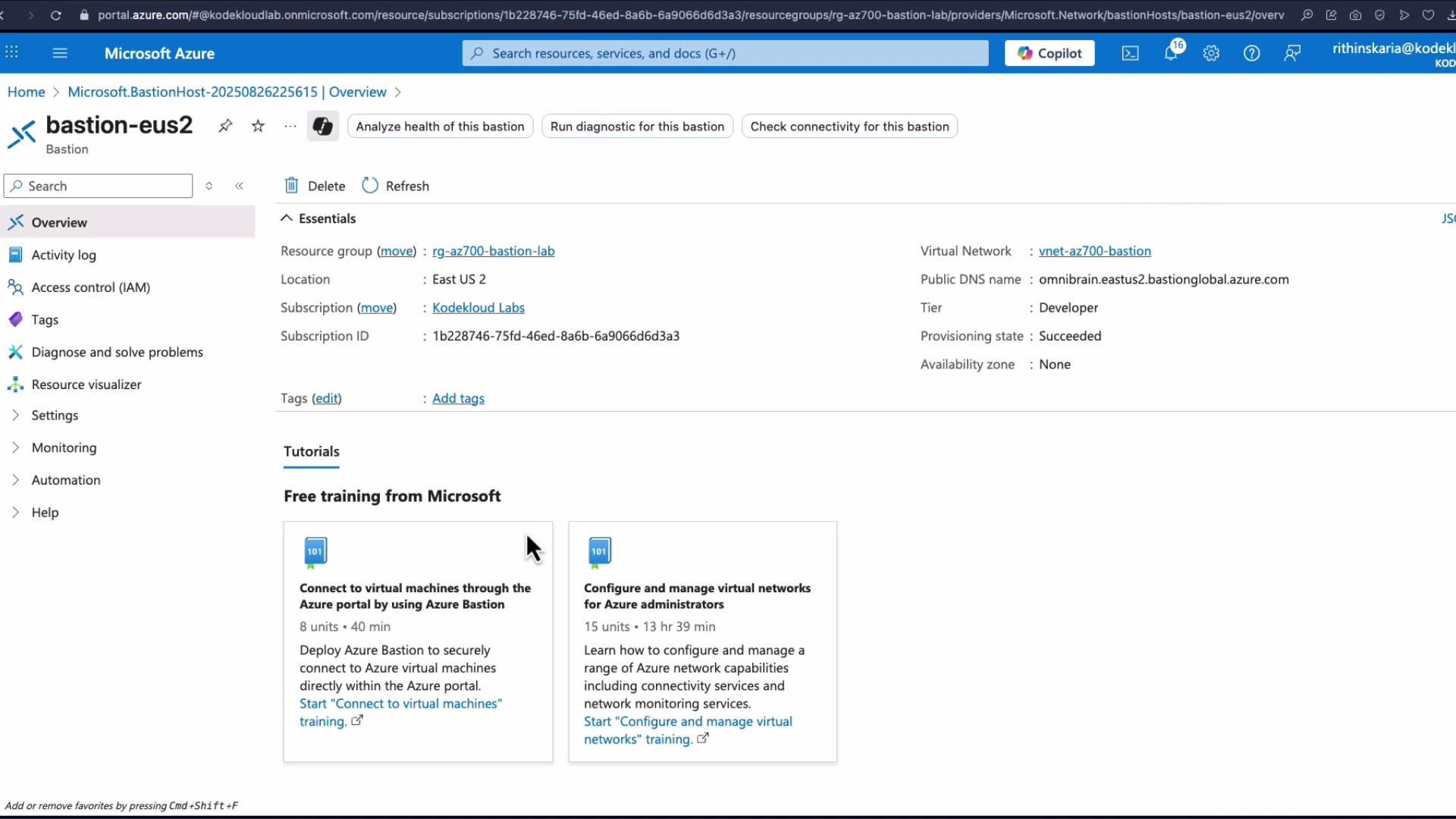
After deployment you can open the Bastion resource to review its configuration and public DNS name.
## Deploy Azure Bastion from the Azure portal
Follow these steps to create a Bastion host:
1. In the Azure portal, search for and open the **Bastion** service, then click **Create**.
2. Select (or create) a resource group and provide a name for the Bastion instance (for example: `Bastion-EastUS2`).
3. Choose the target virtual network that contains the VMs and ensure the `AzureBastionSubnet` exists and uses the correct name.
4. Select the SKU:
* Developer (for testing; limited features and concurrency)
* Standard (production)
* Premium (advanced features)
5. Under Advanced settings, review optional features: clipboard support (copy/paste), IP-based connections, and Kerberos authentication—feature availability depends on the selected SKU.
6. Add tags if required, then **Review + create** → **Create**.
After deployment you can open the Bastion resource to review its configuration and public DNS name.
 ## Bastion SKU and feature comparison
| SKU | Use case | Notes |
| --------- | --------------------- | ------------------------------------------------------------ |
| Developer | Test/dev environments | Limited concurrency (one active session) and fewer features |
| Standard | Production | Supports multiple concurrent sessions and core features |
| Premium | Enterprise | Advanced features such as enhanced security and integrations |
For full, up-to-date SKU capabilities and pricing, see the official Azure Bastion documentation linked at the end.
## Connect to a VM via Bastion (Portal)
To open a Bastion session from the portal:
1. Go to **Virtual Machines** and open the VM you want to access.
2. Click **Connect** → **Connect via Bastion**.
3. Provide the VM credentials (username/password or select SSH private key for Linux).
4. Click **Connect** — the session opens in a new browser tab. If a pop-up is blocked, allow pop-ups for the portal.
When connecting to a Linux VM via Bastion, the browser-based SSH session shows the VM login prompt and shell output. Example login banner and prompt:
```bash theme={null}
Welcome to Ubuntu 22.04.5 LTS (GNU/Linux 6.1.0-1031-azure x86_64)
* Documentation: https://help.ubuntu.com/
* Management: https://landscape.canonical.com/
* Support: https://ubuntu.com/
System information as of Tue Aug 26 19:58:13 UTC 2025
System load: 0.03 Processes: 108
Usage of /: 5.4% of 28.8G Users logged in: 0
IPv4 address for eth0: 10.0.1.5
Swap usage: 0%
Expanded Security Maintenance for Applications is not enabled.
Updates can be applied immediately.
Enable ESM Apps to receive additional future security updates.
See https://ubuntu.com/esm or run: sudo pro status
The list of available updates is more than a week old.
To check for new updates run: sudo apt update
The programs included with the Ubuntu system are free software;
the exact distribution terms for each program are described in the
individual files in /usr/share/doc/*/copyright.
Ubuntu comes with ABSOLUTELY NO WARRANTY, to the extent permitted by
applicable law.
To run a command as administrator (user "root"), use "sudo ".
See "man sudo_root" for details.
kodek loud@vm-linux-bastion:~$
```
The Developer SKU supports only one active Bastion session at a time. For multiple concurrent sessions or advanced features (IP-based connections, Kerberos authentication, etc.), upgrade to the Standard or Premium SKU.
## Bastion SKU and feature comparison
| SKU | Use case | Notes |
| --------- | --------------------- | ------------------------------------------------------------ |
| Developer | Test/dev environments | Limited concurrency (one active session) and fewer features |
| Standard | Production | Supports multiple concurrent sessions and core features |
| Premium | Enterprise | Advanced features such as enhanced security and integrations |
For full, up-to-date SKU capabilities and pricing, see the official Azure Bastion documentation linked at the end.
## Connect to a VM via Bastion (Portal)
To open a Bastion session from the portal:
1. Go to **Virtual Machines** and open the VM you want to access.
2. Click **Connect** → **Connect via Bastion**.
3. Provide the VM credentials (username/password or select SSH private key for Linux).
4. Click **Connect** — the session opens in a new browser tab. If a pop-up is blocked, allow pop-ups for the portal.
When connecting to a Linux VM via Bastion, the browser-based SSH session shows the VM login prompt and shell output. Example login banner and prompt:
```bash theme={null}
Welcome to Ubuntu 22.04.5 LTS (GNU/Linux 6.1.0-1031-azure x86_64)
* Documentation: https://help.ubuntu.com/
* Management: https://landscape.canonical.com/
* Support: https://ubuntu.com/
System information as of Tue Aug 26 19:58:13 UTC 2025
System load: 0.03 Processes: 108
Usage of /: 5.4% of 28.8G Users logged in: 0
IPv4 address for eth0: 10.0.1.5
Swap usage: 0%
Expanded Security Maintenance for Applications is not enabled.
Updates can be applied immediately.
Enable ESM Apps to receive additional future security updates.
See https://ubuntu.com/esm or run: sudo pro status
The list of available updates is more than a week old.
To check for new updates run: sudo apt update
The programs included with the Ubuntu system are free software;
the exact distribution terms for each program are described in the
individual files in /usr/share/doc/*/copyright.
Ubuntu comes with ABSOLUTELY NO WARRANTY, to the extent permitted by
applicable law.
To run a command as administrator (user "root"), use "sudo ".
See "man sudo_root" for details.
kodek loud@vm-linux-bastion:~$
```
The Developer SKU supports only one active Bastion session at a time. For multiple concurrent sessions or advanced features (IP-based connections, Kerberos authentication, etc.), upgrade to the Standard or Premium SKU.
 ## Connect to a Windows VM using Bastion
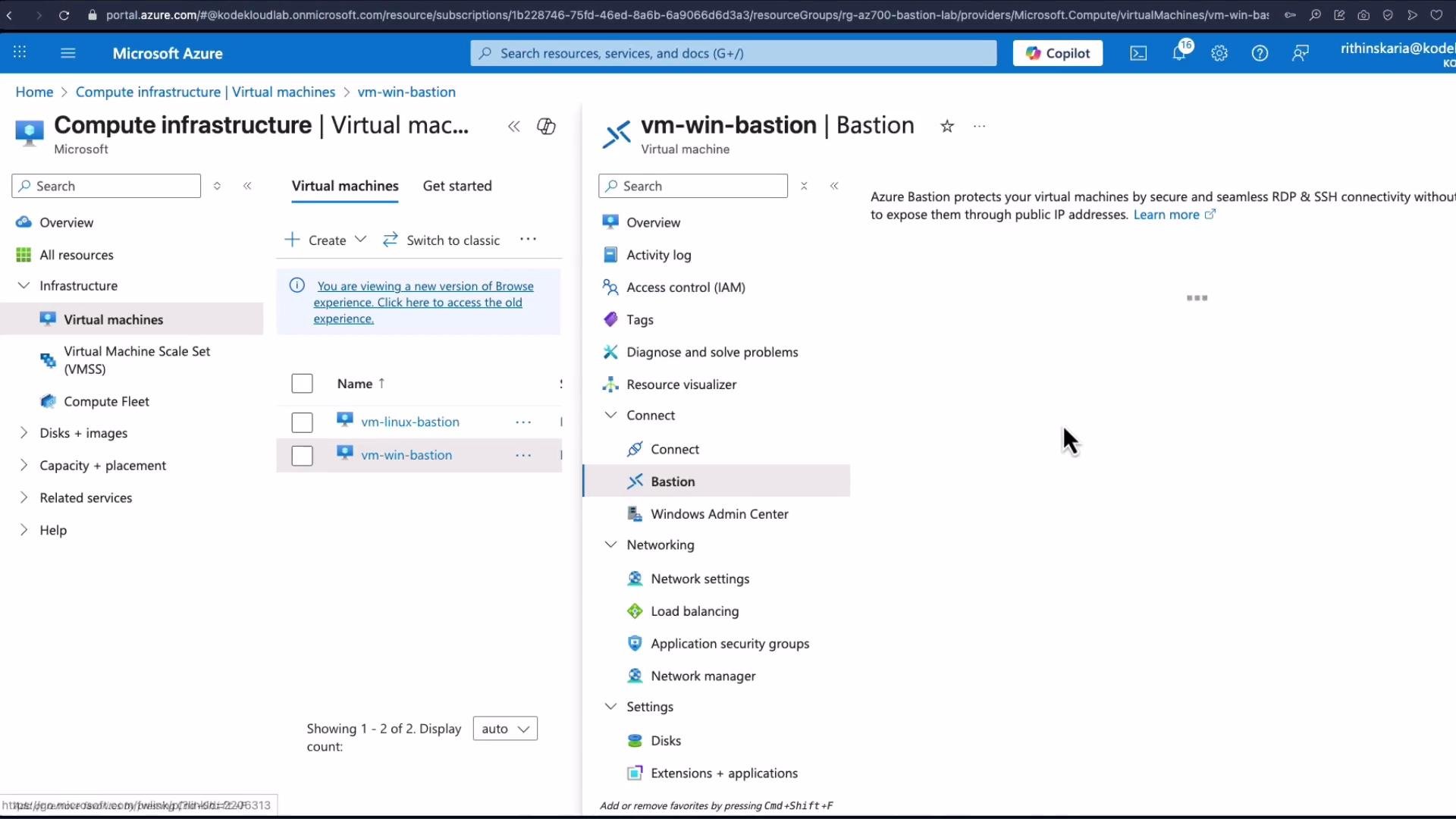
* In the portal, select the Windows VM, click **Connect** → **Bastion**.
* Enter the username (for example, `KodeKloud`) and password, then click **Connect**.
* The Bastion session launches an RDP desktop session in a browser tab—no public IP is required on the VM.
Using Bastion ensures that RDP and SSH access stays inside your virtual network perimeter while still allowing convenient portal-based access.
## Links and references
* Azure Bastion documentation: [https://learn.microsoft.com/azure/bastion](https://learn.microsoft.com/azure/bastion)
* Azure virtual network overview: [https://learn.microsoft.com/azure/virtual-network/virtual-networks-overview](https://learn.microsoft.com/azure/virtual-network/virtual-networks-overview)
The next section covers Azure Firewall.
## Connect to a Windows VM using Bastion
* In the portal, select the Windows VM, click **Connect** → **Bastion**.
* Enter the username (for example, `KodeKloud`) and password, then click **Connect**.
* The Bastion session launches an RDP desktop session in a browser tab—no public IP is required on the VM.
Using Bastion ensures that RDP and SSH access stays inside your virtual network perimeter while still allowing convenient portal-based access.
## Links and references
* Azure Bastion documentation: [https://learn.microsoft.com/azure/bastion](https://learn.microsoft.com/azure/bastion)
* Azure virtual network overview: [https://learn.microsoft.com/azure/virtual-network/virtual-networks-overview](https://learn.microsoft.com/azure/virtual-network/virtual-networks-overview)
The next section covers Azure Firewall.