> ## Documentation Index
> Fetch the complete documentation index at: https://notes.kodekloud.com/llms.txt
> Use this file to discover all available pages before exploring further.
# Configuring Peering
> Guide to configuring Azure virtual network peering, including peering options, Private DNS setup, lab steps for cross‑VNet private connectivity, testing, and best practices
Configuring peering between two Azure virtual networks (VNets) enables private, low-latency communication between resources across VNets without exposing traffic to the public internet. This guide explains the key peering options, shows a short lab that demonstrates name resolution plus private connectivity between two Linux VMs in separate VNets/regions, and provides sample commands you can reuse.
## Key peering settings
When creating a VNet peering, you typically choose from these options:
| Setting | What it does | When to enable |
| -------------------------------------------------- | ------------------------------------------------------------------------------------------------------------- | ---------------------------------------------------------------------------------------------- |
| Virtual Network Access | Allows resources in one VNet to directly reach resources in the peered VNet (e.g., ping, SSH, TCP/UDP). | Always enable when you need direct connectivity between VNets. |
| Forwarded Traffic | Permits traffic that was routed/inspected by an NVA or firewall in one VNet to continue into the peered VNet. | Enable for hub-and-spoke topologies where inspection or routing via a central NVA is required. |
| Gateway / Route Server Access (Use remote gateway) | Lets a VNet use a VPN gateway or route server deployed in the peered VNet (gateway transit). | Use when you want to share a single VPN/ExpressRoute gateway across VNets to save cost. |
Peering is configured per VNet—if you want bidirectional traffic, create the peering from both sides and enable the appropriate options.
Peering is non-transitive by default. To support forwarded traffic or gateway transit, ensure the correct options are enabled on both sides of the peering and that your routing/NVA policies permit transit.
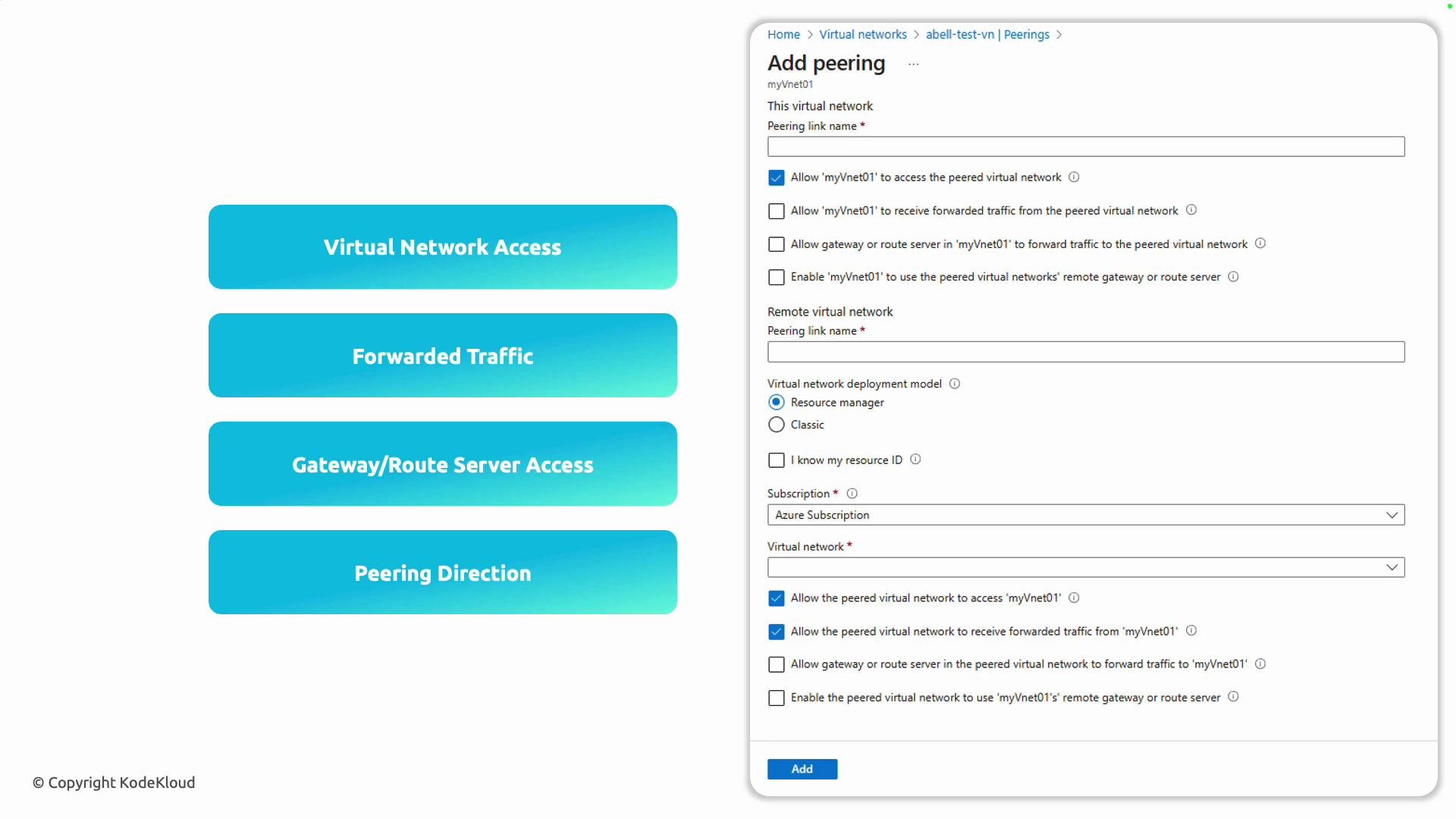 In the Azure portal the peering UI surfaces these toggles explicitly so you only grant what your topology requires.
## Lab overview
This lab demonstrates private DNS name resolution and peering-based connectivity between VNets in different regions:
* Two Linux VMs are deployed in separate VNets and regions (East US and West US).
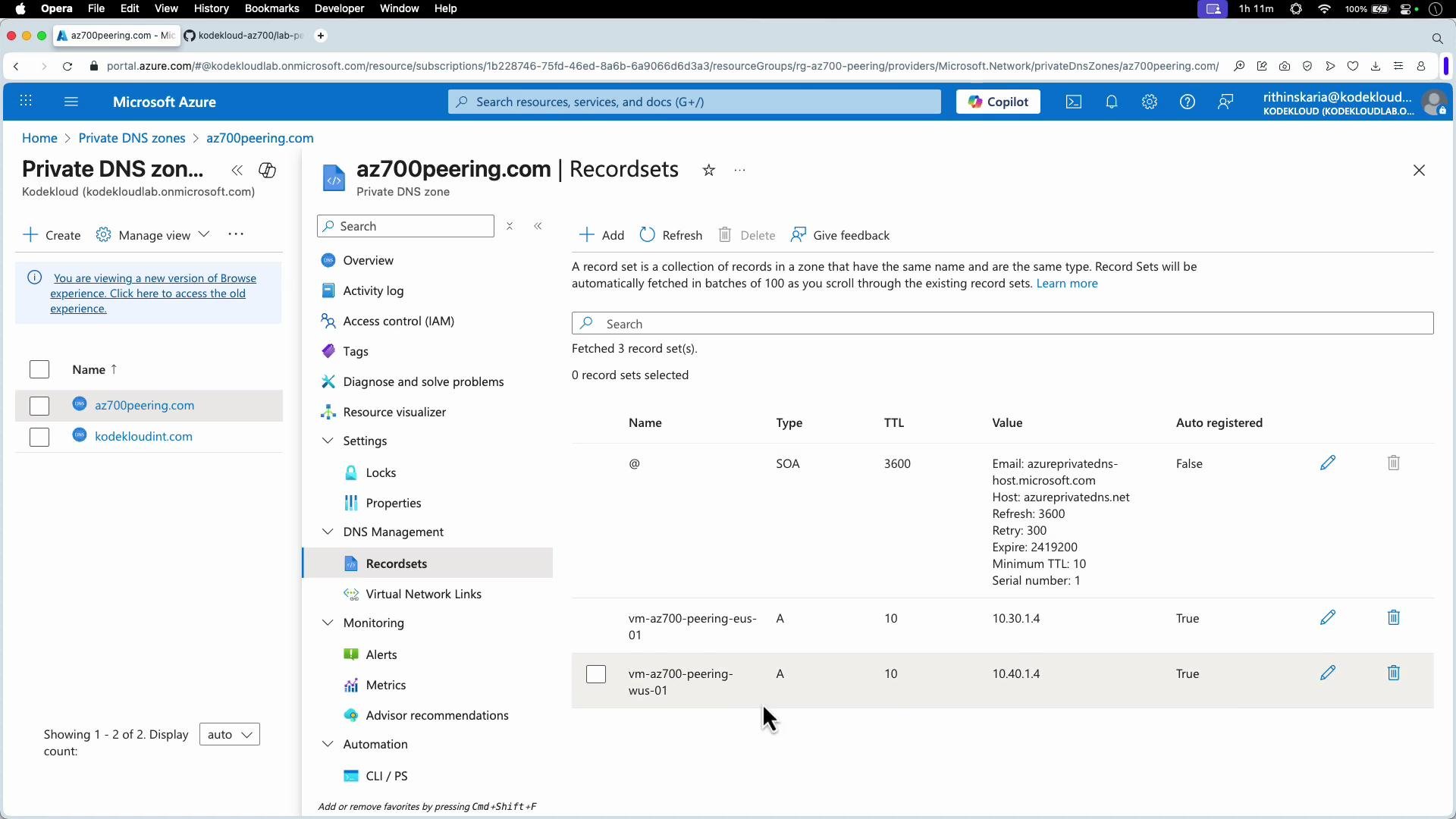
* A Private DNS zone is created and linked to both VNets so VMs are auto-registered with A records and resolve by private name.
* Initially DNS resolution succeeds but traffic between VNets is blocked. After creating peering (configured on both VNets), connectivity via private IPs is validated (ping / SSH).
## Create NICs, VMs, and a Private DNS zone (PowerShell snippet)
The following PowerShell excerpt shows the key steps to create NICs, VM configurations, deploy VMs, and create/link a Private DNS zone. Variables such as `$resourceGroup`, `$locationWUS`, `$locationEUS`, `$subnetObj1`, `$subnetObj2`, `$pip1`, `$pip2`, and credentials are assumed to be defined earlier in your script.
```powershell theme={null}
# Create network interfaces
$nic1 = New-AzNetworkInterface -Name $nicName1 -ResourceGroupName $resourceGroup -Location $locationWUS -Subnet $subnetObj1 -PublicIpAddress $pip1
$nic2 = New-AzNetworkInterface -Name $nicName2 -ResourceGroupName $resourceGroup -Location $locationEUS -Subnet $subnetObj2 -PublicIpAddress $pip2
Write-Host "Building VM configurations" -ForegroundColor Cyan
$vmConfig1 = New-AzVMConfig -VMName $vmName1 -VMSize "Standard_B1s" |
Set-AzVMOperatingSystem -Linux -ComputerName $vmName1 -Credential $credential |
Set-AzVMSourceImage -PublisherName $imagePublisher -Offer $imageOffer -Skus $imageSku -Version $imageVersion |
Add-AzVMNetworkInterface -Id $nic1.Id
$vmConfig2 = New-AzVMConfig -VMName $vmName2 -VMSize "Standard_B1s" |
Set-AzVMOperatingSystem -Linux -ComputerName $vmName2 -Credential $credential |
Set-AzVMSourceImage -PublisherName $imagePublisher -Offer $imageOffer -Skus $imageSku -Version $imageVersion |
Add-AzVMNetworkInterface -Id $nic2.Id
Write-Host "Creating VMs (this can take several minutes)" -ForegroundColor Cyan
New-AzVM -ResourceGroupName $resourceGroup -Location $locationWUS -VM $vmConfig1 | Out-Null
New-AzVM -ResourceGroupName $resourceGroup -Location $locationEUS -VM $vmConfig2 | Out-Null
# Private DNS Zone
Write-Host "Creating Private DNS zone $privateDnsZoneName" -ForegroundColor Cyan
$dnsZone = New-AzPrivateDnsZone -Name $privateDnsZoneName -ResourceGroup $resourceGroup
Write-Host "Linking VMs to Private DNS zone with auto-registration" -ForegroundColor Cyan
New-AzPrivateDnsVirtualNetworkLink -ZoneName $privateDnsZoneName -ResourceGroupName $resourceGroup -Name $linkNameEUS -VirtualNetworkId $vnet1.Id -EnableAutoRegistration
New-AzPrivateDnsVirtualNetworkLink -ZoneName $privateDnsZoneName -ResourceGroupName $resourceGroup -Name $linkNameWUS -VirtualNetworkId $vnet2.Id -EnableAutoRegistration
Write-Host "Deployment complete." -ForegroundColor Green
Write-Host "VM 1 Public IP:" (Get-AzPublicIpAddress -Name $ipName -ResourceGroupName $resourceGroup).IpAddress
Write-Host "VM 2 Public IP:" (Get-AzPublicIpAddress -Name $ipName2 -ResourceGroupName $resourceGroup).IpAddress
```
After deployment you should see both VMs in the portal.
In the Azure portal the peering UI surfaces these toggles explicitly so you only grant what your topology requires.
## Lab overview
This lab demonstrates private DNS name resolution and peering-based connectivity between VNets in different regions:
* Two Linux VMs are deployed in separate VNets and regions (East US and West US).
* A Private DNS zone is created and linked to both VNets so VMs are auto-registered with A records and resolve by private name.
* Initially DNS resolution succeeds but traffic between VNets is blocked. After creating peering (configured on both VNets), connectivity via private IPs is validated (ping / SSH).
## Create NICs, VMs, and a Private DNS zone (PowerShell snippet)
The following PowerShell excerpt shows the key steps to create NICs, VM configurations, deploy VMs, and create/link a Private DNS zone. Variables such as `$resourceGroup`, `$locationWUS`, `$locationEUS`, `$subnetObj1`, `$subnetObj2`, `$pip1`, `$pip2`, and credentials are assumed to be defined earlier in your script.
```powershell theme={null}
# Create network interfaces
$nic1 = New-AzNetworkInterface -Name $nicName1 -ResourceGroupName $resourceGroup -Location $locationWUS -Subnet $subnetObj1 -PublicIpAddress $pip1
$nic2 = New-AzNetworkInterface -Name $nicName2 -ResourceGroupName $resourceGroup -Location $locationEUS -Subnet $subnetObj2 -PublicIpAddress $pip2
Write-Host "Building VM configurations" -ForegroundColor Cyan
$vmConfig1 = New-AzVMConfig -VMName $vmName1 -VMSize "Standard_B1s" |
Set-AzVMOperatingSystem -Linux -ComputerName $vmName1 -Credential $credential |
Set-AzVMSourceImage -PublisherName $imagePublisher -Offer $imageOffer -Skus $imageSku -Version $imageVersion |
Add-AzVMNetworkInterface -Id $nic1.Id
$vmConfig2 = New-AzVMConfig -VMName $vmName2 -VMSize "Standard_B1s" |
Set-AzVMOperatingSystem -Linux -ComputerName $vmName2 -Credential $credential |
Set-AzVMSourceImage -PublisherName $imagePublisher -Offer $imageOffer -Skus $imageSku -Version $imageVersion |
Add-AzVMNetworkInterface -Id $nic2.Id
Write-Host "Creating VMs (this can take several minutes)" -ForegroundColor Cyan
New-AzVM -ResourceGroupName $resourceGroup -Location $locationWUS -VM $vmConfig1 | Out-Null
New-AzVM -ResourceGroupName $resourceGroup -Location $locationEUS -VM $vmConfig2 | Out-Null
# Private DNS Zone
Write-Host "Creating Private DNS zone $privateDnsZoneName" -ForegroundColor Cyan
$dnsZone = New-AzPrivateDnsZone -Name $privateDnsZoneName -ResourceGroup $resourceGroup
Write-Host "Linking VMs to Private DNS zone with auto-registration" -ForegroundColor Cyan
New-AzPrivateDnsVirtualNetworkLink -ZoneName $privateDnsZoneName -ResourceGroupName $resourceGroup -Name $linkNameEUS -VirtualNetworkId $vnet1.Id -EnableAutoRegistration
New-AzPrivateDnsVirtualNetworkLink -ZoneName $privateDnsZoneName -ResourceGroupName $resourceGroup -Name $linkNameWUS -VirtualNetworkId $vnet2.Id -EnableAutoRegistration
Write-Host "Deployment complete." -ForegroundColor Green
Write-Host "VM 1 Public IP:" (Get-AzPublicIpAddress -Name $ipName -ResourceGroupName $resourceGroup).IpAddress
Write-Host "VM 2 Public IP:" (Get-AzPublicIpAddress -Name $ipName2 -ResourceGroupName $resourceGroup).IpAddress
```
After deployment you should see both VMs in the portal.
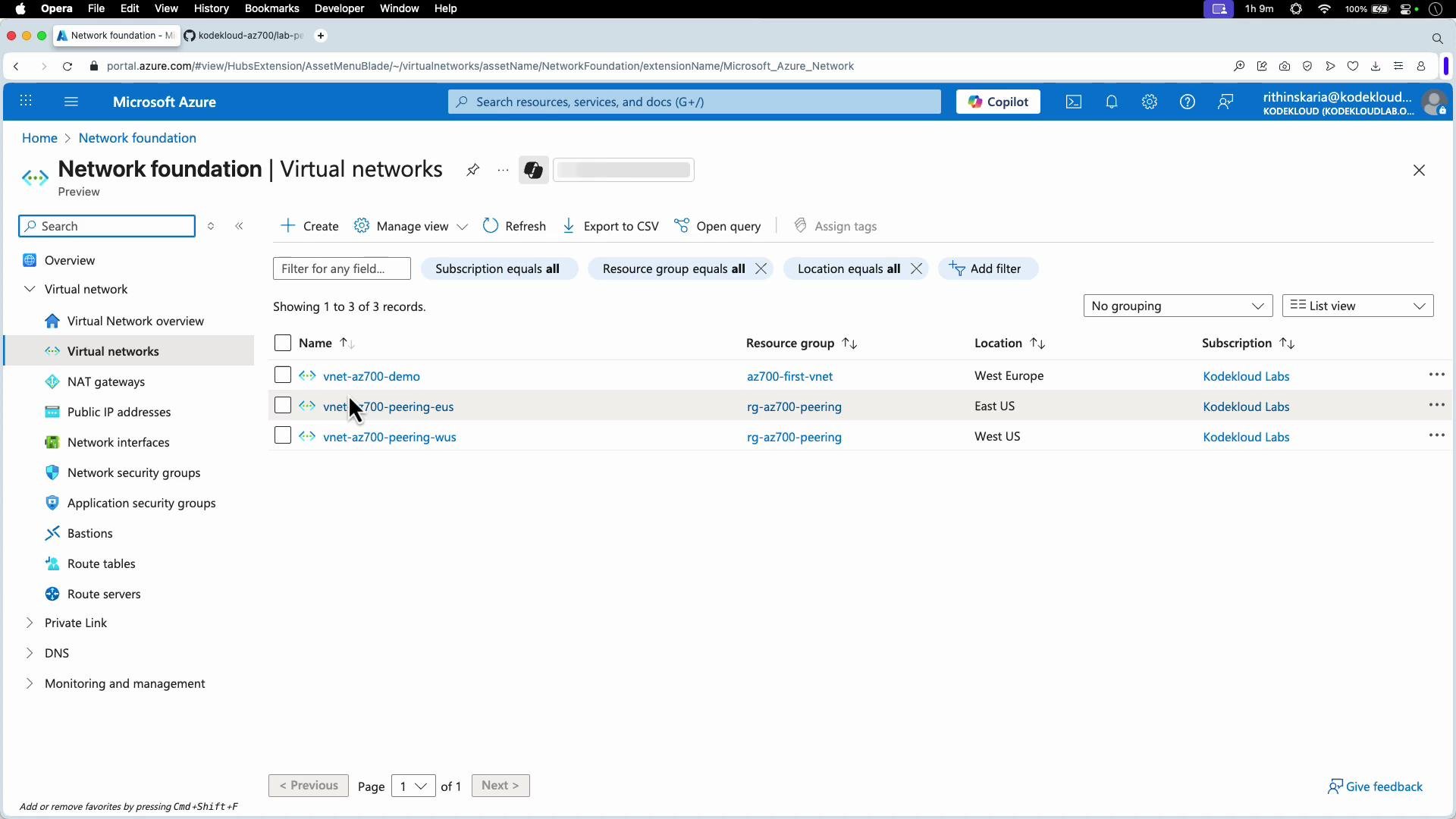
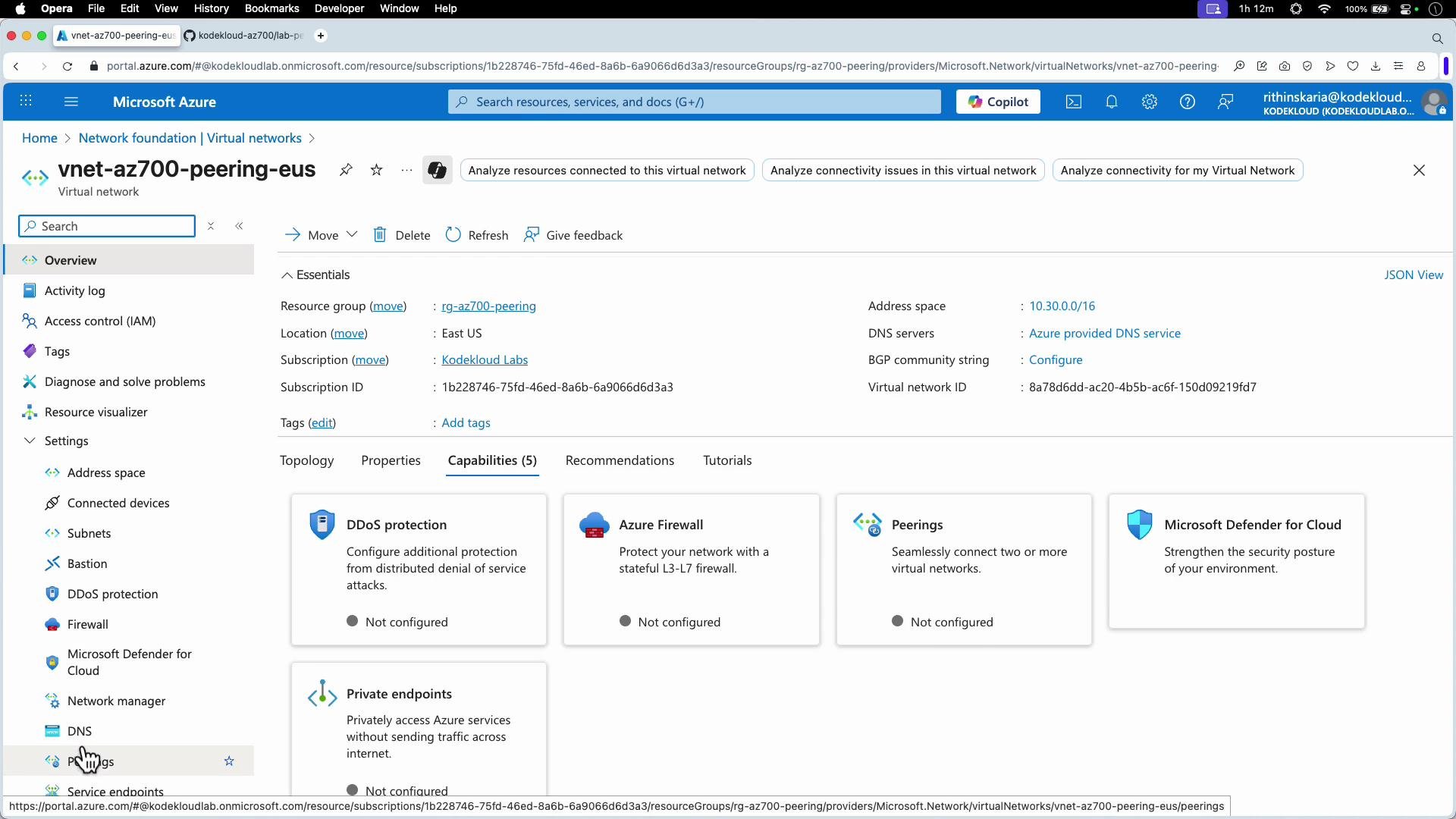
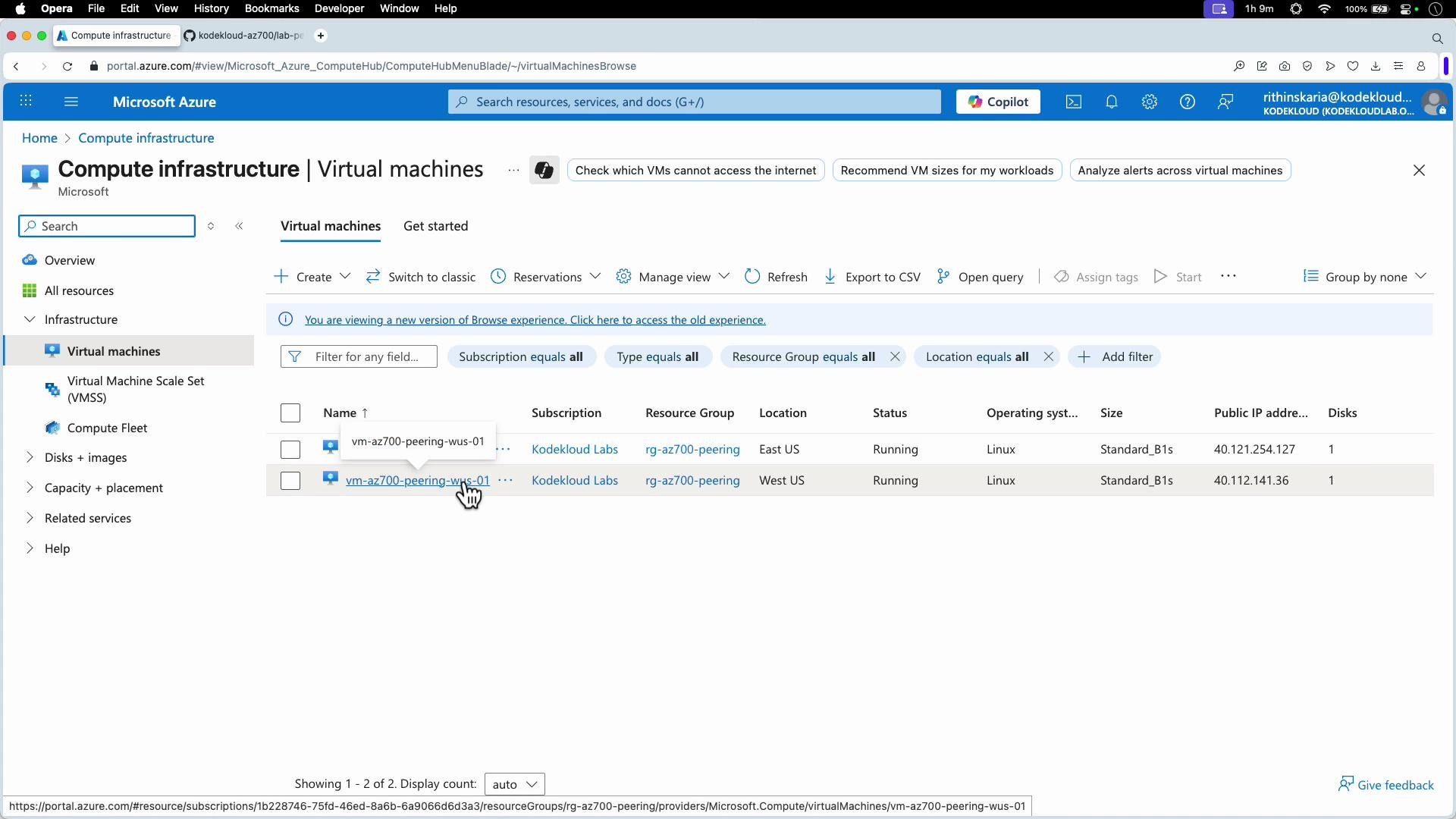 To add peering you can also browse to **Virtual networks** in the portal and choose one of the VNets where you want to add a peering.
 ## Check Private DNS registration
When the Private DNS zone is linked to both VNets with auto-registration enabled, each VM is automatically created as an A record in the zone.
## Check Private DNS registration
When the Private DNS zone is linked to both VNets with auto-registration enabled, each VM is automatically created as an A record in the zone.
 From your workstation, SSH into one VM using its public IP and validate DNS resolution from within that VM. Example session (simplified):
```bash theme={null}
# SSH to the West US VM public IP (example)
ssh kodekloud@40.121.254.127
# On the VM, check DNS resolution for the East US VM
nslookup vm-az700-eus-01.az700peering.com
# Non-authoritative answer:
# Name: vm-az700-eus-01.az700peering.com
# Attempt to ping the private IP (will fail before peering is enabled)
ping vm-az700-eus-01.az700peering.com
# PING ... (10.10.1.4) ...
# --- vm-az700-eus-01.az700peering.com ping statistics ---
# 398 packets transmitted, 0 received, 100% packet loss
```
DNS resolution via a Private DNS zone does not guarantee connectivity. Private name resolution can succeed while traffic is blocked until you establish the VNet peering and enable Virtual Network Access on both sides.
## Configure VNet peering in the Azure portal
1. Open one of the virtual networks (for example, the East US VNet).
2. Select **Peering** and click **Add peering**.
3. On the Add peering page, select the remote virtual network and set the peering options:
* Allow virtual network access (basic connectivity),
* Allow forwarded traffic (hub-and-spoke / NVA scenarios),
* Use remote gateway (gateway transit) if you want to reuse the gateway in the remote VNet.
4. Repeat on the remote VNet to establish bidirectional peering if required.
From your workstation, SSH into one VM using its public IP and validate DNS resolution from within that VM. Example session (simplified):
```bash theme={null}
# SSH to the West US VM public IP (example)
ssh kodekloud@40.121.254.127
# On the VM, check DNS resolution for the East US VM
nslookup vm-az700-eus-01.az700peering.com
# Non-authoritative answer:
# Name: vm-az700-eus-01.az700peering.com
# Attempt to ping the private IP (will fail before peering is enabled)
ping vm-az700-eus-01.az700peering.com
# PING ... (10.10.1.4) ...
# --- vm-az700-eus-01.az700peering.com ping statistics ---
# 398 packets transmitted, 0 received, 100% packet loss
```
DNS resolution via a Private DNS zone does not guarantee connectivity. Private name resolution can succeed while traffic is blocked until you establish the VNet peering and enable Virtual Network Access on both sides.
## Configure VNet peering in the Azure portal
1. Open one of the virtual networks (for example, the East US VNet).
2. Select **Peering** and click **Add peering**.
3. On the Add peering page, select the remote virtual network and set the peering options:
* Allow virtual network access (basic connectivity),
* Allow forwarded traffic (hub-and-spoke / NVA scenarios),
* Use remote gateway (gateway transit) if you want to reuse the gateway in the remote VNet.
4. Repeat on the remote VNet to establish bidirectional peering if required.
 The form shows a local vs remote summary and exposes toggles for the three main options described above.
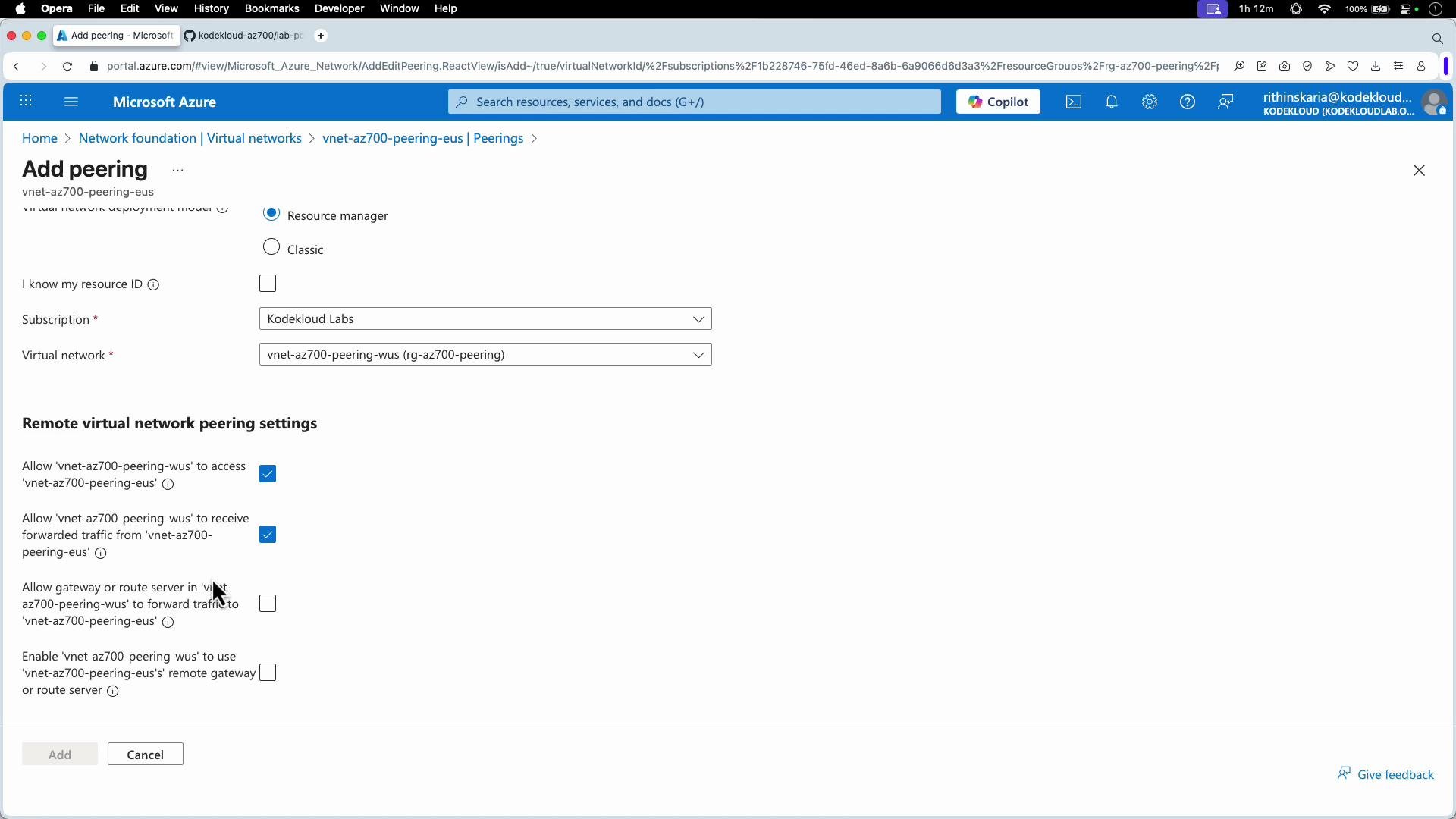 Create the peering from both VNets if you require bidirectional traffic. When the peering state shows "Connected", you can re-run connectivity tests.
## Test connectivity after peering
After enabling peering (with Virtual Network Access allowed on both sides), ping/SSH across private addresses should succeed.
Example ping output after peering was enabled:
```plaintext theme={null}
# From East US VM, ping West US VM private name
PING vm-az700-peering-wus-01.az700peering.com (10.40.1.4) 56(84) bytes of data.
64 bytes from 10.40.1.4: icmp_seq=99 ttl=64 time=72.9 ms
64 bytes from 10.40.1.4: icmp_seq=100 ttl=64 time=72.4 ms
... (additional replies)
--- vm-az700-peering-wus-01.az700peering.com ping statistics ---
113 packets transmitted, 33 received, 70.80% packet loss, time 113949ms
rtt min/avg/max/mdev = 71.888/72.476/73.552/0.347 ms
```
Note: Depending on your environment there may be some packet loss or latency. The important change is that you now receive replies (where previously you saw 100% packet loss).
SSH over the peered private network:
```bash theme={null}
# From East US VM:
ssh vm-az700-peering-wus-01.az700peering.com
# Accept host key and provide password as prompted:
# Are you sure you want to continue connecting (yes/no/[fingerprint])? yes
# Warning: Permanently added 'vm-az700-peering-wus-01.az700peering.com' (ED25519) to the list of known hosts.
# vm's password:
# You should be logged in to the West US VM over the peered private network
```
## Conclusion and best practices
* VNet peering provides private connectivity between VNets using Azure's backbone and should be configured on both sides for full bidirectional flows.
* Enable forwarded traffic and gateway transit only when your architecture requires inspection, centralized routing, or gateway reuse.
* Always verify both name resolution (Private DNS) and actual traffic flow (ping/SSH) when validating a peering setup.
* Review network security group (NSG) and firewall rules if connectivity is blocked despite peering being in place.
Quick reminder: SSH into a VM using its public IP from your local host when needed:
```bash theme={null}
ssh kodekloud@40.121.254.127
```
## Links and references
* [Azure Virtual Network Peering documentation](https://learn.microsoft.com/azure/virtual-network/virtual-network-peering-overview)
* [Azure Private DNS documentation](https://learn.microsoft.com/azure/dns/private-dns-overview)
* [Azure VPN Gateway documentation](https://learn.microsoft.com/azure/vpn-gateway/vpn-gateway-about)
Create the peering from both VNets if you require bidirectional traffic. When the peering state shows "Connected", you can re-run connectivity tests.
## Test connectivity after peering
After enabling peering (with Virtual Network Access allowed on both sides), ping/SSH across private addresses should succeed.
Example ping output after peering was enabled:
```plaintext theme={null}
# From East US VM, ping West US VM private name
PING vm-az700-peering-wus-01.az700peering.com (10.40.1.4) 56(84) bytes of data.
64 bytes from 10.40.1.4: icmp_seq=99 ttl=64 time=72.9 ms
64 bytes from 10.40.1.4: icmp_seq=100 ttl=64 time=72.4 ms
... (additional replies)
--- vm-az700-peering-wus-01.az700peering.com ping statistics ---
113 packets transmitted, 33 received, 70.80% packet loss, time 113949ms
rtt min/avg/max/mdev = 71.888/72.476/73.552/0.347 ms
```
Note: Depending on your environment there may be some packet loss or latency. The important change is that you now receive replies (where previously you saw 100% packet loss).
SSH over the peered private network:
```bash theme={null}
# From East US VM:
ssh vm-az700-peering-wus-01.az700peering.com
# Accept host key and provide password as prompted:
# Are you sure you want to continue connecting (yes/no/[fingerprint])? yes
# Warning: Permanently added 'vm-az700-peering-wus-01.az700peering.com' (ED25519) to the list of known hosts.
# vm's password:
# You should be logged in to the West US VM over the peered private network
```
## Conclusion and best practices
* VNet peering provides private connectivity between VNets using Azure's backbone and should be configured on both sides for full bidirectional flows.
* Enable forwarded traffic and gateway transit only when your architecture requires inspection, centralized routing, or gateway reuse.
* Always verify both name resolution (Private DNS) and actual traffic flow (ping/SSH) when validating a peering setup.
* Review network security group (NSG) and firewall rules if connectivity is blocked despite peering being in place.
Quick reminder: SSH into a VM using its public IP from your local host when needed:
```bash theme={null}
ssh kodekloud@40.121.254.127
```
## Links and references
* [Azure Virtual Network Peering documentation](https://learn.microsoft.com/azure/virtual-network/virtual-network-peering-overview)
* [Azure Private DNS documentation](https://learn.microsoft.com/azure/dns/private-dns-overview)
* [Azure VPN Gateway documentation](https://learn.microsoft.com/azure/vpn-gateway/vpn-gateway-about)