> ## Documentation Index
> Fetch the complete documentation index at: https://notes.kodekloud.com/llms.txt
> Use this file to discover all available pages before exploring further.
# Configure User Defined Routes
> Configuring Azure user-defined routes to direct subnet traffic through network virtual appliances for inspection and security, including deployment, verification, and best practices.
Control traffic flow inside an Azure virtual network by creating custom routing rules. User-defined routes (UDRs) let you override Azure system routes and direct traffic between subnets, VNets, and network appliances (for example, a firewall or network virtual appliance — NVA).
On the left side of the diagram below you can see a virtual network split into subnets (front-end, back-end, and DMZ). A virtual appliance (commonly a firewall or NVA) is placed in the DMZ. Traffic from the front-end subnet is routed through the DMZ to the back-end. The route table controls exactly how this traffic is forwarded.
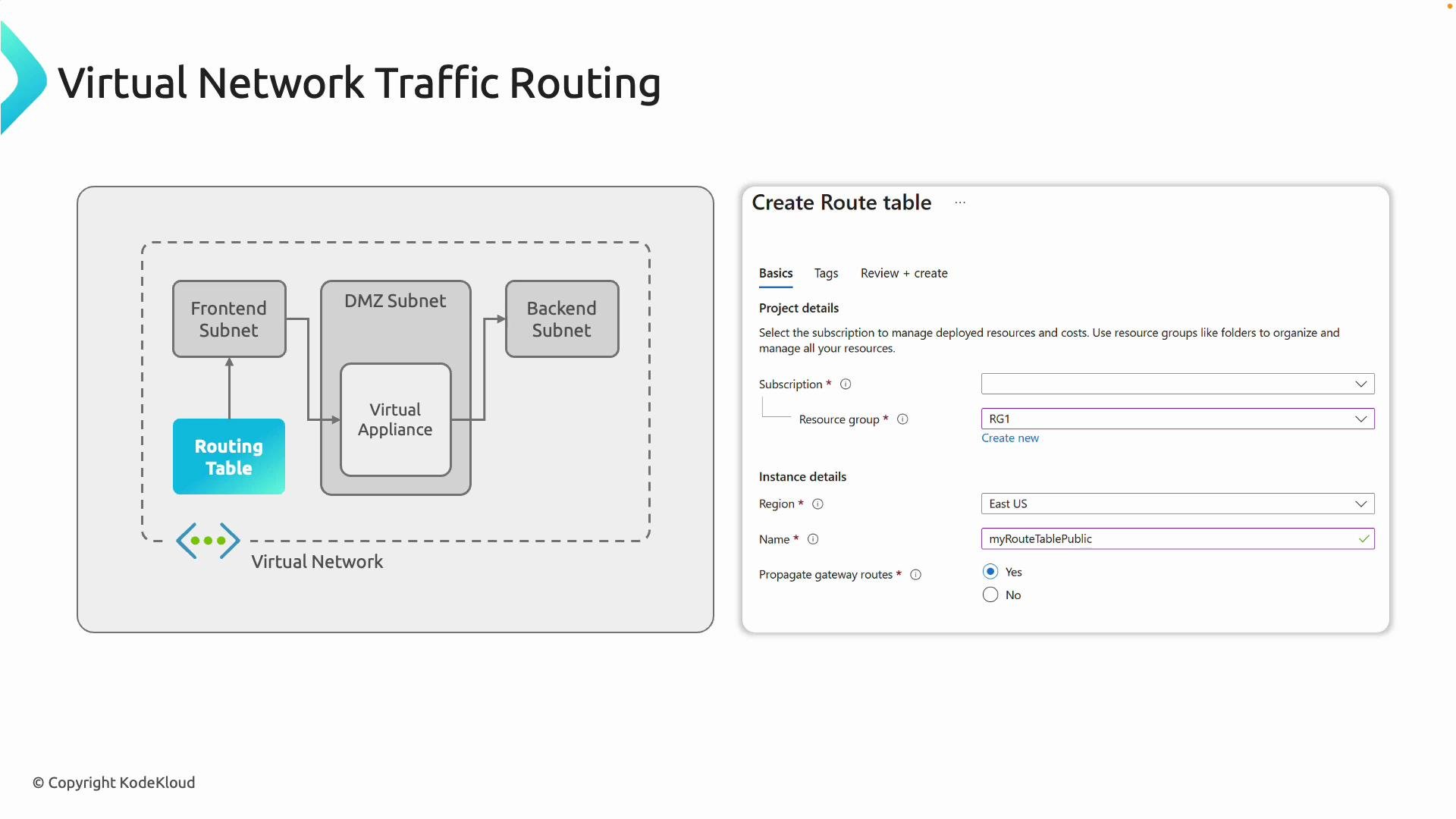 To create UDRs you build an Azure route table, add routes that match the destination prefix (single IP, CIDR, or service tag), and associate the route table with a subnet. When a packet leaving the subnet matches a user-defined route, Azure forwards it to the specified next hop instead of following the default system path.
The portal UI for creating a route table is shown on the right side of the diagram: you select subscription, resource group, name, and whether to propagate gateway routes. In most cases keep gateway route propagation enabled unless you have a specific reason to disable it.
When adding a route you specify:
* Route name
* Destination address prefix (single IP, CIDR such as a subnet, or a service tag)
* Next hop type (for NVAs choose `VirtualAppliance`)
* Next hop IP address (the appliance private IP)
This redirects traffic to the appliance for inspection or filtering instead of sending it directly to the destination.
Below is the portal dialog for associating a route table to a subnet — associating a route table to a subnet activates the UDR for that subnet.
To create UDRs you build an Azure route table, add routes that match the destination prefix (single IP, CIDR, or service tag), and associate the route table with a subnet. When a packet leaving the subnet matches a user-defined route, Azure forwards it to the specified next hop instead of following the default system path.
The portal UI for creating a route table is shown on the right side of the diagram: you select subscription, resource group, name, and whether to propagate gateway routes. In most cases keep gateway route propagation enabled unless you have a specific reason to disable it.
When adding a route you specify:
* Route name
* Destination address prefix (single IP, CIDR such as a subnet, or a service tag)
* Next hop type (for NVAs choose `VirtualAppliance`)
* Next hop IP address (the appliance private IP)
This redirects traffic to the appliance for inspection or filtering instead of sending it directly to the destination.
Below is the portal dialog for associating a route table to a subnet — associating a route table to a subnet activates the UDR for that subnet.
 Summary: UDRs override Azure system routes and force traffic through NVAs or firewalls when needed — useful for enhanced security, packet inspection, or non-default traffic flows. When we cover Azure Firewall, UDRs will be used to steer traffic through the firewall.
This lesson/demo deploys a simple topology and validates how UDRs force traffic to an NVA (a Linux VM with IP forwarding enabled). The topology contains two spoke VNets (East US and West US) peered to a central hub VNet that hosts the NVA.
Infrastructure overview
| Component | Role / Private IP |
| ---------------: | ----------------------------------------------------------------------- |
| Spoke East US VM | `vm-az700-udr-spoke-eus-01` — 10.50.1.4 |
| Spoke West US VM | `vm-az700-udr-spoke-wus-01` — 10.60.1.4 |
| Hub NVA VM | `vm-az700-udr-hub-01` — 10.70.1.4 (Linux VM with IP forwarding enabled) |
| VNet peering | Spokes peered with hub (peering configured to allow forwarded traffic) |
The demo can be deployed with PowerShell. The snippets below highlight variable declarations, public IPs, NSGs, NIC creation (with IP forwarding enabled on the NVA NIC), and VM configuration. This example is for lab/demo use only.
```powershell theme={null}
# --------------------- Variables ---------------------
$resourceGroup = "rg-az700-udr-nva"
$locationEUS = "eastus"
$locationWUS = "westus"
$locationCentral = "centralus"
$username = "kodekloud"
$passwordPlain = "dminP55w0rd" # Lab only - do NOT use in production
$securePassword = (ConvertTo-SecureString $passwordPlain -AsPlainText -Force)
$credential = New-Object System.Management.Automation.PSCredential($username, $securePassword)
# Image (Ubuntu 22.04 LTS)
$imagePublisher = "Canonical"
$imageOffer = "0001-com-ubuntu-server-jammy" # corrected publisher/offer identifiers if needed
$imageSku = "22_04-lts-gen2"
$imageVersion = "latest"
# VNet / VM naming (hub & spokes) - hub hosts the NVA in centralus
$vnetEusName = "vnet-az700-udr-spoke-eus"
$vnetWusName = "vnet-az700-udr-spoke-wus"
$vnetHubName = "vnet-az700-udr-hub" # centralus hub
$subnetEusName = "subnet-az700-udr-spoke-eus"
$subnetWusName = "subnet-az700-udr-spoke-wus"
$subnetHubName = "subnet-az700-udr-hub"
$vmEusName = "vm-az700-udr-spoke-eus-01"
$vmWusName = "vm-az700-udr-spoke-wus-01"
$vmHubName = "vm-az700-udr-hub-01"
```
Create public IPs, NSGs, and NICs. Important: enable IP forwarding on the hub/NVA NIC so the VM can forward traffic.
```powershell theme={null}
# Example: create a public IP
$pipHub = New-AzPublicIp -Name "pip-hub" -ResourceGroupName $resourceGroup -Location $locationCentral -AllocationMethod Static -Sku Basic -IpAddressVersion IPv4
# Example: create NSG and allow SSH
$nsgHub = New-AzNetworkSecurityGroup -Name "nsg-hub" -ResourceGroupName $resourceGroup -Location $locationCentral
$ruleSSH = New-AzNetworkSecurityRuleConfig -Name "Allow-SSH" -Description "Allow SSH" -Access Allow -Protocol Tcp -Direction Inbound -Priority 1000 -SourceAddressPrefix * -SourcePortRange * -DestinationPortRange 22
$nsgHub.SecurityRules += $ruleSSH
Set-AzNetworkSecurityGroup -NetworkSecurityGroup $nsgHub
# Example: create NICs (enable IP forwarding on hub NIC)
$subnetHub = Get-AzVirtualNetworkSubnetConfig -Name $subnetHubName -VirtualNetwork (Get-AzVirtualNetwork -Name $vnetHubName -ResourceGroupName $resourceGroup)
$nicHub = New-AzNetworkInterface -Name "nic-hub" -ResourceGroupName $resourceGroup -Location $locationCentral -Subnet $subnetHub -PublicIpAddress $pipHub -NetworkSecurityGroup $nsgHub -EnableIPForwarding $true
# Create NICs for spokes (no IP forwarding required)
# $nicEus = New-AzNetworkInterface -Name "nic-eus" ...
# $nicWus = New-AzNetworkInterface -Name "nic-wus" ...
```
Do not forget to enable IP forwarding inside the guest OS as well; the Azure NIC setting and guest OS setting are both required for full packet forwarding.
Do not store plain-text passwords in automation. The example uses a lab password for demonstration only. Use secure secrets management for production.
Create VM configs and use cloud-init for the NVA guest to enable `net.ipv4.ip_forward`. Pass the cloud-init to the VM (e.g., via `-CustomData`).
```powershell theme={null}
# NVA VM cloud-init to enable IP forwarding in guest OS
$cloudInit = @"
#cloud-config
runcmd:
- sysctl -w net.ipv4.ip_forward=1
- sed -i 's/^#net.ipv4.ip_forward=1/net.ipv4.ip_forward=1/' /etc/sysctl.conf
- sysctl -p
"@
$cloudInitBytes = [System.Text.Encoding]::UTF8.GetBytes($cloudInit)
$cloudInitEncoded = [Convert]::ToBase64String($cloudInitBytes)
# Create VM configurations and add NICs (examples)
$vmCfgHub = New-AzVMConfig -VMName $vmHubName -VMSize "Standard_B1s" |
Set-AzVMOperatingSystem -Linux -ComputerName $vmHubName -Credential $credential -DisablePasswordAuthentication:$false |
Set-AzVMSourceImage -PublisherName $imagePublisher -Offer $imageOffer -Skus $imageSku -Version $imageVersion |
Add-AzVMNetworkInterface -Id $nicHub.Id
# When creating VM, pass cloud-init using -CustomData $cloudInitEncoded parameter as needed
```
After deployment the private IPs in this demo are:
* `vm-az700-udr-spoke-eus-01` — 10.50.1.4
* `vm-az700-udr-spoke-wus-01` — 10.60.1.4
* `vm-az700-udr-hub-01` (NVA) — 10.70.1.4
Note: Both Azure NIC IP forwarding (`-EnableIPForwarding $true`) and the guest OS IP forwarding must be enabled for a VM to act as an NVA.
With VNet peering configured (set to "Allow forwarded traffic"), spoke-to-spoke traffic normally travels over peering routes. The hub NVA will not see the traffic until you add a UDR to override the peering/system route. A UDR that matches the destination prefix and points to the hub NVA causes Azure to forward the packet to the virtual appliance.
How to create a route table and add a UDR in the Azure Portal:
1. Search for **Route tables** and click **Create**.
2. Choose subscription, resource group, and region (create the route table in the same region as the subnet you intend to control).
3. Name the route table (for example, `RT-Spoke-EUS`) and create it.
Summary: UDRs override Azure system routes and force traffic through NVAs or firewalls when needed — useful for enhanced security, packet inspection, or non-default traffic flows. When we cover Azure Firewall, UDRs will be used to steer traffic through the firewall.
This lesson/demo deploys a simple topology and validates how UDRs force traffic to an NVA (a Linux VM with IP forwarding enabled). The topology contains two spoke VNets (East US and West US) peered to a central hub VNet that hosts the NVA.
Infrastructure overview
| Component | Role / Private IP |
| ---------------: | ----------------------------------------------------------------------- |
| Spoke East US VM | `vm-az700-udr-spoke-eus-01` — 10.50.1.4 |
| Spoke West US VM | `vm-az700-udr-spoke-wus-01` — 10.60.1.4 |
| Hub NVA VM | `vm-az700-udr-hub-01` — 10.70.1.4 (Linux VM with IP forwarding enabled) |
| VNet peering | Spokes peered with hub (peering configured to allow forwarded traffic) |
The demo can be deployed with PowerShell. The snippets below highlight variable declarations, public IPs, NSGs, NIC creation (with IP forwarding enabled on the NVA NIC), and VM configuration. This example is for lab/demo use only.
```powershell theme={null}
# --------------------- Variables ---------------------
$resourceGroup = "rg-az700-udr-nva"
$locationEUS = "eastus"
$locationWUS = "westus"
$locationCentral = "centralus"
$username = "kodekloud"
$passwordPlain = "dminP55w0rd" # Lab only - do NOT use in production
$securePassword = (ConvertTo-SecureString $passwordPlain -AsPlainText -Force)
$credential = New-Object System.Management.Automation.PSCredential($username, $securePassword)
# Image (Ubuntu 22.04 LTS)
$imagePublisher = "Canonical"
$imageOffer = "0001-com-ubuntu-server-jammy" # corrected publisher/offer identifiers if needed
$imageSku = "22_04-lts-gen2"
$imageVersion = "latest"
# VNet / VM naming (hub & spokes) - hub hosts the NVA in centralus
$vnetEusName = "vnet-az700-udr-spoke-eus"
$vnetWusName = "vnet-az700-udr-spoke-wus"
$vnetHubName = "vnet-az700-udr-hub" # centralus hub
$subnetEusName = "subnet-az700-udr-spoke-eus"
$subnetWusName = "subnet-az700-udr-spoke-wus"
$subnetHubName = "subnet-az700-udr-hub"
$vmEusName = "vm-az700-udr-spoke-eus-01"
$vmWusName = "vm-az700-udr-spoke-wus-01"
$vmHubName = "vm-az700-udr-hub-01"
```
Create public IPs, NSGs, and NICs. Important: enable IP forwarding on the hub/NVA NIC so the VM can forward traffic.
```powershell theme={null}
# Example: create a public IP
$pipHub = New-AzPublicIp -Name "pip-hub" -ResourceGroupName $resourceGroup -Location $locationCentral -AllocationMethod Static -Sku Basic -IpAddressVersion IPv4
# Example: create NSG and allow SSH
$nsgHub = New-AzNetworkSecurityGroup -Name "nsg-hub" -ResourceGroupName $resourceGroup -Location $locationCentral
$ruleSSH = New-AzNetworkSecurityRuleConfig -Name "Allow-SSH" -Description "Allow SSH" -Access Allow -Protocol Tcp -Direction Inbound -Priority 1000 -SourceAddressPrefix * -SourcePortRange * -DestinationPortRange 22
$nsgHub.SecurityRules += $ruleSSH
Set-AzNetworkSecurityGroup -NetworkSecurityGroup $nsgHub
# Example: create NICs (enable IP forwarding on hub NIC)
$subnetHub = Get-AzVirtualNetworkSubnetConfig -Name $subnetHubName -VirtualNetwork (Get-AzVirtualNetwork -Name $vnetHubName -ResourceGroupName $resourceGroup)
$nicHub = New-AzNetworkInterface -Name "nic-hub" -ResourceGroupName $resourceGroup -Location $locationCentral -Subnet $subnetHub -PublicIpAddress $pipHub -NetworkSecurityGroup $nsgHub -EnableIPForwarding $true
# Create NICs for spokes (no IP forwarding required)
# $nicEus = New-AzNetworkInterface -Name "nic-eus" ...
# $nicWus = New-AzNetworkInterface -Name "nic-wus" ...
```
Do not forget to enable IP forwarding inside the guest OS as well; the Azure NIC setting and guest OS setting are both required for full packet forwarding.
Do not store plain-text passwords in automation. The example uses a lab password for demonstration only. Use secure secrets management for production.
Create VM configs and use cloud-init for the NVA guest to enable `net.ipv4.ip_forward`. Pass the cloud-init to the VM (e.g., via `-CustomData`).
```powershell theme={null}
# NVA VM cloud-init to enable IP forwarding in guest OS
$cloudInit = @"
#cloud-config
runcmd:
- sysctl -w net.ipv4.ip_forward=1
- sed -i 's/^#net.ipv4.ip_forward=1/net.ipv4.ip_forward=1/' /etc/sysctl.conf
- sysctl -p
"@
$cloudInitBytes = [System.Text.Encoding]::UTF8.GetBytes($cloudInit)
$cloudInitEncoded = [Convert]::ToBase64String($cloudInitBytes)
# Create VM configurations and add NICs (examples)
$vmCfgHub = New-AzVMConfig -VMName $vmHubName -VMSize "Standard_B1s" |
Set-AzVMOperatingSystem -Linux -ComputerName $vmHubName -Credential $credential -DisablePasswordAuthentication:$false |
Set-AzVMSourceImage -PublisherName $imagePublisher -Offer $imageOffer -Skus $imageSku -Version $imageVersion |
Add-AzVMNetworkInterface -Id $nicHub.Id
# When creating VM, pass cloud-init using -CustomData $cloudInitEncoded parameter as needed
```
After deployment the private IPs in this demo are:
* `vm-az700-udr-spoke-eus-01` — 10.50.1.4
* `vm-az700-udr-spoke-wus-01` — 10.60.1.4
* `vm-az700-udr-hub-01` (NVA) — 10.70.1.4
Note: Both Azure NIC IP forwarding (`-EnableIPForwarding $true`) and the guest OS IP forwarding must be enabled for a VM to act as an NVA.
With VNet peering configured (set to "Allow forwarded traffic"), spoke-to-spoke traffic normally travels over peering routes. The hub NVA will not see the traffic until you add a UDR to override the peering/system route. A UDR that matches the destination prefix and points to the hub NVA causes Azure to forward the packet to the virtual appliance.
How to create a route table and add a UDR in the Azure Portal:
1. Search for **Route tables** and click **Create**.
2. Choose subscription, resource group, and region (create the route table in the same region as the subnet you intend to control).
3. Name the route table (for example, `RT-Spoke-EUS`) and create it.
 Once the route table exists, open it and add a route. Destination types include:
* IP address (single host) — `10.60.1.4/32`
* CIDR (subnet) — `10.60.0.0/16`
* Service tag (Azure-managed set of addresses)
* Virtual network, Internet, None, etc.
For this demo we add a route that forces the remote spoke VM IP through the hub NVA:
* Route name: `RT-NVA-Forward` (example)
* Address prefix: `10.60.1.4/32` (force traffic to that single IP)
* Next hop type: `Virtual appliance`
* Next hop address: `10.70.1.4` (hub NVA private IP)
Once the route table exists, open it and add a route. Destination types include:
* IP address (single host) — `10.60.1.4/32`
* CIDR (subnet) — `10.60.0.0/16`
* Service tag (Azure-managed set of addresses)
* Virtual network, Internet, None, etc.
For this demo we add a route that forces the remote spoke VM IP through the hub NVA:
* Route name: `RT-NVA-Forward` (example)
* Address prefix: `10.60.1.4/32` (force traffic to that single IP)
* Next hop type: `Virtual appliance`
* Next hop address: `10.70.1.4` (hub NVA private IP)
 Wait for deployment to complete, then open the route table resource and add the route.
 Inside the route table, click **Routes → Add** and fill in the route details:
* Name
* Destination type: `IP Address`
* Destination: `10.60.1.4/32`
* Next hop type: `Virtual appliance`
* Next hop address: `10.70.1.4`
Inside the route table, click **Routes → Add** and fill in the route details:
* Name
* Destination type: `IP Address`
* Destination: `10.60.1.4/32`
* Next hop type: `Virtual appliance`
* Next hop address: `10.70.1.4`
 After adding the route, associate the route table to the East US subnet (the source VM's subnet). Association makes the UDR take effect for that subnet.
 Click **Associate**, then select the East US virtual network and its subnet.
 Verify the effective routes on the spoke VM's NIC (Network Interface → Effective routes). You should see the user-defined `/32` route taking precedence over a broader peering route (for example, a `/16`).
Route precedence: Azure uses longest prefix match — the most specific route wins. A `/32` (single IP) overrides a `/16` (subnet) for the same destination.
Verification using tcpdump and traceroute
1. On the hub NVA (`10.70.1.4`) run tcpdump to inspect incoming traffic:
```bash theme={null}
# on hub NVA
sudo tcpdump -i eth0
```
You can filter tcpdump for specific IPs:
```bash theme={null}
sudo tcpdump -i eth0 host 10.50.1.4
```
2. From the East US spoke VM (`10.50.1.4`), ping the West US VM (`10.60.1.4`):
```bash theme={null}
# on spoke East US
ping -c 5 10.60.1.4
```
Sample ping output (truncated):
```bash theme={null}
PING 10.60.1.4 (10.60.1.4) 56(84) bytes of data.
64 bytes from 10.60.1.4: icmp_seq=1 ttl=64 time=72.1 ms
64 bytes from 10.60.1.4: icmp_seq=2 ttl=64 time=73.9 ms
--- 10.60.1.4 ping statistics ---
5 packets transmitted, 5 received, 0% packet loss
```
3. Run traceroute (or tracepath) from the source to confirm the path goes via the NVA (`10.70.1.4`):
```bash theme={null}
tracepath 10.60.1.4
```
Example trace showing the NVA as the first hop, then the destination:
```bash theme={null}
1: 10.70.1.4 35.507ms
2: 10.70.1.1 27.372ms
3: 10.60.1.4 74.068ms reached
```
Before the UDR, traffic used the peering route directly to the destination. After adding the UDR and associating the route table, traffic matches the `/32` route and is forwarded to the virtual appliance first.
If you want the West US spoke to also send traffic through the NVA, repeat the process in the West US region: create a route table in West US, add a route (for example, destination `10.50.1.4/32` next hop `10.70.1.4`), and associate it with the West US subnet.
Verify the effective routes on the spoke VM's NIC (Network Interface → Effective routes). You should see the user-defined `/32` route taking precedence over a broader peering route (for example, a `/16`).
Route precedence: Azure uses longest prefix match — the most specific route wins. A `/32` (single IP) overrides a `/16` (subnet) for the same destination.
Verification using tcpdump and traceroute
1. On the hub NVA (`10.70.1.4`) run tcpdump to inspect incoming traffic:
```bash theme={null}
# on hub NVA
sudo tcpdump -i eth0
```
You can filter tcpdump for specific IPs:
```bash theme={null}
sudo tcpdump -i eth0 host 10.50.1.4
```
2. From the East US spoke VM (`10.50.1.4`), ping the West US VM (`10.60.1.4`):
```bash theme={null}
# on spoke East US
ping -c 5 10.60.1.4
```
Sample ping output (truncated):
```bash theme={null}
PING 10.60.1.4 (10.60.1.4) 56(84) bytes of data.
64 bytes from 10.60.1.4: icmp_seq=1 ttl=64 time=72.1 ms
64 bytes from 10.60.1.4: icmp_seq=2 ttl=64 time=73.9 ms
--- 10.60.1.4 ping statistics ---
5 packets transmitted, 5 received, 0% packet loss
```
3. Run traceroute (or tracepath) from the source to confirm the path goes via the NVA (`10.70.1.4`):
```bash theme={null}
tracepath 10.60.1.4
```
Example trace showing the NVA as the first hop, then the destination:
```bash theme={null}
1: 10.70.1.4 35.507ms
2: 10.70.1.1 27.372ms
3: 10.60.1.4 74.068ms reached
```
Before the UDR, traffic used the peering route directly to the destination. After adding the UDR and associating the route table, traffic matches the `/32` route and is forwarded to the virtual appliance first.
If you want the West US spoke to also send traffic through the NVA, repeat the process in the West US region: create a route table in West US, add a route (for example, destination `10.50.1.4/32` next hop `10.70.1.4`), and associate it with the West US subnet.
 After adding and associating the route in the West US subnet, traceroute from the West US spoke to the East US VM should show the NVA hop first.
On the hub NVA you will see ICMP/UDP or other traffic as the NVA forwards packets between spokes. Example tcpdump output (truncated):
```bash theme={null}
17:24:17.878356 IP 10.60.1.4 > 10.50.1.4: ICMP echo request, id 2, seq 1, length 64
17:24:17.879058 IP 10.50.1.4 > 10.60.1.4: ICMP echo reply, id 2, seq 1, length 64
...
```
Wrap-up — best practices and checklist
* Use UDRs to override Azure system routes and force traffic through NVAs or firewalls for inspection and security controls.
* Create route tables in the same region as the target subnet and add routes that match the desired destination prefixes.
* Associate route tables with subnets to make UDRs active.
* Enable IP forwarding both on the Azure NIC (`-EnableIPForwarding $true`) and inside the guest OS (`net.ipv4.ip_forward=1`) for VM-based NVAs.
* Remember route selection is longest-prefix-match — a `/32` is more specific and overrides a `/16`.
Links and references
* [Azure route tables and user-defined routes](https://learn.microsoft.com/azure/virtual-network/virtual-networks-udr-overview)
* [Azure VNet peering overview](https://learn.microsoft.com/azure/virtual-network/virtual-network-peering)
* [Configure IP forwarding on Azure network interfaces](https://learn.microsoft.com/azure/virtual-network/ip-forwarding-overview)
This completes the User-Defined Routes lesson and a validation demo showing how UDRs direct traffic through an NVA.
After adding and associating the route in the West US subnet, traceroute from the West US spoke to the East US VM should show the NVA hop first.
On the hub NVA you will see ICMP/UDP or other traffic as the NVA forwards packets between spokes. Example tcpdump output (truncated):
```bash theme={null}
17:24:17.878356 IP 10.60.1.4 > 10.50.1.4: ICMP echo request, id 2, seq 1, length 64
17:24:17.879058 IP 10.50.1.4 > 10.60.1.4: ICMP echo reply, id 2, seq 1, length 64
...
```
Wrap-up — best practices and checklist
* Use UDRs to override Azure system routes and force traffic through NVAs or firewalls for inspection and security controls.
* Create route tables in the same region as the target subnet and add routes that match the desired destination prefixes.
* Associate route tables with subnets to make UDRs active.
* Enable IP forwarding both on the Azure NIC (`-EnableIPForwarding $true`) and inside the guest OS (`net.ipv4.ip_forward=1`) for VM-based NVAs.
* Remember route selection is longest-prefix-match — a `/32` is more specific and overrides a `/16`.
Links and references
* [Azure route tables and user-defined routes](https://learn.microsoft.com/azure/virtual-network/virtual-networks-udr-overview)
* [Azure VNet peering overview](https://learn.microsoft.com/azure/virtual-network/virtual-network-peering)
* [Configure IP forwarding on Azure network interfaces](https://learn.microsoft.com/azure/virtual-network/ip-forwarding-overview)
This completes the User-Defined Routes lesson and a validation demo showing how UDRs direct traffic through an NVA.