> ## Documentation Index
> Fetch the complete documentation index at: https://notes.kodekloud.com/llms.txt
> Use this file to discover all available pages before exploring further.
# Diagnose a Routing Problem
> Checklist for diagnosing Azure routing issues and tools to validate effective routes, UDRs, Network Watcher, asymmetric routing, and appliance health
Diagnosing Azure routing issues requires a concise, repeatable checklist. Follow these steps in order to quickly identify why network traffic is not flowing as expected.
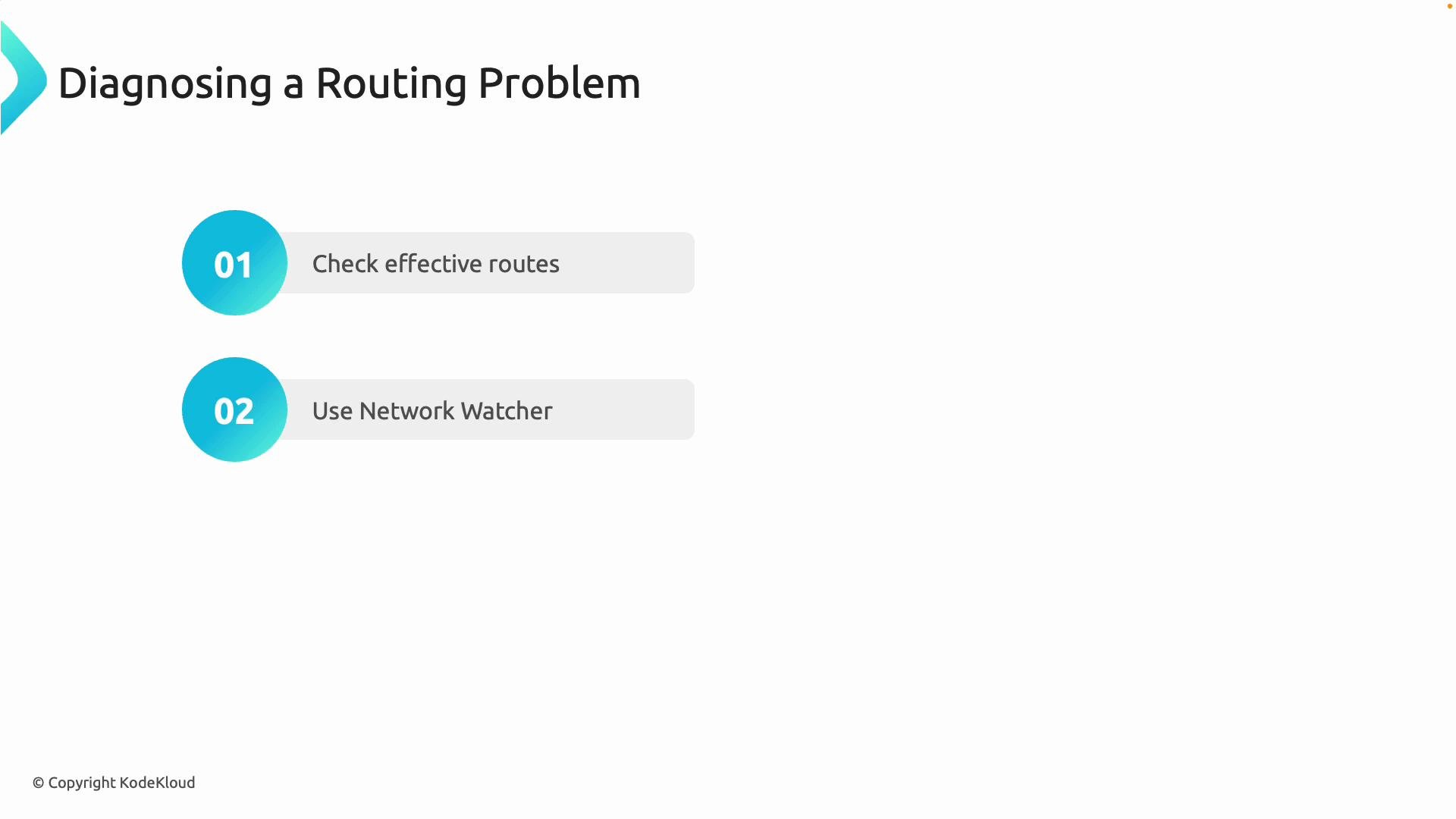
Primary troubleshooting steps
1. Check effective routes
2. Use Azure Network Watcher
3. Verify user-defined routes and route table associations
4. Watch for asymmetric routing
5. Confirm appliances and gateways are healthy
## 1) Check effective routes (what Azure is actually using)
Start by viewing the effective routes for the VM or its network interface. Effective routes reveal exactly how Azure will forward or drop packets right now. A missing, unexpected, or higher-priority user-defined route (UDR) is a frequent cause.
You can view effective routes from the Azure Portal (select the VM → Networking → Effective routes), or use the Azure CLI:
```bash theme={null}
# Show effective routes for a network interface
az network nic show-effective-route-table --name MyNic --resource-group MyResourceGroup
```
To validate the route table associated with a subnet from the CLI:
```bash theme={null}
# Show subnet details including associated route table
az network vnet subnet show \
--resource-group MyResourceGroup \
--vnet-name MyVNet \
--name MySubnet \
--query "routeTable"
```
To list routes in a route table:
```bash theme={null}
az network route-table route list \
--resource-group MyResourceGroup \
--route-table-name MyRouteTable
```
Tip: Look for overlapping prefixes, unexpected next hops, and route priorities. Azure selects routes by longest-prefix match; UDRs override system routes for equal-length prefixes.
## 2) Use Azure Network Watcher to validate traffic paths
Azure Network Watcher provides tools to visualize traffic, validate hops, and find where packets are dropped.
 Network Watcher tools to try:
| Tool | Purpose |
| ----------------------- | -------------------------------------------------------------------------------------------------------------- |
| IP Flow Verify | Check whether traffic is allowed or denied for a 5-tuple (src/dst IP, protocol, src/dst port). |
| Next Hop | Determine the next hop for traffic from a VM to a destination IP (shows which device will receive the packet). |
| Connection Troubleshoot | Test end-to-end connectivity and reveal the path between two endpoints. |
| Packet capture | Capture packets on a VM for deeper inspection and post-capture analysis. |
Reference: [Azure Network Watcher documentation](https://learn.microsoft.com/azure/network-watcher/)
## 3) Verify user-defined routes (UDRs) and route table associations
UDRs let you steer traffic through firewalls, NVAs, or custom gateways for inspection, logging, or policy enforcement. Validate any custom routes for:
* Correct destination prefixes (no accidental overlaps)
* Correct next hop type and next hop IP
* Appropriate priority (UDRs override system routes when applicable)
* Proper association with the intended subnet
If a subnet isn't associated with the intended route table, Azure will apply the default/system routes instead.
Always verify route table associations on the subnet level. A mis-associated subnet will silently use system routes instead of your custom routes.
Common CLI checks to confirm associations and route contents are shown above. Use these to ensure the actual configuration matches your design.
## 4) Watch for asymmetric routing (and why it breaks inspection)
Asymmetric routing happens when outbound and return traffic follow different paths. This often breaks stateful inspection in firewalls and NVAs or causes return packets to be dropped.
How to avoid or detect asymmetric routing:
* Ensure return paths traverse the same NVA or gateway (configure symmetric routing on both sides).
* For hub-and-spoke or forced-tunneling designs, make sure spokes and the hub have consistent route tables and next hops.
* Check for SNAT, BGP path changes, or source/destination-based routing that may alter the return path unexpectedly.
* Use Network Watcher's Connection Troubleshoot and Next Hop tools to confirm both directions.
## 5) Confirm appliances, gateways, and load balancers are healthy
If you force traffic through an NVA or gateway, ensure those devices are online and functioning; otherwise you’ll see drops or blackholes.
Common quick checks
| Component | What to check |
| ----------------------- | -------------------------------------------------------------------------------------- |
| NVA / VM | Is the VM running and reachable? Test SSH/ICMP and check OS-level forwarding settings. |
| NSGs | Are security rules allowing management and forwarding traffic (including probes)? |
| Load balancer / Gateway | Are health probes passing? Are backend pools configured correctly? |
| BGP / Peering | Are BGP sessions established and is the expected prefix advertisement present? |
Additional diagnostic tips
* Reproduce the failing flow and capture packet traces on the VM (packet capture) for suspicious behavior.
* Use incremental testing: validate routing on the VM/NIC, then subnet, then route tables, then NVAs/gateways.
* Keep a simple map of expected paths (e.g., source → next hop → final destination) to compare against effective routes.
## Summary checklist
* View effective routes on the VM/NIC.
* Use Network Watcher tools (IP Flow Verify, Next Hop, Connection Troubleshoot, Packet capture).
* Validate UDRs and confirm correct subnet associations.
* Check for asymmetric routing and enforce symmetric return paths where required.
* Confirm NVAs, gateways, and load balancers are healthy and reachable.
Following these steps methodically will help you diagnose and resolve most Azure routing problems. In practice, issues usually boil down to a missing, misconfigured, or conflicting route — or to a required device being offline. Verify each layer from VM to route table to appliance and you’ll typically find the root cause quickly.
Network Watcher tools to try:
| Tool | Purpose |
| ----------------------- | -------------------------------------------------------------------------------------------------------------- |
| IP Flow Verify | Check whether traffic is allowed or denied for a 5-tuple (src/dst IP, protocol, src/dst port). |
| Next Hop | Determine the next hop for traffic from a VM to a destination IP (shows which device will receive the packet). |
| Connection Troubleshoot | Test end-to-end connectivity and reveal the path between two endpoints. |
| Packet capture | Capture packets on a VM for deeper inspection and post-capture analysis. |
Reference: [Azure Network Watcher documentation](https://learn.microsoft.com/azure/network-watcher/)
## 3) Verify user-defined routes (UDRs) and route table associations
UDRs let you steer traffic through firewalls, NVAs, or custom gateways for inspection, logging, or policy enforcement. Validate any custom routes for:
* Correct destination prefixes (no accidental overlaps)
* Correct next hop type and next hop IP
* Appropriate priority (UDRs override system routes when applicable)
* Proper association with the intended subnet
If a subnet isn't associated with the intended route table, Azure will apply the default/system routes instead.
Always verify route table associations on the subnet level. A mis-associated subnet will silently use system routes instead of your custom routes.
Common CLI checks to confirm associations and route contents are shown above. Use these to ensure the actual configuration matches your design.
## 4) Watch for asymmetric routing (and why it breaks inspection)
Asymmetric routing happens when outbound and return traffic follow different paths. This often breaks stateful inspection in firewalls and NVAs or causes return packets to be dropped.
How to avoid or detect asymmetric routing:
* Ensure return paths traverse the same NVA or gateway (configure symmetric routing on both sides).
* For hub-and-spoke or forced-tunneling designs, make sure spokes and the hub have consistent route tables and next hops.
* Check for SNAT, BGP path changes, or source/destination-based routing that may alter the return path unexpectedly.
* Use Network Watcher's Connection Troubleshoot and Next Hop tools to confirm both directions.
## 5) Confirm appliances, gateways, and load balancers are healthy
If you force traffic through an NVA or gateway, ensure those devices are online and functioning; otherwise you’ll see drops or blackholes.
Common quick checks
| Component | What to check |
| ----------------------- | -------------------------------------------------------------------------------------- |
| NVA / VM | Is the VM running and reachable? Test SSH/ICMP and check OS-level forwarding settings. |
| NSGs | Are security rules allowing management and forwarding traffic (including probes)? |
| Load balancer / Gateway | Are health probes passing? Are backend pools configured correctly? |
| BGP / Peering | Are BGP sessions established and is the expected prefix advertisement present? |
Additional diagnostic tips
* Reproduce the failing flow and capture packet traces on the VM (packet capture) for suspicious behavior.
* Use incremental testing: validate routing on the VM/NIC, then subnet, then route tables, then NVAs/gateways.
* Keep a simple map of expected paths (e.g., source → next hop → final destination) to compare against effective routes.
## Summary checklist
* View effective routes on the VM/NIC.
* Use Network Watcher tools (IP Flow Verify, Next Hop, Connection Troubleshoot, Packet capture).
* Validate UDRs and confirm correct subnet associations.
* Check for asymmetric routing and enforce symmetric return paths where required.
* Confirm NVAs, gateways, and load balancers are healthy and reachable.
Following these steps methodically will help you diagnose and resolve most Azure routing problems. In practice, issues usually boil down to a missing, misconfigured, or conflicting route — or to a required device being offline. Verify each layer from VM to route table to appliance and you’ll typically find the root cause quickly.