> ## Documentation Index
> Fetch the complete documentation index at: https://notes.kodekloud.com/llms.txt
> Use this file to discover all available pages before exploring further.
# Network Watcher
> Overview of Azure Network Watcher tools for monitoring diagnosing and troubleshooting Azure network resources including IP flow verify next hop flow logs connection troubleshoot and topology
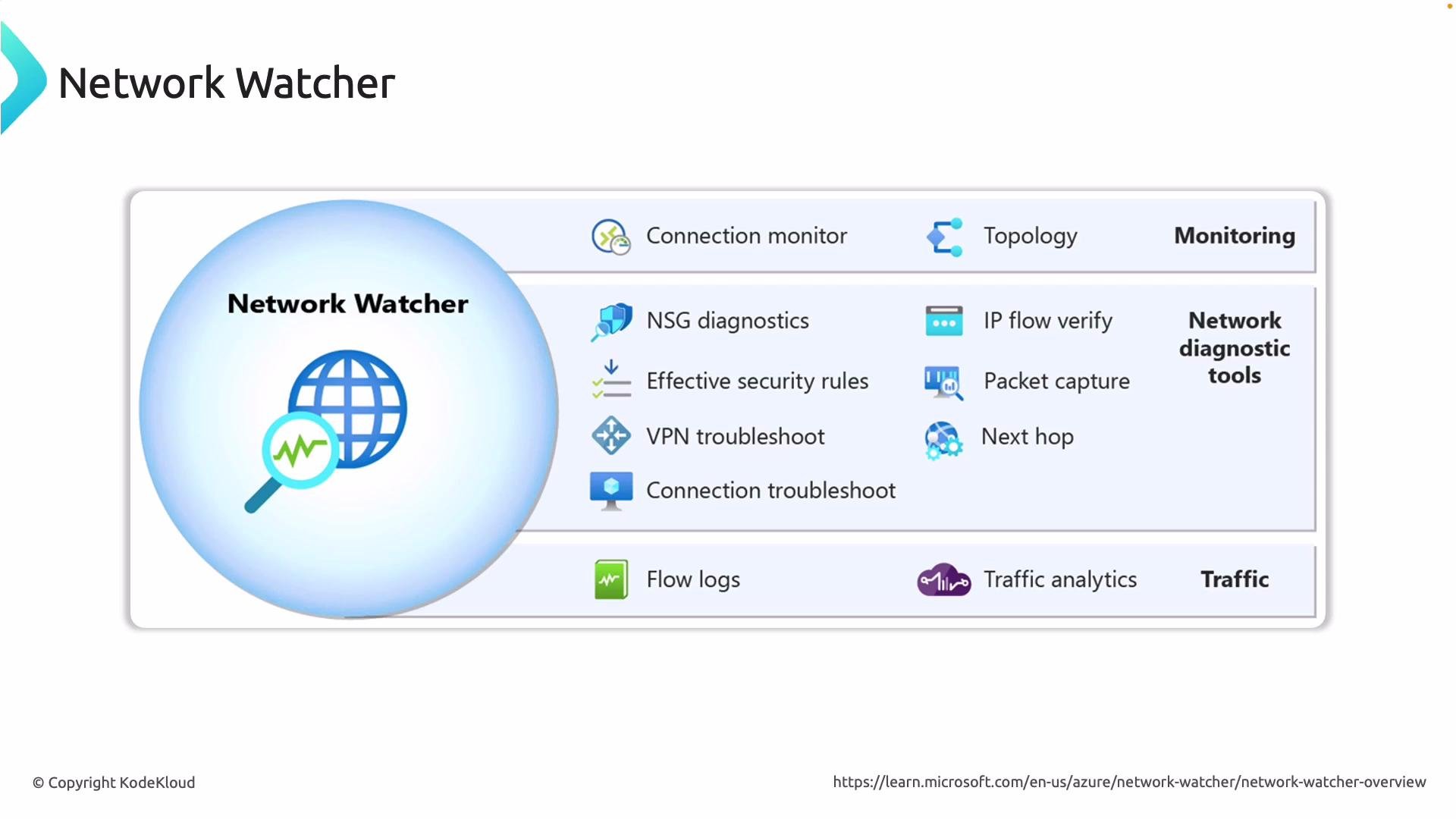
Azure Network Watcher is the central service for monitoring, diagnosing, and troubleshooting network resources in Azure. It gives visibility across cloud-only and hybrid networks so you can ensure reliability, performance, and security for your workloads.
Below is a high-level overview of the main Network Watcher tools and what they do.
 Summary table — quick reference
| Tool | Primary use | Quick example (Azure CLI) |
| ----------------------- | -------------------------------------------------------------------------------------------------- | -------------------------------------------------------------------------------------------------------------------------------- |
| IP Flow Verify | Check whether traffic to/from a VM is allowed or denied by effective NSG rules | `az network watcher test-ip-flow --resource-group --vm --direction Outbound --local-port 80 --remote-ip 10.0.0.5` |
| Next Hop | Determine the next-hop decision for packets leaving a VM (useful for UDR/troubleshooting) | `az network watcher show-next-hop --resource-group --vm --source-ip 10.0.0.4 --dest-ip 8.8.8.8` |
| VPN Troubleshoot | Diagnose VPN gateway connectivity and tunnel health | Use the VPN gateway diagnostic options in the Azure Portal or `az network vpn-connection` diagnostics |
| Flow Logs | Capture NSG flow records to a storage account, Log Analytics, or Traffic Analytics | `az network watcher flow-log create --nsg --resource-group --enabled true --storage-account ` |
| Connection Troubleshoot | Simulate end-to-end path between two endpoints and show where connectivity or latency issues occur | `az network watcher test-connectivity --source-resource --dest-address 10.0.0.5` |
| Topology | Visual map of VNets, subnets, NICs, gateways, and relationships | `az network watcher show-topology --resource-group ` |
Network Watcher is enabled per region for each subscription. NSG Flow Logs require a storage account or Log Analytics workspace and may incur storage/ingestion costs. Configure retention and routing to meet your compliance and cost requirements.
Detailed tool descriptions and practical guidance
* IP Flow Verify\
Purpose: Verify whether traffic to or from a VM is allowed or denied based on the VM’s effective Network Security Group (NSG) rules and routing.\
How it helps: Identify the specific NSG rule (and priority) that allowed or denied traffic, avoiding manual rule-by-rule inspection.\
Example usage (Azure CLI):
```bash theme={null}
az network watcher test-ip-flow \
--resource-group \
--vm \
--direction Outbound \
--local-port 80 \
--remote-ip 10.0.0.5 \
--protocol Tcp
```
When to run: during access issues to determine whether NSG rules are blocking expected traffic.
* Next Hop\
Purpose: Show the effective forwarding decision for a packet leaving a VM’s NIC by evaluating route tables and UDRs.\
How it helps: Pinpoint whether traffic is routed to a VirtualAppliance, Internet, VirtualNetworkGateway, VNetLocal, or None, which is critical for UDR, firewall, and gateway troubleshooting.\
Example usage (Azure CLI):
```bash theme={null}
az network watcher show-next-hop \
--resource-group \
--vm \
--source-ip 10.0.0.4 \
--dest-ip 8.8.8.8
```
When to run: if traffic goes to an unexpected appliance or drops, or when verifying route propagation.
* VPN Troubleshoot\
Purpose: Diagnose VPN gateway connectivity, tunnel status, and common configuration issues between on-premises and Azure.\
How it helps: Surface tunnel health, configuration mismatches, and gateway errors so you can resolve VPN outages faster.\
Typical checks: tunnel status, phase 1/2 negotiation errors, shared key mismatches, gateway capacity/throughput, and gateway IP reachability. Use portal diagnostics or CLI tooling for detailed logs.
* Flow Logs\
Purpose: Capture IP flow records for traffic traversing an NSG. Flow logs can be stored in a storage account or sent to Log Analytics/Traffic Analytics for processing and visualization.\
How it helps: Analyze traffic patterns, detect anomalies, perform forensics, and support capacity planning. Flow logs are enabled per NSG and support different log versions and retention periods.\
Example usage (Azure CLI):
```bash theme={null}
az network watcher flow-log create \
--nsg \
--resource-group \
--enabled true \
--storage-account \
--retention 30 \
--log-version 2
```
Best practices: centralize flow log storage for multiple NSGs, enable Traffic Analytics for aggregated insights, and configure retention to balance cost vs. investigation needs.
* Connection Troubleshoot\
Purpose: Simulate an end-to-end path between two endpoints (for example, VM to destination IP) and show where connectivity fails or where latency is introduced.\
How it helps: Evaluate NSGs, UDRs, gateway/firewall rules and return per-hop information, packet loss, and latency where available.\
Example usage (Azure CLI):
```bash theme={null}
az network watcher test-connectivity \
--source-resource \
--dest-address 10.0.0.5 \
--dest-port 443
```
When to run: when users or services report intermittent connectivity, high latency, or when validating connectivity after a topology change.
* Topology\
Purpose: Generate a visual map of network resources and their relationships — VNets, subnets, NICs, VMs, gateways, and connected resources.\
How it helps: Quickly identify misconfigurations, unexpected attachments, missing peering, or security gaps in your network design.\
Example usage (Azure CLI):
```bash theme={null}
az network watcher show-topology --resource-group --output json
```
When to run: during architecture reviews, incident triage, or before applying major network changes.
Additional tips and references
* Enable Network Watcher for a region (Azure CLI):
```bash theme={null}
az network watcher configure --locations --resource-group --enabled true
```
* For long-term analysis, send NSG Flow Logs to Log Analytics and enable Traffic Analytics for aggregated dashboards and anomaly detection.
* Combine Network Watcher tools in sequence: use Topology to visualize, Next Hop to verify routing, IP Flow Verify to check ACLs, and Connection Troubleshoot to simulate the full path.
Links and references
* Azure Network Watcher overview: [https://learn.microsoft.com/azure/network-watcher/overview](https://learn.microsoft.com/azure/network-watcher/overview)
* Network Watcher CLI reference: [https://learn.microsoft.com/cli/azure/network/watcher?view=azure-cli-latest](https://learn.microsoft.com/cli/azure/network/watcher?view=azure-cli-latest)
* Configure NSG flow logs and Traffic Analytics: [https://learn.microsoft.com/azure/network-watcher/flow-logs-manage](https://learn.microsoft.com/azure/network-watcher/flow-logs-manage)
These tools, used together, give you a practical, repeatable approach to diagnose and fix network issues in Azure.
Summary table — quick reference
| Tool | Primary use | Quick example (Azure CLI) |
| ----------------------- | -------------------------------------------------------------------------------------------------- | -------------------------------------------------------------------------------------------------------------------------------- |
| IP Flow Verify | Check whether traffic to/from a VM is allowed or denied by effective NSG rules | `az network watcher test-ip-flow --resource-group --vm --direction Outbound --local-port 80 --remote-ip 10.0.0.5` |
| Next Hop | Determine the next-hop decision for packets leaving a VM (useful for UDR/troubleshooting) | `az network watcher show-next-hop --resource-group --vm --source-ip 10.0.0.4 --dest-ip 8.8.8.8` |
| VPN Troubleshoot | Diagnose VPN gateway connectivity and tunnel health | Use the VPN gateway diagnostic options in the Azure Portal or `az network vpn-connection` diagnostics |
| Flow Logs | Capture NSG flow records to a storage account, Log Analytics, or Traffic Analytics | `az network watcher flow-log create --nsg --resource-group --enabled true --storage-account ` |
| Connection Troubleshoot | Simulate end-to-end path between two endpoints and show where connectivity or latency issues occur | `az network watcher test-connectivity --source-resource --dest-address 10.0.0.5` |
| Topology | Visual map of VNets, subnets, NICs, gateways, and relationships | `az network watcher show-topology --resource-group ` |
Network Watcher is enabled per region for each subscription. NSG Flow Logs require a storage account or Log Analytics workspace and may incur storage/ingestion costs. Configure retention and routing to meet your compliance and cost requirements.
Detailed tool descriptions and practical guidance
* IP Flow Verify\
Purpose: Verify whether traffic to or from a VM is allowed or denied based on the VM’s effective Network Security Group (NSG) rules and routing.\
How it helps: Identify the specific NSG rule (and priority) that allowed or denied traffic, avoiding manual rule-by-rule inspection.\
Example usage (Azure CLI):
```bash theme={null}
az network watcher test-ip-flow \
--resource-group \
--vm \
--direction Outbound \
--local-port 80 \
--remote-ip 10.0.0.5 \
--protocol Tcp
```
When to run: during access issues to determine whether NSG rules are blocking expected traffic.
* Next Hop\
Purpose: Show the effective forwarding decision for a packet leaving a VM’s NIC by evaluating route tables and UDRs.\
How it helps: Pinpoint whether traffic is routed to a VirtualAppliance, Internet, VirtualNetworkGateway, VNetLocal, or None, which is critical for UDR, firewall, and gateway troubleshooting.\
Example usage (Azure CLI):
```bash theme={null}
az network watcher show-next-hop \
--resource-group \
--vm \
--source-ip 10.0.0.4 \
--dest-ip 8.8.8.8
```
When to run: if traffic goes to an unexpected appliance or drops, or when verifying route propagation.
* VPN Troubleshoot\
Purpose: Diagnose VPN gateway connectivity, tunnel status, and common configuration issues between on-premises and Azure.\
How it helps: Surface tunnel health, configuration mismatches, and gateway errors so you can resolve VPN outages faster.\
Typical checks: tunnel status, phase 1/2 negotiation errors, shared key mismatches, gateway capacity/throughput, and gateway IP reachability. Use portal diagnostics or CLI tooling for detailed logs.
* Flow Logs\
Purpose: Capture IP flow records for traffic traversing an NSG. Flow logs can be stored in a storage account or sent to Log Analytics/Traffic Analytics for processing and visualization.\
How it helps: Analyze traffic patterns, detect anomalies, perform forensics, and support capacity planning. Flow logs are enabled per NSG and support different log versions and retention periods.\
Example usage (Azure CLI):
```bash theme={null}
az network watcher flow-log create \
--nsg \
--resource-group \
--enabled true \
--storage-account \
--retention 30 \
--log-version 2
```
Best practices: centralize flow log storage for multiple NSGs, enable Traffic Analytics for aggregated insights, and configure retention to balance cost vs. investigation needs.
* Connection Troubleshoot\
Purpose: Simulate an end-to-end path between two endpoints (for example, VM to destination IP) and show where connectivity fails or where latency is introduced.\
How it helps: Evaluate NSGs, UDRs, gateway/firewall rules and return per-hop information, packet loss, and latency where available.\
Example usage (Azure CLI):
```bash theme={null}
az network watcher test-connectivity \
--source-resource \
--dest-address 10.0.0.5 \
--dest-port 443
```
When to run: when users or services report intermittent connectivity, high latency, or when validating connectivity after a topology change.
* Topology\
Purpose: Generate a visual map of network resources and their relationships — VNets, subnets, NICs, VMs, gateways, and connected resources.\
How it helps: Quickly identify misconfigurations, unexpected attachments, missing peering, or security gaps in your network design.\
Example usage (Azure CLI):
```bash theme={null}
az network watcher show-topology --resource-group --output json
```
When to run: during architecture reviews, incident triage, or before applying major network changes.
Additional tips and references
* Enable Network Watcher for a region (Azure CLI):
```bash theme={null}
az network watcher configure --locations --resource-group --enabled true
```
* For long-term analysis, send NSG Flow Logs to Log Analytics and enable Traffic Analytics for aggregated dashboards and anomaly detection.
* Combine Network Watcher tools in sequence: use Topology to visualize, Next Hop to verify routing, IP Flow Verify to check ACLs, and Connection Troubleshoot to simulate the full path.
Links and references
* Azure Network Watcher overview: [https://learn.microsoft.com/azure/network-watcher/overview](https://learn.microsoft.com/azure/network-watcher/overview)
* Network Watcher CLI reference: [https://learn.microsoft.com/cli/azure/network/watcher?view=azure-cli-latest](https://learn.microsoft.com/cli/azure/network/watcher?view=azure-cli-latest)
* Configure NSG flow logs and Traffic Analytics: [https://learn.microsoft.com/azure/network-watcher/flow-logs-manage](https://learn.microsoft.com/azure/network-watcher/flow-logs-manage)
These tools, used together, give you a practical, repeatable approach to diagnose and fix network issues in Azure.