> ## Documentation Index
> Fetch the complete documentation index at: https://notes.kodekloud.com/llms.txt
> Use this file to discover all available pages before exploring further.
# Troubleshooting Network Performance
> Guidance for diagnosing and fixing Azure network performance issues using tools like AzCTK, tests for bandwidth latency packet loss and steps to isolate root causes
This guide explains how to diagnose and remediate network performance issues in Azure. It covers recommended tools, how to run end-to-end tests with the Azure Connectivity Toolkit (AzCTK), how to interpret results, and practical checks to narrow down root causes.
## Recommended tools
Use these Azure-native and community tools for monitoring and diagnosing connectivity, throughput, and latency issues:
* Azure Network Watcher — packet capture, topology, connection troubleshoot: [https://learn.microsoft.com/azure/network-watcher/network-watcher-monitoring-overview](https://learn.microsoft.com/azure/network-watcher/network-watcher-monitoring-overview)
* Azure CLI — scripting and automation for Azure resources: [https://learn.microsoft.com/cli/azure/](https://learn.microsoft.com/cli/azure/)
* Azure PowerShell — manage Azure resources from PowerShell: [https://learn.microsoft.com/azure/powershell/](https://learn.microsoft.com/azure/powershell/)
* Azure Connectivity Toolkit (AzCTK) — a PowerShell toolkit for end-to-end network diagnostics: [https://github.com/microsoft/Azure-Connectivity-Toolkit](https://github.com/microsoft/Azure-Connectivity-Toolkit)
AzCTK is particularly useful for automated, repeatable tests of TCP connectivity, packet loss, latency, and multi-session bandwidth.
## AzCTK overview and common cmdlets
AzCTK provides cmdlets that replicate real-world TCP behavior across different session counts and window sizes. Useful cmdlets include:
| Cmdlet | Purpose |
| -------------------------- | ------------------------------------------------------------ |
| `Get-LinkPerformance` | Multi-stage TCP performance tests (bandwidth, loss, latency) |
| `Get-LinkDiagnostics` | Path diagnostics and connectivity checks |
| `Test-Link` (if available) | Quick reachability and basic throughput checks |
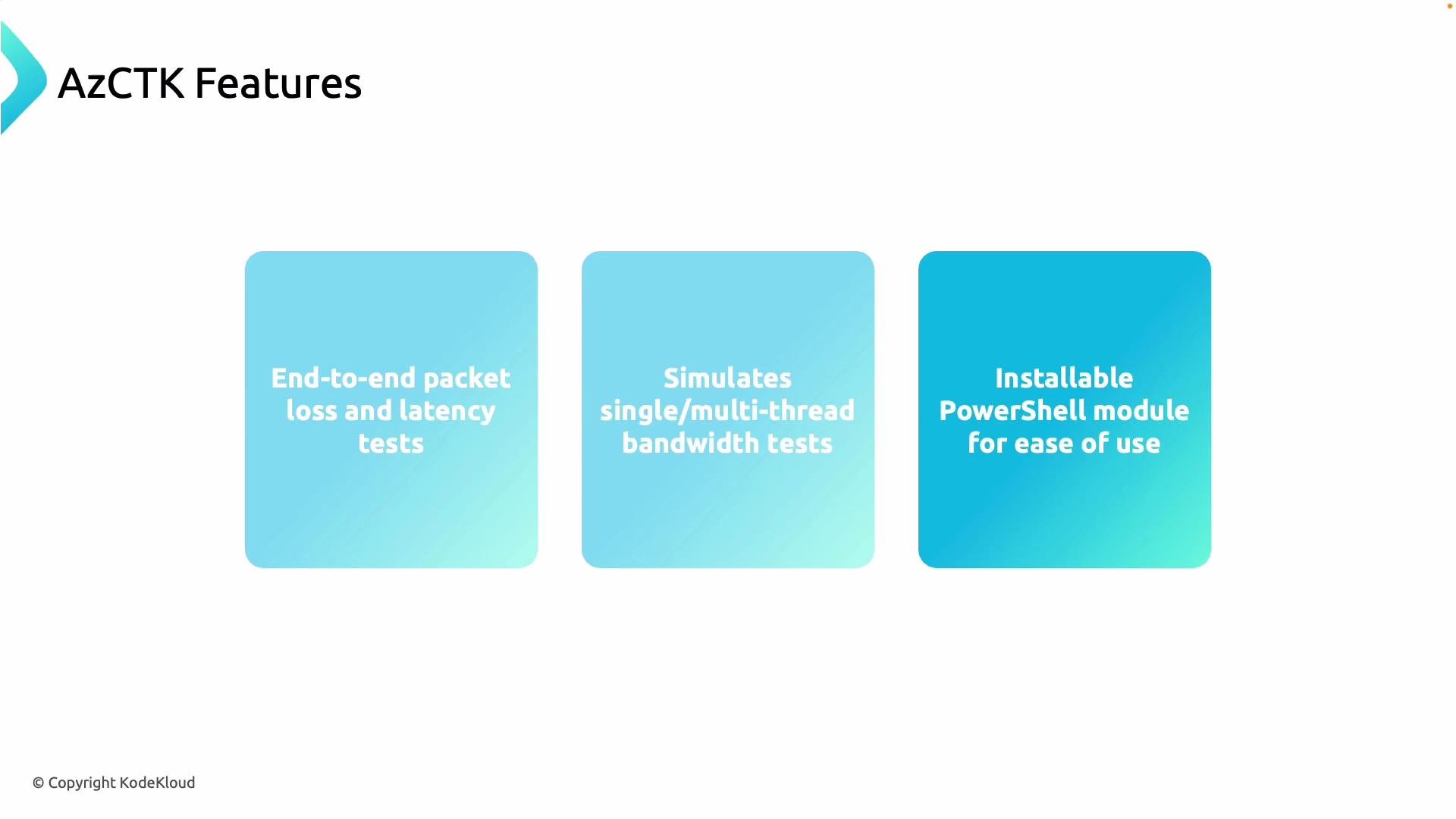
Key AzCTK features:
* End-to-end packet loss and latency tests.
* Single-thread and multi-thread bandwidth tests (multiple concurrent sessions).
* Ability to vary TCP window sizes to emulate different client behaviors.
* Installable as a PowerShell module for automation and scripting.
 The screenshot above shows a sample multi-stage test output with bandwidth, packet loss, and latency reported for different session counts and stages. Reviewing these metrics across stages helps identify capacity constraints, device misconfigurations, or endpoint limitations.
## Example: running a Get-LinkPerformance test
Run a basic multi-stage performance test:
```powershell theme={null}
Get-LinkPerformance -RemoteHost 127.0.0.1 -TestSeconds 10
```
This triggers a series of TCP tests (no-load ping, single-session, multi-session, varying window sizes) over the specified duration. Example (trimmed) output:
```powershell theme={null}
E:\> Get-LinkPerformance -RemoteHost 127.0.0.1 -TestSeconds 10
6/30/2017 4:50:18 PM - Stage 1 of 6: No Load Ping Test...
6/30/2017 4:50:56 PM - Stage 2 of 6: Single Thread Test...
6/30/2017 4:51:22 PM - Stage 3 of 6: 6 Thread Test...
6/30/2017 4:51:49 PM - Stage 4 of 6: 16 Thread Test...
6/30/2017 4:52:15 PM - Stage 5 of 6: 16 Thread Test with 1Mb window...
6/30/2017 4:52:22 PM - Stage 6 of 6: 32 Thread Test...
Testing Complete!
Name Bandwidth Loss P50
---- --------- ---- ---
No Load N/A 0% 1.87ms
1 Session 6.79 Gbits/sec 0% 0.92ms
6 Sessions 8.39 Gbits/sec 0% 1.94ms
16 Sessions 7.50 Gbits/sec 0% 4.34ms
16 Sessions with 1Mb window 7.33 Gbits/sec 0% 19.405ms
32 Sessions 7.17 Gbits/sec 0% 8.335ms
```
### Interpreting the core metrics
| Metric | Meaning | Action if high/abnormal |
| -------------------- | ------------------------------------------- | -------------------------------------------------------------------------- |
| Bandwidth | Observed throughput in the test scenario | Compare against link/VM limits; check NIC/VM SKU and NIC teaming |
| Loss | Percentage of packets lost during the test | Investigate QoS, MTU mismatches, network saturation, or device-level drops |
| P50 (median latency) | Median round-trip latency (50th percentile) | Check routing, device CPU saturation, or asymmetric paths |
## Troubleshooting checklist
When results show elevated loss, reduced bandwidth, or increased latency, validate configuration and capacity across all layers:
* Azure networking:
* NSGs and UDRs for unintended rules.
* Load Balancer configuration and health probes.
* VM size and NIC capabilities (maximum bandwidth, Accelerated Networking).
* On-premises network:
* Routers, switches, firewalls for queueing or drops.
* MTU settings and VLAN configurations.
* Connectivity circuits:
* ExpressRoute or VPN circuit health and advertised BGP routes.
* Endpoints:
* Server NIC drivers, OS TCP stack tuning, CPU/memory saturation.
Run tests from both endpoints (on-premises → Azure and Azure → on-premises). Vary session counts and TCP window sizes to isolate whether the bottleneck is in the network or on the endpoints.
## Installation and quick start
Install AzCTK from the PowerShell Gallery and import it into your session:
```powershell theme={null}
# Install for the current user (PowerShell must run with appropriate policy)
Install-Module -Name AzCTK -Scope CurrentUser
# Import the module into the session
Import-Module AzCTK
```
Run PowerShell as an administrator if you need to install modules system-wide. Ensure you have a supported PowerShell version (PowerShell 5.1 or PowerShell Core) and an execution policy that permits module installation.
## Example troubleshooting workflow
1. Baseline test: run `Get-LinkPerformance` with default stages to capture baseline bandwidth/latency/loss.
2. Reproduce: run the same tests from the opposite endpoint to confirm symmetry.
3. Isolate: increase session counts and vary window sizes to determine whether the limitation changes (network vs. endpoint).
4. Inspect: review NSGs, UDRs, load balancers, VM SKUs, and NIC settings. Check on-premises devices and circuit state.
5. Remediate: adjust configuration (e.g., increase VM size, tune TCP, resolve MTU mismatches), then retest.
## Links and references
* Azure Network Watcher docs: [https://learn.microsoft.com/azure/network-watcher/network-watcher-monitoring-overview](https://learn.microsoft.com/azure/network-watcher/network-watcher-monitoring-overview)
* AzCTK GitHub: [https://github.com/microsoft/Azure-Connectivity-Toolkit](https://github.com/microsoft/Azure-Connectivity-Toolkit)
* Azure PowerShell: [https://learn.microsoft.com/azure/powershell/](https://learn.microsoft.com/azure/powershell/)
* Azure CLI: [https://learn.microsoft.com/cli/azure/](https://learn.microsoft.com/cli/azure/)
Using AzCTK within a structured troubleshooting process helps pinpoint whether network performance issues are caused by capacity limits, misconfiguration, or endpoint constraints — enabling targeted, effective remediation.
The screenshot above shows a sample multi-stage test output with bandwidth, packet loss, and latency reported for different session counts and stages. Reviewing these metrics across stages helps identify capacity constraints, device misconfigurations, or endpoint limitations.
## Example: running a Get-LinkPerformance test
Run a basic multi-stage performance test:
```powershell theme={null}
Get-LinkPerformance -RemoteHost 127.0.0.1 -TestSeconds 10
```
This triggers a series of TCP tests (no-load ping, single-session, multi-session, varying window sizes) over the specified duration. Example (trimmed) output:
```powershell theme={null}
E:\> Get-LinkPerformance -RemoteHost 127.0.0.1 -TestSeconds 10
6/30/2017 4:50:18 PM - Stage 1 of 6: No Load Ping Test...
6/30/2017 4:50:56 PM - Stage 2 of 6: Single Thread Test...
6/30/2017 4:51:22 PM - Stage 3 of 6: 6 Thread Test...
6/30/2017 4:51:49 PM - Stage 4 of 6: 16 Thread Test...
6/30/2017 4:52:15 PM - Stage 5 of 6: 16 Thread Test with 1Mb window...
6/30/2017 4:52:22 PM - Stage 6 of 6: 32 Thread Test...
Testing Complete!
Name Bandwidth Loss P50
---- --------- ---- ---
No Load N/A 0% 1.87ms
1 Session 6.79 Gbits/sec 0% 0.92ms
6 Sessions 8.39 Gbits/sec 0% 1.94ms
16 Sessions 7.50 Gbits/sec 0% 4.34ms
16 Sessions with 1Mb window 7.33 Gbits/sec 0% 19.405ms
32 Sessions 7.17 Gbits/sec 0% 8.335ms
```
### Interpreting the core metrics
| Metric | Meaning | Action if high/abnormal |
| -------------------- | ------------------------------------------- | -------------------------------------------------------------------------- |
| Bandwidth | Observed throughput in the test scenario | Compare against link/VM limits; check NIC/VM SKU and NIC teaming |
| Loss | Percentage of packets lost during the test | Investigate QoS, MTU mismatches, network saturation, or device-level drops |
| P50 (median latency) | Median round-trip latency (50th percentile) | Check routing, device CPU saturation, or asymmetric paths |
## Troubleshooting checklist
When results show elevated loss, reduced bandwidth, or increased latency, validate configuration and capacity across all layers:
* Azure networking:
* NSGs and UDRs for unintended rules.
* Load Balancer configuration and health probes.
* VM size and NIC capabilities (maximum bandwidth, Accelerated Networking).
* On-premises network:
* Routers, switches, firewalls for queueing or drops.
* MTU settings and VLAN configurations.
* Connectivity circuits:
* ExpressRoute or VPN circuit health and advertised BGP routes.
* Endpoints:
* Server NIC drivers, OS TCP stack tuning, CPU/memory saturation.
Run tests from both endpoints (on-premises → Azure and Azure → on-premises). Vary session counts and TCP window sizes to isolate whether the bottleneck is in the network or on the endpoints.
## Installation and quick start
Install AzCTK from the PowerShell Gallery and import it into your session:
```powershell theme={null}
# Install for the current user (PowerShell must run with appropriate policy)
Install-Module -Name AzCTK -Scope CurrentUser
# Import the module into the session
Import-Module AzCTK
```
Run PowerShell as an administrator if you need to install modules system-wide. Ensure you have a supported PowerShell version (PowerShell 5.1 or PowerShell Core) and an execution policy that permits module installation.
## Example troubleshooting workflow
1. Baseline test: run `Get-LinkPerformance` with default stages to capture baseline bandwidth/latency/loss.
2. Reproduce: run the same tests from the opposite endpoint to confirm symmetry.
3. Isolate: increase session counts and vary window sizes to determine whether the limitation changes (network vs. endpoint).
4. Inspect: review NSGs, UDRs, load balancers, VM SKUs, and NIC settings. Check on-premises devices and circuit state.
5. Remediate: adjust configuration (e.g., increase VM size, tune TCP, resolve MTU mismatches), then retest.
## Links and references
* Azure Network Watcher docs: [https://learn.microsoft.com/azure/network-watcher/network-watcher-monitoring-overview](https://learn.microsoft.com/azure/network-watcher/network-watcher-monitoring-overview)
* AzCTK GitHub: [https://github.com/microsoft/Azure-Connectivity-Toolkit](https://github.com/microsoft/Azure-Connectivity-Toolkit)
* Azure PowerShell: [https://learn.microsoft.com/azure/powershell/](https://learn.microsoft.com/azure/powershell/)
* Azure CLI: [https://learn.microsoft.com/cli/azure/](https://learn.microsoft.com/cli/azure/)
Using AzCTK within a structured troubleshooting process helps pinpoint whether network performance issues are caused by capacity limits, misconfiguration, or endpoint constraints — enabling targeted, effective remediation.