> ## Documentation Index
> Fetch the complete documentation index at: https://notes.kodekloud.com/llms.txt
> Use this file to discover all available pages before exploring further.
# Brace
> This article explains brace expansion in Bash, a feature for generating strings or arguments using curly braces.
Brace expansion is a powerful shell feature that generates arbitrary strings or arguments by evaluating expressions within curly braces `{}`. Unlike globs, which match existing filenames, brace expansions create new text before any other expansion (such as pathname or parameter expansion) takes place.
Brace expansions are always processed **before** globs and parameter expansions. This lets you quickly generate lists of filenames, parameters, or other strings in a single command.
## Table of Content
1. [Basic Range Expansion](#1-basic-range-expansion)
2. [Department Usernames Example](#2-department-usernames-example)
3. [Comma-Separated List Expansion](#3-comma-separated-list-expansion)
4. [Numeric Range Expansion](#4-numeric-range-expansion)
5. [Nested Brace Expansions](#5-nested-brace-expansions)
6. [Step-Based Range Expansion (Bash 4.0+)](#6-step-based-range-expansion-bash-40)
7. [Prefix and Suffix with Brace Expansion](#7-prefix-and-suffix-with-brace-expansion)
8. [Integrating Brace Expansion in Scripts](#8-integrating-brace-expansion-in-scripts)
9. [Summary & Best Practices](#9-summary--best-practices)
10. [Links and References](#10-links-and-references)
***
## 1. Basic Range Expansion
Alphabetic and numeric ranges let you generate sequences with minimal syntax.
```bash theme={null}
# Alphabetic sequence: a, b, c
touch sample{a..c}
ls
# Numeric sequence: 1, 2, 3
touch sample{1..3}
ls
# Descending numeric sequence
echo {3..1}
# → 3 2 1
```
| Expansion Type | Syntax | Result |
| ---------------- | -------- | ----------- |
| Alphabetic Range | `{a..z}` | a b c ... z |
| Numeric Range | `{1..5}` | 1 2 3 4 5 |
***
## 2. Department Usernames Example
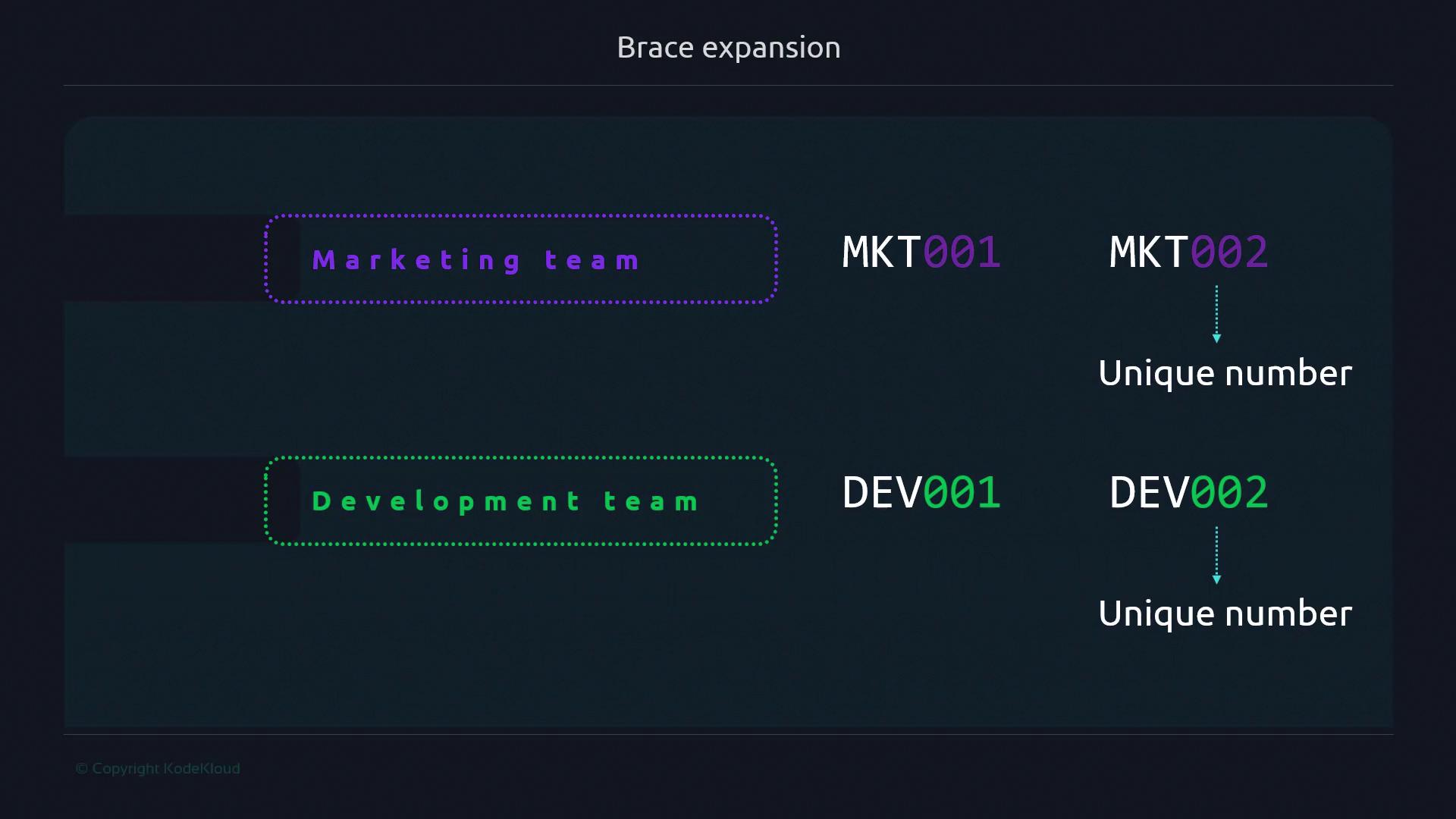
Suppose you need to create usernames for Marketing (MKT), Sales (SL), and Development (DEV), each with a three-digit suffix from `001` to `004`. Brace expansion handles this in one command:
```bash theme={null}
touch {MKT,SL,DEV}{001..004}
ls
# → DEV001 DEV002 DEV003 DEV004 MKT001 MKT002 MKT003 MKT004 SL001 SL002 SL003 SL004
```
* `{MKT,SL,DEV}` expands to each department code.
* `{001..004}` produces four numeric suffixes.
* Combined, you get all 12 unique usernames in one step.
***
## 3. Comma-Separated List Expansion
Use commas for arbitrary lists of items. Each element is substituted in place of the braces.
```bash theme={null}
echo file{alpha,beta,gamma}.txt
# → filealpha.txt filebeta.txt filegamma.txt
```
***
## 4. Numeric Range Expansion
Generate a series of numeric filenames quickly:
```bash theme={null}
echo file{1..5}.txt
# → file1.txt file2.txt file3.txt file4.txt file5.txt
```
***
## 5. Nested Brace Expansions
Nest multiple sets of braces to produce Cartesian products:
```bash theme={null}
echo {a,b}{1,2,3}
# → a1 a2 a3 b1 b2 b3
```
The shell pairs each element of the first set (`a`, `b`) with each element of the second set (`1`, `2`, `3`).
***
## 6. Step-Based Range Expansion (Bash 4.0+)
Include a step value to skip elements in a numeric range. **Requires Bash 4.0 or newer.**
Step-based expansions (`{start..end..step}`) are supported only in Bash 4.0+ and some other modern shells. Verify your shell version with `bash --version`.
```bash theme={null}
echo file{1..10..2}.txt
# → file1.txt file3.txt file5.txt file7.txt file9.txt
```
***
## 7. Prefix and Suffix with Brace Expansion
Wrap fixed text around your expansions:
```bash theme={null}
echo pre-{A..C}-post
# → pre-A-post pre-B-post pre-C-post
```
***
## 8. Integrating Brace Expansion in Scripts
Brace expansions work seamlessly within loops, conditionals, and functions:
```bash theme={null}
#!/usr/bin/env bash
for i in {1..3}; do
touch "report_${i}.log"
done
ls
# → report_1.log report_2.log report_3.log
```
Combine expansions with other shell features to automate repetitive tasks.
***
## 9. Summary & Best Practices
* Brace expansions run **before** all other shell expansions, making them ideal for generating arguments.
* Use numeric ranges for file series or versioned assets.
* Leverage nested braces for multi-dimensional data generation.
* Remember that stepped ranges require Bash 4.0+.
By mastering brace expansion, you can cut down on repetitive typing, automate bulk operations, and keep your scripts concise and readable.
***
## 10. Links and References
* [Bash Reference Manual: Shell Expansions](https://www.gnu.org/software/bash/manual/html_node/Shell-Expansions.html)
* [Advanced Bash-Scripting Guide](https://tldp.org/LDP/abs/html/brace.html)
* [Stack Overflow: Brace Expansion Examples](https://stackoverflow.com/questions/2297285/bash-brace-expansion)