> ## Documentation Index
> Fetch the complete documentation index at: https://notes.kodekloud.com/llms.txt
> Use this file to discover all available pages before exploring further.
# Subshells
> This article explains subshells in Bash, covering command substitution, syntax, common scenarios, and how to manage variable scope and process IDs.
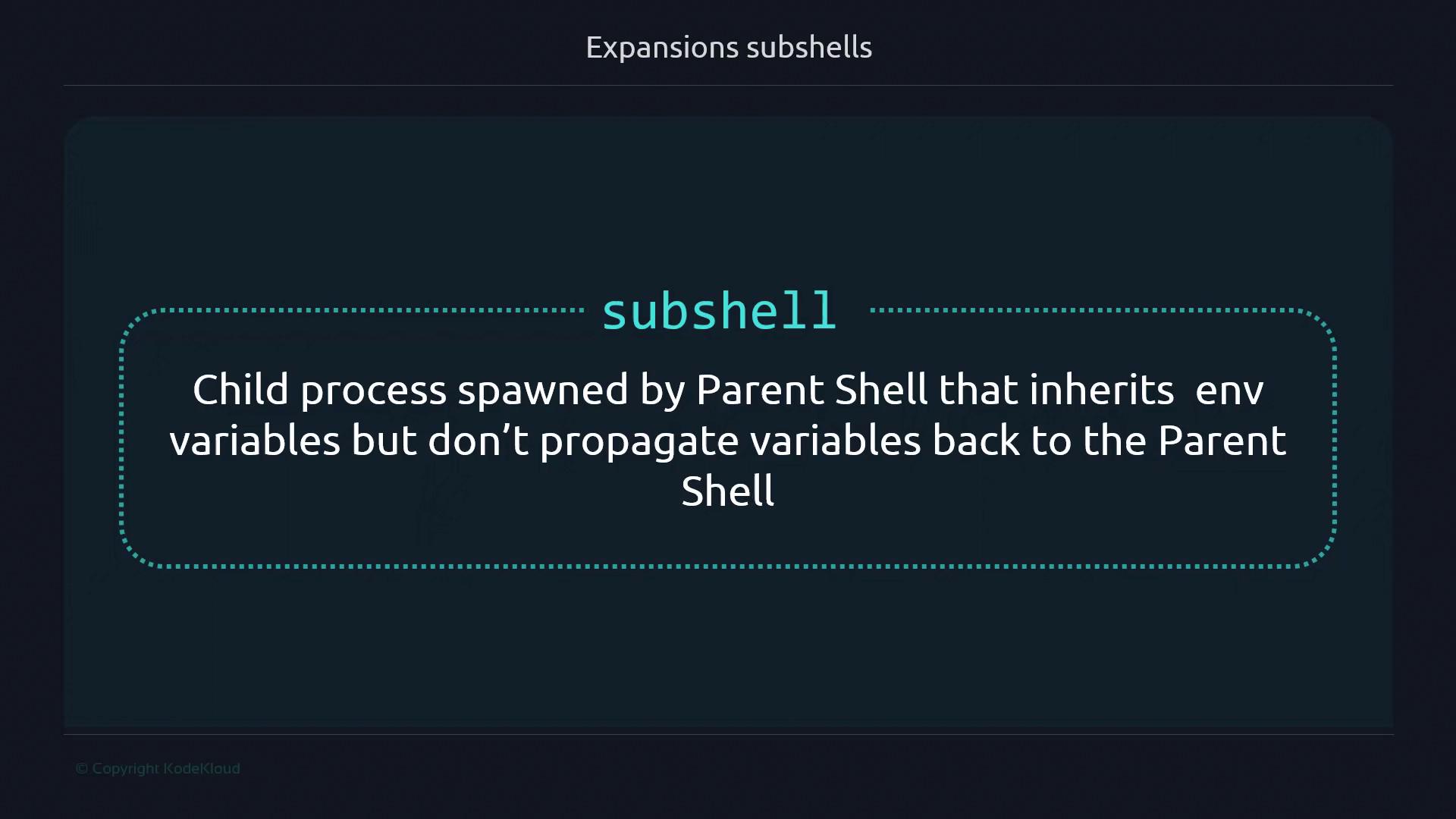
Command substitution with `$(…)` captures the output of commands into a variable, but it does so by spawning a *subshell*—a child process separate from your main shell:
```bash theme={null}
#!/usr/bin/env bash
file_count=$(find . -type f | wc -l)
```
Assignments made inside the subshell do *not* affect variables in the parent shell.
Because a new process is created, there’s a small performance cost compared to running commands directly in the parent shell.
Overusing complex command substitutions inside tight loops can degrade script performance. Measure and optimize if needed.
```bash theme={null}
#!/usr/bin/env bash
var="a"
subshell=$( var="b" )
echo "$var" # still "a"
echo "$subshell" # empty, because var="b" was in the subshell
```
***
## 1. Subshell Syntax
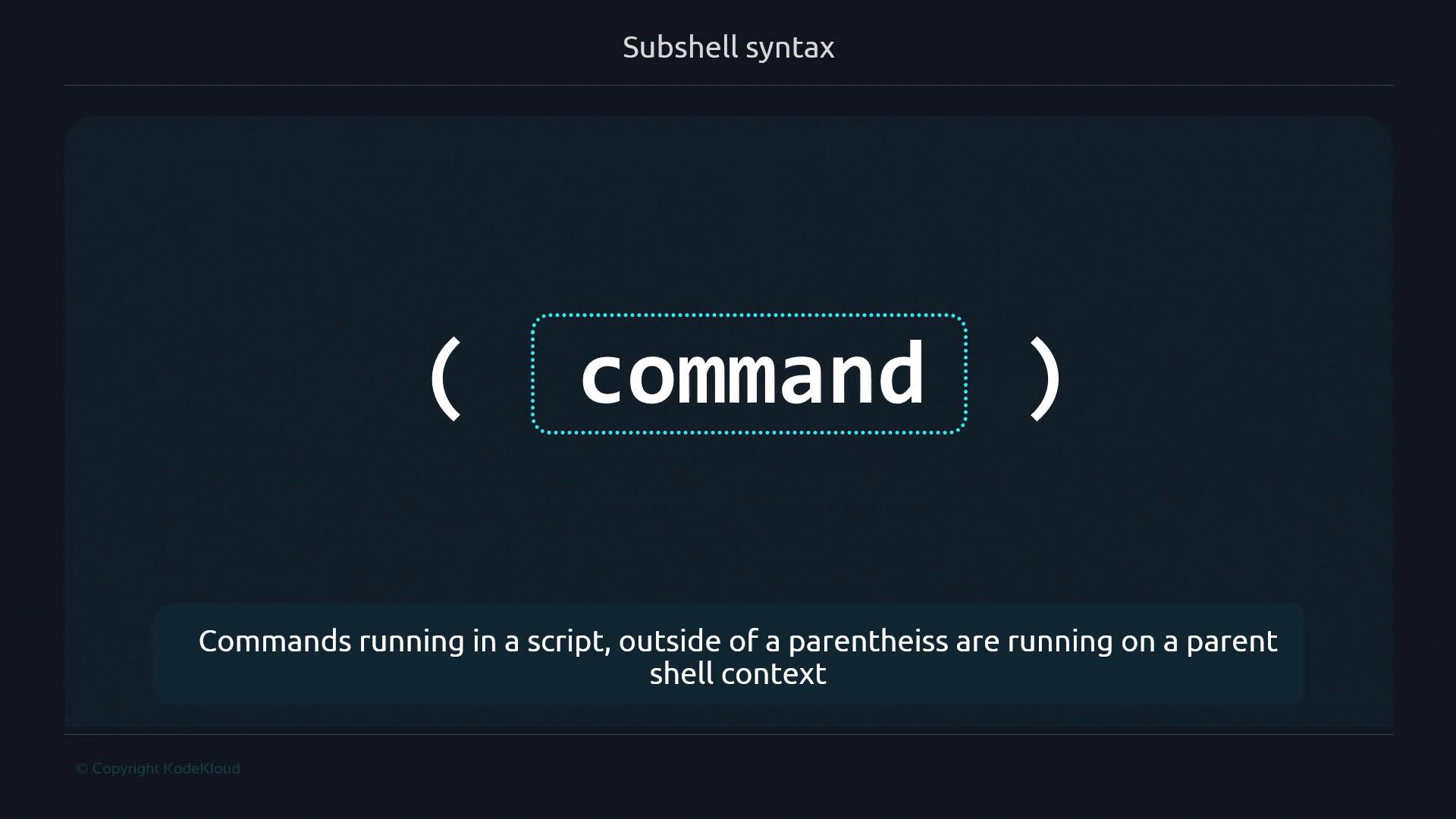
Wrap commands in parentheses to run them in a subshell:
```bash theme={null}
#!/usr/bin/env bash
current_env="shell"
(
echo "This is running in a ${current_env}"
)
```
```plaintext theme={null}
$ ./subshell-v0.sh
This is running in a shell
```
To prove isolation:
```bash theme={null}
#!/usr/bin/env bash
current_env="a"
(
current_env="b"
echo "Inside subshell: $current_env"
)
echo "Outside subshell: $current_env"
```
```plaintext theme={null}
$ ./subshell-v1.sh
Inside subshell: b
Outside subshell: a
```
***
## 2. Command Substitution with a Subshell
Combine a subshell with `$(…)` to capture its output separately from the parent shell:
```bash theme={null}
#!/usr/bin/env bash
current_env="a"
subsh_var=$(
current_env="b"
echo "$current_env"
)
echo "Parent environment: $current_env"
echo "Subshell output: $subsh_var"
```
```plaintext theme={null}
$ ./subshell-v2.sh
Parent environment: a
Subshell output: b
```
Errors inside the subshell still appear on the terminal:
```bash theme={null}
#!/usr/bin/env bash
subsh_var=$(
echo "Output"
ls -fakeoption
)
```
```plaintext theme={null}
$ ./subshell-v2-stderr.sh
ls: unrecognized option '--fakeoption'
```
***
## 3. Command Layout in Subshells
Within parentheses, you can:
* Put commands on separate lines
* Separate with semicolons (`;`)
* Pipe between them (`|`)
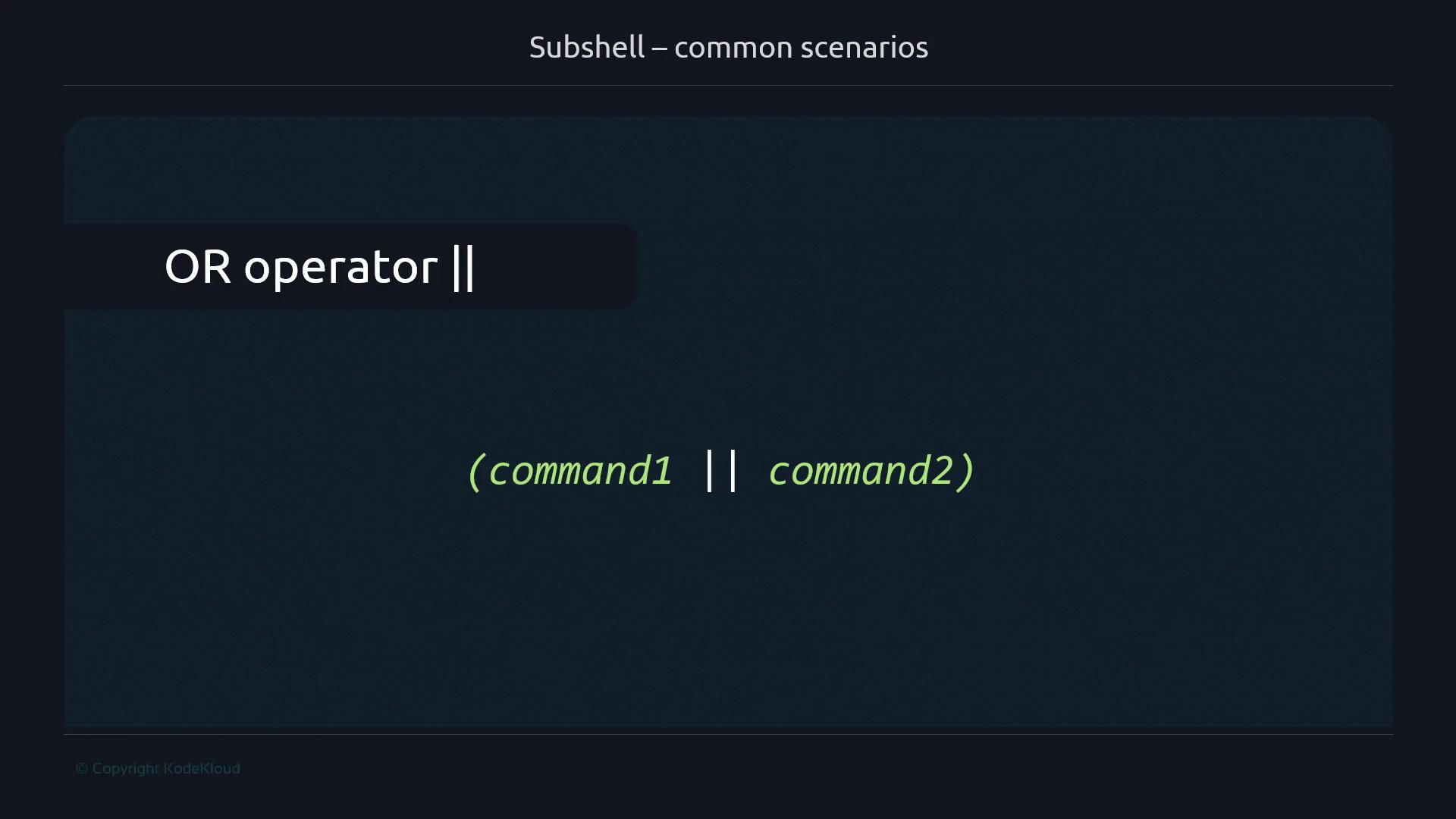
* Chain with `&&` or `||`
```bash theme={null}
# Separate lines
(
command1
command2
command3
)
# Semicolons
(command1; command2; command3)
# Pipes
(command1 | command2 | command3)
# AND operator
(command1 && command2 && command3)
# OR operator
(command1 || command2)
```
***
## 4. Common Subshell Scenarios
### 4.1 One-Liners to Change Directory Temporarily
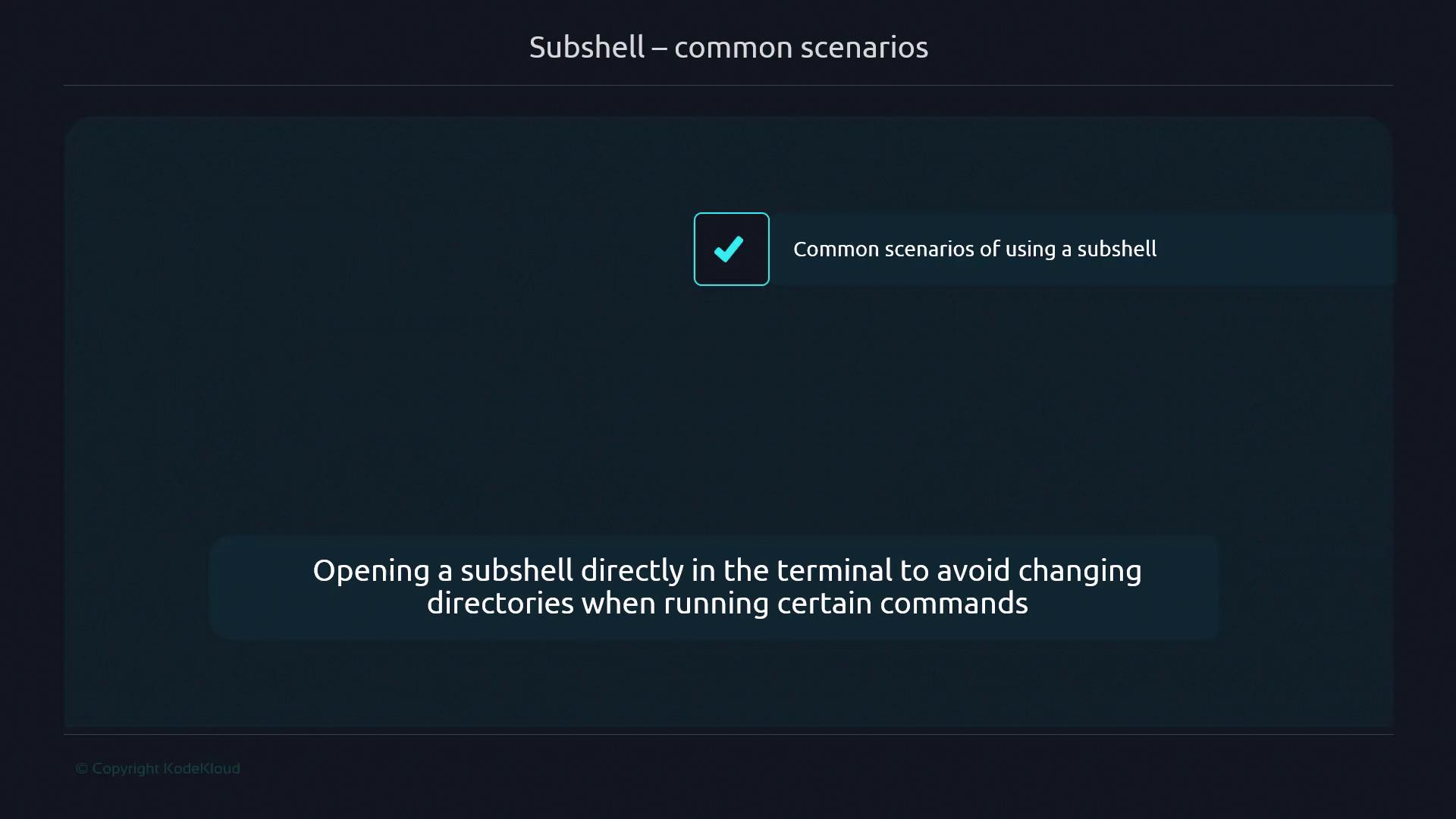
Run commands in a different folder without affecting your current directory:
```bash theme={null}
#!/usr/bin/env bash
# Update and build inside /home/user/project
(cd /home/user/project && git pull && make)
```
Interactive example:
```bash theme={null}
$ pwd
/home/user/workspace
$ (cd /tmp && ls)
file_in_tmp
$ pwd
/home/user/workspace
```
### 4.2 Jenkins Pipeline Steps
In Jenkins Pipelines, each `sh` step executes in its own subshell. This isolation explains differences when scripts run in CI/CD environments.
***
## 5. Verifying Process IDs
Use `$$` and `$BASHPID` to compare parent and subshell PIDs:
| Variable | Description |
| --------- | ------------------------------------------------------ |
| \$\$ | PID of the parent shell |
| \$BASHPID | PID of the *current* Bash process (even in a subshell) |
```bash theme={null}
#!/usr/bin/env bash
parent_pid=$$
(
echo "Inside subshell: PID=$BASHPID"
)
echo "Outside subshell: PID=$parent_pid"
```
```plaintext theme={null}
$ ./subshell-v5.sh
Inside subshell: PID=12345
Outside subshell: PID=12344
```
***
## 6. Propagating Values Back to the Parent Shell
Since subshells can’t modify parent variables directly, use a temporary file or another IPC mechanism:
```bash theme={null}
#!/usr/bin/env bash
tmpfile="/tmp/$$.tmp"
counter=1
# Initialize counter
echo "$counter" > "$tmpfile"
# Increment inside subshell
(
new_count=$(( $(<"$tmpfile") + 1 ))
echo "$new_count" > "$tmpfile"
)
# Read updated value
counter=$(<"$tmpfile")
echo "Counter after subshell: $counter"
# Clean up
rm "$tmpfile"
```
```plaintext theme={null}
$ ./subshell-v6.sh
Counter after subshell: 2
```
This pattern is useful in scripts, loops, and CI/CD jobs when you need to retrieve data from a subshell.