> ## Documentation Index
> Fetch the complete documentation index at: https://notes.kodekloud.com/llms.txt
> Use this file to discover all available pages before exploring further.
# Overview
> This article explains Bash globbing patterns for matching file and directory names using concise syntax, contrasting them with regular expressions.
In earlier lessons, we explored **Bash parameter expansion**—using operators like `#` and `%` (and their double variants `##`/`%%`) to strip prefixes and suffixes from variable values. We even combined these with the wildcard `*` to broaden matches.
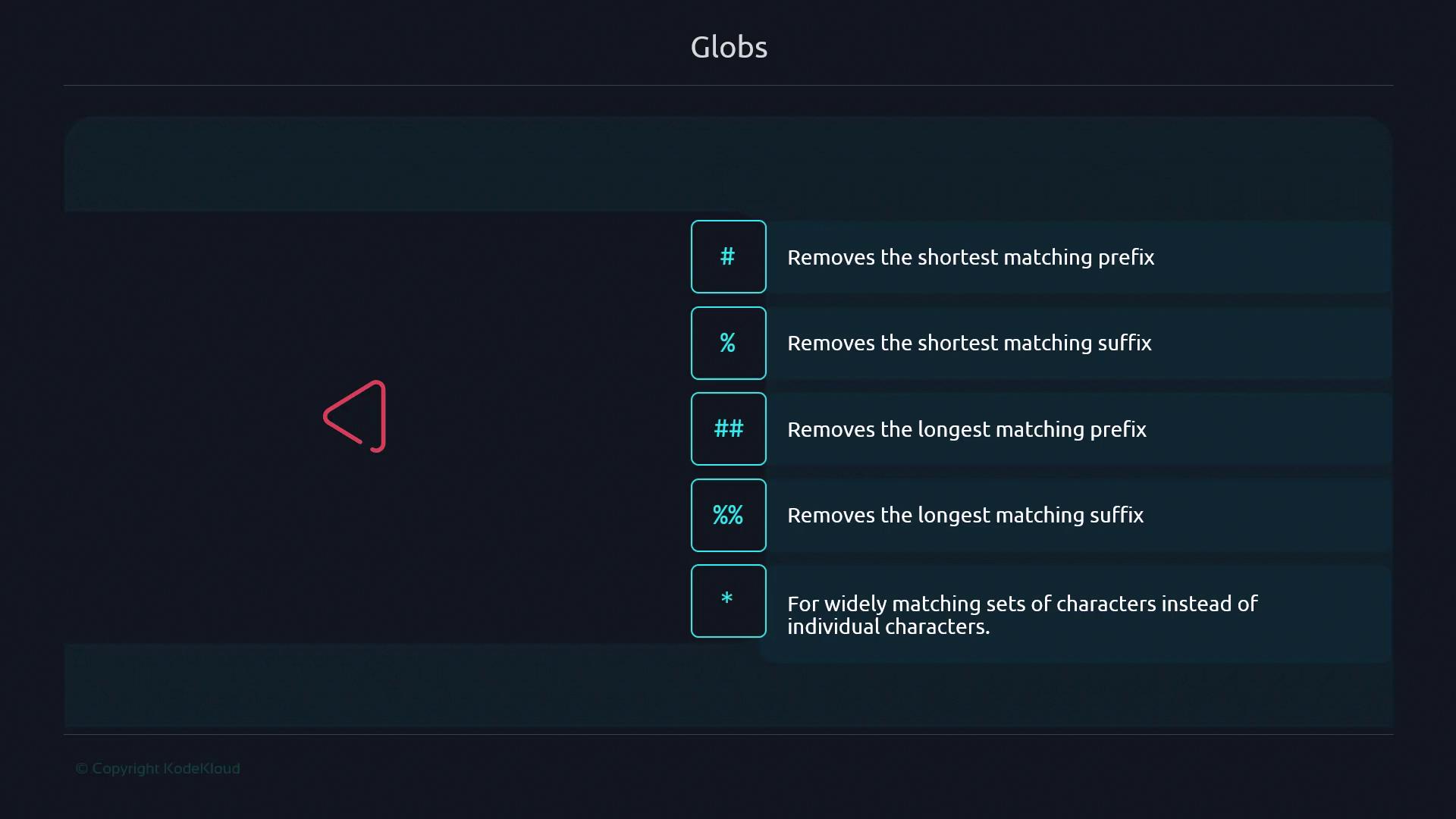
Globs (also called wildcards or pathname expansion patterns) differ from parameter expansion. They operate directly on filenames and strings in the shell, not on variable values.
## What Are Globs?
Globs let you match file and directory names—or any arbitrary strings—using a concise pattern syntax. They’re simpler than [regular expressions](https://en.wikipedia.org/wiki/Regular_expression) (no lookahead, named groups, etc.), but cover most everyday use cases:
| Glob Pattern | Matches | Example |
| ------------ | -------------------------------- | ---------------- |
| `*` | Zero or more characters | `*.txt` |
| `?` | Exactly one character | `file?.sh` |
| `[abc]` | Exactly one of the set (a, b, c) | `report[12].pdf` |
## When to Use Globs vs. Regex
| Feature | Globs | Regular Expressions |
| ------------------- | ------------------ | ------------------------------ |
| Simplicity | Very easy to write | More complex (advanced syntax) |
| Common Use Case | File matching | Text parsing, validation |
| Advanced Constructs | Not supported | Lookahead, named groups, etc. |
## Learning Approach
To master globs, follow these steps:
1. **Gather Sample Strings**\
Assemble a broad list of filenames or test strings you need to match.
2. **Identify Common Patterns**\
Group similar strings to pinpoint shared prefixes, suffixes, or character sets.
3. **Select the Appropriate Glob**\
Choose from `*`, `?`, or bracket expressions (`[ ]`) to cover your pattern.
4. **Test with Shell Commands**\
Run a command like `ls` or `echo` to verify that your glob matches the intended files:
```bash theme={null}
# Matches all .log files starting with "app"
ls app*.log
```
If the output aligns with your expectations, your glob is correct!
## Next Steps
In the following sections, we’ll apply these principles to real-world examples—filtering logs, batch-renaming files, and more. Let’s start by examining a directory of mixed files and crafting precise globs for each case.
## Links and References
* [Bash Reference Manual – Filename Expansion](https://www.gnu.org/software/bash/manual/html_node/Filename-Expansion.html)
* [Regular Expressions on Wikipedia](https://en.wikipedia.org/wiki/Regular_expression)
* [ShellCheck – Automated Shell Script Analysis](https://www.shellcheck.net/)