> ## Documentation Index
> Fetch the complete documentation index at: https://notes.kodekloud.com/llms.txt
> Use this file to discover all available pages before exploring further.
# no op Commands
> Learn to perform dry runs in Bash scripts using the no-op command to test logic without modifying files or data.
In this lesson, you’ll learn how to perform a “dry run” in your Bash or Unix shell scripts using the built-in no-op (`:`) command. A dry run lets you verify script logic and flow without modifying files or data—perfect for testing complex workflows before production.
## What Is a Dry Run?
The term “dry run” dates back to fire departments: they practice hose deployment without water, hence “dry.” In software, many tools offer a dry-run or no-op mode to preview changes safely.
## Common Dry-Run Flags in DevOps Tools
| Tool | Command Example | Dry-Run Flag |
| ---------- | ----------------------------------------------------------- | ------------------ |
| Ansible | `ansible-playbook -i inventory playbook.yml --check` | `--check` |
| Kubernetes | `kubectl apply -f deployment.yaml --dry-run=client -o yaml` | `--dry-run=client` |
| Puppet | `puppet apply --noop my_manifest.pp` | `--noop` |
Some tools distinguish client-side vs server-side dry runs. Always check the official docs for supported modes and output formats.
## Placeholder for Empty Branches: the `:` Command
Leaving an `if` or loop branch empty causes a Bash syntax error:
```bash theme={null}
#!/usr/bin/env bash
if [[ "$1" = "start" ]]; then
else
echo "Invalid command."
fi
```
```console theme={null}
$ ./script.sh
script.sh: line 3: syntax error near unexpected token `else'
```
To satisfy Bash’s syntax without side effects, insert the no-op `:` command:
```bash theme={null}
#!/usr/bin/env bash
if [[ "$1" = "start" ]]; then
:
else
echo "Invalid command."
fi
```
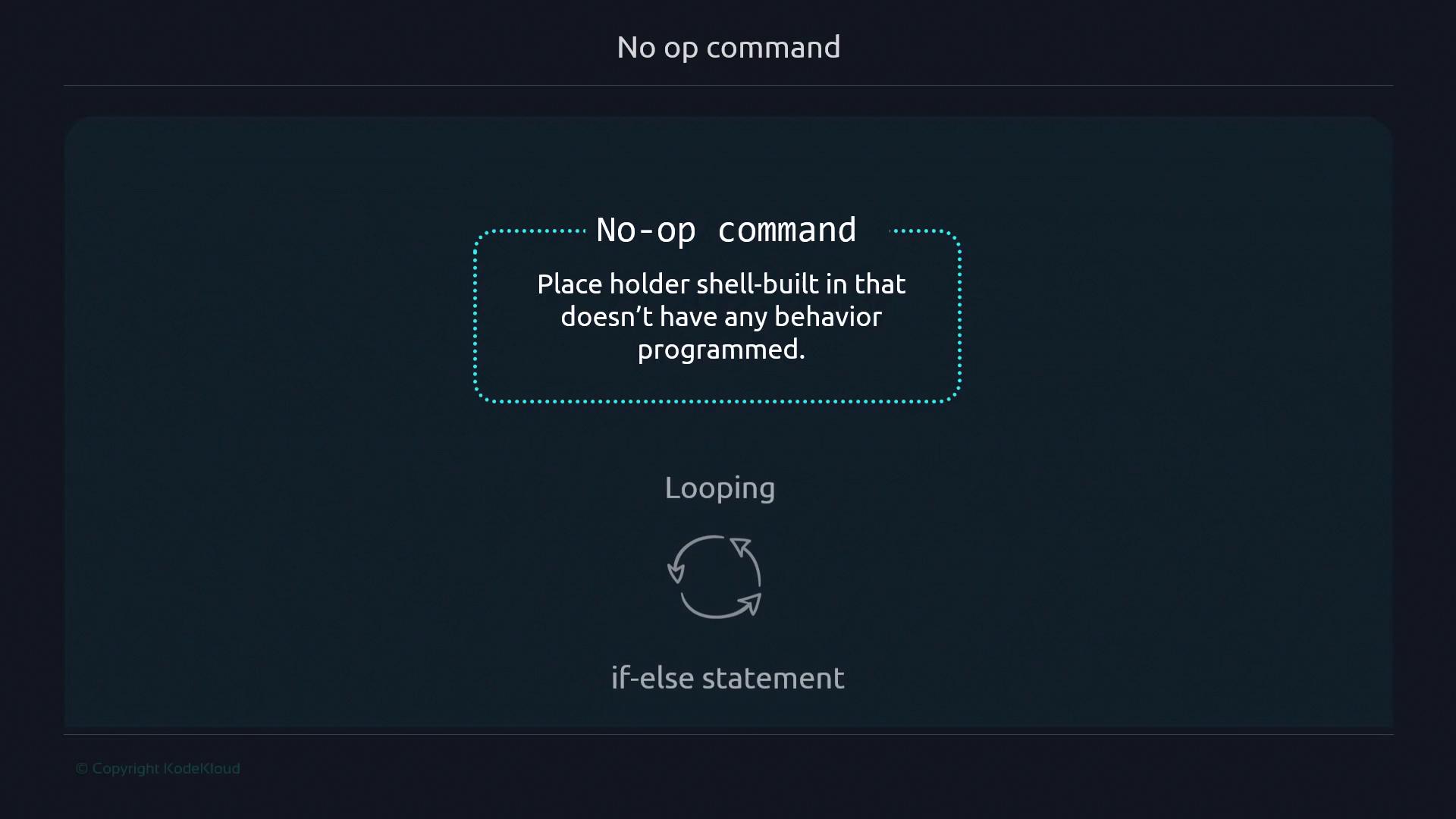
Because `:` is a shell builtin, it runs faster and cleaner than alternatives like `echo ""` or `true`.
## Interpreter Errors vs. Runtime Errors
**Interpreter errors** occur at parse time—even if that code path never runs:
```bash theme={null}
#!/usr/bin/env bash
if [[ "$1" = "start" ]]; then
# empty block → interpreter error
else
echo "Invalid command."
fi
```
**Runtime errors** only appear when execution reaches problematic code. For example, calling a non-existent command `x`:
```bash theme={null}
#!/usr/bin/env bash
if [[ "$1" = "start" ]]; then
x
else
echo "Invalid command."
fi
```
* No arguments:
```console theme={null}
$ ./script2.sh
Invalid command.
```
* With `start`:
```console theme={null}
$ ./script2.sh start
./script2.sh: line 4: x: command not found
```
Replacing `x` with `:` eliminates any error or output and exits cleanly:
```bash theme={null}
#!/usr/bin/env bash
if [[ "$1" = "start" ]]; then
:
else
echo "Invalid command."
fi
```
```console theme={null}
$ ./script2.sh start
# no output, exit code 0
```
Don’t confuse `:` with the external `true` command—`:` is built into the shell and more efficient.
## References and Further Reading
* [Ansible CLI Options](https://docs.ansible.com/ansible/latest/cli/ansible-playbook.html#cmdoption-ansible-playbook-check)
* [kubectl dry-run Documentation](https://kubernetes.io/docs/reference/generated/kubectl/kubectl-commands#apply)
* [Puppet noop Mode](https://puppet.com/docs/puppet/latest/applying_catalogs.html#noop)
For more on advanced Bash scripting patterns and best practices, visit the [Advanced Bash-Scripting Guide](https://tldp.org/LDP/abs/html/).