> ## Documentation Index
> Fetch the complete documentation index at: https://notes.kodekloud.com/llms.txt
> Use this file to discover all available pages before exploring further.
# pid
> Explains process IDs in shell scripting including parent and child processes, TTYs, background jobs, builtins versus external commands, inspecting processes, signals and detaching with nohup
A shell script is a file containing shell commands and programming constructs that automate tasks. When a new process starts, the kernel assigns a unique process ID (PID) that you can use to inspect, control, or terminate that process.
How many PIDs are created while a shell script runs? Think of the parent shell as a chef in a kitchen; each command the chef issues is a worker (a process) with its own unique identifier (PID). The parent shell spawns child processes for the commands it runs, and those children can in turn spawn their own children.
In an interactive terminal session the parent shell is the session’s shell process. Commands you type spawn child processes; each child has its own PID and a PPID (parent PID) pointing back to the shell that launched it.
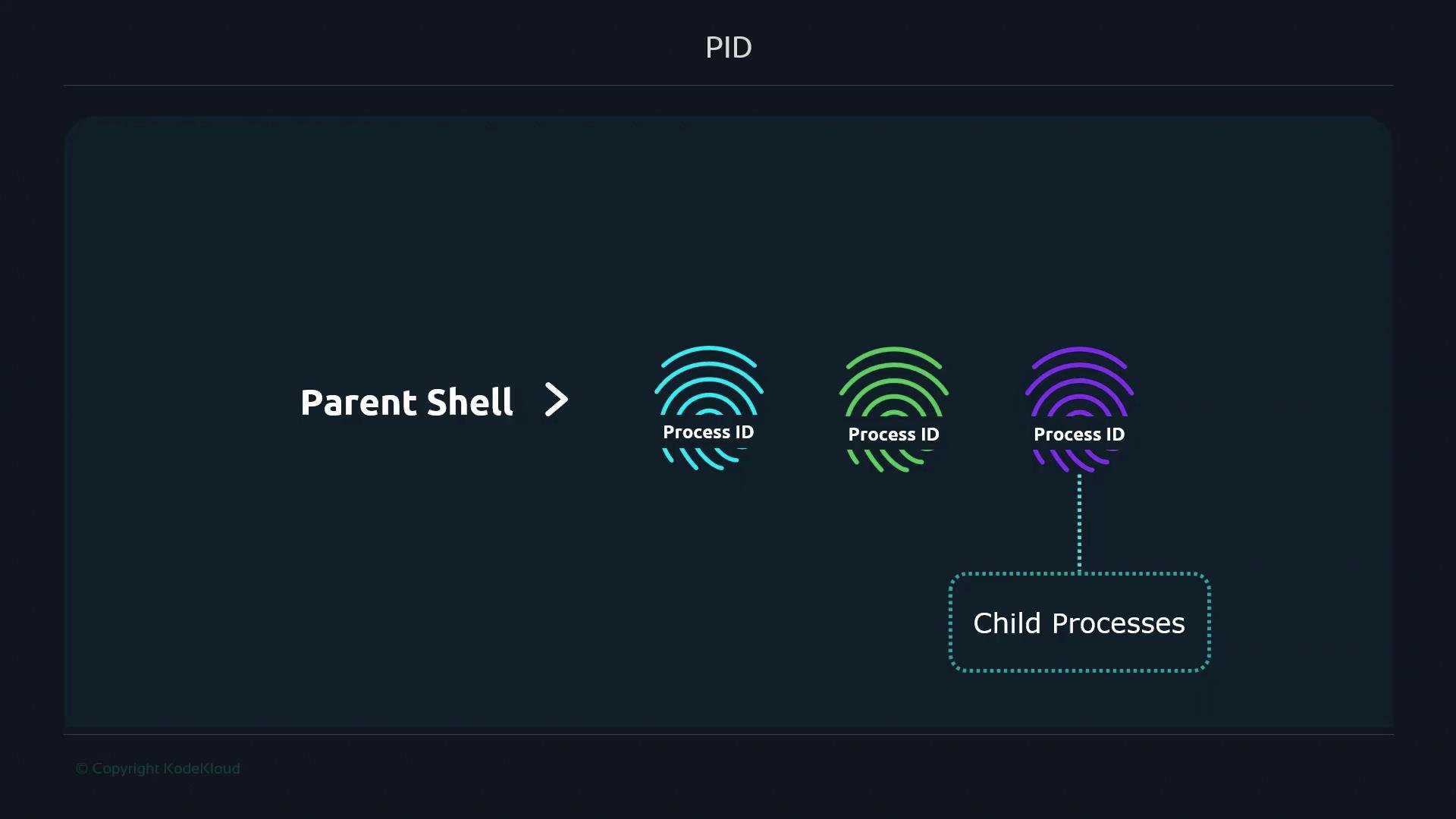 Each instruction the chef gives consumes a worker (a process). Each worker receives a unique identifier—just like each process gets a PID. The chef (the parent shell) can check, stop, or restart any worker; likewise, you can inspect and control processes from the command line.
Terminal sessions are attached to a TTY (teletypewriter). The session leader (the parent shell process) manages that TTY. Child processes spawned by the shell normally remain associated with the same TTY and appear in process listings with that TTY name.
Each instruction the chef gives consumes a worker (a process). Each worker receives a unique identifier—just like each process gets a PID. The chef (the parent shell) can check, stop, or restart any worker; likewise, you can inspect and control processes from the command line.
Terminal sessions are attached to a TTY (teletypewriter). The session leader (the parent shell process) manages that TTY. Child processes spawned by the shell normally remain associated with the same TTY and appear in process listings with that TTY name.
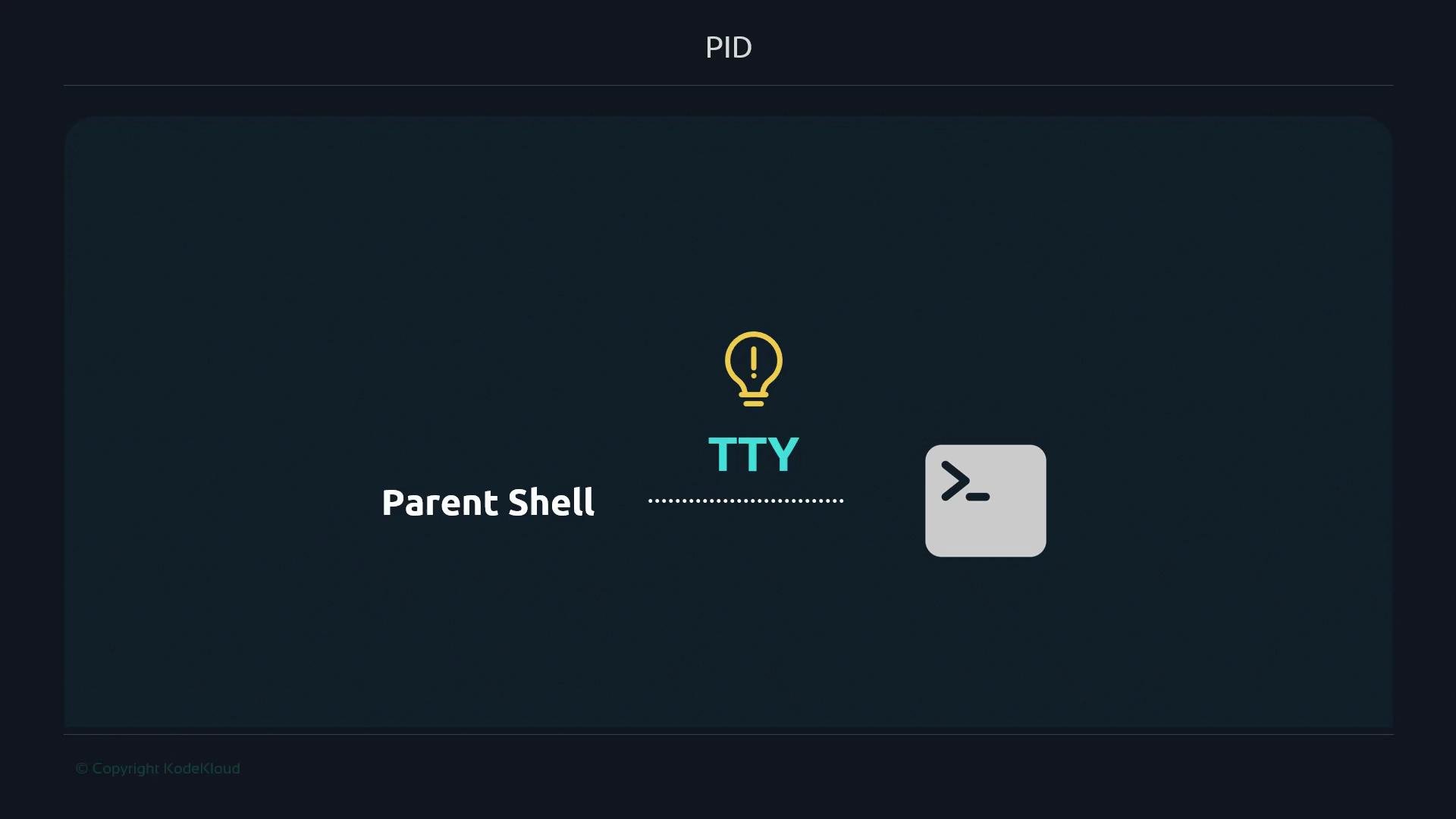 Quick commands to inspect your terminal and shell processes:
```bash theme={null}
# list processes and search for bash
$ ps -ef | grep bash
501 29898 27796 0 11:00PM ttys007 0:00.01 bash
501 29928 29898 0 11:00PM ttys007 0:00.00 grep bash
# show the TTY for your current terminal
$ tty
/dev/ttys007
```
Each terminal tab or window typically has a different TTY. For example, open a second tab and you’ll likely see a different TTY and another bash process:
```bash theme={null}
# Tab 1
$ tty
/dev/ttys000
$ ps -ef | grep bash
501 87852 87851 0 8:32PM ttys000 0:00.76 -bash
# Tab 2
$ tty
/dev/ttys001
$ ps -ef | grep bash
501 8561 8560 0 12:36AM ttys001 0:00.04 -bash
```
Observe PID chains with a simple script that sleeps so we can watch spawned processes:
```bash theme={null}
# script.sh
#!/bin/bash
sleep 180
```
Make it executable and run in the foreground:
```bash theme={null}
$ chmod +x script.sh
$ ./script.sh
```
While the script runs in the foreground, the launching shell is occupied. Inspecting processes shows the script has its own PID, and the PPID points back to the shell that started it:
```bash theme={null}
$ ps -ef | grep script.sh
501 8689 87852 0 12:36AM ttys000 0:00.00 /bin/bash ./script.sh
501 87852 87851 0 8:32PM ttys000 0:00.77 -bash
```
Within the script the sleep command itself spawns a child process:
```bash theme={null}
$ ps -ef | grep sleep
501 8690 8689 0 12:36AM ttys000 0:00.00 sleep 180
```
This shows the parent-child chain:
* shell (parent) → script (child) → sleep (grandchild)
To run the script without blocking the terminal, send it to the background with &:
```bash theme={null}
$ ./script.sh &
[1] 8862
```
A background job has a PID and remains associated with the launching shell’s TTY. If you close the terminal, the background job will typically receive SIGHUP and terminate. To keep a process running after the terminal closes, detach it from the session using nohup (or alternatives like setsid or disown). nohup prevents SIGHUP from terminating the process and redirects output to nohup.out by default:
```bash theme={null}
$ nohup ./script.sh &
[1] 9028
appending output to nohup.out
$ ps -ef | grep script.sh
501 9028 1 0 12:39AM ?? 0:00.00 /bin/bash ./script.sh
```
Notice the PPID may change (commonly to 1) and the TTY can become "??", indicating the process is no longer attached to the terminal.
Use nohup to detach a process from its terminal so it survives when the terminal closes. Alternatives include setsid (start a new session) or using job control (run, then disown) for interactive shells.
Not all commands create new processes. Shell builtins (for example, cd, export, read) execute inside the current shell and do not create separate PIDs when invoked directly. Many builtins also exist as external binaries; invoking the external binary (for example /usr/bin/command) will create a new process.
Quick commands to inspect your terminal and shell processes:
```bash theme={null}
# list processes and search for bash
$ ps -ef | grep bash
501 29898 27796 0 11:00PM ttys007 0:00.01 bash
501 29928 29898 0 11:00PM ttys007 0:00.00 grep bash
# show the TTY for your current terminal
$ tty
/dev/ttys007
```
Each terminal tab or window typically has a different TTY. For example, open a second tab and you’ll likely see a different TTY and another bash process:
```bash theme={null}
# Tab 1
$ tty
/dev/ttys000
$ ps -ef | grep bash
501 87852 87851 0 8:32PM ttys000 0:00.76 -bash
# Tab 2
$ tty
/dev/ttys001
$ ps -ef | grep bash
501 8561 8560 0 12:36AM ttys001 0:00.04 -bash
```
Observe PID chains with a simple script that sleeps so we can watch spawned processes:
```bash theme={null}
# script.sh
#!/bin/bash
sleep 180
```
Make it executable and run in the foreground:
```bash theme={null}
$ chmod +x script.sh
$ ./script.sh
```
While the script runs in the foreground, the launching shell is occupied. Inspecting processes shows the script has its own PID, and the PPID points back to the shell that started it:
```bash theme={null}
$ ps -ef | grep script.sh
501 8689 87852 0 12:36AM ttys000 0:00.00 /bin/bash ./script.sh
501 87852 87851 0 8:32PM ttys000 0:00.77 -bash
```
Within the script the sleep command itself spawns a child process:
```bash theme={null}
$ ps -ef | grep sleep
501 8690 8689 0 12:36AM ttys000 0:00.00 sleep 180
```
This shows the parent-child chain:
* shell (parent) → script (child) → sleep (grandchild)
To run the script without blocking the terminal, send it to the background with &:
```bash theme={null}
$ ./script.sh &
[1] 8862
```
A background job has a PID and remains associated with the launching shell’s TTY. If you close the terminal, the background job will typically receive SIGHUP and terminate. To keep a process running after the terminal closes, detach it from the session using nohup (or alternatives like setsid or disown). nohup prevents SIGHUP from terminating the process and redirects output to nohup.out by default:
```bash theme={null}
$ nohup ./script.sh &
[1] 9028
appending output to nohup.out
$ ps -ef | grep script.sh
501 9028 1 0 12:39AM ?? 0:00.00 /bin/bash ./script.sh
```
Notice the PPID may change (commonly to 1) and the TTY can become "??", indicating the process is no longer attached to the terminal.
Use nohup to detach a process from its terminal so it survives when the terminal closes. Alternatives include setsid (start a new session) or using job control (run, then disown) for interactive shells.
Not all commands create new processes. Shell builtins (for example, cd, export, read) execute inside the current shell and do not create separate PIDs when invoked directly. Many builtins also exist as external binaries; invoking the external binary (for example /usr/bin/command) will create a new process.
 Process execution methods at a glance:
| Execution method | When it creates a new PID | Example |
| -------------------------- | ----------------------------------------------------------- | ----------------------- |
| Run by name (PATH) | Creates a new process for the external binary found in PATH | `ls`, `cat` |
| Run by absolute path | Creates a new process for the specified binary | `/usr/bin/cat file.txt` |
| Run from current directory | Creates a new process (explicit path) | `./script.sh` |
| Shell builtin | Runs inside the shell, no new PID | `cd`, `export`, `read` |
Example showing binary by name vs absolute path:
```bash theme={null}
$ cat file.txt
Hello World!
$ /usr/bin/cat file.txt
Hello World!
```
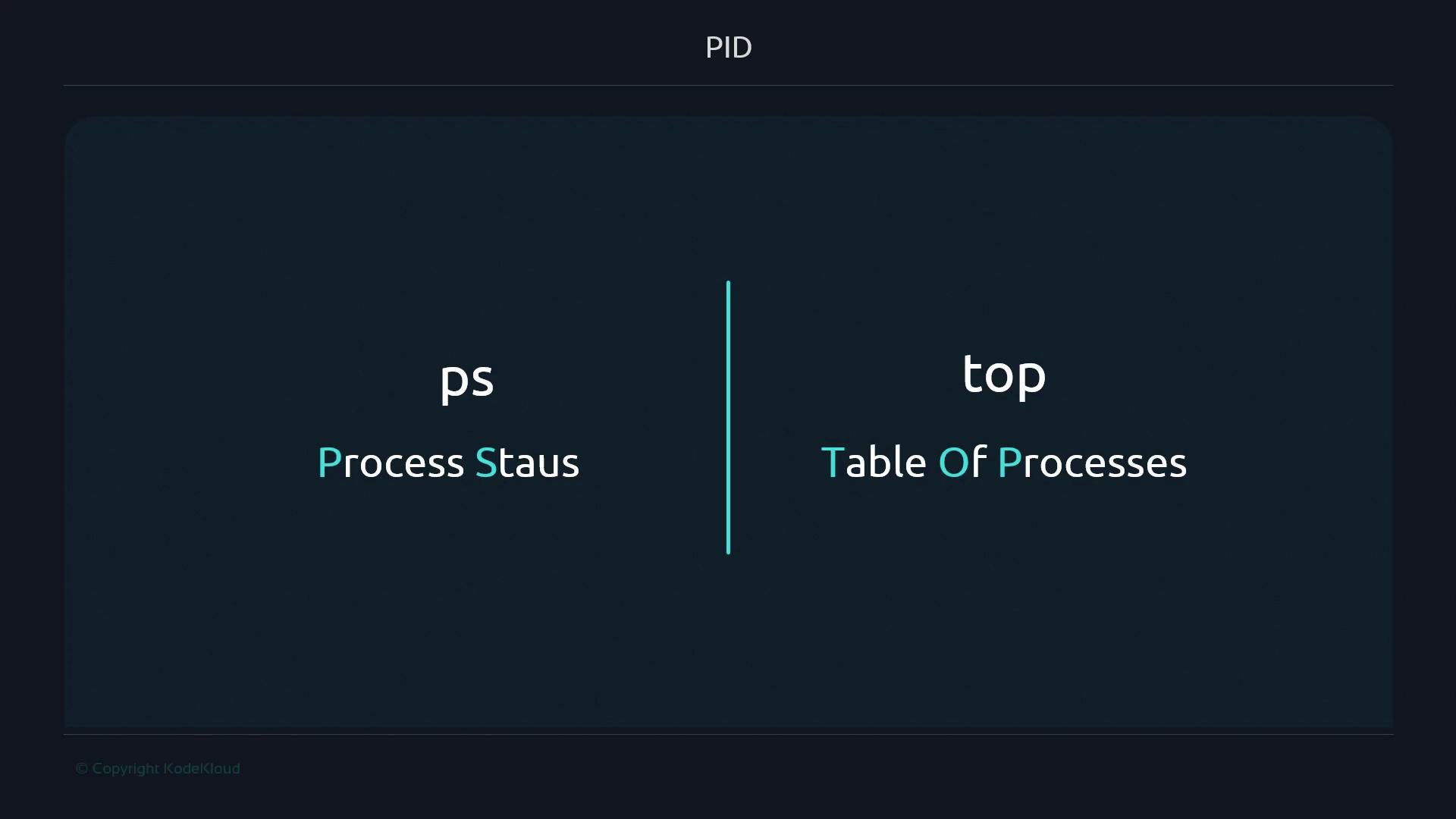
To inspect running processes, use ps and top (or htop). ps -ef gives full details (user, PID, PPID, TTY, time, and command). Note that ps output and options differ across Unix-like systems (Linux, macOS, BSD).
```bash theme={null}
$ ps -ef | grep bash
501 87852 87851 0 8:32PM ttys000 0:00.77 -bash
501 8561 8560 0 12:36AM ttys001 0:00.04 -bash
```
Process execution methods at a glance:
| Execution method | When it creates a new PID | Example |
| -------------------------- | ----------------------------------------------------------- | ----------------------- |
| Run by name (PATH) | Creates a new process for the external binary found in PATH | `ls`, `cat` |
| Run by absolute path | Creates a new process for the specified binary | `/usr/bin/cat file.txt` |
| Run from current directory | Creates a new process (explicit path) | `./script.sh` |
| Shell builtin | Runs inside the shell, no new PID | `cd`, `export`, `read` |
Example showing binary by name vs absolute path:
```bash theme={null}
$ cat file.txt
Hello World!
$ /usr/bin/cat file.txt
Hello World!
```
To inspect running processes, use ps and top (or htop). ps -ef gives full details (user, PID, PPID, TTY, time, and command). Note that ps output and options differ across Unix-like systems (Linux, macOS, BSD).
```bash theme={null}
$ ps -ef | grep bash
501 87852 87851 0 8:32PM ttys000 0:00.77 -bash
501 8561 8560 0 12:36AM ttys001 0:00.04 -bash
```
 Terminate processes using kill, which sends a signal to a PID. The default is SIGTERM (15) — a polite request to terminate. If the process won’t exit, SIGKILL (9) forces immediate termination.
| Signal | Number | Meaning |
| ------- | ------ | ---------------------------------------- |
| SIGTERM | 15 | Request graceful shutdown |
| SIGKILL | 9 | Force immediate termination |
| SIGHUP | 1 | Hangup — often sent when terminal closes |
Examples:
```bash theme={null}
# Send SIGTERM (default)
$ kill 99838
# Explicit forms
$ kill -15 99838
$ kill -TERM 99838
# Force kill with SIGKILL
$ kill -9 99838
$ kill -KILL 99838
```
For tracing system calls on Linux use strace. Useful flags:
* -T : show time spent in each syscall
* -f : follow child processes
* -p \ : attach to an existing process
Example:
```bash theme={null}
$ strace -T -f -p 99838
```
On macOS and other Unix-like systems, strace may not be available; alternatives include dtruss, truss, or ktrace (often requiring sudo).
This attaches to PID 99838 and prints system call traces with timing while following child processes.
Further reading and references:
* [tty — print filename of terminal connected to standard input](https://man7.org/linux/man-pages/man1/tty.1.html)
* [ps(1) — report process status](https://man7.org/linux/man-pages/man1/ps.1.html)
* [nohup(1) — run a command immune to hangups](https://man7.org/linux/man-pages/man1/nohup.1.html)
* [strace(1) — trace system calls and signals](https://strace.io/)
* [kill(1) — send signals to processes](https://man7.org/linux/man-pages/man1/kill.1.html)
We'll dive deeper into shell internals, job control, builtins vs external commands, and advanced techniques for managing long-running background work in later sections.
Terminate processes using kill, which sends a signal to a PID. The default is SIGTERM (15) — a polite request to terminate. If the process won’t exit, SIGKILL (9) forces immediate termination.
| Signal | Number | Meaning |
| ------- | ------ | ---------------------------------------- |
| SIGTERM | 15 | Request graceful shutdown |
| SIGKILL | 9 | Force immediate termination |
| SIGHUP | 1 | Hangup — often sent when terminal closes |
Examples:
```bash theme={null}
# Send SIGTERM (default)
$ kill 99838
# Explicit forms
$ kill -15 99838
$ kill -TERM 99838
# Force kill with SIGKILL
$ kill -9 99838
$ kill -KILL 99838
```
For tracing system calls on Linux use strace. Useful flags:
* -T : show time spent in each syscall
* -f : follow child processes
* -p \ : attach to an existing process
Example:
```bash theme={null}
$ strace -T -f -p 99838
```
On macOS and other Unix-like systems, strace may not be available; alternatives include dtruss, truss, or ktrace (often requiring sudo).
This attaches to PID 99838 and prints system call traces with timing while following child processes.
Further reading and references:
* [tty — print filename of terminal connected to standard input](https://man7.org/linux/man-pages/man1/tty.1.html)
* [ps(1) — report process status](https://man7.org/linux/man-pages/man1/ps.1.html)
* [nohup(1) — run a command immune to hangups](https://man7.org/linux/man-pages/man1/nohup.1.html)
* [strace(1) — trace system calls and signals](https://strace.io/)
* [kill(1) — send signals to processes](https://man7.org/linux/man-pages/man1/kill.1.html)
We'll dive deeper into shell internals, job control, builtins vs external commands, and advanced techniques for managing long-running background work in later sections.