> ## Documentation Index
> Fetch the complete documentation index at: https://notes.kodekloud.com/llms.txt
> Use this file to discover all available pages before exploring further.
# Input
> Explains shell input and I/O file descriptors stdin stdout stderr, pipes and redirection, detecting interactive input, tracing syscalls, and using custom file descriptors for in place edits.
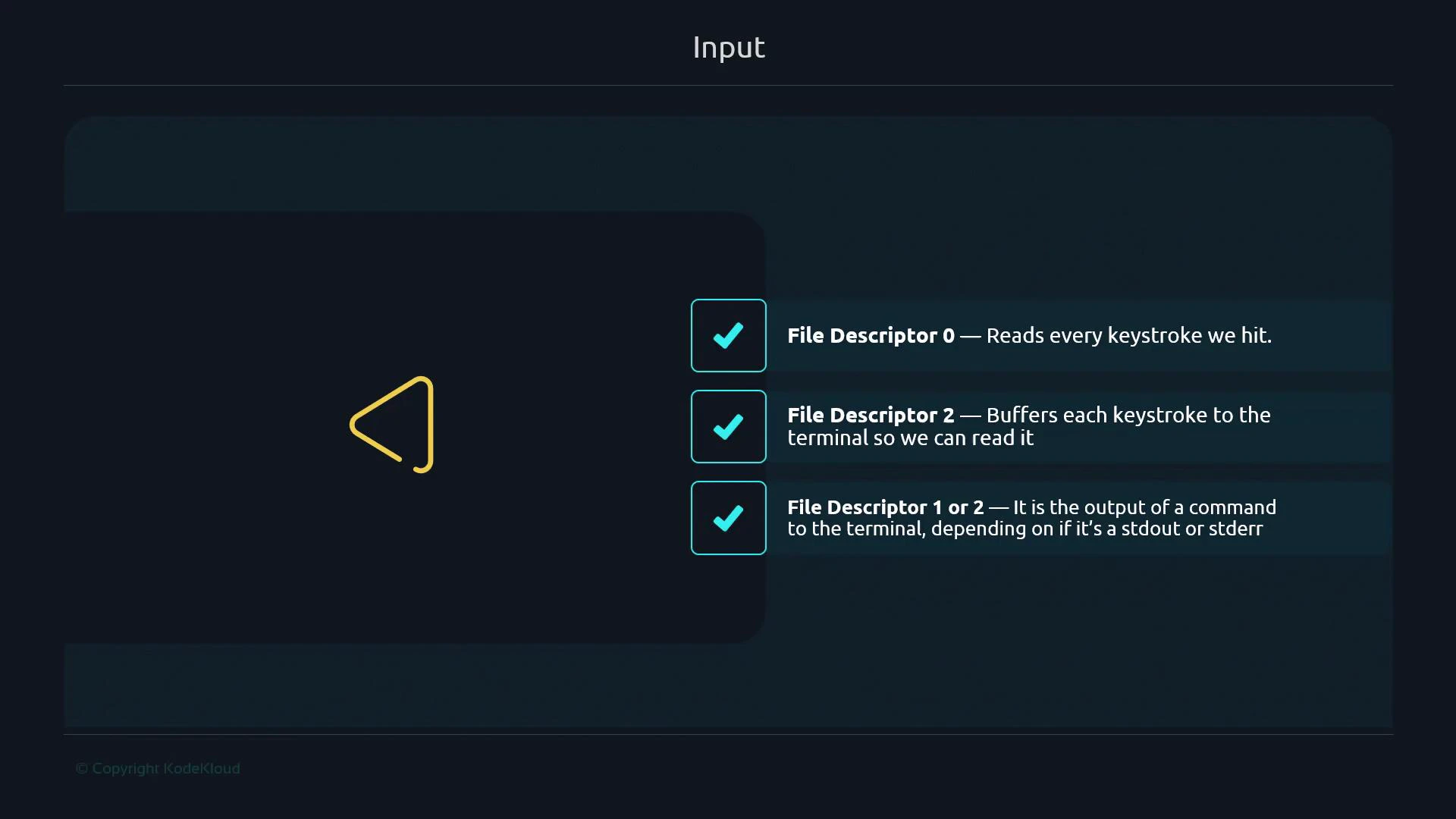
In shell scripting, "input" means any data supplied to a program or to the shell — either interactively (keyboard/terminal) or non‑interactively (from another program or a file). Unix exposes I/O as numbered file descriptors that abstract how data flows between processes and devices:
| File descriptor | Name | Typical mapping / use |
| --------------- | ------ | -------------------------------------------------------------------- |
| 0 | stdin | Default input source (usually the terminal for interactive sessions) |
| 1 | stdout | Standard output (command results, normal output) |
| 2 | stderr | Standard error (diagnostics and errors) |
This numbered‑fd model originates from Unix treating “everything as a file,” allowing programs to read and write using the same interfaces regardless of whether the source/destination is the terminal, a file, or another process.
 ## Forms of input: interactive vs. redirected/piped
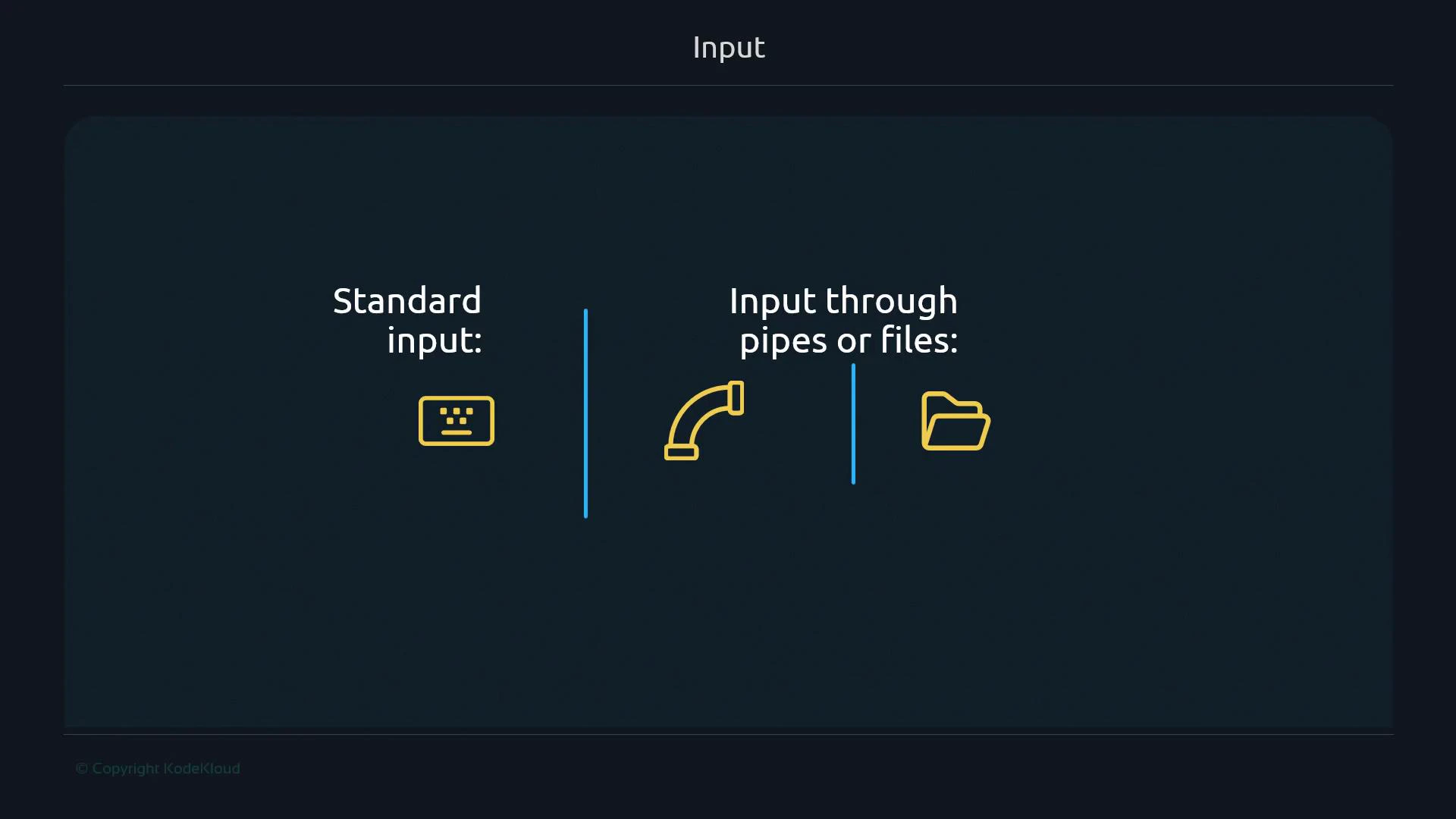
You can think of input in two primary ways:
* Standard input (fd 0) — typically the interactive keyboard/terminal.
* Input from pipes or files — the shell connects stdout (fd 1) of one process to stdin (fd 0) of another using the pipe operator (`|`), or redirects files into a command with `<`.
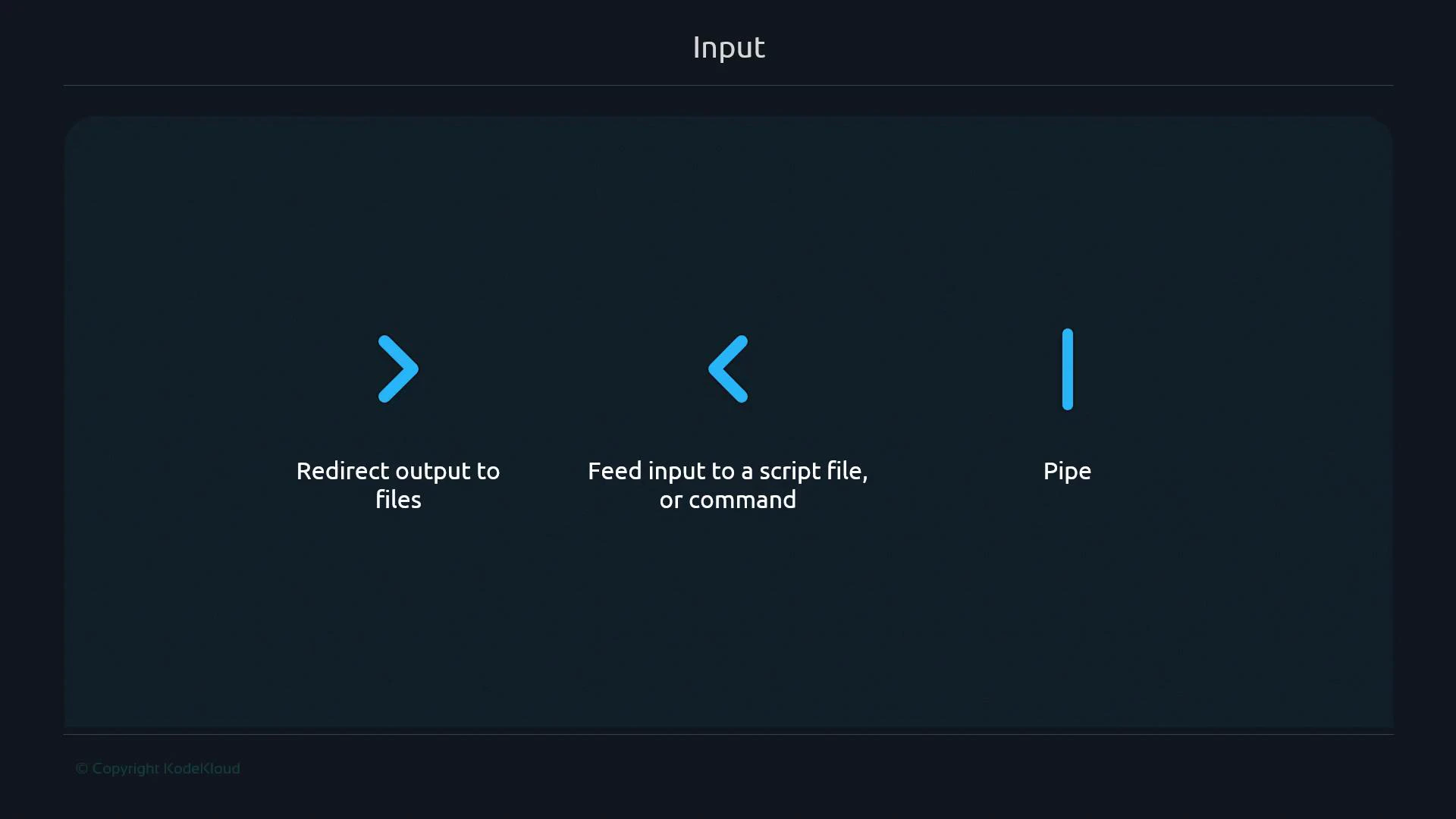
Common operators:
* `|` — anonymous pipe connecting stdout of the left command to stdin of the right command.
* `<` and `>` — file redirection to connect a file to stdin/stdout.
* Named pipes (FIFOs) are special filesystem objects created with tools like `mkfifo` and are conceptually different from plain redirection.
The `|` operator connects the stdout of the left command to the stdin of the right command. Use `<` and `>` to connect files to stdin/stdout. Named pipes (FIFOs), created with `mkfifo`, are separate filesystem objects and not the same as `>`/`<` redirections.
## Forms of input: interactive vs. redirected/piped
You can think of input in two primary ways:
* Standard input (fd 0) — typically the interactive keyboard/terminal.
* Input from pipes or files — the shell connects stdout (fd 1) of one process to stdin (fd 0) of another using the pipe operator (`|`), or redirects files into a command with `<`.
Common operators:
* `|` — anonymous pipe connecting stdout of the left command to stdin of the right command.
* `<` and `>` — file redirection to connect a file to stdin/stdout.
* Named pipes (FIFOs) are special filesystem objects created with tools like `mkfifo` and are conceptually different from plain redirection.
The `|` operator connects the stdout of the left command to the stdin of the right command. Use `<` and `>` to connect files to stdin/stdout. Named pipes (FIFOs), created with `mkfifo`, are separate filesystem objects and not the same as `>`/`<` redirections.
 ## Commands that read/write by default
* Commands like `echo` and `ls` produce output on stdout by default.
* Some commands (for example `wc` with no file arguments) read from stdin — blocking for interactive input when stdin is the terminal, or consuming piped/file input when connected.
Interactive example with wc:
```bash theme={null}
$ wc
Juan Carlos
^D
1 2 11
```
Output `1 2 11` = 1 line, 2 words, 11 bytes (newline included).
Same input via a pipe:
```bash theme={null}
$ echo "Juan Carlos" | wc
1 2 11
```
Here `echo` writes its stdout, and the shell connects that stdout to `wc`'s stdin using a pipe.
## Detecting whether stdin is a terminal
Bash provides the `-t` test operator to see whether a file descriptor is associated with a terminal. This is useful when your script should behave differently for interactive vs. non‑interactive input.
Example script (detect interactive stdin and read accordingly):
```bash theme={null}
#!/usr/bin/env bash
if [[ -t 0 ]]; then
echo "Input passed through Keyboard"
read -r input
echo "You typed: $input"
else
echo "Input entered from a file or pipeline"
read -r input
echo "Received: $input"
fi
```
Compact man/test description:
```text theme={null}
-t file_descriptor
True if the file whose file descriptor number is file_descriptor is open and is associated with a terminal.
```
Example runs:
```bash theme={null}
$ ./input_fd.sh
Input passed through Keyboard
hello
You typed: hello
$ echo "Pipeline" | ./input_fd.sh
Input entered from a file or pipeline
Received: Pipeline
$ cat input.txt
Passing input through a file
$ ./input_fd.sh < input.txt
Input entered from a file or pipeline
Received: Passing input through a file
```
## Where piped input originates
Piped input is the stdout (fd 1) of the producing process. The pipe makes that stdout available as stdin (fd 0) for the receiving process. Small demonstrations help illustrate this:
```bash theme={null}
$ echo "Output" | test -t 1 && echo "Output received"
Output received
```
Note: how `test -t` evaluates inside pipelines can depend on how the shell sets up descriptors for pipeline stages, but the essential point stands: pipelines connect stdout → stdin.
## Feeding files into stdin
Use `<` to provide a file to a command’s stdin:
```bash theme={null}
$ wc < input.txt
1 5 29
$ cat input.txt
Passing input through a file
```
## System-call perspective (strace)
Tracing syscalls shows what read/write operations a process performs on file descriptors. For example, `read(0, ...)` indicates data was read from stdin (fd 0).
strace often requires root access (or capabilities) to trace other processes.
Use `sudo` cautiously, and only on systems you control.
Example (trace current shell pid, filter for read syscalls):
```bash theme={null}
$ sudo strace -Tfp $$ 2>&1 | grep -E '^read' &
[1] 80081
read(0, "H", 1) = 1 <0.000014>
read(0, "e", 1) = 1 <0.000012>
read(0, "l", 1) = 1 <0.000014>
...
```
Trace both `read` and `write` to observe terminal echo and program output:
```bash theme={null}
$ sudo strace -Tfp $$ 2>&1 | grep -E 'read|write' &
[1] 80117
read(0, "H", 1) = 1 <0.000015>
write(2, "H", 1) = 1 <0.000064>
read(0, "e", 1) = 1 <0.000014>
write(2, "e", 1) = 1 <0.000058>
...
```
Interpretation:
* `read(0, ...)` shows bytes read from stdin (keystrokes if the terminal is the source).
* `write(1, ...)` and `write(2, ...)` show output to stdout and stderr respectively.
* Terminal echo is often visible as writes to the terminal device.
## Commands that read/write by default
* Commands like `echo` and `ls` produce output on stdout by default.
* Some commands (for example `wc` with no file arguments) read from stdin — blocking for interactive input when stdin is the terminal, or consuming piped/file input when connected.
Interactive example with wc:
```bash theme={null}
$ wc
Juan Carlos
^D
1 2 11
```
Output `1 2 11` = 1 line, 2 words, 11 bytes (newline included).
Same input via a pipe:
```bash theme={null}
$ echo "Juan Carlos" | wc
1 2 11
```
Here `echo` writes its stdout, and the shell connects that stdout to `wc`'s stdin using a pipe.
## Detecting whether stdin is a terminal
Bash provides the `-t` test operator to see whether a file descriptor is associated with a terminal. This is useful when your script should behave differently for interactive vs. non‑interactive input.
Example script (detect interactive stdin and read accordingly):
```bash theme={null}
#!/usr/bin/env bash
if [[ -t 0 ]]; then
echo "Input passed through Keyboard"
read -r input
echo "You typed: $input"
else
echo "Input entered from a file or pipeline"
read -r input
echo "Received: $input"
fi
```
Compact man/test description:
```text theme={null}
-t file_descriptor
True if the file whose file descriptor number is file_descriptor is open and is associated with a terminal.
```
Example runs:
```bash theme={null}
$ ./input_fd.sh
Input passed through Keyboard
hello
You typed: hello
$ echo "Pipeline" | ./input_fd.sh
Input entered from a file or pipeline
Received: Pipeline
$ cat input.txt
Passing input through a file
$ ./input_fd.sh < input.txt
Input entered from a file or pipeline
Received: Passing input through a file
```
## Where piped input originates
Piped input is the stdout (fd 1) of the producing process. The pipe makes that stdout available as stdin (fd 0) for the receiving process. Small demonstrations help illustrate this:
```bash theme={null}
$ echo "Output" | test -t 1 && echo "Output received"
Output received
```
Note: how `test -t` evaluates inside pipelines can depend on how the shell sets up descriptors for pipeline stages, but the essential point stands: pipelines connect stdout → stdin.
## Feeding files into stdin
Use `<` to provide a file to a command’s stdin:
```bash theme={null}
$ wc < input.txt
1 5 29
$ cat input.txt
Passing input through a file
```
## System-call perspective (strace)
Tracing syscalls shows what read/write operations a process performs on file descriptors. For example, `read(0, ...)` indicates data was read from stdin (fd 0).
strace often requires root access (or capabilities) to trace other processes.
Use `sudo` cautiously, and only on systems you control.
Example (trace current shell pid, filter for read syscalls):
```bash theme={null}
$ sudo strace -Tfp $$ 2>&1 | grep -E '^read' &
[1] 80081
read(0, "H", 1) = 1 <0.000014>
read(0, "e", 1) = 1 <0.000012>
read(0, "l", 1) = 1 <0.000014>
...
```
Trace both `read` and `write` to observe terminal echo and program output:
```bash theme={null}
$ sudo strace -Tfp $$ 2>&1 | grep -E 'read|write' &
[1] 80117
read(0, "H", 1) = 1 <0.000015>
write(2, "H", 1) = 1 <0.000064>
read(0, "e", 1) = 1 <0.000014>
write(2, "e", 1) = 1 <0.000058>
...
```
Interpretation:
* `read(0, ...)` shows bytes read from stdin (keystrokes if the terminal is the source).
* `write(1, ...)` and `write(2, ...)` show output to stdout and stderr respectively.
* Terminal echo is often visible as writes to the terminal device.
 ## Capstone exercise: edit a file in-place using a custom file descriptor
This example shows how to open a file on an arbitrary fd (3), advance the file offset, and overwrite a single character without temporary files:
Commands:
```bash theme={null}
$ echo "Juan Carlos@Kodekloud.com" > email_file.txt
$ exec 3<> email_file.txt # open email_file.txt read/write on fd 3
$ read -n 4 <&3 # read 4 bytes to move the file offset to the space
$ echo -n "." >&3 # write a dot at the current offset (replace the space)
$ exec 3>&- # close fd 3
$ cat email_file.txt
Juan.Carlos@Kodekloud.com
```
Explanation:
* `exec 3<> filename` opens `filename` on fd 3 for read/write.
* `read -n 4 <&3` consumes four bytes and advances the file pointer to the space.
* `echo -n "." >&3` writes a dot at the current offset, overwriting the space.
* `exec 3>&-` closes fd 3.
This demonstrates using non‑standard file descriptors (other than 0, 1, 2) to perform lower‑level I/O without spawning external editors or creating intermediate files.
## Summary
You’ve seen:
* The difference between the general concept of input and the specific standard input (fd 0).
* How pipes (`|`) and redirection (`<`, `>`) connect processes and files.
* How to detect an interactive stdin (`-t FD`).
* How to observe read/write behavior at syscall level with `strace`.
* How to use custom file descriptors to manipulate files in-place.
Next topic to explore: here‑documents (heredocs) as another convenient way to feed multiline input into commands and scripts.
## Links and references
* [Bash conditional expressions (test, -t)](https://www.gnu.org/software/bash/manual/html_node/Bash-Conditional-Expressions.html)
* [mkfifo (named pipes)](https://man7.org/linux/man-pages/man3/mkfifo.3.html)
* [strace manual and usage](https://strace.io/)
* [POSIX file descriptors overview](https://pubs.opengroup.org/onlinepubs/9699919799/)
## Capstone exercise: edit a file in-place using a custom file descriptor
This example shows how to open a file on an arbitrary fd (3), advance the file offset, and overwrite a single character without temporary files:
Commands:
```bash theme={null}
$ echo "Juan Carlos@Kodekloud.com" > email_file.txt
$ exec 3<> email_file.txt # open email_file.txt read/write on fd 3
$ read -n 4 <&3 # read 4 bytes to move the file offset to the space
$ echo -n "." >&3 # write a dot at the current offset (replace the space)
$ exec 3>&- # close fd 3
$ cat email_file.txt
Juan.Carlos@Kodekloud.com
```
Explanation:
* `exec 3<> filename` opens `filename` on fd 3 for read/write.
* `read -n 4 <&3` consumes four bytes and advances the file pointer to the space.
* `echo -n "." >&3` writes a dot at the current offset, overwriting the space.
* `exec 3>&-` closes fd 3.
This demonstrates using non‑standard file descriptors (other than 0, 1, 2) to perform lower‑level I/O without spawning external editors or creating intermediate files.
## Summary
You’ve seen:
* The difference between the general concept of input and the specific standard input (fd 0).
* How pipes (`|`) and redirection (`<`, `>`) connect processes and files.
* How to detect an interactive stdin (`-t FD`).
* How to observe read/write behavior at syscall level with `strace`.
* How to use custom file descriptors to manipulate files in-place.
Next topic to explore: here‑documents (heredocs) as another convenient way to feed multiline input into commands and scripts.
## Links and references
* [Bash conditional expressions (test, -t)](https://www.gnu.org/software/bash/manual/html_node/Bash-Conditional-Expressions.html)
* [mkfifo (named pipes)](https://man7.org/linux/man-pages/man3/mkfifo.3.html)
* [strace manual and usage](https://strace.io/)
* [POSIX file descriptors overview](https://pubs.opengroup.org/onlinepubs/9699919799/)