> ## Documentation Index
> Fetch the complete documentation index at: https://notes.kodekloud.com/llms.txt
> Use this file to discover all available pages before exploring further.
# Overview
> This lesson covers Linux streams, their manipulation in shell scripting, and techniques for redirecting and chaining commands.
In this lesson, we’ll dive into Linux streams and learn how to manipulate them in shell scripting. Linux streams are the flow of data between processes—much like water flowing through a pipe. Just as you can redirect a river with gates, you can reroute streams in the shell using redirection operators and pipes.

Understanding streams is essential for robust shell scripts. You’ll see how to capture command output, handle errors, and chain commands with pipes to build powerful one-liners.
***
## Standard Streams in Linux
Every Linux process is born with three standard file descriptors:
| File Descriptor | Stream Name | Description | Default Source / Destination |
| --------------- | ----------- | ---------------------------------------- | ---------------------------- |
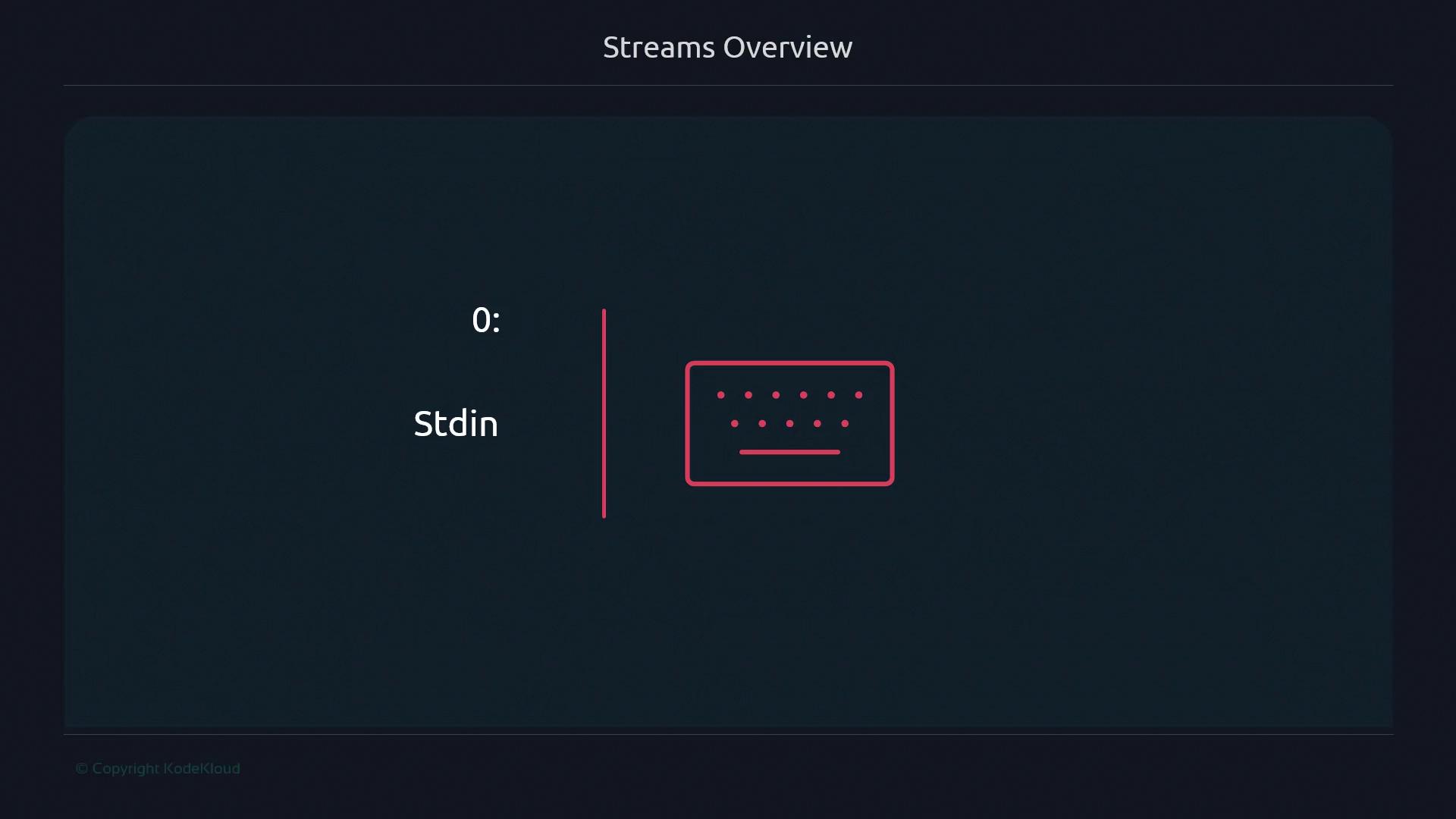
| 0 | stdin | Reads input (keyboard or another stream) | Keyboard or pipe |
| 1 | stdout | Writes normal output | Terminal or redirected file |
| 2 | stderr | Writes error messages and diagnostics | Terminal or redirected file |
* Standard input (fd 0) typically reads from your keyboard
* Standard output (fd 1) displays command results
* Standard error (fd 2) sends error messages

`stdout` and `stderr` both default to your terminal. Redirecting one does not affect the other unless you explicitly combine them.
***
## Redirecting Streams
You can reroute streams using `<`, `>`, and pipes (`|`). This allows you to save output to files, read input from files, or chain commands together.

```bash theme={null}
# Redirect stdout to a file
grep "error" logfile.txt > results.txt
# Redirect stderr to a file
gcc program.c 2> compile_errors.log
# Send both stdout and stderr to the same file
./run_tests.sh > all_output.log 2>&1
# Read stdin from a file
sort < unsorted_list.txt
# Pipe stdout of one command into stdin of another
ps aux | grep sshd
```
When combining redirections, order matters. Always place `2>&1` after `> file` to capture both streams.
***
## Examples
Capture command output and errors separately:
```bash theme={null}
ls -l /some/path > listing.txt 2> errors.txt
```
Chain commands using pipes to filter data:
```bash theme={null}
cat server.log | grep "WARN" | sort | uniq -c
```
Use input redirection to feed a script:
```bash theme={null}
bash < setup_script.sh
```
***
## Links and References
* [GNU Bash Redirections](https://www.gnu.org/software/bash/manual/html_node/Redirections.html)
* [Linux Input/Output](https://tldp.org/LDP/intro-linux/html/sect_03_04.html)
* [Linux Streams and Pipes](https://www.kernel.org/doc/html/latest/admin-guide/io.html)
## Further Reading
| Topic | Description | Link |
| ------------------ | ---------------------------------- | -------------------------------------------------------------------------------------------------------------------------------------- |
| Bash Scripting | Comprehensive guide to Bash syntax | [https://www.gnu.org/software/bash/manual/](https://www.gnu.org/software/bash/manual/) |
| Advanced Pipelines | Building complex command pipelines | [https://www.linuxjournal.com/content/beauty-pipelines](https://www.linuxjournal.com/content/beauty-pipelines) |
| File Descriptors | Low-level I/O in Unix/Linux | [https://opensource.com/article/18/4/introduction-file-descriptors](https://opensource.com/article/18/4/introduction-file-descriptors) |
Mastering streams and redirection will elevate your shell scripting from basic commands to automation powerhouses. Practice these techniques to handle data flows confidently in your scripts.