> ## Documentation Index
> Fetch the complete documentation index at: https://notes.kodekloud.com/llms.txt
> Use this file to discover all available pages before exploring further.
# Pipes
> This guide covers named and anonymous pipes in Bash for directing command output and enabling efficient workflows.
In Bash shell scripting, pipes allow you to direct the output of one command into another, enabling powerful workflows without intermediate files. This guide covers two primary pipe types:
| Pipe Type | Symbol/Command | Description | |
| -------------- | --------------- | ------------------------------------------------------------------- | ---------------------------------------------------- |
| Named Pipe | `mkfifo` / FIFO | Creates a persistent file endpoint for inter-process communication. | |
| Anonymous Pipe | \` | \` | Chains commands on the fly, passing stdout to stdin. |
## Named Pipes (FIFOs)
Named pipes, also known as FIFOs, are special files you create with `mkfifo`. They let processes communicate through a named file path. Here, `<` and `>` redirect standard input and output to or from file resources, sometimes referred to as file-based piping.
Below is an example that uses both input and output redirection:
Suppose `abc.txt` contains five unsorted letters. You can sort them and save the results:
```bash theme={null}
$ sort < abc.txt > abc_sorted.txt
$ cat abc_sorted.txt
a
b
c
d
e
```
* `< abc.txt` feeds the contents of `abc.txt` into `sort`.
* `> abc_sorted.txt` writes the sorted output to `abc_sorted.txt`.
* `cat abc_sorted.txt` displays the sorted list.
## Anonymous Pipes
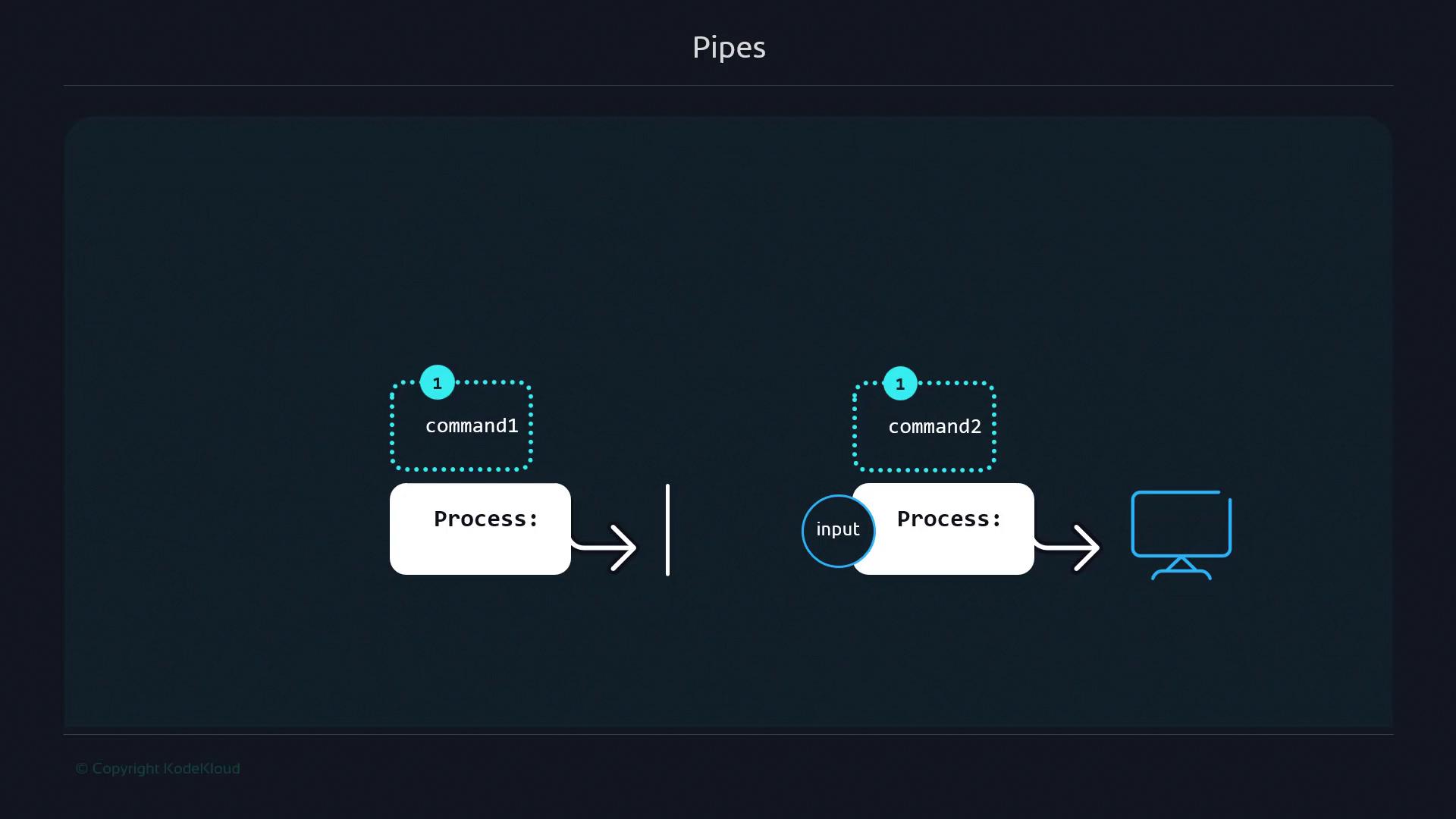
Anonymous pipes use the `|` symbol to pass commands’ output directly as input to the next command, without creating files.
Think of a pipeline like an assembly line:
1. The first command produces data.
2. Each subsequent command processes the incoming data and passes it along.
3. The final output appears in your terminal.
### Example: Filtering and Sorting a List
Given `animals.txt` containing unsorted names (with duplicates):
```bash theme={null}
$ cat animals.txt
Frog
Cheetah
Elephant
Giraffe
Antelope
Bear
Deer
Iguana
Jaguar
Hippopotamus
Ostrich
Frog
Cheetah
Elephant
Giraffe
Antelope
Bear
Deer
Iguana
Jaguar
Hippopotamus
```
Step 1: Filter names containing “a” (case-insensitive):
```bash theme={null}
$ cat animals.txt | grep -i "a"
Cheetah
Elephant
Giraffe
Antelope
Bear
Iguana
Jaguar
Hippopotamus
Cheetah
Elephant
Giraffe
Antelope
Bear
Iguana
Jaguar
Hippopotamus
```
Step 2: Further filter for “o” and sort alphabetically:
```bash theme={null}
$ cat animals.txt | grep -i "o" | sort
Antelope
Antelope
Frog
Frog
Hippopotamus
Hippopotamus
Ostrich
```
* `cat animals.txt` reads the list.
* `grep -i "o"` selects lines with “o” (case-insensitive).
* `sort` orders the filtered names.
You can extend pipelines by appending more commands after each `|`, letting each stage transform the data in sequence.
## Handling Errors in Pipelines
By default, pipelines only pass standard output (stdout) to the next command. Errors (stderr) are displayed directly on the terminal, and the pipeline continues.
```bash theme={null}
$ ls -z | echo "Hello world"
Hello world
ls: unknown option -- z
Try 'ls --help' for more information
```
Errors are not piped between commands. Use redirection like `2>&1` if you need to capture stderr in your pipeline.
## Links and References
* [Bash Reference Manual: Pipelines and I/O Redirection](https://www.gnu.org/software/bash/manual/html_node/Pipelines.html)
* [Linux mkfifo Command](https://linux.die.net/man/1/mkfifo)
* [GNU grep Documentation](https://www.gnu.org/software/grep/manual/grep.html)
* [Sorting Text Files with sort](https://www.gnu.org/software/coreutils/manual/html_node/sort-invocation.html)