> ## Documentation Index
> Fetch the complete documentation index at: https://notes.kodekloud.com/llms.txt
> Use this file to discover all available pages before exploring further.
# Stdoutstderr
> Explains stdout and stderr streams, file descriptor redirection, merging errors with output, and shell operators for redirecting or combining command output and error messages
Although standard output and standard error are already covered in the [Shell Scripts for Beginners](https://learn.kodekloud.com/user/courses/shell-scripts-for-beginners), we repeat them here because redirection and pipelines introduce subtleties you should understand.
Think of program output as streams of data flowing through pipes—commands, scripts, and programs generate streams that go to your terminal. Knowing how to capture, separate, and redirect those streams is essential for diagnosing problems and writing reliable shell scripts.
In this lesson we cover what stdout and stderr are, how they behave by default, and how to redirect them to files or to each other.
## stdout vs stderr: the basics
A simple command like `ls` writes its normal results to standard output (stdout). Flags change the format or content of stdout; for example `ls -l` prints a detailed listing:
```bash theme={null}
$ ls
Documents noshebang.sh test.sh
$ ls -l
total 8
-rw-rw-r-- 1 ubuntu ubuntu 0 Mar 12 17:14 Documents
-rwxrwxr-x 1 ubuntu ubuntu 46 Mar 4 08:54 noshebang.sh
-rw-rw-r-- 1 ubuntu ubuntu 1 Mar 12 17:14 test.sh
```
If you pass an invalid option (for example `ls -j`), the program prints an error message to standard error (stderr):
```bash theme={null}
$ ls -j
ls: invalid option -- 'j'
Try 'ls --help' for more information.
```
Visually on the terminal both stdout and stderr look identical, but they are different streams and can be handled separately.
 Analogy: imagine two pipes at your sink—one for clean water and one for wastewater. If you can't tell them apart, you might accidentally use contaminated water. Likewise, if you don't separate stdout and stderr you may miss errors or mix them with normal output. Keeping them separate helps you diagnose problems.
Some programs are intentionally silent on success. For example `mv` moves or renames files without printing anything to stdout unless you request verbose output:
```bash theme={null}
$ mv file.txt renamedfile.txt # no stdout produced by default
$ mv -v file.txt renamedfile.txt
file.txt -> renamedfile.txt
```
If `mv` cannot find the source file, it writes an error to stderr:
```bash theme={null}
$ mv file.txt file2.txt
mv: cannot stat 'file.txt': No such file or directory
```
## Redirection refresher
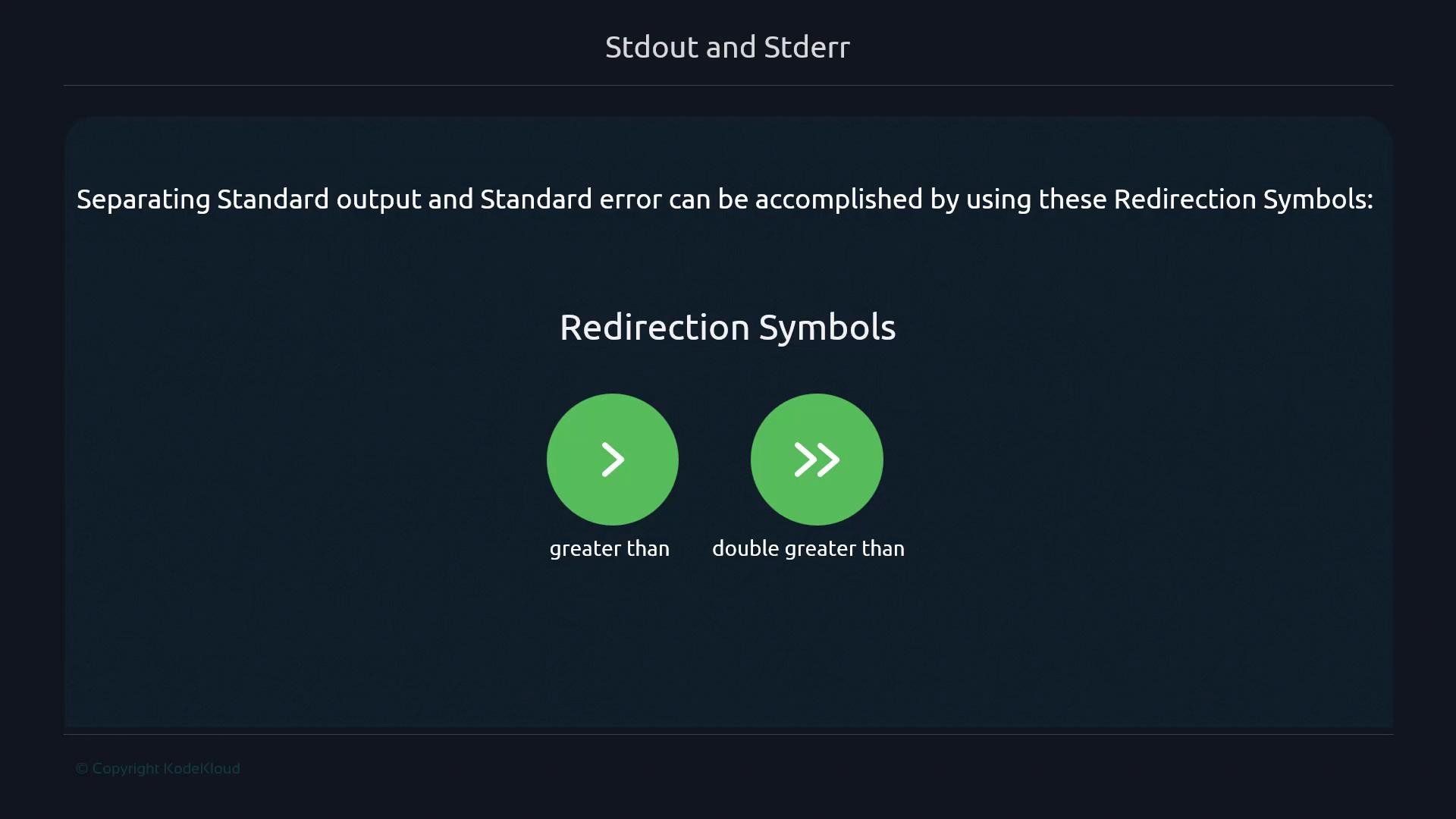
By default `>` (greater-than) and `>>` (append) redirect only stdout. That means error messages sent to stderr are not captured by `>` unless you explicitly redirect stderr.
Analogy: imagine two pipes at your sink—one for clean water and one for wastewater. If you can't tell them apart, you might accidentally use contaminated water. Likewise, if you don't separate stdout and stderr you may miss errors or mix them with normal output. Keeping them separate helps you diagnose problems.
Some programs are intentionally silent on success. For example `mv` moves or renames files without printing anything to stdout unless you request verbose output:
```bash theme={null}
$ mv file.txt renamedfile.txt # no stdout produced by default
$ mv -v file.txt renamedfile.txt
file.txt -> renamedfile.txt
```
If `mv` cannot find the source file, it writes an error to stderr:
```bash theme={null}
$ mv file.txt file2.txt
mv: cannot stat 'file.txt': No such file or directory
```
## Redirection refresher
By default `>` (greater-than) and `>>` (append) redirect only stdout. That means error messages sent to stderr are not captured by `>` unless you explicitly redirect stderr.
 Examples with `echo` and file redirection:
```bash theme={null}
$ echo "hello" > file.txt # overwrite file.txt with "hello"
$ cat file.txt
hello
$ echo "hello again" >> file.txt # append "hello again" to file.txt
$ cat file.txt
hello
hello again
```
Now try redirecting a command that produces stderr with `>`:
```bash theme={null}
$ ls -j > file.txt
$ cat file.txt
# file.txt is empty because ls -j produced stderr, not stdout
```
To capture stderr you must redirect file descriptor 2:
```bash theme={null}
$ ls -j 2> file.txt
$ cat file.txt
ls: invalid option -- 'j'
Try 'ls --help' for more information.
```
Why `2>`? Unix-like processes use numeric file descriptors for standard streams:
* `0` — standard input (`stdin`)
* `1` — standard output (`stdout`)
* `2` — standard error (`stderr`)
You can use these numbers explicitly: `1>` redirects stdout; `2>` redirects stderr.
Examples showing separate files for stdout and stderr:
```bash theme={null}
# Explicitly redirect stdout and stderr to separate files:
$ ls -z > stdout.txt 2> stderr.txt
$ cat stderr.txt
ls: invalid option -- 'z'
Try 'ls --help' for more information.
$ cat stdout.txt
# empty because ls -z produced only stderr
```
If the command produces normal output, stdout goes to the file assigned to file descriptor 1:
```bash theme={null}
$ ls > stdout.txt 2> stderr.txt
$ cat stdout.txt
Documents
noshebang.sh
test.sh
$ cat stderr.txt
# empty (no errors)
```
## Merging streams: redirect stderr into stdout (and ordering)
You can send stderr to wherever stdout is currently going by using `2>&1`. Similarly, you can redirect stdout to wherever stderr is going with `1>&2`.
Important: the order of redirections matters. Typically you redirect stdout first, then point stderr at stdout:
```bash theme={null}
# Correct: redirect stdout to all.txt, then send stderr to wherever stdout now goes
$ command > all.txt 2>&1
```
If you reverse the order (`2>&1 > all.txt`) the shell first redirects stderr to the current stdout (usually the terminal) and then redirects stdout to `all.txt`, leaving stderr still connected to the terminal.
When you want stderr to end up in the same place as stdout, use the pattern: `command >file 2>&1`. Always redirect stdout first, then redirect stderr to `1`.
## Quick operator reference
| Operator | Effect | Example |
| - | - | - |
| `> file` | Redirect stdout to `file` (overwrite) | `echo hi > out.txt` |
| `>> file` | Append stdout to `file` | `echo more >> out.txt` |
| `1> file` | Same as `> file` (explicit stdout) | `ls 1> out.txt` |
| `2> file` | Redirect stderr to `file` | `ls -z 2> err.txt` |
| `2>&1` | Redirect stderr to wherever stdout is currently going | `cmd >all.txt 2>&1` |
| `&> file` (bash) | Redirect both stdout and stderr to `file` (bash shorthand) | `cmd &> all.txt` |
Quick text summary:
```text theme={null}
> file.txt # (default) stdout -> file.txt
1> file.txt # stdout -> file.txt (explicit)
>> file.txt # append stdout -> file.txt
2> file.txt # stderr -> file.txt
>&1 # redirect stream to file descriptor 1 (stdout)
>&2 # redirect stream to file descriptor 2 (stderr)
```
## Wrap-up
You now know:
* stdout and stderr are separate streams (fd 1 and fd 2).
* `>` and `>>` affect stdout by default.
* Use `2>` to capture stderr, and `2>&1` to merge stderr into stdout (remember ordering).
* Properly separating or merging streams helps with debugging and script reliability.
Next, apply these patterns in pipelines and scripts to log output, capture errors, and build robust automation.
## Links and references
* [Shell Scripts for Beginners](https://learn.kodekloud.com/user/courses/shell-scripts-for-beginners)
* GNU Bash manual: Redirections — [https://www.gnu.org/software/bash/manual/html\_node/Redirections.html](https://www.gnu.org/software/bash/manual/html_node/Redirections.html)
This documentation is built and hosted on [Mintlify](https://mintlify.com), a developer documentation platform.
Examples with `echo` and file redirection:
```bash theme={null}
$ echo "hello" > file.txt # overwrite file.txt with "hello"
$ cat file.txt
hello
$ echo "hello again" >> file.txt # append "hello again" to file.txt
$ cat file.txt
hello
hello again
```
Now try redirecting a command that produces stderr with `>`:
```bash theme={null}
$ ls -j > file.txt
$ cat file.txt
# file.txt is empty because ls -j produced stderr, not stdout
```
To capture stderr you must redirect file descriptor 2:
```bash theme={null}
$ ls -j 2> file.txt
$ cat file.txt
ls: invalid option -- 'j'
Try 'ls --help' for more information.
```
Why `2>`? Unix-like processes use numeric file descriptors for standard streams:
* `0` — standard input (`stdin`)
* `1` — standard output (`stdout`)
* `2` — standard error (`stderr`)
You can use these numbers explicitly: `1>` redirects stdout; `2>` redirects stderr.
Examples showing separate files for stdout and stderr:
```bash theme={null}
# Explicitly redirect stdout and stderr to separate files:
$ ls -z > stdout.txt 2> stderr.txt
$ cat stderr.txt
ls: invalid option -- 'z'
Try 'ls --help' for more information.
$ cat stdout.txt
# empty because ls -z produced only stderr
```
If the command produces normal output, stdout goes to the file assigned to file descriptor 1:
```bash theme={null}
$ ls > stdout.txt 2> stderr.txt
$ cat stdout.txt
Documents
noshebang.sh
test.sh
$ cat stderr.txt
# empty (no errors)
```
## Merging streams: redirect stderr into stdout (and ordering)
You can send stderr to wherever stdout is currently going by using `2>&1`. Similarly, you can redirect stdout to wherever stderr is going with `1>&2`.
Important: the order of redirections matters. Typically you redirect stdout first, then point stderr at stdout:
```bash theme={null}
# Correct: redirect stdout to all.txt, then send stderr to wherever stdout now goes
$ command > all.txt 2>&1
```
If you reverse the order (`2>&1 > all.txt`) the shell first redirects stderr to the current stdout (usually the terminal) and then redirects stdout to `all.txt`, leaving stderr still connected to the terminal.
When you want stderr to end up in the same place as stdout, use the pattern: `command >file 2>&1`. Always redirect stdout first, then redirect stderr to `1`.
## Quick operator reference
| Operator | Effect | Example |
| - | - | - |
| `> file` | Redirect stdout to `file` (overwrite) | `echo hi > out.txt` |
| `>> file` | Append stdout to `file` | `echo more >> out.txt` |
| `1> file` | Same as `> file` (explicit stdout) | `ls 1> out.txt` |
| `2> file` | Redirect stderr to `file` | `ls -z 2> err.txt` |
| `2>&1` | Redirect stderr to wherever stdout is currently going | `cmd >all.txt 2>&1` |
| `&> file` (bash) | Redirect both stdout and stderr to `file` (bash shorthand) | `cmd &> all.txt` |
Quick text summary:
```text theme={null}
> file.txt # (default) stdout -> file.txt
1> file.txt # stdout -> file.txt (explicit)
>> file.txt # append stdout -> file.txt
2> file.txt # stderr -> file.txt
>&1 # redirect stream to file descriptor 1 (stdout)
>&2 # redirect stream to file descriptor 2 (stderr)
```
## Wrap-up
You now know:
* stdout and stderr are separate streams (fd 1 and fd 2).
* `>` and `>>` affect stdout by default.
* Use `2>` to capture stderr, and `2>&1` to merge stderr into stdout (remember ordering).
* Properly separating or merging streams helps with debugging and script reliability.
Next, apply these patterns in pipelines and scripts to log output, capture errors, and build robust automation.
## Links and references
* [Shell Scripts for Beginners](https://learn.kodekloud.com/user/courses/shell-scripts-for-beginners)
* GNU Bash manual: Redirections — [https://www.gnu.org/software/bash/manual/html\_node/Redirections.html](https://www.gnu.org/software/bash/manual/html_node/Redirections.html)
This documentation is built and hosted on [Mintlify](https://mintlify.com), a developer documentation platform.