> ## Documentation Index
> Fetch the complete documentation index at: https://notes.kodekloud.com/llms.txt
> Use this file to discover all available pages before exploring further.
# Find
> Learn to use `sed` for searching, printing, and deleting text patterns in files efficiently.
Enhance your text-processing workflow by using `sed` to search, print, or delete specific patterns directly within files. While similar to [grep](https://www.gnu.org/software/grep/manual/grep.html), `sed` lets you combine pattern matching with editing commands in one step.
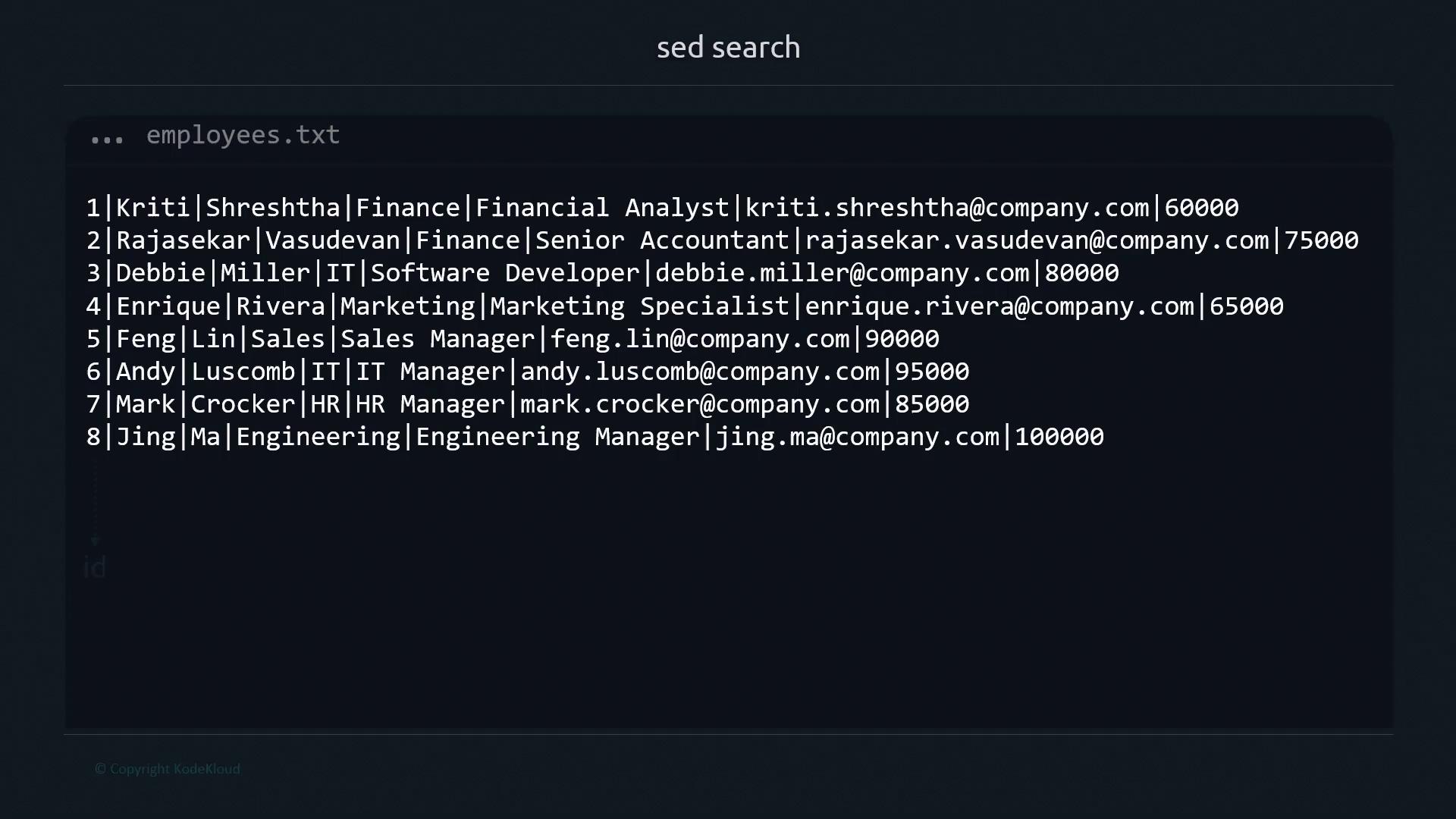
To follow along, we’ll use an `employees.txt` file with records formatted as `ID|First|Last|Department|Role|Email|Salary`.
## 1. Basic Search Syntax
`sed` requires both a pattern and an action. The minimal form is:
```bash theme={null}
sed '/pattern/' file
```
Without an explicit action, `sed` may default to printing every line or throw an error:
```bash theme={null}
$ sed '/Manager/' employees.txt
# (No command given; behavior depends on your sed version)
```
To print only matching lines, use `-n` (quiet mode) with the `p` command:
```bash theme={null}
sed -n '/Manager/p' employees.txt
```
* `-n` : suppress automatic printing
* `/Manager/` : search for “Manager”
* `p` : print matching lines
```bash theme={null}
$ sed -n '/Manager/p' employees.txt
5|Feng|Lin|Sales|Sales Manager|feng.lin@company.com|90000
6|Andy|Luscomb|IT|IT Manager|andy.luscomb@company.com|95000
7|Mark|Crocker|HR|HR Manager|mark.crocker@company.com|85000
8|Jing|Ma|Engineering|Engineering Manager|jing.ma@company.com|100000
```
By default, `sed` performs case-sensitive matches. Searching for `manager` (lowercase) yields no results:
```bash theme={null}
$ sed -n '/manager/p' employees.txt
# No match
```
## 2. Searching Substrings
Match partial strings by specifying only a fragment:
```bash theme={null}
$ sed -n '/Ma/p' employees.txt
4|Enrique|Rivera|Marketing|Marketing Specialist|enrique.rivera@company.com|65000
5|Feng|Lin|Sales|Sales Manager|feng.lin@company.com|90000
6|Andy|Luscomb|IT|IT Manager|andy.luscomb@company.com|95000
7|Mark|Crocker|HR|HR Manager|mark.crocker@company.com|85000
8|Jing|Ma|Engineering|Engineering Manager|jing.ma@company.com|100000
```
This matches “Marketing”, “Manager”, “Mark”, and the last name “Ma”.
## 3. Exact Word Matches with Word Boundaries
Use `\<` and `\>` to match whole words only:
```bash theme={null}
sed -n '/\/p' employees.txt
```
```bash theme={null}
$ sed -n '/\/p' employees.txt
8|Jing|Ma|Engineering|Engineering Manager|jing.ma@company.com|100000
```
**Command breakdown:**
* `sed` : invoke stream editor
* `-n` : suppress default output
* `/\/` : match exact word “Ma”
* `p` : print matching line
## 4. Combining Multiple Search Patterns
Chain multiple scripts with `-e` to search for more than one pattern:
```bash theme={null}
sed -n \
-e '/\/p' \
-e '/\/p' \
employees.txt
```
```bash theme={null}
$ sed -n -e '/\/p' -e '/\/p' employees.txt
3|Debbie|Miller|IT|Software Developer|debbie.miller@company.com|80000
5|Feng|Lin|Sales|Sales Manager|feng.lin@company.com|90000
6|Andy|Luscomb|IT|IT Manager|andy.luscomb@company.com|95000
7|Mark|Crocker|HR|HR Manager|mark.crocker@company.com|85000
8|Jing|Ma|Engineering|Engineering Manager|jing.ma@company.com|100000
```
Lines matching either pattern appear once per script.
## 5. Deleting Matches
Swap `p` for `d` to remove matching lines:
Remove Enrique’s record:
```bash theme={null}
sed -e '/\/d' employees.txt
```
Delete all lines containing “Ma” as a whole word:
```bash theme={null}
$ sed -e '/\/d' employees.txt
1|Kriti|Shreshtha|Finance|Financial Analyst|kriti.shreshtha@company.com|60000
2|Rajasekar|Vasudevan|Finance|Senior Accountant|rajasekar.vasudevan@company.com|75000
3|Debbie|Miller|IT|Software Developer|debbie.miller@company.com|80000
4|Enrique|Rivera|Marketing|Marketing Specialist|enrique.rivera@company.com|65000
5|Feng|Lin|Sales|Sales Manager|feng.lin@company.com|90000
6|Andy|Luscomb|IT|IT Manager|andy.luscomb@company.com|95000
7|Mark|Crocker|HR|HR Manager|mark.crocker@company.com|85000
```
## 6. Editing Files In-Place with `-i`
Apply deletions or substitutions directly using `-i`:
```bash theme={null}
$ sed -i \
-e '/\/d' \
-e '/\/d' \
employees.txt
$ cat employees.txt
1|Kriti|Shreshtha|Finance|Financial Analyst|kriti.shreshtha@company.com|60000
2|Rajasekar|Vasudevan|Finance|Senior Accountant|rajasekar.vasudevan@company.com|75000
4|Enrique|Rivera|Marketing|Marketing Specialist|enrique.rivera@company.com|65000
```
Using `-i` overwrites your source file. Always keep backups or use version control.
## 7. Quick Reference: sed Flags
| Option | Description | Example |
| ------ | --------------------------- | ------------------------------ |
| -n | Suppress automatic printing | `sed -n '/pattern/p' file` |
| -i | Edit files in-place | `sed -i 's/foo/bar/' file` |
| -e | Add multiple scripts | `sed -e '/A/p' -e '/B/p' file` |
***

## Links and References
* [GNU sed Manual](https://www.gnu.org/software/sed/manual/sed.html)
* [Regular Expressions Basics](https://www.regular-expressions.info/)
* [grep vs sed Comparison](https://www.baeldung.com/linux/grep-sed)