> ## Documentation Index
> Fetch the complete documentation index at: https://notes.kodekloud.com/llms.txt
> Use this file to discover all available pages before exploring further.
# sed print
> This guide teaches how to use seds print script to selectively display lines and control output in command-line workflows.
sed is a powerful **stream editor** for transforming text on the command line. In this guide, you'll learn how to use the `p` (print) script to display lines selectively, control automatic output, and integrate sed into complex pipelines. Whether you're filtering log files or extracting specific records, mastering sed's I/O model is essential for efficient command-line workflows.
## Unix I/O Model
| I/O Type | Description | Example | | |
| ----------------- | -------------------------------------------------- | ---------------------------------------------- | ------------- | --------- |
| Default Output | Commands write to the terminal by default | `ls` | | |
| Default Input | Commands read from files or stdin when unspecified | `grep "pattern" file.txt` | | |
| Pipes (\` | \`) | Passes one command's output as another's input | \`echo "data" | sed 'p'\` |
| Interactive Input | Reads from keyboard until EOF or termination | `sed 'p'` | | |
## sed's Default Behavior
By default, sed processes text from **stdin** or listed files and writes each line to **stdout**, applying any provided scripts.
Typing:
```bash theme={null}
sed 'p'
```
reads from stdin and applies the `p` (print) script to every line.
Example:
```bash theme={null}
echo "Hello from sed" | sed 'p'
```
Output:
```bash theme={null}
Hello from sed
Hello from sed
```
Explanation:
1. sed reads each line into the *pattern space*.
2. The `p` script prints it immediately.
3. Without disabling automatic printing, sed outputs the line again after processing.
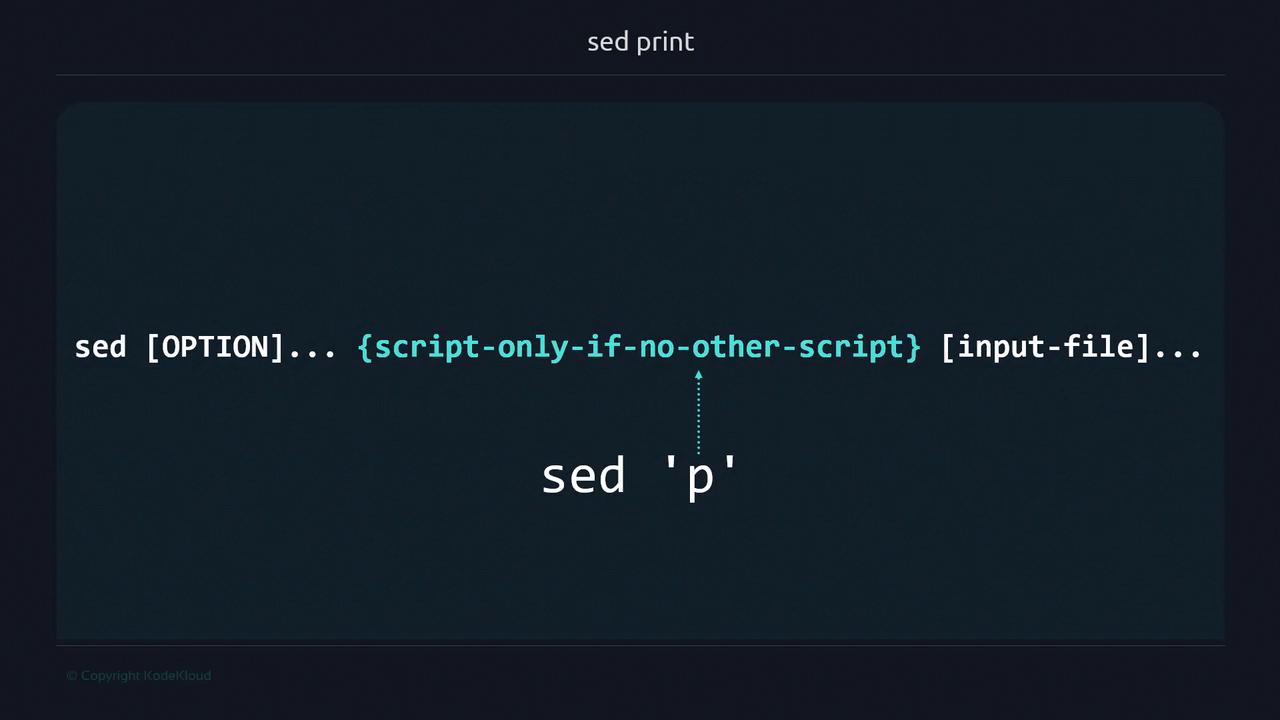
### Syntax Overview
```text theme={null}
sed [OPTION]... {script-only-if-no-other-script} [input-file]...
```
## Using sed with Pipes and Files
### Piping Input
```bash theme={null}
echo "This line prints twice" | sed 'p'
```
Output:
```text theme={null}
This line prints twice
This line prints twice
```
### Reading from a File
```bash theme={null}
echo "File line example" > sample.txt
sed 'p' sample.txt
```
Output:
```text theme={null}
File line example
File line example
```
In this case, `sample.txt` replaces stdin as sed's input source.
## Selecting Specific Lines
sed supports *addresses* (such as line numbers) to target scripts.
```bash theme={null}
# Create a sample file
echo "first line" > file_sample.txt
echo "second line" >> file_sample.txt
echo "third line" >> file_sample.txt
# Print only the second line twice
sed '2p' file_sample.txt
```
Output:
```text theme={null}
first line
second line
second line
third line
```
Explanation:
* Line 2 matches `2p`, so it's printed by the script and then automatically once more.
Use single quotes (`'`) around sed scripts to prevent the shell from interpreting special characters.
## Suppressing Automatic Printing
To output only the lines you explicitly match, use the `-n` option.
```bash theme={null}
sed -n '2p' file_sample.txt
```
Output:
```text theme={null}
second line
```
Forgetting `-n` can lead to duplicate lines when using print scripts.
## Real-World Example: Filtering Command Output
Extract the third line from the `df -h` display:
```bash theme={null}
df -h
```
```text theme={null}
Filesystem Size Used Avail Use% Mounted on
/dev/root 7.7G 2.9G 4.9G 38% /
devtmpfs 486M 0 486M 0% /dev
tmpfs 490M 0 490M 0% /dev/shm
...
```
Apply sed:
```bash theme={null}
df -h | sed -n '3p'
```
Result:
```text theme={null}
tmpfs 490M 0 490M 0% /dev/shm
```
## Working with a Data File
Consider an `employees.txt` file with pipe-delimited records:
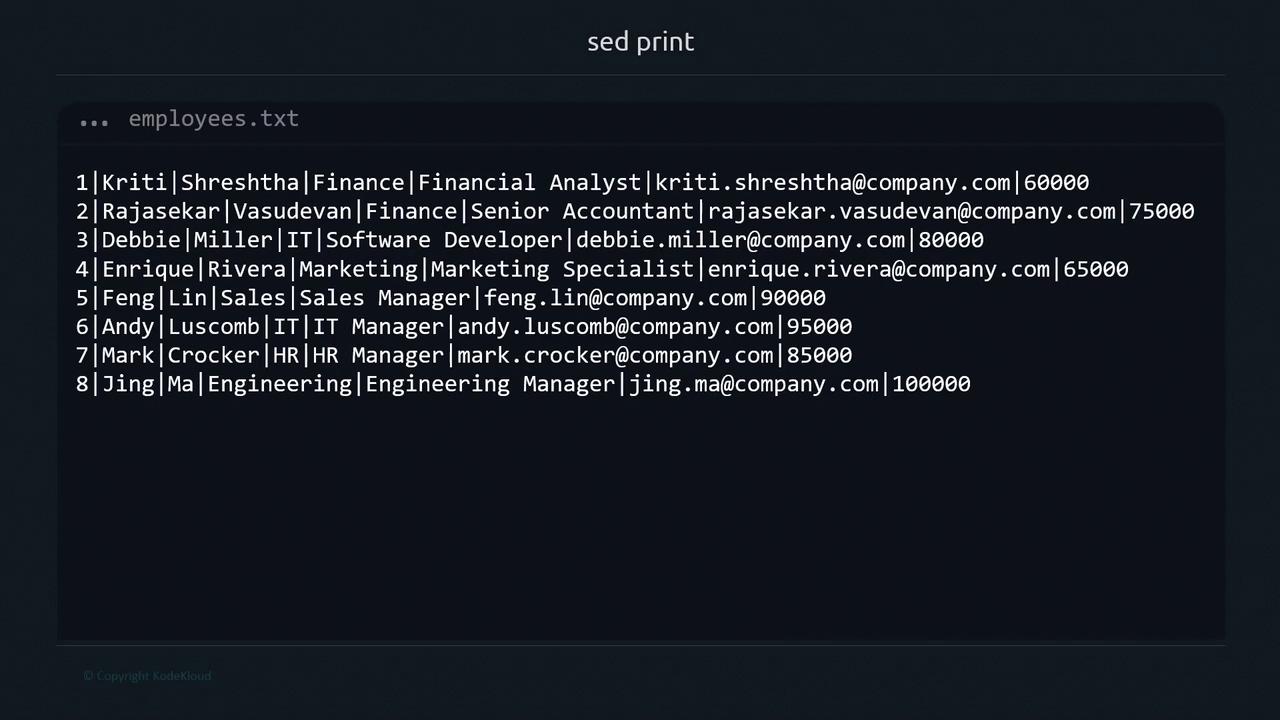
| Field No. | Field Name | Description |
| --------- | ------------- | --------------------- |
| 1 | Record Number | Unique employee ID |
| 2 | First Name | Employee's first name |
| 3 | Last Name | Employee's last name |
| 4 | Department | Department name |
| 5 | Job Title | Position held |
| 6 | Email | Company email address |
| 7 | Salary | Annual salary in USD |
To print the fifth record only:
```bash theme={null}
sed -n '5p' employees.txt
```
Output:
```text theme={null}
5|Feng|Lin|Sales|Sales Manager|feng.lin@company.com|90000
```
## Summary
* sed reads from **stdin** or listed files by default.
* Enclose scripts in single quotes to avoid shell expansion.
* Use addresses (e.g., `2p`) to target specific lines.
* The `-n` option disables automatic printing for precise control.
* Place input files after the script.
In upcoming lessons, we'll cover additional sed commands:
* `d` **delete** lines
* `s` **substitute** text
* `i` **insert** text
## References
* GNU sed Manual: [https://www.gnu.org/software/sed/manual/](https://www.gnu.org/software/sed/manual/)
* Bash Reference Manual: [https://www.gnu.org/software/bash/manual/](https://www.gnu.org/software/bash/manual/)