> ## Documentation Index
> Fetch the complete documentation index at: https://notes.kodekloud.com/llms.txt
> Use this file to discover all available pages before exploring further.
# Publishing a module
> Learn to publish your Go module on GitHub by initializing a repository, committing changes, tagging releases, and updating your module for public use.
In this lesson, you'll learn how to publish your Go module on GitHub. Follow the steps below to initialize your Git repository, commit your changes, tag your release, and update your module for public use.
## Initialize Your Git Repository
Start by converting your unversioned project directory into a Git repository. Begin in your project's root directory, as illustrated below:
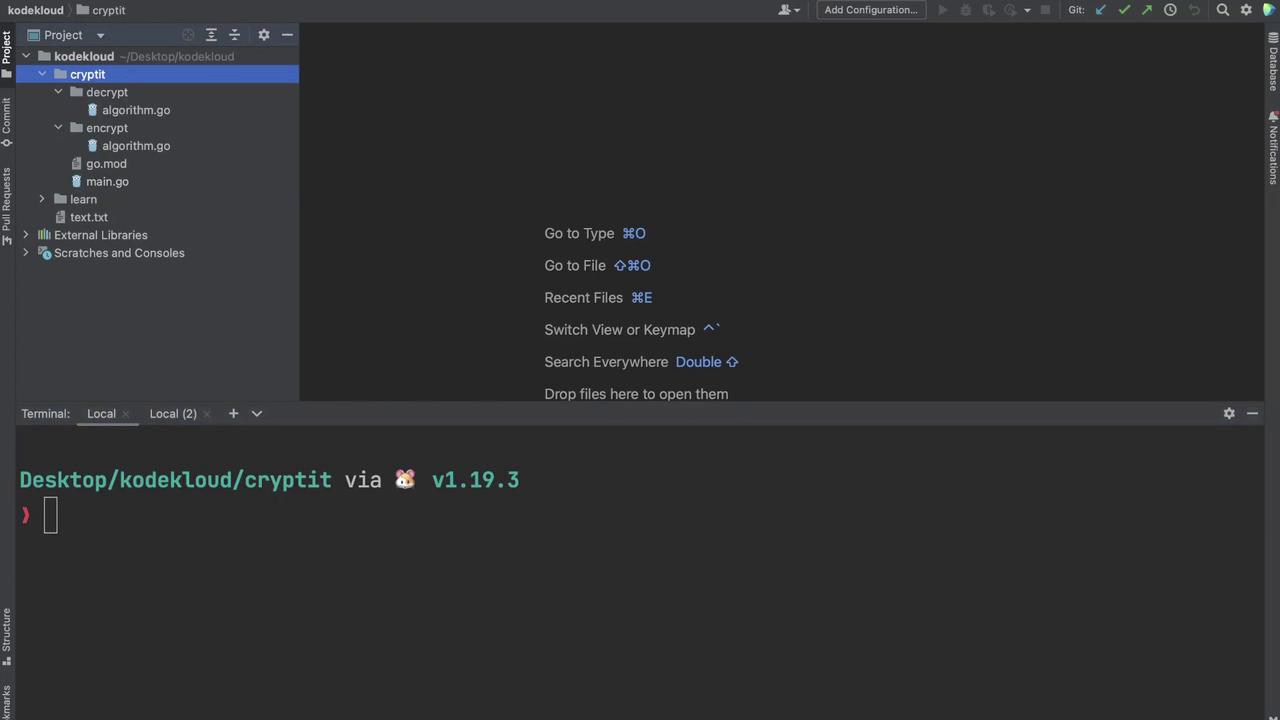
Log into your GitHub account and create a new, empty repository. Copy the repository URL provided by GitHub for future use.
Run the following command to initialize the Git repository:
```bash theme={null}
git init
```
Initializing the repository sets up the necessary metadata, transforming your project directory into a version-controlled environment.
## Add Remote and Verify Configuration
Next, add a remote named "origin" that points to your GitHub repository:
```bash theme={null}
git remote add origin https://github.com/Priyanka-yadavv/cryptit.git
```
Verify that the remote configuration is correct by listing all remotes:
```bash theme={null}
git remote -v
```
You should see output similar to:
```git theme={null}
origin https://github.com/Priyanka-yadavv/cryptit.git (fetch)
origin https://github.com/Priyanka-yadavv/cryptit.git (push)
```
## Check Repository Status
Check the current status of your repository. Here, a custom "go status" command (used to illustrate changes) triggers an error message since it's not a valid Go command:
```bash theme={null}
cryptit on 🎸 master [?] via v1.19.3
> go status
go status: unknown command
Run 'go help' for usage.
```
At this point, your project includes the `encrypt` and `decrypt` packages, along with the `go.mod` and `main.go` files. Stage and commit these files with an appropriate message:
```bash theme={null}
git add .
git commit -m "cryptit"
```
## Tagging Your Commit
For this demonstration, we're releasing a minor version update. Tag your commit with a version number using the following command:
```bash theme={null}
git tag v0.1.0
```
The output may look similar to:
```git theme={null}
(master (root-commit) 659d982) cryptit: changes for v0.1.0
4 files changed, 40 insertions(+)
create mode 100644 decrypt/algorithm.go
create mode 100644 encrypt/algorithm.go
create mode 100644 go.mod
create mode 100644 main.go
```
List the tags to verify the new tag:
```bash theme={null}
git tag
```
## Push the Tag to GitHub
Push the tag to your GitHub repository:
```bash theme={null}
git push origin v0.1.0
```
After a successful push, you will see an output confirming that the objects have been uploaded:
```bash theme={null}
Enumerating objects: 8, done.
Counting objects: 100% (8/8), done.
Delta compression using up to 8 threads
Compressing objects: 100% (6/6), done.
Writing objects: 100% (8/8), 858 bytes | 143.00 KiB/s, done.
Total 8 (delta 1), reused 0 (delta 0), pack-reused 0
remote: Resolving deltas: 100% (1/1), done.
```
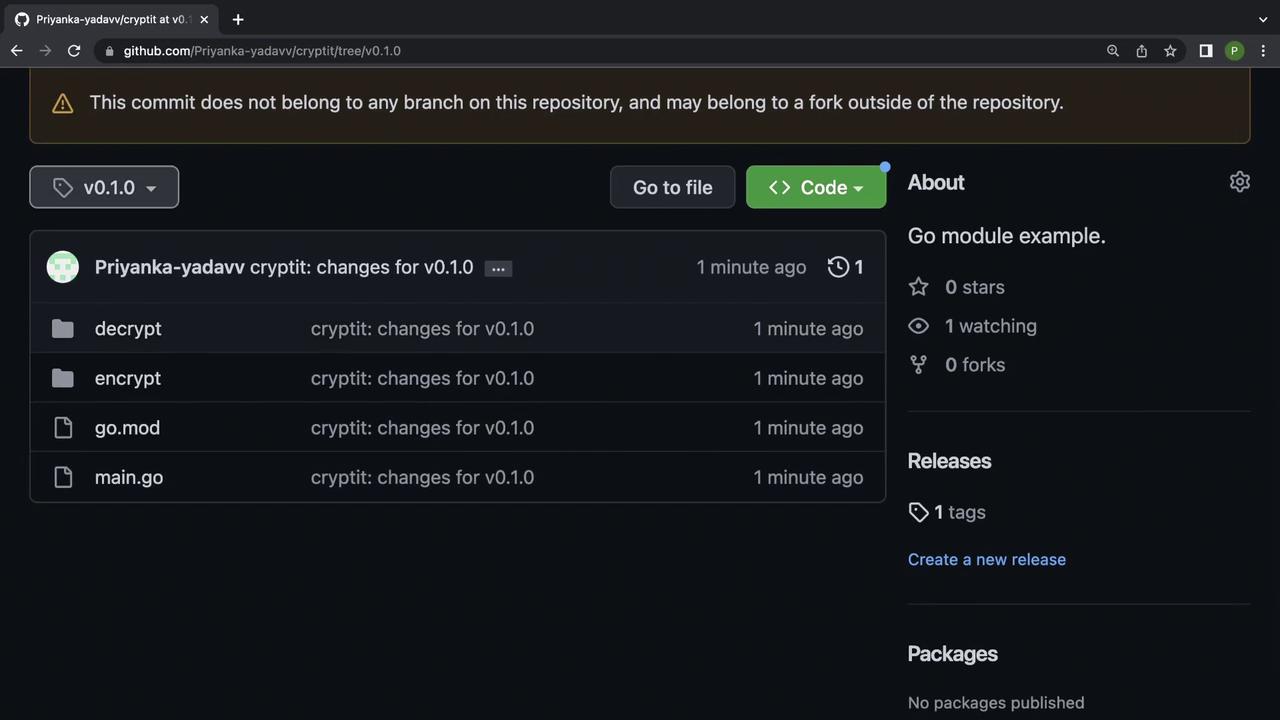
All changes, including the tag, are now live on GitHub. Confirm this by visiting your repository:
## Update the Module Reference
Previously, you used a `replace` directive in your `go.mod` file to reference a local copy of the module:
```go theme={null}
module example.com/learn
go 1.19
require (
github.com/Priyanka-yadavv/cryptit v0.0.0-000101010000-0000000000
github.com/pborman/uuid v1.2.1
)
require github.com/google/uuid v1.0.0 // indirect
replace github.com/Priyanka-yadavv/cryptit => ../cryptit
```
Now that your module is published, remove the `replace` directive so that your `go.mod` file looks like this:
```go theme={null}
module example.com/learn
go 1.19
require (
github.com/Priyanka-yadavv/cryptit v0.0.0-000101010000-0000000000
github.com/pborman/uuid v1.2.1
)
require github.com/google/uuid v1.0.0 // indirect
```
## Fetch the Published Module
Use the `go get` command to retrieve the published module with its tag. Note that the full module path is required:
```bash theme={null}
go get github.com/Priyanka-yadavv/cryptit@v0.1.0
```
This updates your `go.mod` file to include the module as an indirect dependency:
```go theme={null}
go 1.19
require github.com/pborman/uuid v1.2.1
require (
github.com/Priyanka-yadavv/cryptit v0.1.0 // indirect
github.com/google/uuid v1.0.0 // indirect
)
```
The console output will confirm the update:
```bash theme={null}
Desktop/kodekloud/learn via v1.19.3
$ go get github.com/Priyanka-yadavv/cryptit@v0.1.0
go: added github.com/Priyanka-yadavv/cryptit v0.1.0
Desktop/kodekloud/learn via v1.19.3
```
## Update Your Application
Modify your `main.go` to import and use the now-published module. Below is an example of how your `main.go` might look:
```go theme={null}
import (
"fmt"
"github.com/google/uuid"
"github.com/Priyanka-yadavv/cryptit/encrypt"
)
func main() {
id := uuid.NewRandom()
fmt.Println(id)
encryptedStr := encrypt.Nimbus("Kodekloud")
fmt.Println(encryptedStr)
}
```
Run your application using:
```bash theme={null}
go run main.go
```
An example output might be:
```git theme={null}
8e599e4e-3fb5-46ea-b6a8-bd7098a554c0
Nrghnorxg
```
This confirms that your application is now using the published module from GitHub instead of a local reference.
## Final Verification
Ensure the `go.mod` file correctly reflects the change:
```go theme={null}
go 1.19
require github.com/pborman/uuid v1.2.1
require (
github.com/Priyanka-yadavv/cryptit v0.1.0 // indirect
github.com/google/uuid v1.0.0 // indirect
)
```
Run your program one more time:
```bash theme={null}
go run main.go
```
The expected output should be:
```git theme={null}
8e599e4e-3fb5-46ea-b6a8-bd7098a554c0
Nrghnorxg
```
With your module now published on GitHub, you can easily share and reuse your code. This practice simplifies dependency management and supports semantic versioning.
That concludes this lesson on publishing a module to GitHub. Happy coding, and we’ll see you in the next lesson!