> ## Documentation Index
> Fetch the complete documentation index at: https://notes.kodekloud.com/llms.txt
> Use this file to discover all available pages before exploring further.
# Create and Configure Node
> Guide to creating and connecting a permanent Jenkins agent on an Ubuntu VM, including UI setup, running the agent jar, security settings, troubleshooting, and monitoring.
In distributed Jenkins setups, the controller (master) orchestrates jobs while agents (nodes) execute build steps. This guide shows how to create a permanent Jenkins node and connect an external Ubuntu VM so it can run pipeline stages.
In my environment I created a VM named `ubuntu-docker-jdk17-node20` to act as a dedicated agent. Example shell prompts:
```bash theme={null}
# Jenkins controller
root@jenkins-controller-1 in shared-libraries on ⬢ featureTrivyScan on ☁ (us-east-2)
# agent VM
root@ubuntu-docker-jdk17-node20 in ~
❯
```
## 1. Create the node in the Jenkins UI
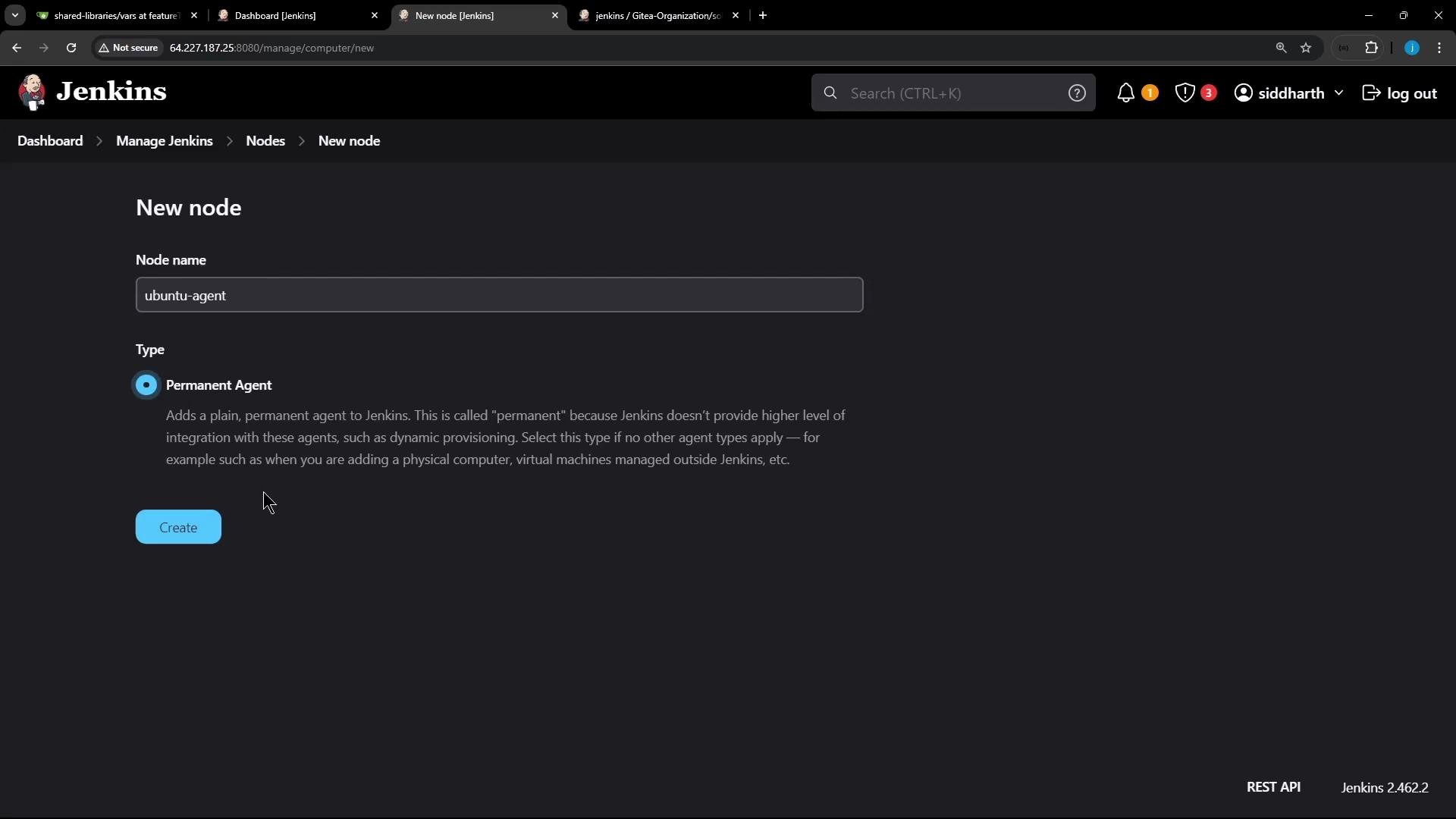
Navigate to Manage Jenkins → Manage Nodes → New Node. Give the node a name (I used `ubuntu-agent`) and choose "Permanent Agent".
 ## 2. Configure node details
Fill out the node configuration form. Key fields and recommended values:
| Field | Purpose | Example / Recommendation |
| --------------------- | -------------------------------------------------- | ------------------------------------------------------------------- |
| Description | Short description for admins | `Ubuntu agent for Docker & JDK17 builds` |
| Number of executors | How many concurrent builds the node can run | `1` (adjust based on resources) |
| Remote root directory | Where the agent stores workspaces, logs, artifacts | `/home/jenkins-agent` |
| Labels | Tags to target jobs/pipeline stages to this node | `ubuntu-docker-jdk17-node20` |
| Usage | Node allocation policy | `Use this node as much as possible` or `Only build jobs with label` |
| Launch method | How the node connects to controller | `Launch agent by connecting it to the controller (JNLP)` |
| Availability | Keep online or bring online as needed | `Keep this agent online as much as possible` |
| Node properties | Extra monitoring, env vars, tool locations | Optional: enable disk-space threshold, set Java path |
## 2. Configure node details
Fill out the node configuration form. Key fields and recommended values:
| Field | Purpose | Example / Recommendation |
| --------------------- | -------------------------------------------------- | ------------------------------------------------------------------- |
| Description | Short description for admins | `Ubuntu agent for Docker & JDK17 builds` |
| Number of executors | How many concurrent builds the node can run | `1` (adjust based on resources) |
| Remote root directory | Where the agent stores workspaces, logs, artifacts | `/home/jenkins-agent` |
| Labels | Tags to target jobs/pipeline stages to this node | `ubuntu-docker-jdk17-node20` |
| Usage | Node allocation policy | `Use this node as much as possible` or `Only build jobs with label` |
| Launch method | How the node connects to controller | `Launch agent by connecting it to the controller (JNLP)` |
| Availability | Keep online or bring online as needed | `Keep this agent online as much as possible` |
| Node properties | Extra monitoring, env vars, tool locations | Optional: enable disk-space threshold, set Java path |
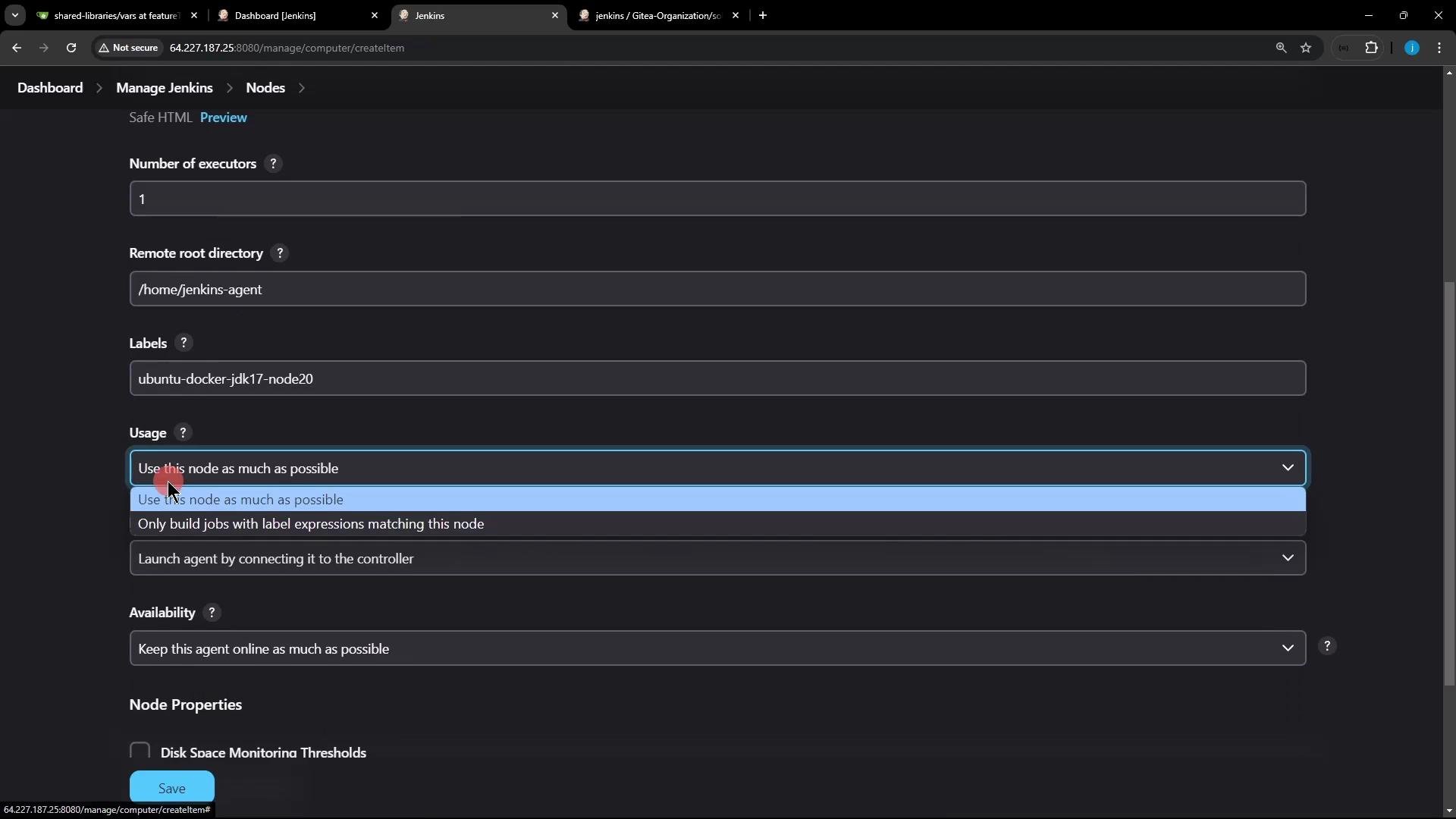 You can enable monitoring (disk-space threshold, environment variables, tool locations) in the Node properties section. In my example I enabled disk-space threshold monitoring and saved the node. After saving, the node will appear as created but offline until the agent process connects.
Ensure the node's remote root directory exists or is writable by the user that will run the agent. Jenkins will create subdirectories (for example, `remoting`, workspaces) under that directory.
## 3. Download and run the agent on the node VM
On the agent machine, Jenkins provides `agent.jar`. The UI shows platform-specific launch instructions; the Unix commands below work on most Linux agents.
* Directly pass the secret on the command line:
```bash theme={null}
curl -sO http://64.227.187.25:8080/jnlpJars/agent.jar
java -jar agent.jar -url http://64.227.187.25:8080/ \
-secret 687ec2b79cfc3ab015d0eb8e4d1baac7b71890d99f0dc32297b3251d5c4a6f41 \
-name "ubuntu-agent" -workDir "/home/jenkins-agent"
```
* (Safer) store the secret in a file and reference it:
```bash theme={null}
echo 687ec2b79cfc3ab015d0eb8e4d1baac7b71890d99f0dc32297b3251d5c4a6f41 > secret-file
curl -sO http://64.227.187.25:8080/jnlpJars/agent.jar
java -jar agent.jar -url http://64.227.187.25:8080/ \
-secret @secret-file -name "ubuntu-agent" -workDir "/home/jenkins-agent"
```
Requirements and notes:
* The agent machine must have Java (JRE or JDK) installed. Matching the controller's major Java version is recommended for remoting compatibility.
* `-workDir` is where remoting stores logs and data (e.g., `/home/jenkins-agent/remoting`).
## 4. Troubleshooting common connection errors
If the agent cannot connect, the remoting client logs will show errors. A common failure is this 404 when the controller's inbound TCP agent listener is disabled:
```text theme={null}
Nov 10, 2024 6:17:12 AM org.jenkinsci.remoting.engine.WorkDirManager setupLogging
INFO: Both error and output logs will be printed to /home/jenkins-agent/remoting
Nov 10, 2024 6:17:12 AM hudson.remoting.Launcher createEngine
INFO: Setting up agent: ubuntu-agent
Nov 10, 2024 6:17:12 AM hudson.remoting.Engine startEngine
INFO: Using Remoting version: 3248.3250.v3277a_8e88c9b_
Nov 10, 2024 6:17:12 AM hudson.remoting.Launcher$CuiListener status
INFO: Locating server among [http://64.227.187.25:8080/]
Nov 10, 2024 6:17:12 AM hudson.remoting.Launcher$CuiListener status
INFO: Could not locate server among [http://64.227.187.25:8080/]; waiting 10 seconds before retry
java.io.IOException: http://64.227.187.25:8080/tcpSlaveAgentListener/ is invalid: 404 Not Found
at org.jenkinsci.remoting.engine.JnlpAgentEndpointResolver.resolve(JnlpAgentEndpointResolver.java:229)
at hudson.remoting.Engine.innerRun(Engine.java:829)
at hudson.remoting.Engine.run(Engine.java:574)
```
This 404 indicates the controller's inbound TCP agent listener is disabled (the default for security reasons). To enable JNLP/inbound agents:
* Go to Manage Jenkins → Configure Global Security → Agents → TCP port for inbound agents.
* Choose a fixed port or allow a random port.
* Save and retry the agent run.
You can enable monitoring (disk-space threshold, environment variables, tool locations) in the Node properties section. In my example I enabled disk-space threshold monitoring and saved the node. After saving, the node will appear as created but offline until the agent process connects.
Ensure the node's remote root directory exists or is writable by the user that will run the agent. Jenkins will create subdirectories (for example, `remoting`, workspaces) under that directory.
## 3. Download and run the agent on the node VM
On the agent machine, Jenkins provides `agent.jar`. The UI shows platform-specific launch instructions; the Unix commands below work on most Linux agents.
* Directly pass the secret on the command line:
```bash theme={null}
curl -sO http://64.227.187.25:8080/jnlpJars/agent.jar
java -jar agent.jar -url http://64.227.187.25:8080/ \
-secret 687ec2b79cfc3ab015d0eb8e4d1baac7b71890d99f0dc32297b3251d5c4a6f41 \
-name "ubuntu-agent" -workDir "/home/jenkins-agent"
```
* (Safer) store the secret in a file and reference it:
```bash theme={null}
echo 687ec2b79cfc3ab015d0eb8e4d1baac7b71890d99f0dc32297b3251d5c4a6f41 > secret-file
curl -sO http://64.227.187.25:8080/jnlpJars/agent.jar
java -jar agent.jar -url http://64.227.187.25:8080/ \
-secret @secret-file -name "ubuntu-agent" -workDir "/home/jenkins-agent"
```
Requirements and notes:
* The agent machine must have Java (JRE or JDK) installed. Matching the controller's major Java version is recommended for remoting compatibility.
* `-workDir` is where remoting stores logs and data (e.g., `/home/jenkins-agent/remoting`).
## 4. Troubleshooting common connection errors
If the agent cannot connect, the remoting client logs will show errors. A common failure is this 404 when the controller's inbound TCP agent listener is disabled:
```text theme={null}
Nov 10, 2024 6:17:12 AM org.jenkinsci.remoting.engine.WorkDirManager setupLogging
INFO: Both error and output logs will be printed to /home/jenkins-agent/remoting
Nov 10, 2024 6:17:12 AM hudson.remoting.Launcher createEngine
INFO: Setting up agent: ubuntu-agent
Nov 10, 2024 6:17:12 AM hudson.remoting.Engine startEngine
INFO: Using Remoting version: 3248.3250.v3277a_8e88c9b_
Nov 10, 2024 6:17:12 AM hudson.remoting.Launcher$CuiListener status
INFO: Locating server among [http://64.227.187.25:8080/]
Nov 10, 2024 6:17:12 AM hudson.remoting.Launcher$CuiListener status
INFO: Could not locate server among [http://64.227.187.25:8080/]; waiting 10 seconds before retry
java.io.IOException: http://64.227.187.25:8080/tcpSlaveAgentListener/ is invalid: 404 Not Found
at org.jenkinsci.remoting.engine.JnlpAgentEndpointResolver.resolve(JnlpAgentEndpointResolver.java:229)
at hudson.remoting.Engine.innerRun(Engine.java:829)
at hudson.remoting.Engine.run(Engine.java:574)
```
This 404 indicates the controller's inbound TCP agent listener is disabled (the default for security reasons). To enable JNLP/inbound agents:
* Go to Manage Jenkins → Configure Global Security → Agents → TCP port for inbound agents.
* Choose a fixed port or allow a random port.
* Save and retry the agent run.
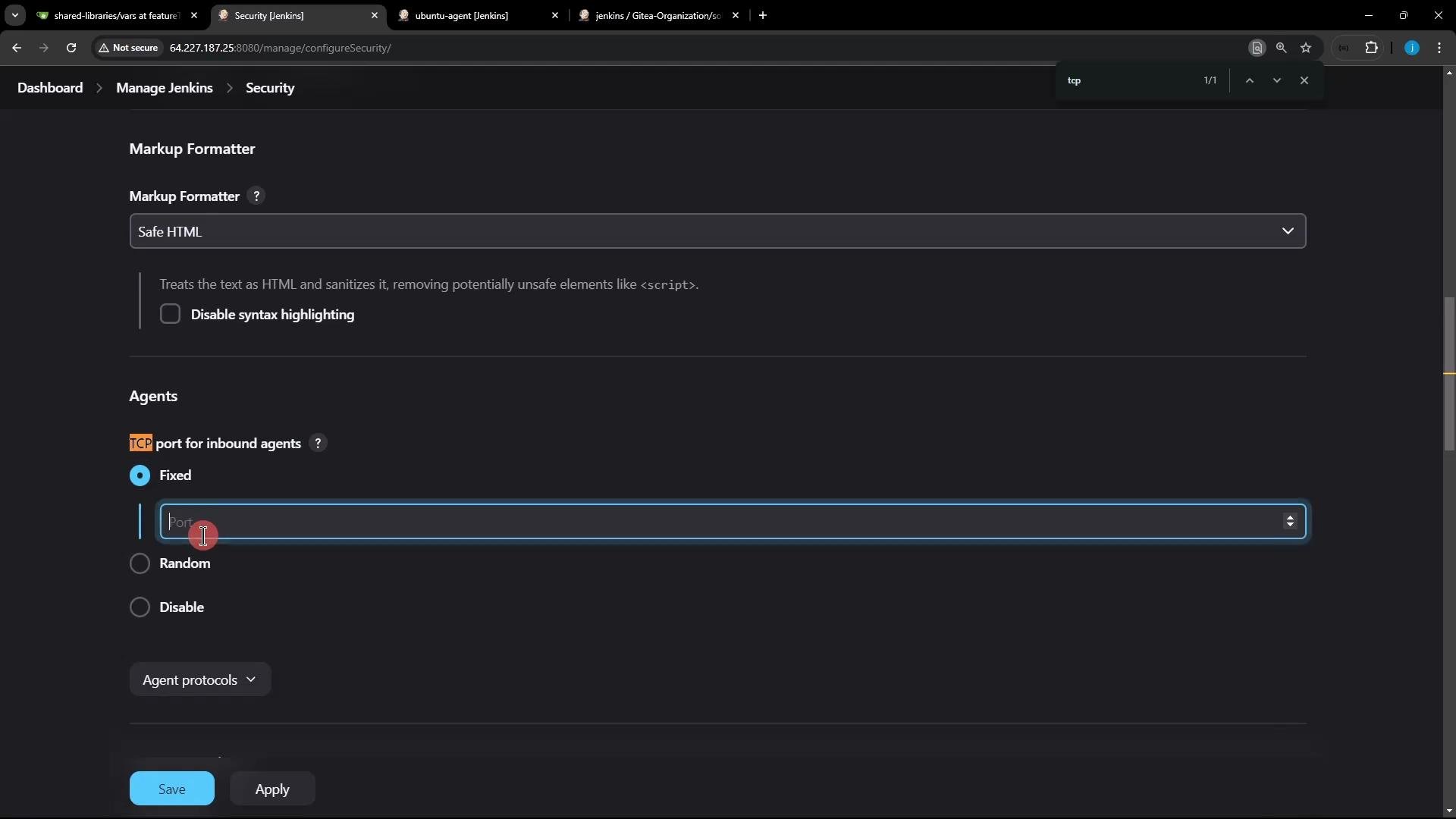 Enabling an inbound TCP port allows agents to connect to the controller. Secure this by restricting access with firewalls, VPNs, or IP allowlists and always use the agent secret. Exposing Jenkins' agent listener to untrusted networks can lead to unauthorized access.
## 5. Successful connection example
After enabling the TCP listener and running the agent, the remoting logs will show a successful handshake and connection:
```text theme={null}
Nov 10, 2024 6:18:34 AM org.jenkinsci.remoting.engine.WorkDirManager setupLogging
INFO: Both error and output logs will be printed to /home/jenkins-agent/remoting
Nov 10, 2024 6:18:34 AM hudson.remoting.Launcher createEngine
INFO: Setting up agent: ubuntu-agent
Nov 10, 2024 6:18:34 AM hudson.remoting.Engine startEngine
INFO: Using Remoting version: 3248.3250.v3277a_8e88c9b_
Nov 10, 2024 6:18:34 AM org.jenkinsci.remoting.engine.JnlpAgentEndpointResolver resolve
INFO: Remoting server accepts the following protocols: [JNLP4-connect, Ping]
Nov 10, 2024 6:18:34 AM hudson.remoting.Launcher$CuiListener status
INFO: Agent discovery successful
Agent address: 64.227.187.25
Agent port: 42851
Identity: 67:e8:89:86:98:92:ee:21:8a:73:c2:77:fc:2d:07:37
Nov 10, 2024 6:18:34 AM hudson.remoting.Launcher$CuiListener status
INFO: Handshaking
Nov 10, 2024 6:18:34 AM hudson.remoting.Launcher$CuiListener status
INFO: Connecting to 64.227.187.25:42851
Nov 10, 2024 6:18:38 AM hudson.remoting.Launcher$CuiListener status
INFO: Remote identity confirmed: 67:e8:89:86:98:92:ee:21:8a:73:c2:77:fc:2d:07:37
Nov 10, 2024 6:18:38 AM hudson.remoting.Launcher$CuiListener status
INFO: Connected
```
On the agent filesystem you will see the agent files and the `remoting` directory Jenkins creates:
```bash theme={null}
root@ubuntu-docker-jdk17-node20 in /home via v17.0.12
$ ls
agent.jar jenkins-agent
$ cd jenkins-agent/
$ ls
remoting
```
## 6. Inspect the node in the Jenkins UI
Once online, the node shows additional information and management options in Manage Nodes:
* Agent configuration history (view and restore previous node configs)
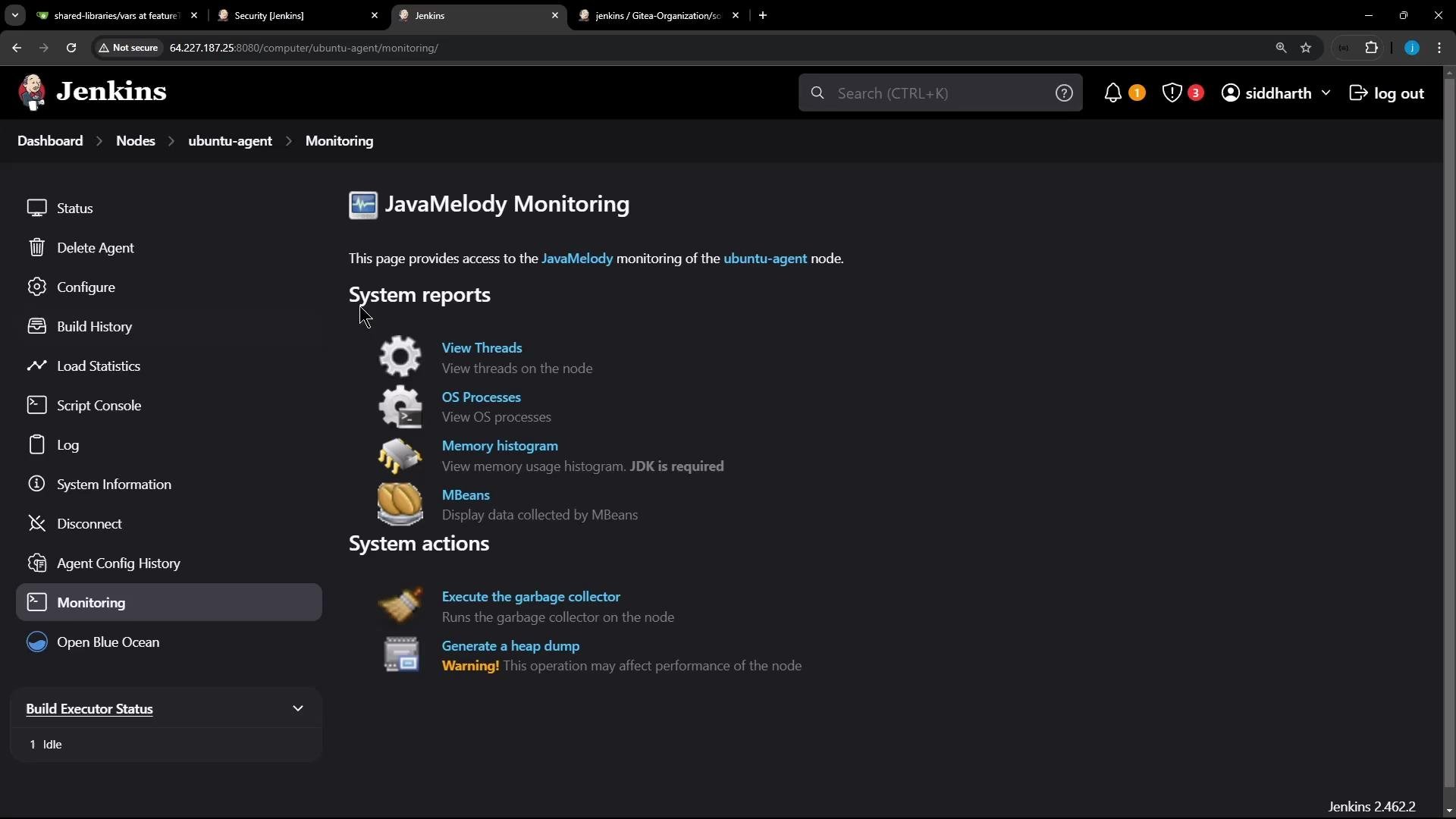
* Monitoring (JavaMelody) for threads, memory, and processes
* Node logs and load statistics
* Actions like disconnect or mark offline
Enabling an inbound TCP port allows agents to connect to the controller. Secure this by restricting access with firewalls, VPNs, or IP allowlists and always use the agent secret. Exposing Jenkins' agent listener to untrusted networks can lead to unauthorized access.
## 5. Successful connection example
After enabling the TCP listener and running the agent, the remoting logs will show a successful handshake and connection:
```text theme={null}
Nov 10, 2024 6:18:34 AM org.jenkinsci.remoting.engine.WorkDirManager setupLogging
INFO: Both error and output logs will be printed to /home/jenkins-agent/remoting
Nov 10, 2024 6:18:34 AM hudson.remoting.Launcher createEngine
INFO: Setting up agent: ubuntu-agent
Nov 10, 2024 6:18:34 AM hudson.remoting.Engine startEngine
INFO: Using Remoting version: 3248.3250.v3277a_8e88c9b_
Nov 10, 2024 6:18:34 AM org.jenkinsci.remoting.engine.JnlpAgentEndpointResolver resolve
INFO: Remoting server accepts the following protocols: [JNLP4-connect, Ping]
Nov 10, 2024 6:18:34 AM hudson.remoting.Launcher$CuiListener status
INFO: Agent discovery successful
Agent address: 64.227.187.25
Agent port: 42851
Identity: 67:e8:89:86:98:92:ee:21:8a:73:c2:77:fc:2d:07:37
Nov 10, 2024 6:18:34 AM hudson.remoting.Launcher$CuiListener status
INFO: Handshaking
Nov 10, 2024 6:18:34 AM hudson.remoting.Launcher$CuiListener status
INFO: Connecting to 64.227.187.25:42851
Nov 10, 2024 6:18:38 AM hudson.remoting.Launcher$CuiListener status
INFO: Remote identity confirmed: 67:e8:89:86:98:92:ee:21:8a:73:c2:77:fc:2d:07:37
Nov 10, 2024 6:18:38 AM hudson.remoting.Launcher$CuiListener status
INFO: Connected
```
On the agent filesystem you will see the agent files and the `remoting` directory Jenkins creates:
```bash theme={null}
root@ubuntu-docker-jdk17-node20 in /home via v17.0.12
$ ls
agent.jar jenkins-agent
$ cd jenkins-agent/
$ ls
remoting
```
## 6. Inspect the node in the Jenkins UI
Once online, the node shows additional information and management options in Manage Nodes:
* Agent configuration history (view and restore previous node configs)
* Monitoring (JavaMelody) for threads, memory, and processes
* Node logs and load statistics
* Actions like disconnect or mark offline
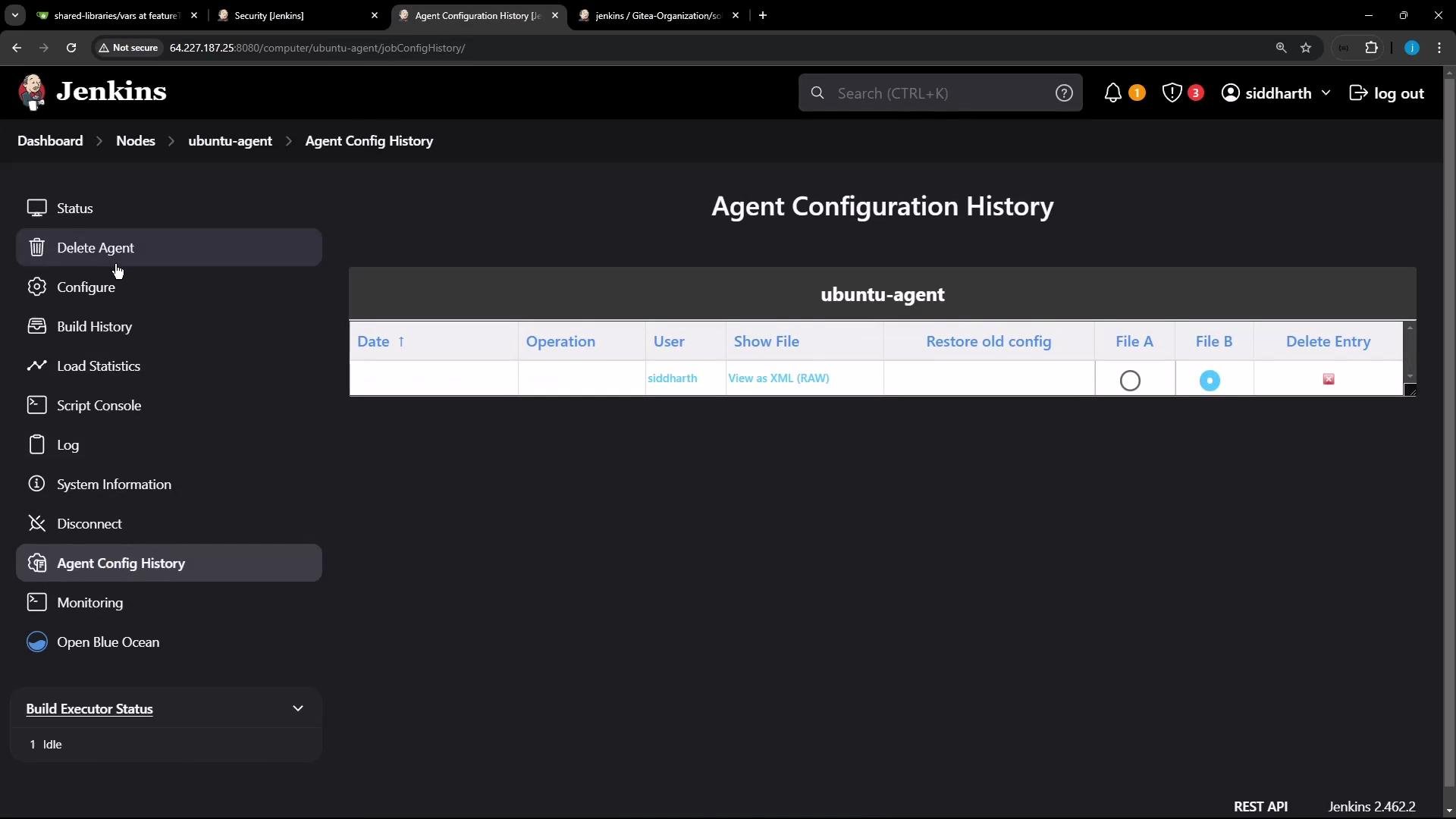
 Example console info when the agent is connected:
```text theme={null}
Inbound agent connected from 165.232.191.207/165.232.191.207:55522
Remoting version: 3248.3250.v3277a_8e88c9b_
Launcher: JNLPLauncher
Communication Protocol: JNLP4-connect
This is a Unix agent
Agent successfully connected and online
```
## Next steps and references
* Target pipeline stages to this node by its label in a declarative pipeline:
```groovy theme={null}
pipeline {
agent none
stages {
stage('Build on Ubuntu agent') {
agent { label 'ubuntu-docker-jdk17-node20' }
steps {
sh 'uname -a && java -version'
}
}
}
}
```
Useful links:
* Jenkins agents documentation: [https://www.jenkins.io/doc/book/using/using-agents/](https://www.jenkins.io/doc/book/using/using-agents/)
* Jenkins remoting and JNLP agents: [https://www.jenkins.io/doc/book/architectures/agents/](https://www.jenkins.io/doc/book/architectures/agents/)
* Jenkins security and node management: [https://www.jenkins.io/doc/book/managing/security/](https://www.jenkins.io/doc/book/managing/security/)
You can now use this node to run builds and pipeline stages targeted by label.
Example console info when the agent is connected:
```text theme={null}
Inbound agent connected from 165.232.191.207/165.232.191.207:55522
Remoting version: 3248.3250.v3277a_8e88c9b_
Launcher: JNLPLauncher
Communication Protocol: JNLP4-connect
This is a Unix agent
Agent successfully connected and online
```
## Next steps and references
* Target pipeline stages to this node by its label in a declarative pipeline:
```groovy theme={null}
pipeline {
agent none
stages {
stage('Build on Ubuntu agent') {
agent { label 'ubuntu-docker-jdk17-node20' }
steps {
sh 'uname -a && java -version'
}
}
}
}
```
Useful links:
* Jenkins agents documentation: [https://www.jenkins.io/doc/book/using/using-agents/](https://www.jenkins.io/doc/book/using/using-agents/)
* Jenkins remoting and JNLP agents: [https://www.jenkins.io/doc/book/architectures/agents/](https://www.jenkins.io/doc/book/architectures/agents/)
* Jenkins security and node management: [https://www.jenkins.io/doc/book/managing/security/](https://www.jenkins.io/doc/book/managing/security/)
You can now use this node to run builds and pipeline stages targeted by label.