> ## Documentation Index
> Fetch the complete documentation index at: https://notes.kodekloud.com/llms.txt
> Use this file to discover all available pages before exploring further.
# Utilize Kubernetes Pod as Agent
> Using Kubernetes pods as ephemeral Jenkins Pipeline build agents, with inline YAML or pod templates, multi container examples, pod selection, inspection, retention, and best practices
In this guide you'll learn how to use Kubernetes pods as ephemeral build agents for Jenkins Pipeline jobs. We'll use a configured Kubernetes cloud and Declarative Pipeline `kubernetes` agents that provision pods on demand. Examples show inline Pod YAML embedded in the pipeline; you can also use reusable pod templates configured in the Kubernetes cloud.
 ## Create the Pipeline Job
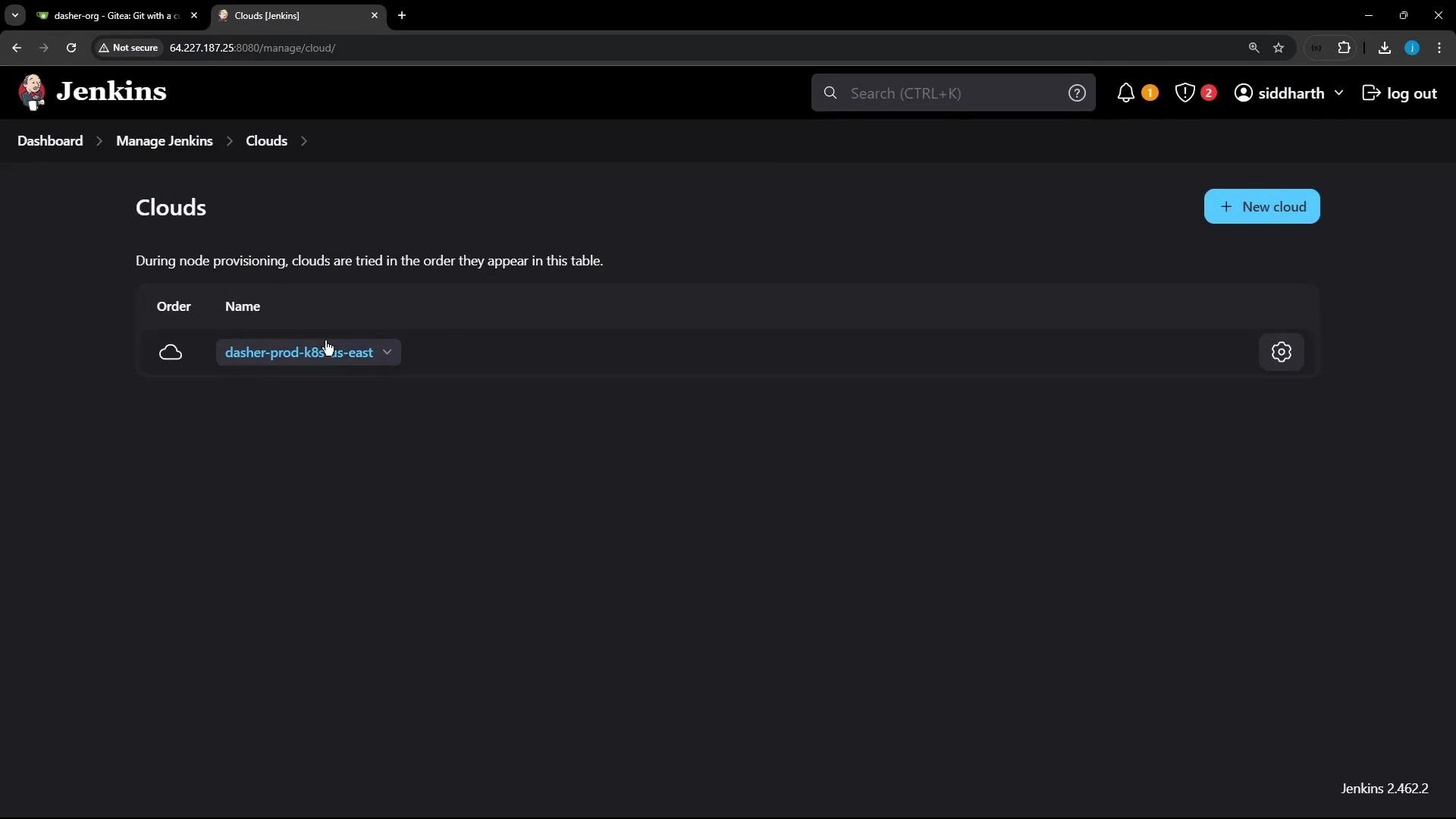
Create a new Pipeline job: Dashboard → New Item → Pipeline. For the examples below we use Declarative Pipeline syntax with an inline YAML Pod definition inside the `agent { kubernetes { yaml '''...''' }}` block.
## Basic single-container example
This example demonstrates a minimal pod with a single Ubuntu container. The container runs `sleep infinity` so the pod remains available briefly for inspection while the build runs. We set `defaultContainer` so pipeline steps execute in that container unless overridden.
```groovy theme={null}
// Uses Declarative syntax to run commands inside a container.
pipeline {
agent {
kubernetes {
yaml '''
apiVersion: v1
kind: Pod
spec:
containers:
- name: ubuntu-container
image: ubuntu
command:
- sleep
args:
- "infinity"
'''
defaultContainer 'ubuntu-container'
retries 2
}
}
stages {
stage('Print Hostname') {
steps {
sh 'hostname'
sh 'sleep 120s' // keep the pod alive briefly for inspection
}
}
}
}
```
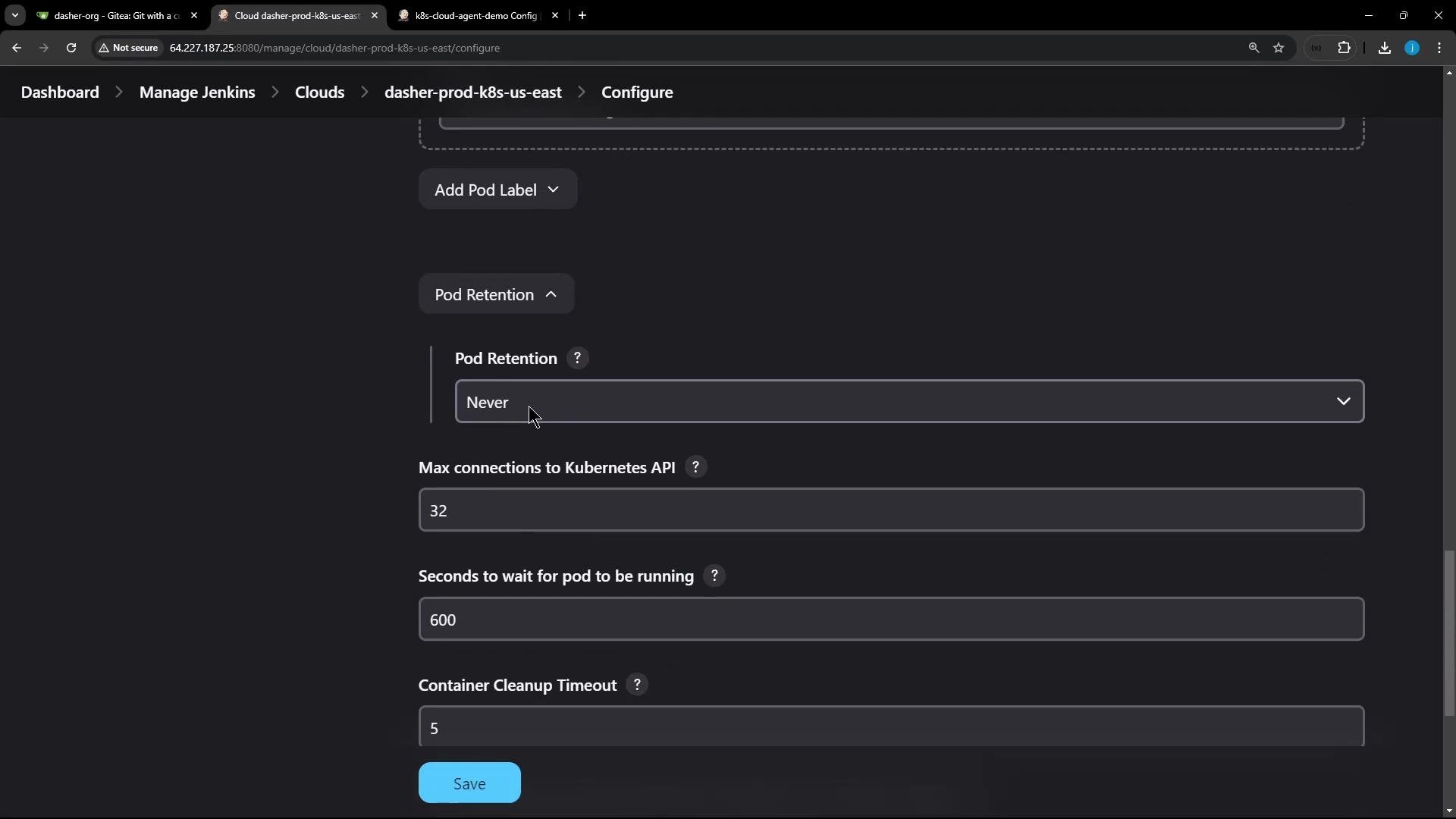
Pod retention: If the Kubernetes cloud's Pod Retention is set to `Never`, pods created for builds are deleted immediately when the build finishes. If you need to inspect a pod after a run, set retention appropriately or adjust the pipeline to pause before completion.
## Create the Pipeline Job
Create a new Pipeline job: Dashboard → New Item → Pipeline. For the examples below we use Declarative Pipeline syntax with an inline YAML Pod definition inside the `agent { kubernetes { yaml '''...''' }}` block.
## Basic single-container example
This example demonstrates a minimal pod with a single Ubuntu container. The container runs `sleep infinity` so the pod remains available briefly for inspection while the build runs. We set `defaultContainer` so pipeline steps execute in that container unless overridden.
```groovy theme={null}
// Uses Declarative syntax to run commands inside a container.
pipeline {
agent {
kubernetes {
yaml '''
apiVersion: v1
kind: Pod
spec:
containers:
- name: ubuntu-container
image: ubuntu
command:
- sleep
args:
- "infinity"
'''
defaultContainer 'ubuntu-container'
retries 2
}
}
stages {
stage('Print Hostname') {
steps {
sh 'hostname'
sh 'sleep 120s' // keep the pod alive briefly for inspection
}
}
}
}
```
Pod retention: If the Kubernetes cloud's Pod Retention is set to `Never`, pods created for builds are deleted immediately when the build finishes. If you need to inspect a pod after a run, set retention appropriately or adjust the pipeline to pause before completion.
 When the pipeline runs, Jenkins prints the generated Pod spec to the console and executes the stage inside the provisioned pod. Example console output:
```text theme={null}
Running on k8s-cloud-agent-demo-1-36qw9-qdg7z-3mc58 in /home/jenkins/agent/workspace/k8s-cloud-agent-demo
[Pipeline] {
[Pipeline] stage
[Pipeline] { (Print Hostname)
[Pipeline] sh
+ hostname
k8s-cloud-agent-demo-1-36qw9-qdg7z-3mc58
[Pipeline] sh
+ sleep 120s
```
## Pod templates vs inline YAML
You can either:
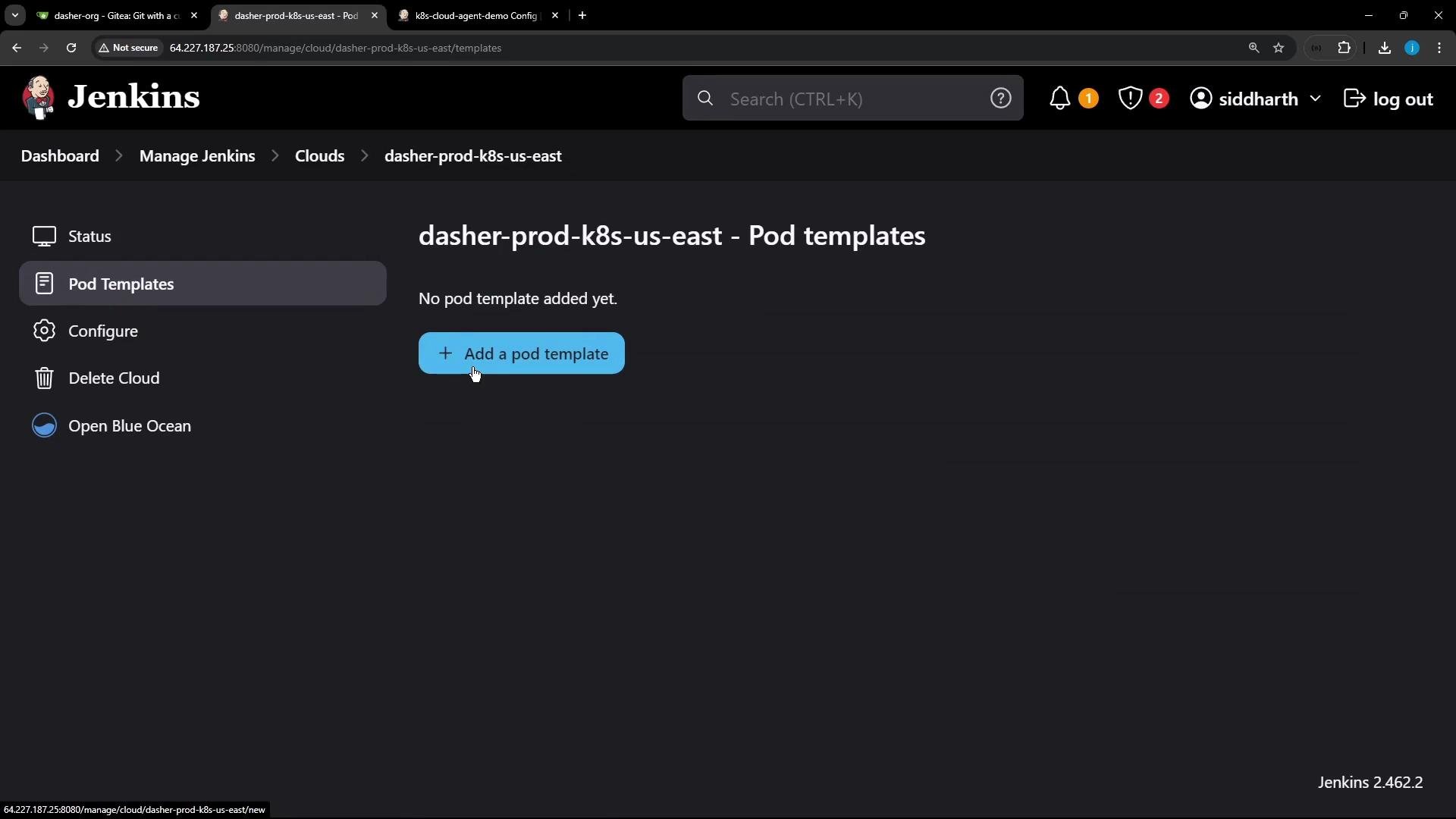
* Define pod templates in the Kubernetes cloud configuration (reusable, managed centrally), or
* Provide inline YAML in the pipeline (convenient for per-job customization).
For CI consistency, many teams store common pod templates in the cloud configuration and reference them from pipelines. For demos or job-specific requirements, inline YAML is quick and flexible.
When the pipeline runs, Jenkins prints the generated Pod spec to the console and executes the stage inside the provisioned pod. Example console output:
```text theme={null}
Running on k8s-cloud-agent-demo-1-36qw9-qdg7z-3mc58 in /home/jenkins/agent/workspace/k8s-cloud-agent-demo
[Pipeline] {
[Pipeline] stage
[Pipeline] { (Print Hostname)
[Pipeline] sh
+ hostname
k8s-cloud-agent-demo-1-36qw9-qdg7z-3mc58
[Pipeline] sh
+ sleep 120s
```
## Pod templates vs inline YAML
You can either:
* Define pod templates in the Kubernetes cloud configuration (reusable, managed centrally), or
* Provide inline YAML in the pipeline (convenient for per-job customization).
For CI consistency, many teams store common pod templates in the cloud configuration and reference them from pipelines. For demos or job-specific requirements, inline YAML is quick and flexible.
 ## Selecting the Kubernetes cloud
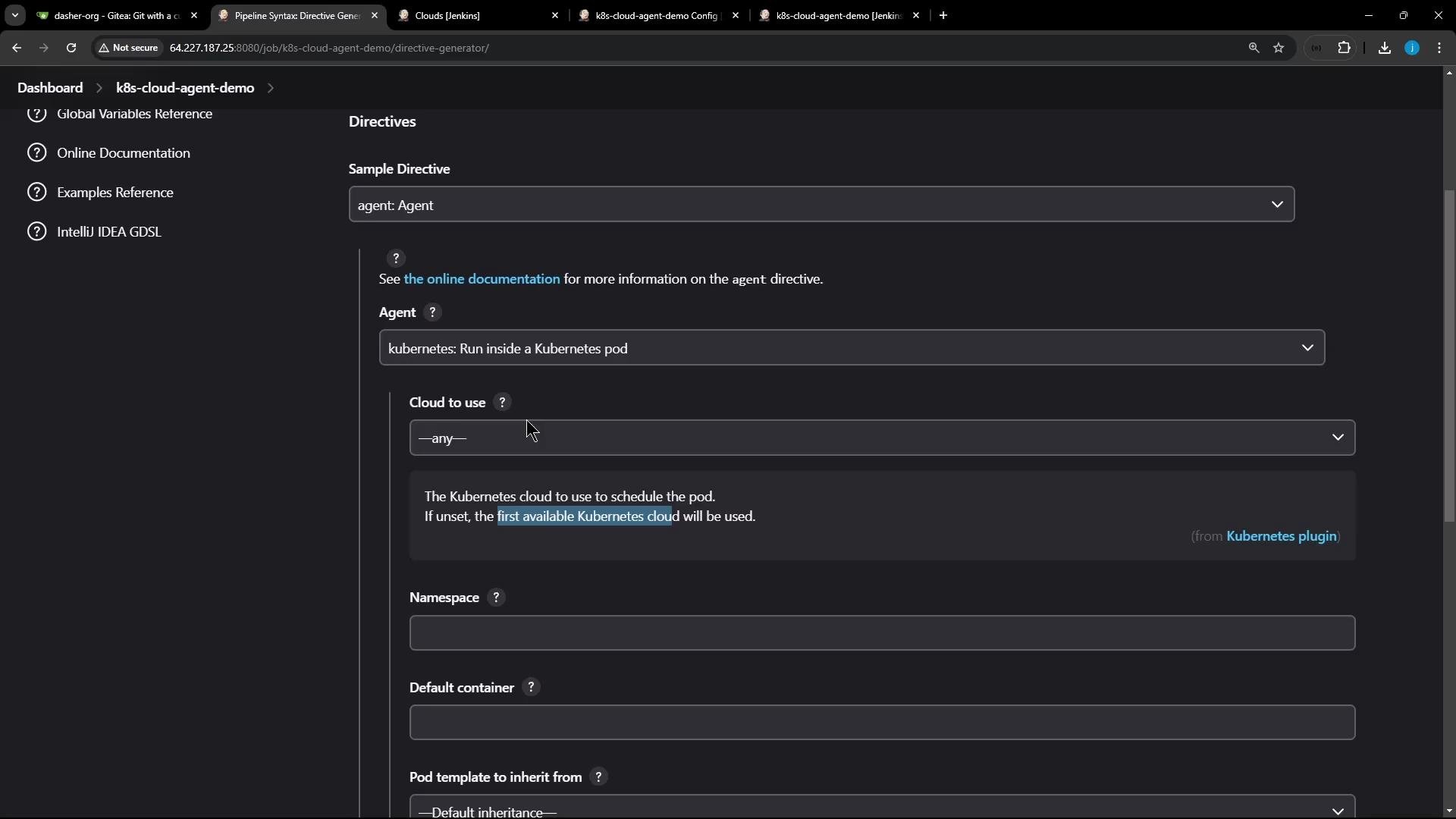
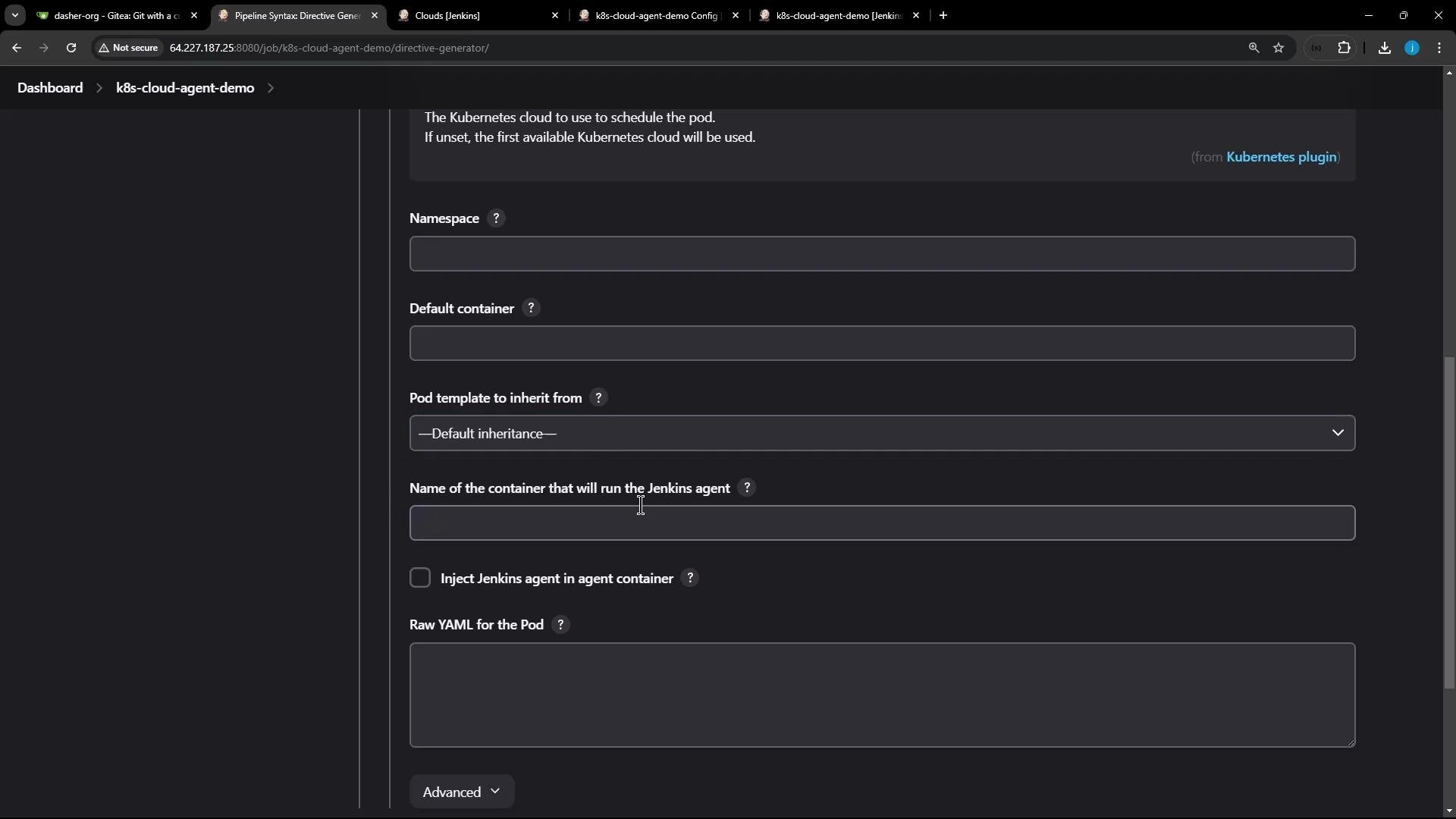
If multiple Kubernetes clouds are configured, explicitly select one using the `cloud` option inside the `kubernetes` agent block. If omitted, the plugin uses the first configured Kubernetes cloud.
The Pipeline editor / directives UI exposes fields like `Cloud to use`, `Namespace`, and `Default container` to help configure these options.
## Selecting the Kubernetes cloud
If multiple Kubernetes clouds are configured, explicitly select one using the `cloud` option inside the `kubernetes` agent block. If omitted, the plugin uses the first configured Kubernetes cloud.
The Pipeline editor / directives UI exposes fields like `Cloud to use`, `Namespace`, and `Default container` to help configure these options.
 ## Multi-container pod example
To run different runtimes in the same pod (for example, a utility container with Node.js and a separate container for the agent), define multiple containers in the Pod YAML. Use `defaultContainer` to make most steps run in one container, and use the `container('name') { ... }` block to target a different container for specific steps.
Below is a pipeline that provisions two containers: `ubuntu-container` (default) and `node-container`. The `Print Node Version` stage runs explicitly inside `node-container` to access `node` and `npm`.
```groovy theme={null}
pipeline {
agent {
kubernetes {
cloud 'dasher-prod-k8s-us-east'
yaml '''
apiVersion: v1
kind: Pod
spec:
containers:
- name: node-container
image: node:18-alpine
command:
- cat
tty: true
- name: ubuntu-container
image: ubuntu
command:
- sleep
args:
- "infinity"
'''
defaultContainer 'ubuntu-container'
retries 2
}
}
stages {
stage('Print Hostname') {
steps {
sh 'hostname'
}
}
stage('Print Node Version') {
steps {
// run these commands in the node-container
container('node-container') {
sh 'node -v'
sh 'npm -v'
}
}
}
}
}
```
What goes wrong if you don't target the right container?
* If the `defaultContainer` lacks the runtime you need (e.g., `node`), steps will fail with `node: not found`. Always target the correct container with `container('name') { ... }` when you need a specific runtime.
Example failure when `node` is executed in the Ubuntu default container (console output, cleaned):
```text theme={null}
[Pipeline] sh
+ node -v
/home/jenkins/agent/workspace/.../script.sh.copy: 1: node: not found
```
Correct run when targeting the Node container (cleaned console output):
```text theme={null}
[Pipeline] sh
+ node -v
v18.20.4
[Pipeline] sh
+ npm -v
10.7.0
```
## Inspecting pods and events from the cluster
While a job is running, inspect Pod status, logs and cluster events with kubectl. Example assumes the Jenkins namespace is `jenkins`.
```bash theme={null}
# list pods in the jenkins namespace
kubectl -n jenkins get po
# view events that show scheduling, image pulls, starts, and kills
kubectl -n jenkins get events --sort-by='.lastTimestamp'
```
Example outputs often include scheduling, pulling and started events:
```text theme={null}
# NAME READY STATUS RESTARTS AGE
# LAST SEEN TYPE REASON OBJECT MESSAGE
# 10s Normal Scheduled pod/k8s-cloud-agent-demo-4... Successfully assigned jenkins/...
# 9s Normal Pulling pod/... Pulling image "node:18-alpine"
# 8s Normal Pulled pod/... Successfully pulled image "node:18-alpine"
# 5s Normal Started pod/... Started container node-container
# 2s Normal Killing pod/... Stopping container node-container
```
## Pod details added by the plugin
Every provisioned pod includes:
* The containers you defined plus the Jenkins inbound agent (jnlp) container injected by the plugin.
* Workspace volume (typically `emptyDir`).
* Environment variables and arguments to start the jnlp agent.
* Resource requests/limits and any `securityContext` you configured.
* Pod events that show lifecycle steps from schedule → pull → start → terminate.
## Quick reference: Inline YAML vs Pod Template
| Method | When to use | Example / notes |
| --------------------------- | ----------------------------------------------------- | --------------------------------------------------------------------- |
| Inline YAML | Per-job custom pod specs or demo pipelines | Use `agent { kubernetes { yaml '''...''' }}` inside the pipeline |
| Pod template (cloud config) | Reusable specs across many pipelines, central control | Add templates in the Kubernetes cloud configuration in Jenkins |
| Selecting cloud | When multiple clouds exist | Use `cloud 'dasher-prod-k8s-us-east'` in the `kubernetes` agent block |
## Conclusion
The Jenkins Kubernetes plugin provisions ephemeral pods per build, enabling flexible, isolated build environments. Best practices:
* Use inline YAML for job-specific setups or pod templates for central reuse.
* Set `defaultContainer` for typical steps and use `container('name') { ... }` for specialized runtimes.
* Inspect lifecycle and debugging information with `kubectl get po` and `kubectl get events`.
* Remember pod retention settings (e.g., `Never`) may delete pods immediately after build completion.
Consider Pod Security Admission (PSA) and cluster policies when designing pod specs. Avoid running containers as root where possible; prefer images that run as non-root users and add a `securityContext` in your pod YAML when needed. See Kubernetes PSA docs: [https://kubernetes.io/docs/concepts/security/pod-security-admission/](https://kubernetes.io/docs/concepts/security/pod-security-admission/)
That is all for now.
## Multi-container pod example
To run different runtimes in the same pod (for example, a utility container with Node.js and a separate container for the agent), define multiple containers in the Pod YAML. Use `defaultContainer` to make most steps run in one container, and use the `container('name') { ... }` block to target a different container for specific steps.
Below is a pipeline that provisions two containers: `ubuntu-container` (default) and `node-container`. The `Print Node Version` stage runs explicitly inside `node-container` to access `node` and `npm`.
```groovy theme={null}
pipeline {
agent {
kubernetes {
cloud 'dasher-prod-k8s-us-east'
yaml '''
apiVersion: v1
kind: Pod
spec:
containers:
- name: node-container
image: node:18-alpine
command:
- cat
tty: true
- name: ubuntu-container
image: ubuntu
command:
- sleep
args:
- "infinity"
'''
defaultContainer 'ubuntu-container'
retries 2
}
}
stages {
stage('Print Hostname') {
steps {
sh 'hostname'
}
}
stage('Print Node Version') {
steps {
// run these commands in the node-container
container('node-container') {
sh 'node -v'
sh 'npm -v'
}
}
}
}
}
```
What goes wrong if you don't target the right container?
* If the `defaultContainer` lacks the runtime you need (e.g., `node`), steps will fail with `node: not found`. Always target the correct container with `container('name') { ... }` when you need a specific runtime.
Example failure when `node` is executed in the Ubuntu default container (console output, cleaned):
```text theme={null}
[Pipeline] sh
+ node -v
/home/jenkins/agent/workspace/.../script.sh.copy: 1: node: not found
```
Correct run when targeting the Node container (cleaned console output):
```text theme={null}
[Pipeline] sh
+ node -v
v18.20.4
[Pipeline] sh
+ npm -v
10.7.0
```
## Inspecting pods and events from the cluster
While a job is running, inspect Pod status, logs and cluster events with kubectl. Example assumes the Jenkins namespace is `jenkins`.
```bash theme={null}
# list pods in the jenkins namespace
kubectl -n jenkins get po
# view events that show scheduling, image pulls, starts, and kills
kubectl -n jenkins get events --sort-by='.lastTimestamp'
```
Example outputs often include scheduling, pulling and started events:
```text theme={null}
# NAME READY STATUS RESTARTS AGE
# LAST SEEN TYPE REASON OBJECT MESSAGE
# 10s Normal Scheduled pod/k8s-cloud-agent-demo-4... Successfully assigned jenkins/...
# 9s Normal Pulling pod/... Pulling image "node:18-alpine"
# 8s Normal Pulled pod/... Successfully pulled image "node:18-alpine"
# 5s Normal Started pod/... Started container node-container
# 2s Normal Killing pod/... Stopping container node-container
```
## Pod details added by the plugin
Every provisioned pod includes:
* The containers you defined plus the Jenkins inbound agent (jnlp) container injected by the plugin.
* Workspace volume (typically `emptyDir`).
* Environment variables and arguments to start the jnlp agent.
* Resource requests/limits and any `securityContext` you configured.
* Pod events that show lifecycle steps from schedule → pull → start → terminate.
## Quick reference: Inline YAML vs Pod Template
| Method | When to use | Example / notes |
| --------------------------- | ----------------------------------------------------- | --------------------------------------------------------------------- |
| Inline YAML | Per-job custom pod specs or demo pipelines | Use `agent { kubernetes { yaml '''...''' }}` inside the pipeline |
| Pod template (cloud config) | Reusable specs across many pipelines, central control | Add templates in the Kubernetes cloud configuration in Jenkins |
| Selecting cloud | When multiple clouds exist | Use `cloud 'dasher-prod-k8s-us-east'` in the `kubernetes` agent block |
## Conclusion
The Jenkins Kubernetes plugin provisions ephemeral pods per build, enabling flexible, isolated build environments. Best practices:
* Use inline YAML for job-specific setups or pod templates for central reuse.
* Set `defaultContainer` for typical steps and use `container('name') { ... }` for specialized runtimes.
* Inspect lifecycle and debugging information with `kubectl get po` and `kubectl get events`.
* Remember pod retention settings (e.g., `Never`) may delete pods immediately after build completion.
Consider Pod Security Admission (PSA) and cluster policies when designing pod specs. Avoid running containers as root where possible; prefer images that run as non-root users and add a `securityContext` in your pod YAML when needed. See Kubernetes PSA docs: [https://kubernetes.io/docs/concepts/security/pod-security-admission/](https://kubernetes.io/docs/concepts/security/pod-security-admission/)
That is all for now.