> ## Documentation Index
> Fetch the complete documentation index at: https://notes.kodekloud.com/llms.txt
> Use this file to discover all available pages before exploring further.
# Jenkins Configuration as Code JCasC
> Guide to Jenkins Configuration as Code using YAML to manage controllers reproducibly with version control, plugin mappings, secrets guidance, setup steps, and best practices.
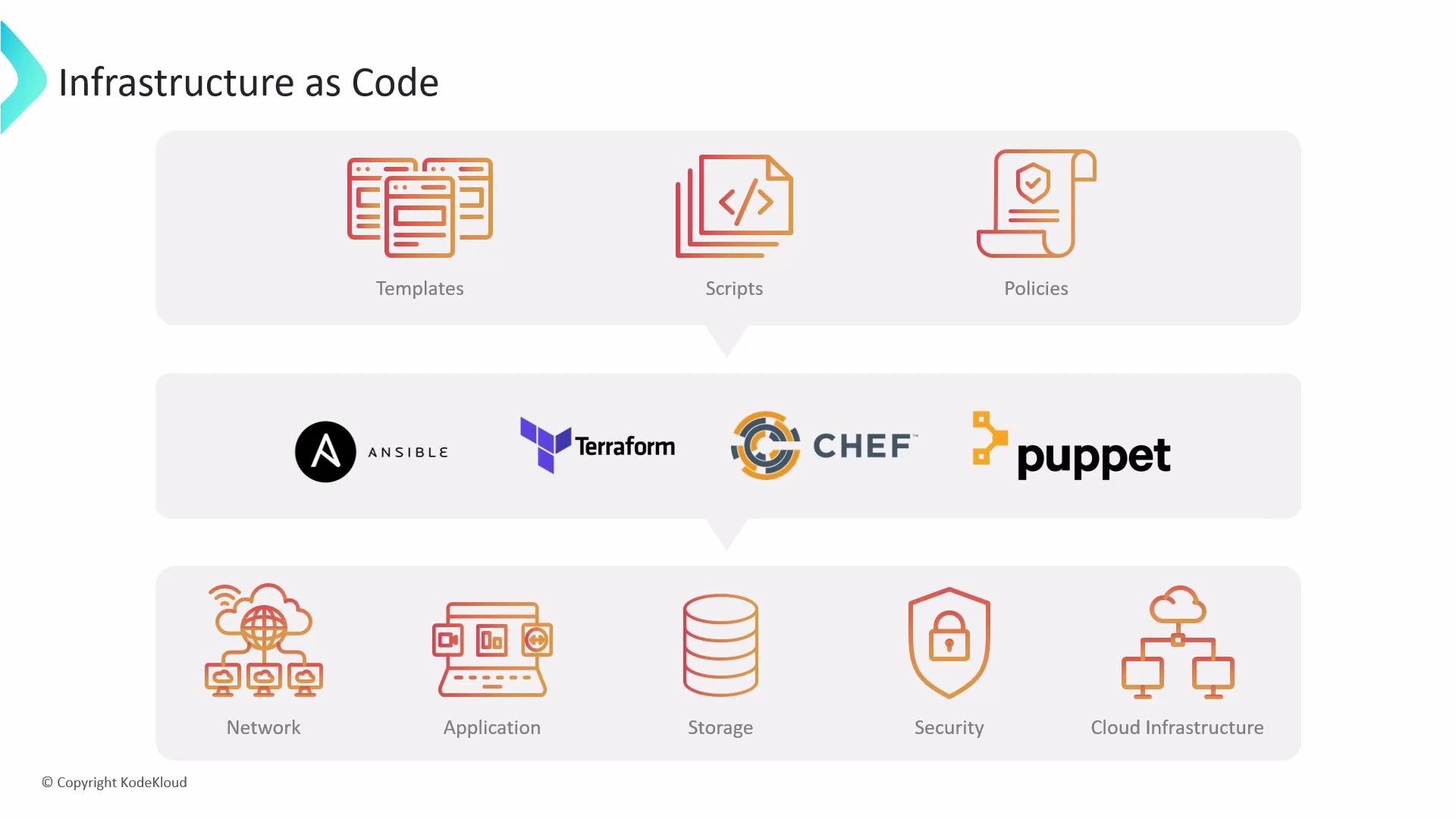
Before we dig into Jenkins Configuration as Code, let’s recap Infrastructure as Code (IaC) so the purpose and benefits of JCasC are clear.
Building a reliable, repeatable foundation is essential as an organization scales. Managing infrastructure manually is slow, error-prone, and difficult to reproduce. Infrastructure as Code (IaC) solves this by letting you define infrastructure with versionable, human-readable code. Tools such as Ansible, Terraform, Chef, and Puppet let you provision networks, compute, storage, security, and cloud resources in a repeatable fashion — the same advantages JCasC brings to Jenkins controller configuration.
 Jenkins Configuration as Code lets you describe a Jenkins controller — its settings, plugins, credentials, nodes, tools, and security — using YAML. That moves configuration from manual UI clicks to declarative, version-controlled files you can review, audit, and reuse.
Why manage Jenkins programmatically?
* Consistency: apply identical configuration across environments.
* Traceability: keep history and audit trails in Git.
* Speed: provision new or replacement controllers quickly.
* Reliability: reduce human error from manual UI clicks.
Ways to manage Jenkins programmatically
| Method | Use Case | Notes |
| ---------------- | --------------------------------- | ---------------------------------------------------------------- |
| Jenkins CLI | Scripting and ad-hoc tasks | Useful for administrative automation. |
| REST APIs | Integration with external systems | Programmatic access to Jenkins endpoints. |
| Client libraries | Java, Python, Go, etc. | Higher-level SDKs to automate Jenkins workflows. |
| IaC tools | Provision Jenkins infrastructure | Use Ansible/Chef/Terraform to deploy Jenkins servers and images. |
| Container images | Portable Jenkins runtime | Package Jenkins and preinstalled plugins in Docker images. |
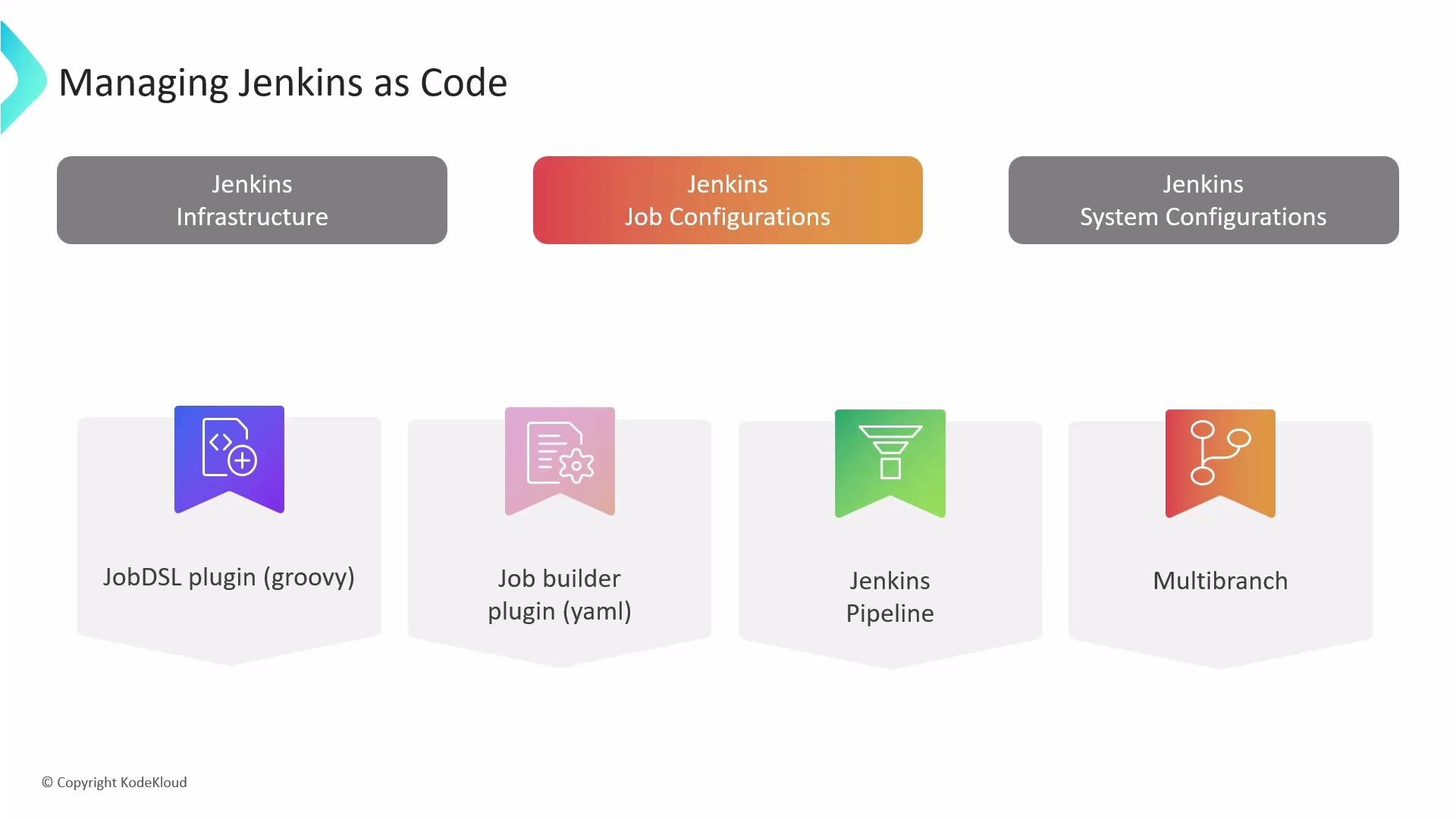
Jenkins also supports code-driven job and pipeline management:
* Job DSL plugin (Groovy): programmatic job creation.
* Jenkins Job Builder: job definitions in YAML/JSON.
* Jenkins Pipeline (Jenkinsfile): pipeline-as-code for builds and workflows.
* Multibranch Pipeline: automatic job creation per branch/repository.
These approaches help you scale beyond UI-based job management and enable CI pipelines to be versioned with application code.
Jenkins Configuration as Code lets you describe a Jenkins controller — its settings, plugins, credentials, nodes, tools, and security — using YAML. That moves configuration from manual UI clicks to declarative, version-controlled files you can review, audit, and reuse.
Why manage Jenkins programmatically?
* Consistency: apply identical configuration across environments.
* Traceability: keep history and audit trails in Git.
* Speed: provision new or replacement controllers quickly.
* Reliability: reduce human error from manual UI clicks.
Ways to manage Jenkins programmatically
| Method | Use Case | Notes |
| ---------------- | --------------------------------- | ---------------------------------------------------------------- |
| Jenkins CLI | Scripting and ad-hoc tasks | Useful for administrative automation. |
| REST APIs | Integration with external systems | Programmatic access to Jenkins endpoints. |
| Client libraries | Java, Python, Go, etc. | Higher-level SDKs to automate Jenkins workflows. |
| IaC tools | Provision Jenkins infrastructure | Use Ansible/Chef/Terraform to deploy Jenkins servers and images. |
| Container images | Portable Jenkins runtime | Package Jenkins and preinstalled plugins in Docker images. |
Jenkins also supports code-driven job and pipeline management:
* Job DSL plugin (Groovy): programmatic job creation.
* Jenkins Job Builder: job definitions in YAML/JSON.
* Jenkins Pipeline (Jenkinsfile): pipeline-as-code for builds and workflows.
* Multibranch Pipeline: automatic job creation per branch/repository.
These approaches help you scale beyond UI-based job management and enable CI pipelines to be versioned with application code.
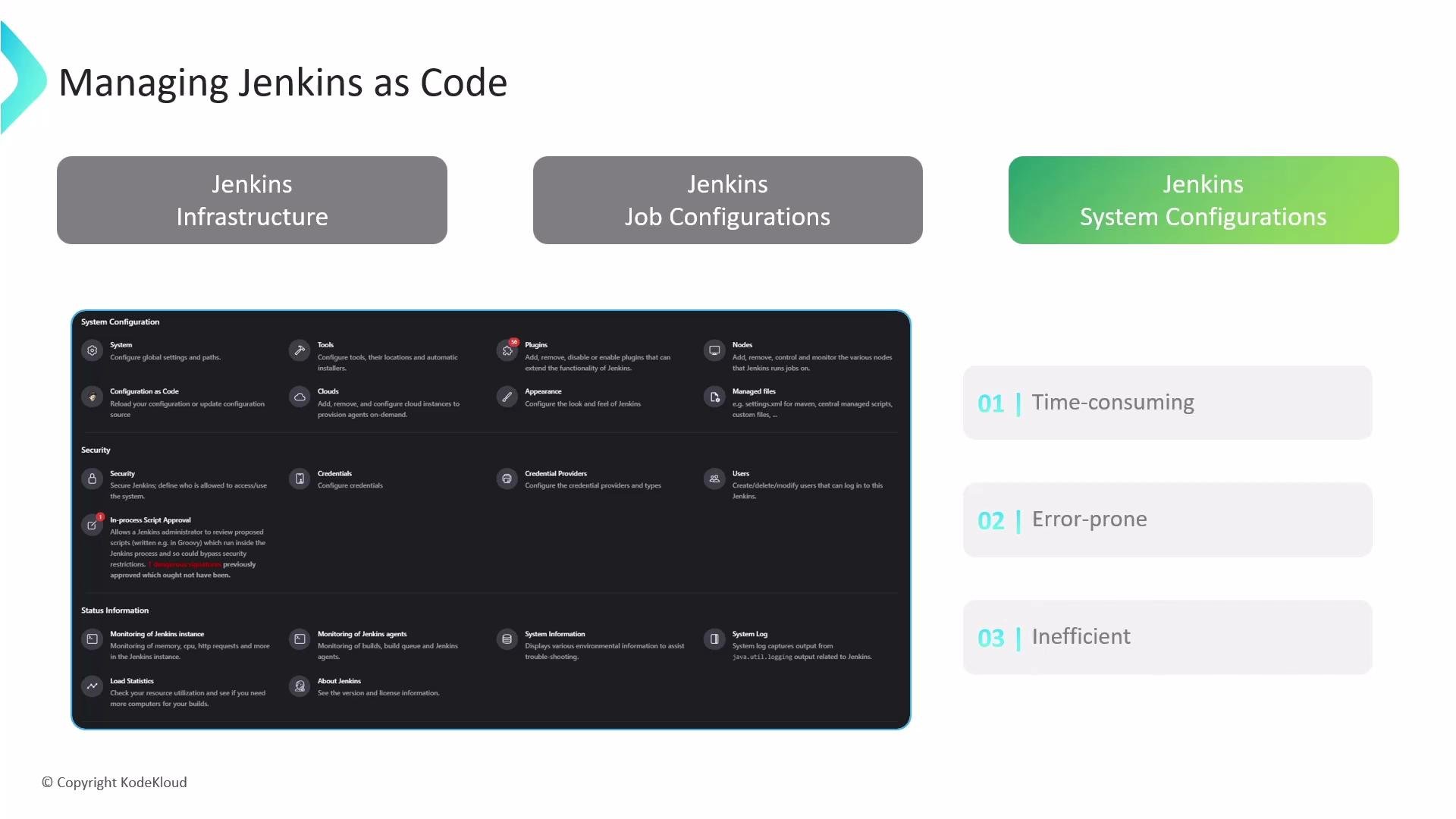
 System-wide Jenkins configuration (credentials, nodes, plugins, tools, security, etc.)
Historically, admins used the Jenkins web UI to configure controllers. That approach becomes problematic because it is:
* Time-consuming: many menus and pages to traverse.
* Error-prone: repeated manual steps increase drift and mistakes.
* Inefficient: maintaining parity across multiple controllers is cumbersome.
System-wide Jenkins configuration (credentials, nodes, plugins, tools, security, etc.)
Historically, admins used the Jenkins web UI to configure controllers. That approach becomes problematic because it is:
* Time-consuming: many menus and pages to traverse.
* Error-prone: repeated manual steps increase drift and mistakes.
* Inefficient: maintaining parity across multiple controllers is cumbersome.
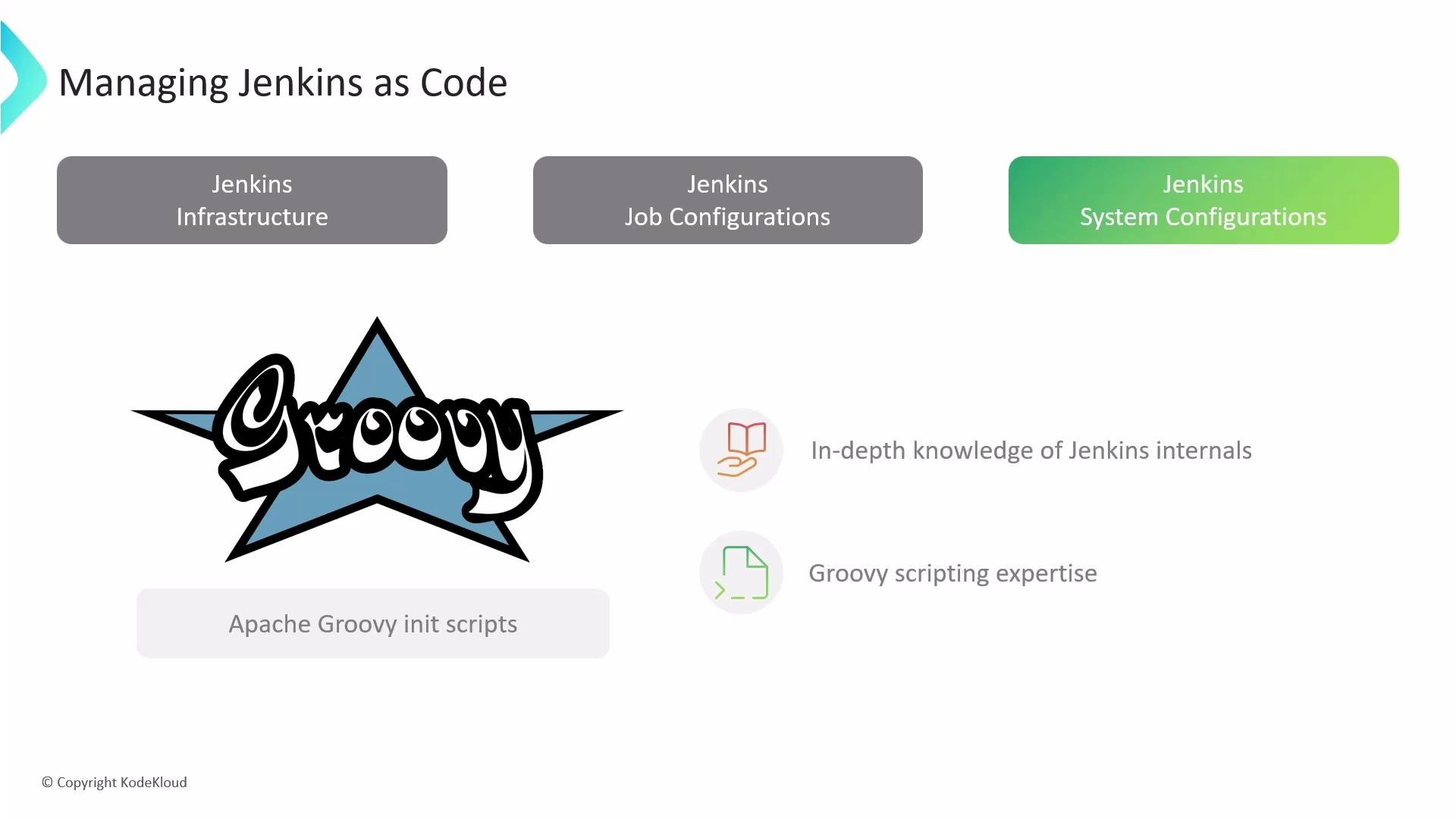
 Before JCasC: Groovy init scripts
Many teams used Apache Groovy init scripts that interact directly with the Jenkins Java API. Groovy scripts are powerful and can perform nearly any configuration action, but they require:
* Deep knowledge of Jenkins internals and the API.
* Scripting proficiency and careful error handling.
* More effort to maintain and reuse across teams.
Before JCasC: Groovy init scripts
Many teams used Apache Groovy init scripts that interact directly with the Jenkins Java API. Groovy scripts are powerful and can perform nearly any configuration action, but they require:
* Deep knowledge of Jenkins internals and the API.
* Scripting proficiency and careful error handling.
* More effort to maintain and reuse across teams.
 Jenkins Configuration as Code (JCasC) — the simpler approach
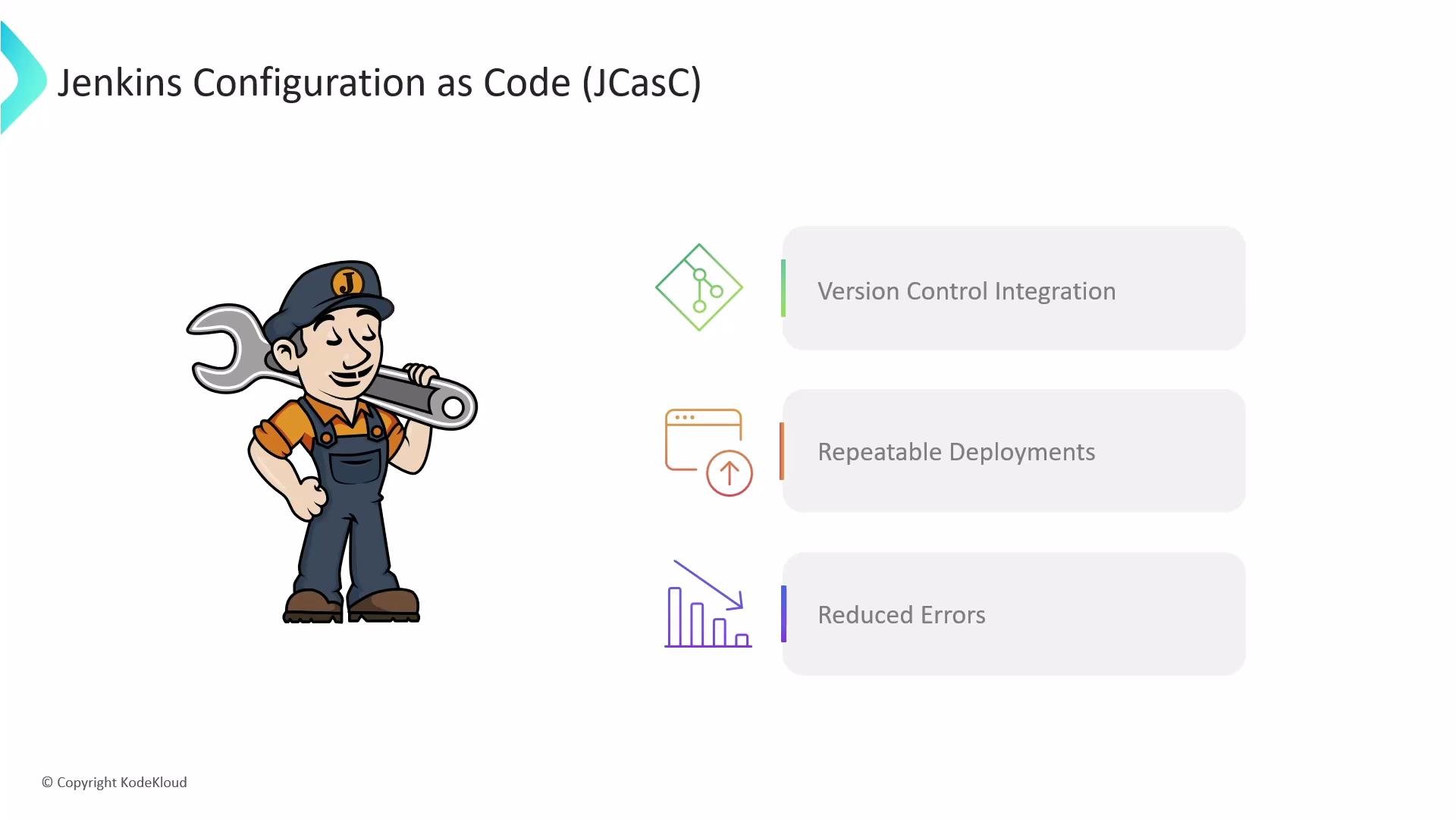
JCasC maps controller configuration to YAML that mirrors the UI options. This makes it easier to capture and apply controller state without writing low-level Groovy code.
Key benefits:
* Capture controller configuration as code and store in Git.
* Recreate or replace controllers with the same configuration.
* Reduce manual errors by applying a declarative snapshot.
* Validate YAML and spot syntax issues early.
Jenkins Configuration as Code (JCasC) — the simpler approach
JCasC maps controller configuration to YAML that mirrors the UI options. This makes it easier to capture and apply controller state without writing low-level Groovy code.
Key benefits:
* Capture controller configuration as code and store in Git.
* Recreate or replace controllers with the same configuration.
* Reduce manual errors by applying a declarative snapshot.
* Validate YAML and spot syntax issues early.
 Getting started with JCasC
1. Install the Configuration as Code plugin:
* Manage Jenkins → Manage Plugins → Available → "Configuration as Code".
2. After installation, open Manage Jenkins → Configuration as Code:
* Use View Configuration to generate a YAML snapshot of the current controller. This snapshot is a full baseline of what JCasC can represent.
3. Store the YAML in source control and iterate:
* Trim or modularize the snapshot to keep only the settings you want managed by JCasC.
* Point Jenkins to the YAML file (upload via UI, provide a URL, or set the environment variable `CASC_JENKINS_CONFIG`) so the controller applies it automatically.
Push the generated YAML to Git as an initial baseline even if you don’t edit it immediately — this gives you a historical snapshot to revert to if required.
Example: a JCasC snapshot (trimmed for clarity)
```yaml theme={null}
jenkins:
agentProtocols:
- "JNLP4-connect"
- "Ping"
crumbIssuer:
standard:
excludeClientIPFromCrumb: false
disableRememberMe: false
disabledAdministrativeMonitors:
- "hudson.util.DoubleLaunchChecker"
globalNodeProperties:
- envVars:
- key: "test1"
value: "some-value"
labelAtoms:
- name: "built-in"
markupFormatter:
rawHtml:
disableSyntaxHighlighting: false
mode: NORMAL
myViewsTabBar: "standard"
nodeMonitors:
- "architecture"
- "clock"
- diskspace:
freeSpaceThreshold: "1GB"
freeSpaceWarningThreshold: "2GiB"
- "swapSpace"
- tmpSpace:
freeSpaceThreshold: "1GiB"
freeSpaceWarningThreshold: "2GiB"
- "responseTime"
numExecutors: 2
primaryView:
all:
name: "all"
projectNamingStrategy: "standard"
quietPeriod: 5
remotingSecurity:
enabled: true
scmCheckoutRetryCount: 3
securityRealm:
local:
allowsSignup: false
enableCaptcha: false
```
Tip: The initial generated YAML can be large. Keep only the settings you want managed by JCasC and modularize when possible (e.g., split credentials, views, and tools into separate files referenced by your primary YAML).
Important security note
Be cautious storing secrets in plain YAML. Use Jenkins Credentials Provider or an external secrets manager (Vault, AWS Secrets Manager, etc.) and reference credentials securely rather than embedding secrets directly in JCasC files.
JCasC YAML structure overview
| Section | Purpose | Example / Notes |
| -------------------------- | ----------------------------------------------------------- | ------------------------------------------------ |
| `jenkins` | Global controller settings (what you set in Manage Jenkins) | `systemMessage`, `numExecutors`, `securityRealm` |
| `tools` | Tool installations (JDK, Maven, Gradle) | See example below for `maven.installations` |
| `credentials` | Define credentials managed by Jenkins | Prefer credential stores over plaintext secrets |
| `unclassified` | Plugin/system settings not mapped elsewhere | Catch-all for some plugin configuration |
| `views`, `nodes`, `clouds` | Views, agent/node definitions, cloud provider configs | Present when respective plugins are installed |
Because plugins expose their configuration to JCasC, installed plugins will add their own YAML sections to the generated snapshot.
Examples of focused modifications
* Change a small set of global properties (e.g., `systemMessage`).
* Add tool definitions (Maven, JDK) to standardize build agents.
* Create and manage views to organize jobs.
Concise example: system message, Maven tool, and two list views
```yaml theme={null}
jenkins:
systemMessage: "Welcome to the DevOps revolution!"
tools:
maven:
installations:
- name: "maven-3.8.0"
mavenHome: "/usr/share/maven"
views:
list:
- name: "My Jobs"
filter: 'name=".*"'
- name: "My Active Jobs"
filter: 'status != COMPLETED'
```
Applying JCasC changes
* Use Manage Jenkins → Configuration as Code to upload, paste, or provide a URL to your YAML.
* Jenkins can be pointed to a configuration source via the environment variable `CASC_JENKINS_CONFIG` (file path or URL) or configured through the plugin UI.
* Most JCasC changes are applied dynamically without a restart, but some plugin-specific settings may still require restarts.
Best practices
* Version-control your JCasC YAML alongside any Groovy init scripts or Dockerfiles used to package Jenkins.
* Keep JCasC focused: manage only the configuration you need centrally; let ephemeral or environment-specific settings stay outside JCasC.
* Use external secrets managers for credentials and inject them into Jenkins securely.
* Validate YAML syntax and plugin compatibility before applying changes to production controllers.
Summary
Jenkins Configuration as Code (JCasC) brings IaC principles to Jenkins controller configuration: versioning, reproducibility, and reduced human error. Start by installing the Configuration as Code plugin, exporting a baseline YAML, and iteratively trimming and modularizing the snapshot. Store configuration in source control and use secure secret management to build reliable, repeatable Jenkins controllers.
Links and references
* [Ansible advanced course](https://learn.kodekloud.com/user/courses/ansible-advanced-course)
* [Terraform basics training](https://learn.kodekloud.com/user/courses/terraform-basics-training-course)
* [Chef](https://www.chef.io)
* [Puppet](https://puppet.com)
* [Groovy language](https://groovy.apache.org)
* Jenkins Configuration as Code plugin documentation — see the official plugin page in the Jenkins documentation for full details and configuration options.
Getting started with JCasC
1. Install the Configuration as Code plugin:
* Manage Jenkins → Manage Plugins → Available → "Configuration as Code".
2. After installation, open Manage Jenkins → Configuration as Code:
* Use View Configuration to generate a YAML snapshot of the current controller. This snapshot is a full baseline of what JCasC can represent.
3. Store the YAML in source control and iterate:
* Trim or modularize the snapshot to keep only the settings you want managed by JCasC.
* Point Jenkins to the YAML file (upload via UI, provide a URL, or set the environment variable `CASC_JENKINS_CONFIG`) so the controller applies it automatically.
Push the generated YAML to Git as an initial baseline even if you don’t edit it immediately — this gives you a historical snapshot to revert to if required.
Example: a JCasC snapshot (trimmed for clarity)
```yaml theme={null}
jenkins:
agentProtocols:
- "JNLP4-connect"
- "Ping"
crumbIssuer:
standard:
excludeClientIPFromCrumb: false
disableRememberMe: false
disabledAdministrativeMonitors:
- "hudson.util.DoubleLaunchChecker"
globalNodeProperties:
- envVars:
- key: "test1"
value: "some-value"
labelAtoms:
- name: "built-in"
markupFormatter:
rawHtml:
disableSyntaxHighlighting: false
mode: NORMAL
myViewsTabBar: "standard"
nodeMonitors:
- "architecture"
- "clock"
- diskspace:
freeSpaceThreshold: "1GB"
freeSpaceWarningThreshold: "2GiB"
- "swapSpace"
- tmpSpace:
freeSpaceThreshold: "1GiB"
freeSpaceWarningThreshold: "2GiB"
- "responseTime"
numExecutors: 2
primaryView:
all:
name: "all"
projectNamingStrategy: "standard"
quietPeriod: 5
remotingSecurity:
enabled: true
scmCheckoutRetryCount: 3
securityRealm:
local:
allowsSignup: false
enableCaptcha: false
```
Tip: The initial generated YAML can be large. Keep only the settings you want managed by JCasC and modularize when possible (e.g., split credentials, views, and tools into separate files referenced by your primary YAML).
Important security note
Be cautious storing secrets in plain YAML. Use Jenkins Credentials Provider or an external secrets manager (Vault, AWS Secrets Manager, etc.) and reference credentials securely rather than embedding secrets directly in JCasC files.
JCasC YAML structure overview
| Section | Purpose | Example / Notes |
| -------------------------- | ----------------------------------------------------------- | ------------------------------------------------ |
| `jenkins` | Global controller settings (what you set in Manage Jenkins) | `systemMessage`, `numExecutors`, `securityRealm` |
| `tools` | Tool installations (JDK, Maven, Gradle) | See example below for `maven.installations` |
| `credentials` | Define credentials managed by Jenkins | Prefer credential stores over plaintext secrets |
| `unclassified` | Plugin/system settings not mapped elsewhere | Catch-all for some plugin configuration |
| `views`, `nodes`, `clouds` | Views, agent/node definitions, cloud provider configs | Present when respective plugins are installed |
Because plugins expose their configuration to JCasC, installed plugins will add their own YAML sections to the generated snapshot.
Examples of focused modifications
* Change a small set of global properties (e.g., `systemMessage`).
* Add tool definitions (Maven, JDK) to standardize build agents.
* Create and manage views to organize jobs.
Concise example: system message, Maven tool, and two list views
```yaml theme={null}
jenkins:
systemMessage: "Welcome to the DevOps revolution!"
tools:
maven:
installations:
- name: "maven-3.8.0"
mavenHome: "/usr/share/maven"
views:
list:
- name: "My Jobs"
filter: 'name=".*"'
- name: "My Active Jobs"
filter: 'status != COMPLETED'
```
Applying JCasC changes
* Use Manage Jenkins → Configuration as Code to upload, paste, or provide a URL to your YAML.
* Jenkins can be pointed to a configuration source via the environment variable `CASC_JENKINS_CONFIG` (file path or URL) or configured through the plugin UI.
* Most JCasC changes are applied dynamically without a restart, but some plugin-specific settings may still require restarts.
Best practices
* Version-control your JCasC YAML alongside any Groovy init scripts or Dockerfiles used to package Jenkins.
* Keep JCasC focused: manage only the configuration you need centrally; let ephemeral or environment-specific settings stay outside JCasC.
* Use external secrets managers for credentials and inject them into Jenkins securely.
* Validate YAML syntax and plugin compatibility before applying changes to production controllers.
Summary
Jenkins Configuration as Code (JCasC) brings IaC principles to Jenkins controller configuration: versioning, reproducibility, and reduced human error. Start by installing the Configuration as Code plugin, exporting a baseline YAML, and iteratively trimming and modularizing the snapshot. Store configuration in source control and use secure secret management to build reliable, repeatable Jenkins controllers.
Links and references
* [Ansible advanced course](https://learn.kodekloud.com/user/courses/ansible-advanced-course)
* [Terraform basics training](https://learn.kodekloud.com/user/courses/terraform-basics-training-course)
* [Chef](https://www.chef.io)
* [Puppet](https://puppet.com)
* [Groovy language](https://groovy.apache.org)
* Jenkins Configuration as Code plugin documentation — see the official plugin page in the Jenkins documentation for full details and configuration options.