> ## Documentation Index
> Fetch the complete documentation index at: https://notes.kodekloud.com/llms.txt
> Use this file to discover all available pages before exploring further.
# Use JCasC create jobs
> Guide to using Jenkins Configuration as Code to declaratively create pipeline jobs, configure tools like Node.js, handle Job DSL dependency, apply YAML and verify created jobs and tools
In this lesson you'll learn how to use the Jenkins Configuration as Code (JCasC) plugin to declaratively create pipeline jobs and configure tools (for example, Node.js). We cover:
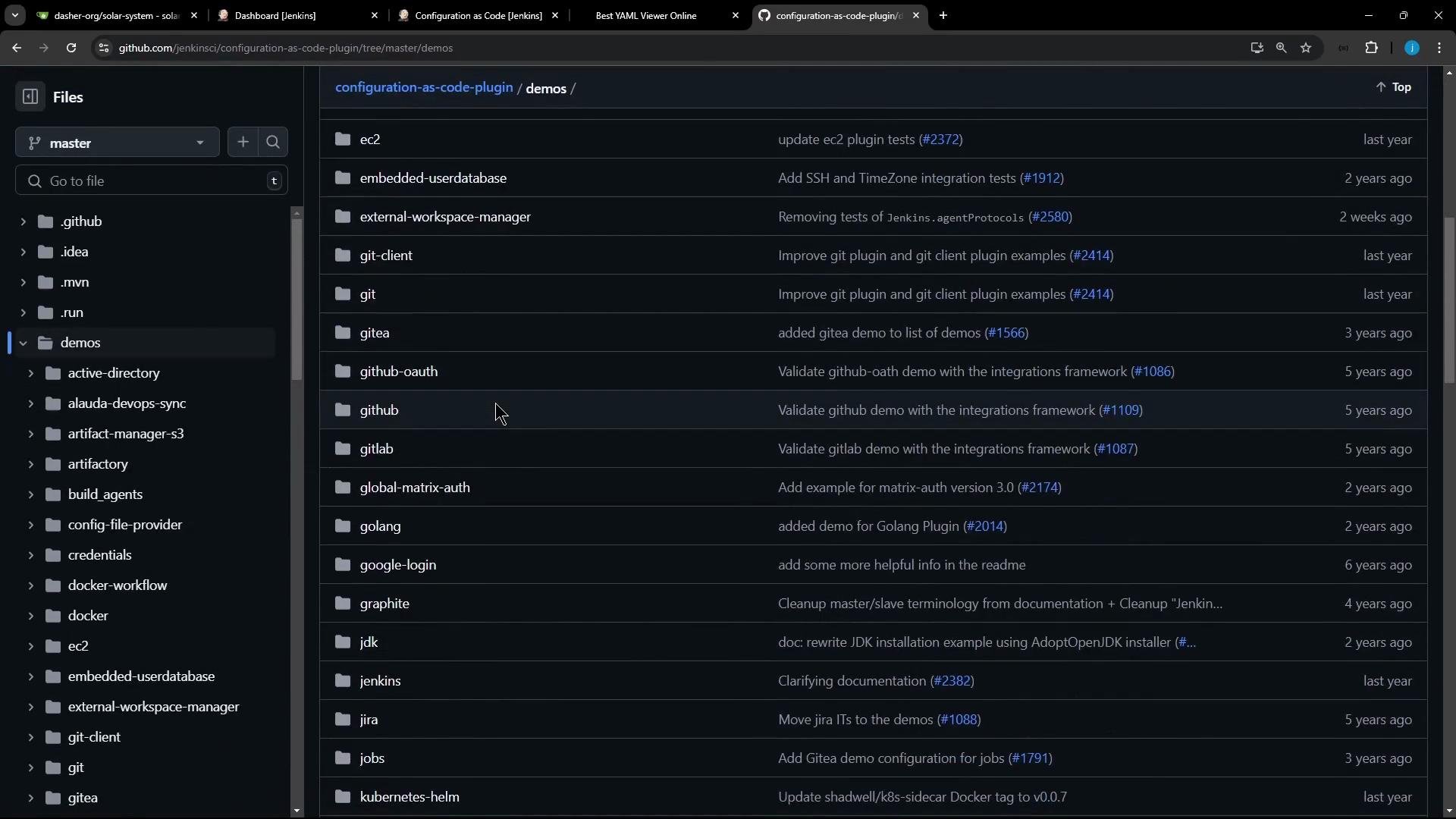
* Where to find JCasC demo YAML and examples
* How to add tool and job definitions to your JCasC YAML
* How to resolve a common "No configurator for jobs" error (installing the Job DSL plugin)
* How to apply the configuration and verify created jobs and tools
JCasC has many example configurations in the plugin repository demos directory. These demos are helpful starting points for configuring authentication, clouds, tools, jobs, views, and more.
 ## Example snippets from the demos
Below are representative YAML fragments you will commonly use or adapt when authoring your `jenkins-casc.yaml`.
Example: set Jenkins location (unclassified section)
```yaml theme={null}
unclassified:
location:
url: http://jenkins/
```
Example: Kubernetes cloud configuration (relevant fields)
```yaml theme={null}
jenkins:
clouds:
- kubernetes:
name: "advanced-k8s-config"
serverUrl: "https://advanced-k8s-config:443"
serverCertificate: "serverCertificate"
skipTlsVerify: true
credentialsId: "advanced-k8s-credentials"
namespace: "default"
jenkinsUrl: "http://jenkins/"
jenkinsTunnel: "jenkinsTunnel"
containerCapStr: 42
maxRequestsPerHostStr: 64
retentionTimeout: 5
connectTimeout: 10
```
Example: declare a Node.js tool installation via JCasC
```yaml theme={null}
tool:
nodejs:
installations:
- name: "NodeJS Latest"
home: "" # required until nodejs-1.3.4 release (JENKINS-57508)
properties:
- installSource:
installers:
- nodeJSInstaller:
id: "12.11.1"
npmPackagesRefreshHours: 48 # default is 72
```
## Where to place your JCasC file
Edit your controller’s JCasC YAML file. In this lesson the configuration file is:
`/var/lib/jenkins/JENKINS_BACKUP/jenkins-casc.yaml`
Your YAML may already contain many sections (credentials, views, plugin configs, etc.). For example, a credentials fragment might look like:
```yaml theme={null}
credentials:
system:
domainCredentials:
- credentials:
- usernamePassword:
description: "Gitea Server Credentials"
id: "gitea-server-creds"
password: "{AQAAABAAAAAQA4e7WfYLRu0yZL9NsHsLaqohKKpJFtItDGTyKUsxqC0U=}"
scope: GLOBAL
username: "gitea-admin"
- usernamePassword:
description: "Credentials for MongoDB"
id: "mongo-db-credentials"
password: "{AQAAABAAAAAQFPgIHj2LB26zTPKnU+rDyr/G7Vm9oaLUK8x8Rpcp0iE0=}"
scope: GLOBAL
username: "superuser"
- string:
description: "Mongo Database Username"
id: "mongo-db-username"
```
## Adding jobs via JCasC (requires Job DSL plugin)
JCasC delegates top-level `jobs:` configuration to the Job DSL configurator. This means your YAML can include embedded Job DSL scripts under a `jobs:` root. Example:
```yaml theme={null}
jobs:
- script: >
folder('testjobs')
- script: >
pipelineJob('testjobs/default-agent') {
definition {
cps {
script("""
pipeline {
agent any
stages {
stage('test') {
steps {
echo "hello"
}
}
}
}
""".stripIndent())
}
}
}
```
This configuration creates:
* a folder named `testjobs`
* a pipeline job `testjobs/default-agent` with a minimal pipeline that echoes "hello"
If you attempt to apply YAML containing `jobs:` before the Job DSL plugin is installed, JCasC will fail because the `jobs` configurator is not available.
## Example snippets from the demos
Below are representative YAML fragments you will commonly use or adapt when authoring your `jenkins-casc.yaml`.
Example: set Jenkins location (unclassified section)
```yaml theme={null}
unclassified:
location:
url: http://jenkins/
```
Example: Kubernetes cloud configuration (relevant fields)
```yaml theme={null}
jenkins:
clouds:
- kubernetes:
name: "advanced-k8s-config"
serverUrl: "https://advanced-k8s-config:443"
serverCertificate: "serverCertificate"
skipTlsVerify: true
credentialsId: "advanced-k8s-credentials"
namespace: "default"
jenkinsUrl: "http://jenkins/"
jenkinsTunnel: "jenkinsTunnel"
containerCapStr: 42
maxRequestsPerHostStr: 64
retentionTimeout: 5
connectTimeout: 10
```
Example: declare a Node.js tool installation via JCasC
```yaml theme={null}
tool:
nodejs:
installations:
- name: "NodeJS Latest"
home: "" # required until nodejs-1.3.4 release (JENKINS-57508)
properties:
- installSource:
installers:
- nodeJSInstaller:
id: "12.11.1"
npmPackagesRefreshHours: 48 # default is 72
```
## Where to place your JCasC file
Edit your controller’s JCasC YAML file. In this lesson the configuration file is:
`/var/lib/jenkins/JENKINS_BACKUP/jenkins-casc.yaml`
Your YAML may already contain many sections (credentials, views, plugin configs, etc.). For example, a credentials fragment might look like:
```yaml theme={null}
credentials:
system:
domainCredentials:
- credentials:
- usernamePassword:
description: "Gitea Server Credentials"
id: "gitea-server-creds"
password: "{AQAAABAAAAAQA4e7WfYLRu0yZL9NsHsLaqohKKpJFtItDGTyKUsxqC0U=}"
scope: GLOBAL
username: "gitea-admin"
- usernamePassword:
description: "Credentials for MongoDB"
id: "mongo-db-credentials"
password: "{AQAAABAAAAAQFPgIHj2LB26zTPKnU+rDyr/G7Vm9oaLUK8x8Rpcp0iE0=}"
scope: GLOBAL
username: "superuser"
- string:
description: "Mongo Database Username"
id: "mongo-db-username"
```
## Adding jobs via JCasC (requires Job DSL plugin)
JCasC delegates top-level `jobs:` configuration to the Job DSL configurator. This means your YAML can include embedded Job DSL scripts under a `jobs:` root. Example:
```yaml theme={null}
jobs:
- script: >
folder('testjobs')
- script: >
pipelineJob('testjobs/default-agent') {
definition {
cps {
script("""
pipeline {
agent any
stages {
stage('test') {
steps {
echo "hello"
}
}
}
}
""".stripIndent())
}
}
}
```
This configuration creates:
* a folder named `testjobs`
* a pipeline job `testjobs/default-agent` with a minimal pipeline that echoes "hello"
If you attempt to apply YAML containing `jobs:` before the Job DSL plugin is installed, JCasC will fail because the `jobs` configurator is not available.
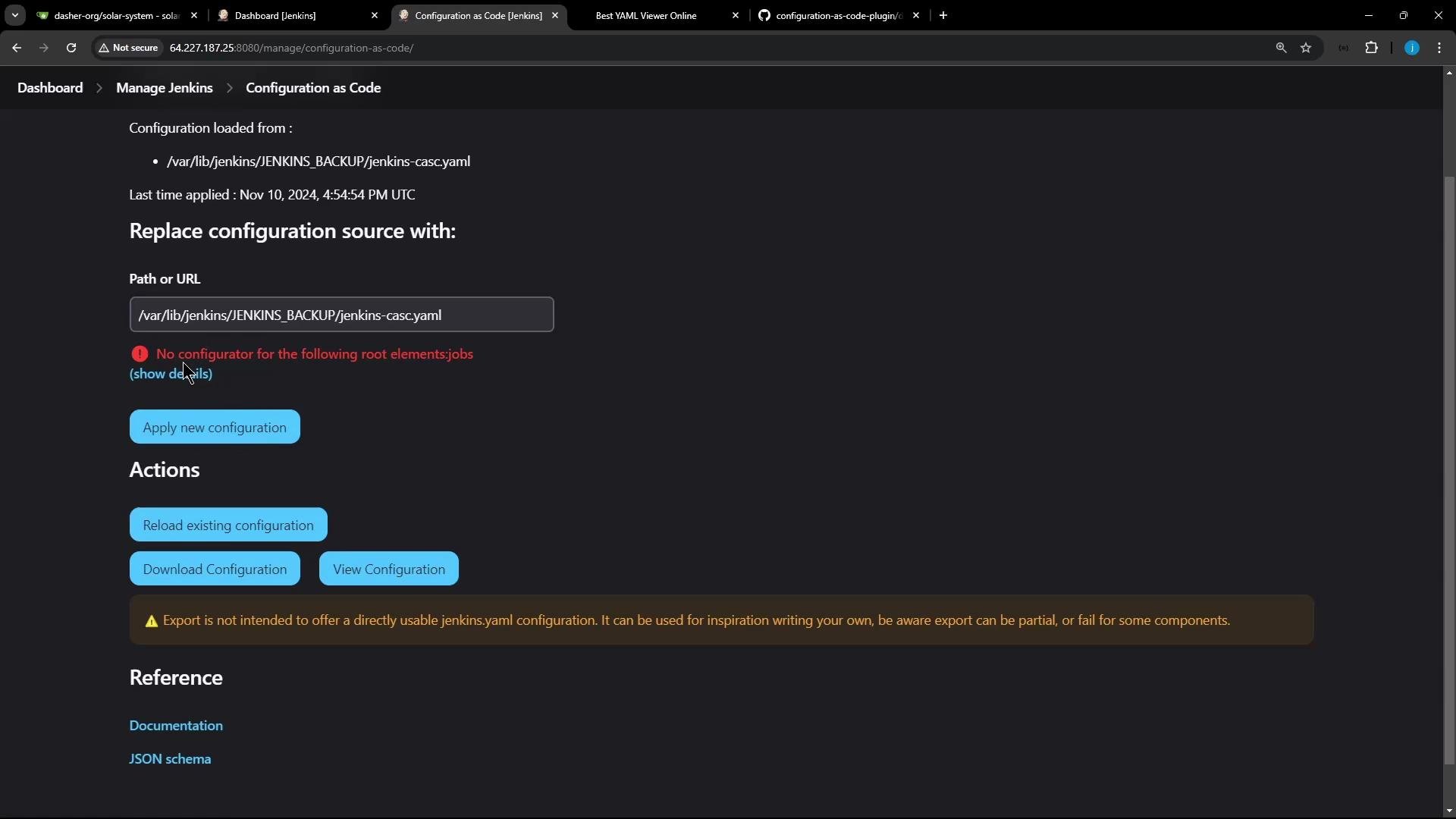 Here is the essential exception you may see:
```text theme={null}
io.jenkins.plugins.casc.UnknownConfiguratorException: No configurator for the following root elements: jobs
```
If JCasC reports "No configurator for the following root elements: jobs", install the Job DSL plugin first. JCasC requires the Job DSL configurator to process any `jobs:` roots in your YAML.
## Installing the Job DSL plugin
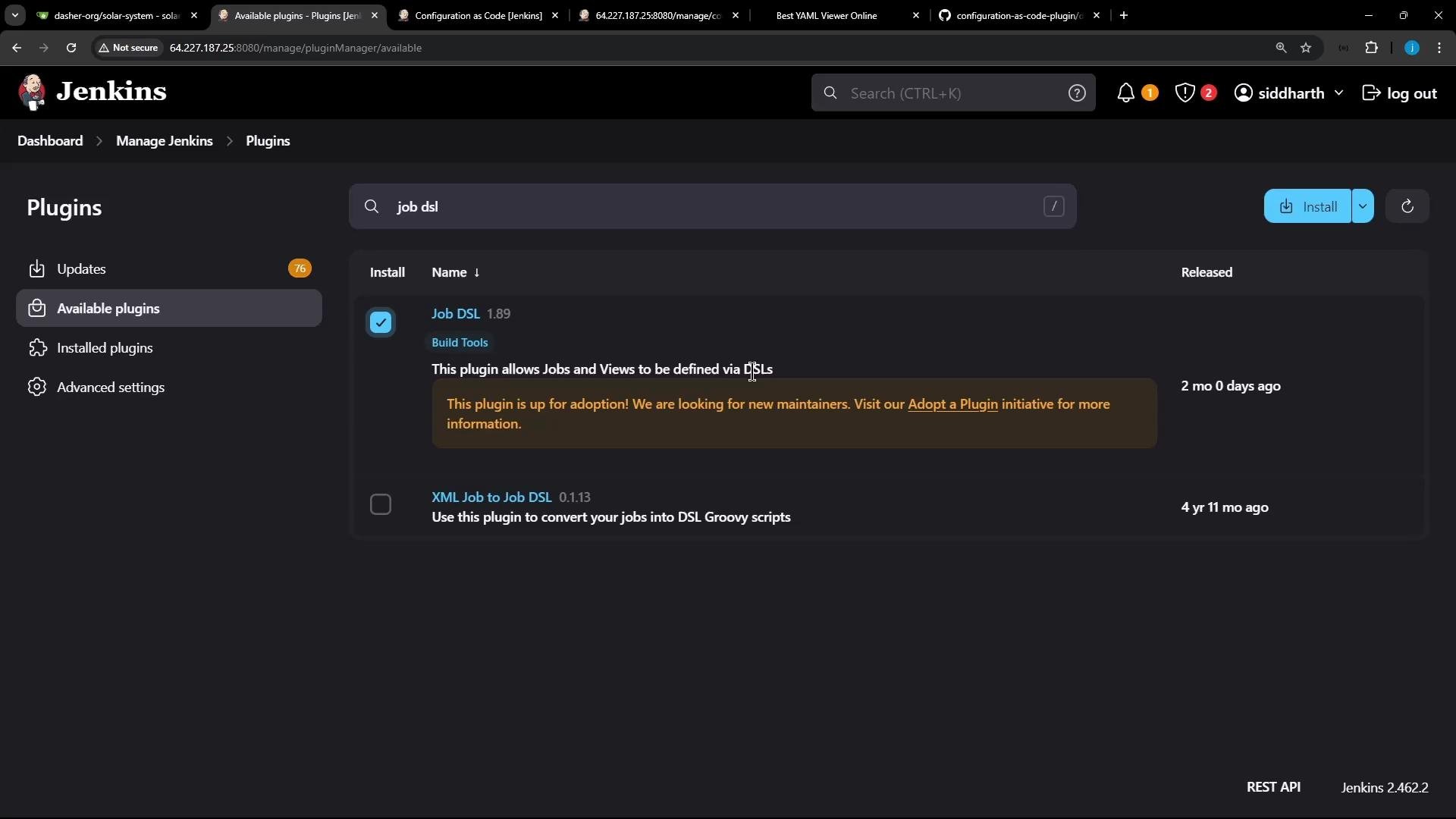
To resolve the error, install the Job DSL plugin:
* Dashboard -> Manage Jenkins -> Manage Plugins -> Available -> search for "Job DSL" -> install.
The plugin UI looks like this:
Here is the essential exception you may see:
```text theme={null}
io.jenkins.plugins.casc.UnknownConfiguratorException: No configurator for the following root elements: jobs
```
If JCasC reports "No configurator for the following root elements: jobs", install the Job DSL plugin first. JCasC requires the Job DSL configurator to process any `jobs:` roots in your YAML.
## Installing the Job DSL plugin
To resolve the error, install the Job DSL plugin:
* Dashboard -> Manage Jenkins -> Manage Plugins -> Available -> search for "Job DSL" -> install.
The plugin UI looks like this:
 After installing the Job DSL plugin, reload or re-apply your JCasC configuration so the new configurator is available and JCasC can process the `jobs:` root.
The Job DSL plugin must be installed before JCasC can apply job definitions under the `jobs:` root. If you add job definitions first, JCasC will report the "No configurator for ... jobs" error.
## Verify the applied configuration
After a successful apply/reload:
* Confirm a folder `testjobs` appears in the Jenkins dashboard.
* Inside it, confirm a pipeline job `default-agent` (full name `testjobs/default-agent`) exists.
* Open the job and verify the pipeline script matches the Job DSL-defined Groovy pipeline. For example:
```groovy theme={null}
pipeline {
agent any
stages {
stage('test') {
steps {
echo "hello"
}
}
}
}
```
* Verify the Node.js tool under Manage Jenkins -> Global Tool Configuration: you should see `NodeJS Latest` with the declared version (e.g., `12.11.1`).
## Quick checklist
| Step | Action |
| ---- | ---------------------------------------------------------------------------------------------------------------------------------------- |
| 1 | Find demo YAML in the JCasC plugin demos: `https://github.com/jenkinsci/configuration-as-code-plugin/tree/master/demos` |
| 2 | Edit your `jenkins-casc.yaml` (e.g., `/var/lib/jenkins/JENKINS_BACKUP/jenkins-casc.yaml`) and add `tool:` and `jobs:` sections as needed |
| 3 | Ensure required plugins are installed (e.g., Job DSL for the `jobs:` root) |
| 4 | Apply or reload the JCasC configuration from Manage Jenkins -> Configuration as Code |
| 5 | Verify created folders, jobs, and tool installations in the Jenkins UI |
## Troubleshooting tips
* If JCasC fails on unknown root elements, confirm the matching plugin that provides the configurator is installed (Job DSL for `jobs:`; other roots may require their own plugins).
* If a tool (like NodeJS) is not visible after applying JCasC, check the tool YAML for syntax errors and confirm the installer version ID is valid for your installed tool plugin.
* Check Manage Jenkins -> Configuration as Code for the current config source and any error messages; review controller logs for full stack traces.
## Links and references
* [Jenkins Configuration as Code (JCasC) plugin](https://plugins.jenkins.io/configuration-as-code/)
* [Job DSL plugin](https://plugins.jenkins.io/job-dsl/)
* [JCasC demos directory on GitHub](https://github.com/jenkinsci/configuration-as-code-plugin/tree/master/demos)
* [Kubernetes cloud docs (Jenkins)](https://www.jenkins.io/doc/book/clouds/kubernetes/)
That’s the basic flow for using JCasC to create jobs and configure tools.
After installing the Job DSL plugin, reload or re-apply your JCasC configuration so the new configurator is available and JCasC can process the `jobs:` root.
The Job DSL plugin must be installed before JCasC can apply job definitions under the `jobs:` root. If you add job definitions first, JCasC will report the "No configurator for ... jobs" error.
## Verify the applied configuration
After a successful apply/reload:
* Confirm a folder `testjobs` appears in the Jenkins dashboard.
* Inside it, confirm a pipeline job `default-agent` (full name `testjobs/default-agent`) exists.
* Open the job and verify the pipeline script matches the Job DSL-defined Groovy pipeline. For example:
```groovy theme={null}
pipeline {
agent any
stages {
stage('test') {
steps {
echo "hello"
}
}
}
}
```
* Verify the Node.js tool under Manage Jenkins -> Global Tool Configuration: you should see `NodeJS Latest` with the declared version (e.g., `12.11.1`).
## Quick checklist
| Step | Action |
| ---- | ---------------------------------------------------------------------------------------------------------------------------------------- |
| 1 | Find demo YAML in the JCasC plugin demos: `https://github.com/jenkinsci/configuration-as-code-plugin/tree/master/demos` |
| 2 | Edit your `jenkins-casc.yaml` (e.g., `/var/lib/jenkins/JENKINS_BACKUP/jenkins-casc.yaml`) and add `tool:` and `jobs:` sections as needed |
| 3 | Ensure required plugins are installed (e.g., Job DSL for the `jobs:` root) |
| 4 | Apply or reload the JCasC configuration from Manage Jenkins -> Configuration as Code |
| 5 | Verify created folders, jobs, and tool installations in the Jenkins UI |
## Troubleshooting tips
* If JCasC fails on unknown root elements, confirm the matching plugin that provides the configurator is installed (Job DSL for `jobs:`; other roots may require their own plugins).
* If a tool (like NodeJS) is not visible after applying JCasC, check the tool YAML for syntax errors and confirm the installer version ID is valid for your installed tool plugin.
* Check Manage Jenkins -> Configuration as Code for the current config source and any error messages; review controller logs for full stack traces.
## Links and references
* [Jenkins Configuration as Code (JCasC) plugin](https://plugins.jenkins.io/configuration-as-code/)
* [Job DSL plugin](https://plugins.jenkins.io/job-dsl/)
* [JCasC demos directory on GitHub](https://github.com/jenkinsci/configuration-as-code-plugin/tree/master/demos)
* [Kubernetes cloud docs (Jenkins)](https://www.jenkins.io/doc/book/clouds/kubernetes/)
That’s the basic flow for using JCasC to create jobs and configure tools.