> ## Documentation Index
> Fetch the complete documentation index at: https://notes.kodekloud.com/llms.txt
> Use this file to discover all available pages before exploring further.
# Migrating Jenkins to Another Node
> Step-by-step guide to migrate a self-managed Jenkins controller between VMs by archiving and restoring JENKINS_HOME, preserving jobs plugins credentials and configurations.
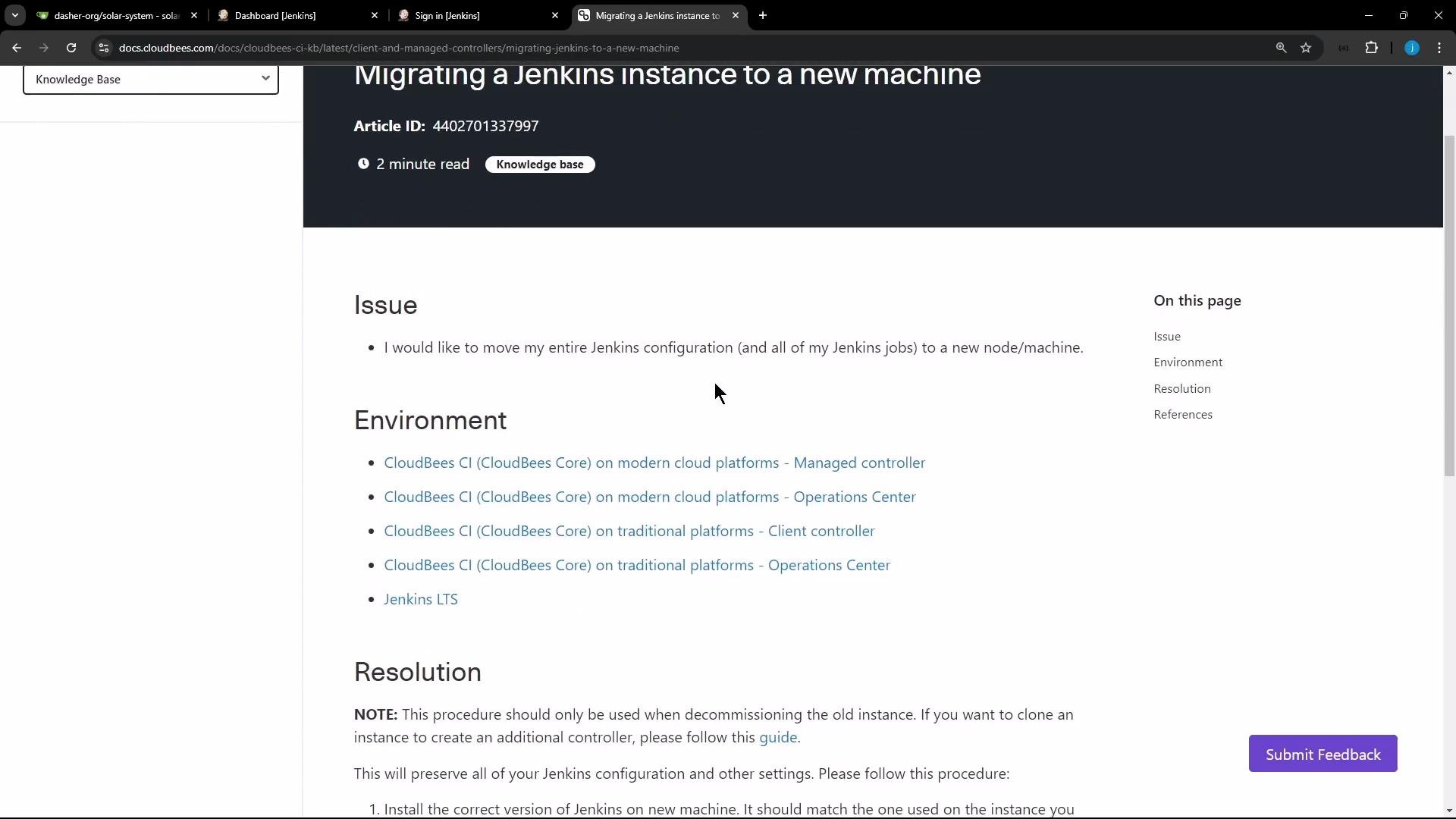
This guide walks through a simple, reliable process to migrate a self-managed Jenkins controller from one VM to another. The core steps are:
* Stop Jenkins on the source node
* Archive `JENKINS_HOME`
* Transfer the archive to the target
* Restore the archive on the target and fix ownership
* Start Jenkins on the target and verify
This approach preserves jobs, plugin data, credentials and other configuration stored under `JENKINS_HOME`.
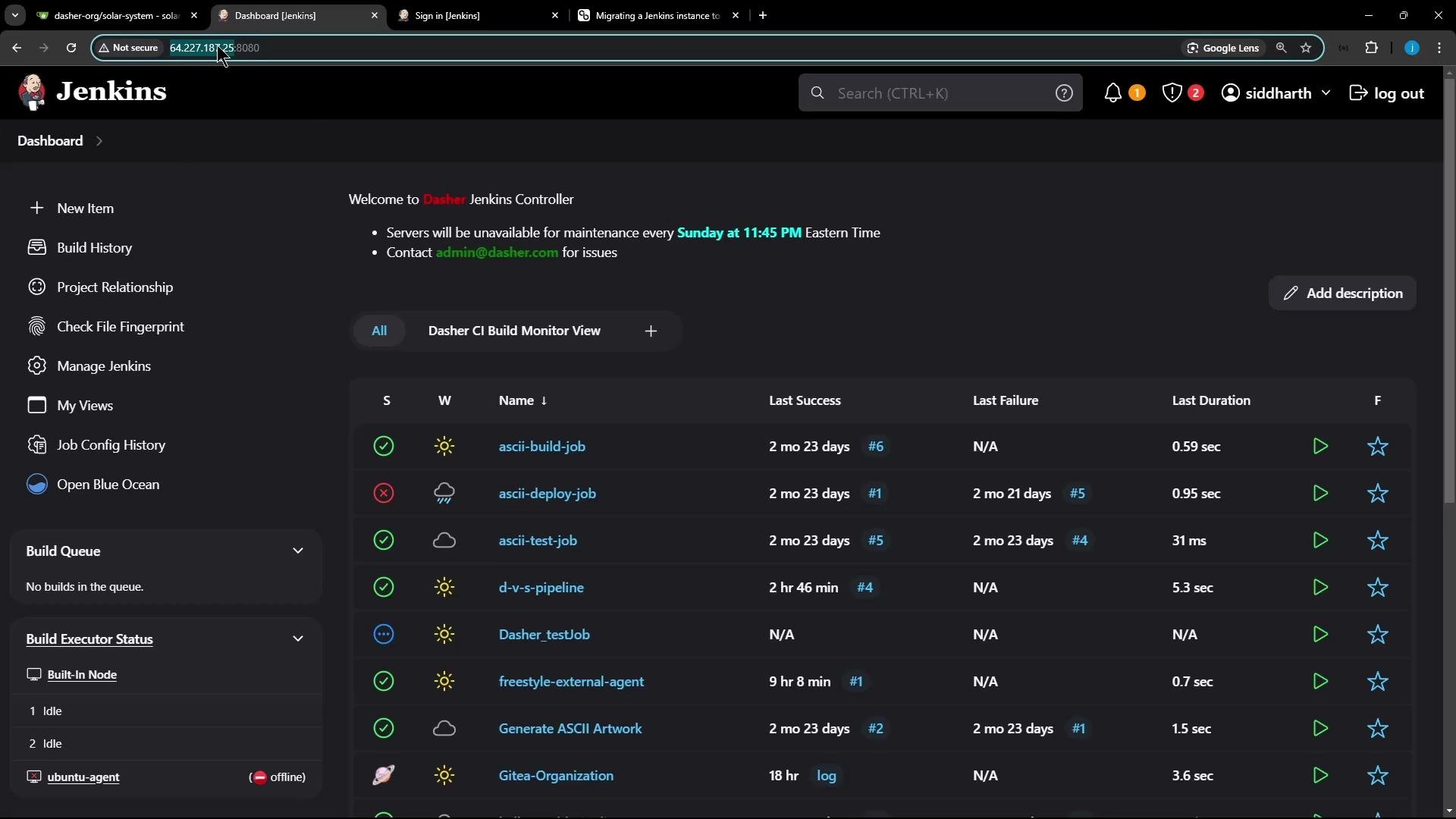 Example environment in this walkthrough:
* Source Jenkins VM IP: `64.227.*.*`
* Target (fresh Jenkins install) VM IP: `165.3.22.*`
Important: For package-based Jenkins installs the initial admin password for a fresh installation is stored at:
```bash theme={null}
$JENKINS_HOME/secrets/initialAdminPassword
# commonly:
# /var/lib/jenkins/secrets/initialAdminPassword
```
There are many migration scenarios (master-to-master, containerized Jenkins, CloudBees-specific workflows). The steps below cover the common case for systemd-based, package-installed Jenkins instances.
Example environment in this walkthrough:
* Source Jenkins VM IP: `64.227.*.*`
* Target (fresh Jenkins install) VM IP: `165.3.22.*`
Important: For package-based Jenkins installs the initial admin password for a fresh installation is stored at:
```bash theme={null}
$JENKINS_HOME/secrets/initialAdminPassword
# commonly:
# /var/lib/jenkins/secrets/initialAdminPassword
```
There are many migration scenarios (master-to-master, containerized Jenkins, CloudBees-specific workflows). The steps below cover the common case for systemd-based, package-installed Jenkins instances.
 ## Pre-migration checklist
| Area | Why it matters | Action / Example |
| --------------------- | ----------------------------------------------- | --------------------------------------------------------------- |
| Jenkins & plugins | Version mismatches can cause incompatibilities | Ensure target Jenkins version and plugin set match source |
| Java / JDK | Jenkins is sensitive to Java versions | Use the same JDK version on both nodes |
| Disk space | Jenkins home can be large (jobs, artifacts) | Confirm free space on target to accommodate archive |
| Secrets & credentials | Secret files and `credentials.xml` are critical | Confirm `secrets/` and `credentials.xml` are included in backup |
| Agents / connectivity | Hostname/IP changes may require reconfiguration | Plan for reconnecting agents and updating hostnames/IPs |
Plan for plugin compatibility and integrations (e.g., secret stores, LDAP, external agents). If the target already has Jenkins installed, back it up before proceeding.
## Step-by-step migration
The instructions assume `JENKINS_HOME` is `/var/lib/jenkins` (common for package installs). If your `JENKINS_HOME` is elsewhere, substitute that path.
### 1) Prepare the source node (create a consistent snapshot)
Stop Jenkins to get a consistent filesystem snapshot:
```bash theme={null}
sudo systemctl stop jenkins
sudo systemctl disable jenkins
```
Create a compressed tarball of the `jenkins` directory from its parent (commonly `/var/lib`):
```bash theme={null}
cd /var/lib
sudo tar -czf jenkins-backup.tar.gz jenkins
```
Tip: Use a timestamped filename for versioning, e.g. `jenkins-backup-$(date +%Y%m%d).tar.gz`.
Explanation of tar flags:
* `-c` = create
* `-z` = gzip
* `-f` = filename
### 2) Transfer the backup to the target
Copy the tarball using `scp`, `rsync`, or another transport. Example with `scp`:
```bash theme={null}
scp /var/lib/jenkins-backup.tar.gz root@165.3.22.*:/tmp/
```
Use SSH keys for automation and resume-capable tools like `rsync`/`rsync --progress --partial` for large transfers.
### 3) Prepare and restore on the target node
Log into the target VM and stop/disable the existing Jenkins service:
```bash theme={null}
sudo systemctl stop jenkins
sudo systemctl disable jenkins
```
Back up any existing Jenkins home on the target before overwriting:
```bash theme={null}
cd /var/lib
# Only run the backup if the directory exists
if [ -d jenkins ]; then
sudo tar -czf jenkins.bak.tar.gz jenkins
fi
```
Remove the old `jenkins` directory (only after confirming your backup is safe):
```bash theme={null}
sudo rm -rf jenkins
```
Move the copied tarball into `/var/lib` then extract it:
```bash theme={null}
sudo mv /tmp/jenkins-backup.tar.gz /var/lib/
cd /var/lib
sudo tar -xzf jenkins-backup.tar.gz
```
Extraction may take several minutes for large `JENKINS_HOME`s; the archive will print file names as it extracts.
Fix ownership and permissions (Jenkins typically runs as user/group `jenkins`):
```bash theme={null}
sudo chown -R jenkins:jenkins /var/lib/jenkins
```
### 4) Start Jenkins on the target and verify
Enable and start the service:
```bash theme={null}
sudo systemctl enable jenkins
sudo systemctl start jenkins
```
Check status and recent logs to ensure successful startup:
```bash theme={null}
sudo systemctl status jenkins
sudo journalctl -u jenkins -b --no-pager | tail -n 50
```
Open the Jenkins UI for the target node and verify:
* Jobs and build history
* Installed plugins and plugin versions
* Credentials and secrets
* Global and folder-level configurations
* Agent connectivity
If everything looks good, you can either decommission the source node or keep it stopped as a fallback.
Do not run two active Jenkins controllers against the same `JENKINS_HOME` or backing store simultaneously — this can cause data corruption and split-brain issues. Only one controller should own the `JENKINS_HOME`.
## Additional tips and common gotchas
* Secrets: `secrets/` and `credentials.xml` are inside `JENKINS_HOME` and are preserved by the tarball. Keep backups secure.
* Tools: Custom tool installations under `tools/` are included in the backup and should restore with the archive.
* Agents: Agents may need to be reconnected if their configuration relies on hostnames or IPs that changed.
* Quiet mode: To prevent new builds during migration, use Jenkins quiet mode:
* Programmatic endpoints: `/quietDown` and `/cancelQuietDown`
* Example URL: ``https://``/cancelQuietDown``
* Note: Programmatic POSTs may require CSRF crumbs and authentication.
* For very large `JENKINS_HOME`, consider file-level rsync (`rsync -aHAX`) instead of a single tarball to reduce downtime and allow incremental syncs.
## Quick command references
| Task | Command | |
| --------------------------------- | ------------------------------------------------------------ | ------------ |
| Stop Jenkins | `sudo systemctl stop jenkins` | |
| Create a tarball of JENKINS\_HOME | `cd /var/lib && sudo tar -czf jenkins-backup.tar.gz jenkins` | |
| Copy tarball to target | `scp /var/lib/jenkins-backup.tar.gz root@:/tmp/` | |
| Extract on target | `sudo tar -xzf jenkins-backup.tar.gz` | |
| Fix ownership | `sudo chown -R jenkins:jenkins /var/lib/jenkins` | |
| Start Jenkins | `sudo systemctl enable --now jenkins` | |
| View logs | \`sudo journalctl -u jenkins -b --no-pager | tail -n 50\` |
## Links and references
* Jenkins: [https://www.jenkins.io/](https://www.jenkins.io/)
* Jenkins system administration documentation: [https://www.jenkins.io/doc/book/system-administration/](https://www.jenkins.io/doc/book/system-administration/)
* CloudBees article on migrating Jenkins instances: [https://support.cloudbees.com/hc](https://support.cloudbees.com/hc)
* rsync documentation: [https://download.samba.org/pub/rsync/rsync.html](https://download.samba.org/pub/rsync/rsync.html)
* systemd service management: [https://www.freedesktop.org/wiki/Software/systemd/](https://www.freedesktop.org/wiki/Software/systemd/)
That’s it — following these steps should let you migrate a Jenkins controller to a new VM while preserving jobs, plugins, credentials, and build history.
## Pre-migration checklist
| Area | Why it matters | Action / Example |
| --------------------- | ----------------------------------------------- | --------------------------------------------------------------- |
| Jenkins & plugins | Version mismatches can cause incompatibilities | Ensure target Jenkins version and plugin set match source |
| Java / JDK | Jenkins is sensitive to Java versions | Use the same JDK version on both nodes |
| Disk space | Jenkins home can be large (jobs, artifacts) | Confirm free space on target to accommodate archive |
| Secrets & credentials | Secret files and `credentials.xml` are critical | Confirm `secrets/` and `credentials.xml` are included in backup |
| Agents / connectivity | Hostname/IP changes may require reconfiguration | Plan for reconnecting agents and updating hostnames/IPs |
Plan for plugin compatibility and integrations (e.g., secret stores, LDAP, external agents). If the target already has Jenkins installed, back it up before proceeding.
## Step-by-step migration
The instructions assume `JENKINS_HOME` is `/var/lib/jenkins` (common for package installs). If your `JENKINS_HOME` is elsewhere, substitute that path.
### 1) Prepare the source node (create a consistent snapshot)
Stop Jenkins to get a consistent filesystem snapshot:
```bash theme={null}
sudo systemctl stop jenkins
sudo systemctl disable jenkins
```
Create a compressed tarball of the `jenkins` directory from its parent (commonly `/var/lib`):
```bash theme={null}
cd /var/lib
sudo tar -czf jenkins-backup.tar.gz jenkins
```
Tip: Use a timestamped filename for versioning, e.g. `jenkins-backup-$(date +%Y%m%d).tar.gz`.
Explanation of tar flags:
* `-c` = create
* `-z` = gzip
* `-f` = filename
### 2) Transfer the backup to the target
Copy the tarball using `scp`, `rsync`, or another transport. Example with `scp`:
```bash theme={null}
scp /var/lib/jenkins-backup.tar.gz root@165.3.22.*:/tmp/
```
Use SSH keys for automation and resume-capable tools like `rsync`/`rsync --progress --partial` for large transfers.
### 3) Prepare and restore on the target node
Log into the target VM and stop/disable the existing Jenkins service:
```bash theme={null}
sudo systemctl stop jenkins
sudo systemctl disable jenkins
```
Back up any existing Jenkins home on the target before overwriting:
```bash theme={null}
cd /var/lib
# Only run the backup if the directory exists
if [ -d jenkins ]; then
sudo tar -czf jenkins.bak.tar.gz jenkins
fi
```
Remove the old `jenkins` directory (only after confirming your backup is safe):
```bash theme={null}
sudo rm -rf jenkins
```
Move the copied tarball into `/var/lib` then extract it:
```bash theme={null}
sudo mv /tmp/jenkins-backup.tar.gz /var/lib/
cd /var/lib
sudo tar -xzf jenkins-backup.tar.gz
```
Extraction may take several minutes for large `JENKINS_HOME`s; the archive will print file names as it extracts.
Fix ownership and permissions (Jenkins typically runs as user/group `jenkins`):
```bash theme={null}
sudo chown -R jenkins:jenkins /var/lib/jenkins
```
### 4) Start Jenkins on the target and verify
Enable and start the service:
```bash theme={null}
sudo systemctl enable jenkins
sudo systemctl start jenkins
```
Check status and recent logs to ensure successful startup:
```bash theme={null}
sudo systemctl status jenkins
sudo journalctl -u jenkins -b --no-pager | tail -n 50
```
Open the Jenkins UI for the target node and verify:
* Jobs and build history
* Installed plugins and plugin versions
* Credentials and secrets
* Global and folder-level configurations
* Agent connectivity
If everything looks good, you can either decommission the source node or keep it stopped as a fallback.
Do not run two active Jenkins controllers against the same `JENKINS_HOME` or backing store simultaneously — this can cause data corruption and split-brain issues. Only one controller should own the `JENKINS_HOME`.
## Additional tips and common gotchas
* Secrets: `secrets/` and `credentials.xml` are inside `JENKINS_HOME` and are preserved by the tarball. Keep backups secure.
* Tools: Custom tool installations under `tools/` are included in the backup and should restore with the archive.
* Agents: Agents may need to be reconnected if their configuration relies on hostnames or IPs that changed.
* Quiet mode: To prevent new builds during migration, use Jenkins quiet mode:
* Programmatic endpoints: `/quietDown` and `/cancelQuietDown`
* Example URL: ``https://``/cancelQuietDown``
* Note: Programmatic POSTs may require CSRF crumbs and authentication.
* For very large `JENKINS_HOME`, consider file-level rsync (`rsync -aHAX`) instead of a single tarball to reduce downtime and allow incremental syncs.
## Quick command references
| Task | Command | |
| --------------------------------- | ------------------------------------------------------------ | ------------ |
| Stop Jenkins | `sudo systemctl stop jenkins` | |
| Create a tarball of JENKINS\_HOME | `cd /var/lib && sudo tar -czf jenkins-backup.tar.gz jenkins` | |
| Copy tarball to target | `scp /var/lib/jenkins-backup.tar.gz root@:/tmp/` | |
| Extract on target | `sudo tar -xzf jenkins-backup.tar.gz` | |
| Fix ownership | `sudo chown -R jenkins:jenkins /var/lib/jenkins` | |
| Start Jenkins | `sudo systemctl enable --now jenkins` | |
| View logs | \`sudo journalctl -u jenkins -b --no-pager | tail -n 50\` |
## Links and references
* Jenkins: [https://www.jenkins.io/](https://www.jenkins.io/)
* Jenkins system administration documentation: [https://www.jenkins.io/doc/book/system-administration/](https://www.jenkins.io/doc/book/system-administration/)
* CloudBees article on migrating Jenkins instances: [https://support.cloudbees.com/hc](https://support.cloudbees.com/hc)
* rsync documentation: [https://download.samba.org/pub/rsync/rsync.html](https://download.samba.org/pub/rsync/rsync.html)
* systemd service management: [https://www.freedesktop.org/wiki/Software/systemd/](https://www.freedesktop.org/wiki/Software/systemd/)
That’s it — following these steps should let you migrate a Jenkins controller to a new VM while preserving jobs, plugins, credentials, and build history.