> ## Documentation Index
> Fetch the complete documentation index at: https://notes.kodekloud.com/llms.txt
> Use this file to discover all available pages before exploring further.
# Create Shared Library for Trivy Scan
> Creating a Jenkins shared library that runs Trivy image scans and converts JSON results into HTML reports for reuse across pipelines
In this lesson you'll extract the Trivy image scan and report conversion steps into a reusable Jenkins shared library. Doing so lets multiple pipelines call the same logic and simplifies maintenance. We'll implement this in a feature branch to demonstrate versioning for the shared library.
 ## Prerequisites
* A Jenkins instance configured to run pipelines.
* Trivy installed on the Jenkins agents that will run the scan, along with the Trivy HTML template file at `/usr/local/share/trivy/templates/html.tpl`.
* Access to the `shared-libraries` Git repository (example URL used below).
## 1. Inspect the shared-libraries repository
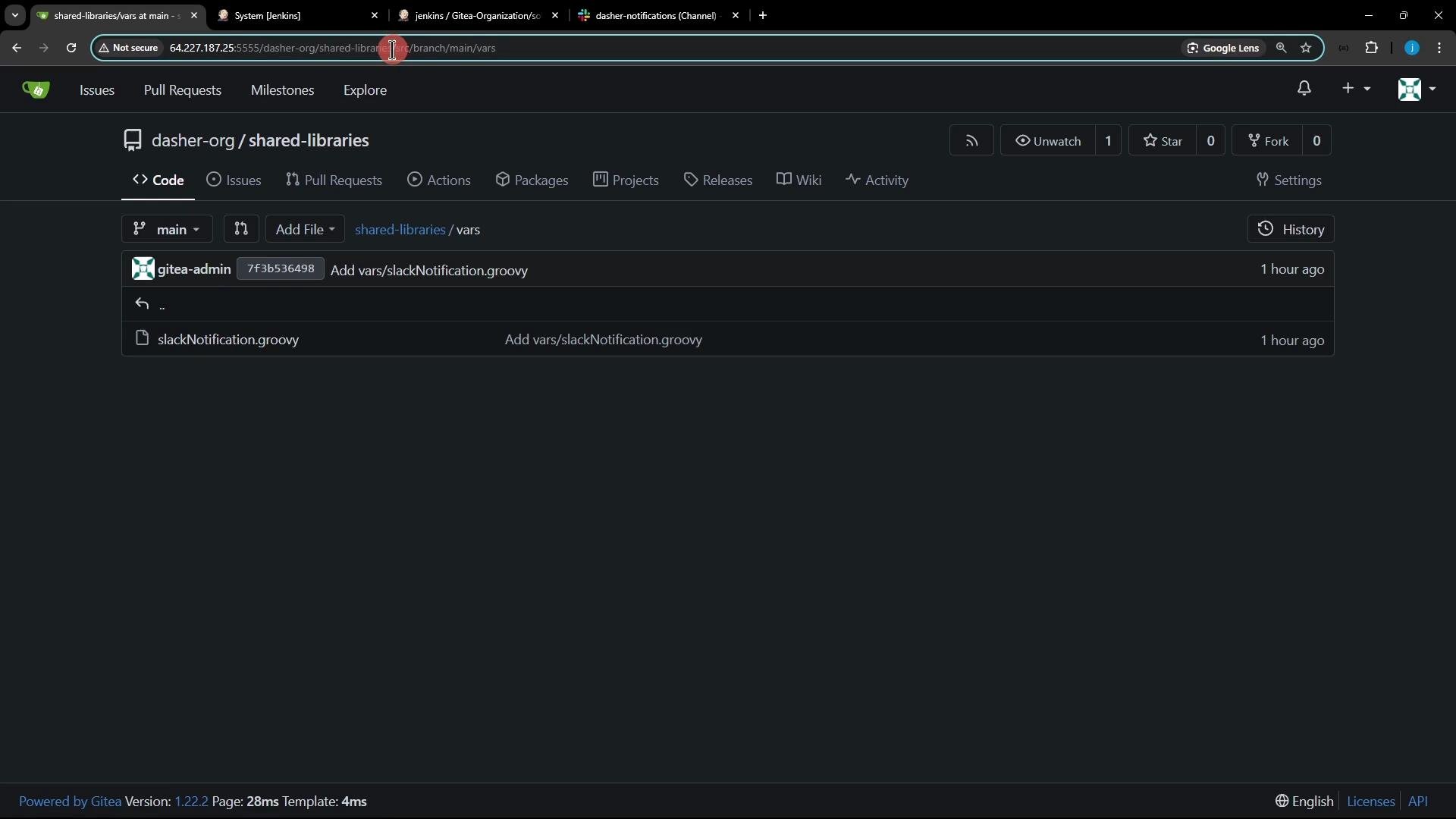
Clone the repository locally and inspect the `vars` folder. It currently contains `slackNotification.groovy`, and we'll add a new file alongside it.
```bash theme={null}
git clone http://64.227.187.25:5555/dasher-org/shared-libraries/
cd shared-libraries/
ls -la
```
## 2. Create a feature branch
Create a branch for your changes so the shared library can be versioned independently:
```bash theme={null}
git checkout -b featureTrivyScan
```
## 3. Add a Trivy shared library file
Under the repository's `vars` directory, add `trivyScan.groovy`. This file exposes two reusable functions to pipelines:
* `vulnerability(String imageName)` — runs Trivy scans for different severity levels and writes JSON results to the workspace.
* `reportsConverter()` — converts the JSON results into HTML reports using `trivy convert`.
Create `vars/trivyScan.groovy` with the following content:
```groovy theme={null}
def vulnerability(String imageName) {
sh """
echo "Scanning image: ${imageName}"
trivy image ${imageName} \
--severity LOW,MEDIUM,HIGH \
--exit-code 0 \
--quiet \
--format json -o trivy-image-MEDIUM-results.json
trivy image ${imageName} \
--severity CRITICAL \
--exit-code 1 \
--quiet \
--format json -o trivy-image-CRITICAL-results.json
"""
}
def reportsConverter() {
sh '''
trivy convert \
--format template --template "@/usr/local/share/trivy/templates/html.tpl" \
--output trivy-image-MEDIUM-results.html trivy-image-MEDIUM-results.json
trivy convert \
--format template --template "@/usr/local/share/trivy/templates/html.tpl" \
--output trivy-image-CRITICAL-results.html trivy-image-CRITICAL-results.json
'''
}
```
### Function summary
| Function | Purpose | Notes / Output |
| --------------------------------- | -------------------------------------------------------------------- | --------------------------------------------------------------------------------------------------- |
| `vulnerability(String imageName)` | Runs Trivy image scans for LOW, MEDIUM, HIGH and CRITICAL severities | Produces `trivy-image-MEDIUM-results.json` and `trivy-image-CRITICAL-results.json` in the workspace |
| `reportsConverter()` | Converts JSON reports into HTML using the Trivy template | Produces `trivy-image-MEDIUM-results.html` and `trivy-image-CRITICAL-results.html` |
Best practice: Pass the full image name (including tag or commit) to `vulnerability`, for example `siddharth67/solar-system:${env.GIT_COMMIT}` so scans are reproducible and traceable.
Ensure Trivy and the HTML template file exist on the agent executing the pipeline (template path used: `/usr/local/share/trivy/templates/html.tpl`). If the template is missing or Trivy is not installed, the `reportsConverter()` and `vulnerability()` steps will fail.
## 4. Commit and push the branch
Add the new file to the repository and push the feature branch:
```bash theme={null}
git add vars/trivyScan.groovy
git commit -m "Add trivyScan shared library with vulnerability and reportsConverter functions"
git push -u origin featureTrivyScan
```
## 5. Using the shared library in a Jenkins pipeline
After configuring the shared library in Jenkins (see next section), the `trivyScan` file in `vars/` is exposed as a global variable named `trivyScan`. Here is an example Declarative pipeline stage that calls the shared library functions:
```groovy theme={null}
pipeline {
agent any
stages {
stage('Trivy Vulnerability Scanner') {
steps {
script {
// Construct the full image name including commit/tag
def imageName = "siddharth67/solar-system:${env.GIT_COMMIT}"
trivyScan.vulnerability(imageName)
}
}
post {
always {
script {
trivyScan.reportsConverter()
// You may also archive artifacts or publish HTML reports here
}
}
}
}
}
}
```
## 6. Configure the shared library in Jenkins
* In Jenkins, go to "Manage Jenkins" → "Configure System" → "Global Pipeline Libraries" and add a new library.
* Set the library name (for example `shared-libraries`), provide the Git repository URL, and set the Default Version to the branch `featureTrivyScan` (or leave it configurable per-job).
* You can reference the library explicitly in a Pipeline with `@Library('shared-libraries@featureTrivyScan') _` or configure it as a global library and call `trivyScan` directly.
## 7. Tips for pipelines using the library
* Archive or publish the generated HTML reports after `reportsConverter()` runs (for example, use `archiveArtifacts` or a HTML publisher plugin).
* If you want different severity thresholds, you can extend `trivyScan.groovy` to accept severity lists or output file names as parameters.
* Keep the shared library versioned: create feature branches or tags for changes to shared library functions to avoid breaking consuming pipelines.
## Links and references
* Trivy documentation: [https://aquasecurity.github.io/trivy/latest/](https://aquasecurity.github.io/trivy/latest/)
* Jenkins shared library documentation: [https://www.jenkins.io/doc/book/pipeline/shared-libraries/](https://www.jenkins.io/doc/book/pipeline/shared-libraries/)
* Trivy templates: see `trivy` installation and template locations on official docs.
That's it — the Trivy scanning logic is now encapsulated in a reusable shared library. Configure Jenkins to load the `featureTrivyScan` branch and invoke `trivyScan.vulnerability(...)` and `trivyScan.reportsConverter()` from your pipelines to run scans and convert reports.
## Prerequisites
* A Jenkins instance configured to run pipelines.
* Trivy installed on the Jenkins agents that will run the scan, along with the Trivy HTML template file at `/usr/local/share/trivy/templates/html.tpl`.
* Access to the `shared-libraries` Git repository (example URL used below).
## 1. Inspect the shared-libraries repository
Clone the repository locally and inspect the `vars` folder. It currently contains `slackNotification.groovy`, and we'll add a new file alongside it.
```bash theme={null}
git clone http://64.227.187.25:5555/dasher-org/shared-libraries/
cd shared-libraries/
ls -la
```
## 2. Create a feature branch
Create a branch for your changes so the shared library can be versioned independently:
```bash theme={null}
git checkout -b featureTrivyScan
```
## 3. Add a Trivy shared library file
Under the repository's `vars` directory, add `trivyScan.groovy`. This file exposes two reusable functions to pipelines:
* `vulnerability(String imageName)` — runs Trivy scans for different severity levels and writes JSON results to the workspace.
* `reportsConverter()` — converts the JSON results into HTML reports using `trivy convert`.
Create `vars/trivyScan.groovy` with the following content:
```groovy theme={null}
def vulnerability(String imageName) {
sh """
echo "Scanning image: ${imageName}"
trivy image ${imageName} \
--severity LOW,MEDIUM,HIGH \
--exit-code 0 \
--quiet \
--format json -o trivy-image-MEDIUM-results.json
trivy image ${imageName} \
--severity CRITICAL \
--exit-code 1 \
--quiet \
--format json -o trivy-image-CRITICAL-results.json
"""
}
def reportsConverter() {
sh '''
trivy convert \
--format template --template "@/usr/local/share/trivy/templates/html.tpl" \
--output trivy-image-MEDIUM-results.html trivy-image-MEDIUM-results.json
trivy convert \
--format template --template "@/usr/local/share/trivy/templates/html.tpl" \
--output trivy-image-CRITICAL-results.html trivy-image-CRITICAL-results.json
'''
}
```
### Function summary
| Function | Purpose | Notes / Output |
| --------------------------------- | -------------------------------------------------------------------- | --------------------------------------------------------------------------------------------------- |
| `vulnerability(String imageName)` | Runs Trivy image scans for LOW, MEDIUM, HIGH and CRITICAL severities | Produces `trivy-image-MEDIUM-results.json` and `trivy-image-CRITICAL-results.json` in the workspace |
| `reportsConverter()` | Converts JSON reports into HTML using the Trivy template | Produces `trivy-image-MEDIUM-results.html` and `trivy-image-CRITICAL-results.html` |
Best practice: Pass the full image name (including tag or commit) to `vulnerability`, for example `siddharth67/solar-system:${env.GIT_COMMIT}` so scans are reproducible and traceable.
Ensure Trivy and the HTML template file exist on the agent executing the pipeline (template path used: `/usr/local/share/trivy/templates/html.tpl`). If the template is missing or Trivy is not installed, the `reportsConverter()` and `vulnerability()` steps will fail.
## 4. Commit and push the branch
Add the new file to the repository and push the feature branch:
```bash theme={null}
git add vars/trivyScan.groovy
git commit -m "Add trivyScan shared library with vulnerability and reportsConverter functions"
git push -u origin featureTrivyScan
```
## 5. Using the shared library in a Jenkins pipeline
After configuring the shared library in Jenkins (see next section), the `trivyScan` file in `vars/` is exposed as a global variable named `trivyScan`. Here is an example Declarative pipeline stage that calls the shared library functions:
```groovy theme={null}
pipeline {
agent any
stages {
stage('Trivy Vulnerability Scanner') {
steps {
script {
// Construct the full image name including commit/tag
def imageName = "siddharth67/solar-system:${env.GIT_COMMIT}"
trivyScan.vulnerability(imageName)
}
}
post {
always {
script {
trivyScan.reportsConverter()
// You may also archive artifacts or publish HTML reports here
}
}
}
}
}
}
```
## 6. Configure the shared library in Jenkins
* In Jenkins, go to "Manage Jenkins" → "Configure System" → "Global Pipeline Libraries" and add a new library.
* Set the library name (for example `shared-libraries`), provide the Git repository URL, and set the Default Version to the branch `featureTrivyScan` (or leave it configurable per-job).
* You can reference the library explicitly in a Pipeline with `@Library('shared-libraries@featureTrivyScan') _` or configure it as a global library and call `trivyScan` directly.
## 7. Tips for pipelines using the library
* Archive or publish the generated HTML reports after `reportsConverter()` runs (for example, use `archiveArtifacts` or a HTML publisher plugin).
* If you want different severity thresholds, you can extend `trivyScan.groovy` to accept severity lists or output file names as parameters.
* Keep the shared library versioned: create feature branches or tags for changes to shared library functions to avoid breaking consuming pipelines.
## Links and references
* Trivy documentation: [https://aquasecurity.github.io/trivy/latest/](https://aquasecurity.github.io/trivy/latest/)
* Jenkins shared library documentation: [https://www.jenkins.io/doc/book/pipeline/shared-libraries/](https://www.jenkins.io/doc/book/pipeline/shared-libraries/)
* Trivy templates: see `trivy` installation and template locations on official docs.
That's it — the Trivy scanning logic is now encapsulated in a reusable shared library. Configure Jenkins to load the `featureTrivyScan` branch and invoke `trivyScan.vulnerability(...)` and `trivyScan.reportsConverter()` from your pipelines to run scans and convert reports.