> ## Documentation Index
> Fetch the complete documentation index at: https://notes.kodekloud.com/llms.txt
> Use this file to discover all available pages before exploring further.
# Loading the Shared Library in Pipeline
> Guide for importing, using, and verifying a globally configured Jenkins shared library in a Jenkinsfile including reusable steps and runtime verification via console logs and Slack notifications.
Assuming you have already configured a global (trusted) shared library in Jenkins, this guide shows how to import and call that library from a Jenkins pipeline (Jenkinsfile). The steps below explain how to verify the library resolution, update your Jenkinsfile to use shared steps, and confirm the library was loaded at runtime.
On the Jenkins settings page where you configured the global trusted pipeline library, after clicking Save and refreshing the page Jenkins will display the branch it resolved and the commit ID. This confirms Jenkins can connect to and read the shared library repository.
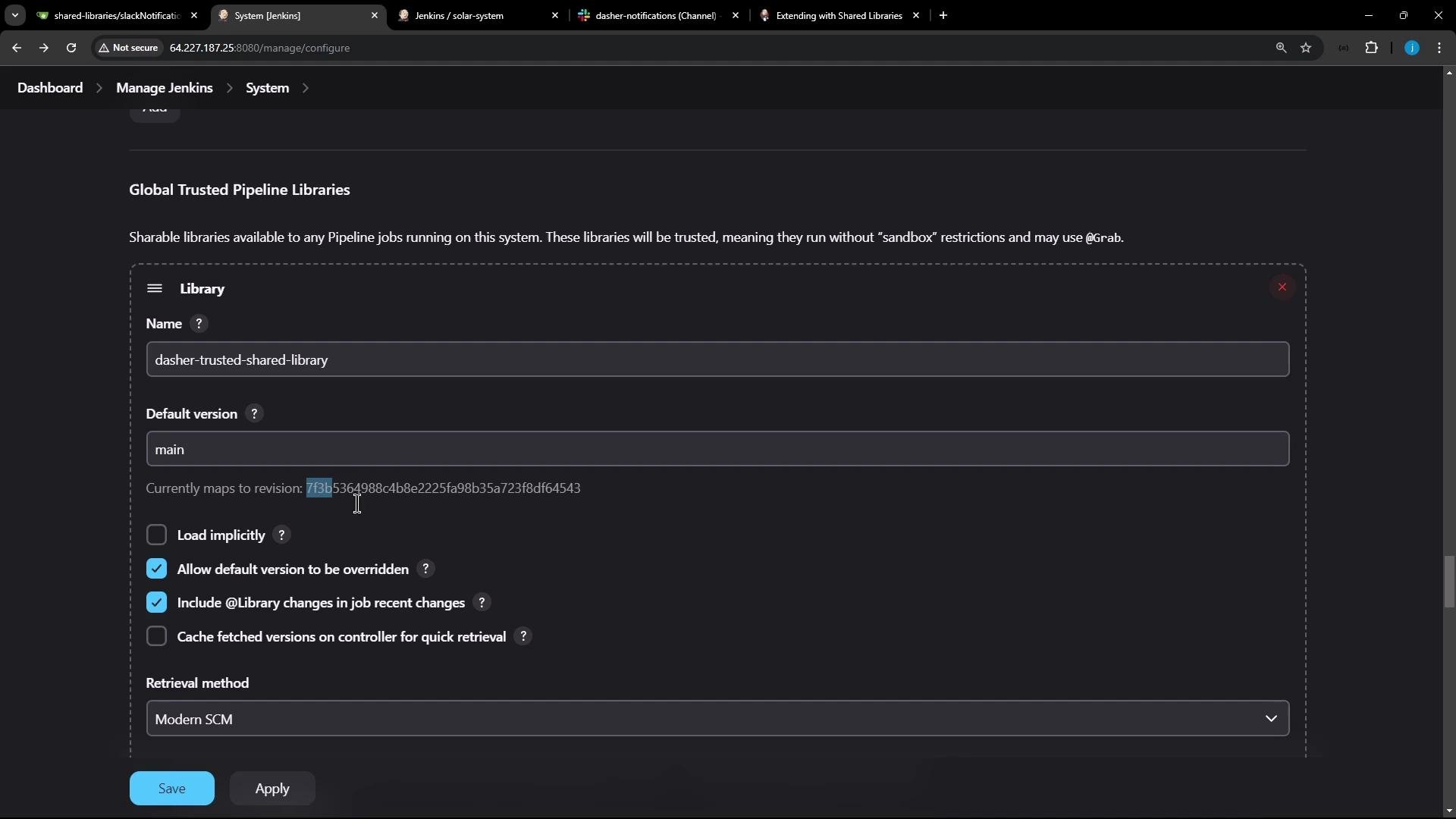 Tip: use the commit ID shown in Jenkins to verify the exact revision being used.
How to import the shared library in your Jenkinsfile
* Remove any duplicated local Groovy function (for example, a locally-defined Slack notification function) you previously used.
* Add the `@Library` annotation with the same library name you configured in Jenkins, followed by a single underscore on its own line. The underscore completes the library import syntax used by declarative pipelines.
Example Jenkinsfile header (imports the library and shows the surrounding pipeline structure):
```groovy theme={null}
@Library('dasher-trusted-shared-library') _
pipeline {
agent any
tools {
// ...
}
environment {
MONGO_URI = "mongodb+srv://supercluster.d83jj.mongodb.net/superData"
MONGO_DB_CREDS = credentials('mongo-db-credentials')
MONGO_USERNAME = credentials('mongo-db-username')
MONGO_PASSWORD = credentials('mongo-db-password')
SONAR_SCANNER_HOME = tool 'sonarqube-scanner-610'
GITEA_TOKEN = credentials('gitea-api-token')
}
options {
// ...
}
stages {
stage('Installing Dependencies') {
options { timestamps() }
steps {
sh 'npm install --no-audit'
}
}
// other stages...
}
post {
always {
// Slack call will go here
}
}
}
```
The underscore (`_`) after `@Library('...')` is required syntax to complete the import statement in a pipeline script. It does not modify runtime behavior beyond loading the shared library.
Shared library implementation (callable step)
In the shared library repository, reusable pipeline steps are defined as Groovy files under the appropriate directory (for example, `vars/` in a typical shared library). When a file defines `def call(...)`, it becomes available in the pipeline as a step named after the file (e.g., `slackNotification` if the file is `slackNotification.groovy`).
Example `slackNotification.groovy` implementation:
```groovy theme={null}
def call(String buildStatus = 'STARTED') {
// Treat an explicit "null" string or an empty value as SUCCESS (common when currentBuild.result is not set)
if (!buildStatus || buildStatus == 'null') {
buildStatus = 'SUCCESS'
}
def color
if (buildStatus == 'SUCCESS') {
color = '#47ec05'
} else if (buildStatus == 'UNSTABLE') {
color = '#d5ee0d'
} else {
color = '#ec2805'
}
def msg = "${buildStatus}: ${env.JOB_NAME} #${env.BUILD_NUMBER}:\n${env.BUILD_URL}"
slackSend(color: color, message: msg)
}
```
Modify your Jenkinsfile to call the shared library step
Replace the removed local function call with a direct call to the shared library step. When referencing the build outcome, prefer `currentBuild.currentResult` because it is initialized early and avoids `null`/`"null"` ambiguity.
Example post block:
```groovy theme={null}
post {
always {
slackNotification("${currentBuild.currentResult}")
// other post actions...
}
}
```
Use `currentBuild.currentResult` instead of `currentBuild.result` when reporting the final build status. `currentBuild.result` may be `null` until explicitly set, while `currentBuild.currentResult` reflects the current outcome (defaults to `"SUCCESS"` early in the run).
Commit and push your Jenkinsfile changes to the branch your organization job monitors. Jenkins will detect the push and schedule a new run for that branch.
Pipeline activity and verification
After pushing the change, the organization pipeline will schedule a new run for your branch. You can inspect the run from the organization or repository pipeline activity page.
Tip: use the commit ID shown in Jenkins to verify the exact revision being used.
How to import the shared library in your Jenkinsfile
* Remove any duplicated local Groovy function (for example, a locally-defined Slack notification function) you previously used.
* Add the `@Library` annotation with the same library name you configured in Jenkins, followed by a single underscore on its own line. The underscore completes the library import syntax used by declarative pipelines.
Example Jenkinsfile header (imports the library and shows the surrounding pipeline structure):
```groovy theme={null}
@Library('dasher-trusted-shared-library') _
pipeline {
agent any
tools {
// ...
}
environment {
MONGO_URI = "mongodb+srv://supercluster.d83jj.mongodb.net/superData"
MONGO_DB_CREDS = credentials('mongo-db-credentials')
MONGO_USERNAME = credentials('mongo-db-username')
MONGO_PASSWORD = credentials('mongo-db-password')
SONAR_SCANNER_HOME = tool 'sonarqube-scanner-610'
GITEA_TOKEN = credentials('gitea-api-token')
}
options {
// ...
}
stages {
stage('Installing Dependencies') {
options { timestamps() }
steps {
sh 'npm install --no-audit'
}
}
// other stages...
}
post {
always {
// Slack call will go here
}
}
}
```
The underscore (`_`) after `@Library('...')` is required syntax to complete the import statement in a pipeline script. It does not modify runtime behavior beyond loading the shared library.
Shared library implementation (callable step)
In the shared library repository, reusable pipeline steps are defined as Groovy files under the appropriate directory (for example, `vars/` in a typical shared library). When a file defines `def call(...)`, it becomes available in the pipeline as a step named after the file (e.g., `slackNotification` if the file is `slackNotification.groovy`).
Example `slackNotification.groovy` implementation:
```groovy theme={null}
def call(String buildStatus = 'STARTED') {
// Treat an explicit "null" string or an empty value as SUCCESS (common when currentBuild.result is not set)
if (!buildStatus || buildStatus == 'null') {
buildStatus = 'SUCCESS'
}
def color
if (buildStatus == 'SUCCESS') {
color = '#47ec05'
} else if (buildStatus == 'UNSTABLE') {
color = '#d5ee0d'
} else {
color = '#ec2805'
}
def msg = "${buildStatus}: ${env.JOB_NAME} #${env.BUILD_NUMBER}:\n${env.BUILD_URL}"
slackSend(color: color, message: msg)
}
```
Modify your Jenkinsfile to call the shared library step
Replace the removed local function call with a direct call to the shared library step. When referencing the build outcome, prefer `currentBuild.currentResult` because it is initialized early and avoids `null`/`"null"` ambiguity.
Example post block:
```groovy theme={null}
post {
always {
slackNotification("${currentBuild.currentResult}")
// other post actions...
}
}
```
Use `currentBuild.currentResult` instead of `currentBuild.result` when reporting the final build status. `currentBuild.result` may be `null` until explicitly set, while `currentBuild.currentResult` reflects the current outcome (defaults to `"SUCCESS"` early in the run).
Commit and push your Jenkinsfile changes to the branch your organization job monitors. Jenkins will detect the push and schedule a new run for that branch.
Pipeline activity and verification
After pushing the change, the organization pipeline will schedule a new run for your branch. You can inspect the run from the organization or repository pipeline activity page.
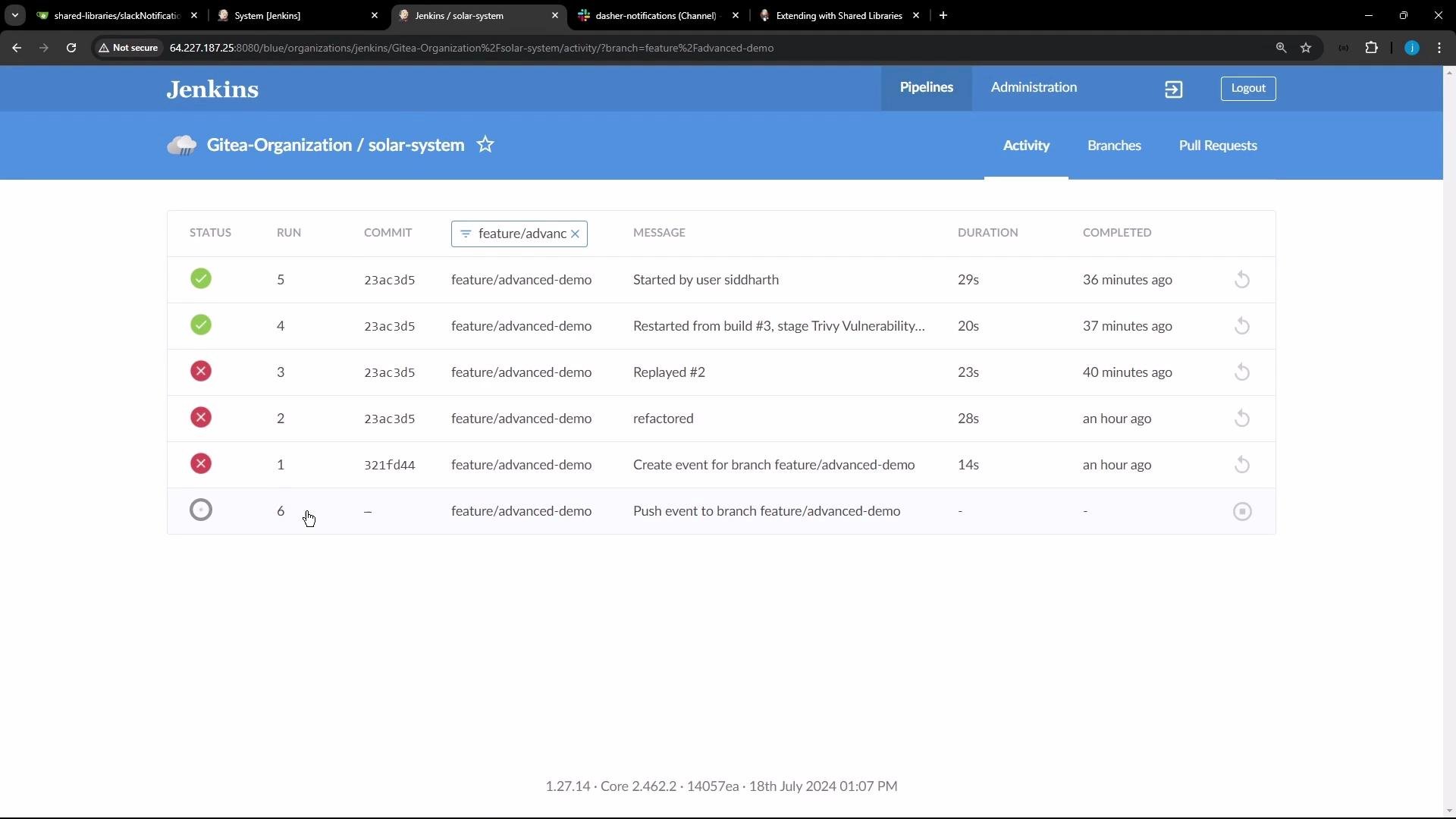 When the run completes you should receive the Slack notification sent by the shared library step. To confirm the library was loaded, open the classic console output for the run and filter for the term "library". The log shows the library resolution, cloning, and which revision was used.
Example filtered console output (trimmed for clarity):
```text theme={null}
Push event to branch feature/advanced-demo
Looking up repository dasher-org/solar-system
Querying the current revision of branch feature/advanced-demo...
Current revision of branch feature/advanced-demo is be7046f8afc8f0d94abe5087385a795d8058c870
Obtained Jenkinsfile from be7046f8afc8f0d94abe5087385a795d8058c870
Resume disabled by user, switching to high-performance, low-durability mode.
Loading library dasher-trusted-shared-library@main
Attempting to resolve main from remote references...
> git --version # timeout=10
> git --version # 'git version 2.43.0'
> git ls-remote -h - http://64.227.187.25:5555/dasher-org/shared-libraries # timeout=10
Found match: refs/heads/main revision 7f3b5364988c4b8e2225fa98b35a723f8df64543
No credentials specified
Cloning the remote Git repository
Cloning repository http://64.227.187.25:5555/dasher-org/shared-libraries
> git init /var/lib/jenkins/workspace/solar-system_feature_advanced-demo@libs/... # timeout=10
Fetching upstream changes from http://64.227.187.25:5555/dasher-org/shared-libraries
> git fetch --no-tags --force --progress -- http://64.227.187.25:5555/dasher-org/shared-libraries +refs/heads/*:refs/remotes/origin/* # timeout=10
Found revision 7f3b5364988c4b8e2225fa98b35a723f8df64543
```
Later in the log you should also see the Slack send step showing the values provided by the shared library:
```text theme={null}
[Pipeline] slackSend
Slack Send Pipeline step running, values are - baseUrl: , teamDomain: Jenkins, channel: dasher-notifications, color: #47ec05, botUser: true, tokenCredentialId: slack-bot-token, notifyCommitters: false, iconEmoji: , username: , timestamp:
[Pipeline] End of Pipeline
Finished: SUCCESS
```
Quick reference table
| Task | Description | Example / Note |
| ---------------------- | -------------------------------------------------------------- | -------------------------------------------------------------- |
| Import shared library | Add the `@Library` annotation at the top of your Jenkinsfile | `@Library('your-library-name') _` |
| Define a reusable step | Add a Groovy file with `def call(...)` in your shared library | `vars/slackNotification.groovy` |
| Call the shared step | Invoke the step directly from your pipeline | `slackNotification("${currentBuild.currentResult}")` |
| Verify library load | Filter the build console log for "Loading library" / "library" | Look for `Loading library @` and clone messages |
Summary
* Import the shared library into your Jenkinsfile using `@Library('your-library-name') _`.
* Implement reusable steps in the shared library by creating files that define `def call(...)`.
* Invoke those steps directly from your pipeline (for example: `slackNotification("${currentBuild.currentResult}")`).
* Use `currentBuild.currentResult` to report the build result reliably.
* Manage library versions by referencing branches/tags configured in Jenkins.
Links and references
* Jenkins Shared Library documentation: [https://www.jenkins.io/doc/book/pipeline/shared-libraries/](https://www.jenkins.io/doc/book/pipeline/shared-libraries/)
* Jenkins Pipeline Syntax: [https://www.jenkins.io/doc/book/pipeline/syntax/](https://www.jenkins.io/doc/book/pipeline/syntax/)
* Slack Notification Plugin (slackSend): [https://plugins.jenkins.io/slack/](https://plugins.jenkins.io/slack/)
When the run completes you should receive the Slack notification sent by the shared library step. To confirm the library was loaded, open the classic console output for the run and filter for the term "library". The log shows the library resolution, cloning, and which revision was used.
Example filtered console output (trimmed for clarity):
```text theme={null}
Push event to branch feature/advanced-demo
Looking up repository dasher-org/solar-system
Querying the current revision of branch feature/advanced-demo...
Current revision of branch feature/advanced-demo is be7046f8afc8f0d94abe5087385a795d8058c870
Obtained Jenkinsfile from be7046f8afc8f0d94abe5087385a795d8058c870
Resume disabled by user, switching to high-performance, low-durability mode.
Loading library dasher-trusted-shared-library@main
Attempting to resolve main from remote references...
> git --version # timeout=10
> git --version # 'git version 2.43.0'
> git ls-remote -h - http://64.227.187.25:5555/dasher-org/shared-libraries # timeout=10
Found match: refs/heads/main revision 7f3b5364988c4b8e2225fa98b35a723f8df64543
No credentials specified
Cloning the remote Git repository
Cloning repository http://64.227.187.25:5555/dasher-org/shared-libraries
> git init /var/lib/jenkins/workspace/solar-system_feature_advanced-demo@libs/... # timeout=10
Fetching upstream changes from http://64.227.187.25:5555/dasher-org/shared-libraries
> git fetch --no-tags --force --progress -- http://64.227.187.25:5555/dasher-org/shared-libraries +refs/heads/*:refs/remotes/origin/* # timeout=10
Found revision 7f3b5364988c4b8e2225fa98b35a723f8df64543
```
Later in the log you should also see the Slack send step showing the values provided by the shared library:
```text theme={null}
[Pipeline] slackSend
Slack Send Pipeline step running, values are - baseUrl: , teamDomain: Jenkins, channel: dasher-notifications, color: #47ec05, botUser: true, tokenCredentialId: slack-bot-token, notifyCommitters: false, iconEmoji: , username: , timestamp:
[Pipeline] End of Pipeline
Finished: SUCCESS
```
Quick reference table
| Task | Description | Example / Note |
| ---------------------- | -------------------------------------------------------------- | -------------------------------------------------------------- |
| Import shared library | Add the `@Library` annotation at the top of your Jenkinsfile | `@Library('your-library-name') _` |
| Define a reusable step | Add a Groovy file with `def call(...)` in your shared library | `vars/slackNotification.groovy` |
| Call the shared step | Invoke the step directly from your pipeline | `slackNotification("${currentBuild.currentResult}")` |
| Verify library load | Filter the build console log for "Loading library" / "library" | Look for `Loading library @` and clone messages |
Summary
* Import the shared library into your Jenkinsfile using `@Library('your-library-name') _`.
* Implement reusable steps in the shared library by creating files that define `def call(...)`.
* Invoke those steps directly from your pipeline (for example: `slackNotification("${currentBuild.currentResult}")`).
* Use `currentBuild.currentResult` to report the build result reliably.
* Manage library versions by referencing branches/tags configured in Jenkins.
Links and references
* Jenkins Shared Library documentation: [https://www.jenkins.io/doc/book/pipeline/shared-libraries/](https://www.jenkins.io/doc/book/pipeline/shared-libraries/)
* Jenkins Pipeline Syntax: [https://www.jenkins.io/doc/book/pipeline/syntax/](https://www.jenkins.io/doc/book/pipeline/syntax/)
* Slack Notification Plugin (slackSend): [https://plugins.jenkins.io/slack/](https://plugins.jenkins.io/slack/)