> ## Documentation Index
> Fetch the complete documentation index at: https://notes.kodekloud.com/llms.txt
> Use this file to discover all available pages before exploring further.
# Demo Access EC2 Instance web console SSH Key
> This tutorial explains how to connect to an Amazon EC2 instance using various methods including the AWS Management Console and SSH.
In this tutorial, you’ll learn multiple ways to connect to your Amazon EC2 instance—from the AWS Management Console and directly from your terminal using an SSH key pair.
## Connection Methods Overview
| Method | Use Case | Requirements |
| --------------------- | ------------------------------------------------------ | ---------------------------------------------- |
| EC2 Instance Connect | Browser-based SSH via public or private IP | IAM permissions, Instance Connect enabled |
| Session Manager | SSH-less console access without open inbound ports | SSM Agent installed, IAM role with SSM perms |
| SSH Client (Key Pair) | CLI-based SSH from local machine | `.pem` key file, SSH client |
| EC2 Serial Console | Low-level troubleshooting (console, BIOS, boot issues) | Explicit IAM permission, Nitro-based instances |
***
## 1. Select Your EC2 Instance
1. Open the AWS Management Console and navigate to **EC2 > Instances**.
2. Select your running instance (e.g., “demo”).
3. Click the **Connect** button in the top right.
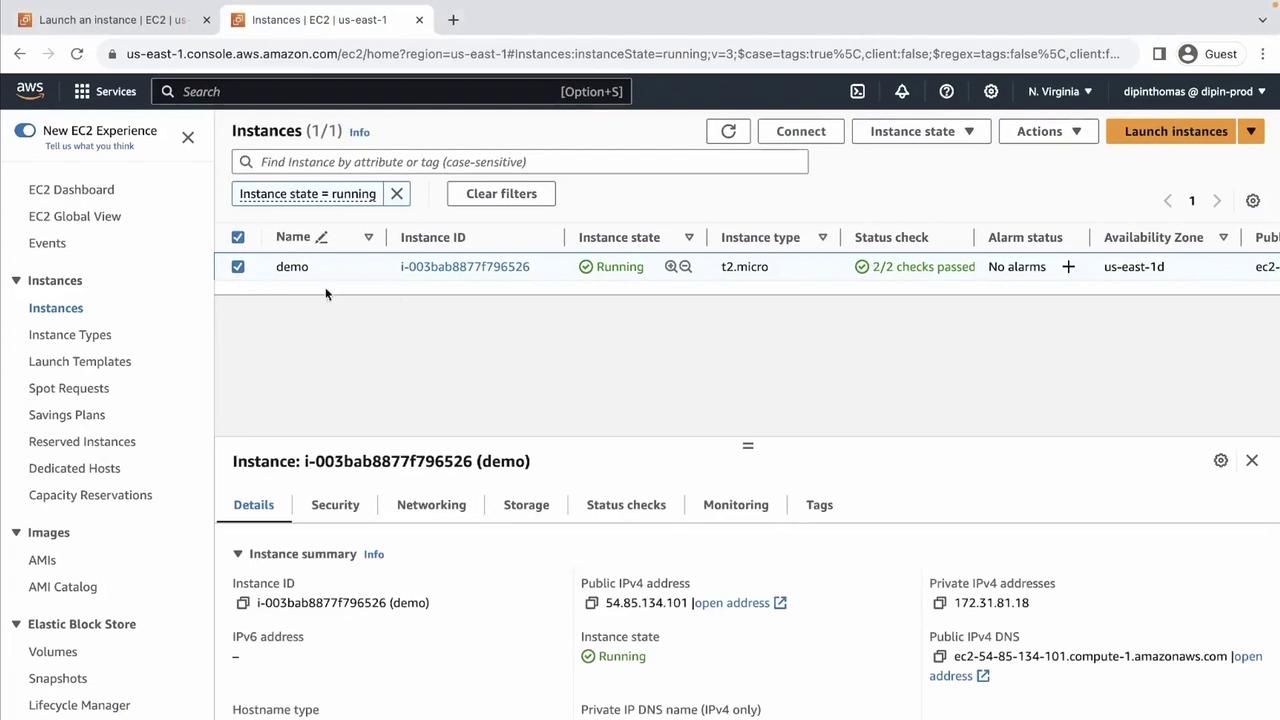
You’ll now see all available connection options.
***
## 2. EC2 Instance Connect (Browser SSH)
EC2 Instance Connect provides a quick, browser-based SSH session—no local keys required.
1. In the **Connect** dialog, choose **EC2 Instance Connect**.
2. Confirm the **Username** (default is `ec2-user` on Amazon Linux).
3. Click **Connect**.
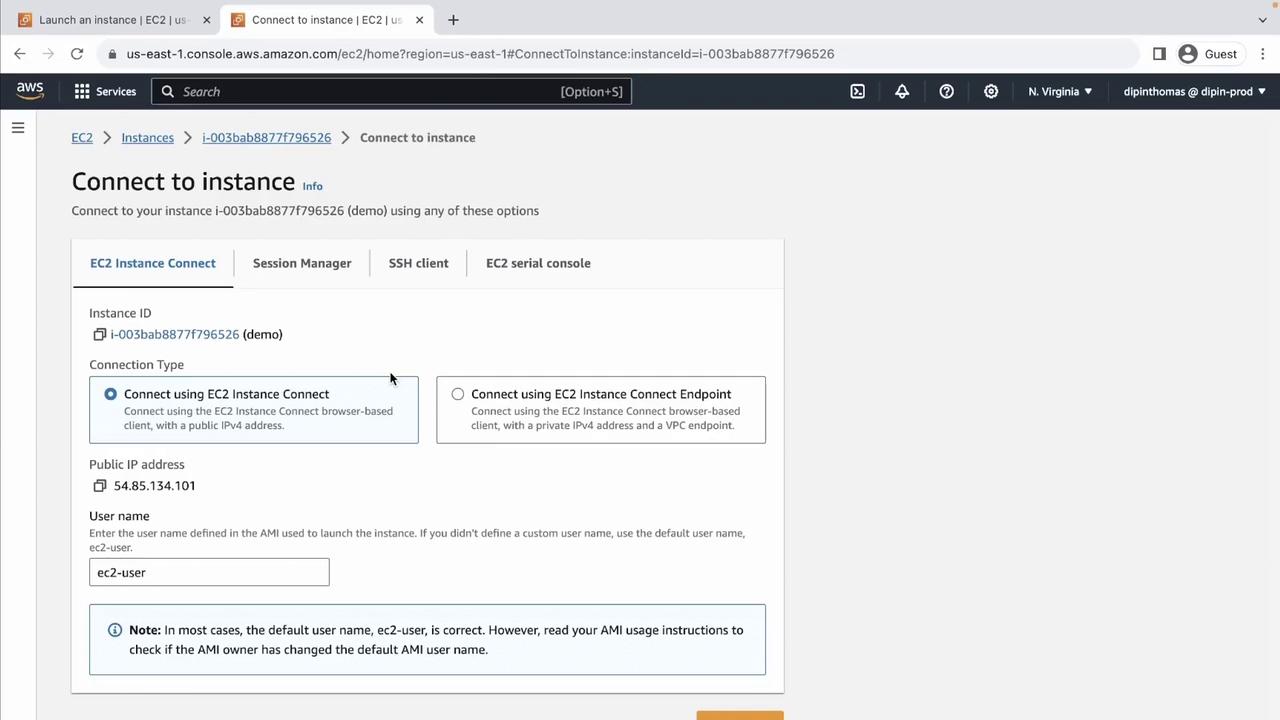
A new tab opens with your SSH shell. Verify connectivity:
```bash theme={null}
[ec2-user@ip-172-31-81-18 ~]$ ping -c 4 8.8.8.8
PING 8.8.8.8 (8.8.8.8) 56(84) bytes of data.
64 bytes from 8.8.8.8: icmp_seq=1 ttl=53 time=1.05 ms
64 bytes from 8.8.8.8: icmp_seq=2 ttl=53 time=1.07 ms
64 bytes from 8.8.8.8: icmp_seq=3 ttl=53 time=1.09 ms
--- 8.8.8.8 ping statistics ---
3 packets transmitted, 3 received, 0% packet loss, time 2003ms
```
To disconnect, simply close the browser tab.
***
## 3. EC2 Instance Connect (Private IP)
If your instance lacks a public IP but sits in a network-accessible subnet (VPN, Direct Connect), you can still launch EC2 Instance Connect over its **private IP**:
* Select **Connect over private IP** in the same dialog.
You must be within the same VPC (or have network routing configured) for private IP SSH sessions.
***
## 4. AWS Systems Manager Session Manager
Session Manager lets you establish a shell session without SSH keys or opening inbound ports.
Ensure your instance has:
* The **SSM Agent** installed
* An IAM role attached with `AmazonSSMManagedInstanceCore` policy
No additional network configuration is required. Just select **Session Manager** in the **Connect** dialog.
***
## 5. SSH Client Using a PEM Key Pair
To SSH from your workstation, use the `.pem` file downloaded when you launched the instance.
1. Set secure permissions on the key:
```bash theme={null}
chmod 400 demo.pem
```
2. Connect via SSH:
```bash theme={null}
ssh -i "demo.pem" ec2-user@ec2-54-85-134-101.compute-1.amazonaws.com
```
3. Accept the fingerprint when prompted:
```plaintext theme={null}
The authenticity of host 'ec2-54-85-134-101.compute-1.amazonaws.com (100.82.78.53)' can't be established.
ED25519 key fingerprint is SHA256:TTVrUr5IXAYZa2vFYtPx90hNGkphIpubYjaNHm9uYLs.
Are you sure you want to continue connecting (yes/no/[fingerprint])? yes
```
4. Test network connectivity:
```bash theme={null}
[ec2-user@ip-172-31-81-18 ~]$ ping -c 4 8.8.8.8
PING 8.8.8.8 (8.8.8.8) 56(84) bytes of data.
64 bytes from 8.8.8.8: icmp_seq=1 ttl=53 time=1.01 ms
64 bytes from 8.8.8.8: icmp_seq=2 ttl=53 time=1.07 ms
64 bytes from 8.8.8.8: icmp_seq=3 ttl=53 time=1.09 ms
--- 8.8.8.8 ping statistics ---
3 packets transmitted, 3 received, 0% packet loss, time 2002ms
```
5. Exit the session:
```bash theme={null}
exit
```
***
## 6. EC2 Serial Console (Low-Level Access)
For troubleshooting boot or BIOS issues, use the EC2 Serial Console.
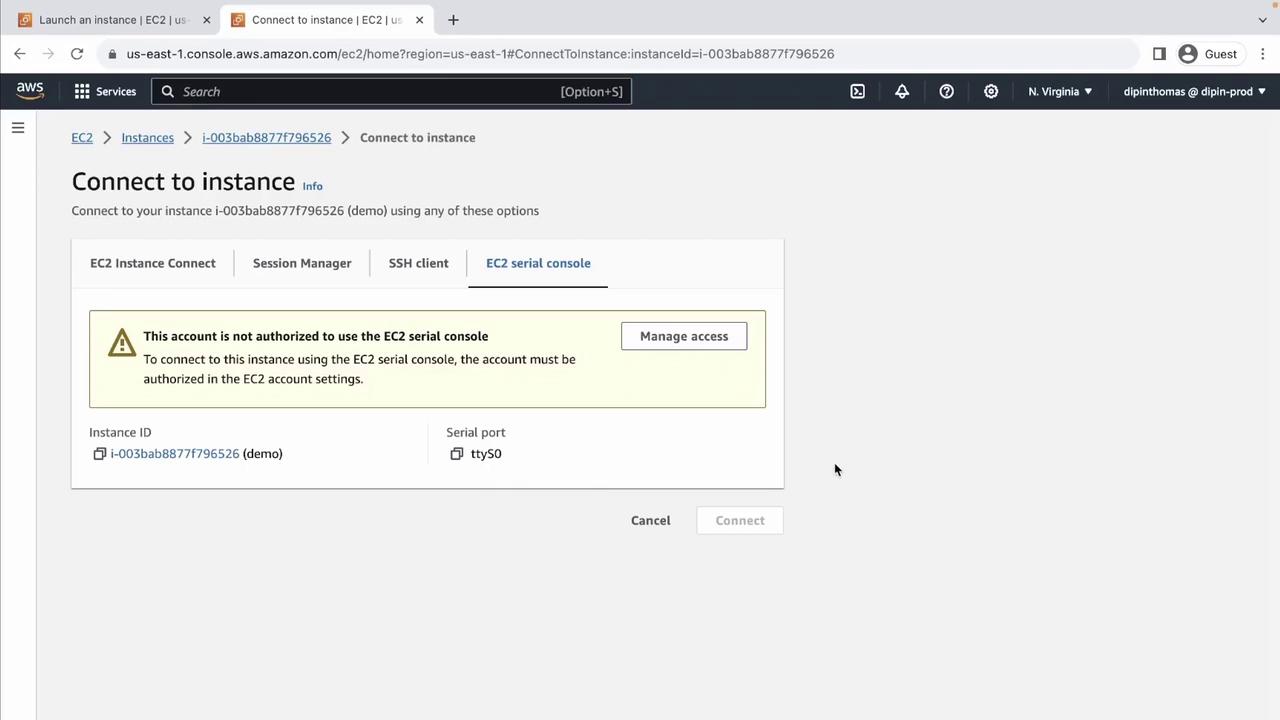
Your IAM principal must have explicit permission (`ec2-instance-connect:SendSerialConsoleSSHPublicKey`) to use the EC2 Serial Console.
***
## Further Reading and References
* [Amazon EC2 Instance Connect](https://docs.aws.amazon.com/AWSEC2/latest/UserGuide/Connect-using-EC2-Instance-Connect.html)
* [AWS Systems Manager Session Manager](https://docs.aws.amazon.com/systems-manager/latest/userguide/session-manager.html)
* [Connect to Your Linux Instance Using SSH](https://docs.aws.amazon.com/AWSEC2/latest/UserGuide/AccessingInstancesLinux.html)
* [EC2 Serial Console](https://docs.aws.amazon.com/AWSEC2/latest/UserGuide/ec2-serial-console.html)