> ## Documentation Index
> Fetch the complete documentation index at: https://notes.kodekloud.com/llms.txt
> Use this file to discover all available pages before exploring further.
# Demo Create EC2 instance using UI Part 2
> Learn to safely terminate an EC2 instance via the AWS Management Console and disable termination protection if enabled.
In this lesson, you’ll learn how to safely terminate an EC2 instance via the AWS Management Console. If termination protection is enabled, we’ll also cover how to disable it.
## Prerequisites
* An active AWS account with required IAM permissions (EC2:Describe, StopInstances, TerminateInstances).
* An existing EC2 instance to terminate.
## Overview of Termination Protection
AWS EC2 offers **Termination Protection** to prevent accidental instance deletion. When enabled, any termination attempt fails until you explicitly disable it.
Enabling termination protection is a best practice for critical workloads. It safeguards against unintended shutdowns.\
Read more: [EC2 Termination Protection](https://docs.aws.amazon.com/AWSEC2/latest/UserGuide/terminating-instances.html#instance-termination-protection)
## Step 1: Attempt to Terminate the Instance
1. Open the **EC2 Dashboard** in the AWS Management Console.
2. Select the target instance in the **Instances** list.
3. Click **Instance State** → **Terminate Instance**.
If termination protection is enabled, you’ll see an error message:
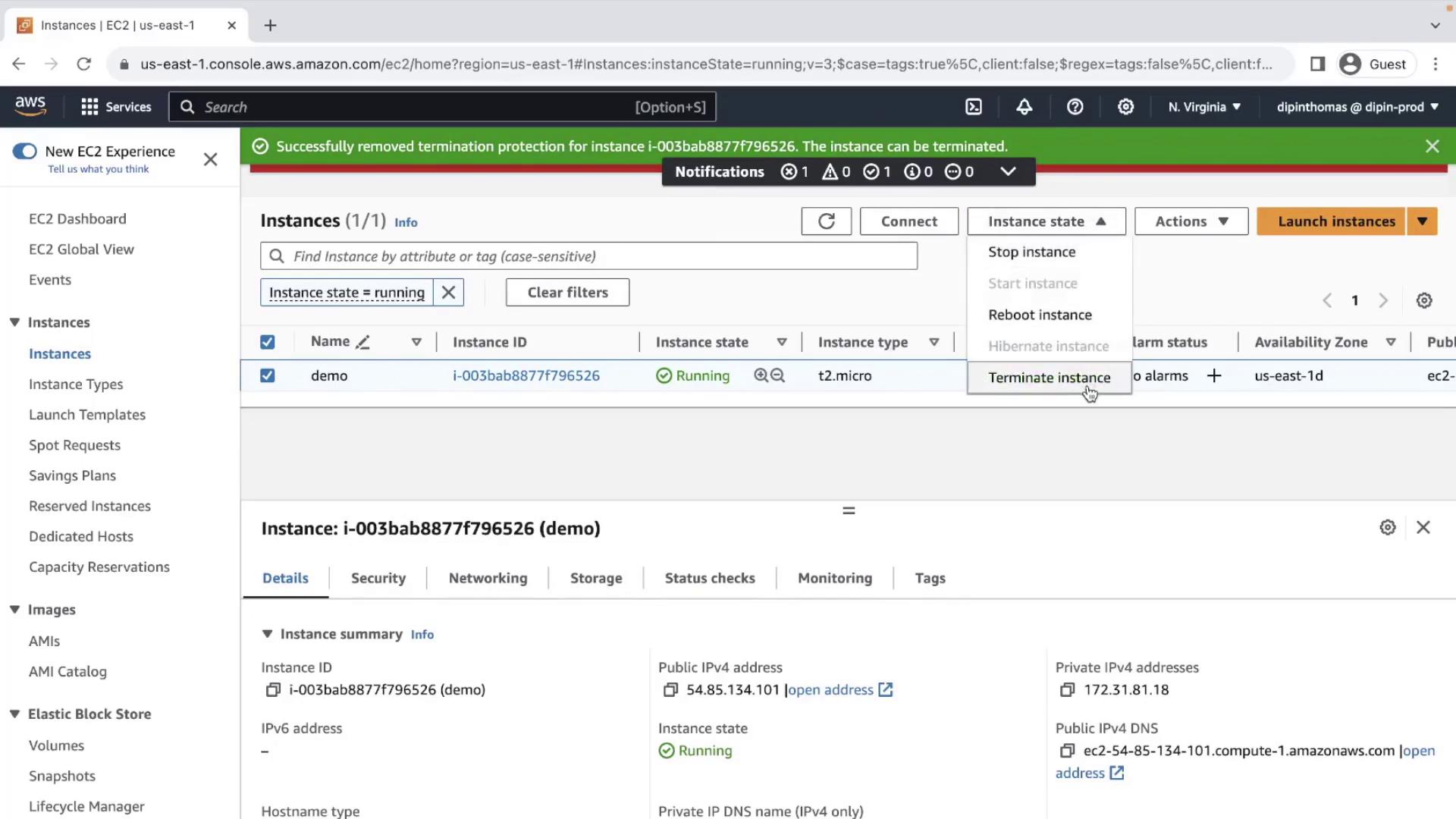
Error: “Failed to terminate instance. The instance may not be terminated.”\
This indicates that **Termination Protection** is active.
## Step 2: Disable Termination Protection
1. With the same instance selected, choose **Actions** → **Instance Settings** → **Change Termination Protection**.
2. In the dialog, uncheck **Enable** and click **Save**.
## Step 3: Terminate the Instance
1. Again, select the instance and navigate to **Instance State** → **Terminate Instance**.
2. Confirm the action in the pop-up.
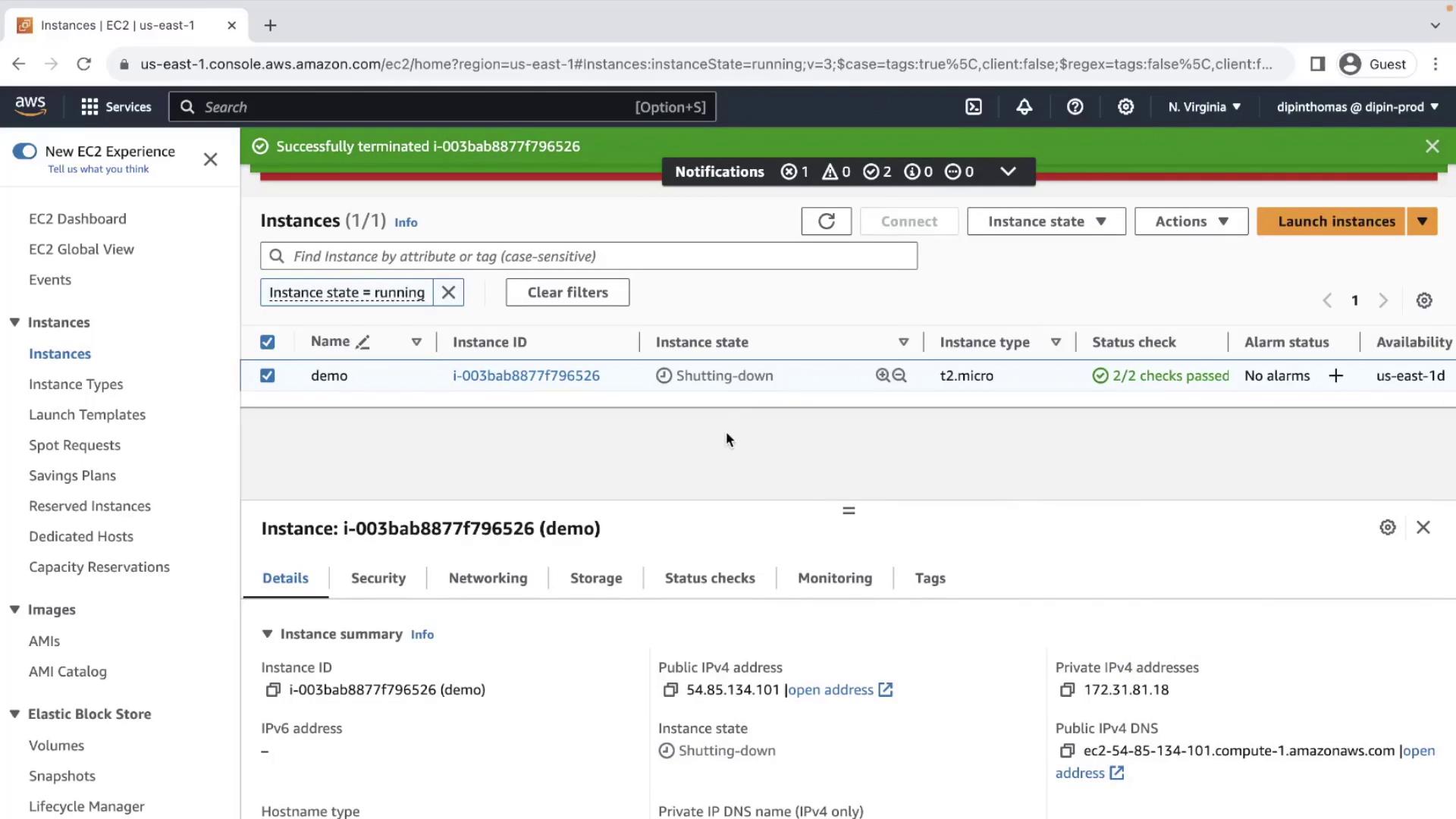
The instance state will progress as follows:
| Instance State | Description |
| -------------- | ------------------------------------------- |
| running | Instance is active and accepting traffic. |
| shutting-down | Termination has been initiated. |
| terminated | Instance has been deleted and cannot start. |
Eventually, you’ll see:
***
## References
* [Amazon EC2 User Guide – Terminating EC2 Instances](https://docs.aws.amazon.com/AWSEC2/latest/UserGuide/terminating-instances.html)
* [AWS IAM Permissions for EC2](https://docs.aws.amazon.com/IAM/latest/UserGuide/list_amazonec2.html)
* [AWS Management Console](https://aws.amazon.com/console/)