> ## Documentation Index
> Fetch the complete documentation index at: https://notes.kodekloud.com/llms.txt
> Use this file to discover all available pages before exploring further.
# EC2 Instance and IAM role
> This guide covers using IAM roles for secure permission management on EC2 instances without long-term access keys.
Welcome! In this guide, we cover how to use IAM roles to securely grant permissions to your EC2 instances without embedding long-term access keys.
## Why You Need IAM Roles
Managing static AWS access keys on EC2 instances poses several operational and security challenges:
* Securely provisioning credentials to every new instance.
* Rotating keys when they expire or are compromised.
* Preventing API request failures due to missing or revoked keys.
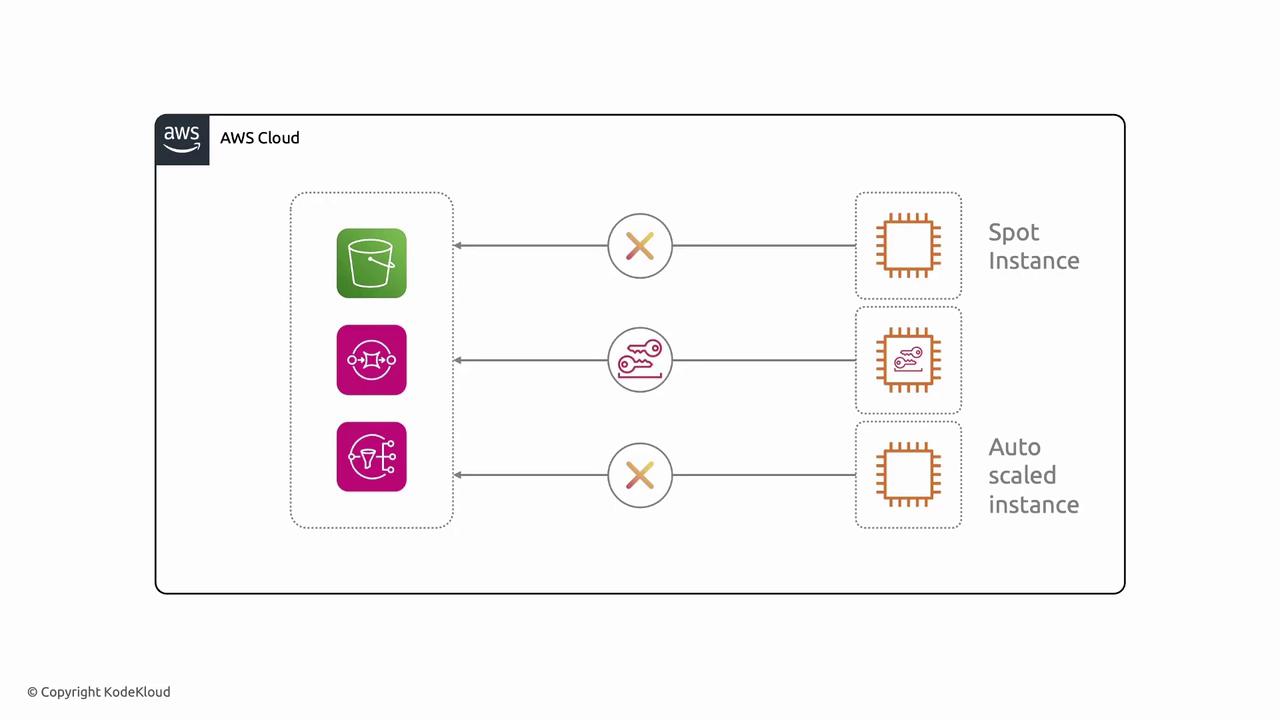
Static credentials don’t scale in dynamic environments. IAM roles deliver temporary credentials automatically, solving distribution and rotation issues.
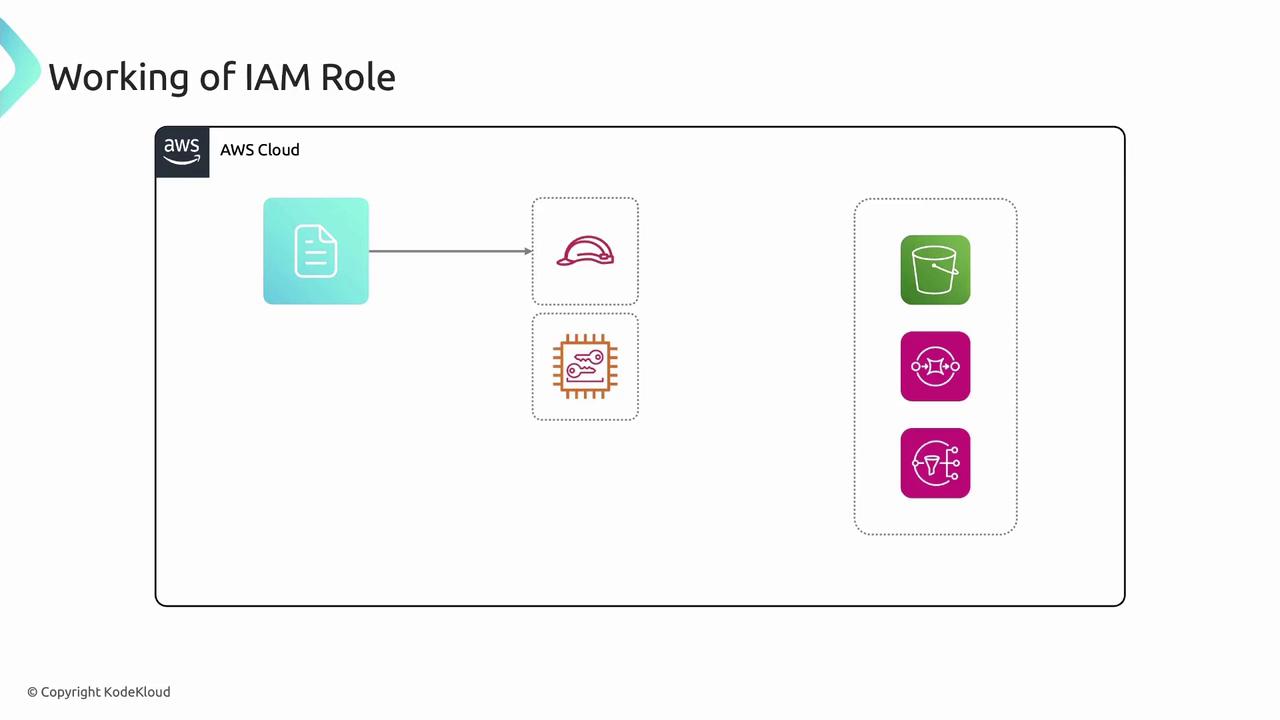
Instances with IAM roles receive short-lived credentials from the metadata service. This eliminates the need to store access keys on disk.
## What Is an IAM Role?
An IAM role is an AWS identity with attached permissions defined by IAM policies. Unlike an IAM user, a role:
* Isn’t tied to a specific individual.
* Has no long-term credentials (no static keys or passwords).
* Can be assumed by authorized entities (EC2, Lambda, ECS, etc.).
When you launch an EC2 instance, attach a role—and AWS will provision temporary credentials (AccessKeyId, SecretAccessKey, Token) via the instance metadata service.
## EC2 Instance Metadata Service
EC2 instance metadata provides instance information and temporary credentials at a fixed IP address. To list all metadata categories:
```bash theme={null}
curl http://169.254.169.254/latest/meta-data/
```
Sample output:
* ami-id/
* instance-id/
* iam/
* instance-action/
Enable and enforce IMDSv2 on your instances to protect against SSRF attacks. See [AWS IMDSv2 documentation](https://docs.aws.amazon.com/AWSEC2/latest/UserGuide/configuring-instance-metadata-service.html).
## Retrieving Temporary Credentials
Assuming your role is named `s3access`, fetch credentials with:
```bash theme={null}
curl http://169.254.169.254/latest/meta-data/iam/security-credentials/s3access
```
Example response:
```json theme={null}
{
"Code" : "Success",
"LastUpdated" : "2023-06-15T12:00:00Z",
"Type" : "AWS-HMAC",
"AccessKeyId" : "ASIAEXAMPLE",
"SecretAccessKey" : "wJalrExampleKEY",
"Token" : "IQoJb3JpZ2luX2VjExampleToken",
"Expiration" : "2023-06-15T18:00:00Z"
}
```
These credentials expire automatically and cannot be reused elsewhere.
## Using AWS CLI with IAM Roles
With the IAM role attached, the AWS CLI handles credential retrieval and signing transparently. For example, list an S3 bucket:
```bash theme={null}
aws s3 ls s3://example-bucket
```
Under the hood:
1. CLI requests temporary credentials from the metadata service.
2. It uses those credentials to sign API calls.
3. Results (e.g., bucket contents) are returned.
 ## Best Practices
| Practice | Recommendation |
| ----------------------- | --------------------------------------------------------------------- |
| Use IAM Roles | Avoid embedding keys; assign minimal privileges to roles. |
| Enforce IMDSv2 | Require session tokens and mitigate SSRF risks. |
| Rotate Policies | Update IAM policies regularly to follow least-privilege principles. |
| Monitor with CloudTrail | Track IAM role assumptions and API calls for auditing and compliance. |
## Summary
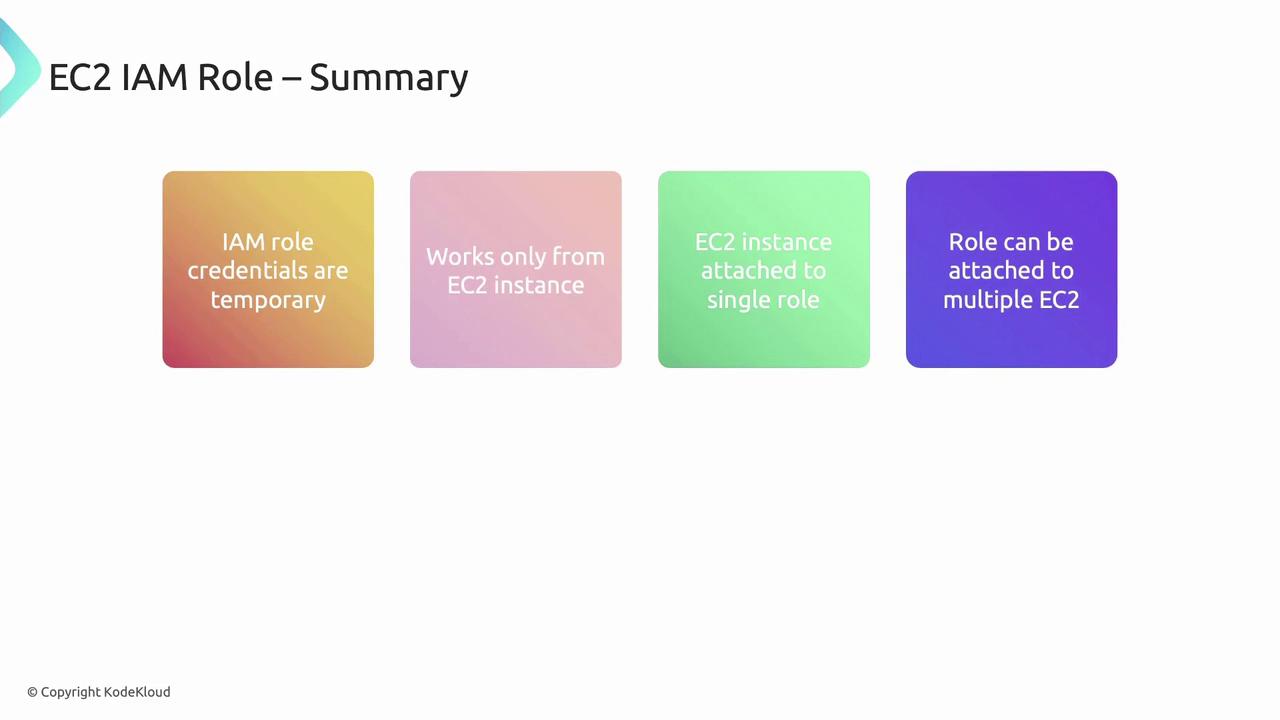
* IAM roles provide temporary, auto-rotated credentials scoped to your EC2 instances.
* A single EC2 instance can hold one IAM role, while a role can attach to multiple instances.
* AWS SDKs, CLI, and tools automatically retrieve metadata credentials without manual intervention.
## Links and References
* [AWS IAM Roles Documentation](https://docs.aws.amazon.com/IAM/latest/UserGuide/id_roles.html)
* [EC2 Instance Metadata Service](https://docs.aws.amazon.com/AWSEC2/latest/UserGuide/instancedata-data-retrieval.html)
* [AWS CLI Reference](https://docs.aws.amazon.com/cli/latest/reference/)
* [AWS Security Best Practices](https://aws.amazon.com/whitepapers/security/)
## Best Practices
| Practice | Recommendation |
| ----------------------- | --------------------------------------------------------------------- |
| Use IAM Roles | Avoid embedding keys; assign minimal privileges to roles. |
| Enforce IMDSv2 | Require session tokens and mitigate SSRF risks. |
| Rotate Policies | Update IAM policies regularly to follow least-privilege principles. |
| Monitor with CloudTrail | Track IAM role assumptions and API calls for auditing and compliance. |
## Summary
* IAM roles provide temporary, auto-rotated credentials scoped to your EC2 instances.
* A single EC2 instance can hold one IAM role, while a role can attach to multiple instances.
* AWS SDKs, CLI, and tools automatically retrieve metadata credentials without manual intervention.

## Links and References
* [AWS IAM Roles Documentation](https://docs.aws.amazon.com/IAM/latest/UserGuide/id_roles.html)
* [EC2 Instance Metadata Service](https://docs.aws.amazon.com/AWSEC2/latest/UserGuide/instancedata-data-retrieval.html)
* [AWS CLI Reference](https://docs.aws.amazon.com/cli/latest/reference/)
* [AWS Security Best Practices](https://aws.amazon.com/whitepapers/security/)