> ## Documentation Index
> Fetch the complete documentation index at: https://notes.kodekloud.com/llms.txt
> Use this file to discover all available pages before exploring further.
# Disk partition management snapshots
> This article explores managing disk partitions on AWS EC2 instances, focusing on EBS volumes and scheduling snapshots for data recovery.
In this article, we explore how to manage disk partitions on [AWS EC2](https://aws.amazon.com/ec2/) instances. By separating the operating system (OS) from application data into distinct partitions—and, crucially, onto separate [EBS volumes](https://aws.amazon.com/ebs/)—you minimize the risk of data loss if the OS partition becomes corrupted, and you simplify recovery.
Always ensure you have proper backups before resizing or modifying partitions. Unexpected interruptions can lead to data loss.
## Choosing the Right EBS Volume Type
Selecting the appropriate EBS volume type is critical for meeting your performance requirements. AWS offers SSD-backed volumes with varying baseline throughput and IOPS:
| Volume Type | Use Case | Baseline IOPS |
| ----------- | ----------------------------- | ------------- |
| gp3 | Balanced cost and performance | Up to 16,000 |
| gp2 | General-purpose workloads | 3 IOPS/GiB |
| io1 | High-performance databases | Up to 64,000 |
| io2 | Mission-critical applications | Up to 64,000 |
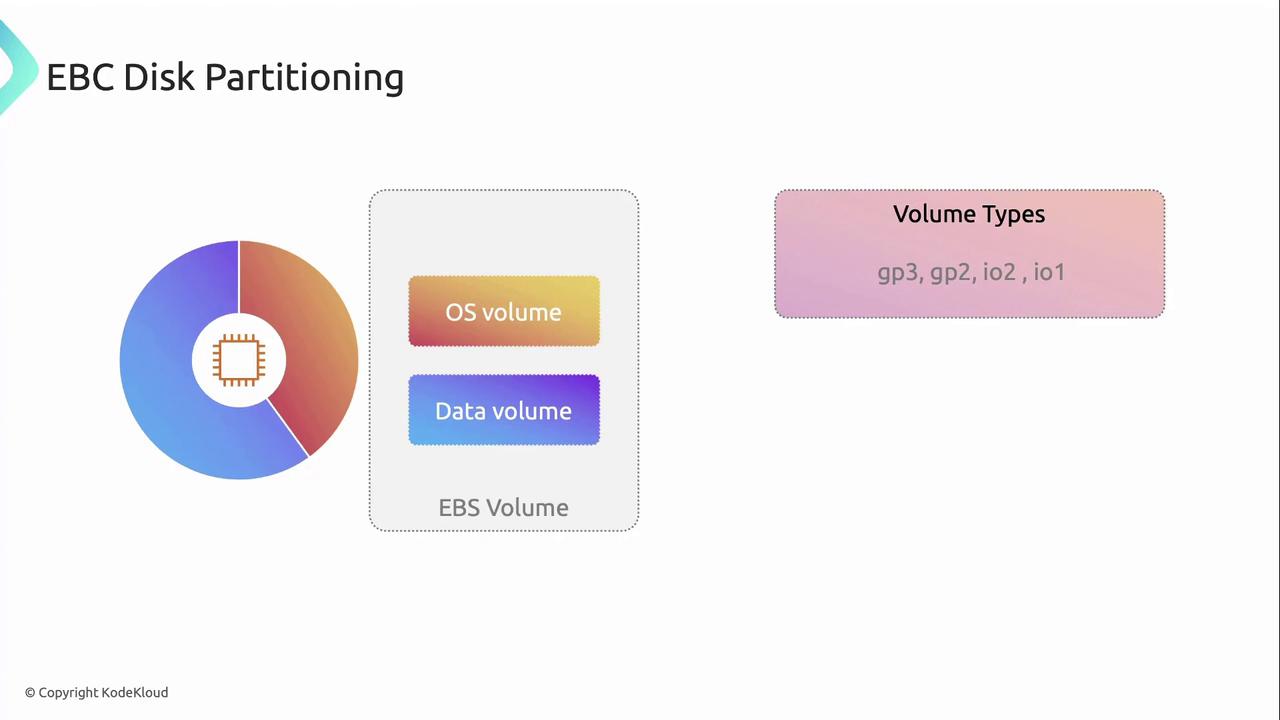
gp3 volumes let you provision IOPS and throughput independently, often yielding cost savings for variable workloads.
## Scheduling Point-in-Time Recovery with EBS Snapshots
To guarantee point-in-time recovery of your data, schedule regular [EBS snapshots](https://docs.aws.amazon.com/AWSEC2/latest/UserGuide/ebs-creating-snapshot.html). A snapshot captures the exact state of a volume at the moment it’s taken, enabling you to restore data to that precise point.
### Automating Snapshot Creation
Use Amazon Data Lifecycle Manager (DLM) or AWS Backup to automate snapshot schedules:
```bash theme={null}
# Create a lifecycle policy for daily snapshots
aws dlm create-lifecycle-policy \
--description "Daily snapshot policy for critical volumes" \
--state ENABLED \
--resource-types VOLUME \
--schedules "Name=DailySchedule,CopyTags=true,TagsToAdd=[{Key=Backup,Value=Daily}],CreateRule={Interval=24,IntervalUnit=HOURS}"
```
### Restoring from a Snapshot
```bash theme={null}
# Restore a volume from a snapshot
aws ec2 create-volume \
--availability-zone us-west-2a \
--snapshot-id snap-1234567890abcdef0 \
--volume-type gp3 \
--tag-specifications 'ResourceType=volume,Tags=[{Key=Name,Value=RestoredVolume}]'
```
## References
* [Amazon EC2 User Guide](https://docs.aws.amazon.com/ec2/)
* [AWS Backup Documentation](https://docs.aws.amazon.com/backup/)
* [Amazon Data Lifecycle Manager](https://docs.aws.amazon.com/dlm/)