> ## Documentation Index
> Fetch the complete documentation index at: https://notes.kodekloud.com/llms.txt
> Use this file to discover all available pages before exploring further.

# Demo Presigned URLs

> This walkthrough explains how to create S3 buckets, upload objects, and generate pre-signed URLs for secure access.

Pre-signed URLs are a powerful feature of Amazon S3 that allow you to grant time-limited access to private objects without changing your bucket’s ACL or policy. This walkthrough explains how to:

* Create an S3 bucket with secure default settings
* Upload and verify objects
* Generate pre-signed URLs via the AWS Management Console
* Demonstrate permission boundaries with a restricted IAM user

## 1. Create an S3 Bucket

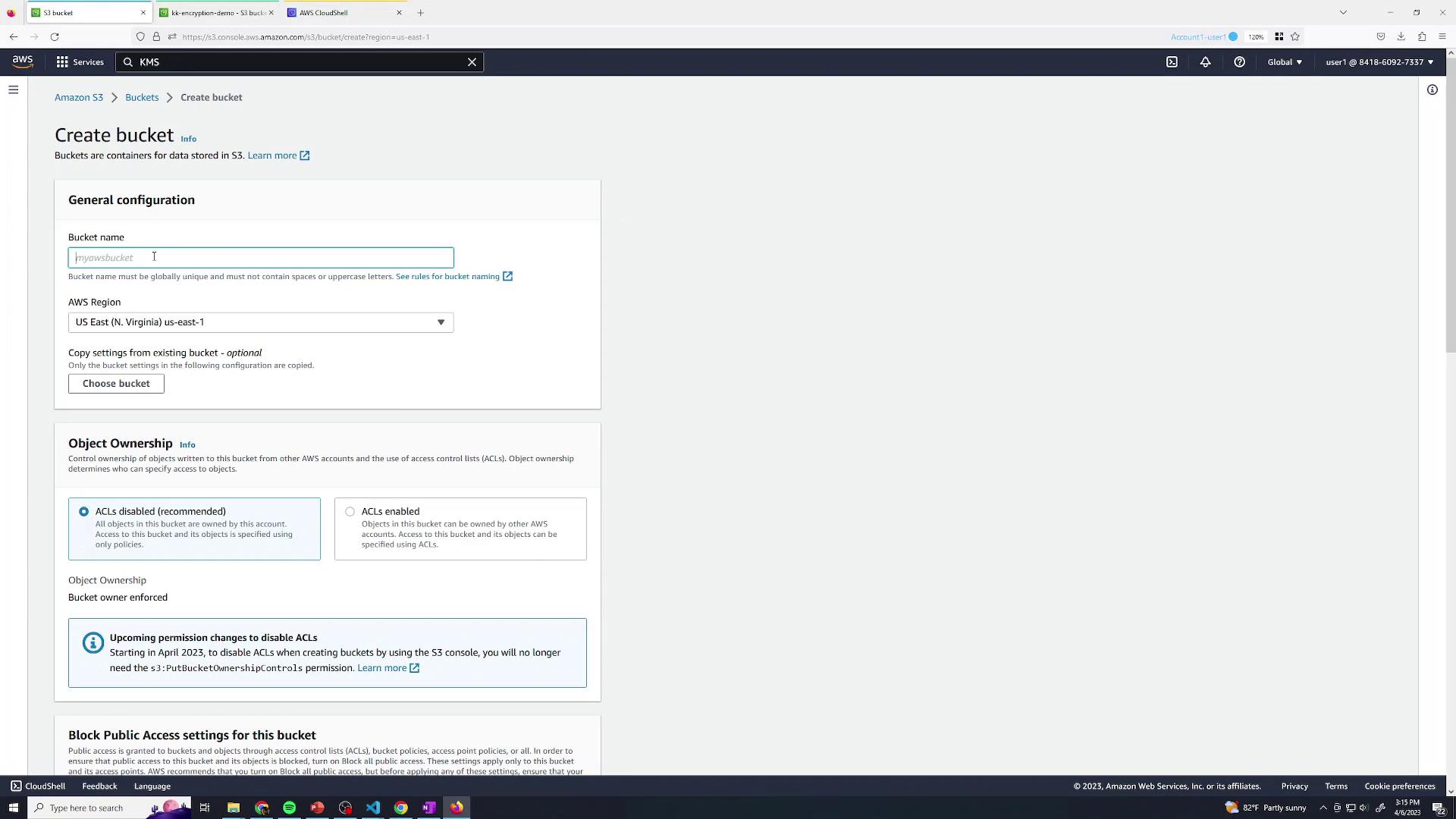
Start by creating a new S3 bucket using default settings:
<Frame>
  ![The image shows the AWS S3 console interface for creating a new bucket, with fields for bucket name, region selection, and object ownership settings.](https://kodekloud.com/kk-media/image/upload/v1752869176/notes-assets/images/Amazon-Simple-Storage-Service-Amazon-S3-Demo-Presigned-URLs/aws-s3-console-create-bucket-interface.jpg)
</Frame>

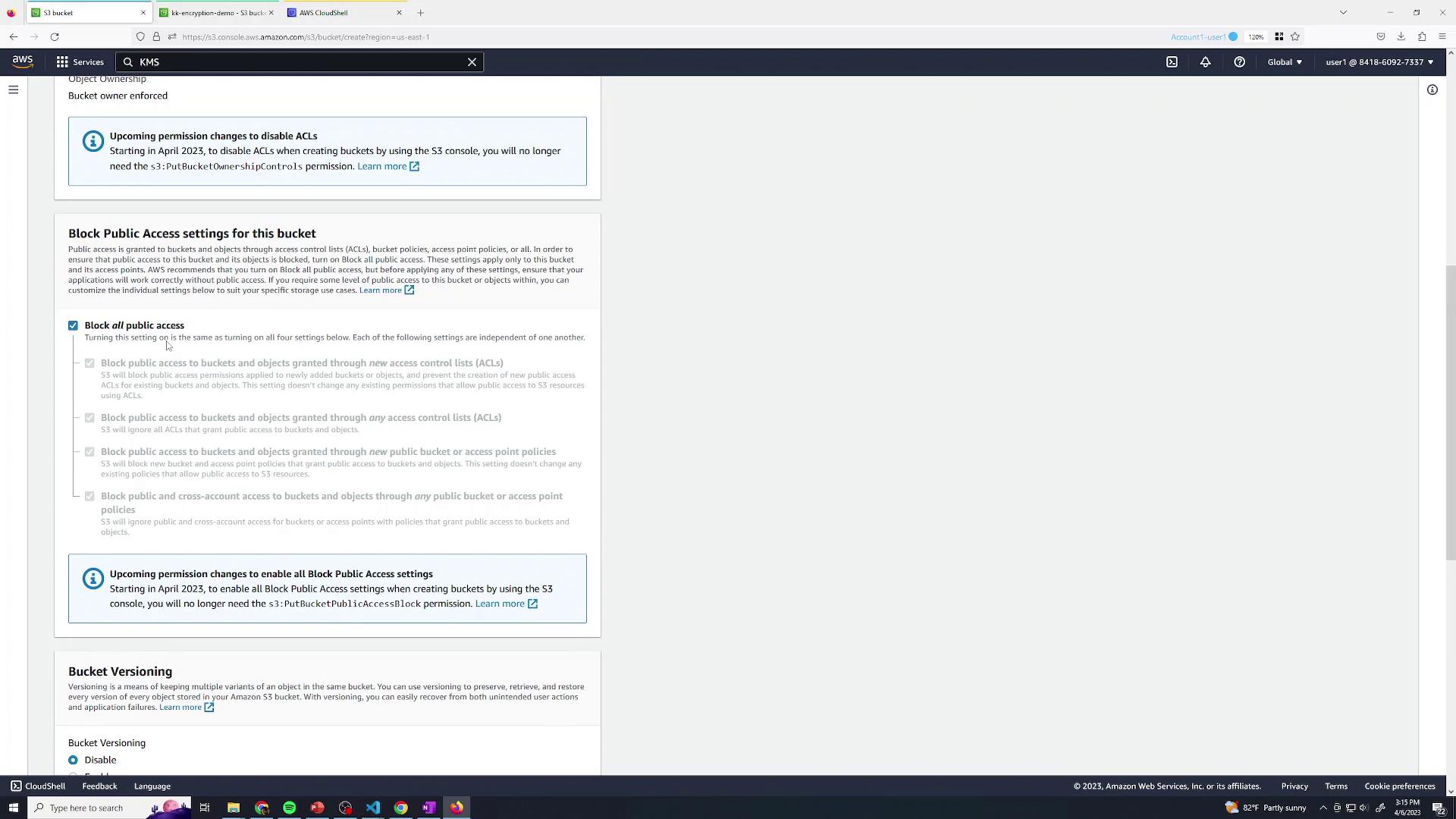
Ensure all options remain at their defaults and **block public access** for enhanced security:
<Frame>
  ![The image shows an AWS S3 console screen with settings for blocking public access to a bucket, including options for access control lists and policies. There is also a section for bucket versioning settings.](https://kodekloud.com/kk-media/image/upload/v1752869178/notes-assets/images/Amazon-Simple-Storage-Service-Amazon-S3-Demo-Presigned-URLs/aws-s3-console-block-public-access.jpg)
</Frame>

<Callout icon="lightbulb" color="#1CB2FE">
  By blocking public access and relying on IAM, you safeguard your data against unintended exposure.
</Callout>

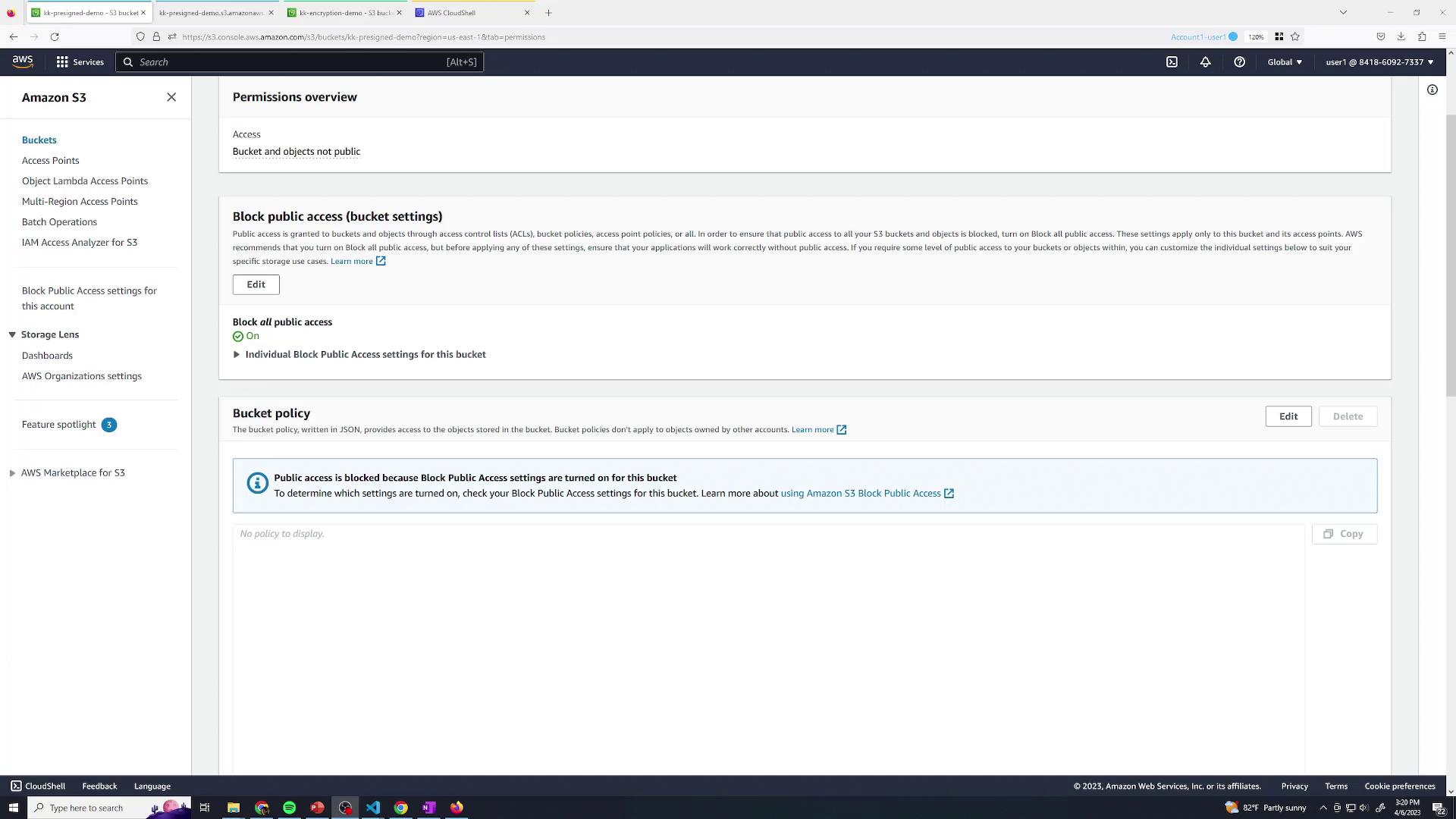
At this point, only your AWS account (root user or explicitly granted IAM identities) can access the bucket.

## 2. Upload an Object

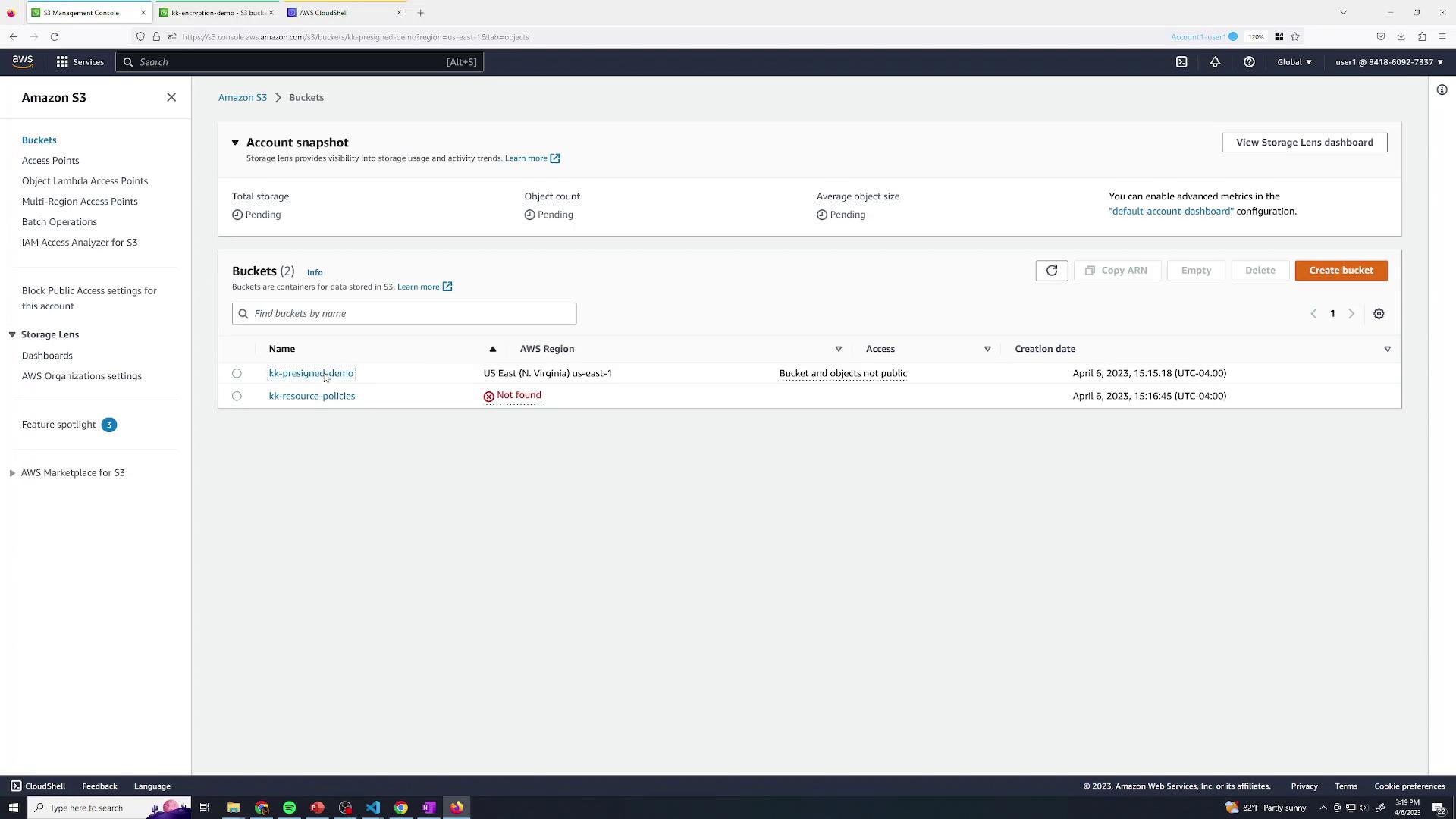
Next, upload a test file (e.g., `boat.jpg`) to your bucket:
<Frame>
  ![The image shows an Amazon S3 management console with a list of two buckets, their regions, access status, and creation dates. The console also displays options for managing buckets and accessing various AWS services.](https://kodekloud.com/kk-media/image/upload/v1752869179/notes-assets/images/Amazon-Simple-Storage-Service-Amazon-S3-Demo-Presigned-URLs/amazon-s3-management-console-buckets.jpg)
</Frame>

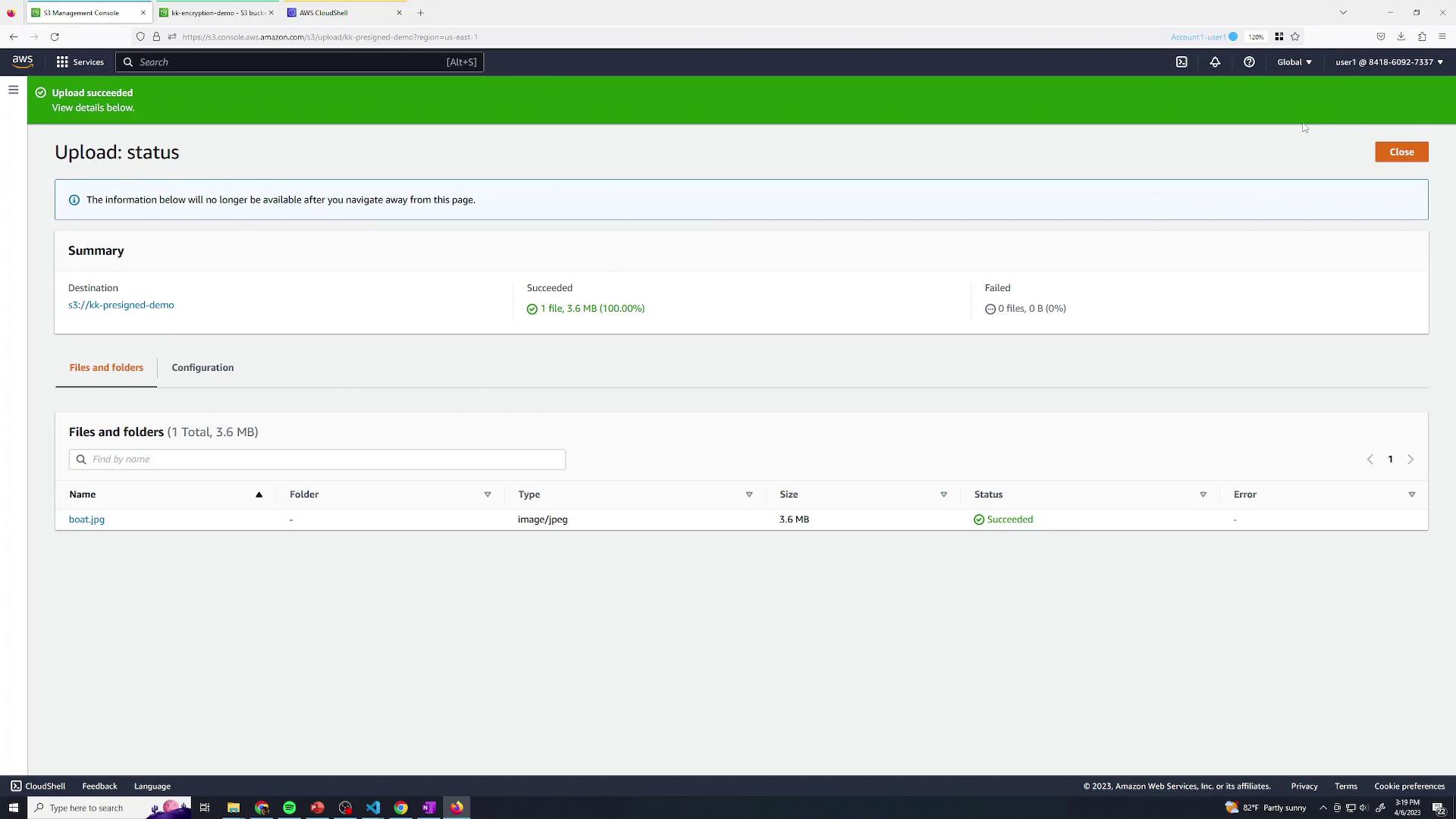
After initiating the upload, watch for the completion notification:
<Frame>
  ![The image shows an AWS S3 Management Console screen indicating a successful upload of a file named "boat.jpg" with a size of 3.6 MB.](https://kodekloud.com/kk-media/image/upload/v1752869180/notes-assets/images/Amazon-Simple-Storage-Service-Amazon-S3-Demo-Presigned-URLs/aws-s3-console-successful-upload-boatjpg.jpg)
</Frame>

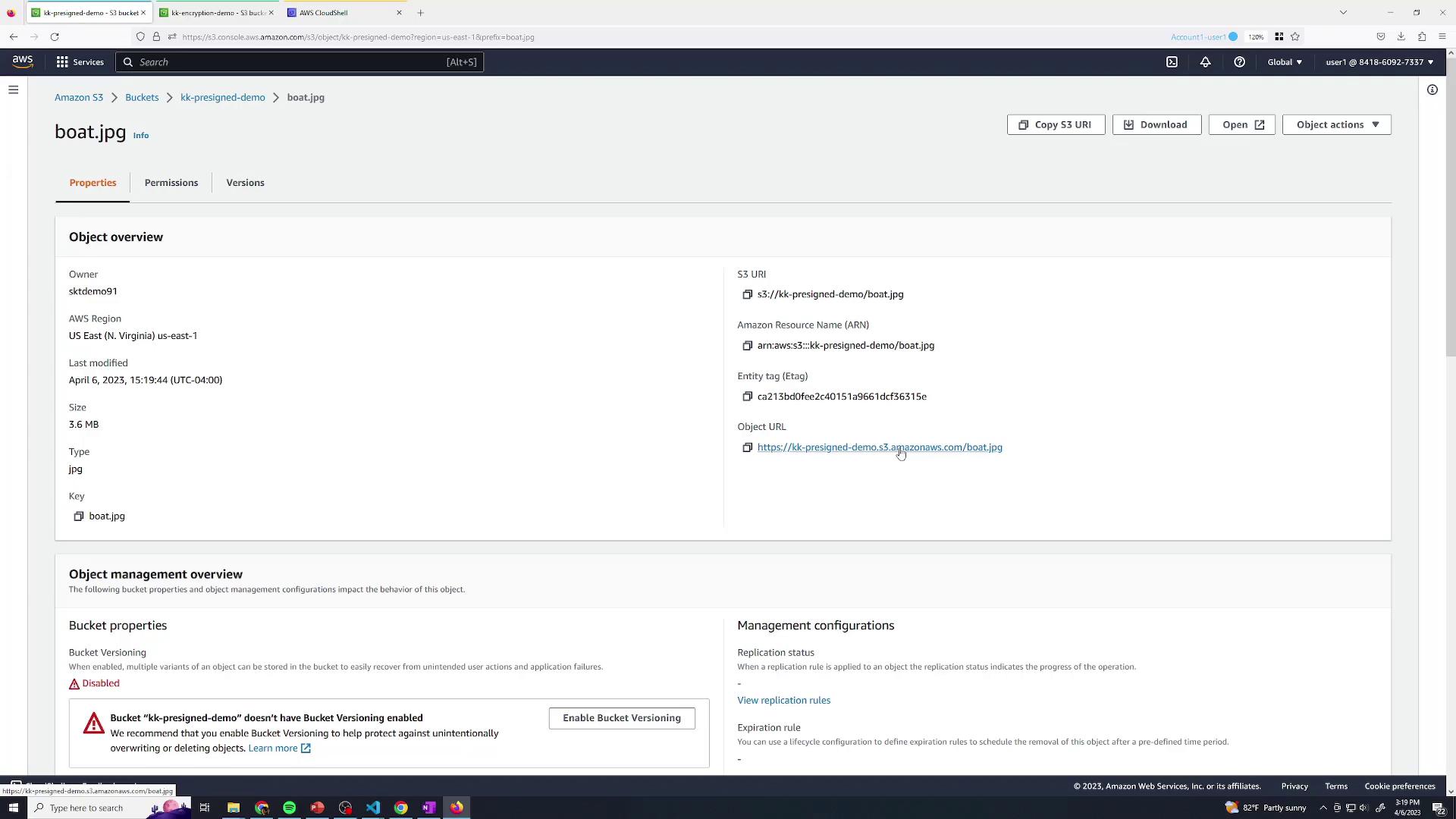
You can view the object details as an authenticated user:
<Frame>
  ![The image shows an Amazon S3 console interface displaying details of an object named "boat.jpg" in a bucket. It includes information such as the object's size, type, last modified date, and URLs.](https://kodekloud.com/kk-media/image/upload/v1752869181/notes-assets/images/Amazon-Simple-Storage-Service-Amazon-S3-Demo-Presigned-URLs/amazon-s3-console-boatjpg-details.jpg)
</Frame>

If you open the S3 URL in a private browser session, you’ll see an **Access Denied** error since the object is private.

## 3. Generate a Pre-Signed URL via AWS Console

To share your object temporarily without altering bucket policies, generate a pre-signed URL:

1. Open the object’s detail page and click **Share with a pre-signed URL**:
<Frame>
  ![The image shows an Amazon S3 permissions overview page, indicating that the bucket and objects are not public, with block public access settings enabled.](https://kodekloud.com/kk-media/image/upload/v1752869183/notes-assets/images/Amazon-Simple-Storage-Service-Amazon-S3-Demo-Presigned-URLs/amazon-s3-permissions-overview-block-access.jpg)
</Frame>

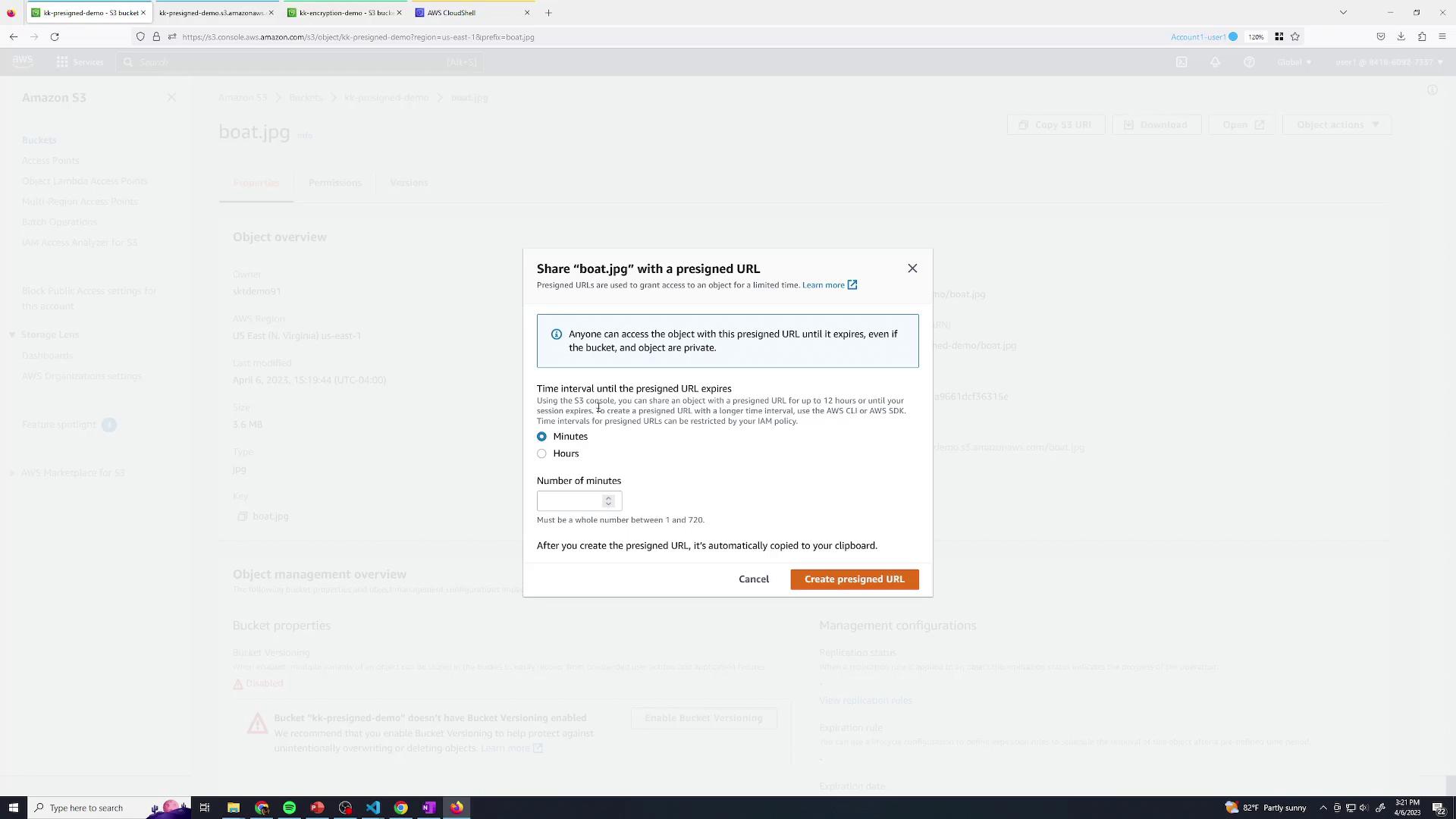
2. In the sharing dialog, set an expiration (e.g., 30 minutes) and click **Create pre-signed URL**:
<Frame>
  ![The image shows an Amazon S3 console screen with a pop-up for sharing "boat.jpg" using a presigned URL, allowing temporary access to the object. The pop-up includes options to set the expiration time for the URL.](https://kodekloud.com/kk-media/image/upload/v1752869186/notes-assets/images/Amazon-Simple-Storage-Service-Amazon-S3-Demo-Presigned-URLs/amazon-s3-presigned-url-sharing-popup.jpg)
</Frame>

3. The generated URL is automatically copied to your clipboard. Any user with this link can retrieve `boat.jpg` until it expires.

While the Console is great for one-off sharing, production workflows typically use the [AWS SDK](https://aws.amazon.com/tools/) or [AWS CLI](https://aws.amazon.com/cli/) to programmatically issue pre-signed URLs.

## 4. Permission Demo with a Restricted IAM User

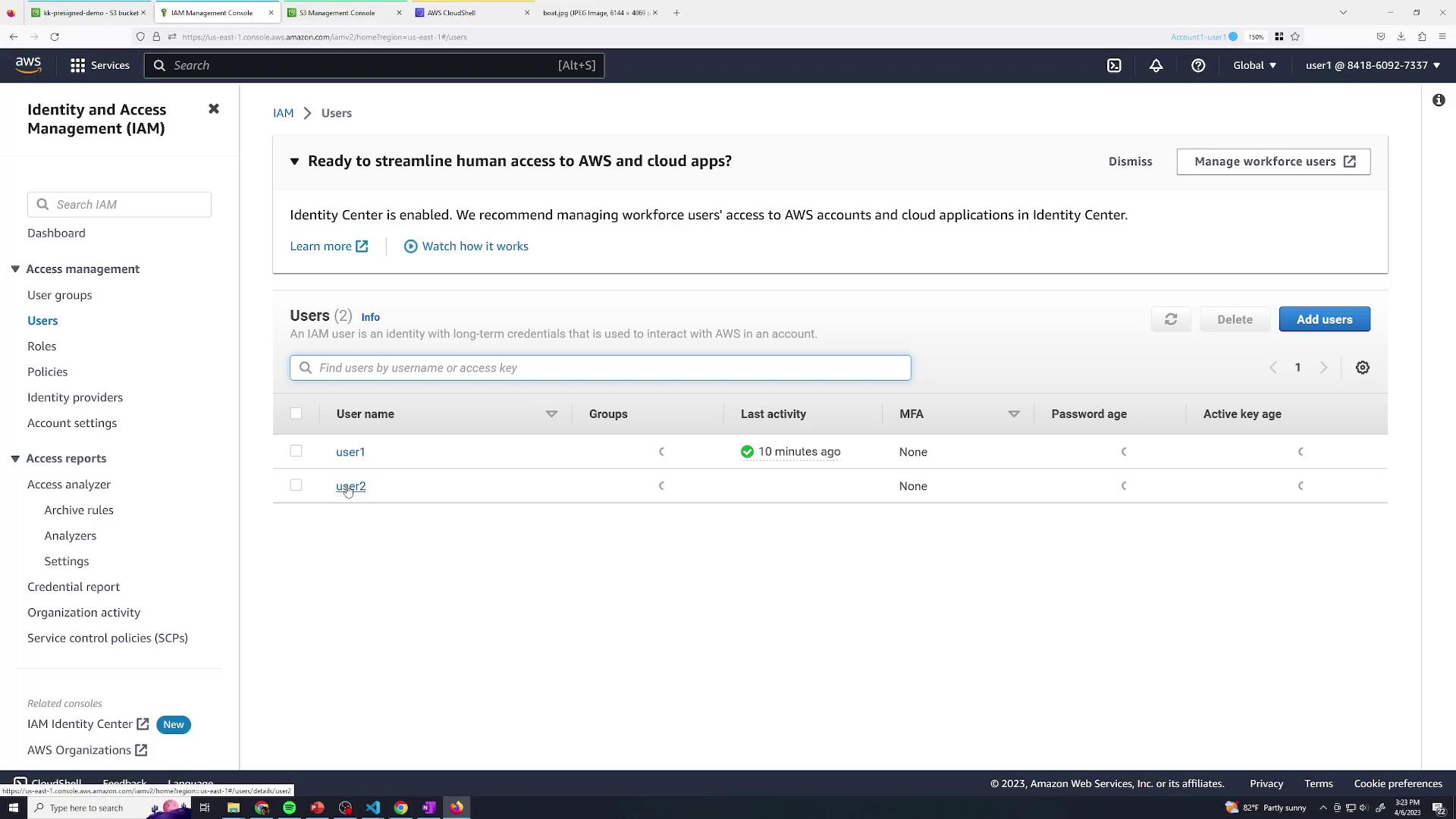
Let’s illustrate how IAM policies affect pre-signed URLs. We have a user named **user2** who only has permissions to list buckets:
<Frame>
  ![The image shows the AWS Identity and Access Management (IAM) console, displaying a list of users with details such as last activity and MFA status.](https://kodekloud.com/kk-media/image/upload/v1752869188/notes-assets/images/Amazon-Simple-Storage-Service-Amazon-S3-Demo-Presigned-URLs/aws-iam-console-users-list-details.jpg)
</Frame>

Below is the policy attached to **user2**:

```json theme={null}
{
    "Version": "2012-10-17",
    "Statement": [
        {
            "Sid": "VisualEditor",
            "Effect": "Allow",
            "Action": [
                "s3:ListAllMyBuckets",
                "s3:ListBucket"
            ],
            "Resource": "*"
        }
    ]
}
```

| Action Allowed      | Description                     |
| ------------------- | ------------------------------- |
| s3:ListAllMyBuckets | View all buckets in the account |
| s3:ListBucket       | List objects within a bucket    |

Since **user2** lacks `s3:GetObject`, they receive an **Access Denied** error when directly accessing `boat.jpg`:

```xml theme={null}
<Error>
  <Code>AccessDenied</Code>
  <Message>Access Denied</Message>
  <RequestId>AHK7JSNDOI93/Y4/RequestId</RequestId>
  <HostId>ABN4lmOqPyYoV2StMdc9DlyhwFJxl.XoDAp1LhYgoKC8W0</HostId>
</Error>
```

If **user2** generates a pre-signed URL (30-minute expiration) and an anonymous user tries to use it, they encounter the same `Access Denied` response:

```xml theme={null}
<Error>
  <Code>AccessDenied</Code>
  <Message>Access Denied</Message>
  <RequestId>5648S6RRMZ5F1S5T</RequestId>
  <HostId>1gXiuD2vm6W7cG7iWcRjdmxisz7sj6FtH8D9ArtnX3i2hdyg42IRzBTrFe0Zmg=</HostId>
</Error>
```

<Callout icon="lightbulb" color="#1CB2FE">
  A pre-signed URL inherits the creator’s IAM permissions. To allow download, the issuer must have `s3:GetObject`.
</Callout>

## 5. Conclusion

Amazon S3 pre-signed URLs offer a secure way to grant temporary, explicit access to private objects without exposing your entire bucket. They respect existing IAM and bucket policies, ensuring your data remains protected.

## Links and References

* [Amazon S3 Pre-Signed URLs Documentation](https://docs.aws.amazon.com/AmazonS3/latest/userguide/ShareObjectPreSignedURL.html)
* [AWS SDKs and Tools](https://aws.amazon.com/tools/)
* [AWS CLI Reference](https://docs.aws.amazon.com/cli/latest/reference/)
* [AWS IAM Documentation](https://docs.aws.amazon.com/IAM/latest/UserGuide/)

<CardGroup>
  <Card title="Watch Video" icon="video" cta="Learn more" href="https://learn.kodekloud.com/user/courses/amazon-simple-storage-service-amazon-s3/module/90fd6d76-d0d4-481c-b267-b9247a005a6e/lesson/5e2698e7-472c-4ad1-95fa-14b297f24b1b" />

  <Card title="Practice Lab" icon="installation" cta="Learn more" href="https://learn.kodekloud.com/user/courses/amazon-simple-storage-service-amazon-s3/module/90fd6d76-d0d4-481c-b267-b9247a005a6e/lesson/aa8bcd23-9bad-4509-879d-41f2e7dd3e14" />
</CardGroup>
