> ## Documentation Index
> Fetch the complete documentation index at: https://notes.kodekloud.com/llms.txt
> Use this file to discover all available pages before exploring further.

# Demo S3 Replication

> Learn to set up cross-region replication between Amazon S3 buckets, including creating buckets, configuring rules, reviewing IAM roles, and testing replication.

Learn how to set up cross-region replication between two Amazon S3 buckets. This guide walks you through creating source and destination buckets, configuring replication rules, reviewing IAM roles, and testing replication. The same steps apply to same-region replication.

## 1. Create Source and Destination Buckets

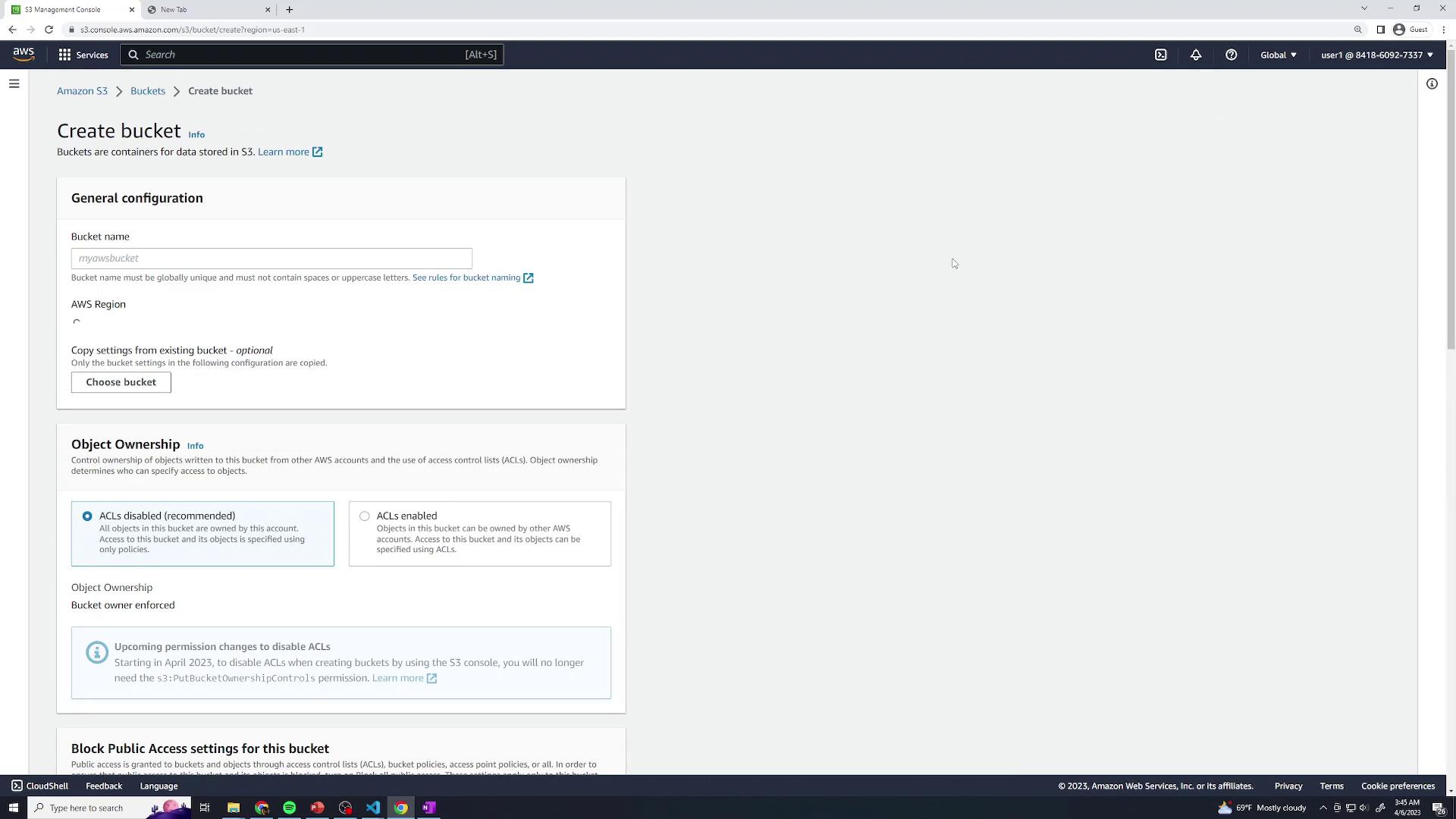
1. Open the [Amazon S3 console](https://s3.console.aws.amazon.com/s3/home) and click **Create bucket**.
<Frame>
  ![The image shows the AWS S3 Management Console with the "Create bucket" page open, where users can configure settings for a new S3 bucket.](https://kodekloud.com/kk-media/image/upload/v1752869208/notes-assets/images/Amazon-Simple-Storage-Service-Amazon-S3-Demo-S3-Replication/aws-s3-management-console-create-bucket.jpg)
</Frame>

2. Name your buckets and choose regions:

| Bucket Name         | Region                | Purpose     |
| ------------------- | --------------------- | ----------- |
| kk-repl-source      | US East (N. Virginia) | Source      |
| kk-repl-destination | US West (Oregon)      | Destination |

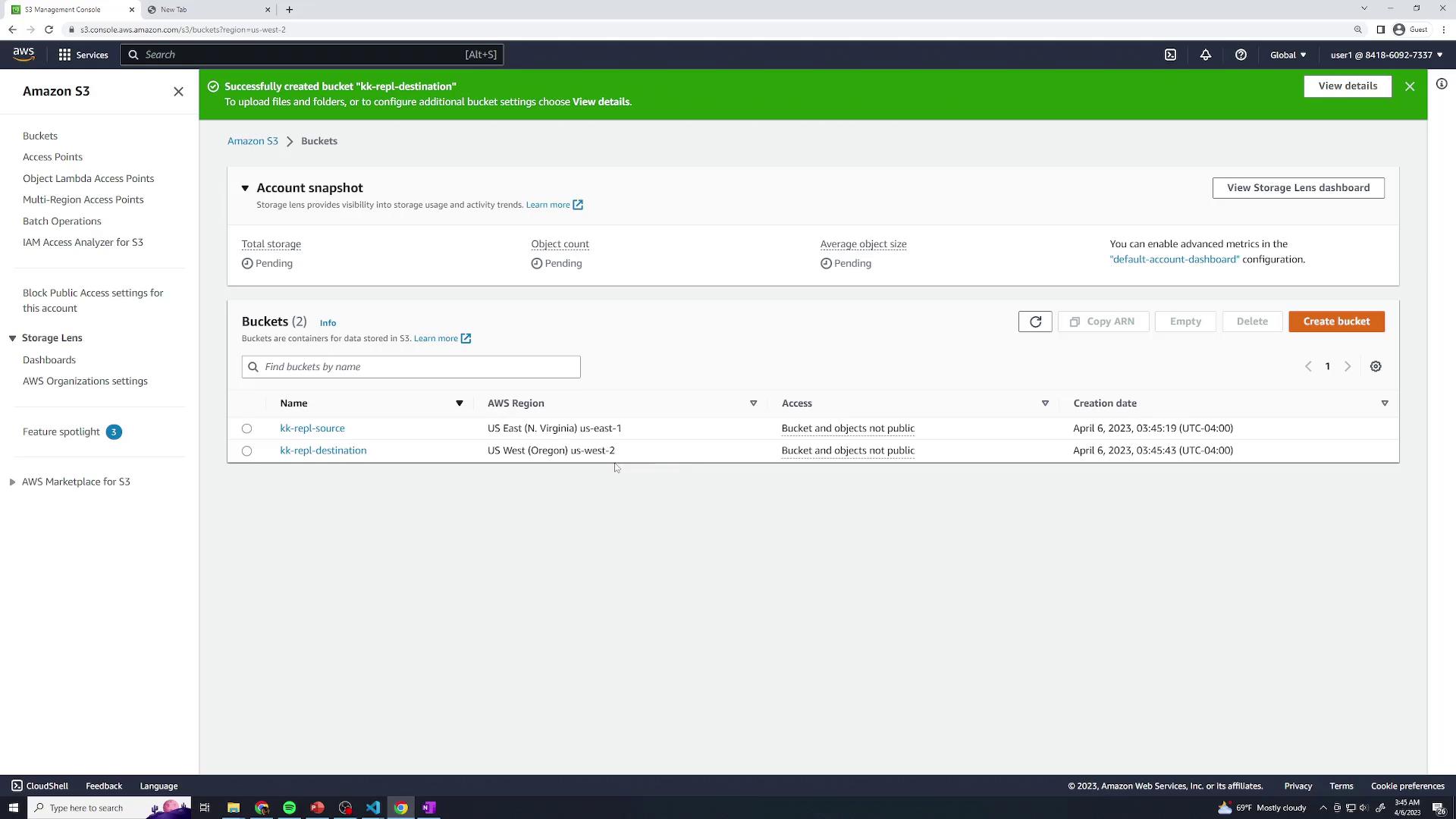
3. After creating both, you should see them listed:
<Frame>
  ![The image shows an Amazon S3 management console with a list of two buckets, "kk-repl-source" and "kk-repl-destination," both marked as not public. A notification indicates a bucket was successfully created.](https://kodekloud.com/kk-media/image/upload/v1752869209/notes-assets/images/Amazon-Simple-Storage-Service-Amazon-S3-Demo-S3-Replication/amazon-s3-management-console-buckets.jpg)
</Frame>

<Callout icon="lightbulb" color="#1CB2FE">
  Bucket names must be globally unique and comply with DNS naming conventions.
</Callout>

## 2. Configure the Replication Rule

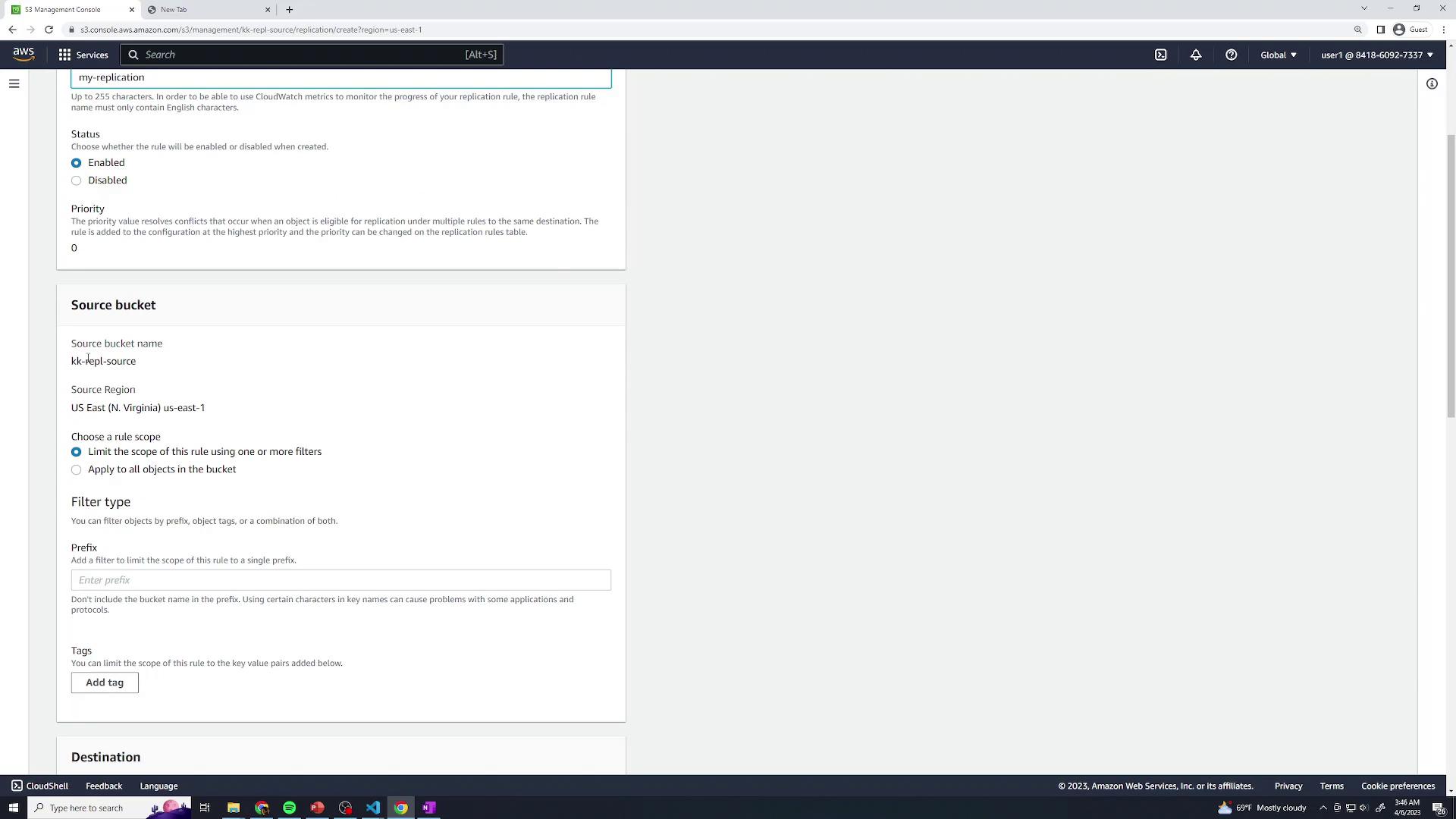
1. In the source bucket, select the **Management** tab and then **Replication rules**. Click **Create replication rule**.
<Frame>
  ![The image shows an AWS S3 Management Console screen where a replication rule is being configured. It includes options for setting the source bucket, region, rule scope, and filter type.](https://kodekloud.com/kk-media/image/upload/v1752869210/notes-assets/images/Amazon-Simple-Storage-Service-Amazon-S3-Demo-S3-Replication/aws-s3-replication-rule-configuration.jpg)
</Frame>

2. Enter a name (e.g., **MyReplication**) and enable the rule. Set the rule scope to **Entire bucket** so all objects replicate.

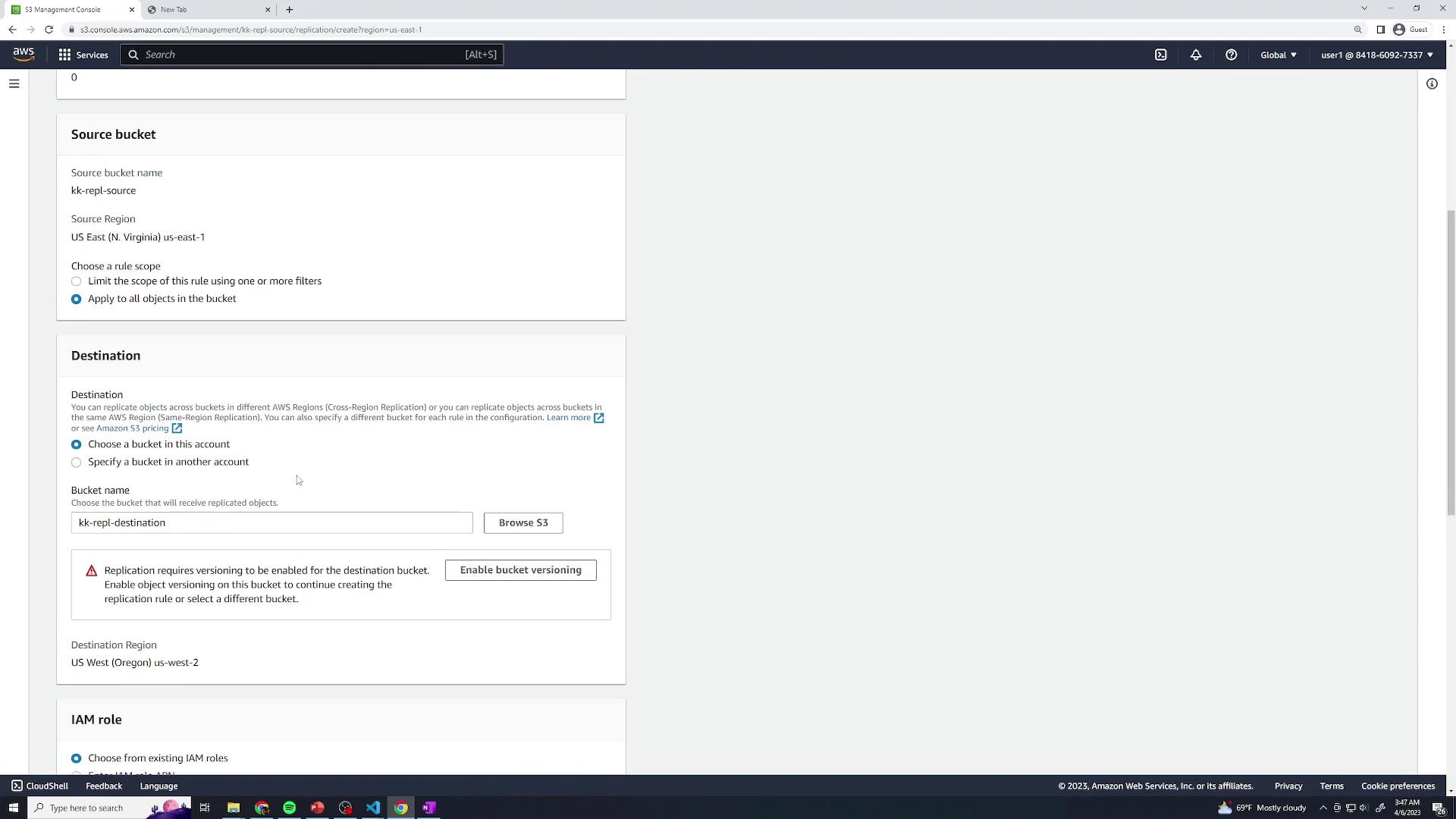
3. Under **Destination**, click **Browse** and choose `kk-repl-destination`.
<Frame>
  ![The image shows an AWS S3 Management Console screen for setting up bucket replication, with options for source and destination buckets and IAM role selection.](https://kodekloud.com/kk-media/image/upload/v1752869212/notes-assets/images/Amazon-Simple-Storage-Service-Amazon-S3-Demo-S3-Replication/aws-s3-bucket-replication-console.jpg)
</Frame>

4. If versioning is not enabled on either bucket, follow the console prompts to turn it on.

<Callout icon="triangle-alert" color="#FF6B6B">
  Objects uploaded before versioning is enabled will not be replicated.
</Callout>

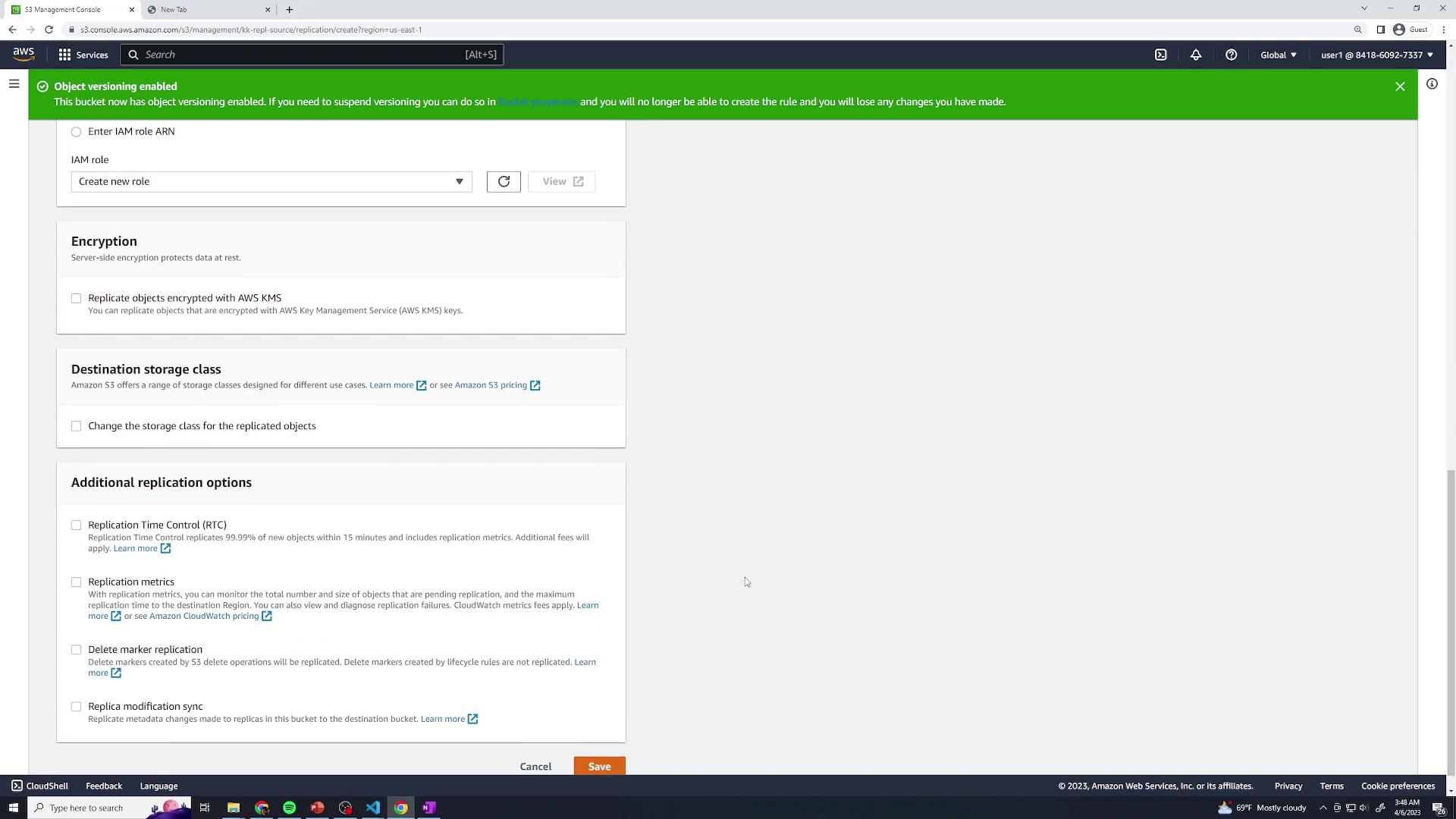
5. Under **IAM role**, choose **Create new role**. Leave the destination storage class at its default unless you need a different class.

6. On the replication settings page, enable **Replication Time Control (RTC)** to guarantee replication within 15 minutes. You can also opt to replicate delete markers or metadata. Click **Save**.
<Frame>
  ![The image shows an AWS S3 Management Console screen with options for configuring replication settings, including encryption, destination storage class, and additional replication options. A green notification bar at the top indicates that object versioning is enabled.](https://kodekloud.com/kk-media/image/upload/v1752869214/notes-assets/images/Amazon-Simple-Storage-Service-Amazon-S3-Demo-S3-Replication/aws-s3-management-console-replication-settings.jpg)
</Frame>

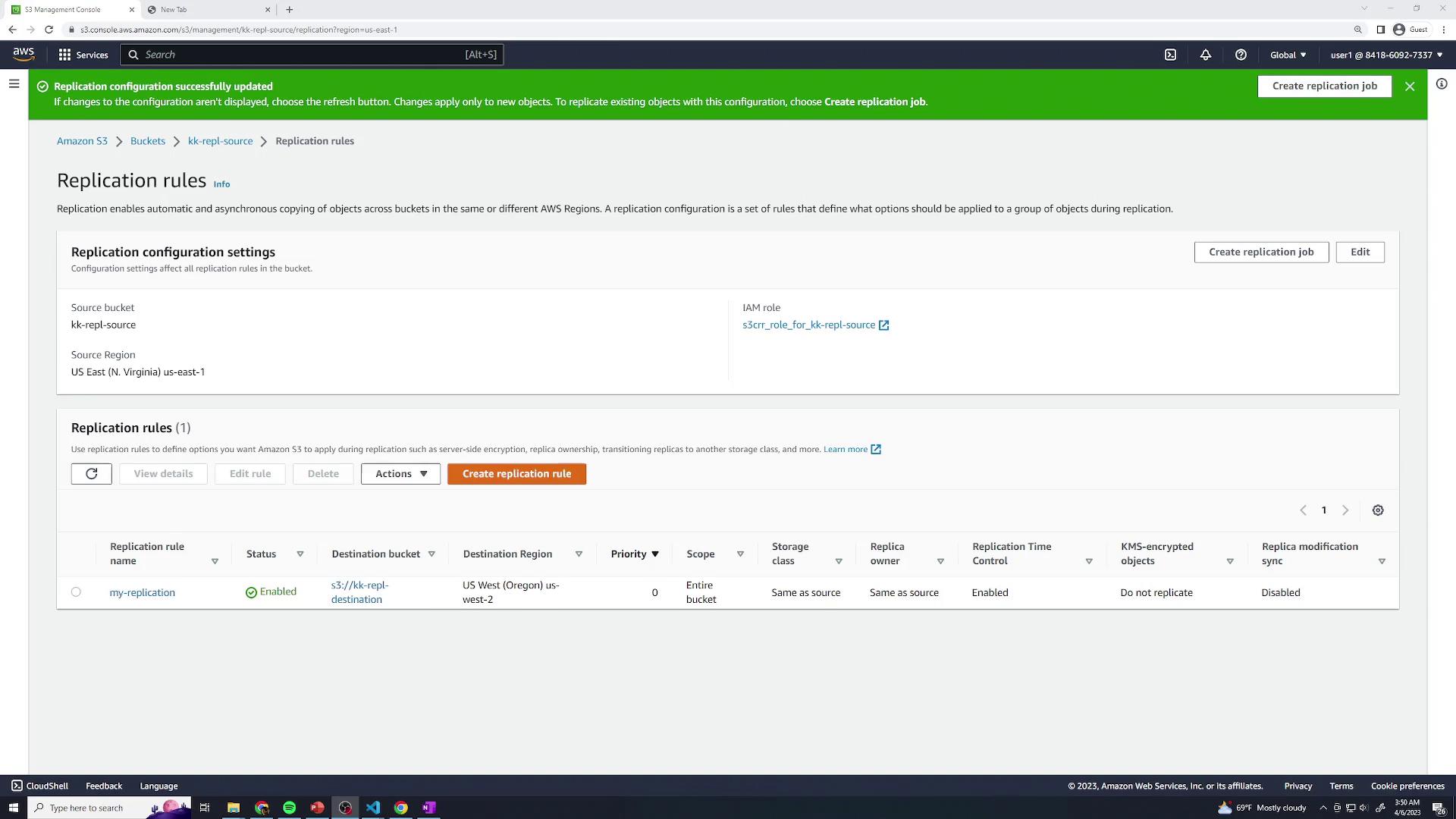
7. Your new rule will now appear in the list:
<Frame>
  ![The image shows an AWS S3 Management Console screen displaying replication rules for a bucket, with details about the source and destination regions and replication settings.](https://kodekloud.com/kk-media/image/upload/v1752869215/notes-assets/images/Amazon-Simple-Storage-Service-Amazon-S3-Demo-S3-Replication/aws-s3-management-console-replication-rules.jpg)
</Frame>

## 3. Review the IAM Role

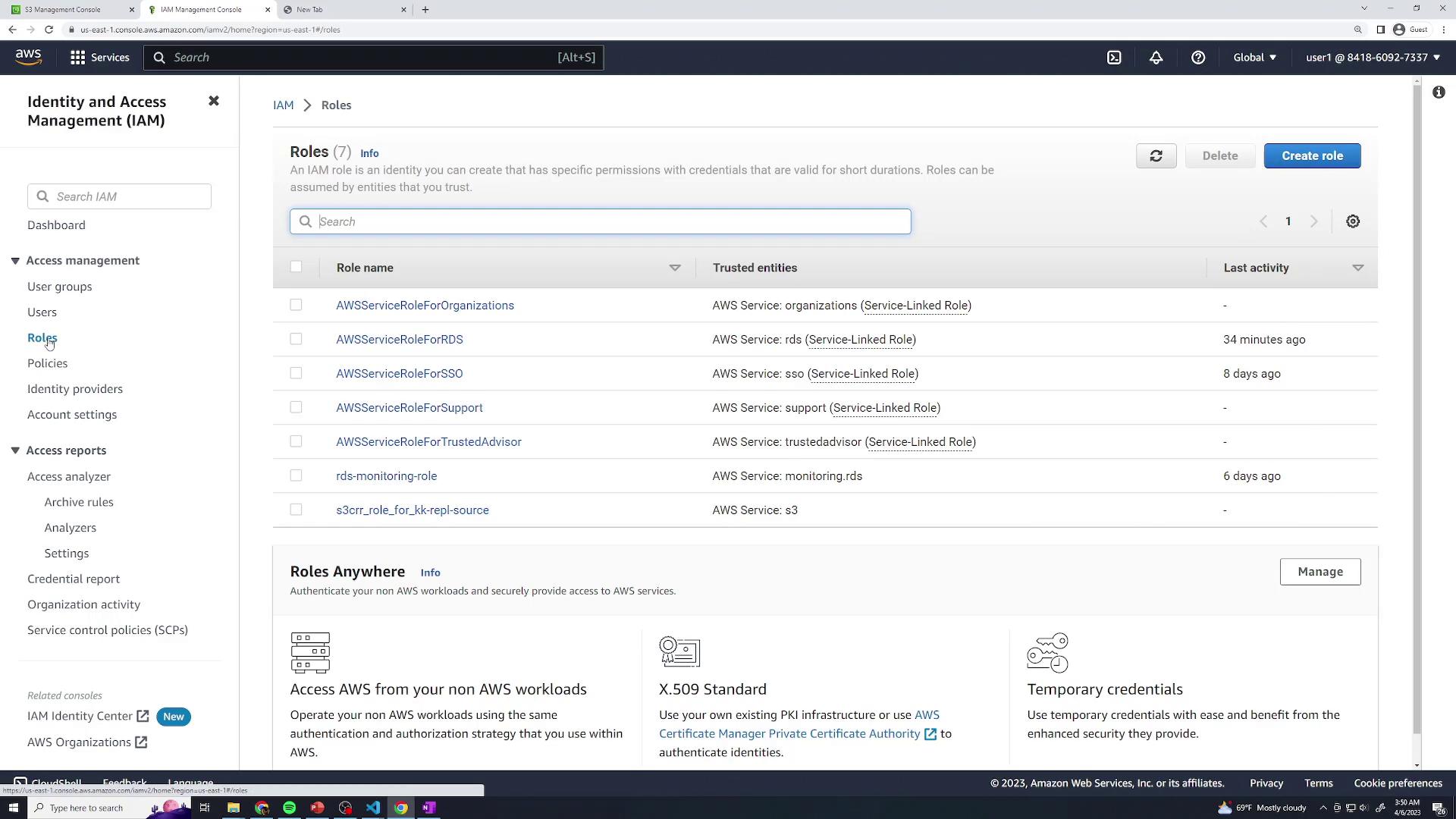
The console created an IAM role (for example, `role-for-kk-repl-source`) with the policies needed for replication. To inspect:

1. Go to the [IAM console](https://console.aws.amazon.com/iam/home#/roles) and click **Roles**.
<Frame>
  ![The image shows the AWS Identity and Access Management (IAM) console, specifically the "Roles" section, listing various roles and their trusted entities.](https://kodekloud.com/kk-media/image/upload/v1752869216/notes-assets/images/Amazon-Simple-Storage-Service-Amazon-S3-Demo-S3-Replication/aws-iam-console-roles-trusted-entities.jpg)
</Frame>

2. Select the replication role and review its attached policy:

```json theme={null}
{
  "Version": "2012-10-17",
  "Statement": [
    {
      "Effect": "Allow",
      "Action": [
        "s3:ListBucket",
        "s3:GetReplicationConfiguration",
        "s3:GetObjectVersionForReplication",
        "s3:GetObjectVersionACL",
        "s3:GetObjectVersionTagging",
        "s3:GetObjectRetention",
        "s3:GetObjectLegalHold"
      ],
      "Resource": [
        "arn:aws:s3:::kk-repl-source",
        "arn:aws:s3:::kk-repl-destination"
      ]
    },
    {
      "Effect": "Allow",
      "Action": [
        "s3:ReplicateObject",
        "s3:ReplicateDelete",
        "s3:ReplicateTags",
        "s3:ObjectOwnerOverrideToBucketOwner"
      ],
      "Resource": [
        "arn:aws:s3:::kk-repl-source/*",
        "arn:aws:s3:::kk-repl-destination/*"
      ]
    }
  ]
}
```

## 4. Test Replication

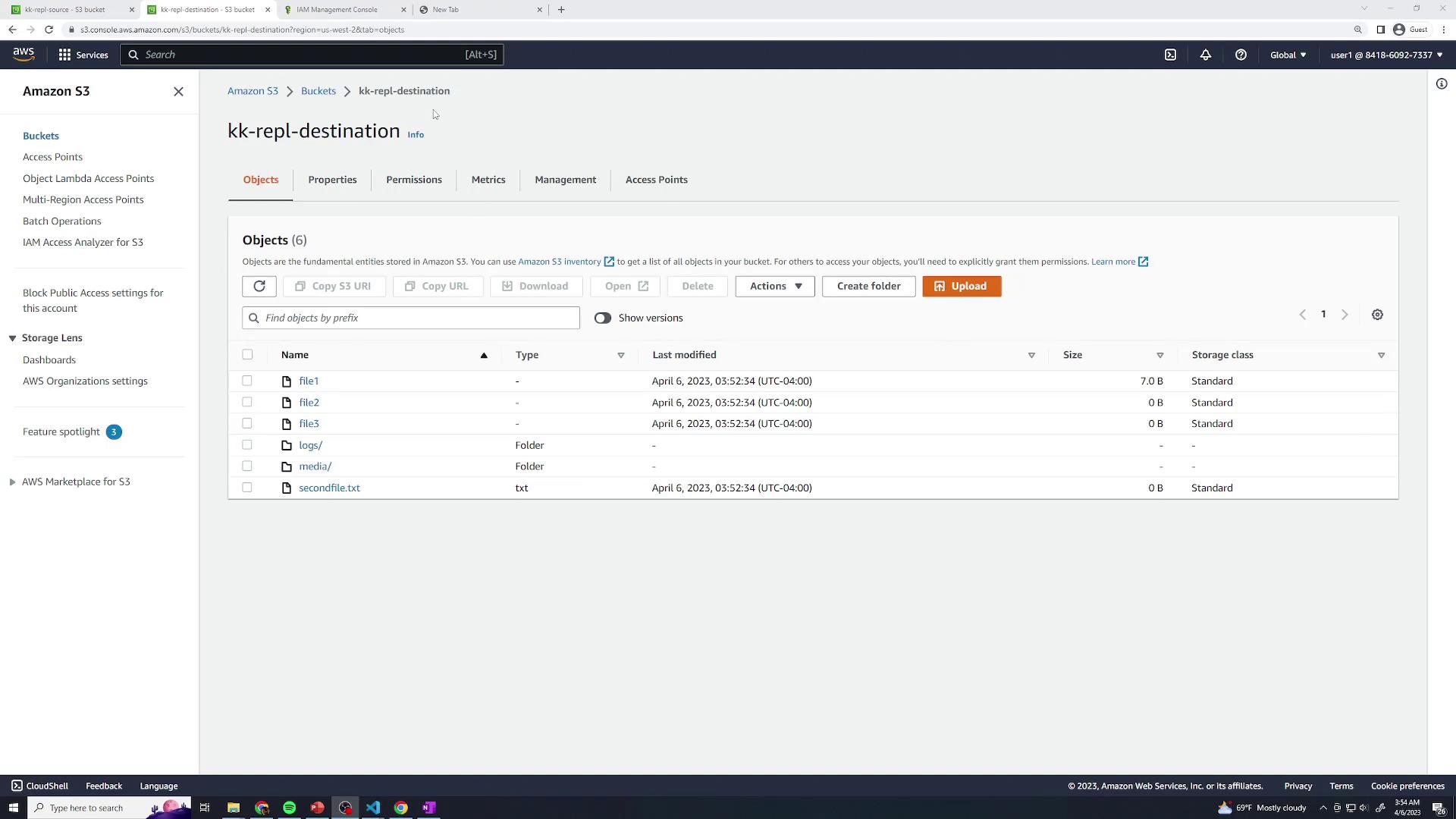
1. Upload a few files to the source bucket (`kk-repl-source`).
2. In another tab, open the destination bucket (`kk-repl-destination`) and verify that the objects appear within 15 minutes.
<Frame>
  ![The image shows an Amazon S3 bucket interface with a list of objects and folders, including files named "file1," "file2," "file3," and "secondfile.txt." The interface displays options for managing these objects, such as uploading and creating folders.](https://kodekloud.com/kk-media/image/upload/v1752869217/notes-assets/images/Amazon-Simple-Storage-Service-Amazon-S3-Demo-S3-Replication/amazon-s3-bucket-interface-objects.jpg)
</Frame>

Congratulations! You’ve successfully configured cross-region replication for Amazon S3.

## Links and References

* [Amazon S3 Replication](https://docs.aws.amazon.com/AmazonS3/latest/dev/crr.html)
* [AWS Identity and Access Management](https://aws.amazon.com/iam/)
* [Amazon S3 Versioning](https://docs.aws.amazon.com/AmazonS3/latest/dev/Versioning.html)

<CardGroup>
  <Card title="Watch Video" icon="video" cta="Learn more" href="https://learn.kodekloud.com/user/courses/amazon-simple-storage-service-amazon-s3/module/90fd6d76-d0d4-481c-b267-b9247a005a6e/lesson/94790fba-de3a-4db3-b37c-2e2124d09304" />

  <Card title="Practice Lab" icon="installation" cta="Learn more" href="https://learn.kodekloud.com/user/courses/amazon-simple-storage-service-amazon-s3/module/90fd6d76-d0d4-481c-b267-b9247a005a6e/lesson/1e0a18ef-753f-4553-a4f9-85c3badbf1ba" />
</CardGroup>
