> ## Documentation Index
> Fetch the complete documentation index at: https://notes.kodekloud.com/llms.txt
> Use this file to discover all available pages before exploring further.
# Demo Lifecycle Policies
> Learn to automate object transitions and expirations in Amazon S3 using lifecycle policies for cost optimization.
In this walkthrough, you’ll learn how to automate object transitions and expirations in an Amazon S3 bucket using lifecycle policies. We’ll cover:
* Creating a demo bucket
* Uploading sample objects
* Defining lifecycle rules to transition and expire objects across storage classes
Lifecycle policies help optimize storage costs by automatically moving objects to lower-cost classes (e.g., Standard-IA, Glacier) or deleting them when they’re no longer needed.
## Lifecycle Storage Classes Overview
| Storage Class | Description | Typical Use Case |
| ---------------------------- | ----------------------------------------- | ---------------------------------------- |
| S3 Standard | Frequent access, low latency | Active datasets |
| S3 Standard-IA | Infrequent access, lower cost | Backups and long-term storage |
| S3 Glacier Instant Retrieval | Millisecond access retrieval from Glacier | Archives with occasional retrieval |
| S3 Glacier Deep Archive | Lowest cost, hours-long retrieval time | Compliance archives, long-term retention |
***
## 1. Create a Demo Bucket and Upload Objects
1. Open the [AWS Management Console](https://console.aws.amazon.com/) and navigate to S3.
2. Click **Create bucket**, accept all defaults, and finish the wizard.
3. In your new bucket, click **Upload**, then drag and drop a few test files and folders. Any sample data will do.
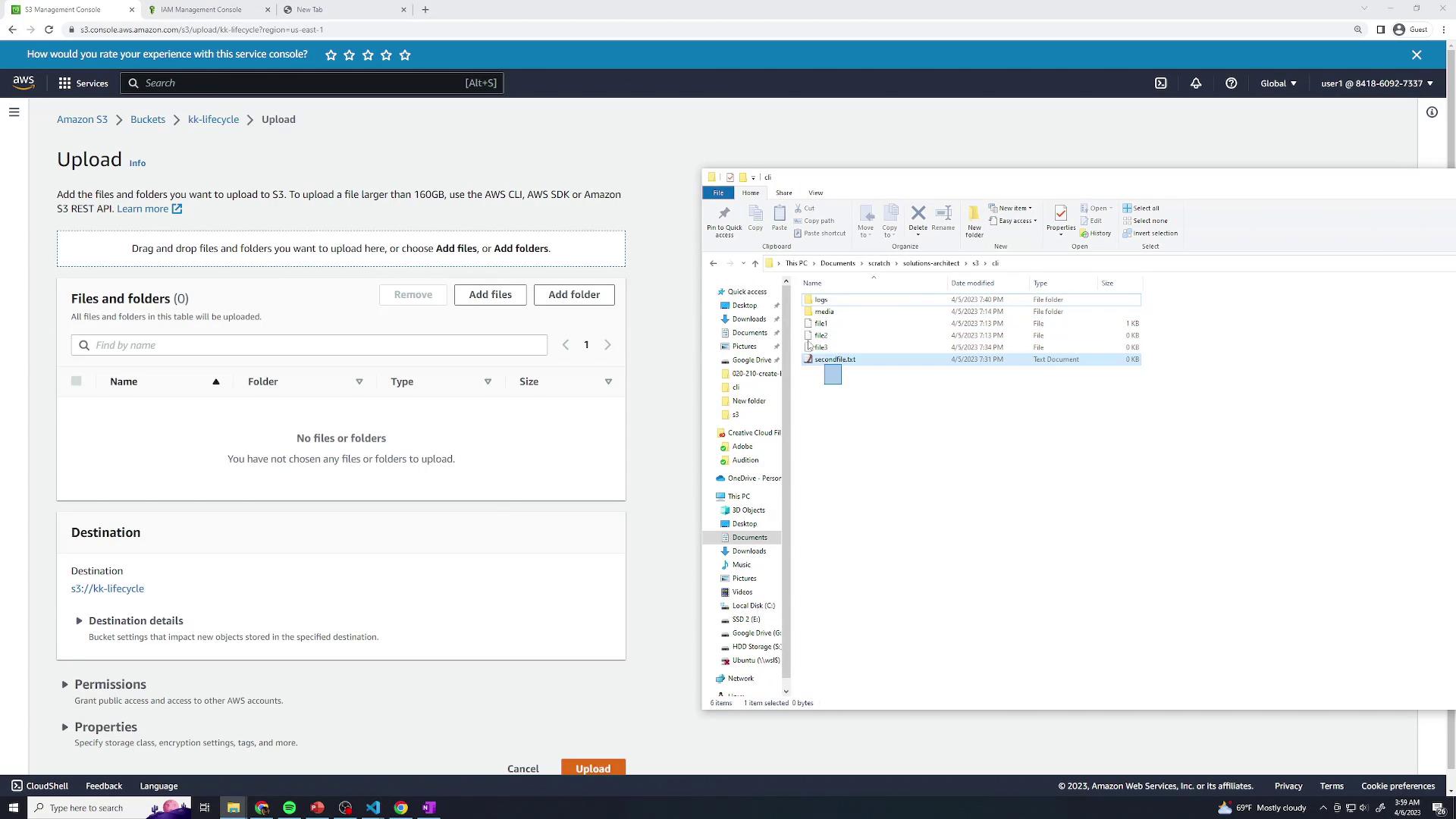
4. Open **Properties** for the bucket and confirm that the **Storage class** of your objects is **Standard**.
***
## 2. Configure Lifecycle Rules
Navigate to the **Management** tab of your bucket and click **Create lifecycle rule**.

You can define multiple rules to target different prefixes (`logs/`, `media/`) or object sizes.
### 2.1 Rule 1: lifecycle-logs
1. **Rule name**: `lifecycle-logs`
2. Under **Scope**, select **Limit the scope to specific prefixes or tags** and enter:
* Prefix: `logs/`
3. (Optional) Specify **Minimum size** or **Maximum size** filters.
#### Current Version Transitions
* After 30 days: transition to **S3 Standard-IA**
* After 60 days: transition to **S3 Glacier Instant Retrieval**
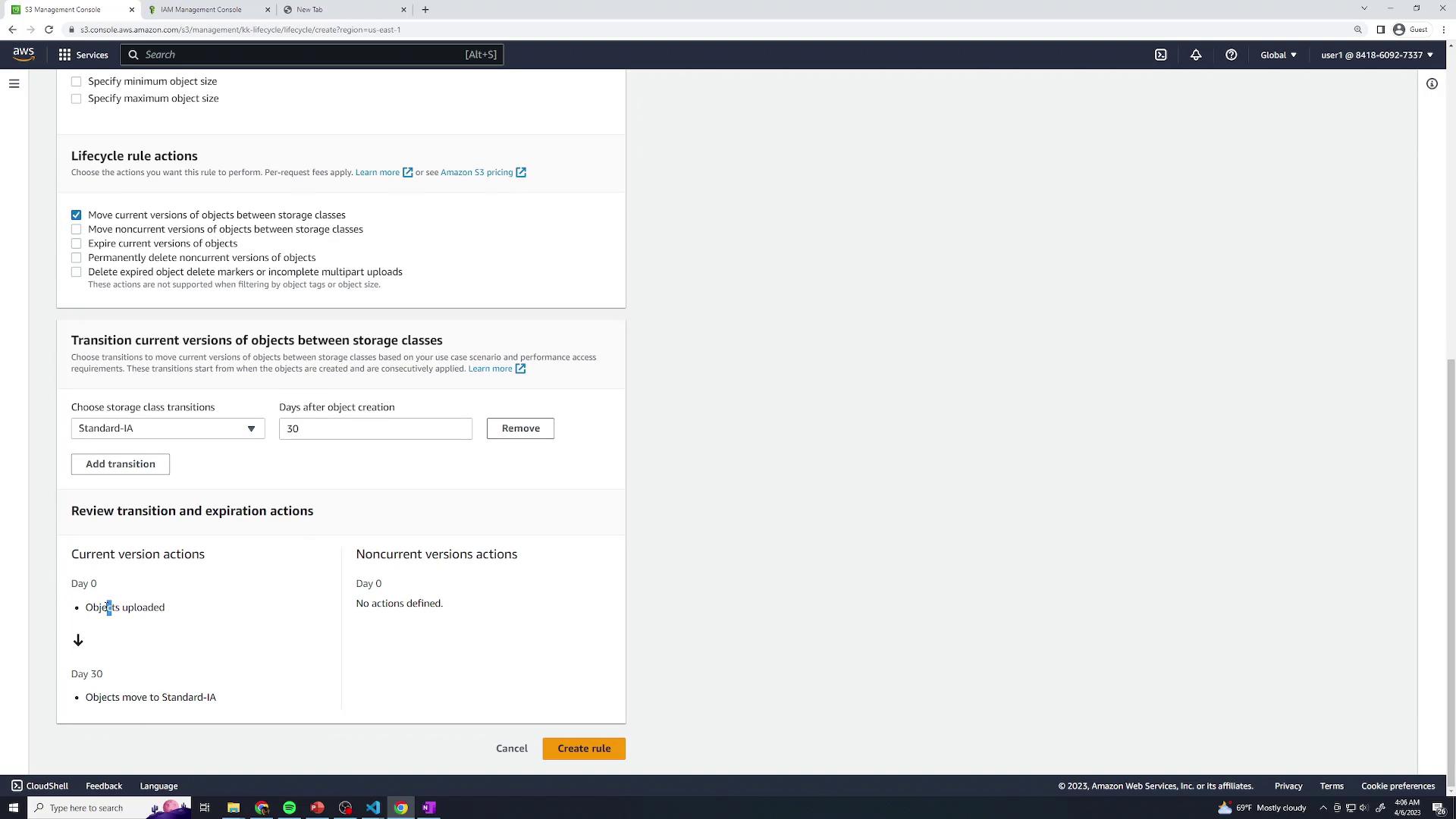
#### Non-Current Version Transitions
* After 30 days: transition to **S3 Standard-IA**
* After 90 days: transition to **S3 Glacier Deep Archive**
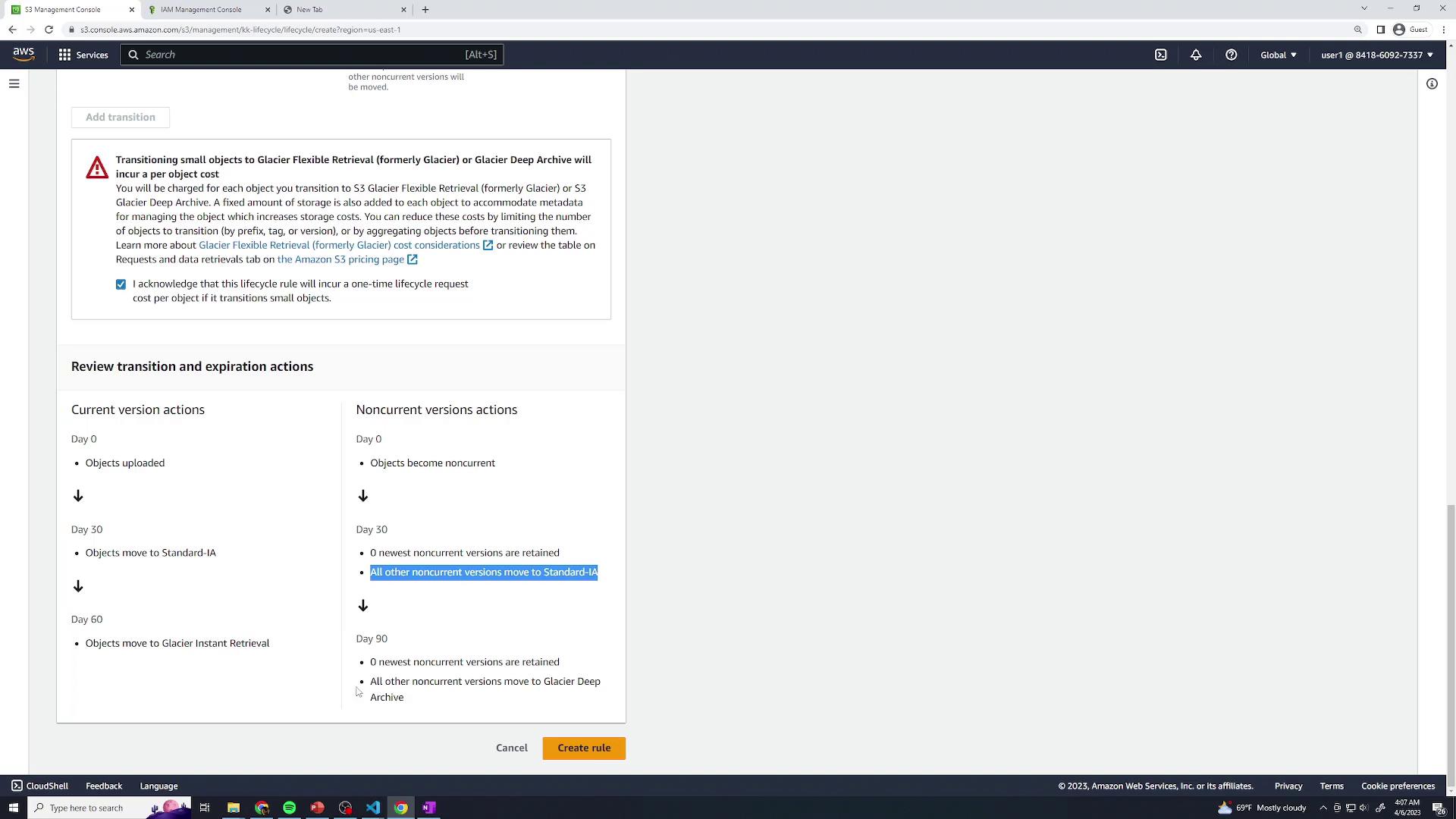
Click **Create** to save **lifecycle-logs**.
### 2.2 Rule 2: lifecycle-media
1. **Rule name**: `lifecycle-media`
2. **Scope** → Prefix: `media/`
3. **Current version transitions**:
* After 60 days: transition to **S3 Standard-IA**
4. **Non-current version actions**:
* After 30 days: transition to **S3 Standard-IA**
* After 365 days: **Expire** non-current versions
Click **Create** to save **lifecycle-media**.
***
## 3. Review Your Lifecycle Configuration
Once both rules are enabled, the **Lifecycle configuration** page displays all active rules:
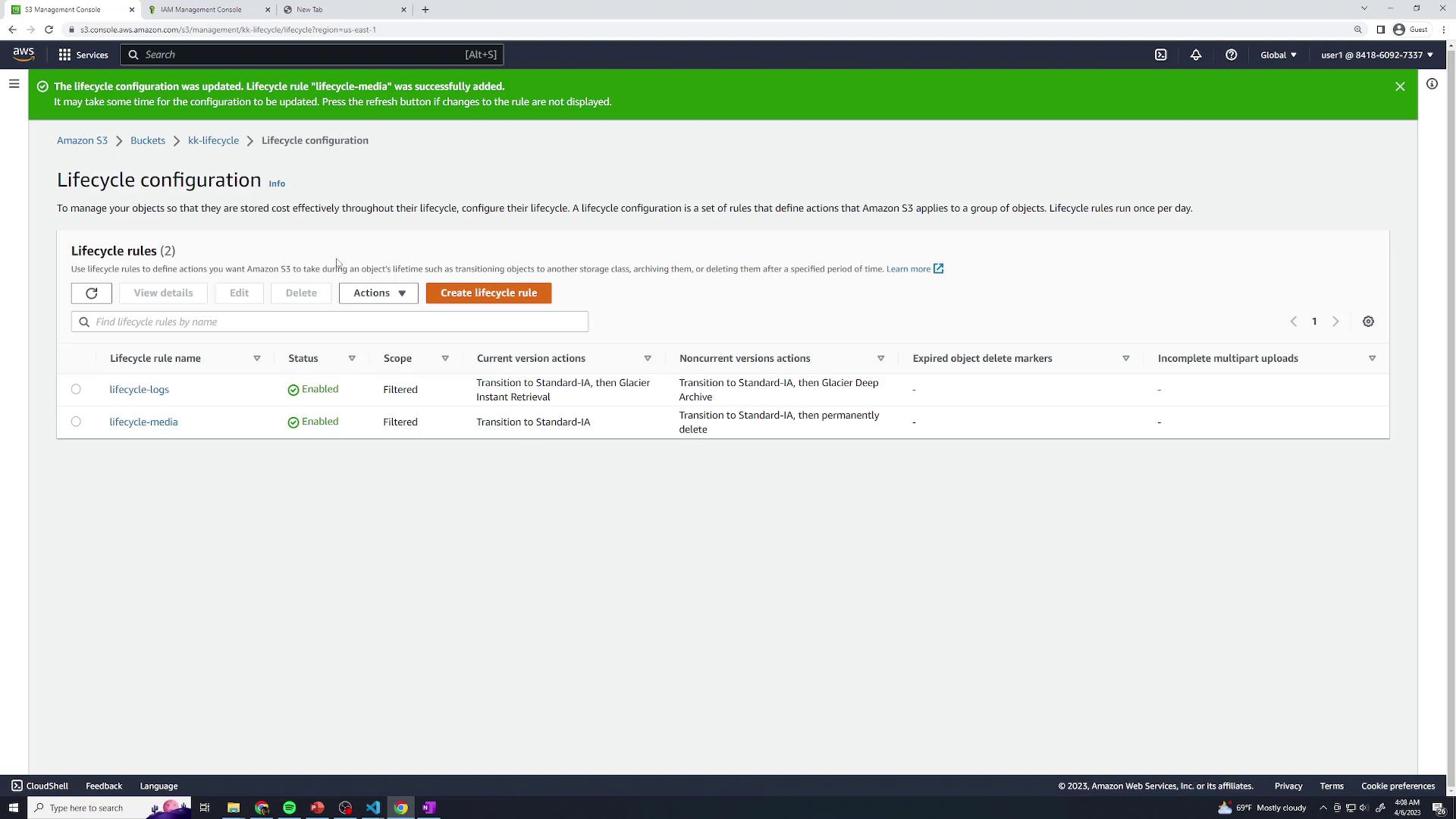
It can take up to 24 hours for lifecycle policies to appear in the billing report and start transitions.
***
## Additional Resources
* [Amazon S3 Lifecycle Configuration](https://docs.aws.amazon.com/AmazonS3/latest/userguide/lifecycle-configuration-examples.html)
* [Amazon S3 Storage Classes](https://aws.amazon.com/s3/storage-classes/)
* [AWS CLI: s3api put-bucket-lifecycle-configuration](https://docs.aws.amazon.com/cli/latest/reference/s3api/put-bucket-lifecycle-configuration.html)