> ## Documentation Index
> Fetch the complete documentation index at: https://notes.kodekloud.com/llms.txt
> Use this file to discover all available pages before exploring further.

# Demo Versioning

> This tutorial explores Amazon S3’s versioning feature, covering object uploads, overwrites, deletions, and recovery methods across different versioning states.

In this tutorial, you’ll explore how Amazon S3’s versioning feature affects object uploads, overwrites, and deletions. We’ll walk through three key states—versioning disabled, enabled, and suspended—and demonstrate how you can recover or permanently remove object versions.

## Versioning Disabled

With versioning disabled, any object you delete is **permanently** removed and cannot be recovered. Overwrites simply replace the existing object.

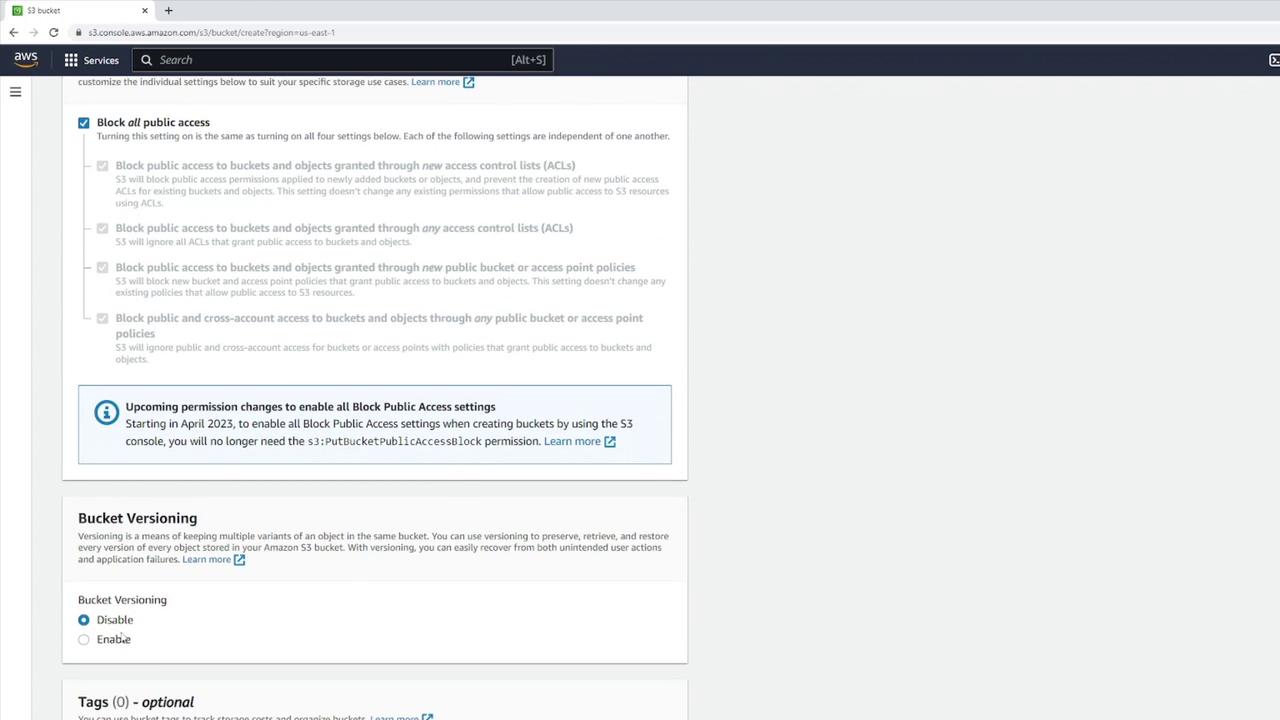
1. Create a new S3 bucket named **Versioning Demo**, leaving **Bucket Versioning** turned off and all other settings at their defaults.
<Frame>
  ![The image shows an AWS S3 console screen with settings for blocking public access and bucket versioning options. It includes a notification about upcoming permission changes related to public access settings.](https://kodekloud.com/kk-media/image/upload/v1752869266/notes-assets/images/Amazon-Simple-Storage-Service-Amazon-S3-Demo-Versioning/aws-s3-console-block-public-access.jpg)
</Frame>

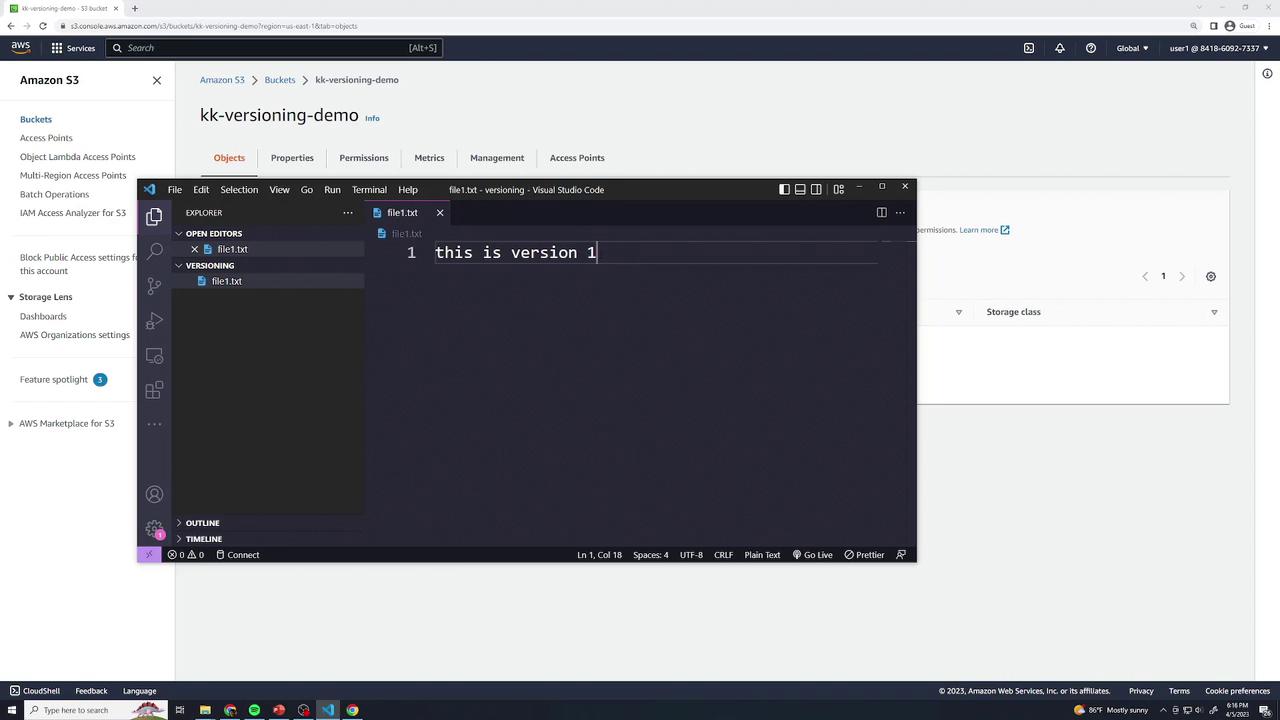
2. Locally create a file `file1.txt` with:

   ```text theme={null}
   this is version 1
   ```
<Frame>
  ![The image shows an Amazon S3 bucket interface with a Visual Studio Code window open, displaying a text file containing the text "this is version 1".](https://kodekloud.com/kk-media/image/upload/v1752869267/notes-assets/images/Amazon-Simple-Storage-Service-Amazon-S3-Demo-Versioning/amazon-s3-bucket-vscode-text-file.jpg)
</Frame>

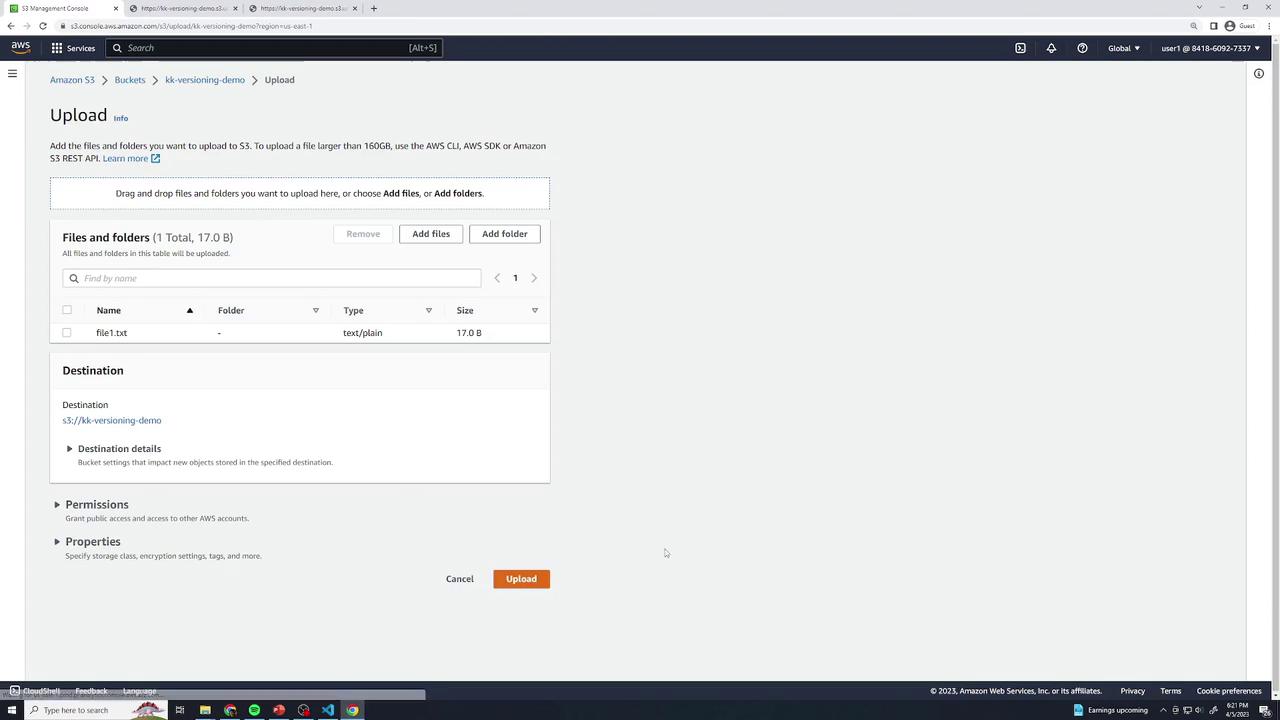
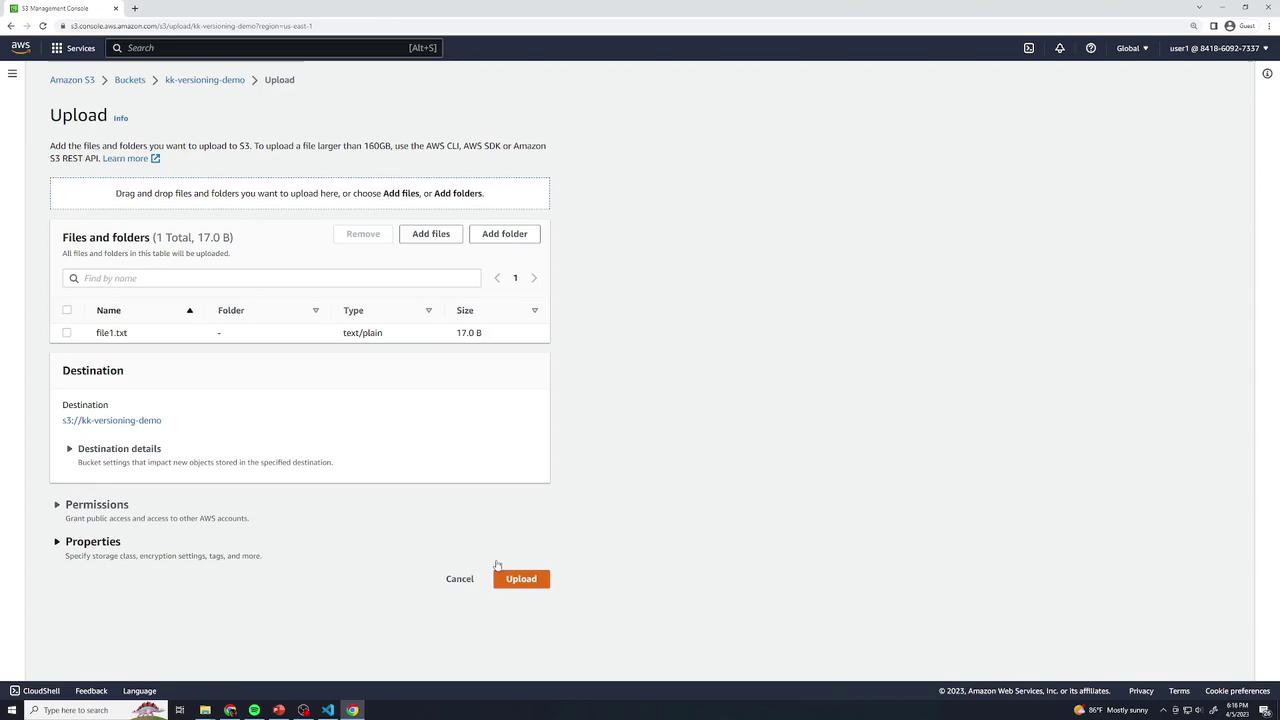
3. Upload `file1.txt` to your bucket (all defaults).
<Frame>
  ![The image shows the AWS S3 Management Console with an upload interface for adding files to a bucket named "kk-versioning-demo." A file named "file1.txt" is ready to be uploaded.](https://kodekloud.com/kk-media/image/upload/v1752869269/notes-assets/images/Amazon-Simple-Storage-Service-Amazon-S3-Demo-Versioning/aws-s3-management-console-upload-file.jpg)
</Frame>

4. Open **file1.txt** in the console to confirm it shows:

   ```text theme={null}
   this is version 1
   ```

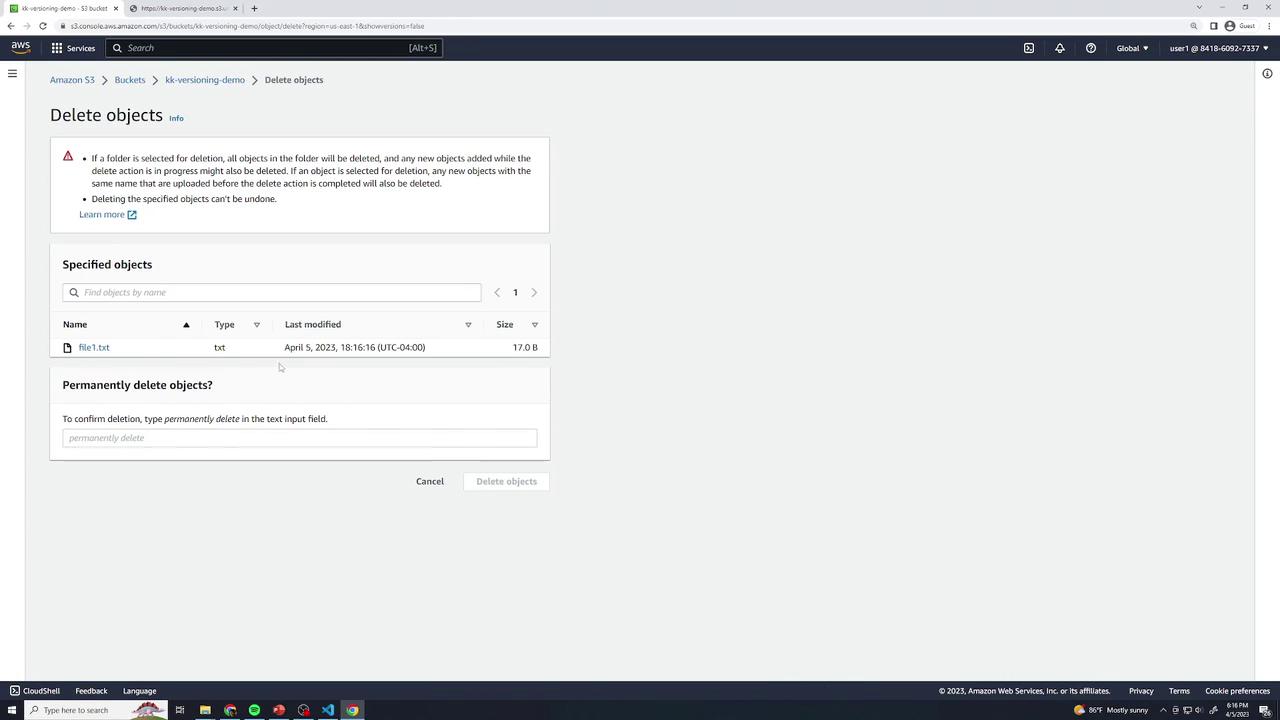
5. **Permanent Delete when Disabled**\
   Select **file1.txt** → **Delete** → type **permanently delete** to confirm.

<Callout icon="triangle-alert" color="#FF6B6B">
  Deleting objects in a bucket with versioning disabled removes them forever—there is no undelete or version history.
</Callout>

<Frame>
  ![The image shows an AWS S3 interface for deleting objects, specifically a file named "file1.txt" with details like type, last modified date, and size. There's a prompt to confirm permanent deletion by typing "permanently delete."](https://kodekloud.com/kk-media/image/upload/v1752869270/notes-assets/images/Amazon-Simple-Storage-Service-Amazon-S3-Demo-Versioning/aws-s3-delete-file-interface.jpg)
</Frame>

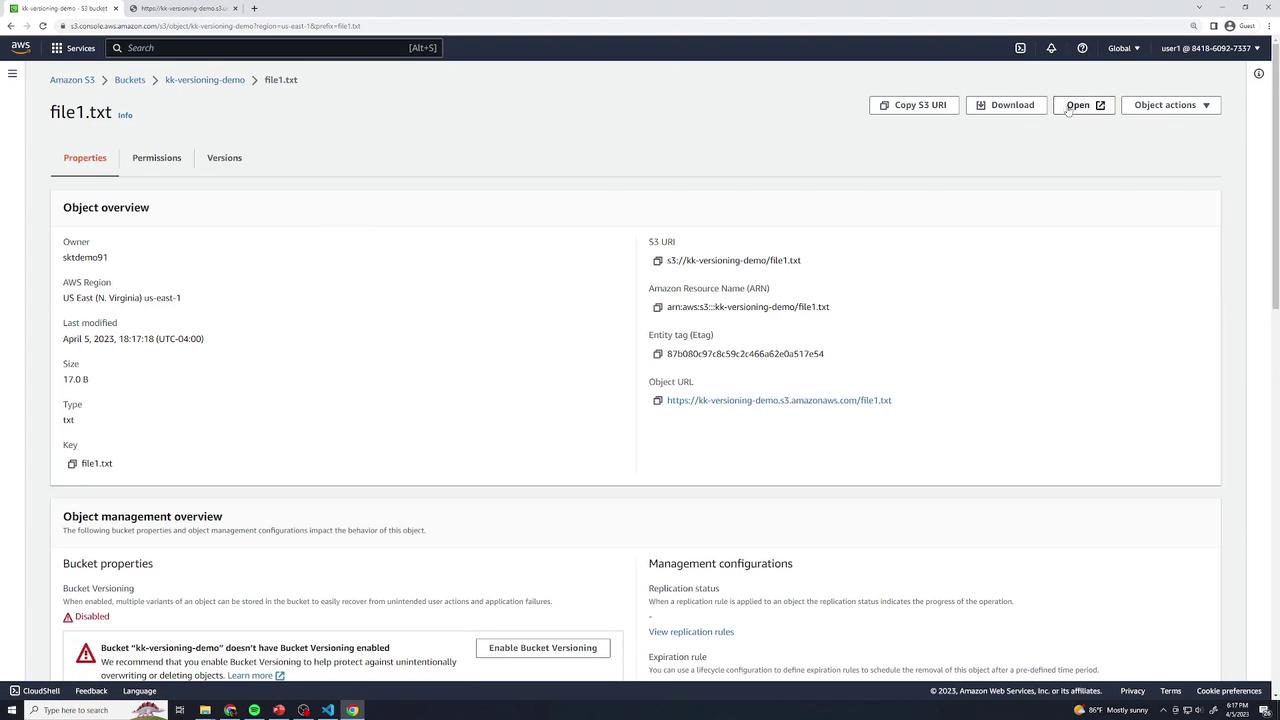
6. Re-upload the same `file1.txt` (version 1) to restore it.
<Frame>
  ![The image shows an Amazon S3 console interface displaying details of a file named "file1.txt" within a bucket. It includes information such as the file's size, type, last modified date, and S3 URI, with a note indicating that bucket versioning is disabled.](https://kodekloud.com/kk-media/image/upload/v1752869271/notes-assets/images/Amazon-Simple-Storage-Service-Amazon-S3-Demo-Versioning/amazon-s3-console-file1-details.jpg)
</Frame>

7. **Overwrite when Disabled**\
   Edit `file1.txt` to:
   ```text theme={null}
   this is version 2
   ```
   Upload using the same key. Version 1 is lost permanently because versioning is disabled.

***

## Enabling Versioning

Enable versioning to retain every object change with a unique Version ID. You can recover or permanently delete specific versions.

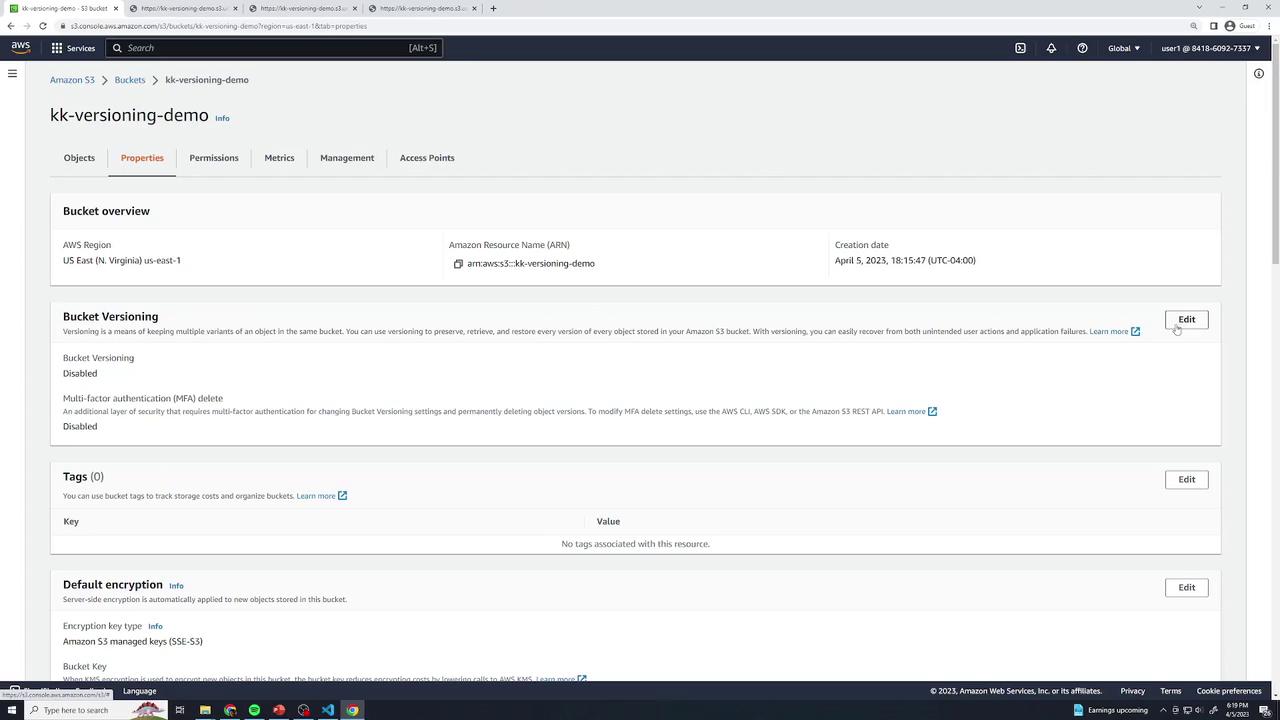
1. In the bucket **Properties**, click **Edit** under **Bucket Versioning**, select **Enable**, and **Save**.
<Frame>
  ![The image shows an Amazon S3 bucket properties page for "kk-versioning-demo," displaying details about bucket versioning, tags, and default encryption settings. The bucket versioning is currently disabled, and there are no tags associated with the resource.](https://kodekloud.com/kk-media/image/upload/v1752869272/notes-assets/images/Amazon-Simple-Storage-Service-Amazon-S3-Demo-Versioning/amazon-s3-bucket-versioning-demo.jpg)
</Frame>

2. Upload `file1.txt` with the original content:

   ```text theme={null}
   this is version 1
   ```

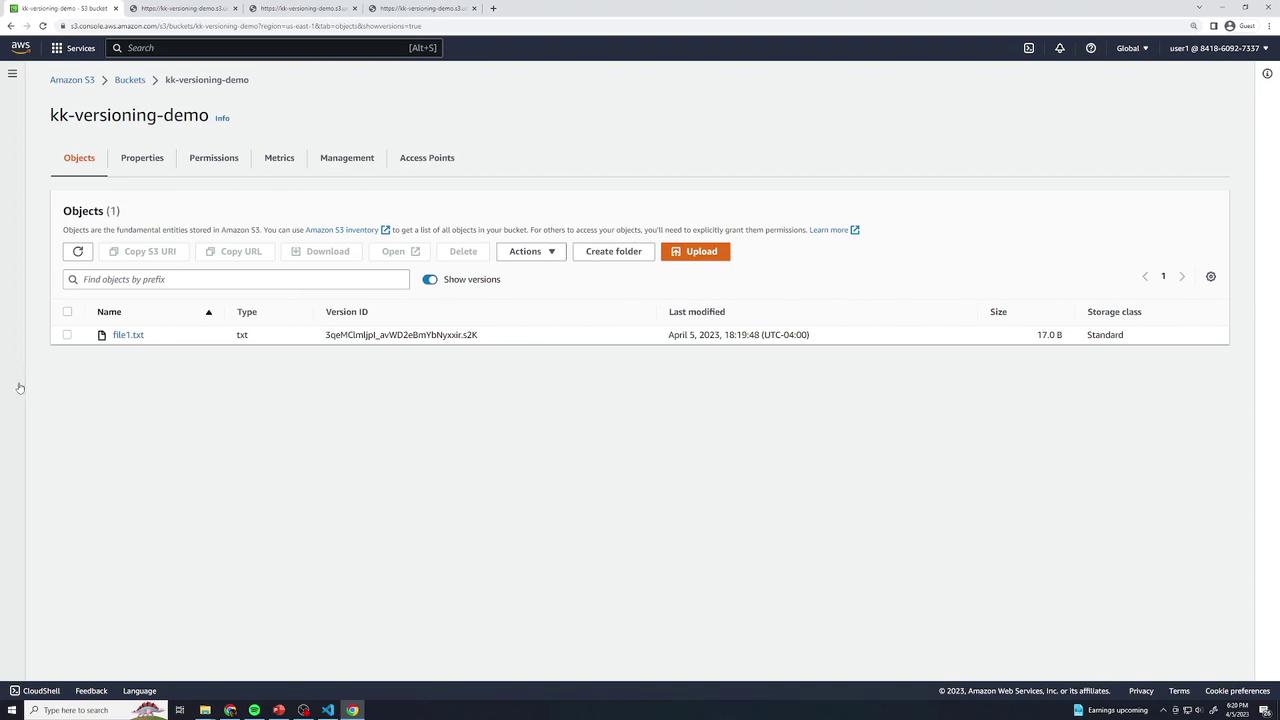
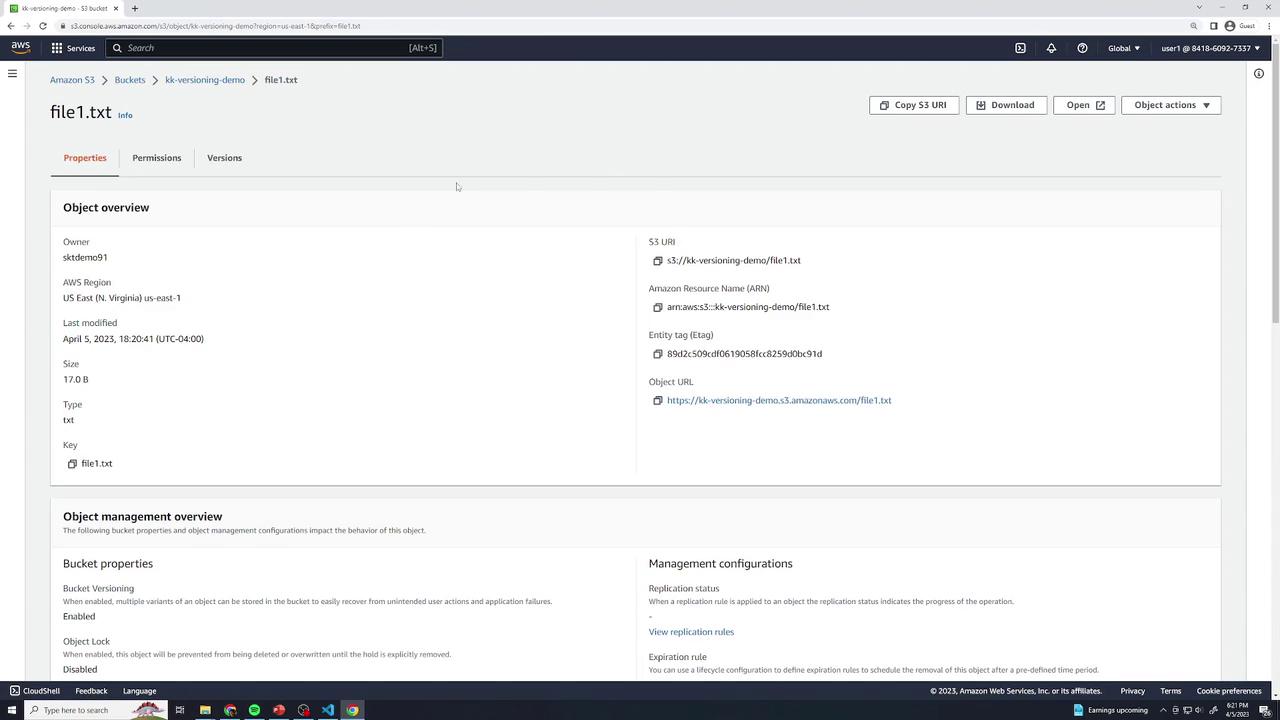
3. In the **Objects** view, check **Show versions** to reveal version history. Each version entry displays a unique **Version ID**.
<Frame>
  ![The image shows an Amazon S3 bucket interface with a file named "file1.txt" listed, displaying details like version ID, last modified date, size, and storage class.](https://kodekloud.com/kk-media/image/upload/v1752869273/notes-assets/images/Amazon-Simple-Storage-Service-Amazon-S3-Demo-Versioning/amazon-s3-bucket-file-details.jpg)
</Frame>

4. Confirm version 1 content:

   ```text theme={null}
   this is version 1
   ```

### Adding More Versions

* **Version 2**: Update locally to `this is version 2` and upload again.
* **Version 3**: Change to `this is version 3` and upload once more.

Each upload creates a new version entry. You can open each one to verify content and timestamps.
<Frame>
  ![The image shows an Amazon S3 console displaying details of a file named "file1.txt" including its properties, such as size, type, and last modified date. It also includes information about bucket properties and management configurations.](https://kodekloud.com/kk-media/image/upload/v1752869275/notes-assets/images/Amazon-Simple-Storage-Service-Amazon-S3-Demo-Versioning/amazon-s3-console-file1-properties.jpg)
</Frame>

<Frame>
  ![The image shows an Amazon S3 Management Console upload interface, where a file named "file1.txt" is ready to be uploaded to a bucket named "kk-versioning-demo."](https://kodekloud.com/kk-media/image/upload/v1752869276/notes-assets/images/Amazon-Simple-Storage-Service-Amazon-S3-Demo-Versioning/amazon-s3-upload-file1-kk-demo.jpg)
</Frame>

***

### Delete with Versioning Enabled

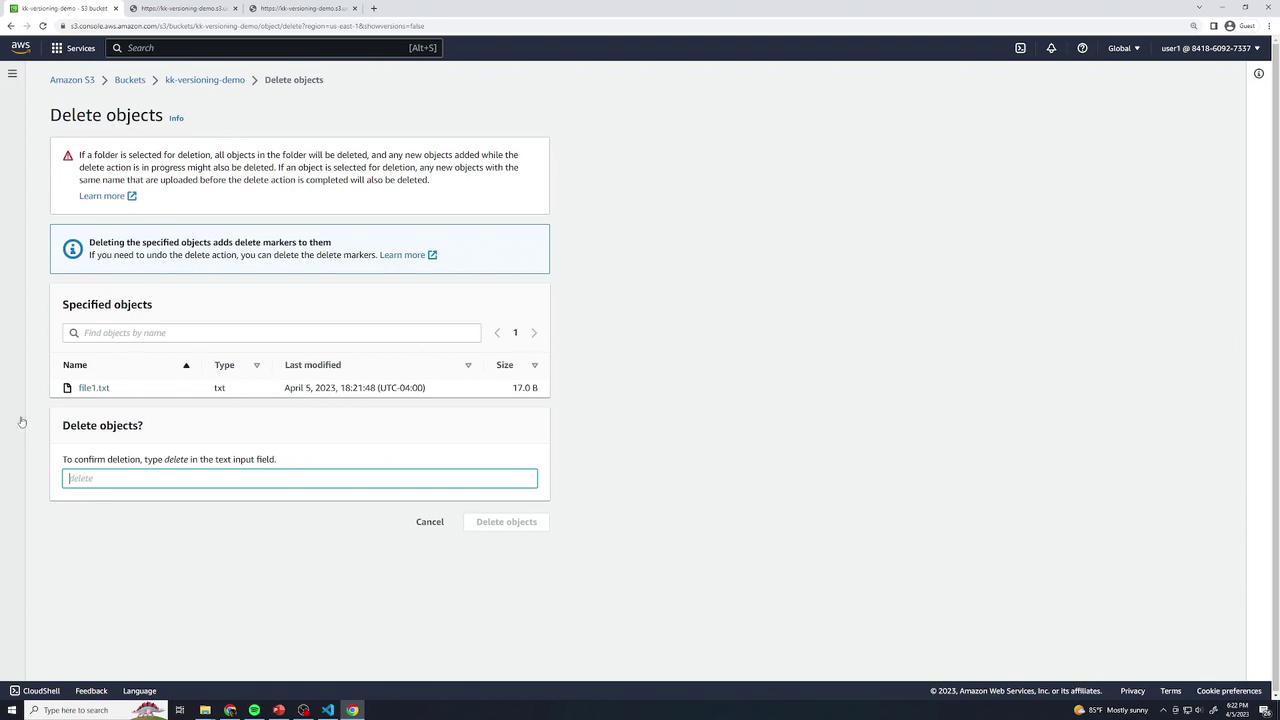
Deleting an object now places a **delete marker** rather than removing prior versions.

1. Select **file1.txt** → **Delete** → type **delete** (no “permanently delete” prompt).
<Frame>
  ![The image shows an Amazon S3 interface for deleting objects, specifically a file named "file1.txt." It includes options to confirm deletion by typing "delete" in a text input field.](https://kodekloud.com/kk-media/image/upload/v1752869276/notes-assets/images/Amazon-Simple-Storage-Service-Amazon-S3-Demo-Versioning/amazon-s3-delete-file-interface.jpg)
</Frame>

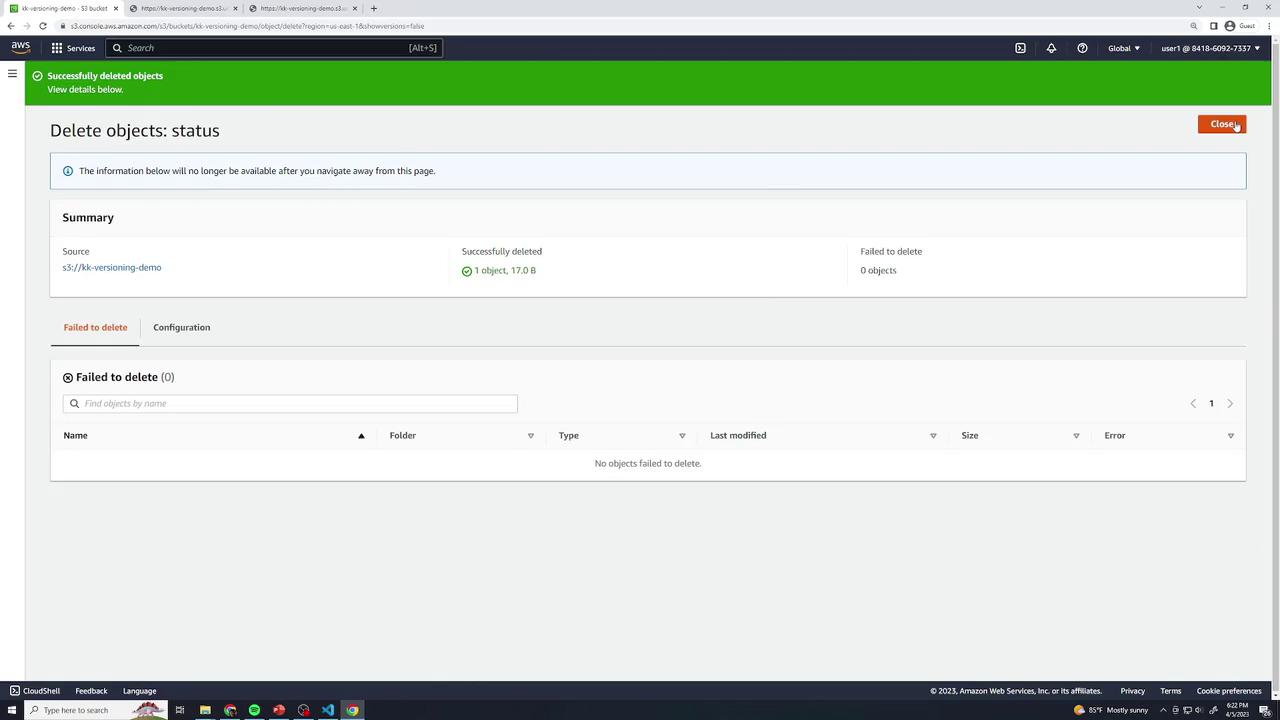
2. The object disappears, but **Show versions** reveals:
   * A new **Delete marker**
   * All three prior versions
<Frame>
  ![The image shows an AWS S3 interface indicating that an object has been successfully deleted, with no objects failing to delete.](https://kodekloud.com/kk-media/image/upload/v1752869277/notes-assets/images/Amazon-Simple-Storage-Service-Amazon-S3-Demo-Versioning/aws-s3-object-deleted-successfully.jpg)
</Frame>

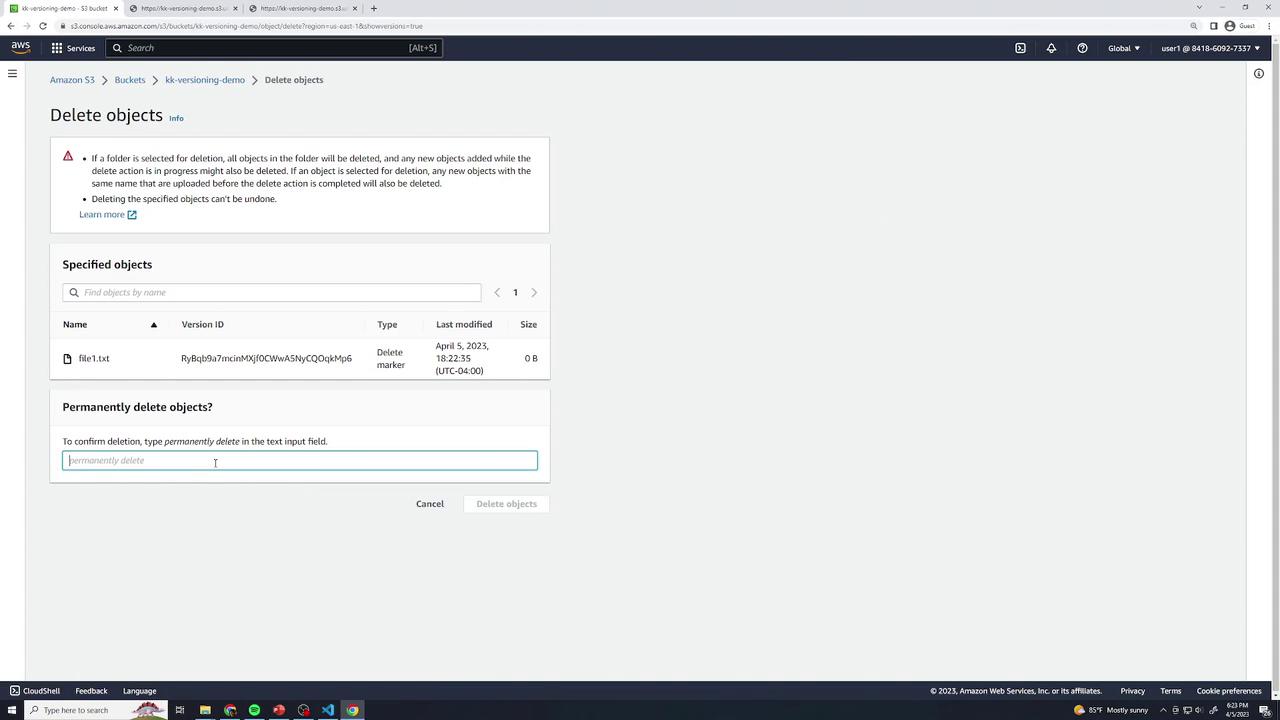
3. **Restoring**: Remove the delete marker by selecting it and choosing **Delete** → type **permanently delete**.
<Frame>
  ![The image shows an Amazon S3 interface for deleting objects, specifically a file named "file1.txt," with a prompt to confirm permanent deletion by typing "permanently delete."](https://kodekloud.com/kk-media/image/upload/v1752869278/notes-assets/images/Amazon-Simple-Storage-Service-Amazon-S3-Demo-Versioning/amazon-s3-delete-file-prompt.jpg)
</Frame>

#### Permanently Deleting Specific Versions

You can delete individual versions without affecting others. Select a version (e.g., version 2) → **Delete** → type **permanently delete**. Only that version is removed.

***

## Suspending Versioning

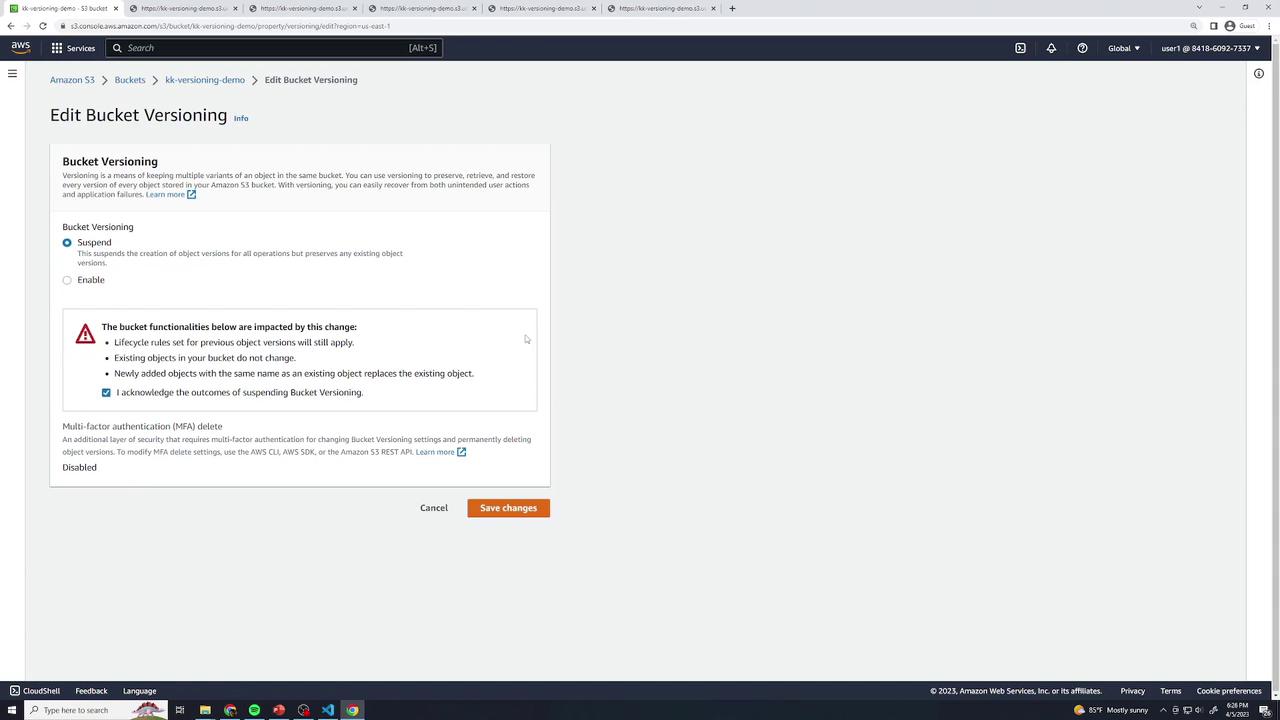
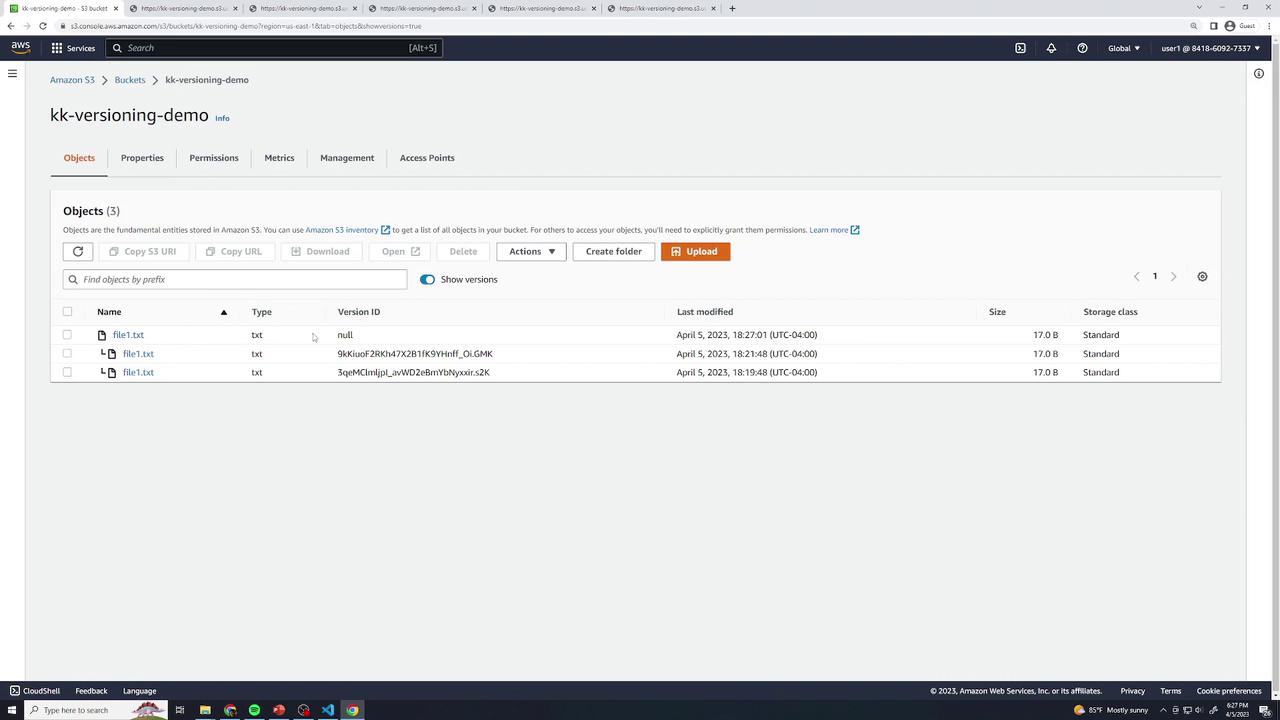
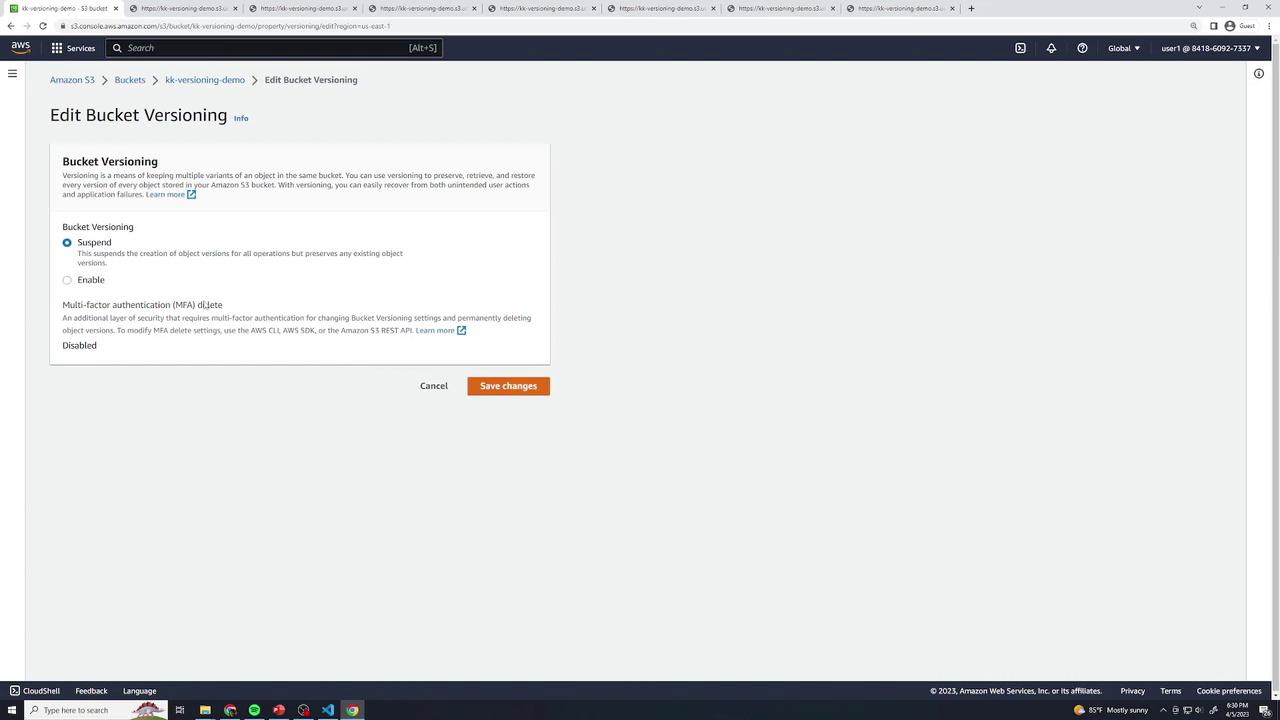
Once turned on, you can only **suspend** versioning, not disable it. Suspended state retains old versions but assigns `null` as the Version ID for new uploads.

1. In **Properties** → **Bucket Versioning**, click **Suspend** and **Save**.
<Frame>
  ![The image shows an Amazon S3 interface for editing bucket versioning settings, with options to suspend or enable versioning and a warning about the impact of changes. There is also a section for multi-factor authentication (MFA) delete, which is currently disabled.](https://kodekloud.com/kk-media/image/upload/v1752869280/notes-assets/images/Amazon-Simple-Storage-Service-Amazon-S3-Demo-Versioning/amazon-s3-bucket-versioning-settings.jpg)
</Frame>

2. Existing versions remain accessible. New uploads use a `null` Version ID.
<Frame>
  ![The image shows an Amazon S3 bucket interface with a list of text files, their version IDs, modification dates, sizes, and storage classes.](https://kodekloud.com/kk-media/image/upload/v1752869281/notes-assets/images/Amazon-Simple-Storage-Service-Amazon-S3-Demo-Versioning/amazon-s3-bucket-interface-files-list.jpg)
</Frame>

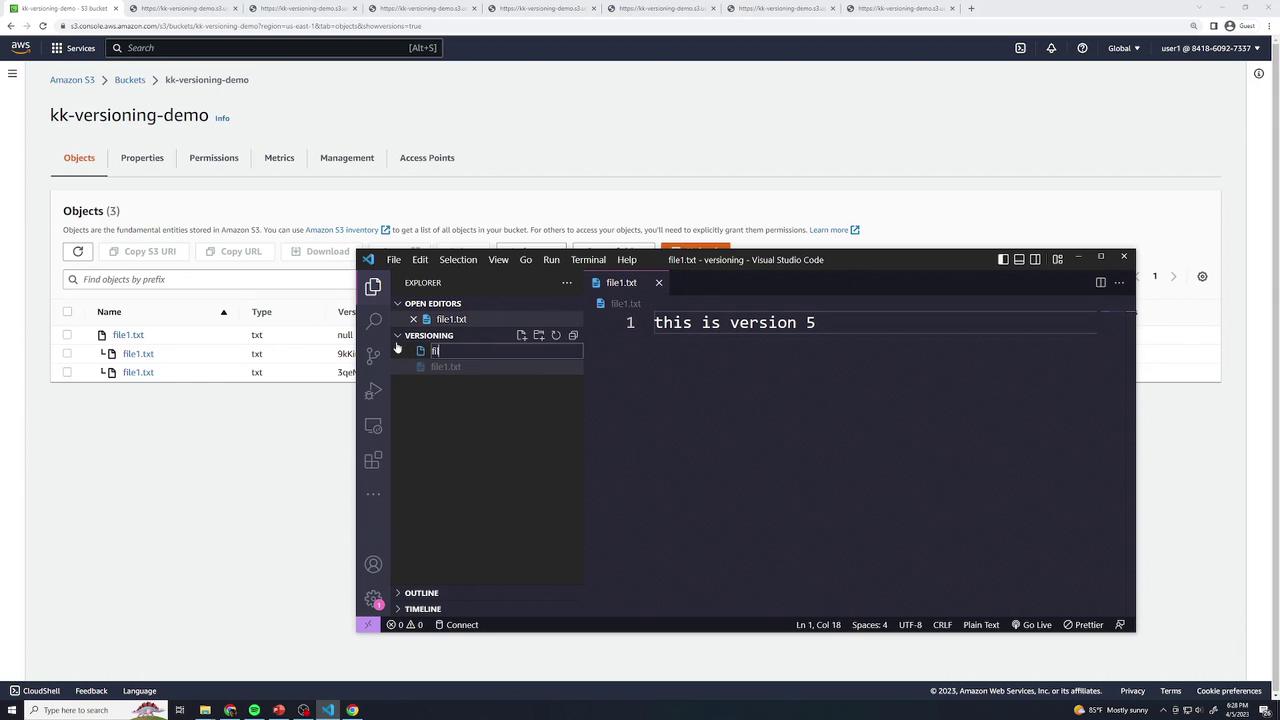
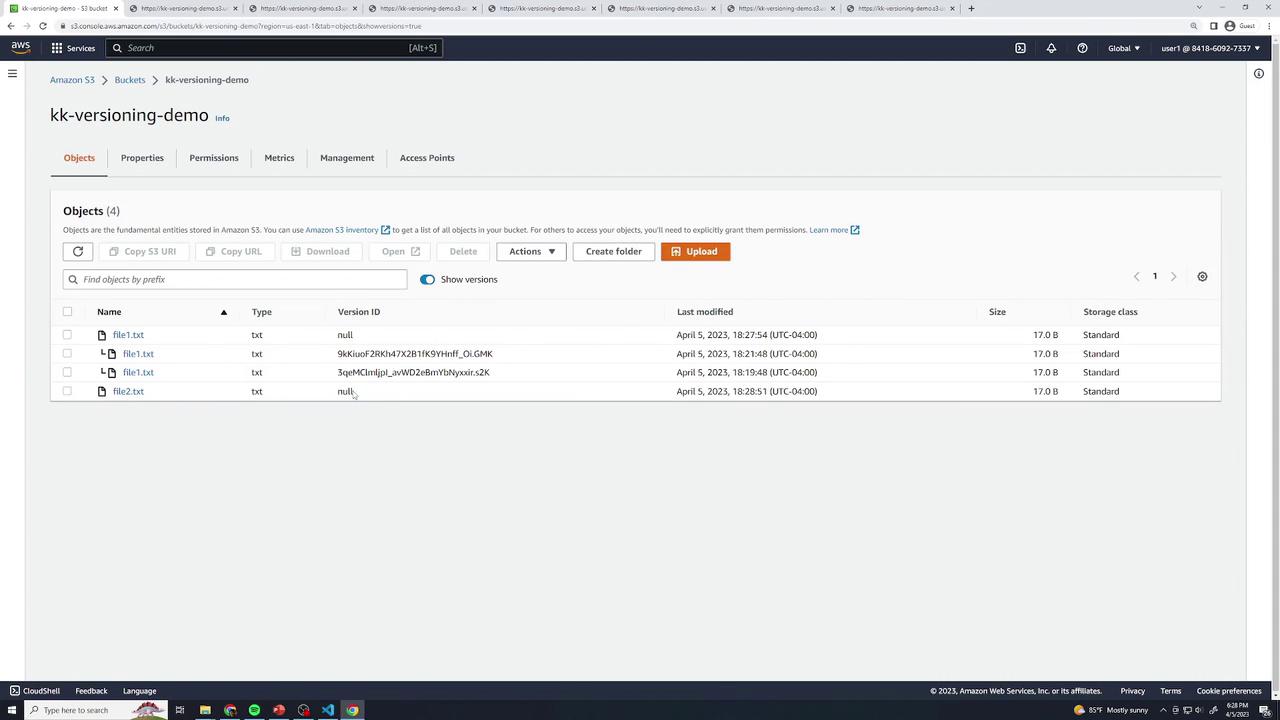
3. Upload **version 4** (`this is version 4`) and **version 5** (`this is version 5`). Both appear with `null` Version IDs.
<Frame>
  ![The image shows an Amazon S3 bucket interface with a list of objects and a Visual Studio Code window displaying a text file with the content "this is version 5."](https://kodekloud.com/kk-media/image/upload/v1752869282/notes-assets/images/Amazon-Simple-Storage-Service-Amazon-S3-Demo-Versioning/amazon-s3-bucket-vscode-text-file-2.jpg)
</Frame>

<Frame>
  ![The image shows an Amazon S3 bucket interface with a list of text files, their version IDs, last modified dates, sizes, and storage classes.](https://kodekloud.com/kk-media/image/upload/v1752869283/notes-assets/images/Amazon-Simple-Storage-Service-Amazon-S3-Demo-Versioning/amazon-s3-bucket-interface-files-list-2.jpg)
</Frame>

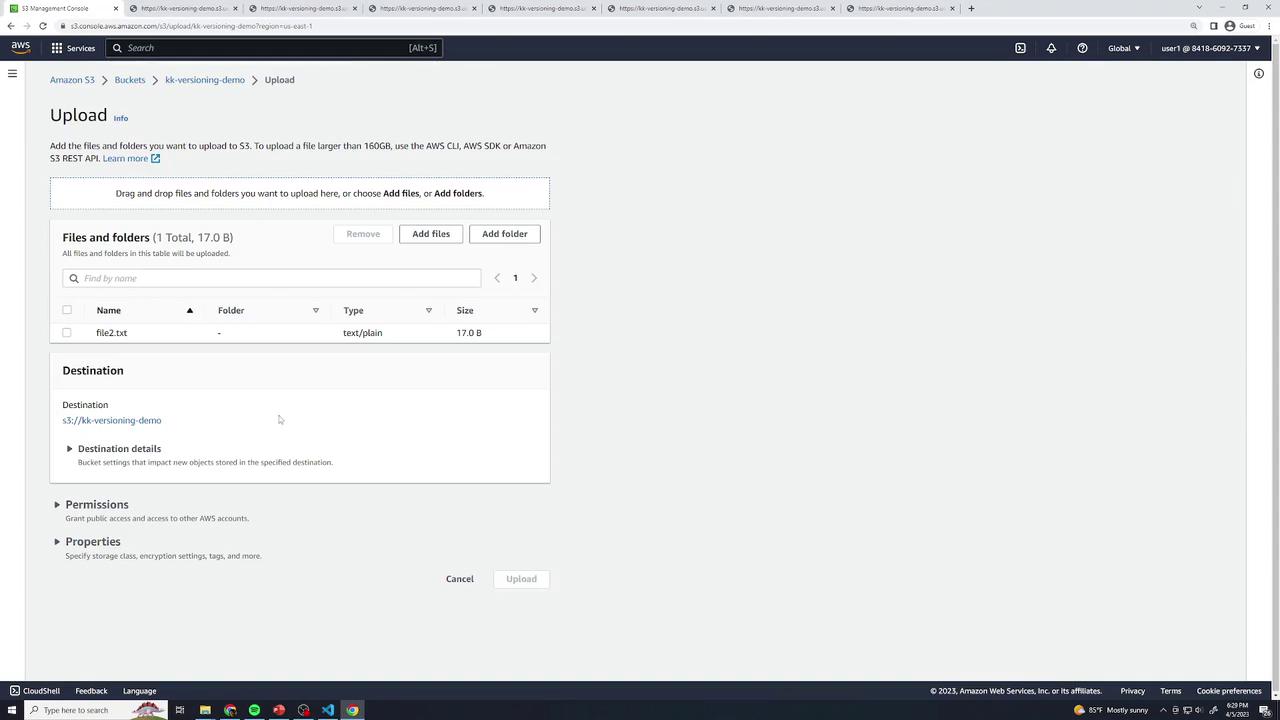
### New Objects under Suspension

1. Create `file2.txt` with `this is version 1` and upload—it gets `null` ID.
2. Update to `this is version 2`—the previous `null` version is replaced.
<Frame>
  ![The image shows an Amazon S3 Management Console screen where a file named "file2.txt" is being prepared for upload to a bucket named "kk-versioning-demo." The file is 17.0 bytes in size and is of type "text/plain."](https://kodekloud.com/kk-media/image/upload/v1752869284/notes-assets/images/Amazon-Simple-Storage-Service-Amazon-S3-Demo-Versioning/amazon-s3-console-file-upload-kk-versioning.jpg)
</Frame>

***

## MFA Delete

In the **Bucket Versioning** settings, you’ll see **MFA Delete**. Enabling this feature (via CLI or SDK) requires multi-factor authentication to change or delete versions. It cannot be turned on in the console.
<Frame>
  ![The image shows an AWS S3 interface for editing bucket versioning settings, with options to suspend or enable versioning and a section for multi-factor authentication (MFA) delete. There are buttons to cancel or save changes.](https://kodekloud.com/kk-media/image/upload/v1752869285/notes-assets/images/Amazon-Simple-Storage-Service-Amazon-S3-Demo-Versioning/aws-s3-bucket-versioning-settings-interface.jpg)
</Frame>

***

## Versioning States Overview

| Versioning State | New Upload Behavior          | Recoverability                                  |
| ---------------- | ---------------------------- | ----------------------------------------------- |
| Disabled         | Overwrites existing objects  | No history, permanent deletes                   |
| Enabled          | New versions with unique IDs | All versions retained; delete markers available |
| Suspended        | `null` Version ID on uploads | Existing versions kept; new uploads overwrite   |

***

## Cleanup

To tear down:

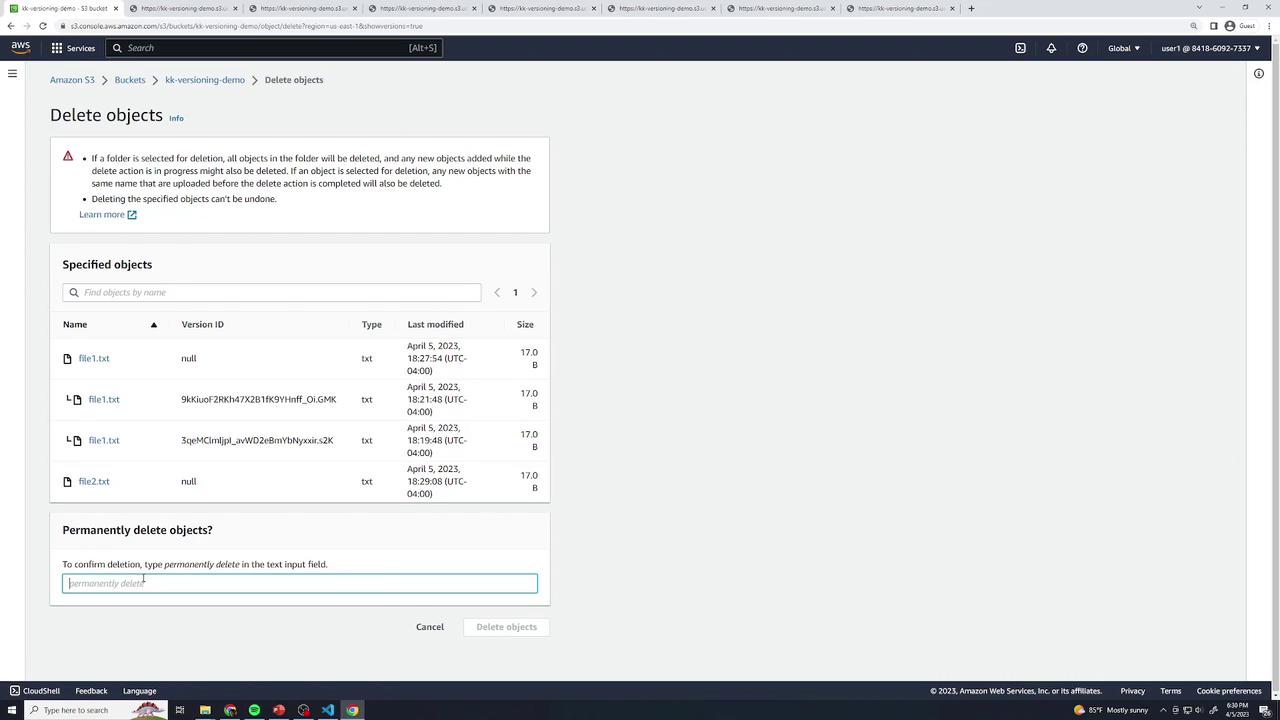
1. In **Objects**, enable **Show versions**.
2. Select all versions and markers → **Delete** → type **permanently delete**.
3. Delete the bucket.
<Frame>
  ![The image shows an Amazon S3 interface for deleting objects, listing files with details like version ID, type, last modified date, and size. There's a prompt to confirm deletion by typing "permanently delete."](https://kodekloud.com/kk-media/image/upload/v1752869286/notes-assets/images/Amazon-Simple-Storage-Service-Amazon-S3-Demo-Versioning/amazon-s3-delete-objects-interface.jpg)
</Frame>

***

## Links and References

* [AWS S3 Versioning User Guide](https://docs.aws.amazon.com/AmazonS3/latest/userguide/Versioning.html)
* [Amazon S3 Documentation](https://docs.aws.amazon.com/s3/)
* [CLI: `aws s3api put-bucket-versioning`](https://docs.aws.amazon.com/cli/latest/reference/s3api/put-bucket-versioning.html)

<CardGroup>
  <Card title="Watch Video" icon="video" cta="Learn more" href="https://learn.kodekloud.com/user/courses/amazon-simple-storage-service-amazon-s3/module/64c3572f-57b6-4263-8818-9809392a98a1/lesson/a0db960e-aa9f-4158-be4b-a9fcb927a569" />

  <Card title="Practice Lab" icon="installation" cta="Learn more" href="https://learn.kodekloud.com/user/courses/amazon-simple-storage-service-amazon-s3/module/64c3572f-57b6-4263-8818-9809392a98a1/lesson/fddf9e95-d0b9-402b-a1b8-ebfb9d650269" />
</CardGroup>