> ## Documentation Index
> Fetch the complete documentation index at: https://notes.kodekloud.com/llms.txt
> Use this file to discover all available pages before exploring further.
# Static Website
> This guide explains how to host a static website using Amazon S3, covering setup, pricing, and custom domain configuration.
In this guide, you'll learn how to serve a fully static website—HTML, CSS, JavaScript, and media—directly from an Amazon S3 bucket. We’ll cover how static hosting works, pricing considerations, and steps to configure a custom domain.
Static website hosting on Amazon S3 supports only static files. If your site requires server-side processing, consider integrating Amazon EC2, Amazon ECS, or AWS Lambda.
## Understanding Static Websites
When a user enters a URL, their browser sends an HTTP GET request to a web server, which responds with files that the browser renders. Common file types include:
| File Type | Purpose |
| -------------- | ----------------------------------------------------------- |
| HTML | Defines the page structure and content. |
| CSS | Styles layout, fonts, colors, and spacing. |
| JavaScript | Adds interactivity and dynamic behavior on the client side. |
| Images & Media | Provides visual and audio assets for the page. |
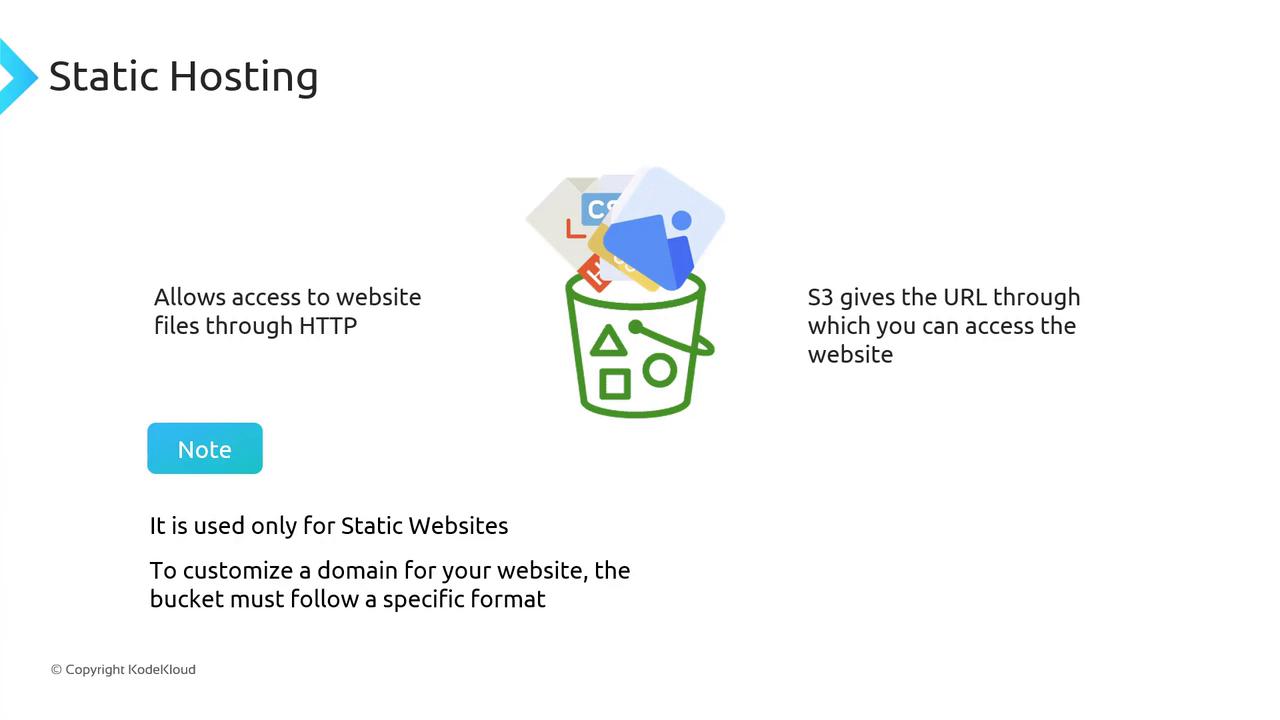
By uploading these files as objects in an S3 bucket and enabling static website hosting, you can serve them directly over HTTP.
## How Static Hosting Works
1. Upload your site assets (HTML, CSS, JS, images) to an S3 bucket.
2. In the bucket **Properties**, enable **Static website hosting**.
3. Specify your `index.html` (and optional `error.html`) documents.
4. Use the assigned S3 website endpoint to deliver your content.
## Pricing Overview
Static hosting on S3 involves standard storage and data transfer fees, plus a small request charge. For example, on S3 Standard, GET requests cost \$0.0004 per 1,000 requests.
| Cost Component | Pricing (S3 Standard) |
| ------------------- | --------------------------- |
| Storage | Pay per GB stored per month |
| Data Transfer (Out) | Pay per GB transferred out |
| HTTP GET Requests | \$0.0004 per 1,000 requests |
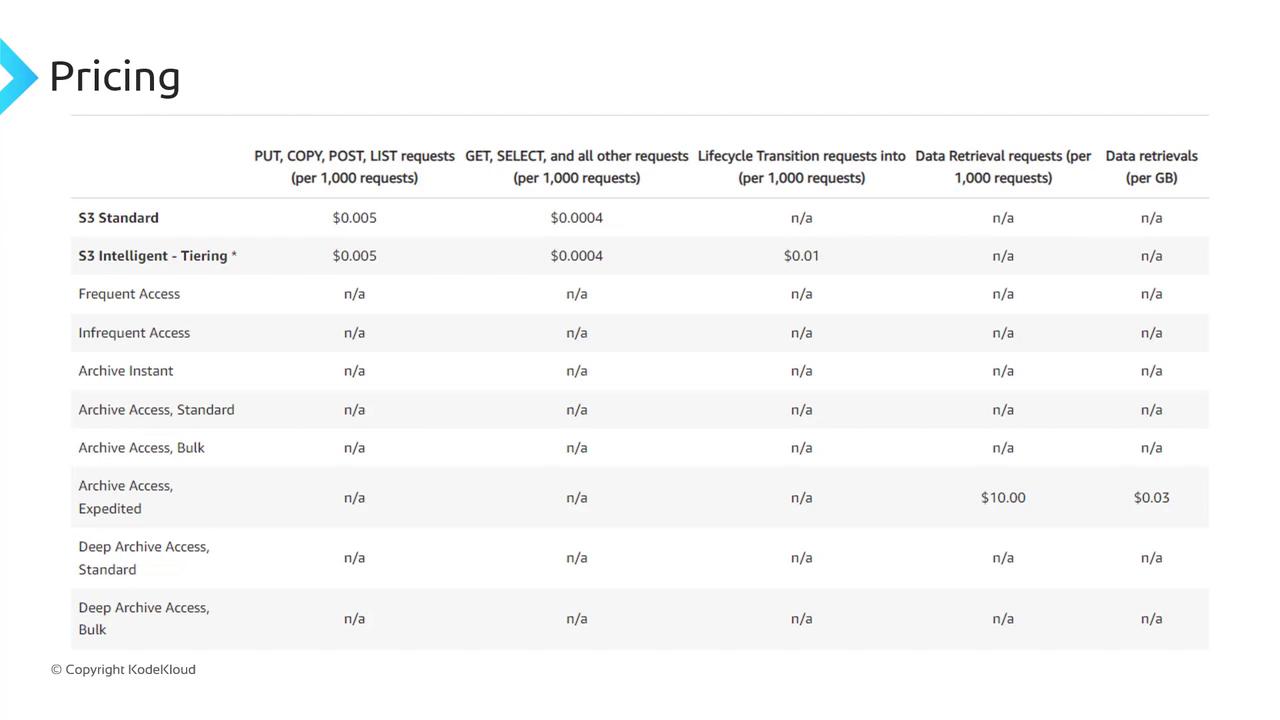
Factor in both storage and request fees when estimating your total hosting cost.
## Accessing Your Static Site
After enabling static website hosting, S3 assigns an endpoint in this format:
```plaintext theme={null}
http://bucketname.s3-website-.amazonaws.com
```
Point your users to this URL to serve your static site directly from S3.
## Using a Custom Domain
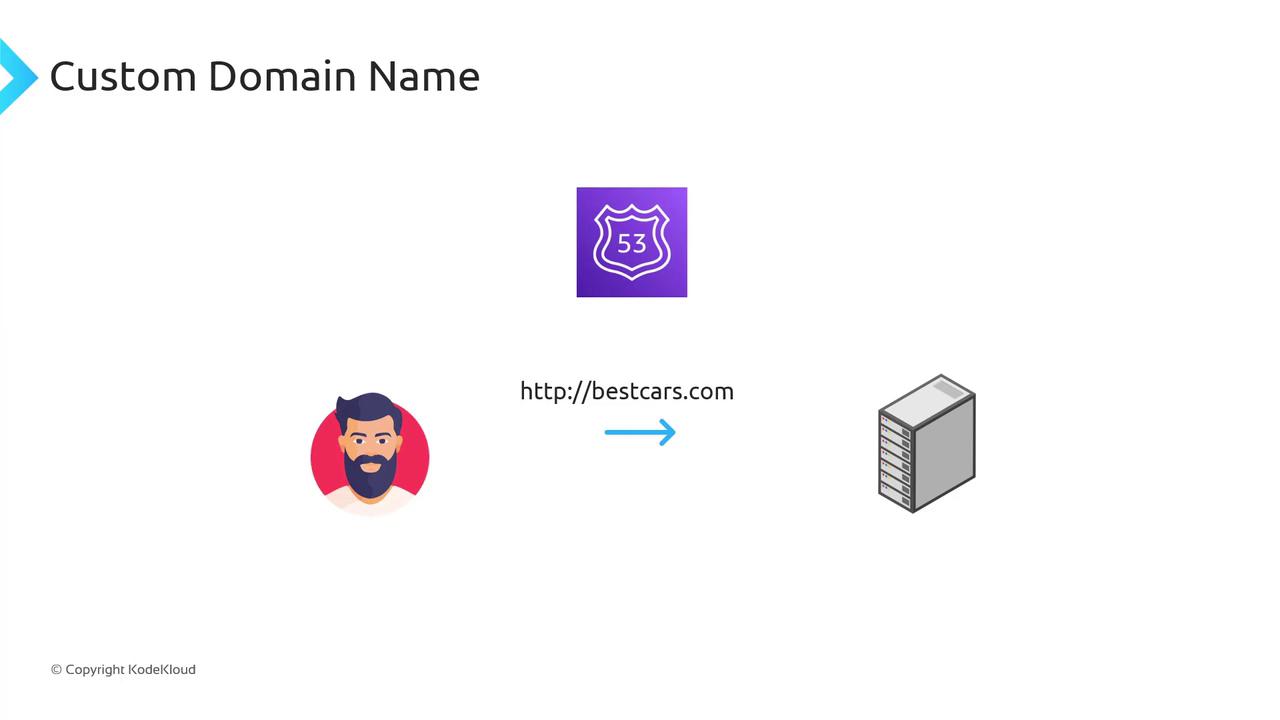
To replace the default S3 URL with your own domain, configure DNS using Amazon Route 53 or another provider. Your bucket name must exactly match the domain you wish to use. For example:
* Bucket name: `bestcars.com`
* Custom domain: `http://bestcars.com`
In Route 53, create an Alias record (or CNAME) that maps `bestcars.com` to your S3 website endpoint.
Your S3 bucket name **must** match your custom domain (`example.com`). If they differ, DNS routing will fail and your site will be inaccessible.
## Further Reading
* [Amazon S3 Static Website Hosting](https://docs.aws.amazon.com/AmazonS3/latest/dev/WebsiteHosting.html)
* [Route 53 Routing to Static Website](https://docs.aws.amazon.com/Route53/latest/DeveloperGuide/routing-to-static-site.html)