> ## Documentation Index
> Fetch the complete documentation index at: https://notes.kodekloud.com/llms.txt
> Use this file to discover all available pages before exploring further.

# S3 Basics Demo

> Learn to create, configure, and manage an Amazon S3 bucket with a step-by-step guide on various features and operations.

Learn how to create, configure, and manage an Amazon S3 bucket. In this step-by-step guide, we’ll cover the global namespace, bucket configuration, uploading and organizing objects, and safely deleting buckets.

## Accessing the S3 Console

1. Sign in to the [AWS Management Console](https://aws.amazon.com/console/) and search for **S3**.
2. Depending on your account state, you’ll see one of two views:

If you have no buckets, an intro screen appears with a **Create bucket** button:
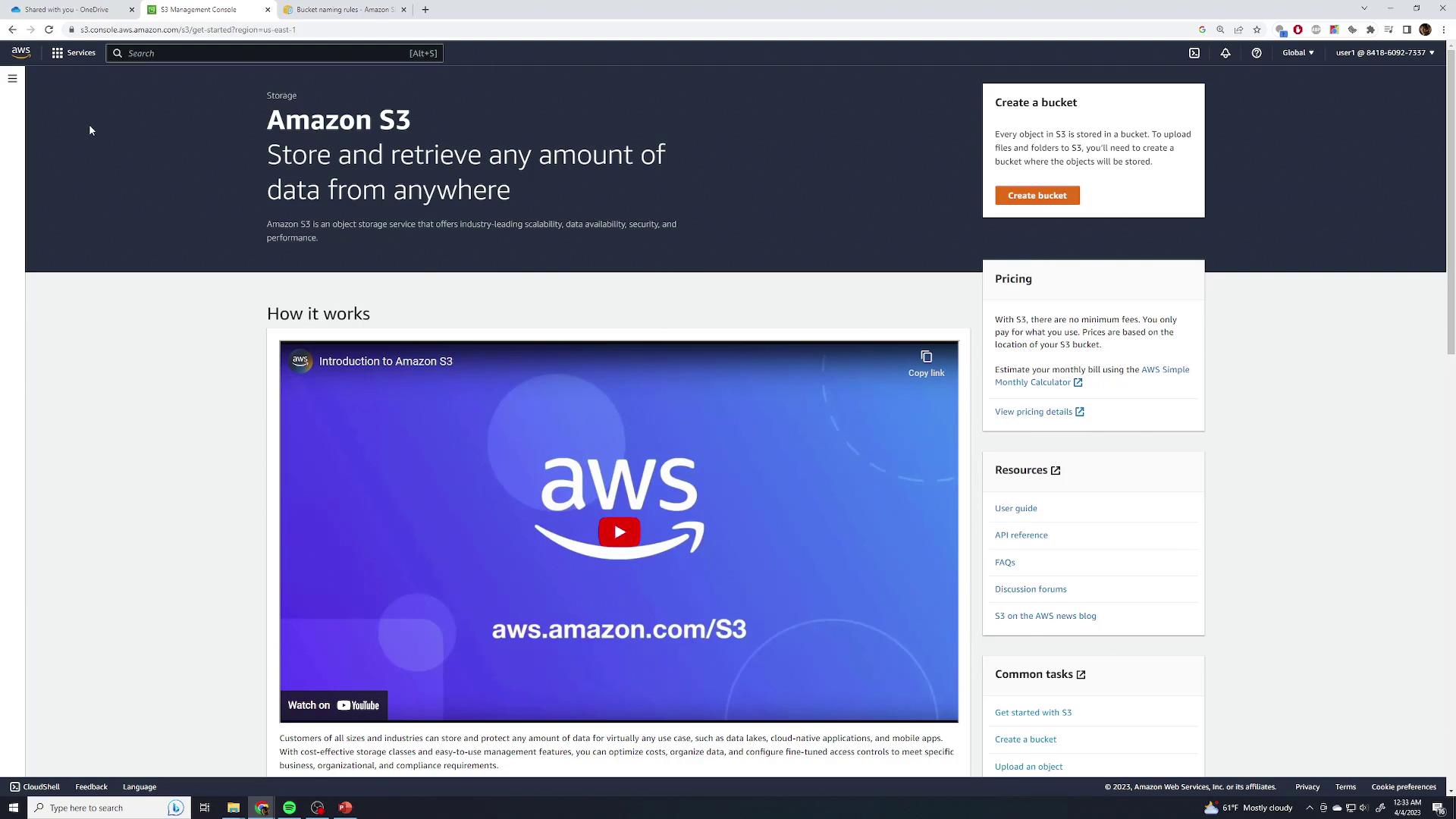
<Frame>
  ![The image shows the Amazon S3 management console webpage, featuring an introduction video and options to create a bucket, view pricing, and access resources.](https://kodekloud.com/kk-media/image/upload/v1752869320/notes-assets/images/Amazon-Simple-Storage-Service-Amazon-S3-S3-Basics-Demo/amazon-s3-management-console-webpage.jpg)
</Frame>

Otherwise, you’ll see your existing buckets and the **Create bucket** option:
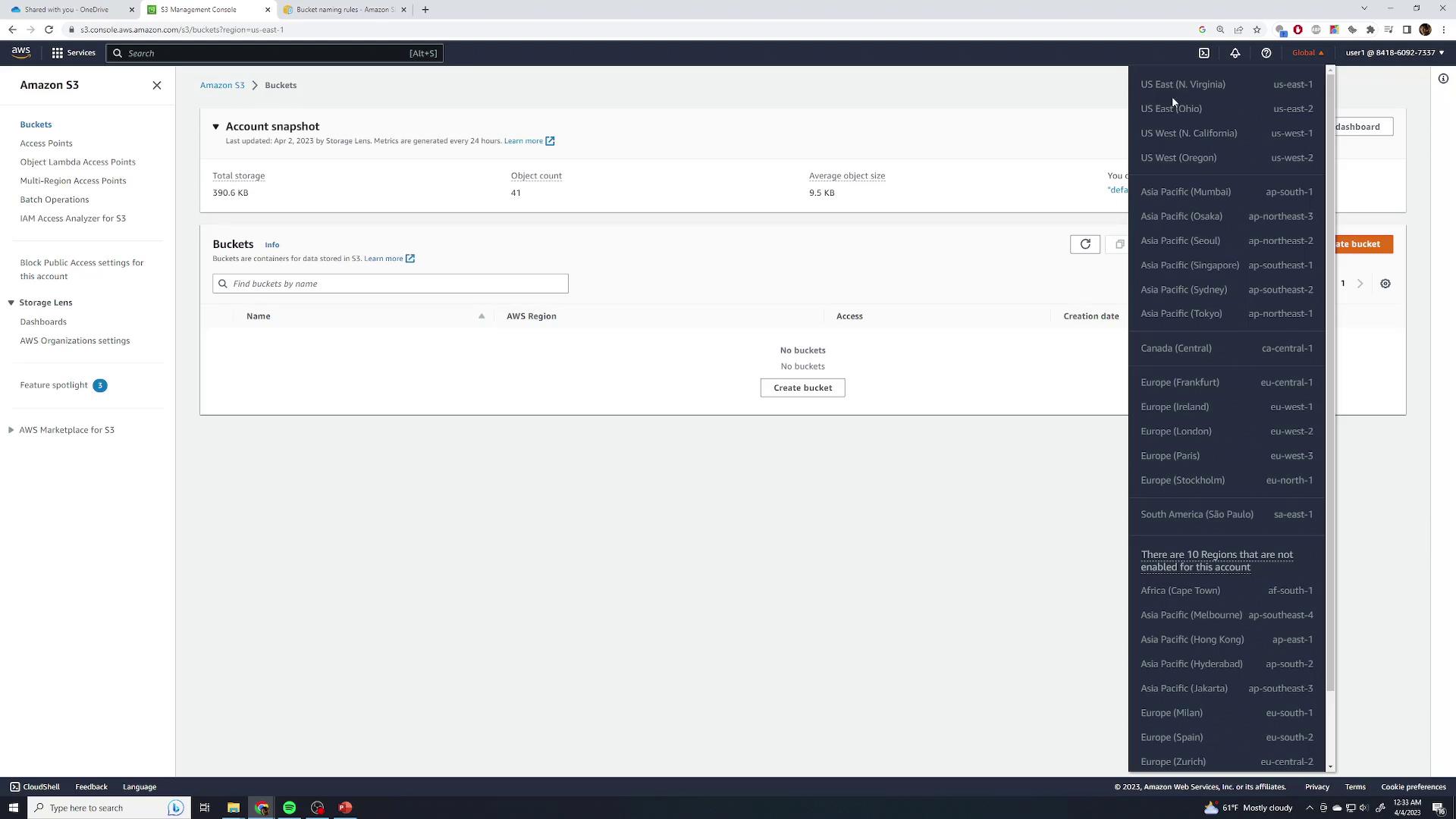
<Frame>
  ![The image shows the AWS S3 Management Console with an account snapshot displaying storage details and a list of AWS regions. There are no buckets created, and a dropdown menu of regions is visible.](https://kodekloud.com/kk-media/image/upload/v1752869322/notes-assets/images/Amazon-Simple-Storage-Service-Amazon-S3-S3-Basics-Demo/aws-s3-management-console-snapshot.jpg)
</Frame>

<Callout icon="lightbulb" color="#1CB2FE">
  Amazon S3 uses a *global namespace*. The top‐left region selector is always **Global** and displays buckets from all regions. You pick a region only when creating a new bucket.
</Callout>

## Creating a Bucket

1. Click **Create bucket**.
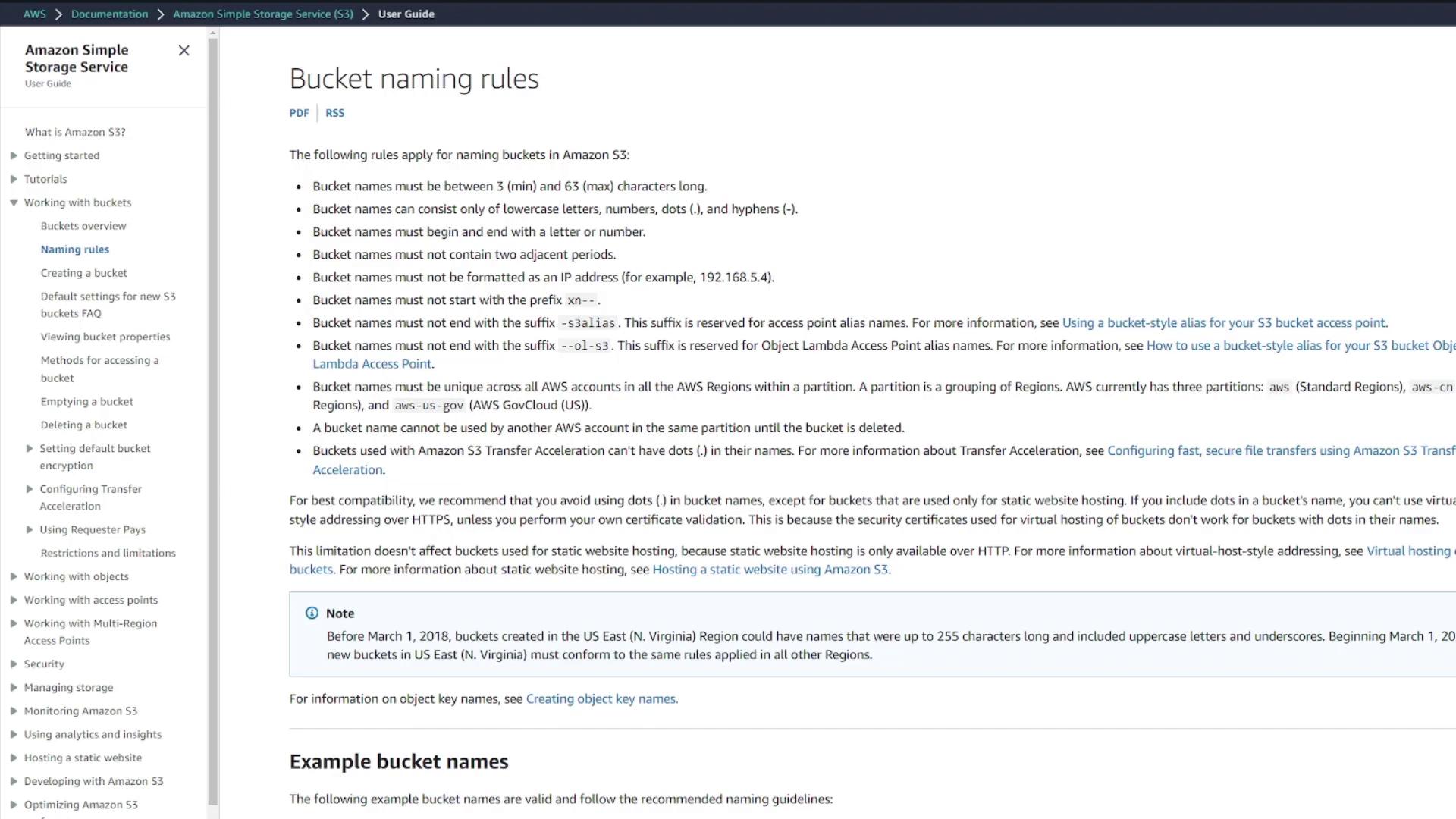
2. Enter a **globally unique** name. If your choice is taken (e.g., `demo`), you’ll see an error:
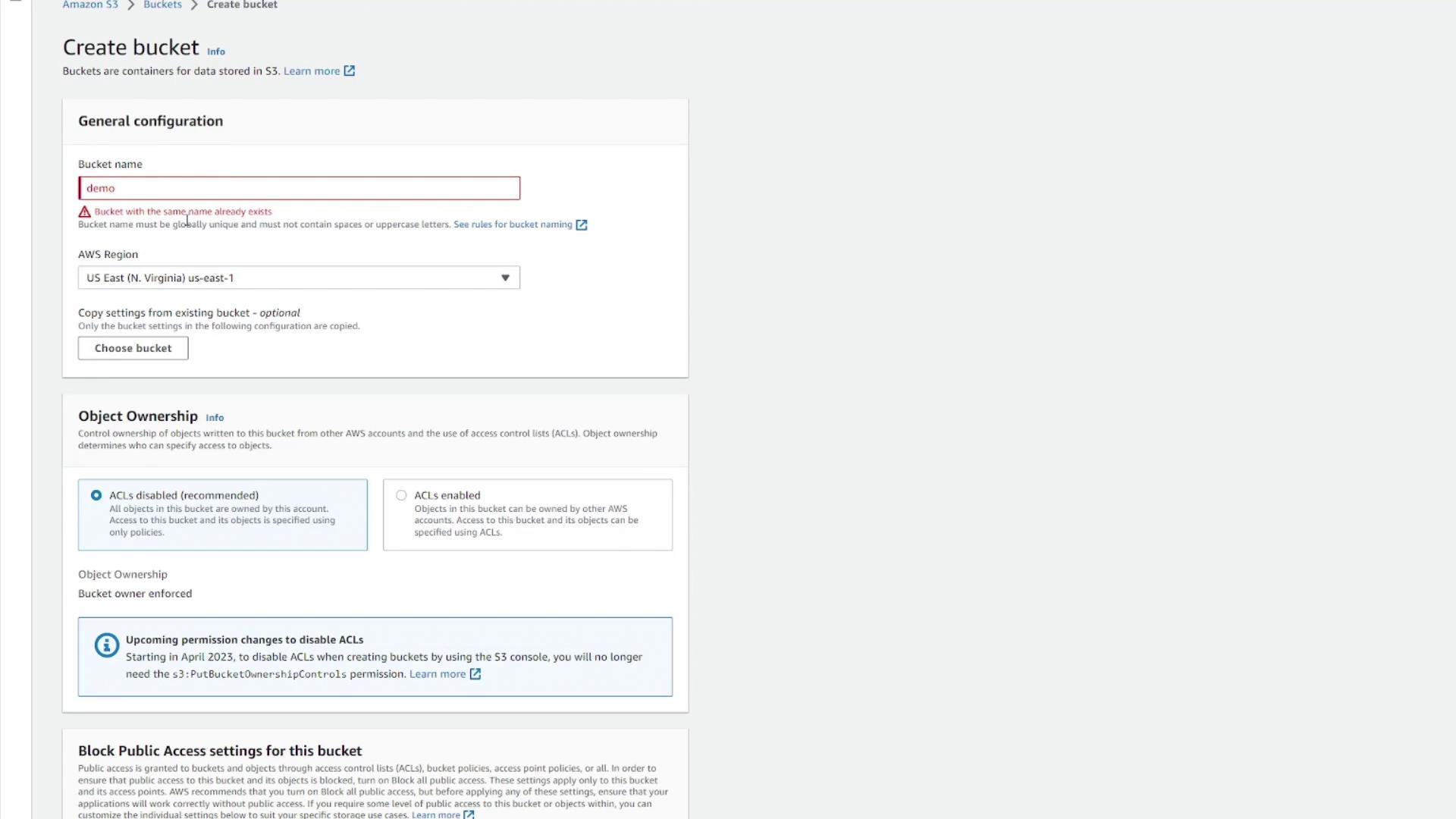
<Frame>
  ![The image shows an Amazon S3 "Create bucket" configuration page, where a user is attempting to create a bucket named "demo," but an error indicates that the bucket name already exists. It includes options for setting the AWS region, object ownership, and block public access settings.](https://kodekloud.com/kk-media/image/upload/v1752869322/notes-assets/images/Amazon-Simple-Storage-Service-Amazon-S3-S3-Basics-Demo/amazon-s3-create-bucket-error.jpg)
</Frame>

<Callout icon="lightbulb" color="#1CB2FE">
  For bucket naming rules (character limits, allowed characters, and examples), see the [Bucket Naming Rules](https://docs.aws.amazon.com/AmazonS3/latest/userguide/bucketnamingrules.html).
</Callout>

3. Choose a unique name (for example, `kodekloud-demo-123`):
<Frame>
  ![The image shows a webpage from the Amazon Simple Storage Service (S3) User Guide detailing bucket naming rules, including character limits and formatting restrictions. It also provides example bucket names and additional notes on compatibility and usage.](https://kodekloud.com/kk-media/image/upload/v1752869324/notes-assets/images/Amazon-Simple-Storage-Service-Amazon-S3-S3-Basics-Demo/amazon-s3-bucket-naming-rules-guide.jpg)
</Frame>

4. Select the target region (e.g., **US East (N. Virginia) us-east-1**).
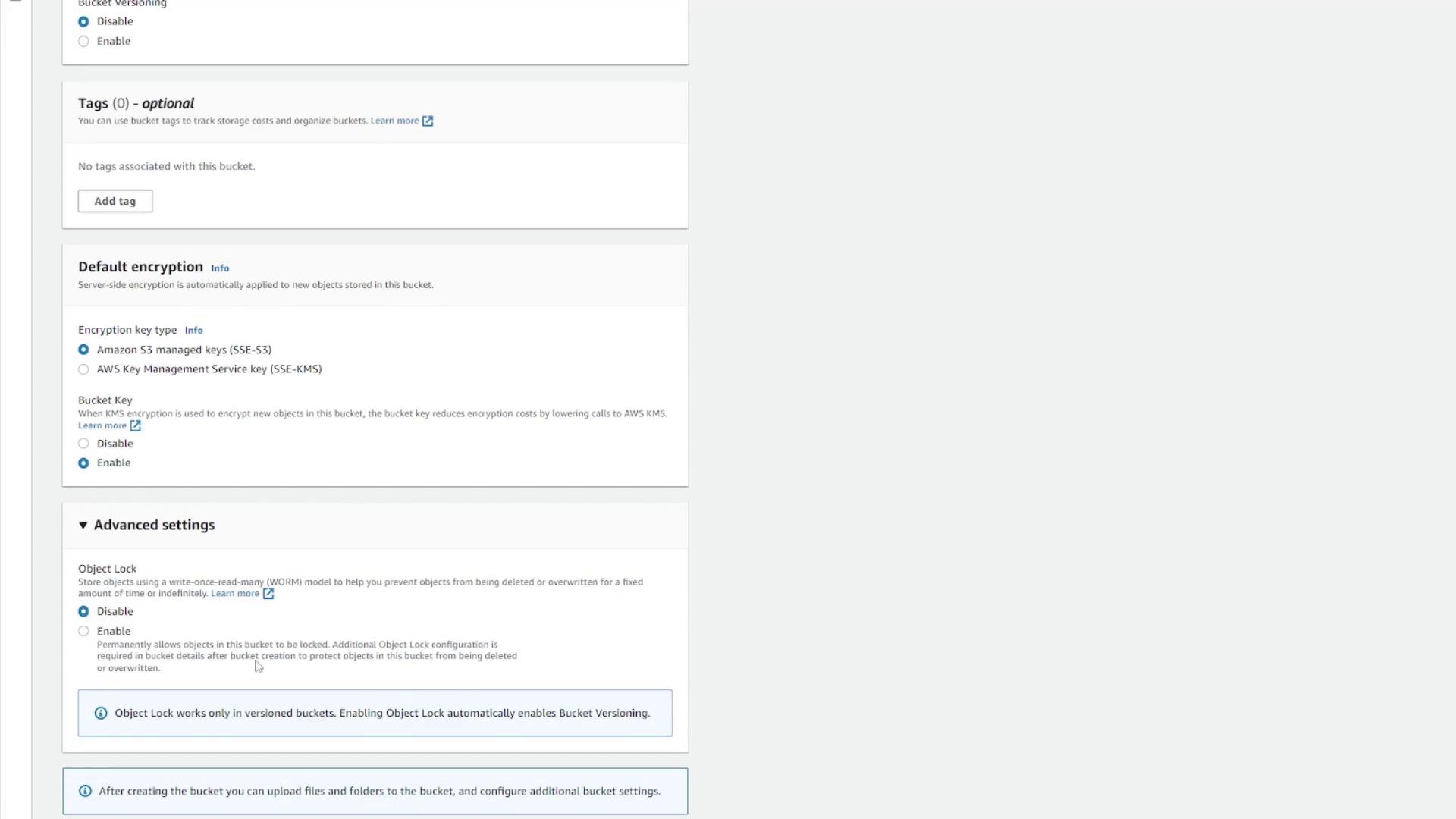
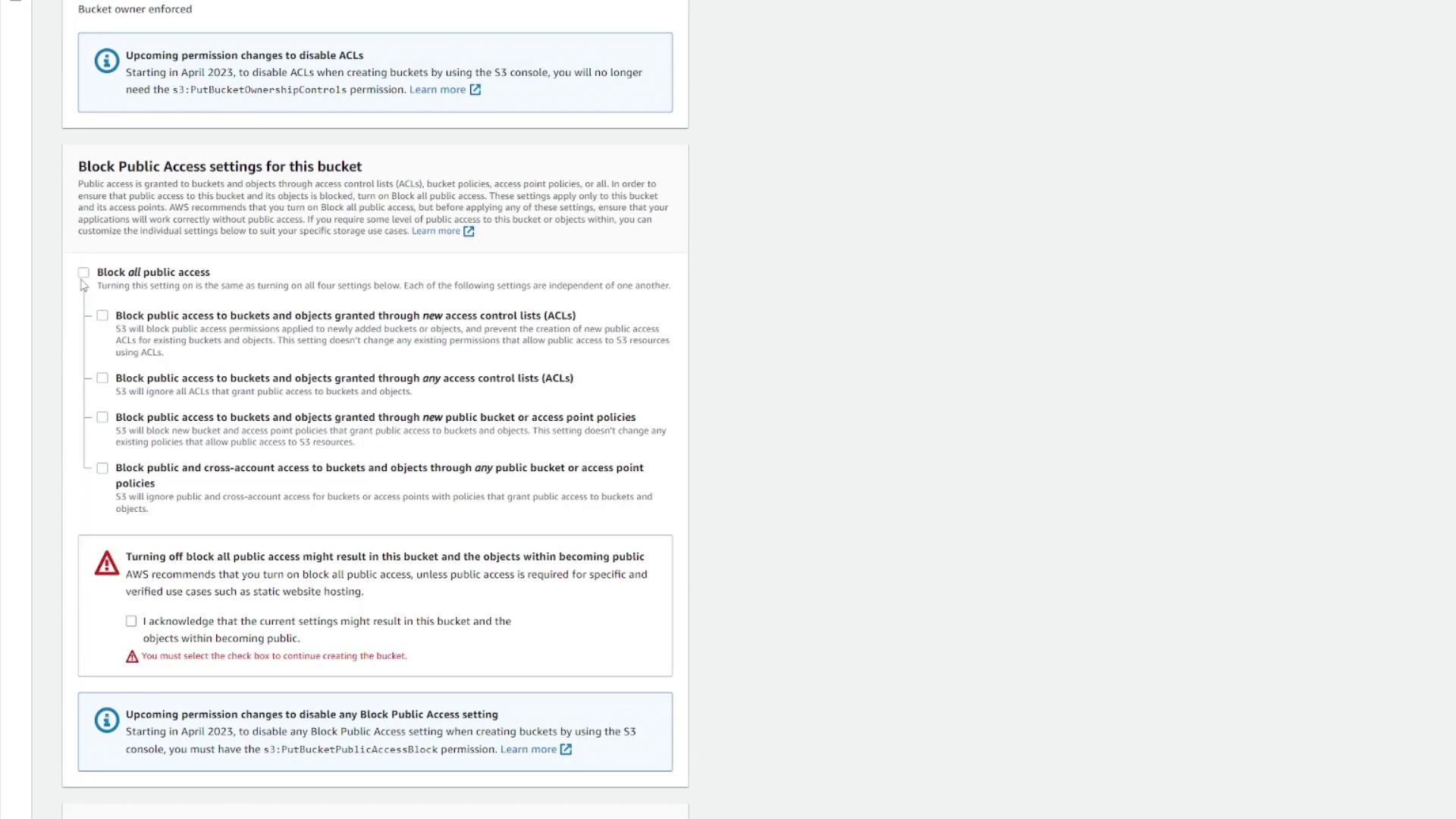
5. Configure features or leave defaults:
   * Object ownership & ACLs
   * Block public access
   * Versioning & encryption
   * Tags & advanced settings
<Frame>
  ![The image shows a settings page for configuring block public access options for an Amazon S3 bucket, with checkboxes for different access control settings and warnings about public access.](https://kodekloud.com/kk-media/image/upload/v1752869325/notes-assets/images/Amazon-Simple-Storage-Service-Amazon-S3-S3-Basics-Demo/s3-bucket-settings-block-public-access.jpg)
</Frame>

<Frame>
  ![The image shows a section of an AWS S3 bucket configuration page, including options for tags, default encryption, and advanced settings like Object Lock.](https://kodekloud.com/kk-media/image/upload/v1752869326/notes-assets/images/Amazon-Simple-Storage-Service-Amazon-S3-S3-Basics-Demo/aws-s3-bucket-configuration-settings.jpg)
</Frame>

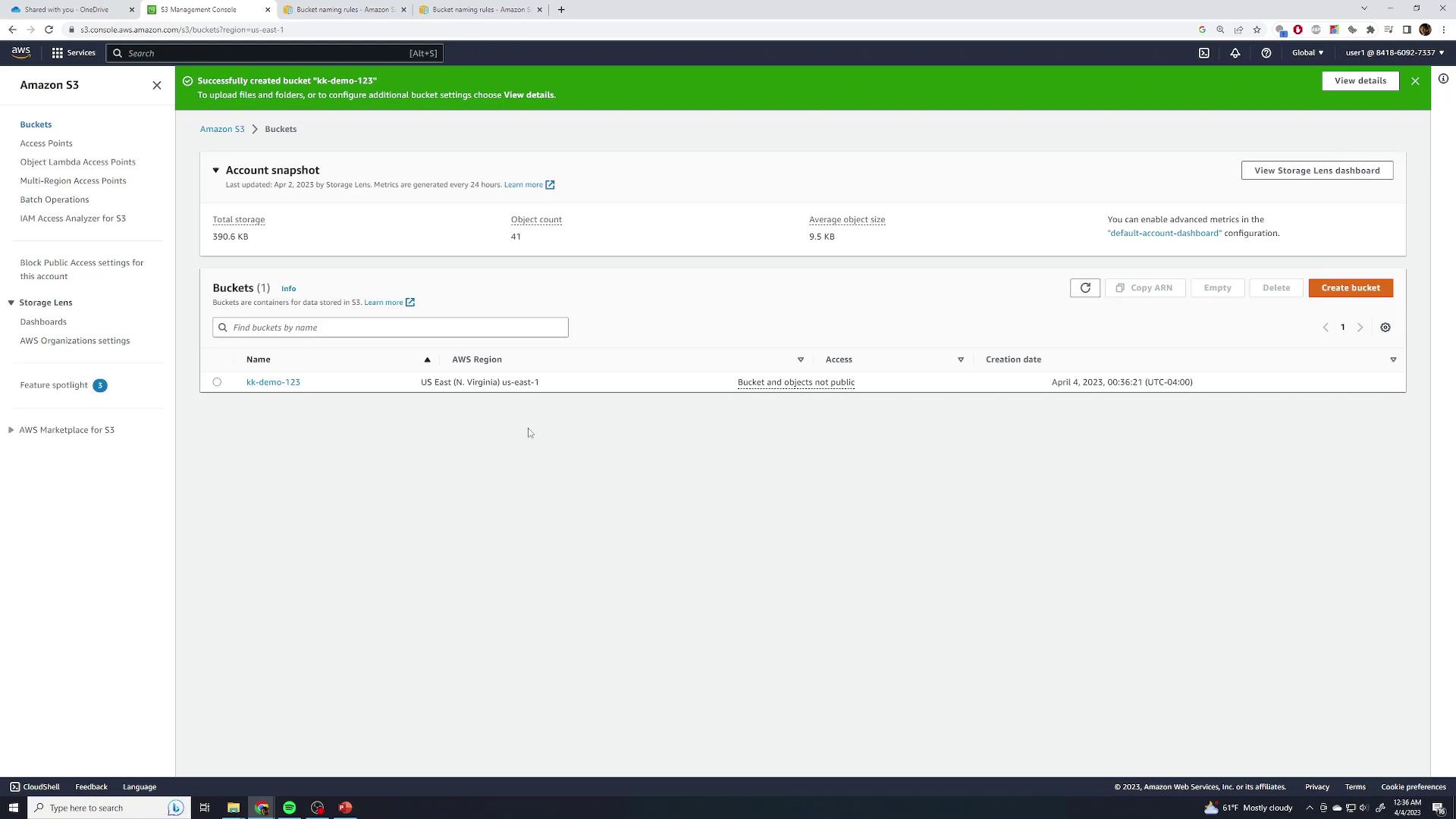
6. Click **Create bucket**. You’ll see your new bucket in the list:
<Frame>
  ![The image shows the Amazon S3 management console with a notification of a successfully created bucket named "kk-demo-123" in the US East (N. Virginia) region. The bucket and objects are not public.](https://kodekloud.com/kk-media/image/upload/v1752869327/notes-assets/images/Amazon-Simple-Storage-Service-Amazon-S3-S3-Basics-Demo/amazon-s3-console-bucket-kk-demo-123.jpg)
</Frame>

## Exploring Bucket Details

Click your bucket’s name to open its overview. You’ll find tabs for Objects, Properties, Permissions, Metrics, and Management.

| Feature       | Description                                                                                           |
| ------------- | ----------------------------------------------------------------------------------------------------- |
| Region & ARN  | Shows the bucket’s region and Amazon Resource Name.                                                   |
| Creation Date | Timestamp when the bucket was created.                                                                |
| Versioning    | Indicates if object versioning is enabled or disabled.                                                |
| Encryption    | Default server-side encryption (SSE) settings for new objects.                                        |
| Other Options | Logging, CloudTrail, events, transfer acceleration, object lock, requester pays, and website hosting. |

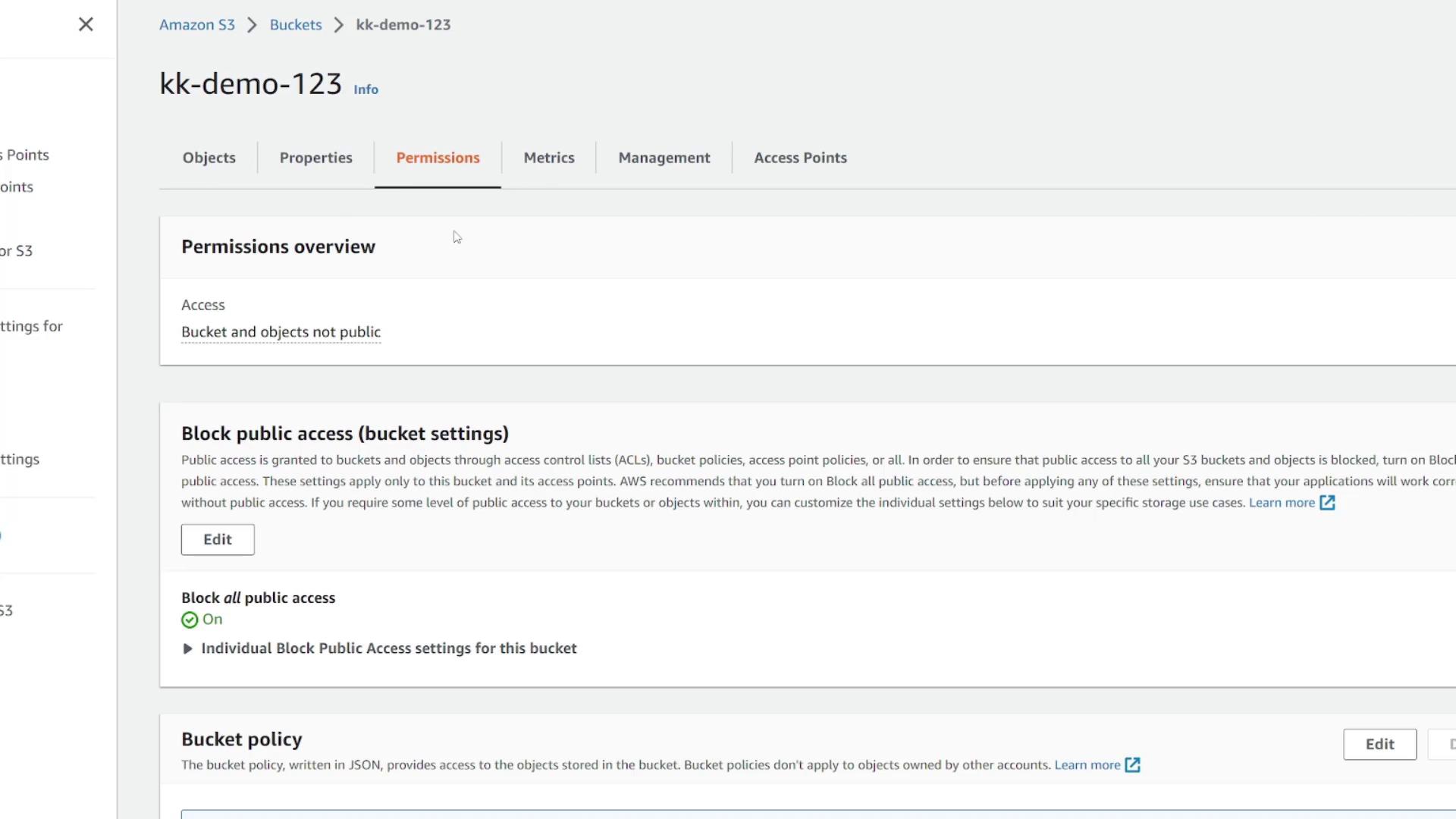
In **Permissions**, manage ACLs or bucket policies:
<Frame>
  ![The image shows the permissions settings for an Amazon S3 bucket named "kk-demo-123," indicating that the bucket and its objects are not public, with public access blocked.](https://kodekloud.com/kk-media/image/upload/v1752869328/notes-assets/images/Amazon-Simple-Storage-Service-Amazon-S3-S3-Basics-Demo/s3-bucket-kk-demo-123-permissions.jpg)
</Frame>

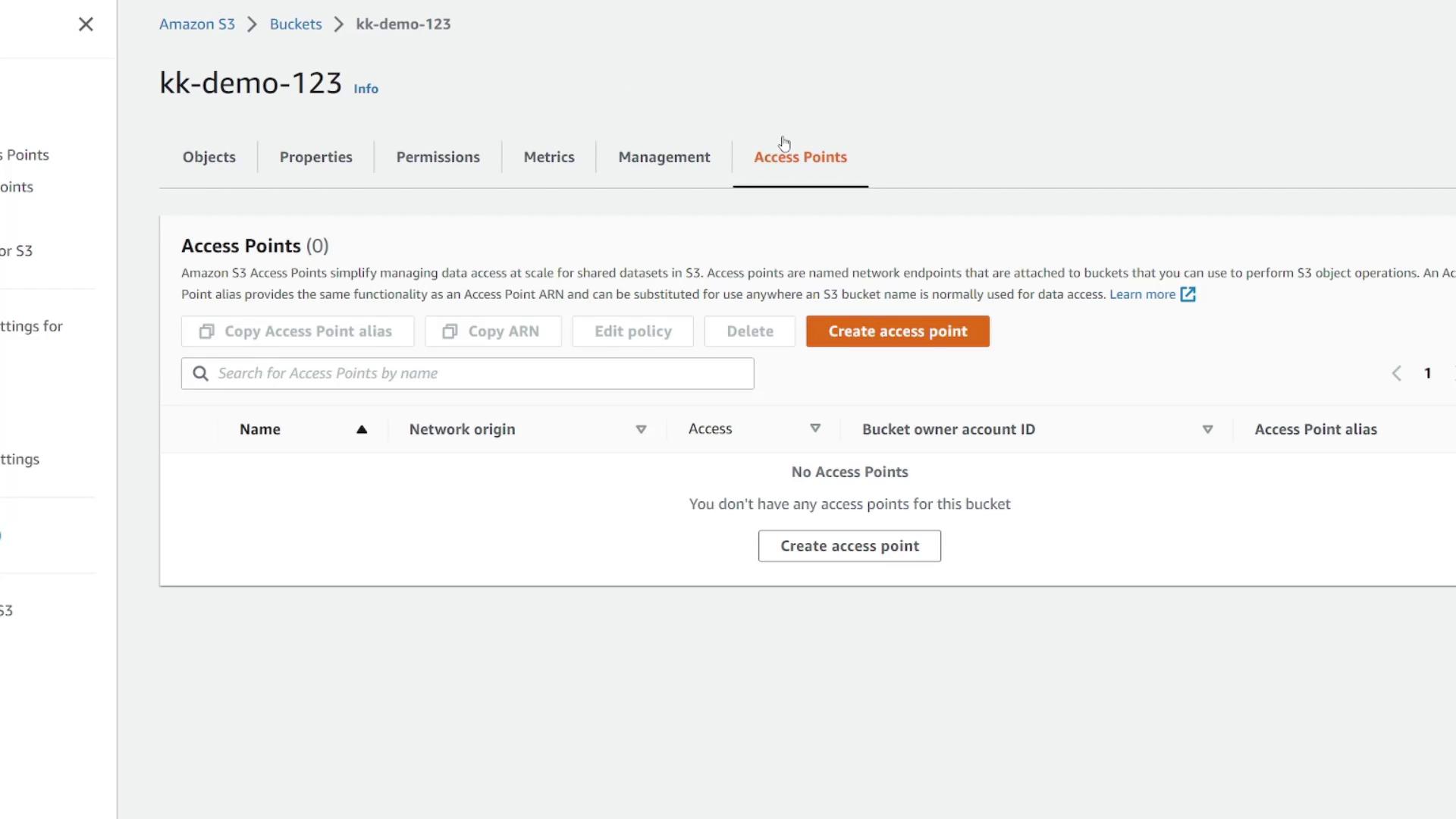
Under **Metrics**, view CloudWatch data like total storage and object count. **Management** lets you set lifecycle rules, replication, inventory, and access points:
<Frame>
  ![The image shows an Amazon S3 management console interface for a bucket named "kk-demo-123," specifically on the "Access Points" tab, with no access points currently created.](https://kodekloud.com/kk-media/image/upload/v1752869330/notes-assets/images/Amazon-Simple-Storage-Service-Amazon-S3-S3-Basics-Demo/amazon-s3-console-kk-demo-123-access-points.jpg)
</Frame>

## Uploading Objects

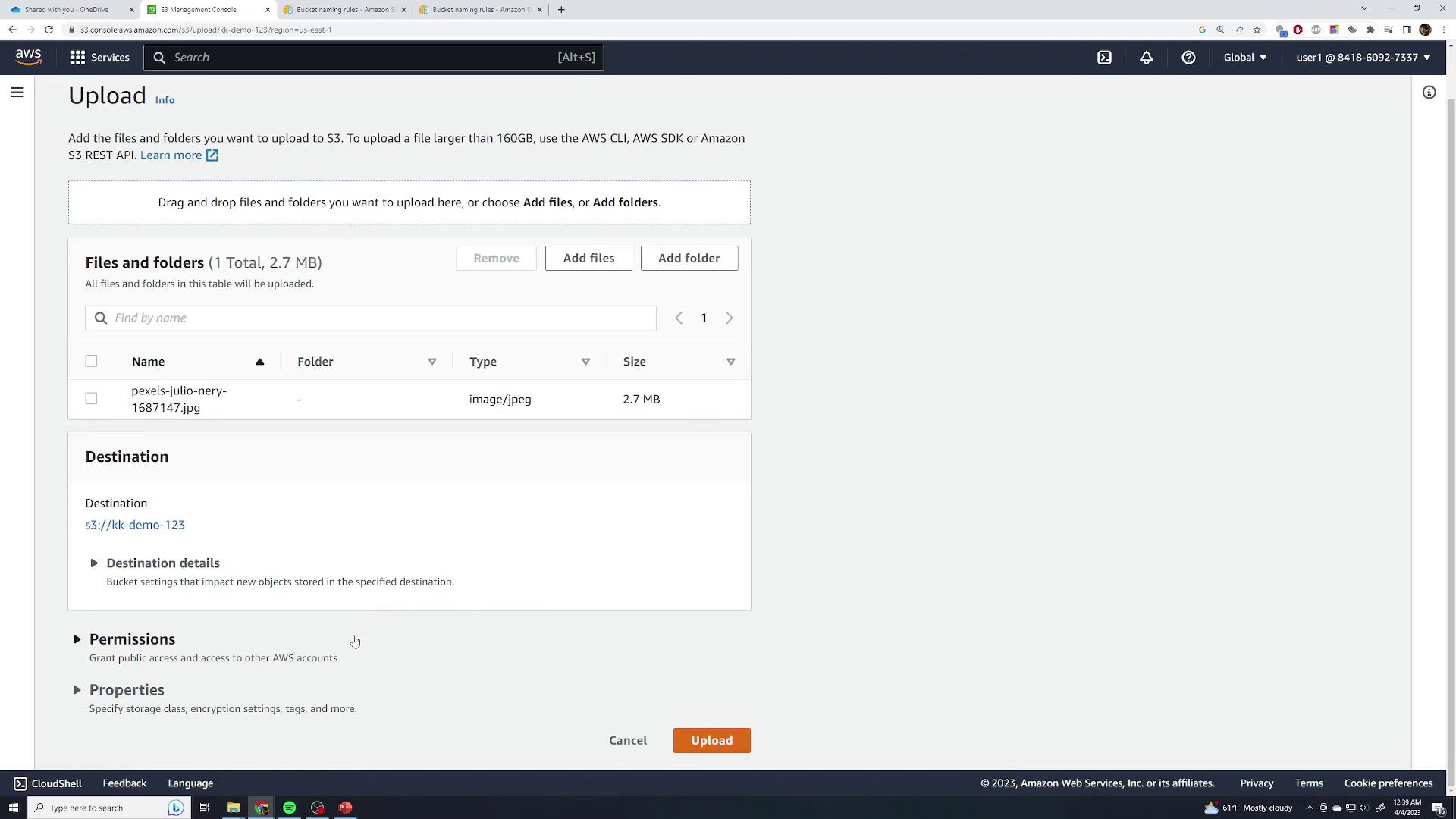
1. Go to the **Objects** tab and click **Upload**.
2. Drag and drop files or use **Add files**. For example, upload `pexels-julio-nery-1687147.jpg` (2.7 MB JPEG):
<Frame>
  ![The image shows an AWS S3 upload interface where a file named "pexels-julio-nery-1687147.jpg" is being prepared for upload to a specified S3 bucket. The file is 2.7 MB in size.](https://kodekloud.com/kk-media/image/upload/v1752869331/notes-assets/images/Amazon-Simple-Storage-Service-Amazon-S3-S3-Basics-Demo/aws-s3-upload-interface-file-preparation.jpg)
</Frame>

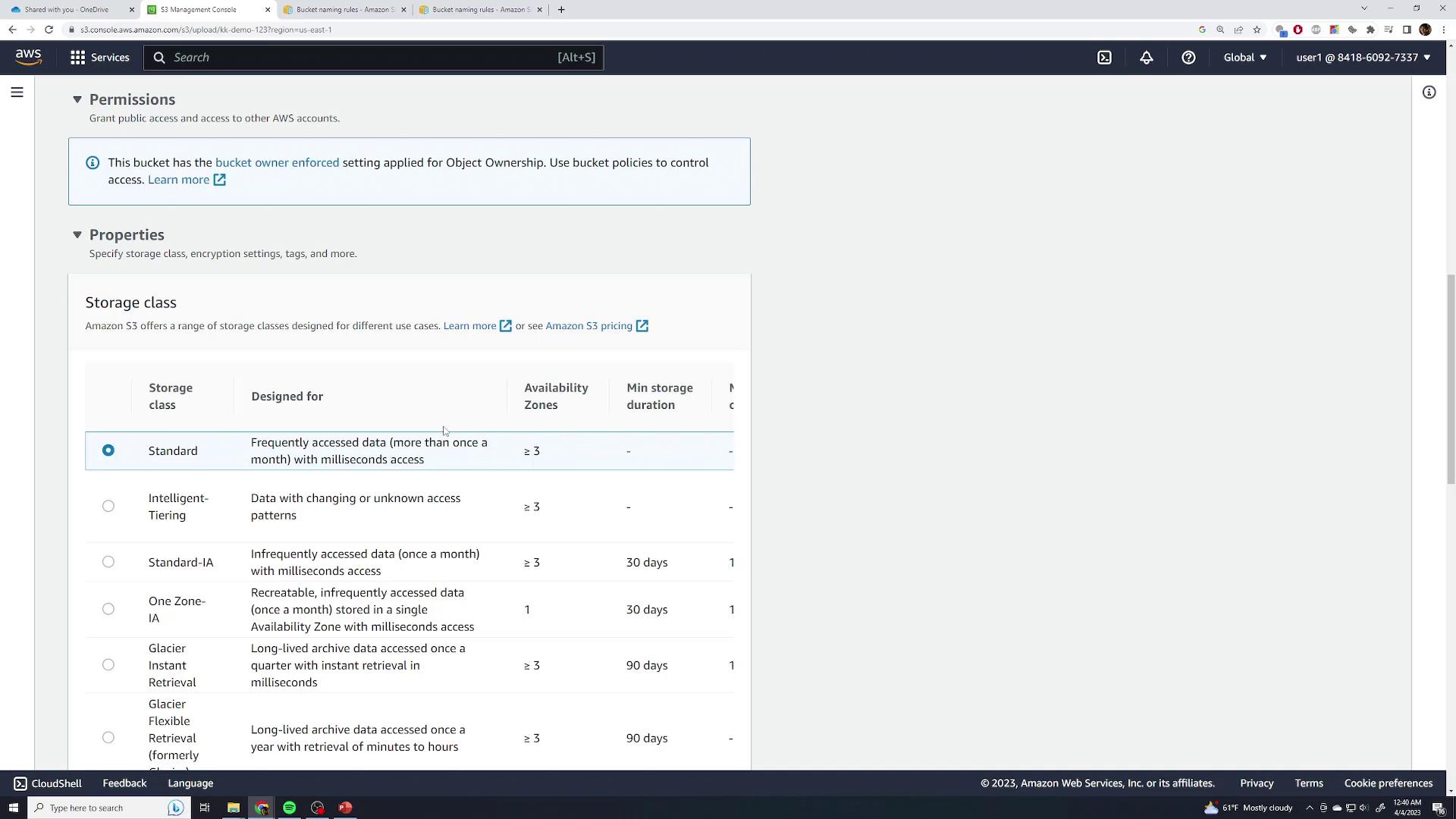
3. Accept defaults for permissions, storage class (Standard), and skip advanced settings.
4. Click **Upload** and wait for completion:
<Frame>
  ![The image shows an Amazon S3 Management Console screen displaying storage class options, including Standard, Intelligent-Tiering, and others, with details on availability zones and storage duration.](https://kodekloud.com/kk-media/image/upload/v1752869332/notes-assets/images/Amazon-Simple-Storage-Service-Amazon-S3-S3-Basics-Demo/amazon-s3-management-console-storage-options.jpg)
</Frame>

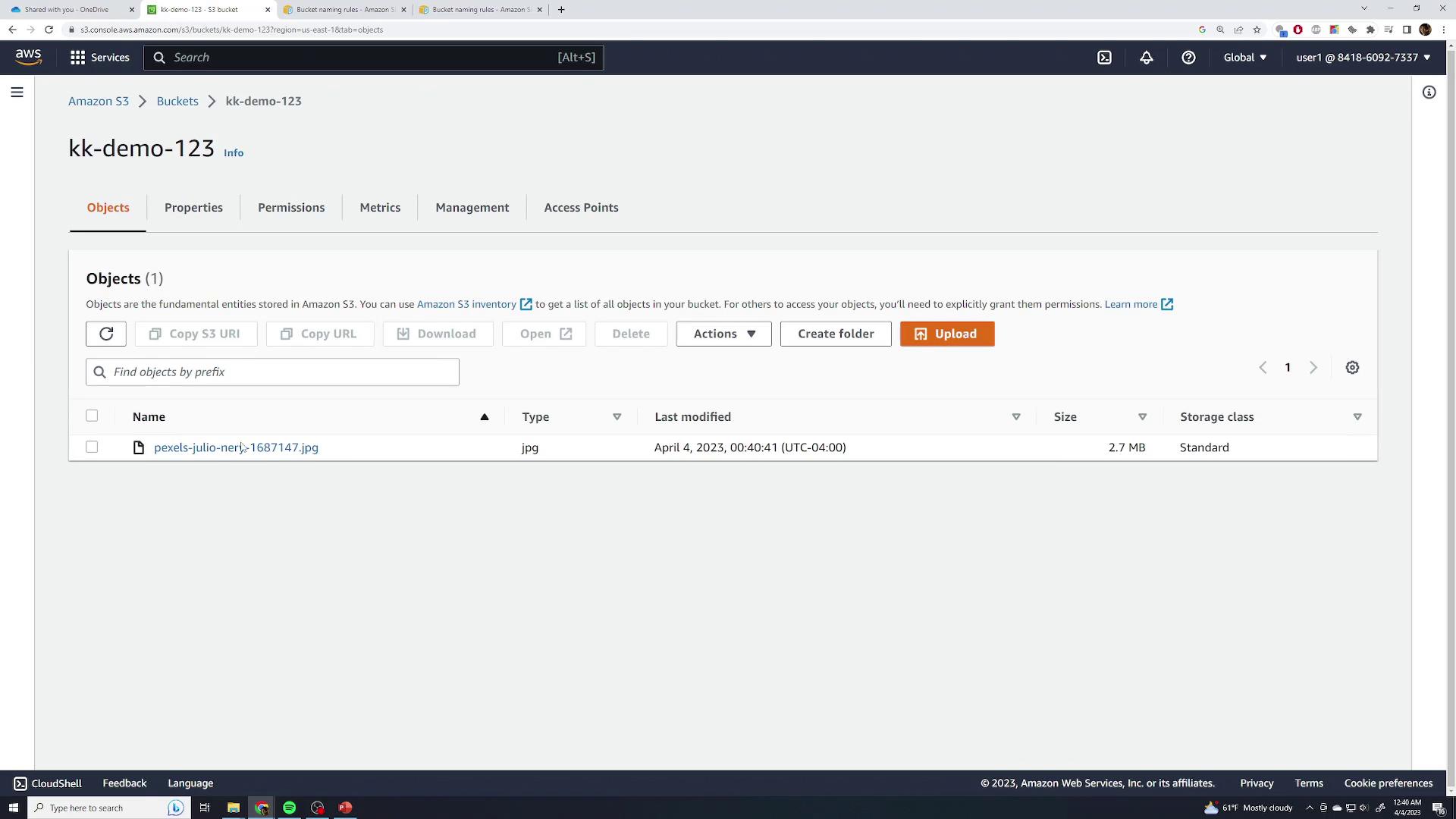
5. After closing the dialog, you’ll see your file listed:
<Frame>
  ![The image shows an Amazon S3 bucket interface with one file named "pexels-julio-neri-1687147.jpg" listed, including details like type, last modified date, size, and storage class.](https://kodekloud.com/kk-media/image/upload/v1752869333/notes-assets/images/Amazon-Simple-Storage-Service-Amazon-S3-S3-Basics-Demo/amazon-s3-bucket-interface-file-details.jpg)
</Frame>

### Object Details

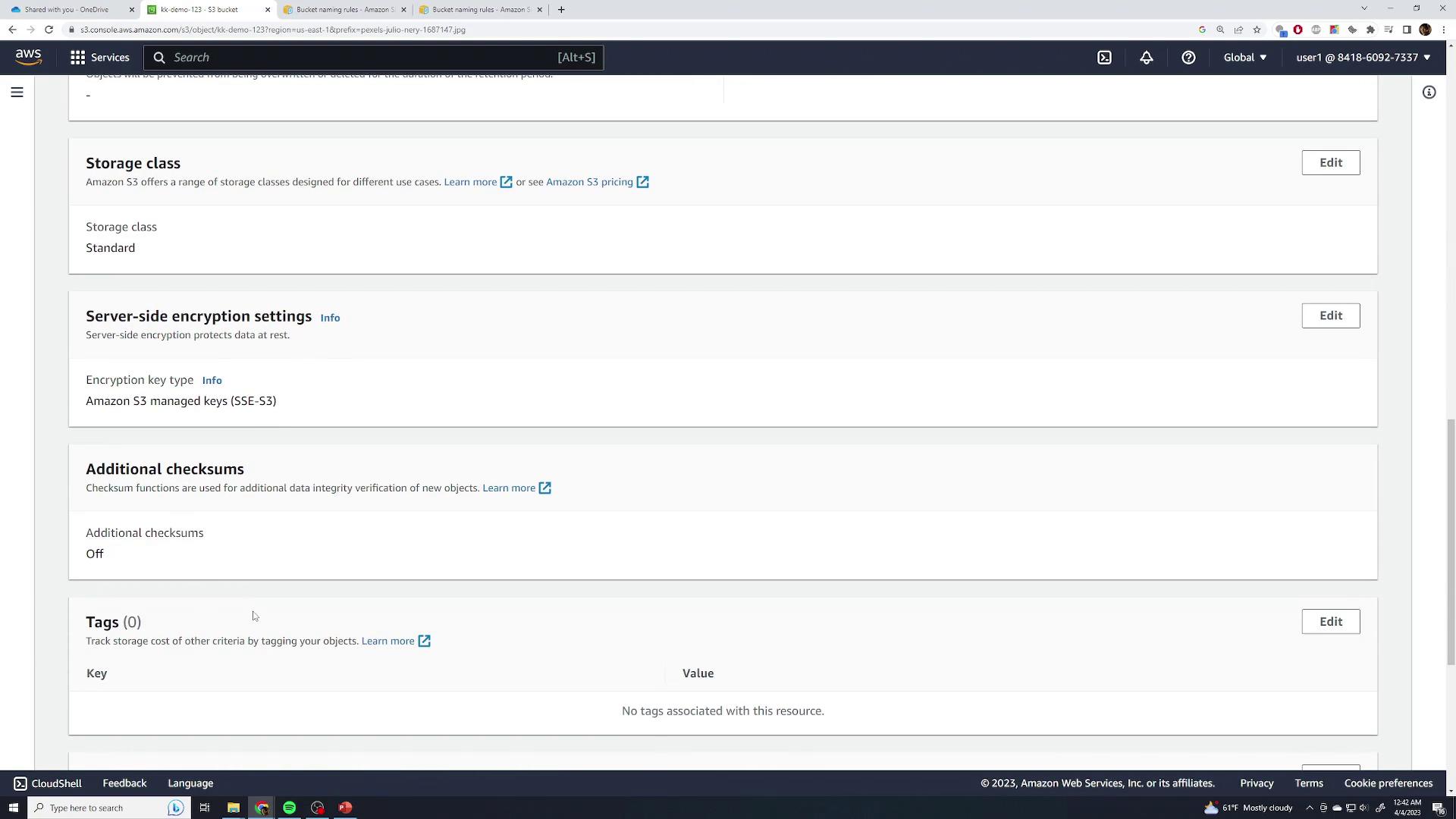
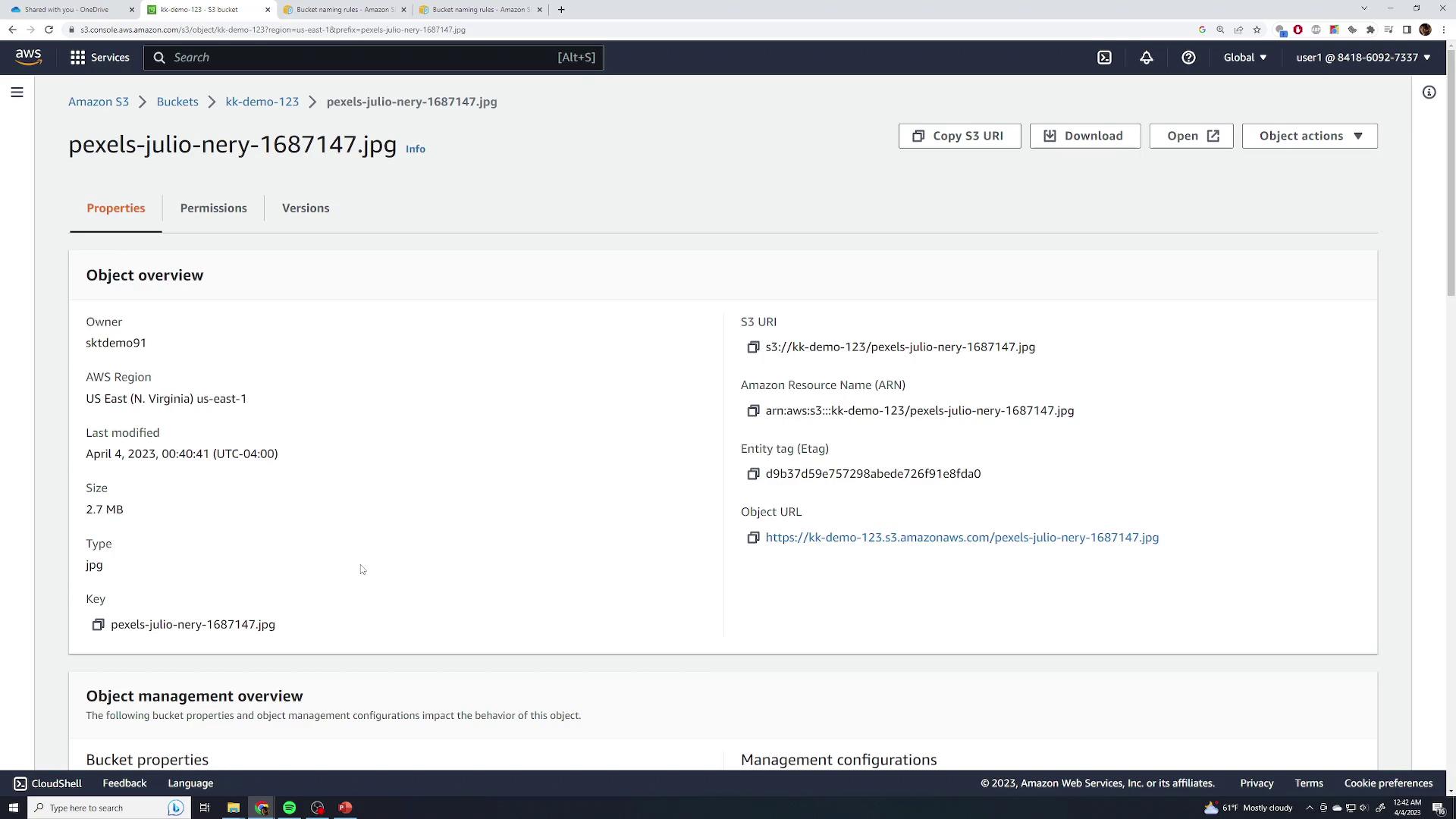
Click the object name to inspect:

* Size, last modified, and region
* Object URI and ARN
* ETag, object URL
* Per-object settings: storage class, SSE, checksums, tags, and locks
<Frame>
  ![The image shows an Amazon S3 console page with settings for storage class, server-side encryption, additional checksums, and tags. The storage class is set to "Standard," encryption uses "Amazon S3 managed keys (SSE-S3)," and no tags are associated with the resource.](https://kodekloud.com/kk-media/image/upload/v1752869334/notes-assets/images/Amazon-Simple-Storage-Service-Amazon-S3-S3-Basics-Demo/amazon-s3-console-storage-settings.jpg)
</Frame>

<Frame>
  ![The image shows an Amazon S3 console interface displaying details of an object named "pexels-julio-nery-1687147.jpg" in a bucket. It includes information such as the owner, region, size, type, and object URL.](https://kodekloud.com/kk-media/image/upload/v1752869335/notes-assets/images/Amazon-Simple-Storage-Service-Amazon-S3-S3-Basics-Demo/amazon-s3-console-object-details.jpg)
</Frame>

## Accessing Objects

Attempting to GET the object URL anonymously returns:

```xml theme={null}
<Error>
  <Code>AccessDenied</Code>
  <Message>Access Denied</Message>
  <RequestId>PXX0A25XAZ252WZ0</RequestId>
  <HostId>Rh0s1Dk51BtkU1N0BXY4j2p2KLvWeg5eSu/Ry1NkxAMXFtbFQKTg=</HostId>
</Error>
```

<Callout icon="lightbulb" color="#1CB2FE">
  By default, both buckets and objects are private. Use the **Open** button in the console (with your AWS credentials) to view private files, or adjust permissions for public access.
</Callout>

## Organizing Objects with Folders

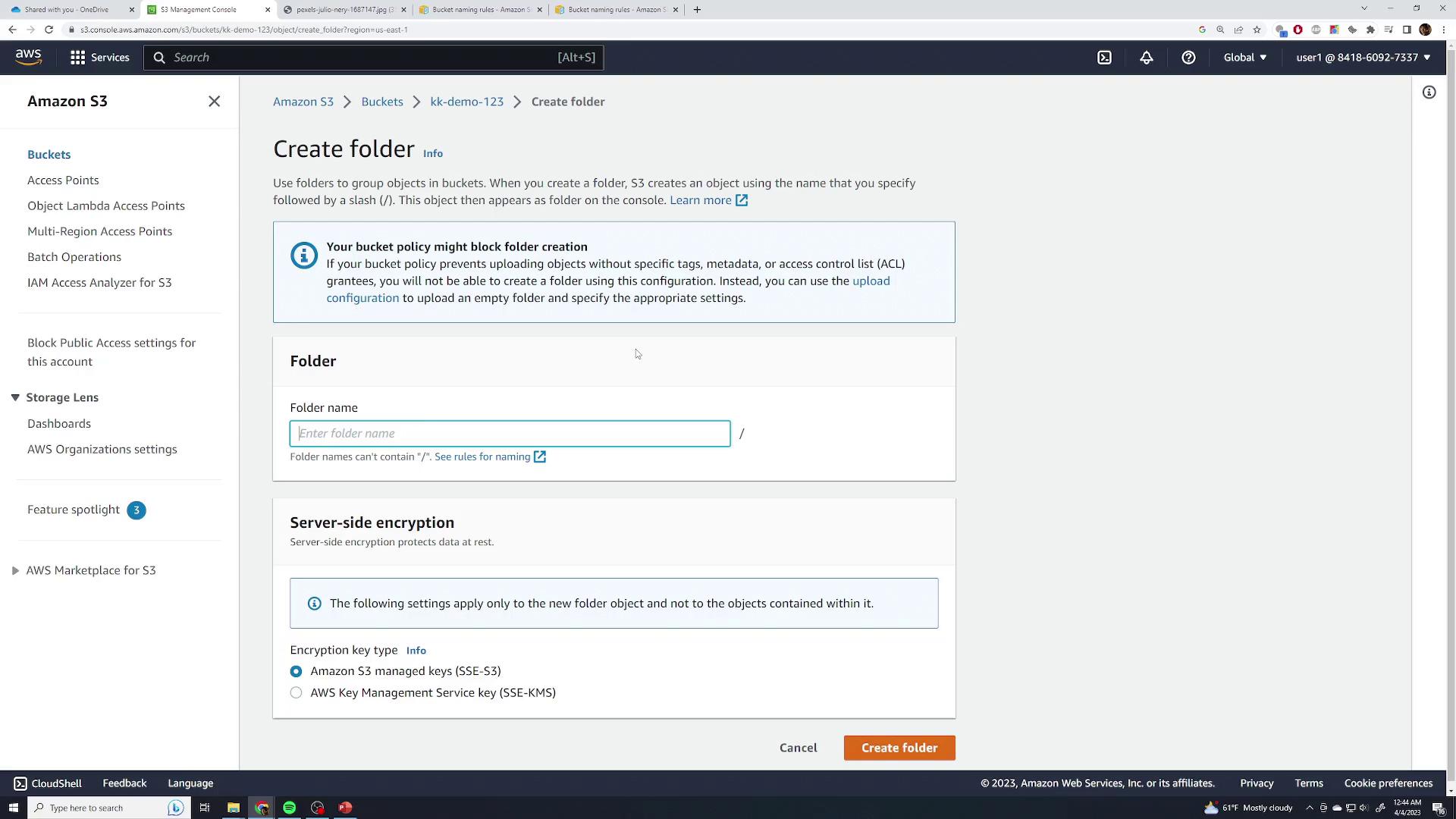
Although S3 has a flat key-value structure, the console lets you simulate folders:

1. Click **Create folder**, enter a name (e.g., `food`), and confirm:
<Frame>
  ![The image shows an Amazon S3 interface for creating a folder, with options for entering a folder name and selecting server-side encryption settings.](https://kodekloud.com/kk-media/image/upload/v1752869337/notes-assets/images/Amazon-Simple-Storage-Service-Amazon-S3-S3-Basics-Demo/amazon-s3-create-folder-interface.jpg)
</Frame>

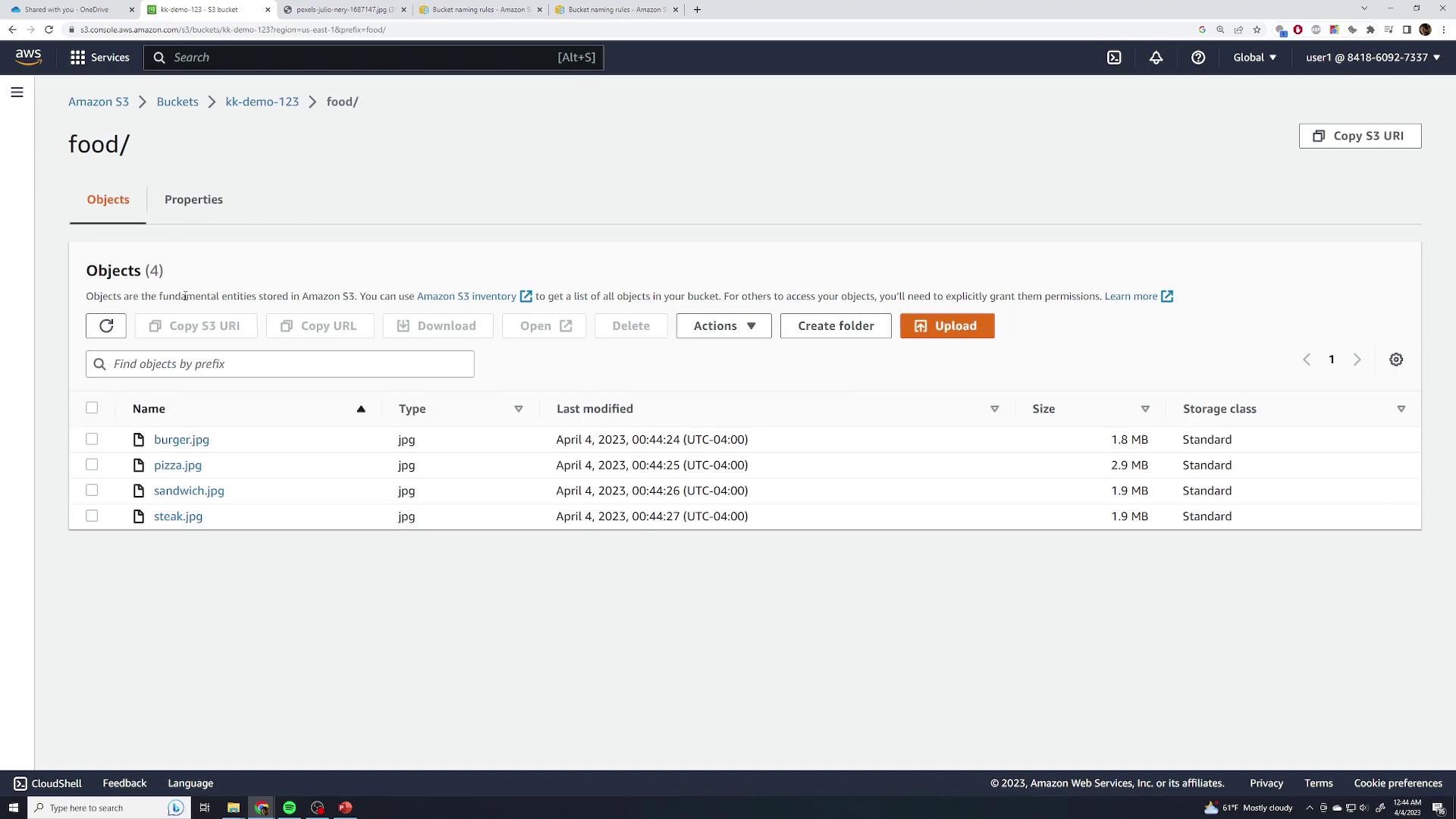
2. Open the folder and upload images (burger, pizza, sandwich, steak):
<Frame>
  ![The image shows an Amazon S3 bucket interface with a folder named "food" containing four image files: burger.jpg, pizza.jpg, sandwich.jpg, and steak.jpg. Each file is listed with its type, last modified date, size, and storage class.](https://kodekloud.com/kk-media/image/upload/v1752869338/notes-assets/images/Amazon-Simple-Storage-Service-Amazon-S3-S3-Basics-Demo/amazon-s3-bucket-food-folder-files.jpg)
</Frame>

Each object key is prefixed with `food/`. Permissions and access behave identically to root-level objects.

## Deleting Objects

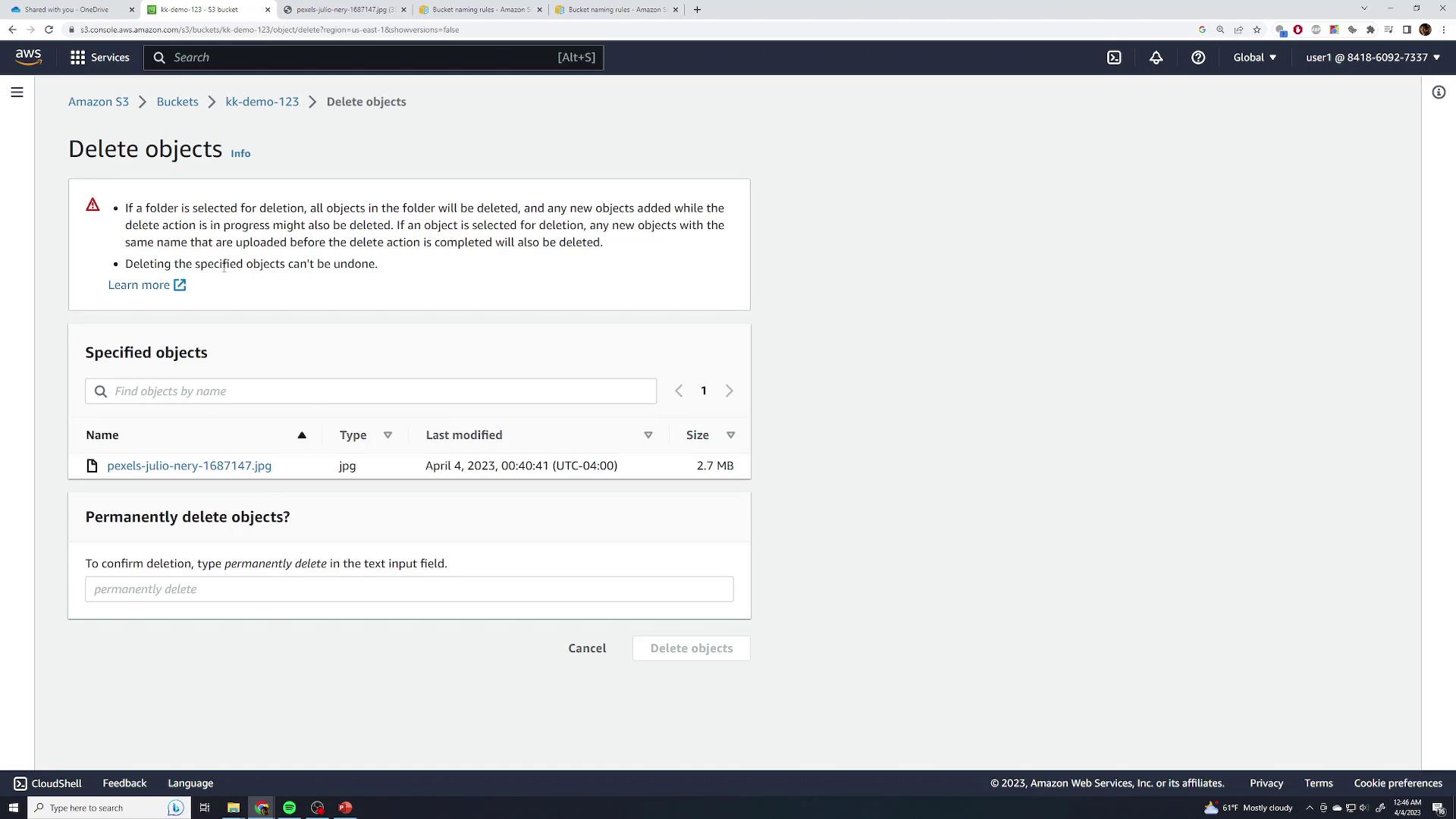
1. Select the object(s) you want to remove.
2. Click **Delete**, type **permanently delete**, and confirm:
<Frame>
  ![The image shows an Amazon S3 interface for deleting objects, with a warning about deletion consequences and a specified object listed for deletion.](https://kodekloud.com/kk-media/image/upload/v1752869339/notes-assets/images/Amazon-Simple-Storage-Service-Amazon-S3-S3-Basics-Demo/amazon-s3-delete-objects-interface.jpg)
</Frame>

<Callout icon="triangle-alert" color="#FF6B6B">
  Without versioning enabled, deletion is permanent and cannot be undone.
</Callout>

## Moving Objects

S3 doesn’t support a native “move” operation. Instead, you rename an object by copying it to a new key prefix:

1. Create a new folder (e.g., `test`) under your bucket:

<Frame>
  ![The image shows an Amazon S3 console with a folder named "food" containing several image files like "burger.jpg," "pizza.jpg," "sandwich.jpg," and "steak.jpg." A new folder named "test" has been successfully created.](https://kodekloud.com/kk-media/image/upload/v1752869340/notes-assets/images/Amazon-Simple-Storage-Service-Amazon-S3-S3-Basics-Demo/amazon-s3-console-food-folder-images.jpg)
</Frame>

2. Select **Actions > Move**, set the destination key (e.g., `food/test/steak.jpg`), or browse and apply. The object is effectively renamed under the new prefix.

## Deleting the Bucket

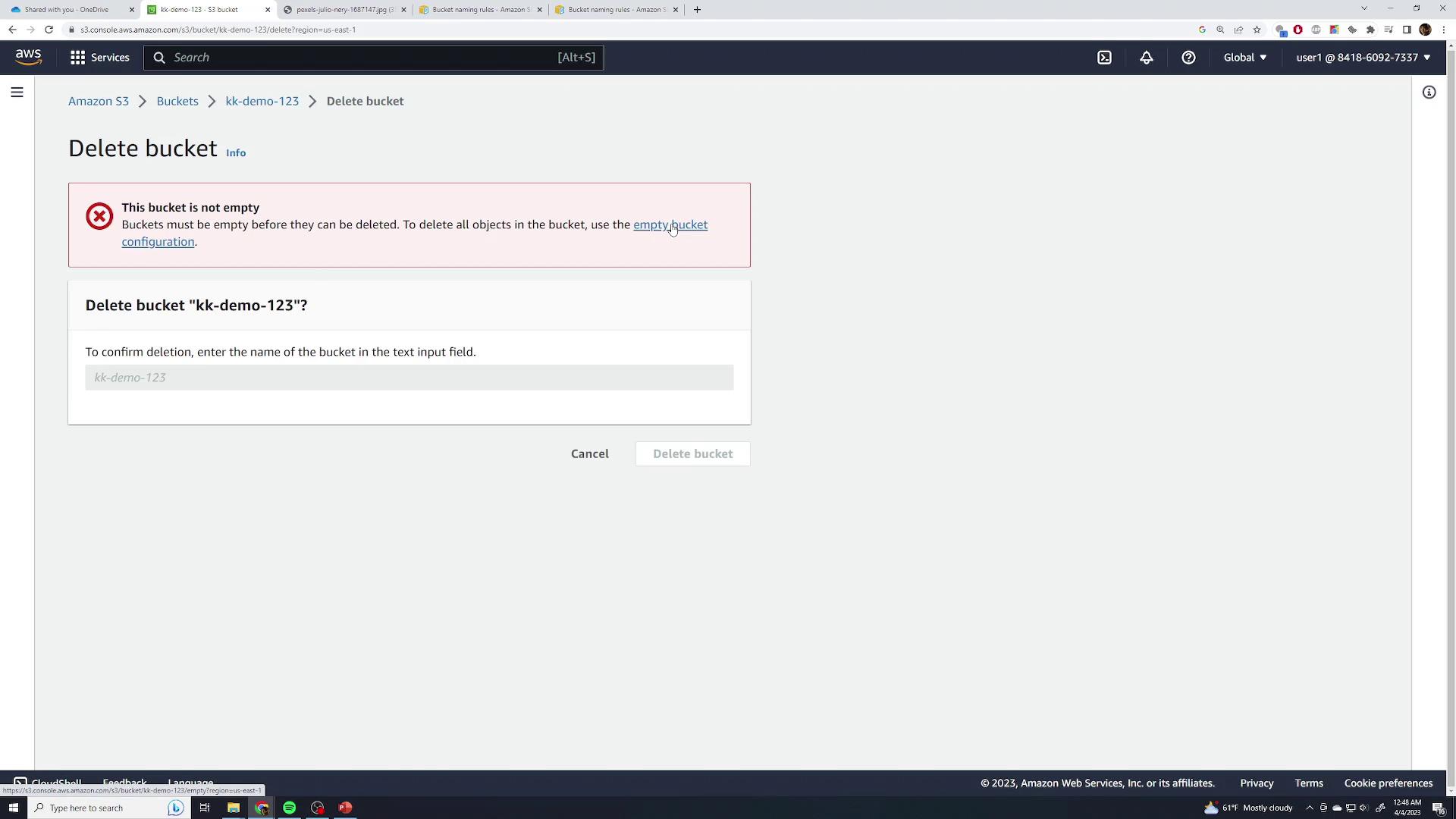
To delete an S3 bucket, it must be empty:

1. Attempting to delete a non-empty bucket shows an error:
<Frame>
  ![The image shows an Amazon S3 console page with a warning that a bucket cannot be deleted because it is not empty. It prompts the user to empty the bucket before proceeding with deletion.](https://kodekloud.com/kk-media/image/upload/v1752869342/notes-assets/images/Amazon-Simple-Storage-Service-Amazon-S3-S3-Basics-Demo/amazon-s3-bucket-not-empty-warning.jpg)
</Frame>

2. Click **Empty**, type **permanently delete**, and confirm to clear contents.
3. Finally, select **Delete bucket**, enter the bucket name, and confirm.

***

## Links and References

* [Amazon S3 Documentation](https://docs.aws.amazon.com/s3/index.html)
* [Bucket Naming Rules](https://docs.aws.amazon.com/AmazonS3/latest/userguide/bucketnamingrules.html)
* [AWS Management Console](https://aws.amazon.com/console/)

<CardGroup>
  <Card title="Watch Video" icon="video" cta="Learn more" href="https://learn.kodekloud.com/user/courses/amazon-simple-storage-service-amazon-s3/module/eec05698-c022-44e4-9421-cf157eb32097/lesson/af68021a-deaf-4741-a7d4-f664978d4dff" />
</CardGroup>