> ## Documentation Index
> Fetch the complete documentation index at: https://notes.kodekloud.com/llms.txt
> Use this file to discover all available pages before exploring further.
# Storage Classes Demo
> Learn to specify and change the storage class of objects in Amazon S3 using the AWS Management Console.
Learn how to specify and change the storage class of objects in Amazon S3 using the AWS Management Console. This guide covers uploading files with a custom storage class and modifying it afterward.
## Prerequisites
* An AWS account with S3 access.
* IAM user permissions: `s3:CreateBucket`, `s3:PutObject`, `s3:PutObjectStorageClass`.
* Familiarity with the [Amazon S3 console](https://docs.aws.amazon.com/AmazonS3/latest/userguide/Welcome.html).
Choosing the right storage class balances cost, durability, and retrieval time. Review [S3 pricing](https://aws.amazon.com/s3/pricing/) before proceeding.
## 1. Create a New S3 Bucket
1. Open the [Amazon S3 console](https://console.aws.amazon.com/s3/).
2. Click **Create bucket**.
3. Enter **Bucket name**: `kk-sc-demo`.
4. Leave default settings and click **Create bucket**.
## 2. Upload an Object with a Custom Storage Class
1. In the **kk-sc-demo** bucket, click **Upload**.
2. Choose **Add files** and select your file.
3. Under **Properties**, expand **Storage class** and select **One Zone-IA** (default is Standard).
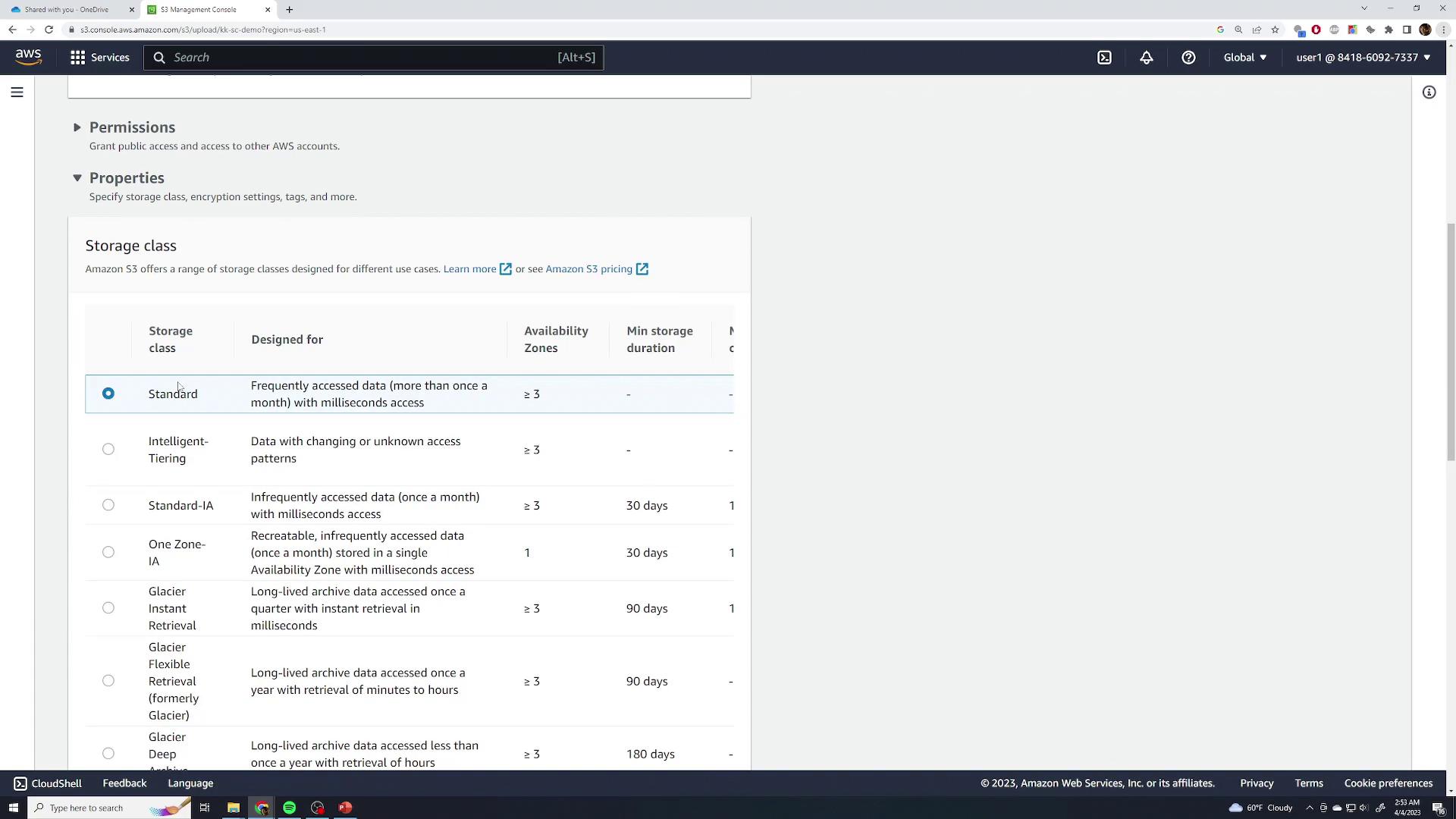
4. Click **Upload**. The object now appears with the specified storage class.
## Storage Class Comparison
| Storage Class | Use Case | Min. Storage Duration | Durability & Availability |
| -------------------------- | ------------------------------------ | --------------------- | ------------------------------------------- |
| Standard | Frequent access | None | 99.999999999% durability, 99.99% avail. |
| One Zone-IA | Infrequent access, lower cost | 30 days | 99.999999999% durability, single AZ |
| Intelligent-Tiering | Unknown/variable access patterns | 30 days | Auto-optimizes cost |
| Glacier Flexible Retrieval | Long-term archive, infrequent access | 90 days | 99.999999999% durability, minutes retrieval |
| Glacier Deep Archive | Archival with minimal retrieval | 180 days | Lowest-cost archival storage |
Archival classes (Glacier) incur retrieval fees and can take from minutes to hours.
## 3. Change the Storage Class of an Existing Object
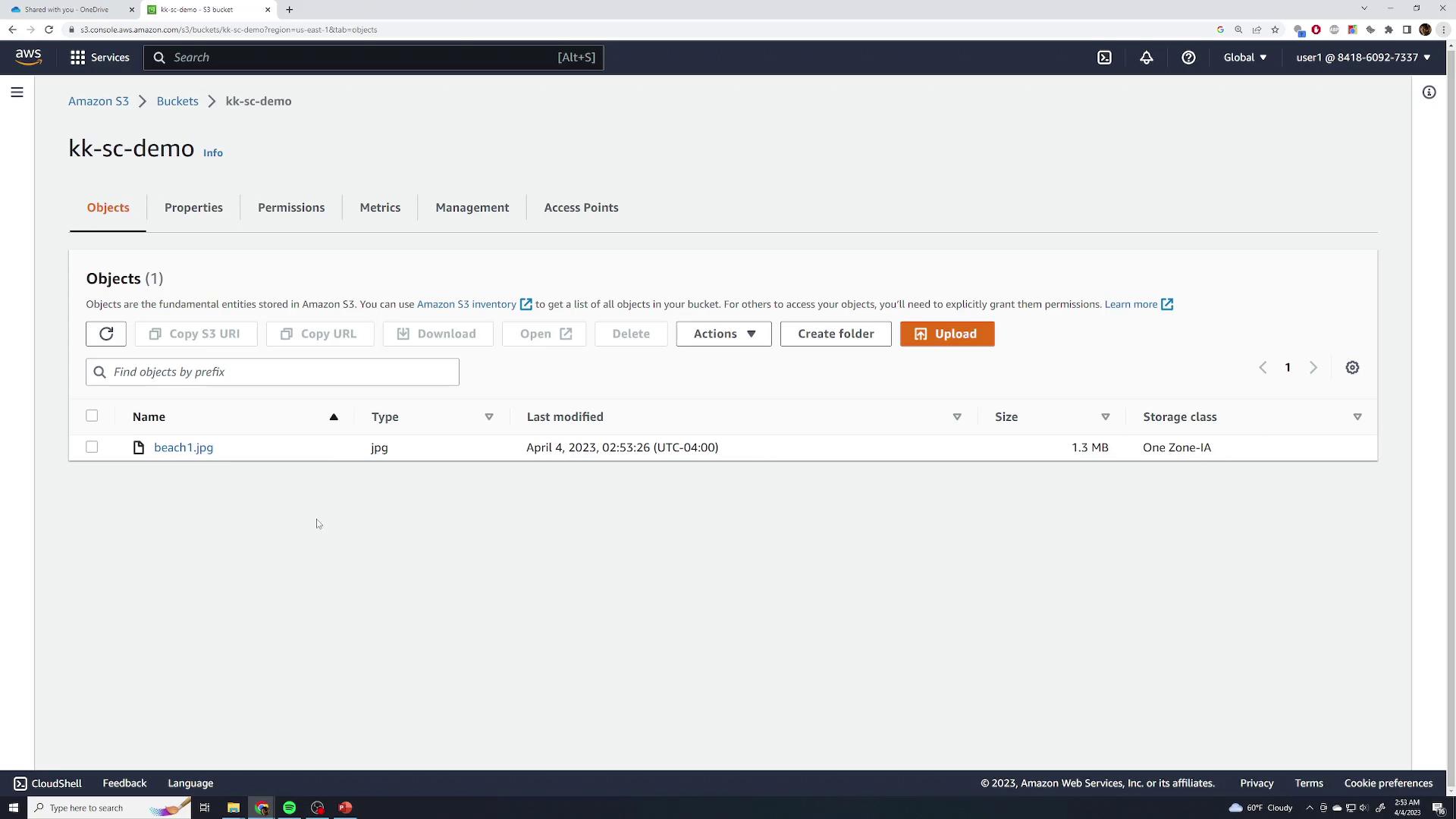
1. In the **kk-sc-demo** bucket, select the object (e.g., `beach1.jpg`).
2. Choose **Actions** → **Change storage class**.
3. Select **Standard** (or another class) and click **Save**.
***
## Links and References
* [Amazon S3 Storage Classes Overview](https://docs.aws.amazon.com/AmazonS3/latest/userguide/storage-class-intro.html)
* [Managing S3 Object Lifecycles](https://docs.aws.amazon.com/AmazonS3/latest/userguide/object-lifecycle-mgmt.html)
* [AWS S3 Pricing](https://aws.amazon.com/s3/pricing/)