> ## Documentation Index
> Fetch the complete documentation index at: https://notes.kodekloud.com/llms.txt
> Use this file to discover all available pages before exploring further.
# Demo S3 Object Lock
> Learn to enable and enforce Object Lock on Amazon S3 buckets, apply retention modes, and verify access restrictions using IAM policies.
Learn how to enable and enforce Object Lock on Amazon S3 buckets, apply governance and compliance retention modes, and verify access restrictions using IAM policies.
## Table of Contents
1. [What You’ll Learn](#what-youll-learn)
2. [1. Create an S3 Bucket with Object Lock](#1-create-an-s3-bucket-with-object-lock)
3. [2. Upload an Object](#2-upload-an-object)
4. [3. Configure Object Lock Retention](#3-configure-object-lock-retention)
5. [4. Test Deletion with a Restricted IAM User](#4-test-deletion-with-a-restricted-iam-user)
6. [5. Delete with an Admin User](#5-delete-with-an-admin-user)
7. [6. Demonstrate Object Legal Hold](#6-demonstrate-object-legal-hold)
8. [7. Deny Legal Hold Removal](#7-deny-legal-hold-removal)
9. [Summary](#summary)
10. [References](#references)
***
## What You’ll Learn
* How to enable Object Lock on an S3 bucket
* The difference between Governance and Compliance retention modes
* Applying and testing IAM policies that enforce or bypass retention settings
* Using Object Legal Hold for indefinite protection
***
## 1. Create an S3 Bucket with Object Lock
1. In the AWS S3 console, click **Create bucket**.
2. Under **Advanced settings**, check **Enable Object Lock**.

Object Lock requires versioning. When you enable Object Lock, S3 automatically enables versioning for the bucket (the Versioning option is grayed out).
***
## 2. Upload an Object
Upload a test file, for example `file1.txt`, to your new bucket:
1. Click **Upload**.
2. Select `file1.txt`.
3. Confirm and upload.
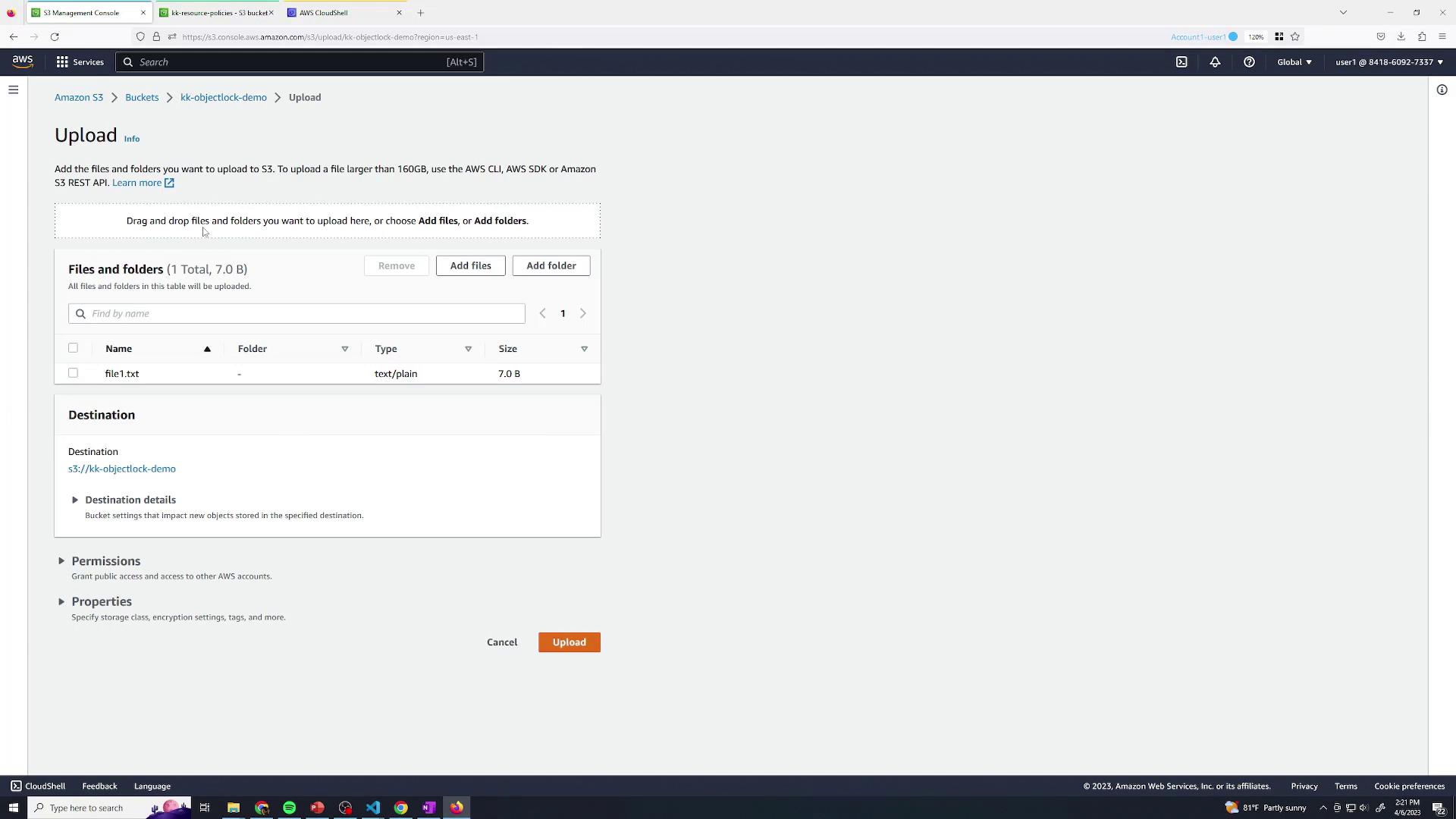
After upload, open the object’s **Properties** to configure Object Lock.
***
## 3. Configure Object Lock Retention
In the object’s **Object Lock** section you can choose:
* **Legal Hold**: Indefinite hold without a retention date.
* **Retention Mode**: Specify Governance or Compliance mode and a retention date.
| Retention Mode | Bypass Permission Required | Use Case |
| --------------- | ------------------------------ | --------------------------------- |
| Governance Mode | `s3:BypassGovernanceRetention` | Temporary holds with exception |
| Compliance Mode | Not bypassable | Regulatory or compliance mandates |
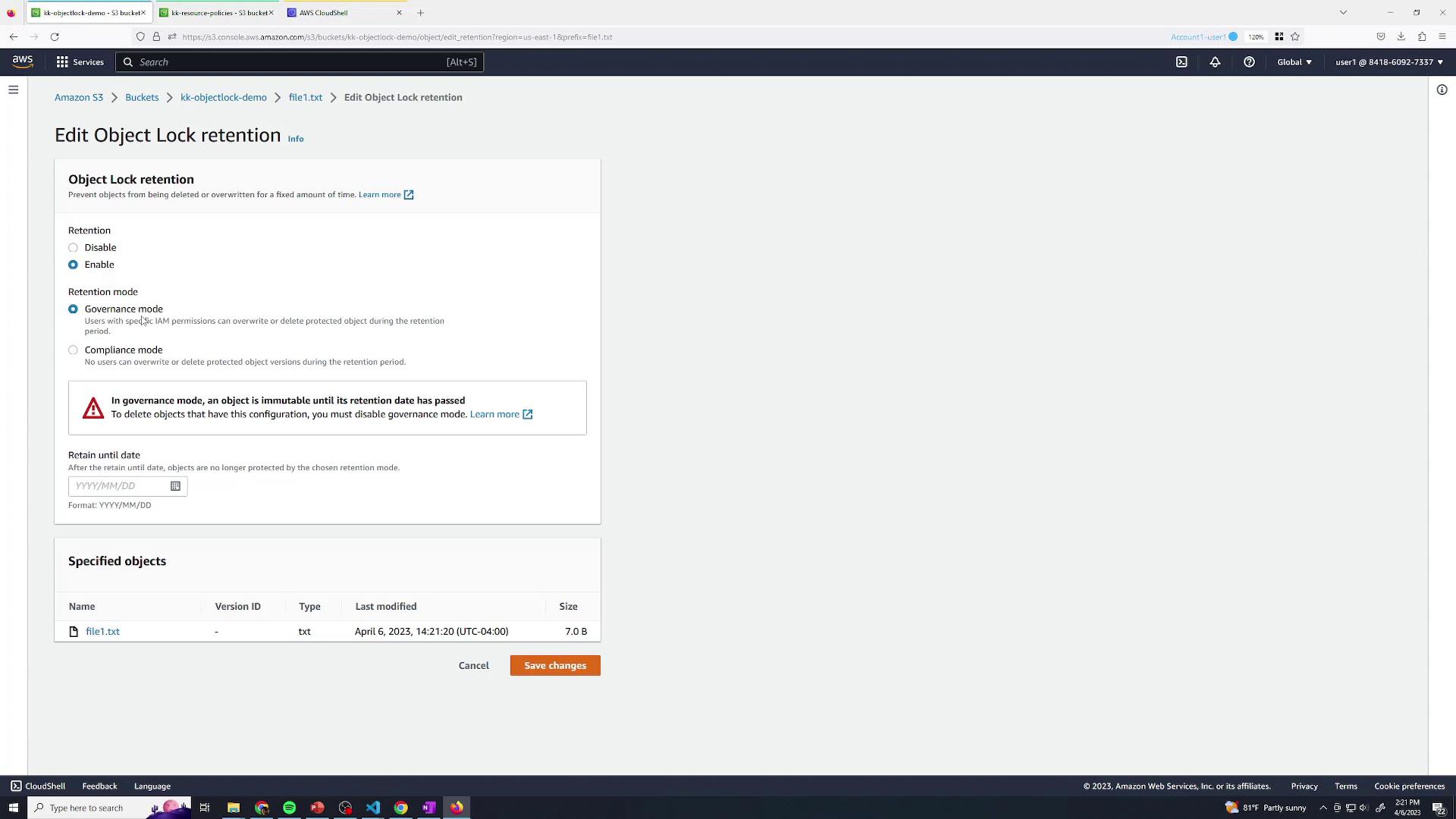
1. Select **Governance** mode.
2. Set the retention date (e.g., tomorrow).
3. Click **Save**.
In Compliance mode, objects cannot be deleted or overwritten until the retention period expires.
***
## 4. Test Deletion with a Restricted IAM User
Switch to **User Two**, who has a policy denying `s3:BypassGovernanceRetention`. They have full S3 access but cannot bypass governance locks:
```json theme={null}
{
"Version": "2012-10-17",
"Statement": [
{
"Sid": "DenyBypassGovernanceRetention",
"Effect": "Deny",
"Action": "s3:BypassGovernanceRetention",
"Resource": "*"
}
]
}
```
When User Two tries to delete the locked object version, the request fails:
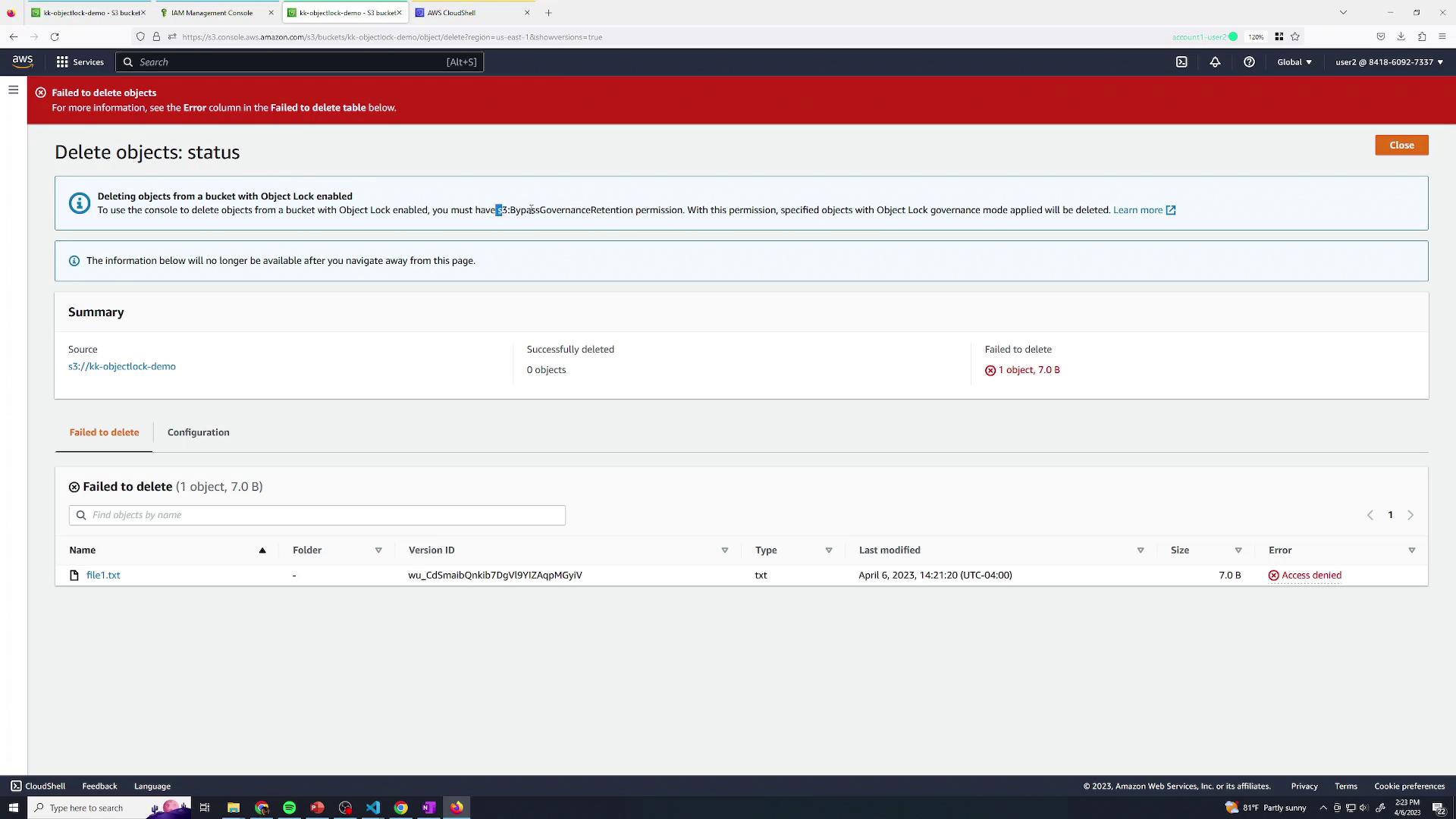
User Two also cannot modify retention settings.
***
## 5. Delete with an Admin User
Switch back to **User One** (Administrator) with full permissions, including `s3:BypassGovernanceRetention`:
```json theme={null}
{
"Version": "2012-10-17",
"Statement": [
{
"Effect": "Allow",
"Action": "*",
"Resource": "*"
}
]
}
```
User One can now permanently delete the locked object version.
***
## 6. Demonstrate Object Legal Hold
1. Upload a second file, e.g., `file2.txt`.
2. Open its **Properties** and scroll to **Object Lock**.
3. Enable **Legal Hold**, then **Save**.
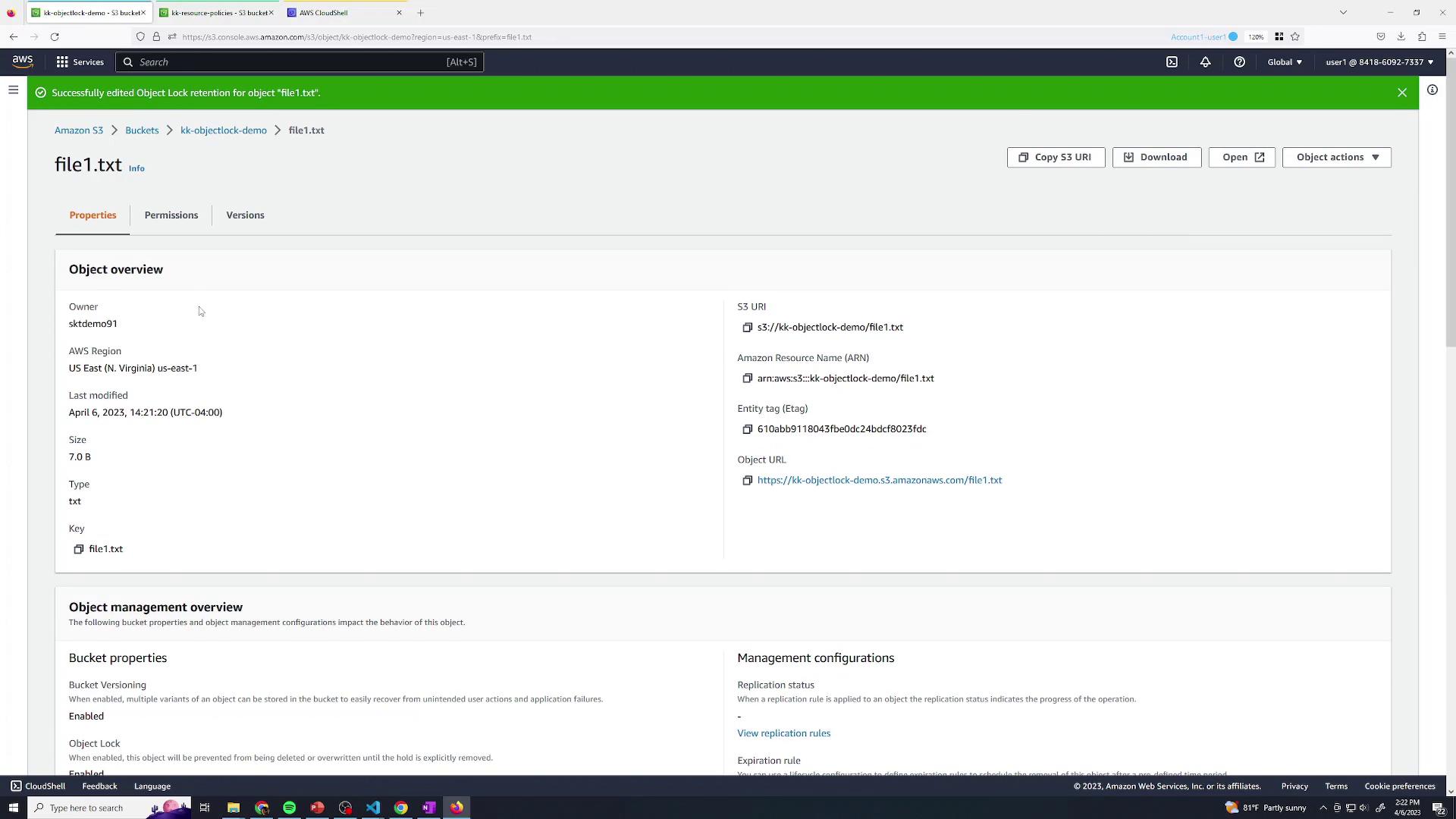
The object is now held indefinitely under Legal Hold.
***
## 7. Deny Legal Hold Removal
Update **User Two**’s policy to also deny `s3:PutObjectLegalHold`, preventing removal of legal holds:
```json theme={null}
{
"Version": "2012-10-17",
"Statement": [
{
"Sid": "DenyLegalHoldAndBypass",
"Effect": "Deny",
"Action": [
"s3:PutObjectLegalHold",
"s3:BypassGovernanceRetention"
],
"Resource": "*"
}
]
}
```
Now, when User Two tries to disable the legal hold, they see a permission error:
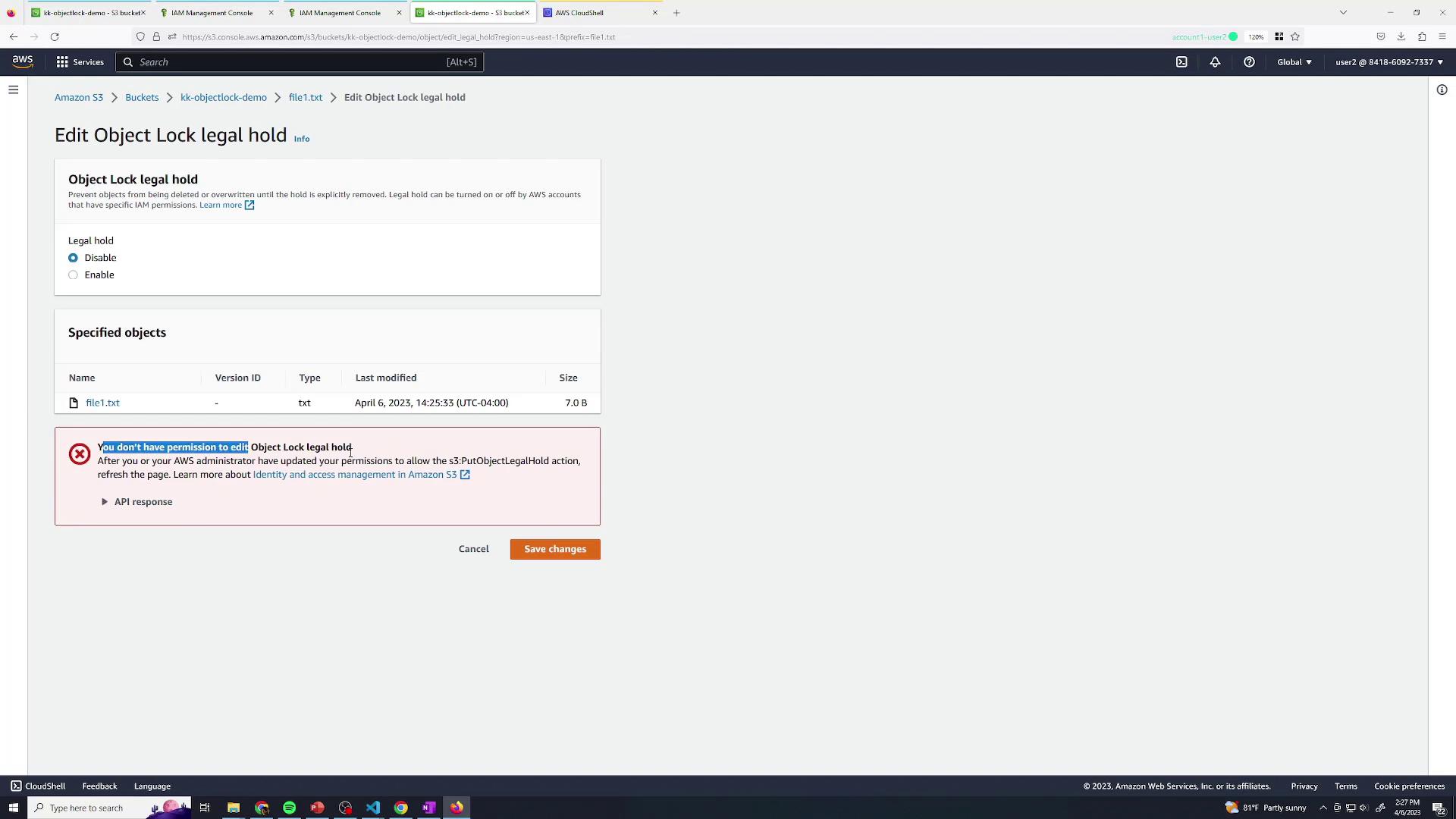
Only users with the correct permissions (e.g., User One) can remove a legal hold.
***
## Summary
In this lesson, you’ve learned to:
* Enable Object Lock on an S3 bucket
* Apply Governance and Compliance retention modes
* Test deletion restrictions with IAM policies
* Use Object Legal Hold for indefinite protection
***
## References
* [AWS S3 Object Lock Documentation](https://docs.aws.amazon.com/AmazonS3/latest/dev/object-lock.html)
* [IAM JSON Policy Reference](https://docs.aws.amazon.com/IAM/latest/UserGuide/reference_policies_elements.html)
* [Amazon S3 Versioning](https://docs.aws.amazon.com/AmazonS3/latest/dev/Versioning.html)