> ## Documentation Index
> Fetch the complete documentation index at: https://notes.kodekloud.com/llms.txt
> Use this file to discover all available pages before exploring further.
# Lab Introduction Demo
> This article demonstrates the operation of Ansible hands-on labs on KodeKloud, including lab interface, tasks, and quiz questions.
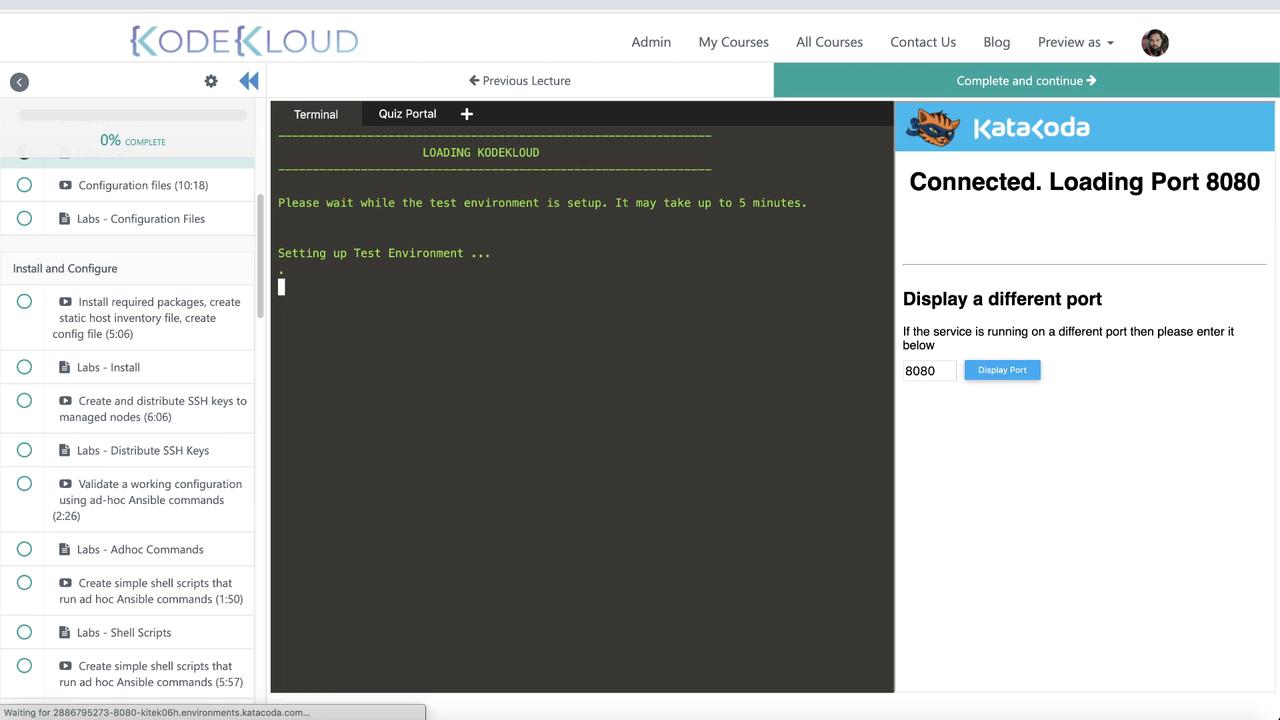
Welcome to the [Ansible Advanced Course](https://learn.kodekloud.com/user/courses/ansible-advanced-course). In this lesson, we demonstrate how the Ansible hands-on labs operate on KodeKloud. These labs run directly in your browser and can be accessed repeatedly until you achieve confidence. After each lecture, you are directed to a lab interface that includes both practical tasks and quiz questions.
## Lab Interface Overview
The lab interface is divided into two sections:
* **Left Panel:** A terminal connected to an Ansible control node. This live environment allows you to run commands, create files, and experiment freely.
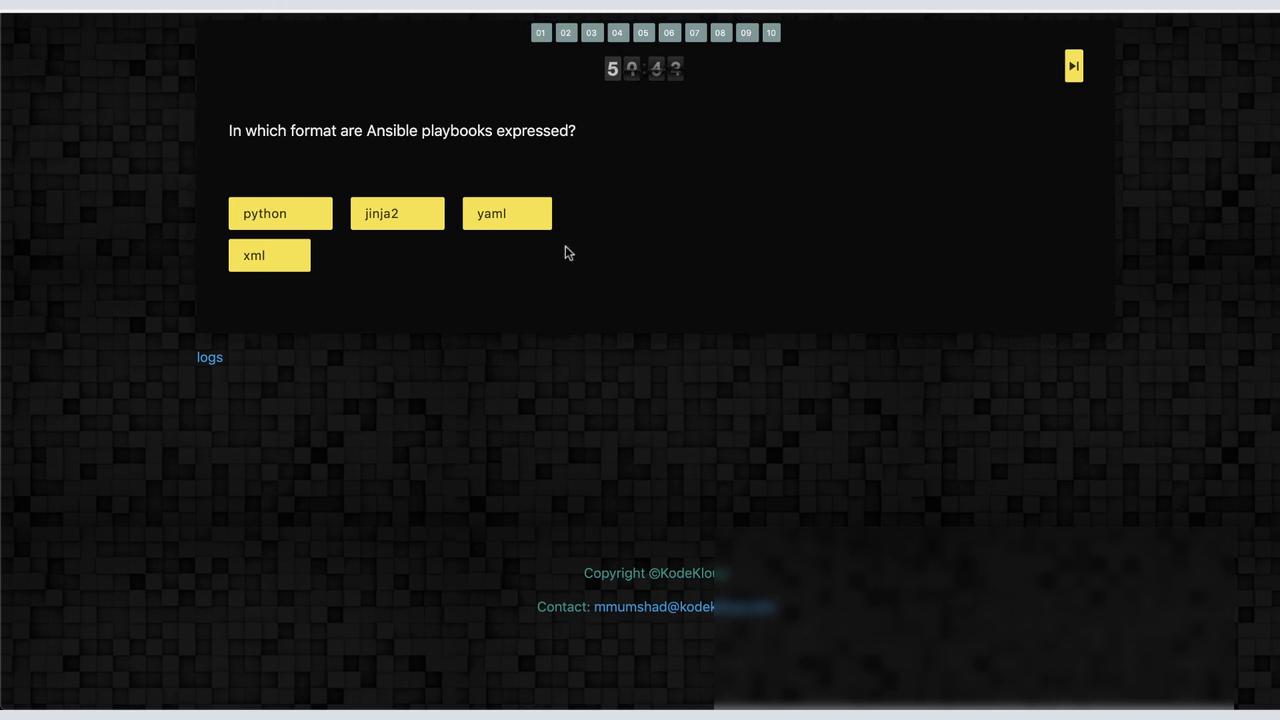
* **Right Panel:** A quiz portal that displays questions along with a timer and the total question count. For a larger terminal view, simply click the quiz portal button at the top to open it in a separate window. In this demonstration, we are using the split interface.
In the terminal, you might see an initial output similar to the following:
```bash theme={null}
root@ansible-controller ~/playbooks# ls
copy.yml file.yml httpd.yml inventory test.txt web2.yml
root@ansible-controller ~/playbooks# ansible --version
ansible 2.7.13
config file = /etc/ansible/ansible.cfg
configured module search path = [u'/root/.ansible/plugins/modules', u'/usr/share/ansible/plugins/modules']
ansible python module location = /usr/lib/python2.7/site-packages/ansible
executable location = /usr/bin/ansible
python version = 2.7.5 (default, Jun 20 2019, 20:27:34) [GCC 4.8.5 20150623 (Red Hat 4.8.5-36)]
root@ansible-controller ~/playbooks#
```
The quiz portal shows your current question, the total number of questions, and a countdown timer. The lab environment is active for one hour, but you can always reload to restart if necessary.
Each lab typically begins with multiple-choice questions to gauge your existing knowledge, followed by more challenging hands-on tasks. In this demo, we introduce the fundamentals of Ansible Playbooks.
## Lab Questions and Tasks
### 1. Playbook Format Question
The first question asks: *In what format are Ansible playbooks typically expressed?*\
The available choices are Python, Jinja2, YAML, or XML. The correct answer is **YAML**.
### 2. Understanding a Playbook
Next, you are asked to define what a playbook is. A playbook is a file containing plays and tasks that specify operations to be executed on managed nodes.
### 3. Multiple Plays in a Playbook
Another query confirms that a playbook can include multiple plays. For example, a playbook might target different groups of hosts using separate plays. Consider the following example from the file `file.yml`:
```yaml theme={null}
---
- hosts: web1
tasks:
- name: Create /tmp/testfile.txt
file:
path: /tmp/testfile.txt
state: touch
- hosts: web2
tasks:
- name: Create /tmp/testfile.txt
file:
path: /tmp/testfile.txt
state: touch
```
In this playbook, there are two plays—one targeting `web1` and another targeting `web2`.
### 4. Hands-On Task – Creating a Playbook
Your task is to create a playbook named `web1.yml` that creates a blank file called `myfile.txt` in the root home directory on the `web1` node. If you need help, click the hint button in the lab interface.
A sample playbook might look like this:
```yaml theme={null}
- name: Create myfile on web1
hosts: web1
tasks:
- name: Create myfile.txt in root home directory
file:
path: /root/myfile.txt
state: touch
```
After saving the file, execute it using the following command:
```bash theme={null}
root@ansible-controller ~/playbooks# vi web1.yml
root@ansible-controller ~/playbooks# ansible-playbook -i inventory web1.yml
PLAY [Create myfile on web1] ***********************************************
TASK [Gathering Facts] ******************************************************
ok: [web1]
TASK [file] *****************************************************************
changed: [web1]
PLAY RECAP ******************************************************************
web1 : ok=2 changed=1 unreachable=0 failed=0
```
To verify the file creation, SSH into the `web1` node:
```bash theme={null}
root@ansible-controller ~/playbooks# ssh web1
The authenticity of host 'web1 (172.20.1.100)' can't be established.
ECDSA key fingerprint is SHA256:uNTmVyWMA6Wxlp4vFGIRAsQeLwcEBO7/ThU7LexNbC.
ECDSA key fingerprint is MD5:83:49:cd:9f:e7:e1:c8:73:ef:c0:76:7b:ba:48:d7
Are you sure you want to continue connecting (yes/no)? yes
```
On the `web1` node, confirm that `/root/myfile.txt` now exists.
Once you run your playbook, the quiz portal will re-run it after resetting the environment to ensure that your solution is both correct and repeatable.
### 5. Fixing a Faulty Playbook – httpd.yml
Another lab task involves troubleshooting a playbook named `httpd.yml`, which initially contains errors. When you open and run this playbook, you might encounter the following error:
```bash theme={null}
root@ansible-controller ~/playbooks# vi httpd.yml
root@ansible-controller ~/playbooks# ansible-playbook -i inventory httpd.yml
ERROR! 'host' is not a valid attribute for a Play
The error appears to have been in '/root/playbooks/httpd.yml': line 2, column 3, but may
be elsewhere in the file depending on the exact syntax problem.
The offending line appears to be:
---
- host: web
^ here
root@ansible-controller ~/playbooks#
```
The error is caused by using the incorrect attribute `host` instead of `hosts`. Correct that mistake (and ensure proper indentation), and the playbook should run successfully. A similar error may occur if the YAML indentation isn’t correct:
```bash theme={null}
root@ansible-controller ~/playbooks# vi httpd.yml
root@ansible-controller ~/playbooks# ansible-playbook -i inventory httpd.yml
ERROR! 'host' is not a valid attribute for a Play
The error appears to have been in '/root/playbooks/httpd.yml': line 2, column 3, but may
be elsewhere in the file depending on the exact syntax problem.
The offending line appears to be:
---
- host: web
^
here
root@ansible-controller ~/playbooks# vi httpd.yml
root@ansible-controller ~/playbooks#
```
### 6. Important Reminder
Avoid refreshing your browser tab during the lab session. Refreshing will cause the lab environment to expire after one hour. If the quiz portal appears stuck, refresh only that window. Remember, this action will restart the particular lab you are working on.
## Final Steps and Feedback
After completing all tasks and questions, be sure to provide feedback using the designated form. For example, when testing the playbook `web2.yml`, you might encounter an error like this:
```bash theme={null}
root@ansible-controller ~/playbooks# ansible-playbook -i inventory web2.yml
ERROR! Syntax Error while loading YAML.
did not find expected '---' indicator
The error appears to be in '/root/playbooks/web2.yml': line 4, column 2, but may
be elsewhere in the file depending on the exact syntax problem.
The offending line appears to be:
tasks:
- name: echo Welcome!
^ here!
root@ansible-controller ~/playbooks# vi web2.yml
root@ansible-controller ~/playbooks#
```
Providing feedback helps us enhance the labs, ensuring you have a comprehensive learning experience. Once completed, you’ll have full access to the entire course along with all labs and practice tests at [KodeKloud](https://kodekloud.com).