> ## Documentation Index
> Fetch the complete documentation index at: https://notes.kodekloud.com/llms.txt
> Use this file to discover all available pages before exploring further.
# Jinja2 in Ansible
> This article focuses on how Ansible enhances Jinja2 with custom filters for managing infrastructure tasks.
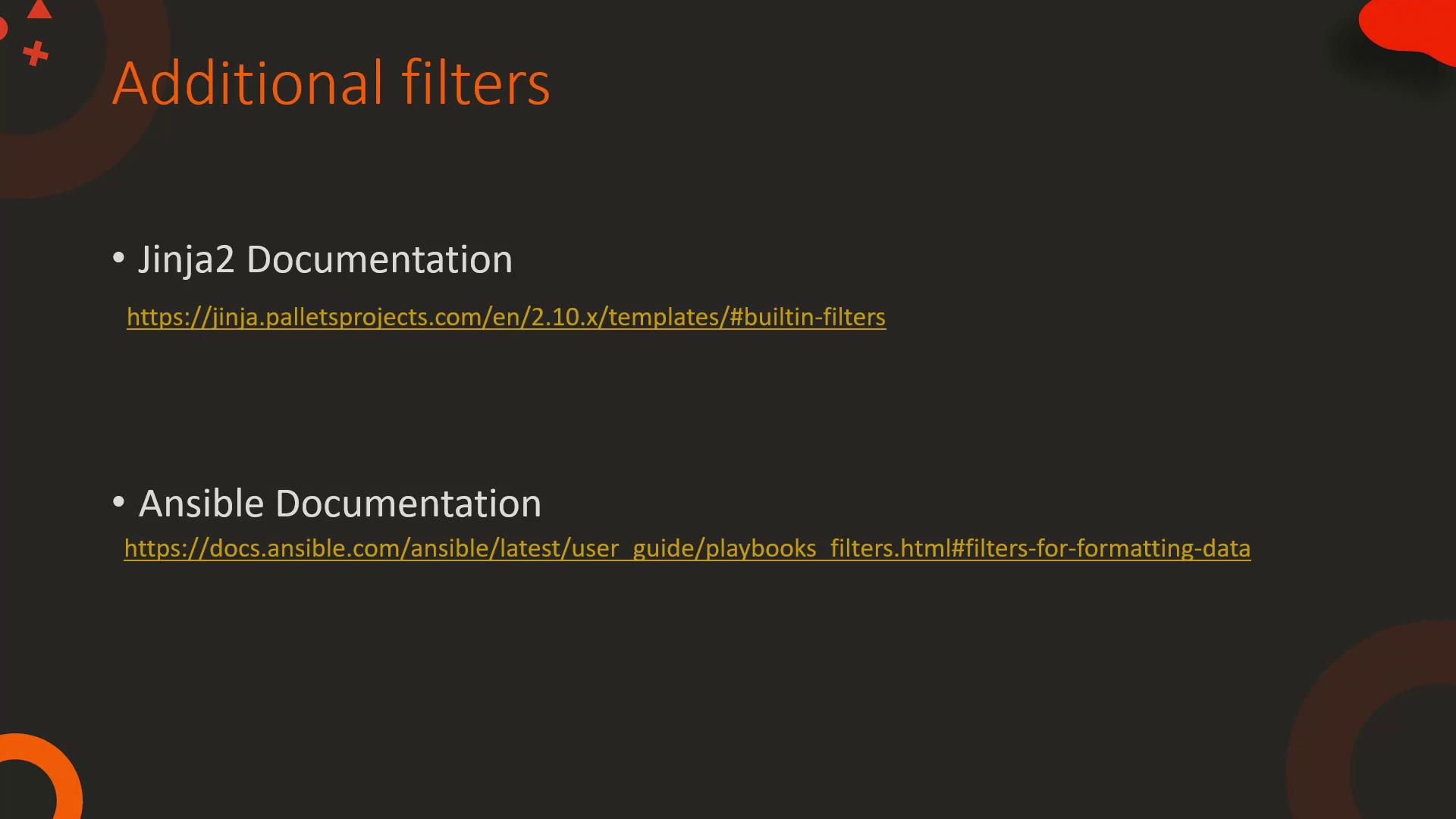
In our previous guide, we explored the basic features of Jinja2. In this document, we focus on how Ansible enhances Jinja2 with custom filters specifically designed for managing infrastructure. For more details on Jinja2 filters, refer to the [Jinja2 documentation](https://jinja.palletsprojects.com/).
Ansible extends the built-in Jinja2 filters with additional options to handle practical tasks such as converting YAML and JSON, managing file names and directory paths across Linux and Windows, and processing passwords and regular expressions. Here, we emphasize file-related filters.
## File-Related Filters
To extract the file name from a complete path on a Linux system, you use the `basename` filter. For example, given the path `/etc/hosts`, applying the `basename` filter returns `hosts`. However, note that this method does not work with Windows paths—which use backslashes. Instead, use the `win_basename` filter for Windows paths.
To separate the drive letter from the rest of a Windows path, use the `win_splitdrive` filter. This filter returns an array where the first element is the drive letter and the second element is the remaining path. If you need only the drive letter, simply chain the `first` filter to the result.
### Examples of File-Related Filters
Below are examples demonstrating how to use these filters:
```jinja theme={null}
{{ "/etc/hosts" | basename }}
{{ "c:\windows\hosts" | win_basename }}
{{ "c:\windows\hosts" | win_splitdrive }}
```
To extract only the drive letter from a Windows path, chain the filters as follows:
```jinja theme={null}
{{ "c:\windows\hosts" | win_splitdrive | first }}
```
Similarly, if you need just the path without the drive letter, chain the `last` filter:
```jinja theme={null}
{{ "c:\windows\hosts" | win_splitdrive | last }}
```
## Integrating Jinja2 with Ansible Playbooks
Before executing an Ansible playbook, Ansible processes the file through the Jinja2 templating engine. This step replaces variables with actual values from the inventory, ensuring the final playbook is ready for execution.
Consider the example below, which includes a simple inventory file and a playbook that updates the DNS server settings:
```yaml theme={null}
# /etc/ansible/hosts
web1 ansible_host=172.20.1.100 dns_server=10.5.5.4
web2 ansible_host=172.20.1.101 dns_server=10.5.5.4
web3 ansible_host=172.20.1.102 dns_server=10.5.5.4
---
- name: Update DNS server
hosts: all
tasks:
- nsupdate:
server: '{{ dns_server }}'
```
For more examples and detailed explanations on using filters with Ansible, please visit the [Ansible documentation on filters](https://docs.ansible.com/ansible/latest/user_guide/playbooks_filters.html).
## Hands-On Exercises
The first exercise introduces you to an emulated environment where you can practice working with Jinja2 independently. After gaining some experience, you will transition into an Ansible lab exercise designed to cement your understanding of integrating Jinja2 filters with Ansible playbooks.
Good luck with the exercises and enjoy exploring the powerful combination of Jinja2 and Ansible!