> ## Documentation Index
> Fetch the complete documentation index at: https://notes.kodekloud.com/llms.txt
> Use this file to discover all available pages before exploring further.
# Containerizing the application
> This guide explains how to run, customize, and manage an ASP.NET Core application in a Docker container.
With your ASP.NET Core application image (`kodekloudapp:v1`) built, you can now run and customize it without rebuilding. This guide shows how to:
* Launch the container in detached mode
* Map host ports to container ports
* Edit `appsettings.json` at runtime
* Override settings using environment variables
## 1. Run the Container
Use `docker run` to start your app in detached mode, mapping port `8080` on your host to port `80` in the container and naming it for easy management:
```bash theme={null}
docker run -d \
-p 8080:80 \
--name corecloudapp \
kodekloudapp:v1
```
Verify it’s running:
```bash theme={null}
docker ps
```
Your application should now be live at\
[http://localhost:8080](http://localhost:8080)
Containers are ephemeral. Any file changes made inside will be lost if the container is removed.
## 2. Edit Configuration In-Place
ASP.NET Core reads `appsettings.json` at startup via `IConfiguration`. You can exec into the running container, modify the JSON file, and immediately see the changes—no image rebuild required.
1. Open a shell inside the container:
```bash theme={null}
docker exec -it corecloudapp /bin/bash
```
2. Install `vim` (the base image is minimal):
```bash theme={null}
apt-get update && apt-get install -y vim
```
3. Edit the settings file:
```bash theme={null}
cd /app
vim appsettings.json
```
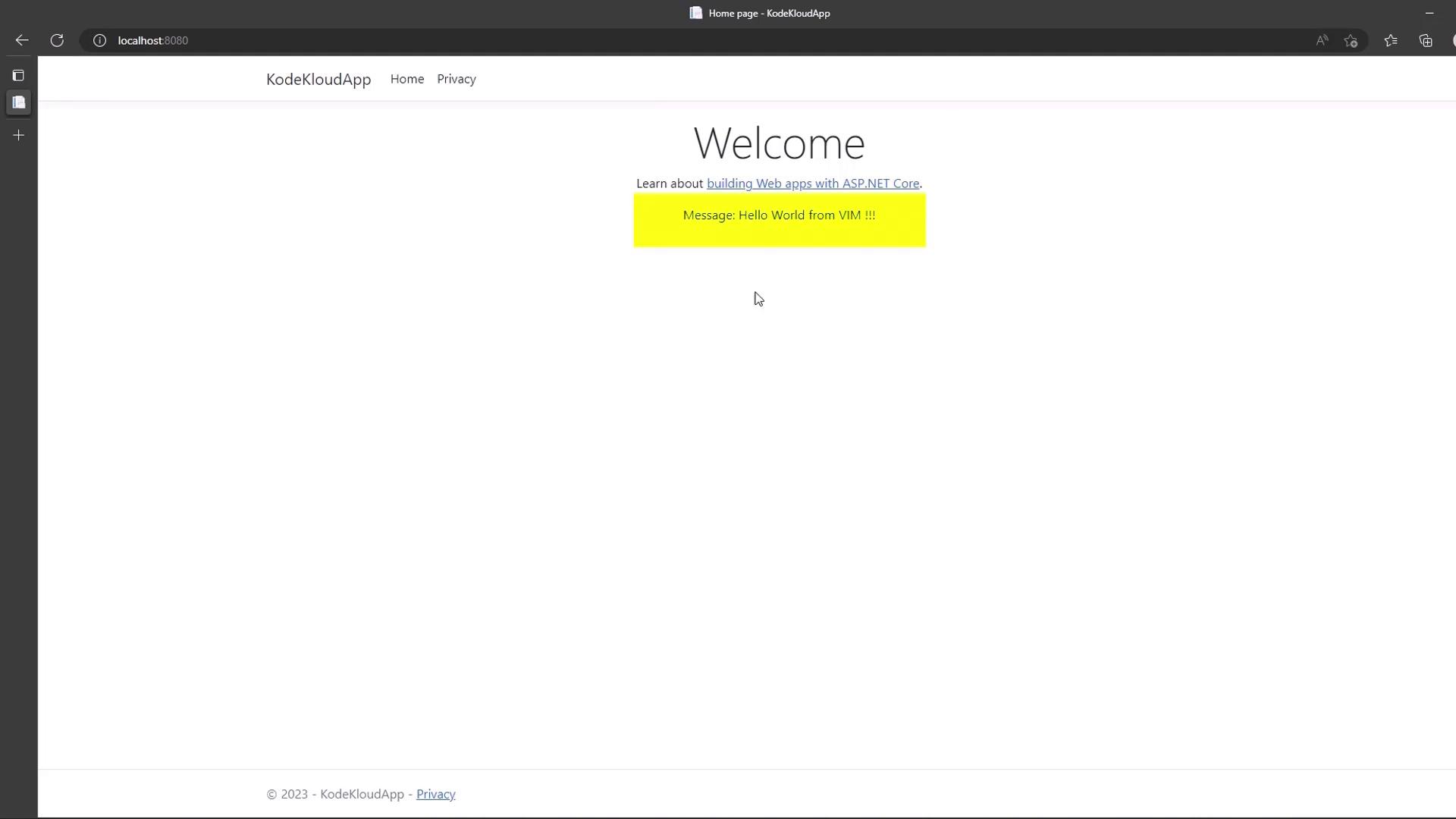
4. In `vim`, update the `"Message"` property:
```json theme={null}
{
"Logging": {
"LogLevel": {
"Default": "Information",
"Microsoft.AspNetCore": "Warning"
}
},
"AllowedHosts": "*",
"Message": "Hello World from VIM !!!"
}
```
5. Save and exit. Reload [http://localhost:8080](http://localhost:8080) in your browser to see the new message.
Editing configuration inside a running container is ideal for demos and debugging—but **not** for production. Prefer mounting configuration files or injecting environment variables instead.
## 3. Override with Environment Variables
ASP.NET Core’s configuration provider loads environment variables *after* JSON, allowing overrides without editing files.
1. Stop and remove the current container:
```bash theme={null}
docker rm -f corecloudapp
```
2. Launch a new container with the `Message` environment variable:
```bash theme={null}
docker run -d \
-e Message="From Env" \
-p 8080:80 \
--name corecloudapp \
kodekloudapp:v1
```
3. Refresh [http://localhost:8080](http://localhost:8080). The message should read **From Env**.
## 4. Cleanup
When you’re done, remove the container:
```bash theme={null}
docker rm -f corecloudapp
```
## Docker Command Reference
| Command | Purpose |
| -------------------- | -------------------------------------------- |
| `docker run -d -p …` | Start a container in detached mode |
| `docker exec -it …` | Open an interactive shell inside a container |
| `docker rm -f …` | Force remove a running or stopped container |
## Links and References
* [Docker run reference](https://docs.docker.com/engine/reference/commandline/run/)
* [Docker exec reference](https://docs.docker.com/engine/reference/commandline/exec/)
* [ASP.NET Core Configuration](https://docs.microsoft.com/aspnet/core/fundamentals/configuration/)