> ## Documentation Index
> Fetch the complete documentation index at: https://notes.kodekloud.com/llms.txt
> Use this file to discover all available pages before exploring further.
# Pushing Image to ACR
> This article explains how to push images to Azure Container Registry and manage access control for Azure Kubernetes Service.
A container registry is a service for storing and distributing container images and related artifacts. While Docker Hub is a popular public registry, Azure Container Registry (ACR) offers a fully managed, private registry with advanced features like geo-replication, content trust, and virtual network integration.
## Azure Container Registry SKUs
ACR comes in three SKUs—Basic, Standard, and Premium—each varying by storage capacity, daily operations, and outbound bandwidth. As you move from Basic → Standard → Premium, quotas increase and additional features are unlocked.
You can upgrade or downgrade between SKUs as long as your storage usage stays within the target tier’s quota.
Downgrading from Premium (200 GB) to Standard (100 GB) will fail if your registry exceeds 100 GB of stored artifacts.
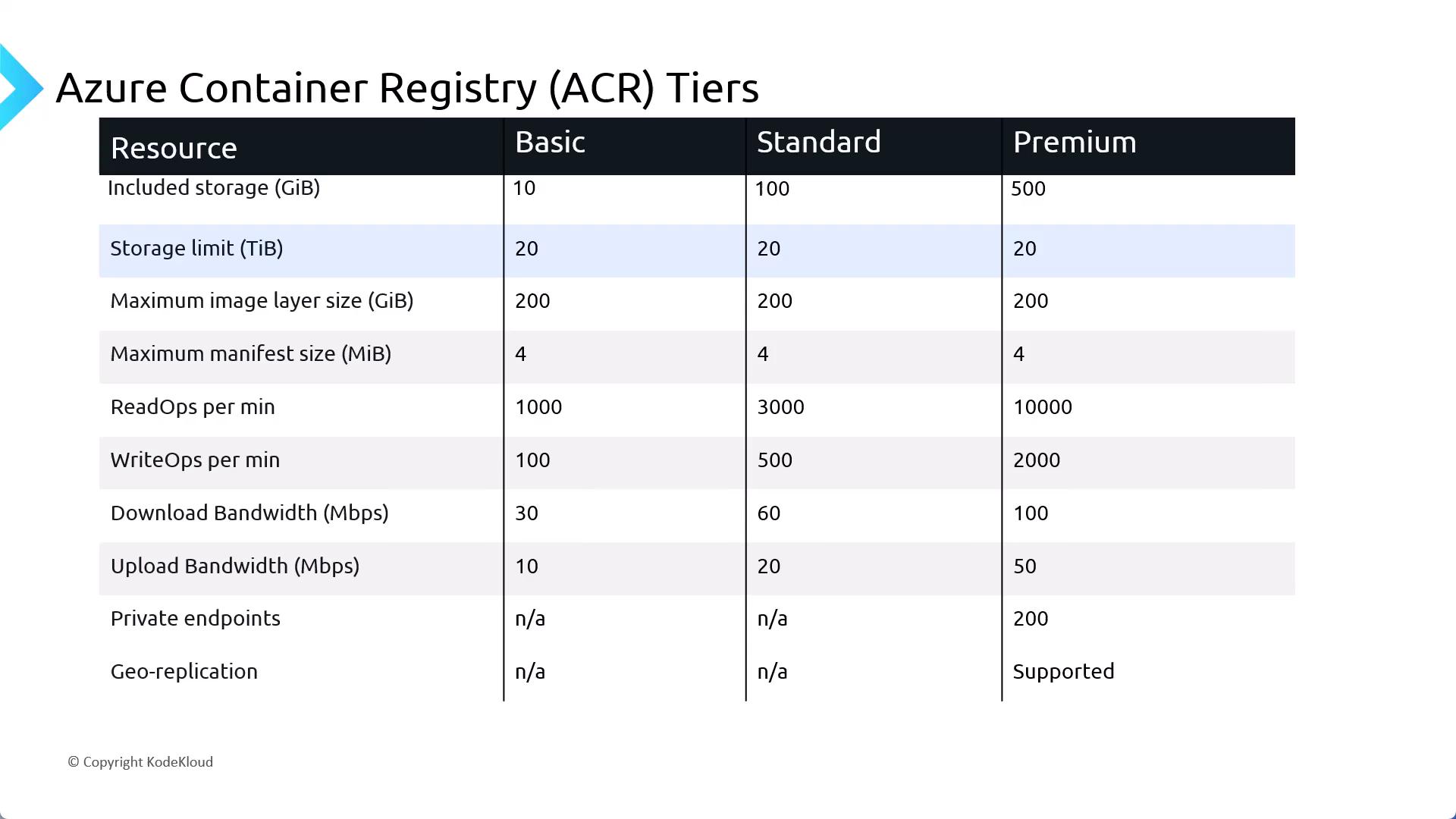
For full details, see [Azure Container Registry SKUs & pricing](https://docs.microsoft.com/azure/container-registry/container-registry-skus).
## Provisioning and Access Control
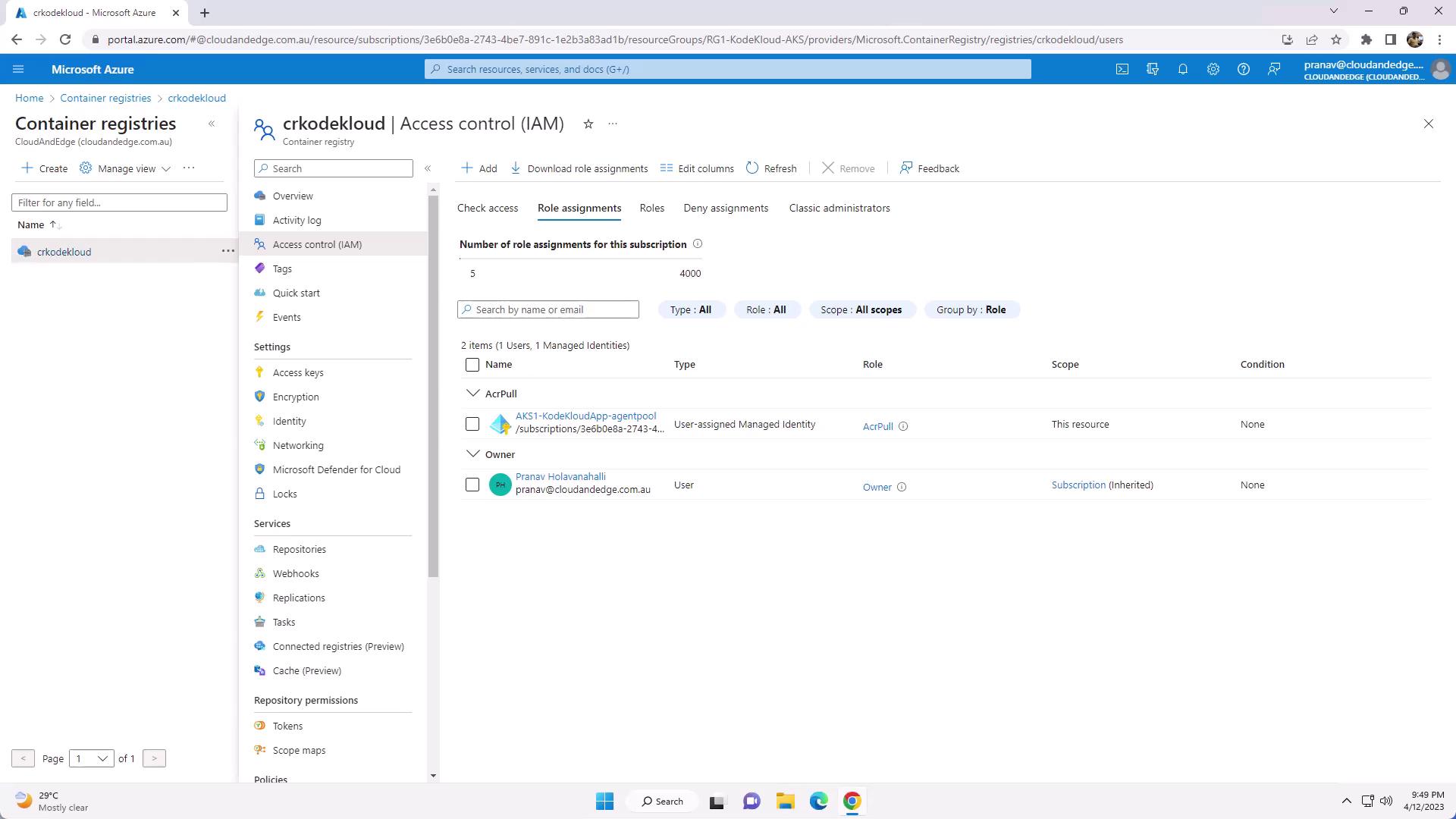
When you create an AKS cluster with the Azure CLI or Portal, you can automatically provision an ACR instance and grant the cluster’s managed identity the **AcrPull** role. If you create your registry separately, assign roles as follows:
1. In the Azure Portal, navigate to your Container Registry.
2. Open **Access Control (IAM)** → **Role assignments**.
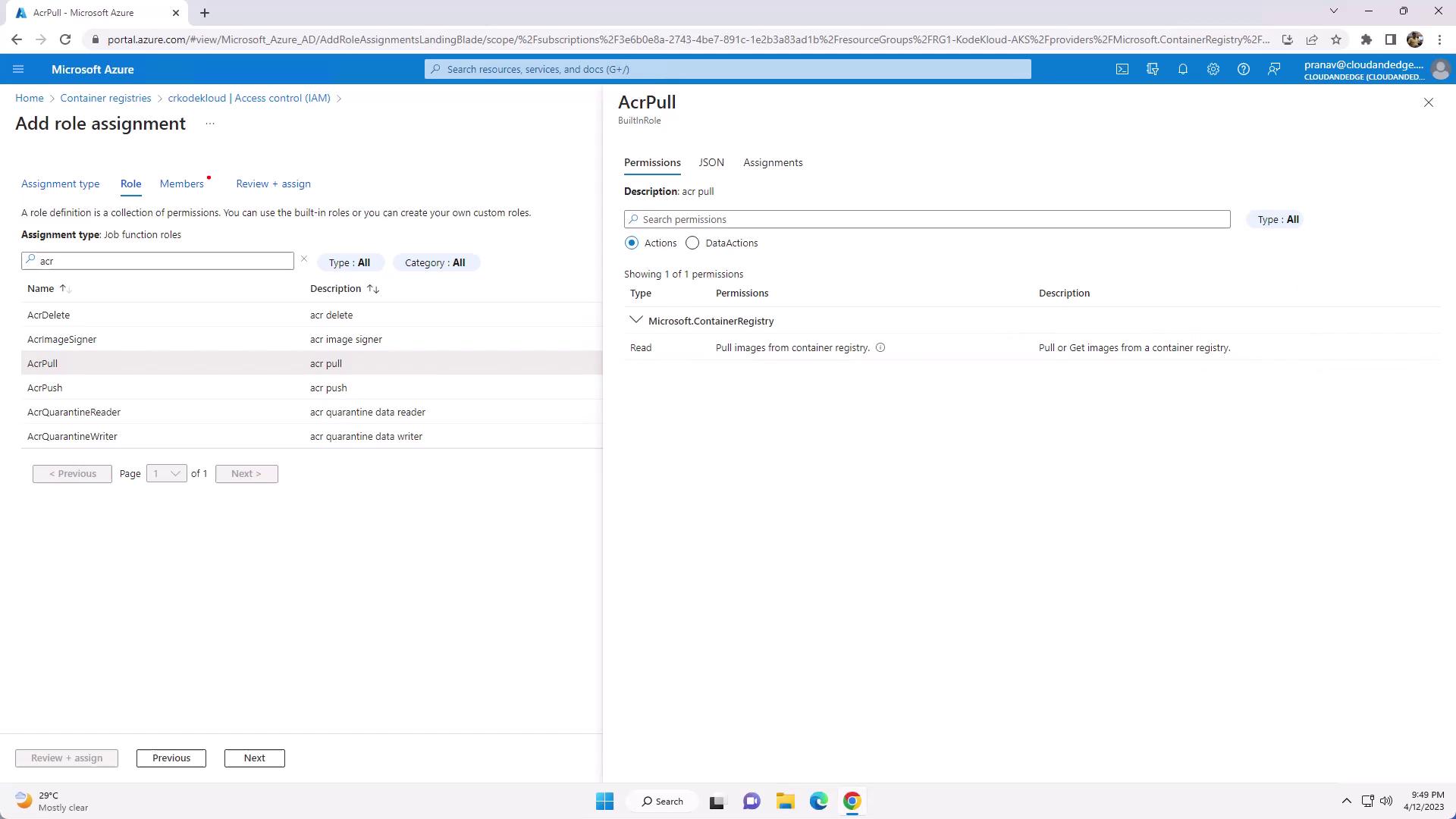
3. Filter by “ACR” to see built-in roles: **AcrPull**, **AcrPush**, **Owner**.
4. Click **Add role assignment**, select the appropriate role, and assign it to your AKS managed identity or service principal.
### Built-in ACR Roles
| Role | Permissions | Description |
| ------- | ----------------------------------------------------- | ----------------------------------- |
| AcrPull | `registries/pull/read` | Read-only access for pulling images |
| AcrPush | `registries/push/write`
`registries/pull/read` | Push and pull access |
| Owner | All container registry operations | Full control over the registry |
Here’s the JSON definition of the **AcrPush** role:
```json theme={null}
{
"id": "/providers/Microsoft.Authorization/roleDefinitions/8311e382-0749-4cb8-b61a-304f252e45ec",
"properties": {
"roleName": "AcrPush",
"description": "Allows push and pull operations in Azure Container Registry",
"assignableScopes": [ "/" ],
"permissions": [
{
"actions": [
"Microsoft.ContainerRegistry/registries/pull/read",
"Microsoft.ContainerRegistry/registries/push/write"
],
"notActions": [],
"dataActions": [],
"notDataActions": []
}
]
}
}
```
## Tagging and Pushing Images to ACR
1. List your local Docker images:
```powershell theme={null}
PS C:\> docker image ls
```
2. Tag each image for your ACR:
```powershell theme={null}
PS C:\> docker tag kodekloudappcs:v1 crkodekloud.azurecr.io/kodekloudappcs:v1
PS C:\> docker tag kodekloudappcs:v2 crkodekloud.azurecr.io/kodekloudappcs:v2
```
3. Verify the new tags:
```powershell theme={null}
PS C:\> docker image ls
```
4. Authenticate with your registry:
```powershell theme={null}
PS C:\> az acr login --name crkodekloud
Login Succeeded
```
5. Push both tags:
```powershell theme={null}
PS C:\> docker push crkodekloud.azurecr.io/kodekloudappcs:v1
PS C:\> docker push crkodekloud.azurecr.io/kodekloudappcs:v2
```
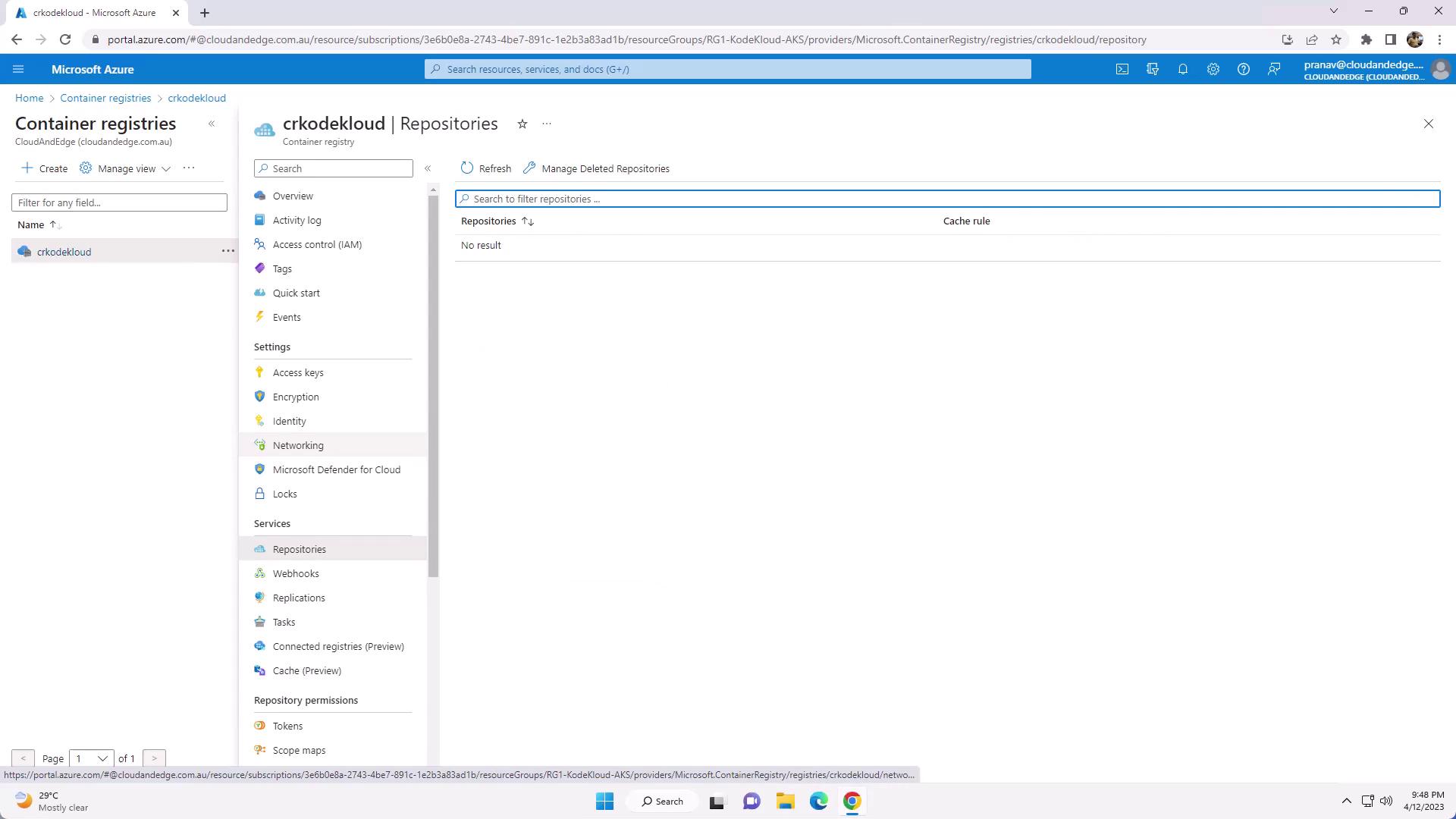
6. In the Azure Portal, go to your registry’s **Repositories** blade to confirm the image tags.
## Deploying to Azure Kubernetes Service (AKS)
Deploy version `v1` of your application directly from ACR:
```bash theme={null}
kubectl create deployment kodekloudapp \
--image=crkodekloud.azurecr.io/kodekloudappcs:v1 \
--replicas=1
kubectl get deployment kodekloudapp
```
Expose the deployment via an Azure Load Balancer:
```bash theme={null}
kubectl expose deployment kodekloudapp \
--type=LoadBalancer \
--port=80 \
--target-port=80
kubectl get service
```
Example output:
```plaintext theme={null}
NAME TYPE CLUSTER-IP EXTERNAL-IP PORT(S) AGE
kodekloudapp LoadBalancer 10.0.199.121 20.247.251.108 80:30895/TCP 2m
kubernetes ClusterIP 10.0.0.1 443/TCP 2d
```
Open the **EXTERNAL-IP** in your browser to verify the application is running.
***
## Links and References
* [Azure Container Registry Documentation](https://docs.microsoft.com/azure/container-registry/)
* [Azure Kubernetes Service (AKS) Overview](https://docs.microsoft.com/azure/aks/)
* [Docker Hub](https://hub.docker.com/)