> ## Documentation Index
> Fetch the complete documentation index at: https://notes.kodekloud.com/llms.txt
> Use this file to discover all available pages before exploring further.
# Terraform Demo S3 Deployment
> Demo repository showing how to deploy AWS S3 buckets with Terraform using a reusable module, random unique names, and object lock considerations
This lesson walks through deploying S3 buckets with Terraform. The repository includes a root configuration that configures the AWS provider, generates a short random ID for unique bucket names, creates one bucket directly, and uses a reusable module for a second bucket. The same Terraform code creates reproducible cloud resources using HashiCorp Configuration Language (HCL).
## Repository layout (highlight)
* Root `main.tf` — provider, `random_id`, one `aws_s3_bucket` resource, and a module call.
* `modules/s3_bucket_with_env_tag/` — a simple module that creates a bucket and applies an `env` tag.
* Terraform state and plan artifacts are created when you run `terraform init` and `terraform apply`.
## Root configuration (abbreviated)
Root `main.tf`:
```hcl theme={null}
# Configure the AWS provider
provider "aws" {
region = "us-east-1"
}
# Random ID to ensure unique bucket name
resource "random_id" "bucket_id" {
byte_length = 4
}
# Create an S3 bucket
resource "aws_s3_bucket" "tf-demo-bucket-1" {
bucket = "tf-demo-bucket-1-${random_id.bucket_id.hex}"
object_lock_enabled = true
}
module "s3_bucket" {
source = "./modules/s3_bucket_with_env_tag"
env = "dev"
name = "tf-demo-bucket-2-${random_id.bucket_id.hex}" # Ensure unique bucket name
}
```
Key points:
* `provider "aws"` sets the AWS region.
* `random_id.bucket_id` provides a short hex suffix so bucket names are globally unique.
* `object_lock_enabled = true` enables S3 Object Lock at bucket creation (see important notes below).
* The `module` block reuses `modules/s3_bucket_with_env_tag` and passes `env` and `name` inputs.
## Module: modules/s3\_bucket\_with\_env\_tag
modules/s3\_bucket\_with\_env\_tag/main.tf:
```hcl theme={null}
resource "aws_s3_bucket" "tf-demo-bucket-2" {
bucket = var.name
object_lock_enabled = true
tags = {
env = var.env
}
}
```
modules/s3\_bucket\_with\_env\_tag/variables.tf:
```hcl theme={null}
variable "env" {
description = "Environment tag for the bucket"
type = string
validation {
condition = contains(["dev", "prod"], var.env)
error_message = "The env variable must be either 'dev' or 'prod'."
}
}
variable "name" {
description = "The name of the bucket"
type = string
}
```
This module:
* Creates a bucket with the provided `name`.
* Enables object lock on creation.
* Applies an `env` tag set to the supplied `env` value (validated to be either `dev` or `prod`).
Important: Amazon S3 requires versioning to be enabled on a bucket to use Object Lock. In Terraform you should add a `versioning` block inside the bucket resource when enabling object lock:
```hcl theme={null}
resource "aws_s3_bucket" "example" {
bucket = "example-bucket"
object_lock_enabled = true
versioning {
enabled = true
}
}
```
## Notes and caveats
* Object Lock must be enabled at bucket creation and cannot be disabled later. Plan accordingly for retention and compliance.
* Using a `random_id` or other unique suffix avoids global name collisions for S3 buckets.
* The `env` tag applied by the module helps with cost allocation and filtering in the AWS console.
Buckets created with object lock enabled are configured at creation time and cannot have object lock disabled later. Ensure you understand retention and compliance requirements before enabling this feature.
## What resources will be created?
| Resource Type | Purpose | Example / Notes |
| ------------------------ | ---------------------------------------------------- | ---------------------------------------------- |
| `aws_s3_bucket` | First bucket created directly in root `main.tf` | `tf-demo-bucket-1-` |
| `aws_s3_bucket` (module) | Second bucket created via module with `env` tag | `tf-demo-bucket-2-` |
| `random_id` | Generates a short unique suffix for bucket names | `random_id.bucket_id.hex` |
| Module inputs | Reusable configuration for bucket name and `env` tag | `env = "dev"`, `name = "tf-demo-bucket-2-..."` |
## Deploying the Terraform configuration
1. Change into the Terraform directory and initialize:
```bash theme={null}
cd tf
terraform init
```
2. Apply the configuration:
```bash theme={null}
terraform apply
```
Terraform will present a plan and prompt for confirmation:
```text theme={null}
Plan: 3 to add, 0 to change, 0 to destroy.
Do you want to perform these actions?
Terraform will perform the actions described above.
Only 'yes' will be accepted to approve.
Enter a value:
```
Type `yes` to proceed. After the apply finishes, refresh the S3 console to confirm that the buckets exist and include the random ID suffix.
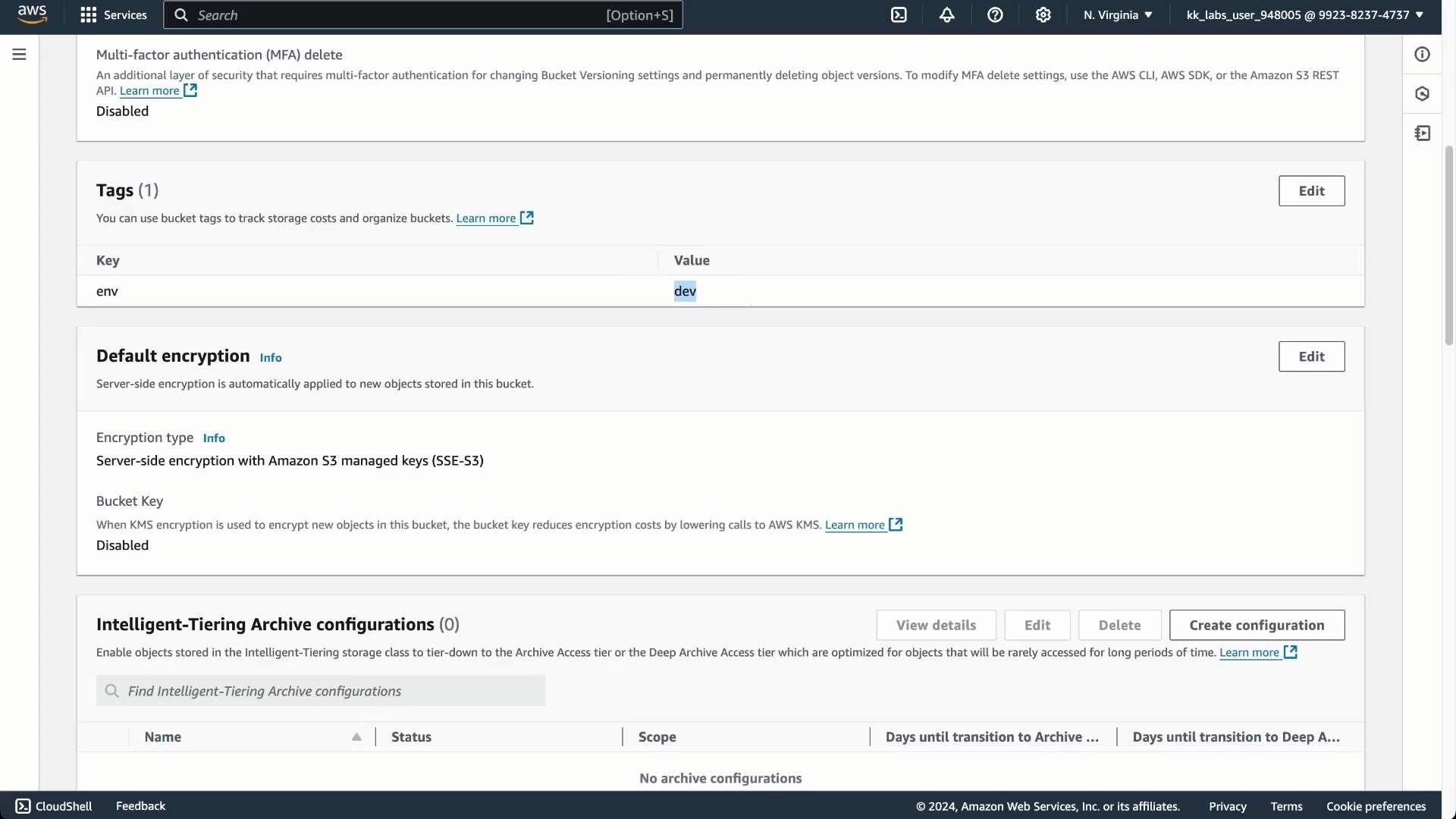
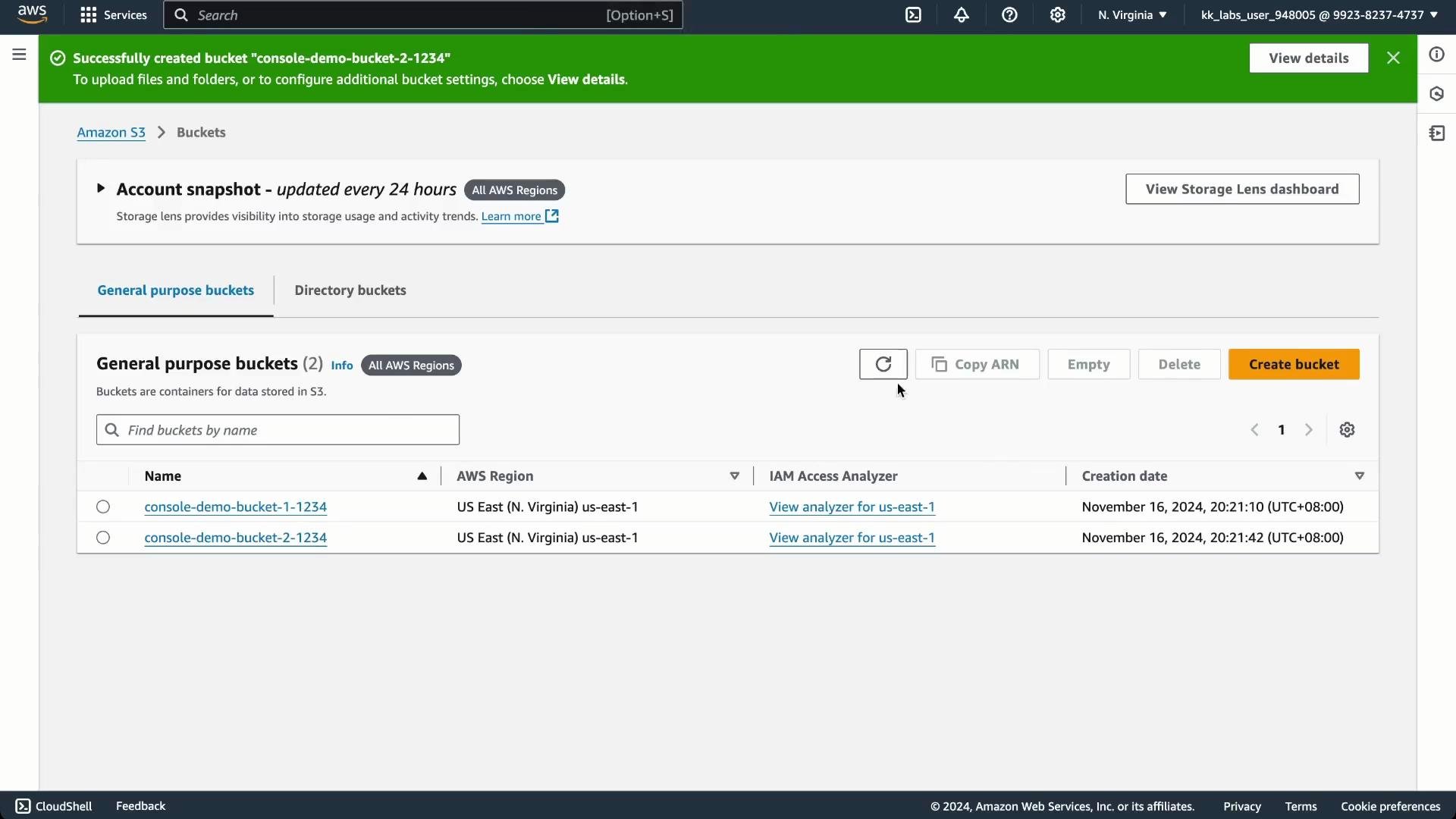 If you inspect the second bucket's Properties, you should see the `env` tag set to `dev` (as passed into the module) and the default encryption and MFA delete settings.
 ## Summary
This example demonstrates infrastructure-as-code with Terraform:
* Declarative HCL creates reproducible AWS S3 resources.
* Modules encapsulate reusable patterns (here, a bucket with an `env` tag).
* Use `random_id` or other uniqueness strategies for globally unique S3 names.
* Remember to enable `versioning` whenever you enable `object_lock_enabled`.
## Links and references
* [Terraform Documentation: AWS Provider](https://registry.terraform.io/providers/hashicorp/aws/latest/docs)
* [Amazon S3 Object Lock Overview](https://docs.aws.amazon.com/AmazonS3/latest/dev/object-lock-overview.html)
* [Terraform: Modules](https://developer.hashicorp.com/terraform/language/modules)
## Summary
This example demonstrates infrastructure-as-code with Terraform:
* Declarative HCL creates reproducible AWS S3 resources.
* Modules encapsulate reusable patterns (here, a bucket with an `env` tag).
* Use `random_id` or other uniqueness strategies for globally unique S3 names.
* Remember to enable `versioning` whenever you enable `object_lock_enabled`.
## Links and references
* [Terraform Documentation: AWS Provider](https://registry.terraform.io/providers/hashicorp/aws/latest/docs)
* [Amazon S3 Object Lock Overview](https://docs.aws.amazon.com/AmazonS3/latest/dev/object-lock-overview.html)
* [Terraform: Modules](https://developer.hashicorp.com/terraform/language/modules)