> ## Documentation Index
> Fetch the complete documentation index at: https://notes.kodekloud.com/llms.txt
> Use this file to discover all available pages before exploring further.
# Typescript Introduction
> Introduction to using TypeScript for infrastructure as code, covering setup, tooling, typing benefits, project initialization, and running a Hello World with ts-node and Yarn
Throughout this course we'll use TypeScript to define infrastructure-as-code. This first module builds a practical foundation in TypeScript so you can author and validate infrastructure with confidence. If you already know TypeScript, feel free to skip ahead.
Roadmap for this lesson:
* Why TypeScript is useful for infrastructure as code.
* TypeScript prerequisites and essential tools.
* How to initialize a TypeScript project from scratch.
* Run a simple Hello World script using TypeScript.
## What is TypeScript?
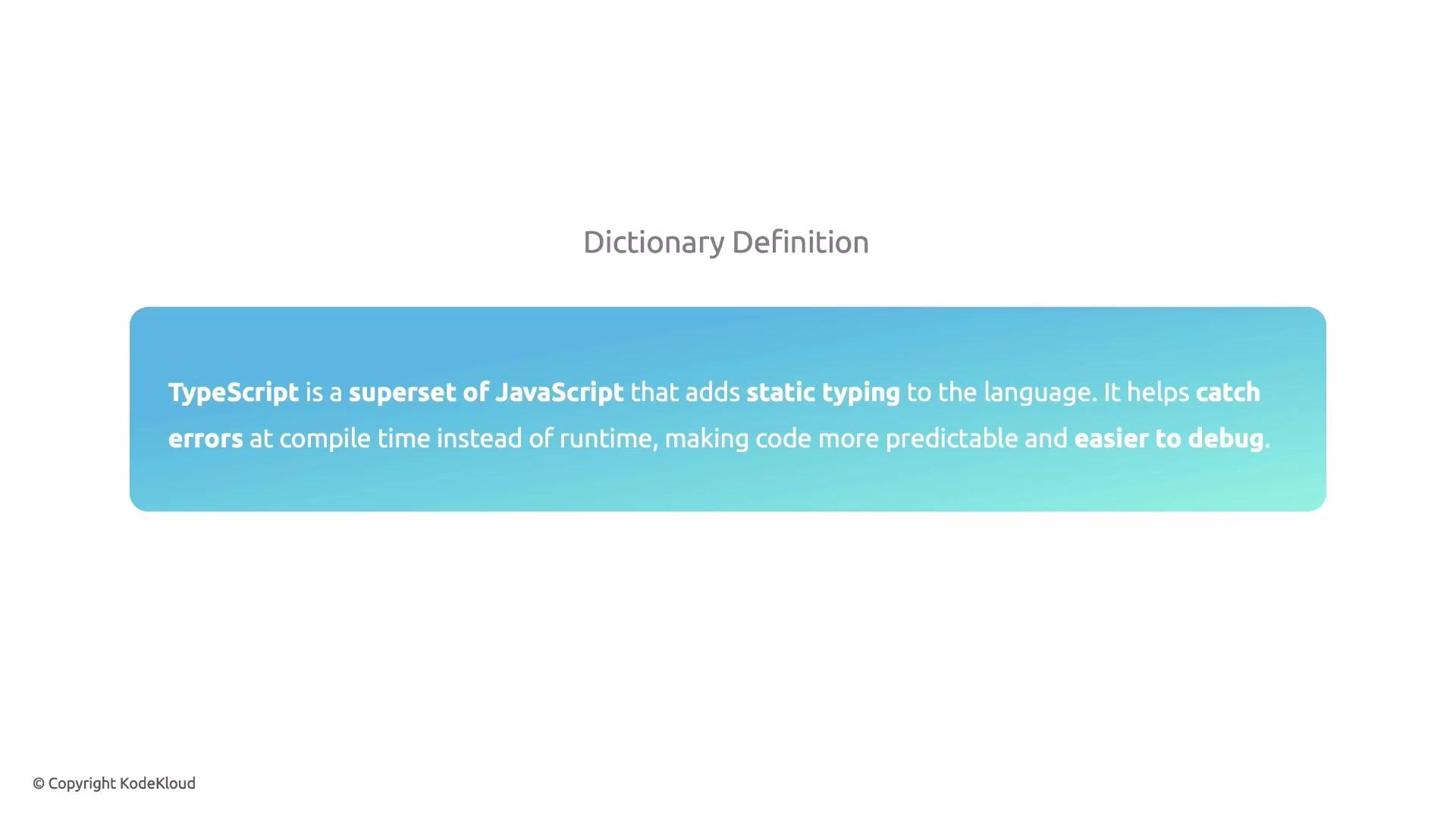
TypeScript is a superset of JavaScript that adds static typing and modern language features. Static types enable many errors to be caught at compile time instead of at runtime, making infrastructure code more predictable and easier to debug.
 Key points:
* TypeScript is a strict superset of JavaScript — every valid JavaScript program is valid TypeScript.
* You can declare types for parameters, variables, and return values (for example, `string`). The TypeScript compiler and many editors then report mismatches before you run your code.
Example — JavaScript vs TypeScript
JavaScript version (no static typing; possible runtime error):
```javascript theme={null}
// JS code
function greet(name) {
return "Hello, " + name.toUpperCase();
}
greet(42); // No compile-time error, but this will cause a runtime error
```
TypeScript version (static typing surfaces the problem at compile time):
```typescript theme={null}
// TS code
function greet(name: string): string {
return "Hello, " + name.toUpperCase();
}
greet(42); // Compile-time error: Argument of type 'number' is not assignable to parameter of type 'string'
```
In editors with TypeScript support you'll typically see these type errors immediately as you type.
## Why TypeScript for infrastructure as code?
Static typing improves reliability for infrastructure code the same way it does for applications. For example, a type error in plain HCL may only show up during `terraform apply` or `terraform validate`, whereas TypeScript (with CDK for Terraform or other IaC frameworks) surfaces the problem during development.
Terraform HCL example (error detected only at apply/validate):
```hcl theme={null}
# Terraform code
resource "aws_s3_bucket" "my_bucket" {
bucket = "my-unique-bucket-name"
versioning {
enabled = "invalid value" # No error until terraform apply/validate
}
}
```
TypeScript (CDKTF) equivalent — the compiler detects the wrong type earlier:
```typescript theme={null}
// TypeScript (CDKTF) code
new s3Bucket.S3Bucket(this, 'my_bucket', {
bucket: 'my-unique-bucket-name',
versioning: {
enabled: 'invalid value',
// Compile error: Type 'string' is not assignable to type 'boolean | IResolvable | undefined'.
},
});
```
Using TypeScript lets you validate infrastructure changes against types before execution, catching errors earlier and improving the development workflow.
## Setting up a TypeScript project from scratch
You can follow along locally or in an online lab environment (e.g., KodeKloud Labs). The steps below explain what to install and why.
### Prerequisite: Node.js
TypeScript runs on the JavaScript toolchain. Node.js is the runtime that lets you run JavaScript/TypeScript on your machine (outside the browser). KodeKloud Labs include Node; for local installs, choose the method appropriate for your OS.
Homebrew is not a Node.js package manager. Ensure Homebrew is installed by following the official instructions at `https://brew.sh/`. Homebrew can install Node.js, but for Node package dependency management you should use npm, Yarn, pnpm, or Bun.
Example (macOS using Homebrew):
```bash theme={null}
# Install Node.js (example installs Node 20)
brew install node@20
# Verify Node and npm
node -v # e.g., should print `v20.16.0`
npm -v # e.g., should print `10.8.1`
```
Create your project directory:
```bash theme={null}
mkdir typescript-fundamentals
cd typescript-fundamentals
```
### Package manager choices
A package manager installs, updates, configures, and manages dependencies for your project. Common choices include npm, Yarn, pnpm, and Bun.
Key points:
* TypeScript is a strict superset of JavaScript — every valid JavaScript program is valid TypeScript.
* You can declare types for parameters, variables, and return values (for example, `string`). The TypeScript compiler and many editors then report mismatches before you run your code.
Example — JavaScript vs TypeScript
JavaScript version (no static typing; possible runtime error):
```javascript theme={null}
// JS code
function greet(name) {
return "Hello, " + name.toUpperCase();
}
greet(42); // No compile-time error, but this will cause a runtime error
```
TypeScript version (static typing surfaces the problem at compile time):
```typescript theme={null}
// TS code
function greet(name: string): string {
return "Hello, " + name.toUpperCase();
}
greet(42); // Compile-time error: Argument of type 'number' is not assignable to parameter of type 'string'
```
In editors with TypeScript support you'll typically see these type errors immediately as you type.
## Why TypeScript for infrastructure as code?
Static typing improves reliability for infrastructure code the same way it does for applications. For example, a type error in plain HCL may only show up during `terraform apply` or `terraform validate`, whereas TypeScript (with CDK for Terraform or other IaC frameworks) surfaces the problem during development.
Terraform HCL example (error detected only at apply/validate):
```hcl theme={null}
# Terraform code
resource "aws_s3_bucket" "my_bucket" {
bucket = "my-unique-bucket-name"
versioning {
enabled = "invalid value" # No error until terraform apply/validate
}
}
```
TypeScript (CDKTF) equivalent — the compiler detects the wrong type earlier:
```typescript theme={null}
// TypeScript (CDKTF) code
new s3Bucket.S3Bucket(this, 'my_bucket', {
bucket: 'my-unique-bucket-name',
versioning: {
enabled: 'invalid value',
// Compile error: Type 'string' is not assignable to type 'boolean | IResolvable | undefined'.
},
});
```
Using TypeScript lets you validate infrastructure changes against types before execution, catching errors earlier and improving the development workflow.
## Setting up a TypeScript project from scratch
You can follow along locally or in an online lab environment (e.g., KodeKloud Labs). The steps below explain what to install and why.
### Prerequisite: Node.js
TypeScript runs on the JavaScript toolchain. Node.js is the runtime that lets you run JavaScript/TypeScript on your machine (outside the browser). KodeKloud Labs include Node; for local installs, choose the method appropriate for your OS.
Homebrew is not a Node.js package manager. Ensure Homebrew is installed by following the official instructions at `https://brew.sh/`. Homebrew can install Node.js, but for Node package dependency management you should use npm, Yarn, pnpm, or Bun.
Example (macOS using Homebrew):
```bash theme={null}
# Install Node.js (example installs Node 20)
brew install node@20
# Verify Node and npm
node -v # e.g., should print `v20.16.0`
npm -v # e.g., should print `10.8.1`
```
Create your project directory:
```bash theme={null}
mkdir typescript-fundamentals
cd typescript-fundamentals
```
### Package manager choices
A package manager installs, updates, configures, and manages dependencies for your project. Common choices include npm, Yarn, pnpm, and Bun.
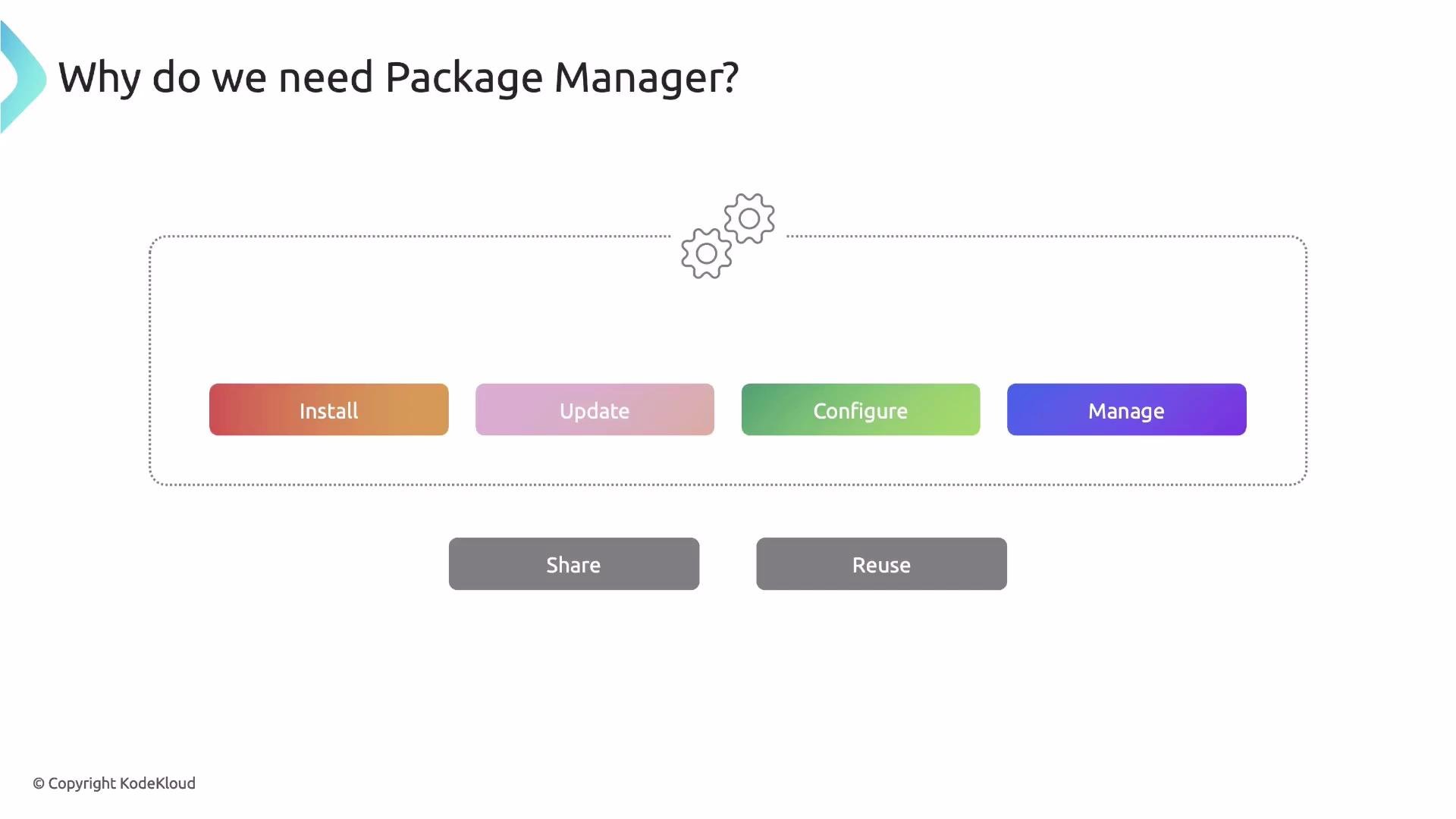
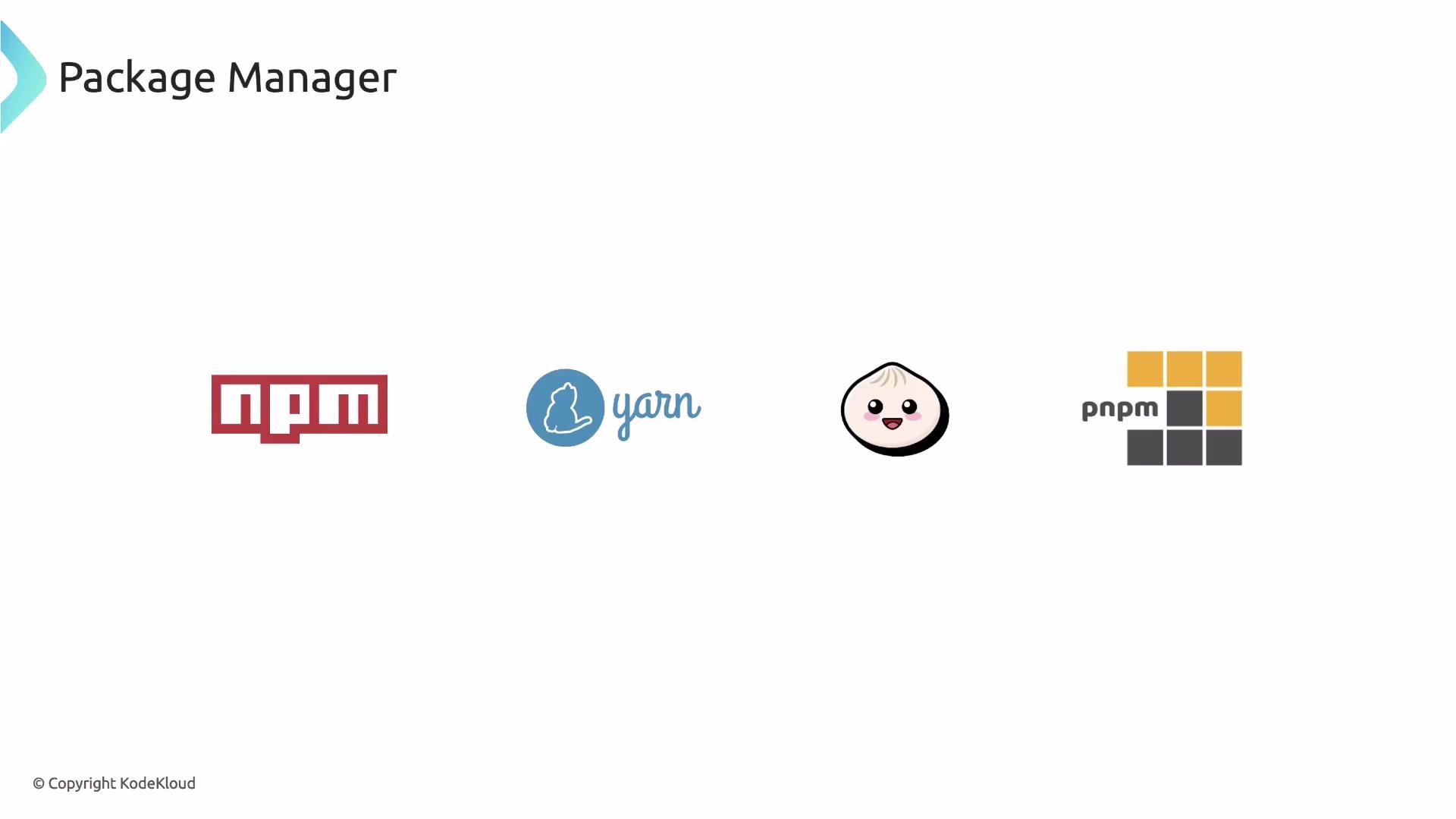 Table — Popular package managers (short comparison):
| Package Manager | Pros | Example install |
| --------------- | -------------------------------------------------- | ------------------------------ |
| npm | Default with Node; broadly supported | `npm init -y` |
| Yarn | Fast installs, caching, flexible configuration | `corepack enable && yarn init` |
| pnpm | Disk space efficient (stores single copy) | `corepack enable && pnpm init` |
| Bun | Very fast runtime & package manager (experimental) | `bun init` |
For this lesson we'll use Yarn because it's stable, fast, and caches packages locally. Other managers work similarly — choose the one you prefer.
Initialize a Yarn project:
```bash theme={null}
# Enable Corepack (manages Yarn/pnpm)
corepack enable
# Initialize the project interactively (creates package.json)
yarn init
# Configure Yarn to use the classic node_modules layout
yarn config set nodeLinker node-modules
# Install any initial dependencies (creates node_modules)
yarn install
# Verify yarn version
yarn -v # e.g., 4.3.1
```
A minimal `package.json` created by `yarn init` might look like:
```json theme={null}
{
"name": "typescript-fundamentals",
"packageManager": "yarn@4.3.1"
}
```
Add TypeScript as a development dependency:
```bash theme={null}
yarn add -D typescript
```
After installing, `package.json` will include TypeScript in `devDependencies`:
```json theme={null}
{
"name": "typescript-fundamentals",
"packageManager": "yarn@4.3.1",
"devDependencies": {
"typescript": "^5.6.3"
}
}
```
TypeScript is a dev dependency because it compiles code during development; the compiled JavaScript runs in production.
Optional: inspect installed TypeScript version:
```bash theme={null}
yarn info typescript version
# shows the installed version, e.g., 5.6.3
```
If you use Git, add `node_modules/` to `.gitignore`. `yarn init` typically creates a `.gitignore` with common entries.
## Hello World in TypeScript
Create `index.ts` as the application entry point:
```typescript theme={null}
// index.ts
const helloWorld: string = "Hello World";
console.log(helloWorld);
```
### Run TypeScript directly (no compile step)
To run TypeScript files directly, use `ts-node`. For automatic restarts during development use `ts-node-dev`.
```bash theme={null}
# For one-off execution
yarn add -D ts-node
# For development with auto-restart on file change
yarn add -D ts-node-dev
```
`ts-node` runs TypeScript files directly without a separate compile step. `ts-node-dev` adds file watching and automatic restarts (useful for iterative development). For production you typically compile `.ts` to `.js` using `tsc`.
Add a convenient run script to `package.json` for development:
```json theme={null}
{
"name": "typescript-fundamentals",
"packageManager": "yarn@4.4.0",
"scripts": {
"dev": "ts-node-dev --respawn index.ts"
},
"devDependencies": {
"ts-node": "^10.9.2",
"ts-node-dev": "^2.0.0",
"typescript": "^5.6.3"
}
}
```
Note: `--respawn` instructs `ts-node-dev` to restart the process whenever a watched file changes.
### TypeScript compiler configuration
Create `tsconfig.json` to control compilation behavior. A sensible starter configuration:
```json theme={null}
{
"compilerOptions": {
"target": "ES2018",
"module": "commonjs",
"strict": true,
"esModuleInterop": true,
"skipLibCheck": true,
"forceConsistentCasingInFileNames": true,
"outDir": "./dist"
},
"include": ["**/*.ts"],
"exclude": ["node_modules"]
}
```
Now run the app:
```bash theme={null}
yarn dev
```
You should see:
```text theme={null}
Hello World
```
If you use `ts-node-dev`, editing `index.ts` and saving will automatically restart the process and print the updated output.
## Recap
* TypeScript is a typed superset of JavaScript that improves reliability by catching many errors at compile time.
* Static typing is especially helpful when authoring infrastructure-as-code (IaC) — it surfaces type mismatches before you run provisioning commands.
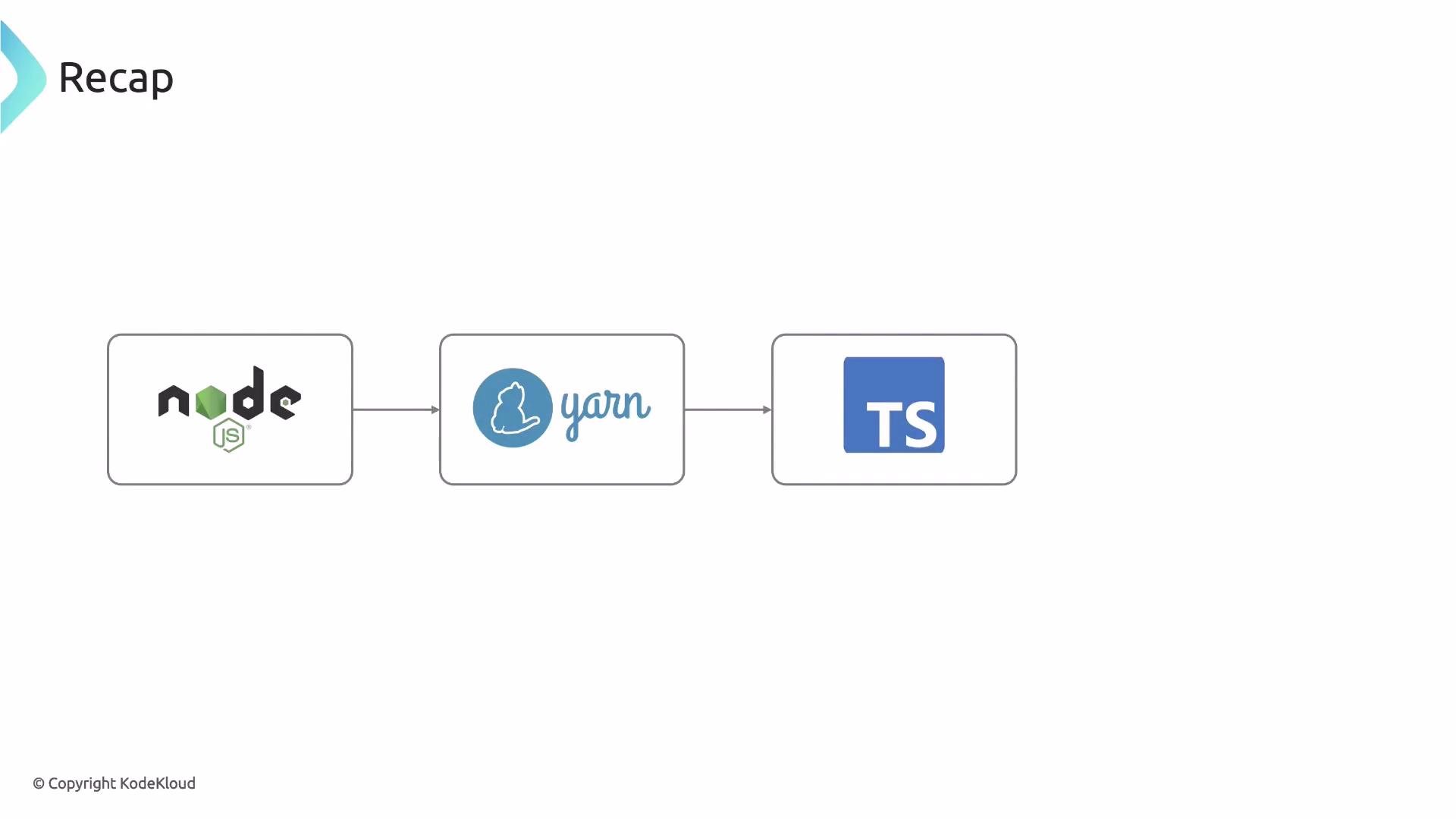
* We covered prerequisites (Node.js), package manager options, initializing a Yarn project, installing TypeScript and development tooling, adding a `tsconfig.json`, and running a Hello World using `ts-node-dev`.
Table — Popular package managers (short comparison):
| Package Manager | Pros | Example install |
| --------------- | -------------------------------------------------- | ------------------------------ |
| npm | Default with Node; broadly supported | `npm init -y` |
| Yarn | Fast installs, caching, flexible configuration | `corepack enable && yarn init` |
| pnpm | Disk space efficient (stores single copy) | `corepack enable && pnpm init` |
| Bun | Very fast runtime & package manager (experimental) | `bun init` |
For this lesson we'll use Yarn because it's stable, fast, and caches packages locally. Other managers work similarly — choose the one you prefer.
Initialize a Yarn project:
```bash theme={null}
# Enable Corepack (manages Yarn/pnpm)
corepack enable
# Initialize the project interactively (creates package.json)
yarn init
# Configure Yarn to use the classic node_modules layout
yarn config set nodeLinker node-modules
# Install any initial dependencies (creates node_modules)
yarn install
# Verify yarn version
yarn -v # e.g., 4.3.1
```
A minimal `package.json` created by `yarn init` might look like:
```json theme={null}
{
"name": "typescript-fundamentals",
"packageManager": "yarn@4.3.1"
}
```
Add TypeScript as a development dependency:
```bash theme={null}
yarn add -D typescript
```
After installing, `package.json` will include TypeScript in `devDependencies`:
```json theme={null}
{
"name": "typescript-fundamentals",
"packageManager": "yarn@4.3.1",
"devDependencies": {
"typescript": "^5.6.3"
}
}
```
TypeScript is a dev dependency because it compiles code during development; the compiled JavaScript runs in production.
Optional: inspect installed TypeScript version:
```bash theme={null}
yarn info typescript version
# shows the installed version, e.g., 5.6.3
```
If you use Git, add `node_modules/` to `.gitignore`. `yarn init` typically creates a `.gitignore` with common entries.
## Hello World in TypeScript
Create `index.ts` as the application entry point:
```typescript theme={null}
// index.ts
const helloWorld: string = "Hello World";
console.log(helloWorld);
```
### Run TypeScript directly (no compile step)
To run TypeScript files directly, use `ts-node`. For automatic restarts during development use `ts-node-dev`.
```bash theme={null}
# For one-off execution
yarn add -D ts-node
# For development with auto-restart on file change
yarn add -D ts-node-dev
```
`ts-node` runs TypeScript files directly without a separate compile step. `ts-node-dev` adds file watching and automatic restarts (useful for iterative development). For production you typically compile `.ts` to `.js` using `tsc`.
Add a convenient run script to `package.json` for development:
```json theme={null}
{
"name": "typescript-fundamentals",
"packageManager": "yarn@4.4.0",
"scripts": {
"dev": "ts-node-dev --respawn index.ts"
},
"devDependencies": {
"ts-node": "^10.9.2",
"ts-node-dev": "^2.0.0",
"typescript": "^5.6.3"
}
}
```
Note: `--respawn` instructs `ts-node-dev` to restart the process whenever a watched file changes.
### TypeScript compiler configuration
Create `tsconfig.json` to control compilation behavior. A sensible starter configuration:
```json theme={null}
{
"compilerOptions": {
"target": "ES2018",
"module": "commonjs",
"strict": true,
"esModuleInterop": true,
"skipLibCheck": true,
"forceConsistentCasingInFileNames": true,
"outDir": "./dist"
},
"include": ["**/*.ts"],
"exclude": ["node_modules"]
}
```
Now run the app:
```bash theme={null}
yarn dev
```
You should see:
```text theme={null}
Hello World
```
If you use `ts-node-dev`, editing `index.ts` and saving will automatically restart the process and print the updated output.
## Recap
* TypeScript is a typed superset of JavaScript that improves reliability by catching many errors at compile time.
* Static typing is especially helpful when authoring infrastructure-as-code (IaC) — it surfaces type mismatches before you run provisioning commands.
* We covered prerequisites (Node.js), package manager options, initializing a Yarn project, installing TypeScript and development tooling, adding a `tsconfig.json`, and running a Hello World using `ts-node-dev`.
 Next, we'll build on this foundation and demonstrate how TypeScript-based IaC tooling (such as CDK for Terraform) can initialize project scaffolding and validate types while you design infrastructure.
## Links and References
* Node.js official: [https://nodejs.org/](https://nodejs.org/)
* Yarn: [https://yarnpkg.com/](https://yarnpkg.com/)
* TypeScript docs: [https://www.typescriptlang.org/docs/](https://www.typescriptlang.org/docs/)
* CDK for Terraform (CDKTF): [https://developer.hashicorp.com/terraform/cdktf](https://developer.hashicorp.com/terraform/cdktf)
* KodeKloud Labs: [https://learn.kodekloud.com/](https://learn.kodekloud.com/)
Next, we'll build on this foundation and demonstrate how TypeScript-based IaC tooling (such as CDK for Terraform) can initialize project scaffolding and validate types while you design infrastructure.
## Links and References
* Node.js official: [https://nodejs.org/](https://nodejs.org/)
* Yarn: [https://yarnpkg.com/](https://yarnpkg.com/)
* TypeScript docs: [https://www.typescriptlang.org/docs/](https://www.typescriptlang.org/docs/)
* CDK for Terraform (CDKTF): [https://developer.hashicorp.com/terraform/cdktf](https://developer.hashicorp.com/terraform/cdktf)
* KodeKloud Labs: [https://learn.kodekloud.com/](https://learn.kodekloud.com/)