> ## Documentation Index
> Fetch the complete documentation index at: https://notes.kodekloud.com/llms.txt
> Use this file to discover all available pages before exploring further.
# Demo Update Lambda Configuration
> This tutorial explains how to update AWS Lambda environment variables using the AWS CLI and automate the process in a Jenkins CI/CD pipeline.
In this tutorial, you’ll learn how to update AWS Lambda environment variables using the AWS CLI and automate the process in a Jenkins CI/CD pipeline. We’ll cover:
* Updating Lambda configuration with `aws lambda update-function-configuration`
* Integrating environment updates and code deployment in Jenkins
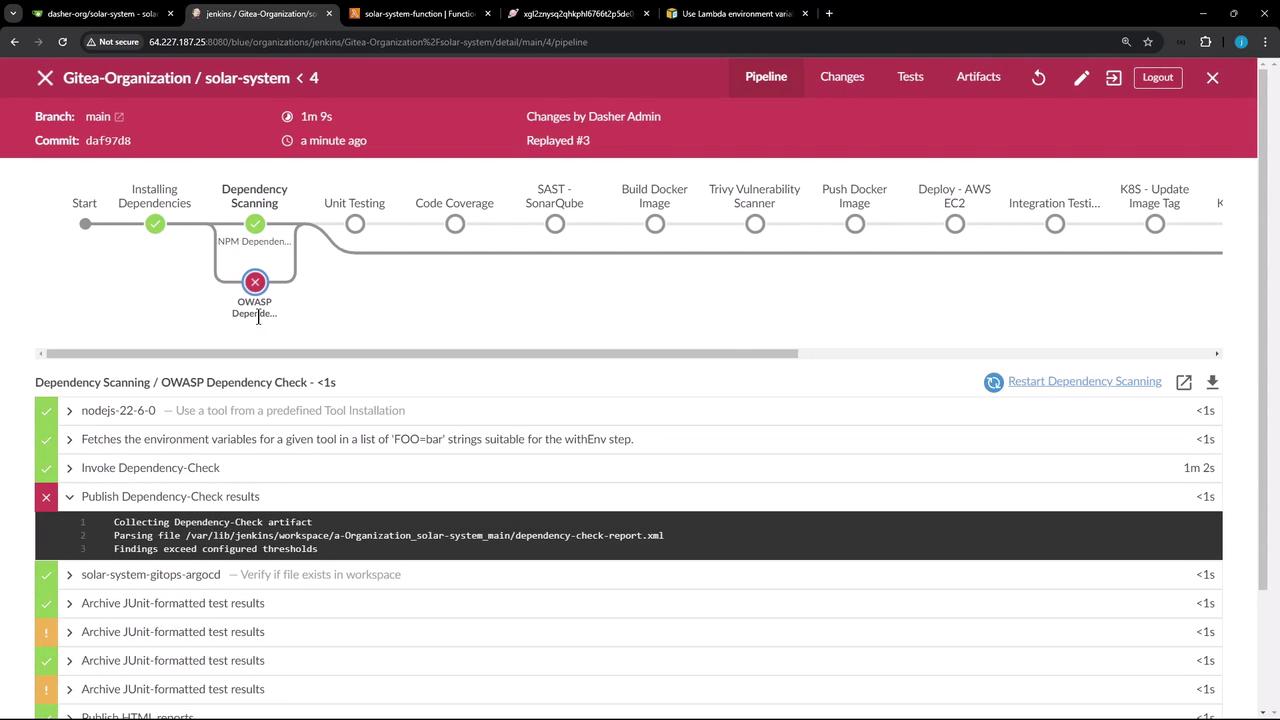
* Handling OWASP Dependency Check failures
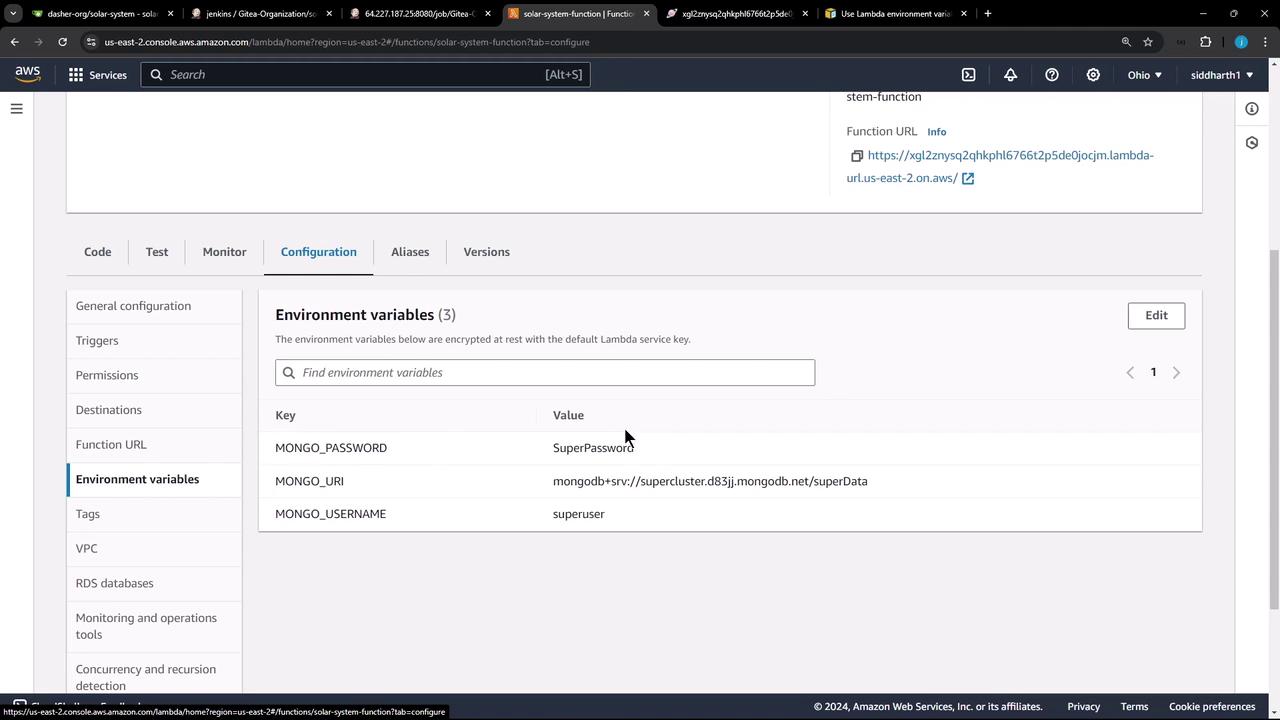
* Verifying updates in the AWS Lambda console
## Updating Lambda Configuration with AWS CLI
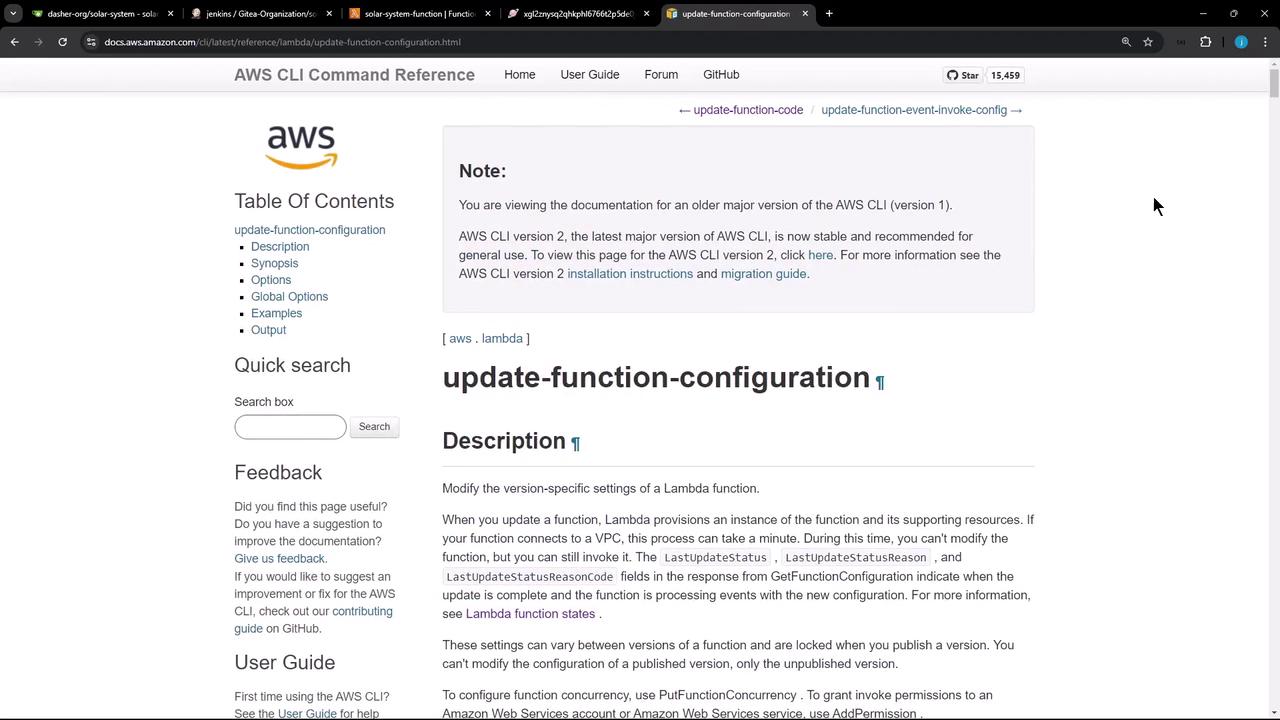
The AWS CLI’s `update-function-configuration` command lets you modify Lambda settings, including environment variables. For full details, see the [AWS CLI Command Reference][aws-cli-ref].
### Key Parameters
| Parameter | Description | Example |
| ----------------- | ------------------------------------------- | --------------------------------- |
| `--function-name` | Name or ARN of the Lambda function | `my-function` |
| `--environment` | JSON or shorthand for environment variables | `Variables={KEY1=val1,KEY2=val2}` |
### Environment Syntax
| Syntax | Format |
| --------- | -------------------------------------------------------------------------------------- |
| Shorthand | `--environment Variables={Key1=val1,Key2=val2}` |
| JSON | `--environment '{"Variables":{"Key1":"val1","Key2":"val2"}}'` or via `file://env.json` |
When using inline JSON on the command line, wrap the JSON in single quotes to avoid shell parsing errors.
### Example: Update and Confirm
```bash theme={null}
# Update environment variables
aws lambda update-function-configuration \
--function-name my-function \
--environment "Variables={BUCKET=amzn-s3-demo-bucket,KEY=file.txt}"
# Confirm the update
aws lambda get-function-configuration \
--function-name my-function
```
## Integrating with Jenkins
We’ll extend the `Jenkinsfile` to:
1. Zip application code
2. Upload the ZIP to S3
3. Update Lambda environment variables
4. Deploy new code to Lambda
Below is a sample pipeline and a breakdown of each stage.
### Sample Jenkinsfile
```groovy theme={null}
pipeline {
agent any
environment {
MONGO_URI = "mongodb+srv://supercluster.d83jj.mongodb.net/superData"
MONGO_DB_CREDS = credentials('mongo-db-credentials')
MONGO_USERNAME = credentials('mongo-db-username')
MONGO_PASSWORD = credentials('mongo-db-password')
SONAR_SCANNER_HOME = tool 'sonarqube-scanner-610'
GITEA_TOKEN = credentials('gitea-api-token')
}
stages {
stage('Installing Dependencies') { steps { /* ... */ } }
stage('Dependency Scanning') { steps { /* ... */ } }
stage('Unit Testing') { steps { /* ... */ } }
stage('Code Coverage') { steps { /* ... */ } }
stage('Deploy to AWS Lambda') {
steps {
// 1. Zip application code
sh '''
zip -qr solar-system-lambda-${BUILD_ID}.zip app* package* index.html node*
ls -ltr solar-system-lambda-${BUILD_ID}.zip
'''
// 2. Upload ZIP to S3
s3Upload(
file: "solar-system-lambda-${BUILD_ID}.zip",
bucket: 'solar-system-lambda-bucket'
)
// 3. Update Lambda configuration
aws lambda update-function-configuration \
--function-name solar-system-function \
--environment '{"Variables":{"MONGO_USERNAME":"${MONGO_USERNAME}","MONGO_PASSWORD":"${MONGO_PASSWORD}","MONGO_URI":"${MONGO_URI}"}}'
// 4. Deploy new code
aws lambda update-function-code \
--function-name solar-system-function \
--s3-bucket solar-system-lambda-bucket \
--s3-key solar-system-lambda-${BUILD_ID}.zip
}
}
}
}
```
### Pipeline Stages Overview
| Stage | Purpose |
| ----------------------- | ----------------------------------------------------- |
| Installing Dependencies | Install project dependencies (e.g., NPM, Maven) |
| Dependency Scanning | Run `npm audit` and OWASP Dependency Check |
| Unit Testing | Execute unit tests |
| Code Coverage | Generate coverage reports |
| Deploy to AWS Lambda | Zip code, upload to S3, update configuration and code |
## Handling OWASP Dependency Check Failures
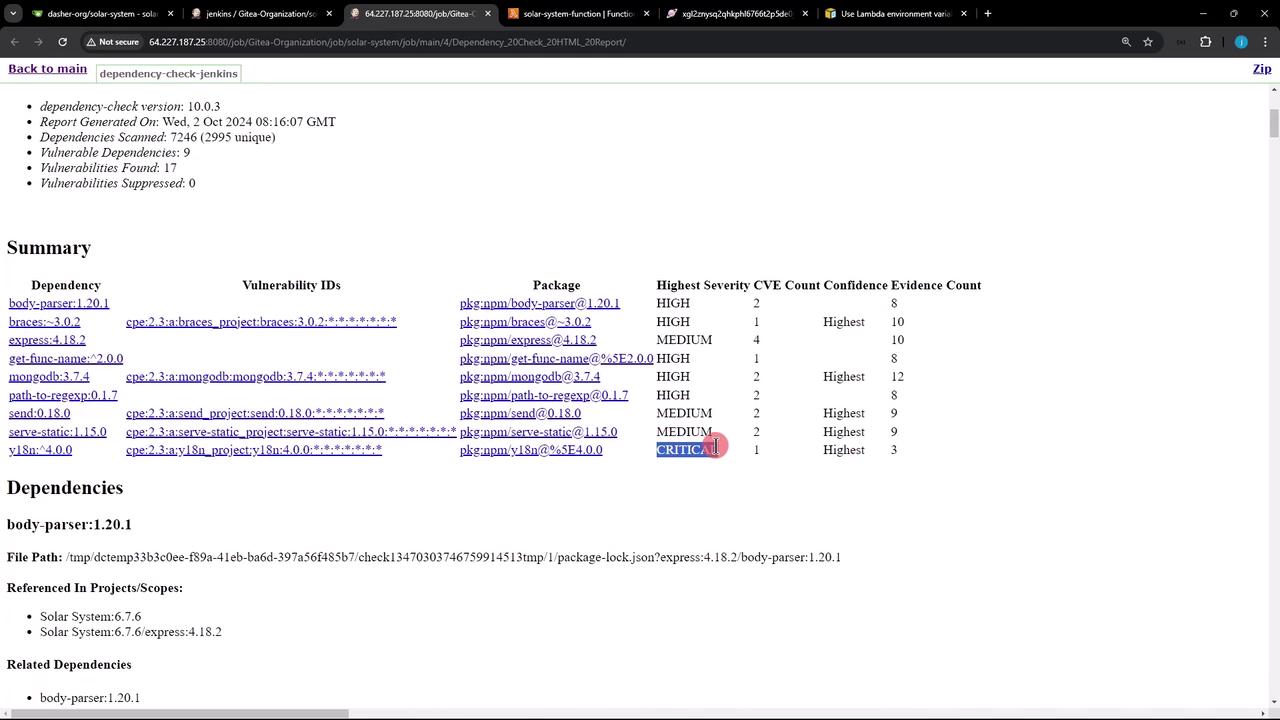
If the OWASP scan reports critical vulnerabilities, you can configure the publisher to continue the build:
```groovy theme={null}
stage('Dependency Scanning') {
parallel {
stage('NPM Dependency Audit') {
steps {
// npm audit steps
}
}
stage('OWASP Dependency Check') {
steps {
dependencyCheck additionalArguments: '''
--scan './'
--out './'
--format 'ALL'
--disableYarnAudit
--prettyPrint
''', odcInstallation: 'OWASP-DepCheck-10'
dependencyCheckPublisher failedTotalCritical: 1, pattern: 'dependency-check-report.xml', stopBuild: false
}
}
}
}
```
Setting `stopBuild: false` allows the pipeline to proceed despite critical vulnerabilities. Be sure to review the detailed report and address issues in your next sprint.
Pipeline logs will show any OWASP failures and continue execution.
## Verifying on AWS Lambda Console
Once the pipeline succeeds, open the AWS Lambda console and navigate to the **Configuration** tab to confirm the new environment variables:
## Testing the Application
Invoke your function’s endpoint or run a test to ensure it’s using the updated variables and code:
```json theme={null}
{
"status": "live"
}
```
If you receive a `200 OK` response with `{"status":"live"}`, your Lambda update was successful.
***
## Links and References
* [AWS CLI Command Reference: update-function-configuration][aws-cli-ref]
* [Jenkins Pipeline Syntax](https://www.jenkins.io/doc/book/pipeline/syntax/)
* [OWASP Dependency Check](https://owasp.org/www-project-dependency-check/)
[aws-cli-ref]: https://docs.aws.amazon.com/cli/latest/reference/lambda/update-function-configuration.html