> ## Documentation Index
> Fetch the complete documentation index at: https://notes.kodekloud.com/llms.txt
> Use this file to discover all available pages before exploring further.
# Demo Utilize Docker Image Agent
> Learn to run build steps in Docker containers using the Docker Pipeline Plugin in Jenkins, including configuration and multi-agent examples.
In this lesson, you’ll learn how to run your build steps inside Docker containers by using the Docker Pipeline Plugin in Jenkins. We’ll explore how to configure a Docker agent via the Pipeline Syntax editor, write a Jenkinsfile that uses multiple agent types, and inspect the console output when pulling and running containers.
## Prerequisites
Make sure the **Docker Pipeline Plugin** is installed and enabled. You can verify this under **Manage Jenkins → Manage Plugins**.
## Configuring a Docker Agent via Pipeline Syntax
1. Open **Pipeline Syntax** in your Jenkins instance.
2. Select **agent** from the **Snippet Generator** dropdown.
3. Choose **docker** (or **dockerfile**) as the agent directive.
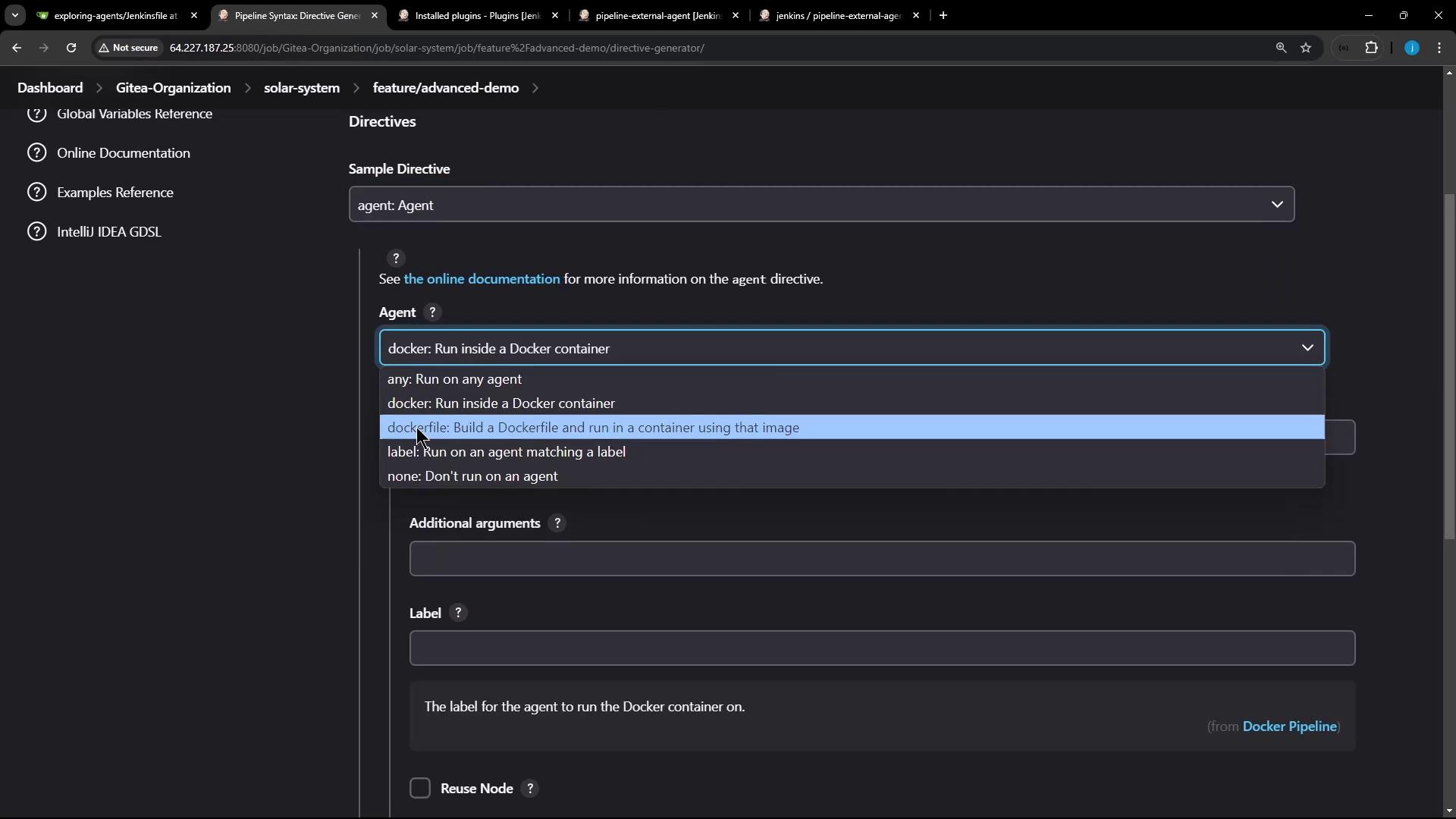
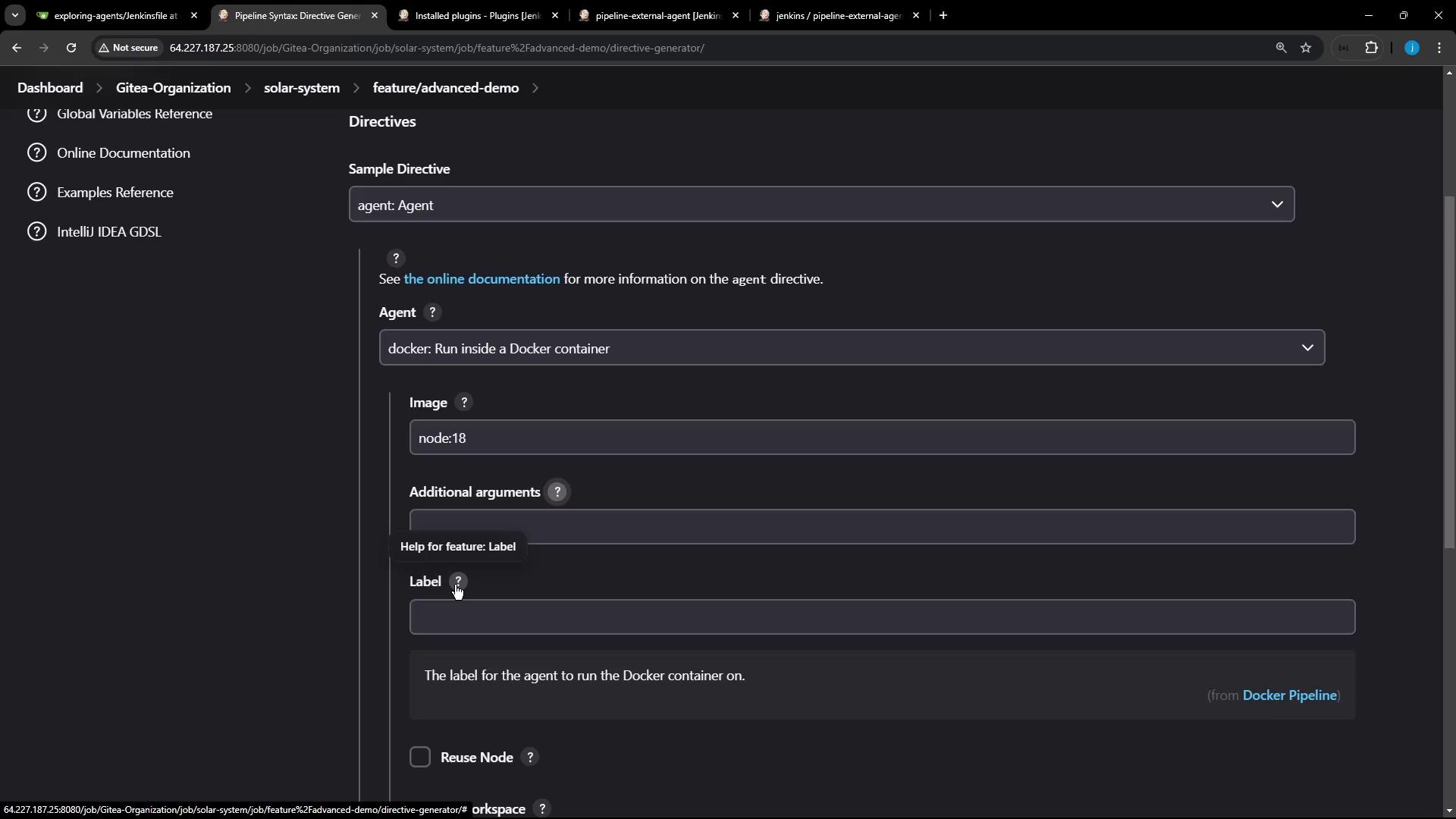
When you select **docker**, you can configure the following fields:
| Field | Description |
| --------------- | --------------------------------------------------------------------------------- |
| `image` | The Docker image to run (e.g., `node:18-alpine`). |
| `args` | Additional flags for `docker run` (for example, volume mounts or `--privileged`). |
| `label` | Jenkins node label where the container should run. |
| `workspace` | Custom workspace path inside the container. |
| `registryUrl` | URL of a private Docker registry. |
| `credentialsId` | Credentials ID for authenticating to the registry. |
| `alwaysPull` | When set to `true`, Jenkins pulls the image every time. |
A minimal Jenkinsfile using a Docker agent looks like this:
```groovy theme={null}
pipeline {
agent {
docker {
image 'node:18-alpine'
alwaysPull true
}
}
stages {
stage('Build') {
steps {
sh 'node -v'
sh 'npm -v'
}
}
}
}
```
For more details, see the [Jenkins Pipeline Syntax Reference](https://www.jenkins.io/doc/book/pipeline/syntax/).
## Example: Multi-Stage Pipeline with Docker and Labels
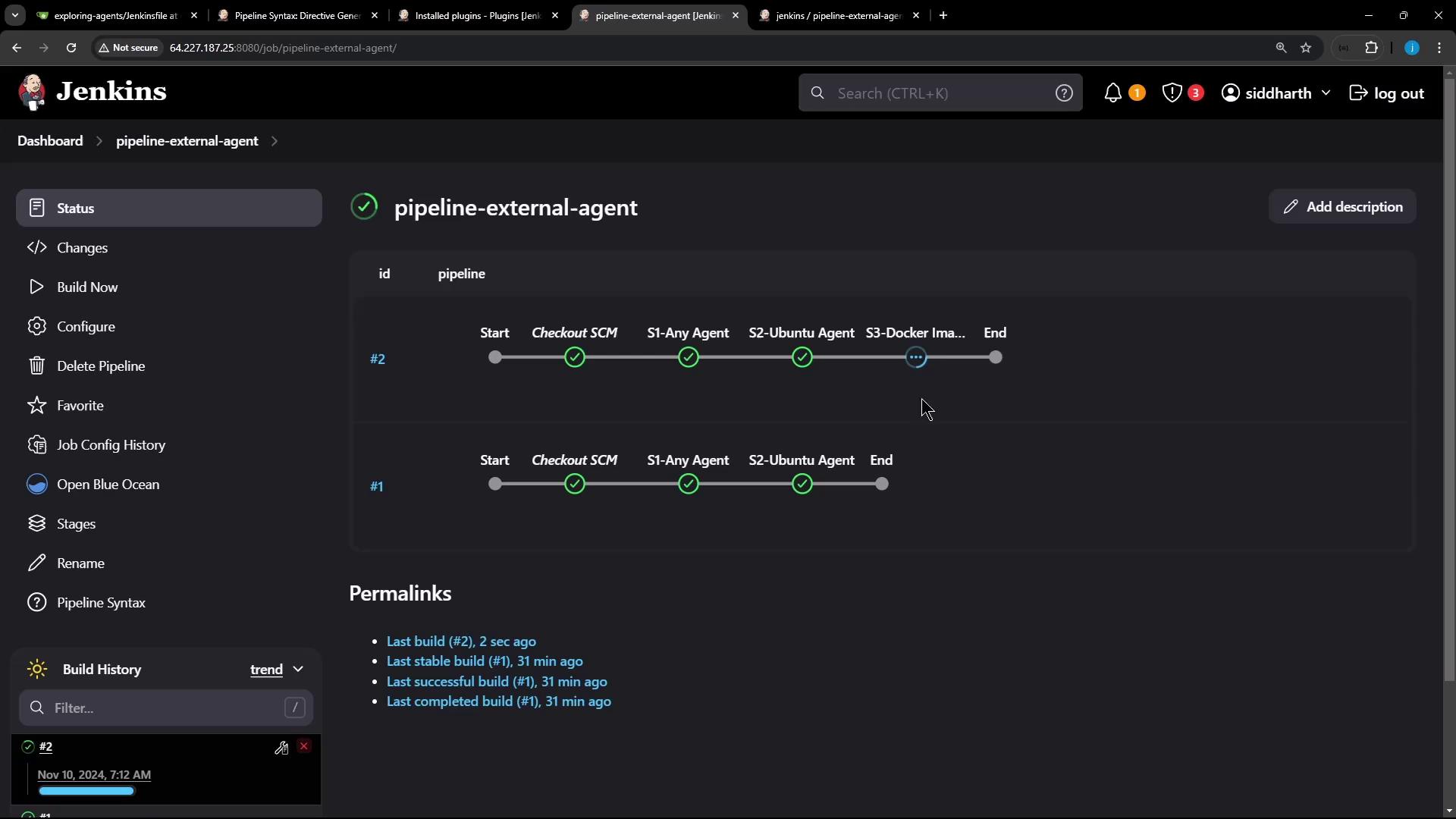
The following Jenkinsfile demonstrates:
1. Running on **any** available agent
2. Running on a specific **labeled** node
3. Running inside a **Docker container** agent
```groovy theme={null}
pipeline {
agent any
stages {
stage('S1 – Any Agent') {
steps {
sh 'cat /etc/os-release'
sh 'node -v'
sh 'npm -v'
}
}
stage('S2 – Ubuntu Agent') {
agent { label 'ubuntu-docker-jdk17-node20' }
steps {
sh 'cat /etc/os-release'
sh 'node -v'
sh 'npm -v'
}
}
stage('S3 – Docker Image Agent') {
agent {
docker {
image 'node:18-alpine'
label 'ubuntu-docker-jdk17-node20'
alwaysPull true
}
}
steps {
sh 'cat /etc/os-release'
sh 'node -v'
sh 'npm -v'
}
}
}
}
```
Ensure your agent labeled `ubuntu-docker-jdk17-node20` has Docker installed and is connected to the Jenkins controller.
Commit the Jenkinsfile to your repository and trigger a build. You’ll see all three stages execute in sequence.
## Console Output: Pulling & Running the Docker Image
When the **S3 – Docker Image Agent** stage runs, Jenkins pulls the image if needed:
```bash theme={null}
$ docker pull node:18-alpine
18-alpine: Pulling from library/node
43c4264eed91: Pulling fs layer
369c426a5a2a: Pulling fs layer
2f21f39bd9d19: Pulling fs layer
cdcc44a82b4: Verifying Checksum
...
Status: Downloaded newer image for node:18-alpine
```
Then Jenkins starts a container, mounts the workspace, and runs the commands:
```bash theme={null}
+ docker run -d \
-v /home/jenkins-agent/workspace/...:/home/jenkins-agent/workspace/... \
-e ... node:18-alpine cat
+ cat /etc/os-release
NAME="Alpine Linux"
ID=alpine
VERSION_ID=3.20.3
PRETTY_NAME="Alpine Linux v3.20"
+ node -v
v18.12.4
+ npm -v
10.7.0
```
After the steps complete, Jenkins automatically stops and removes the build container.
Jenkins removes only the container; the pulled Docker image remains in the local cache.
## Verifying on the Jenkins Host
On your Jenkins controller or agent node, confirm there are no leftover build containers:
```bash theme={null}
$ docker ps -a
# No running containers (build containers have been removed)
```
You can see the pulled image still exists:
```bash theme={null}
$ docker images
REPOSITORY TAG IMAGE ID CREATED SIZE
node 18-alpine f48cc5826852 4 months ago 128MB
hello-world latest d2c94e258dcb 18 months ago 13.3kB
```
You’ve now seen how to configure and use Docker containers as build agents in Jenkins pipelines. This approach ensures consistent build environments, easy cleanup, and the flexibility to use any Docker image.
## Links and References
* [Jenkins Pipeline Syntax](https://www.jenkins.io/doc/book/pipeline/syntax/)
* [Docker Pipeline Plugin](https://plugins.jenkins.io/docker-workflow/)
* [Jenkins Documentation](https://www.jenkins.io/doc/)
* [Docker Hub](https://hub.docker.com/)