> ## Documentation Index
> Fetch the complete documentation index at: https://notes.kodekloud.com/llms.txt
> Use this file to discover all available pages before exploring further.
# Demo Utilize Dockerfile Agent
> Learn to build a custom Docker image with a Dockerfile for use as an agent in a Jenkins Pipeline stage.
Learn how to build a custom Docker image via a `Dockerfile` and use it as an agent in a Jenkins Pipeline stage. This method lets you pre-install all required tools—like Node.js and `cowsay`—so your CI/CD steps run smoothly.
## 1. Using the Standard `node:18-alpine` Docker Agent
First, try running Node.js commands and the `cowsay` utility using the official `node:18-alpine` image:
```groovy theme={null}
pipeline {
agent any
stages {
stage('S4-Dockerfile Agent') {
agent {
docker {
image 'node:18-alpine'
label 'ubuntu-docker-jdk17-node20'
}
}
steps {
sh 'node -v'
sh 'npm -v'
sh 'cowsay -f dragon This is running on Docker Container'
}
}
}
}
```
Commit and push this `Jenkinsfile`, then trigger a build.
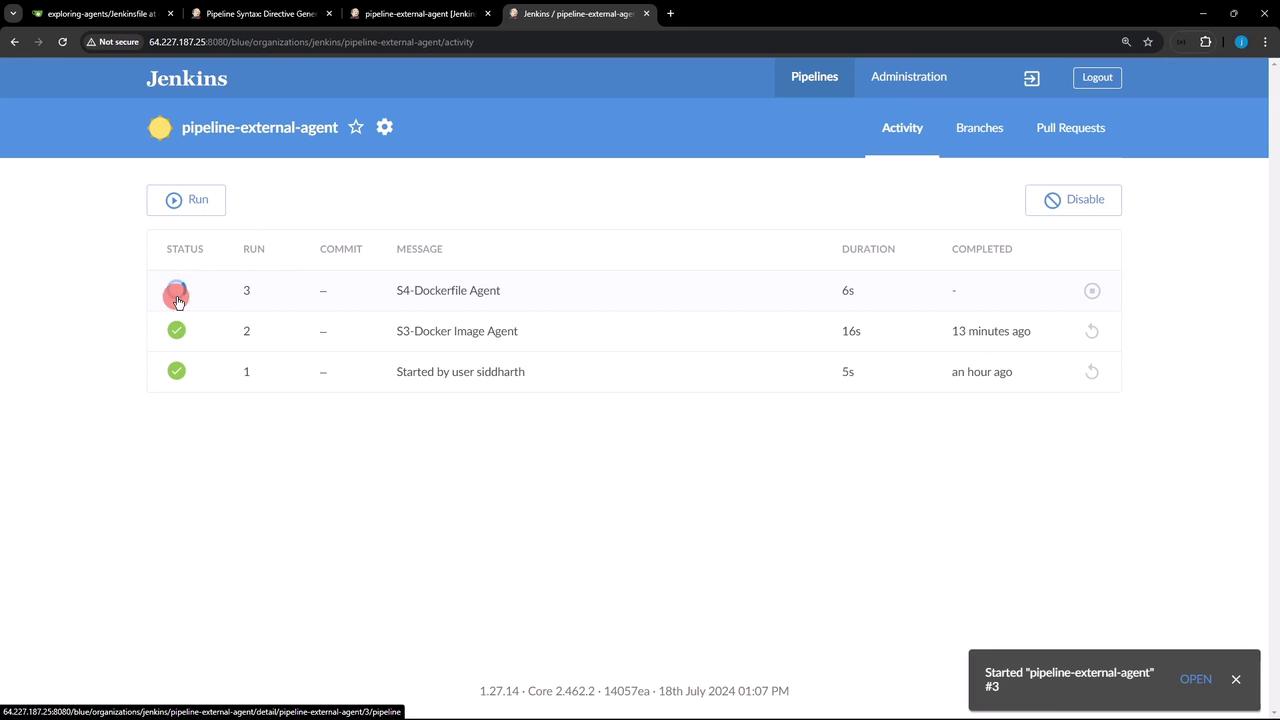
The **S4-Dockerfile Agent** stage will fail because `cowsay` is not installed in the base image.
## 2. Diagnosing the Missing Utility
Inspect the console output to confirm which utility is missing:
```bash theme={null}
/home/jenkins-agent/workspace/pipeline-external-agent/tmp/durable-xyz/script.sh.copy: line 1: cowsay: not found
```
* **Node.js** commands succeed (`node -v`, `npm -v`)
* **`cowsay`** fails: the utility isn’t present in `node:18-alpine`.
## 3. Crafting a Custom Dockerfile
Create `Dockerfile.cowsay` at your repository root to bundle Node.js and `cowsay`:
```dockerfile theme={null}
FROM node:18-alpine
RUN apk update && \
apk add --no-cache git perl && \
cd /tmp && \
git clone https://github.com/jasonm23/cowsay.git && \
cd cowsay && \
./install.sh /usr/local
```
This Dockerfile:
1. **Base Image**: `node:18-alpine`
2. **Dependencies**: Installs `git` and `perl` via Alpine’s package manager
3. **Cowsay**: Clones the [cowsay GitHub repository][cowsay-repo] and runs its installer
Using Alpine keeps the image slim. Ensure you list all required packages in the `RUN apk add` command.
## 4. Updating Your Jenkinsfile to Use the Custom Image
Swap the `docker` agent block for a `dockerfile` block:
```groovy theme={null}
pipeline {
agent any
stages {
stage('S4-Dockerfile Agent') {
agent {
dockerfile {
filename 'Dockerfile.cowsay'
label 'ubuntu-docker-jdk17-node20'
}
}
steps {
sh 'node -v'
sh 'npm -v'
sh 'cowsay -f dragon This is running on Docker Container'
}
}
}
}
```
Commit and push. Jenkins will now build your custom image before executing the stage.
## 5. Observing the Build Output
When you trigger the build, you’ll see:
```bash theme={null}
docker build -t tmp-agent-image -f Dockerfile.cowsay .
#1 [internal] load build definition from Dockerfile.cowsay
#2 [internal] load metadata for docker.io/library/node:18-alpine
#3 [1/2] FROM node:18-alpine
#4 [2/2] RUN apk update && apk add --no-cache git perl && git clone https://github.com/jasonm23/cowsay.git && cd cowsay && ./install.sh /usr/local
#5 exporting to image
#5 naming to docker.io/library/tmp-agent-image:latest
```
Once the image builds, Jenkins runs your container and executes the steps:
```bash theme={null}
node -v
v18.20.4
npm -v
10.7.0
cowsay -f dragon This is running on Docker Container
_____
< This is running on Docker Container >
-----
\ ^__^
\ (oo)\_______
(__)\ )\/\
||----w |
|| ||
```
Now both Node.js and `cowsay` run successfully inside the container.
## 6. Agent Types Comparison
| Agent Type | Definition | Example |
| ---------- | ------------------------------------------- | --------------------------------------------- |
| docker | Uses a pre-built, remote Docker image | `docker { image 'node:18-alpine' }` |
| dockerfile | Builds an image locally from a `Dockerfile` | `dockerfile { filename 'Dockerfile.cowsay' }` |
## 7. Conclusion
By leveraging a **custom Dockerfile agent**, you ensure each Jenkins stage has exactly the tools it needs. This strategy:
* Simplifies dependency management
* Keeps agents lightweight
* Improves reproducibility
***
## Links and References
* [Jenkins Pipeline: Docker](https://www.jenkins.io/doc/book/pipeline/docker/)
* [Jenkins Dockerfile Agent Plugin](https://plugins.jenkins.io/docker-workflow/)
* [cowsay GitHub Repository][cowsay-repo]
[cowsay-repo]: https://github.com/jasonm23/cowsay.git