> ## Documentation Index
> Fetch the complete documentation index at: https://notes.kodekloud.com/llms.txt
> Use this file to discover all available pages before exploring further.

# Demo Built in Email Notification

> Jenkins provides an email notification feature to alert teams about build status changes, configurable at job and global levels.

Jenkins offers an integrated email notification feature that lets you alert teams on build status changes—failures, unstable builds, or when a build returns to normal. You can configure notifications at both the individual job level and in the global Jenkins settings for consistent alerting across all jobs.

Below is a quick overview of the built-in notification triggers:

| Trigger        | Description                                               |
| -------------- | --------------------------------------------------------- |
| Failure        | Sends emails whenever a build fails                       |
| Unstable       | Notifies stakeholders when a build is unstable            |
| Back to normal | Alerts the team when a previously failing build succeeds  |
| Culprits       | Emails users identified as responsible for build failures |

## 1. Enable Email Notification in a Job

1. In Jenkins, open the **npm-version-test** job and click **Configure**.
2. Scroll to **Post-build Actions** and search for **Email Notification**.
3. Select **Email Notification** and enter recipient addresses (e.g., your Gmail). Optionally, enable **Send separate emails to culprits** for direct notifications.
4. Click **Apply** to save.
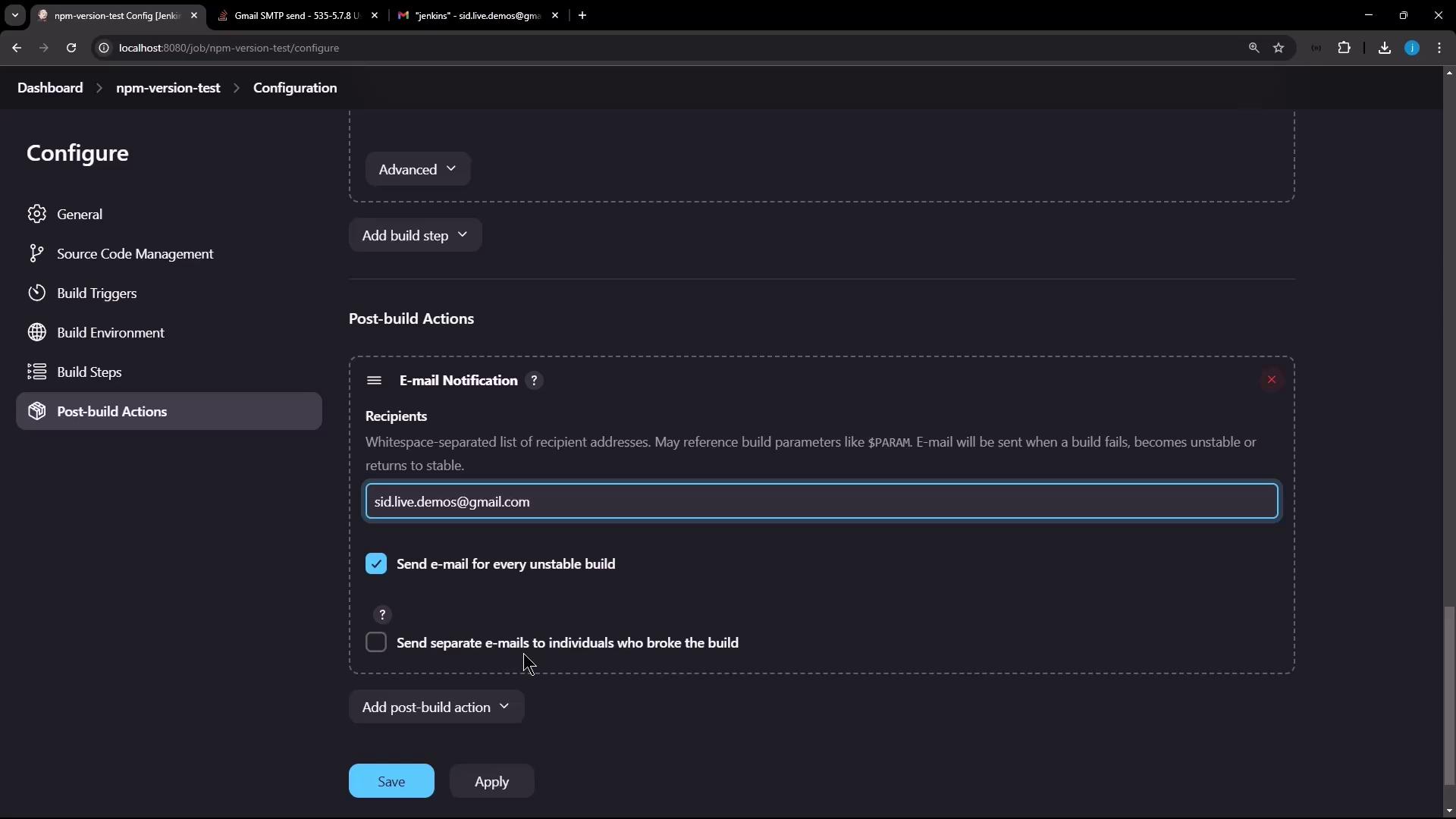
<Frame>
  ![The image shows a Jenkins configuration screen for a project named "npm-version-test," focusing on the "Post-build Actions" section where email notifications are set up for build status updates.](https://kodekloud.com/kk-media/image/upload/v1752870335/notes-assets/images/Certified-Jenkins-Engineer-Demo-Built-in-Email-Notification/jenkins-npm-version-test-email-notifications.jpg)
</Frame>

To force a failure and test the email trigger, add the following to your build steps:

```bash theme={null}
echo "Updating job config using Jenkins CLI"
npm -v
node -v
exit 1
```

Run the job again. You should see the build fail (e.g., Build #9):
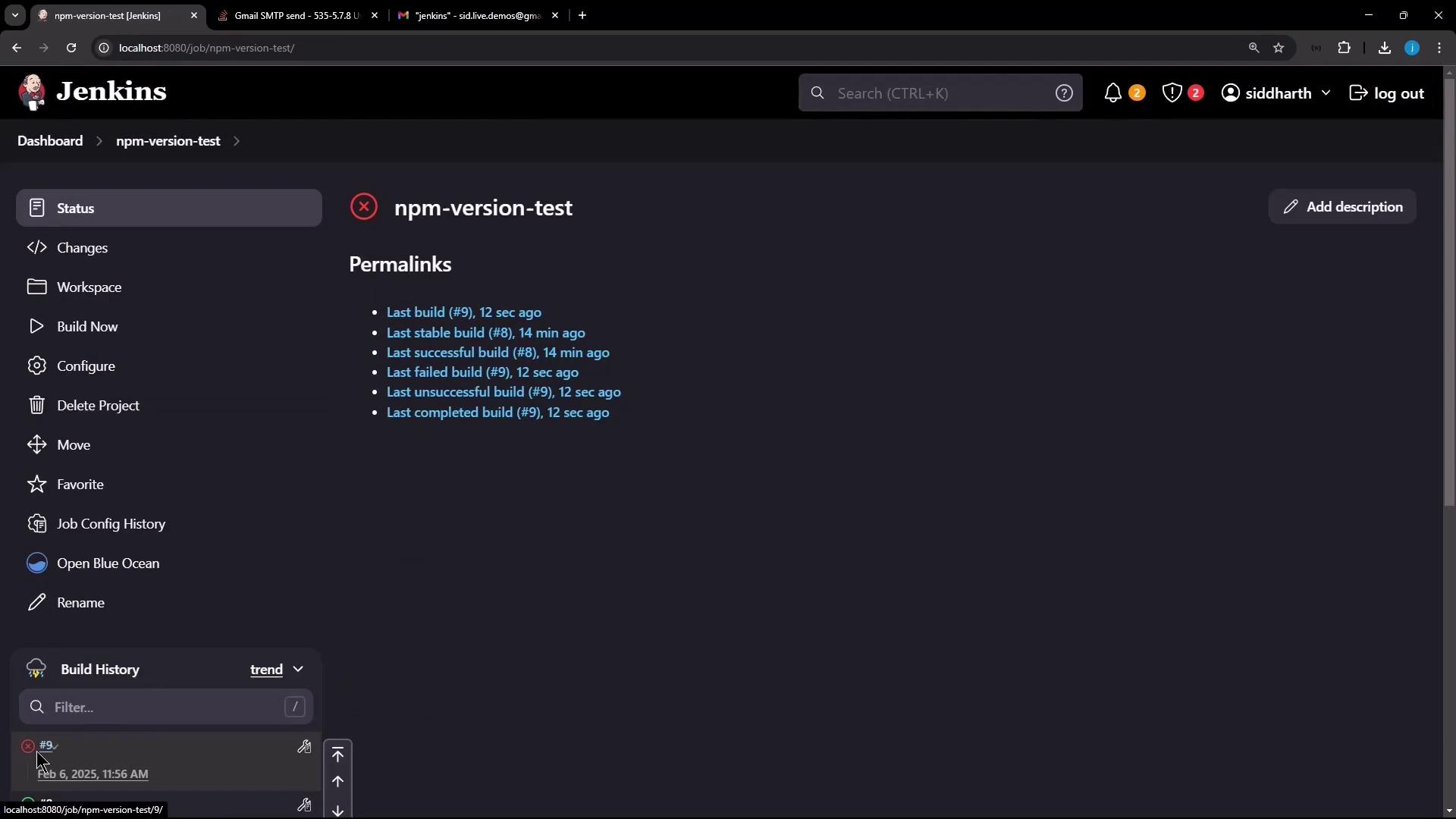
<Frame>
  ![The image shows a Jenkins dashboard for a project named "npm-version-test," displaying build history and permalinks for recent builds. The interface includes options like "Build Now," "Configure," and "Delete Project."](https://kodekloud.com/kk-media/image/upload/v1752870336/notes-assets/images/Certified-Jenkins-Engineer-Demo-Built-in-Email-Notification/jenkins-dashboard-npm-version-test.jpg)
</Frame>

In the console log, you’ll encounter:

```text theme={null}
ERROR: Couldn't connect to host, port: localhost, 25; timeout 60000
org.eclipse.angus.mail.util.MailConnectException: ...
```

<Callout icon="lightbulb" color="#1CB2FE">
  By default, Jenkins uses `localhost:25` for SMTP. Unless you run a local mail server, this will fail. Configure a valid SMTP host and port in the global settings to resolve this.
</Callout>

***

## 2. Configure Global SMTP Settings

1. Go to **Manage Jenkins** → **Configure System**.
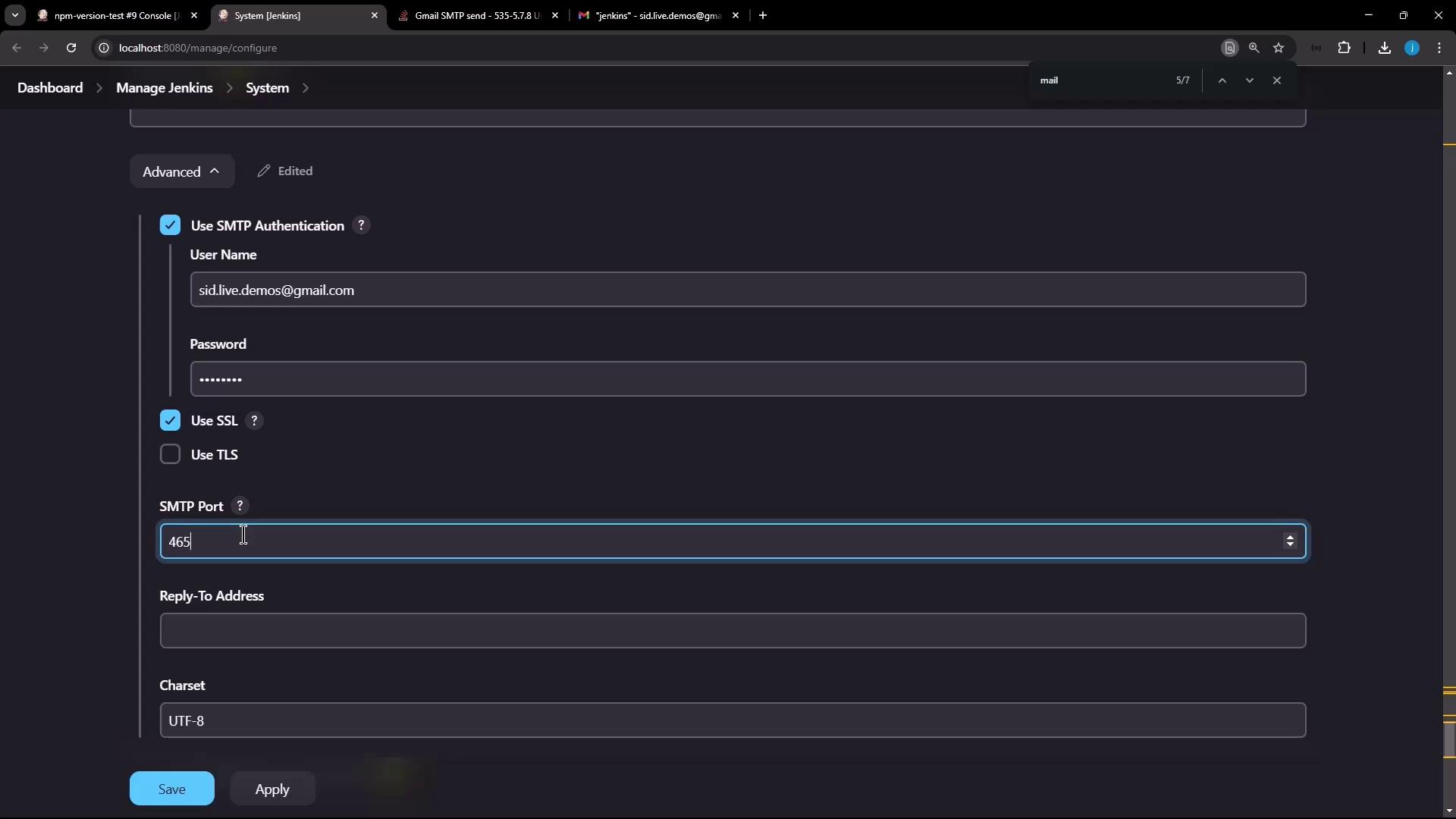
2. Scroll to **Extended E-mail Notification** (or **Email Notification**) and fill in:

   | Field                      | Value                                   |
   | -------------------------- | --------------------------------------- |
   | SMTP server                | smtp.gmail.com                          |
   | Default user e-mail suffix | *(leave blank)*                         |
   | Use SMTP Authentication    | ☑                                       |
   | Use SSL                    | ☑                                       |
   | User Name                  | [your@gmail.com](mailto:your@gmail.com) |
   | Password                   | *(Gmail app password)*                  |
   | SMTP Port                  | 465                                     |
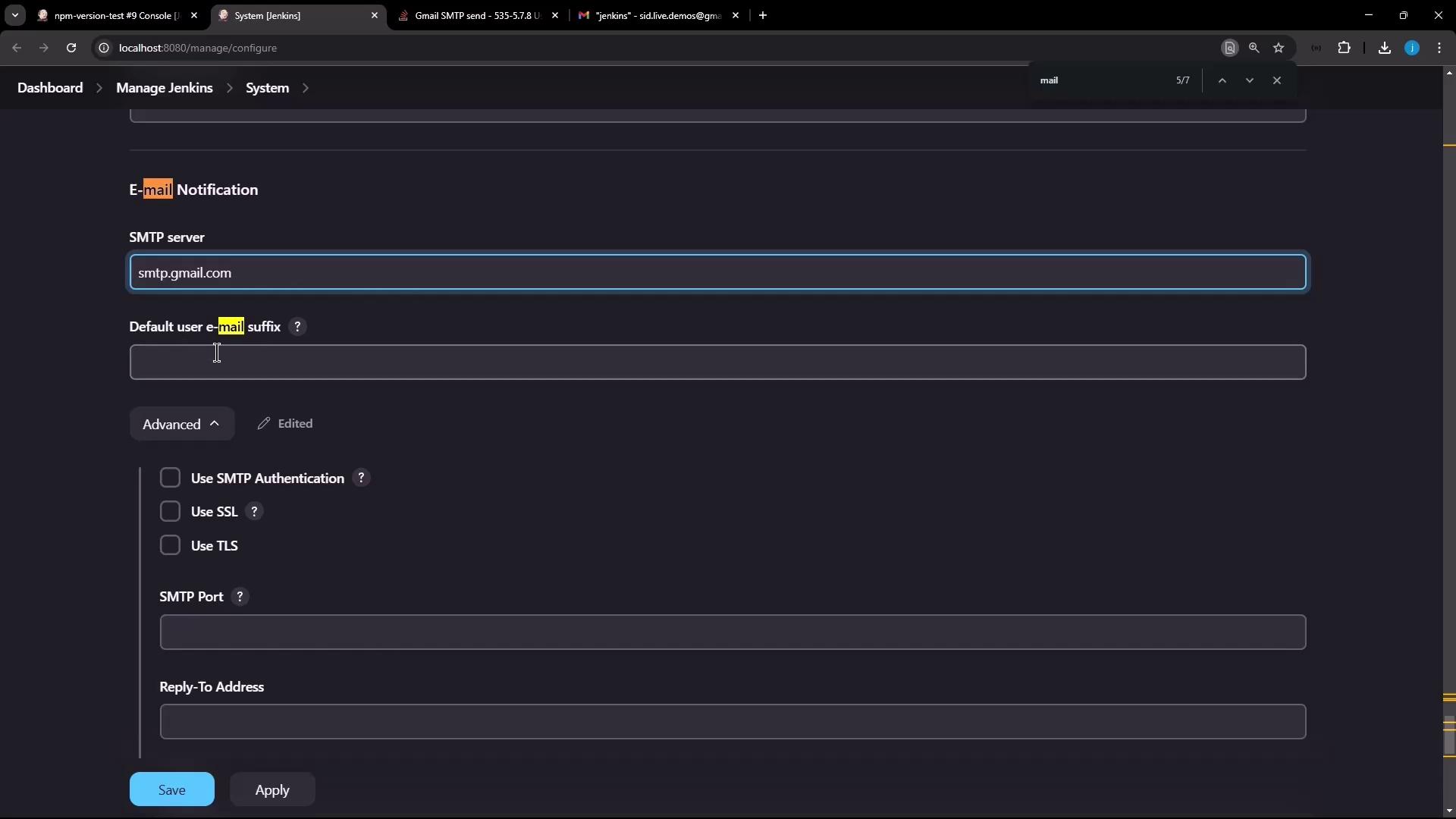
<Frame>
  ![The image shows the email notification configuration settings in Jenkins, with fields for SMTP server, default user email suffix, and options for SMTP authentication, SSL, and TLS.](https://kodekloud.com/kk-media/image/upload/v1752870337/notes-assets/images/Certified-Jenkins-Engineer-Demo-Built-in-Email-Notification/jenkins-email-notification-settings.jpg)
</Frame>

3. Click **Test Configuration**:

<Frame>
  ![The image shows a configuration screen in Jenkins for setting up SMTP email settings, including fields for username, password, SSL, and SMTP port.](https://kodekloud.com/kk-media/image/upload/v1752870338/notes-assets/images/Certified-Jenkins-Engineer-Demo-Built-in-Email-Notification/jenkins-smtp-email-configuration.jpg)
</Frame>

```text theme={null}
jakarta.mail.AuthenticationFailedException: 534-5.7.9 Application-specific password required ...
```

<Callout icon="triangle-alert" color="#FF6B6B">
  Gmail no longer accepts regular account passwords for SMTP. You must generate an app-specific password if Two-Factor Authentication (2FA) is enabled.
</Callout>

***

## 3. Generate a Gmail App Password

1. Sign in to your Google Account and navigate to **Security**.
2. Ensure **2-Step Verification** is enabled.
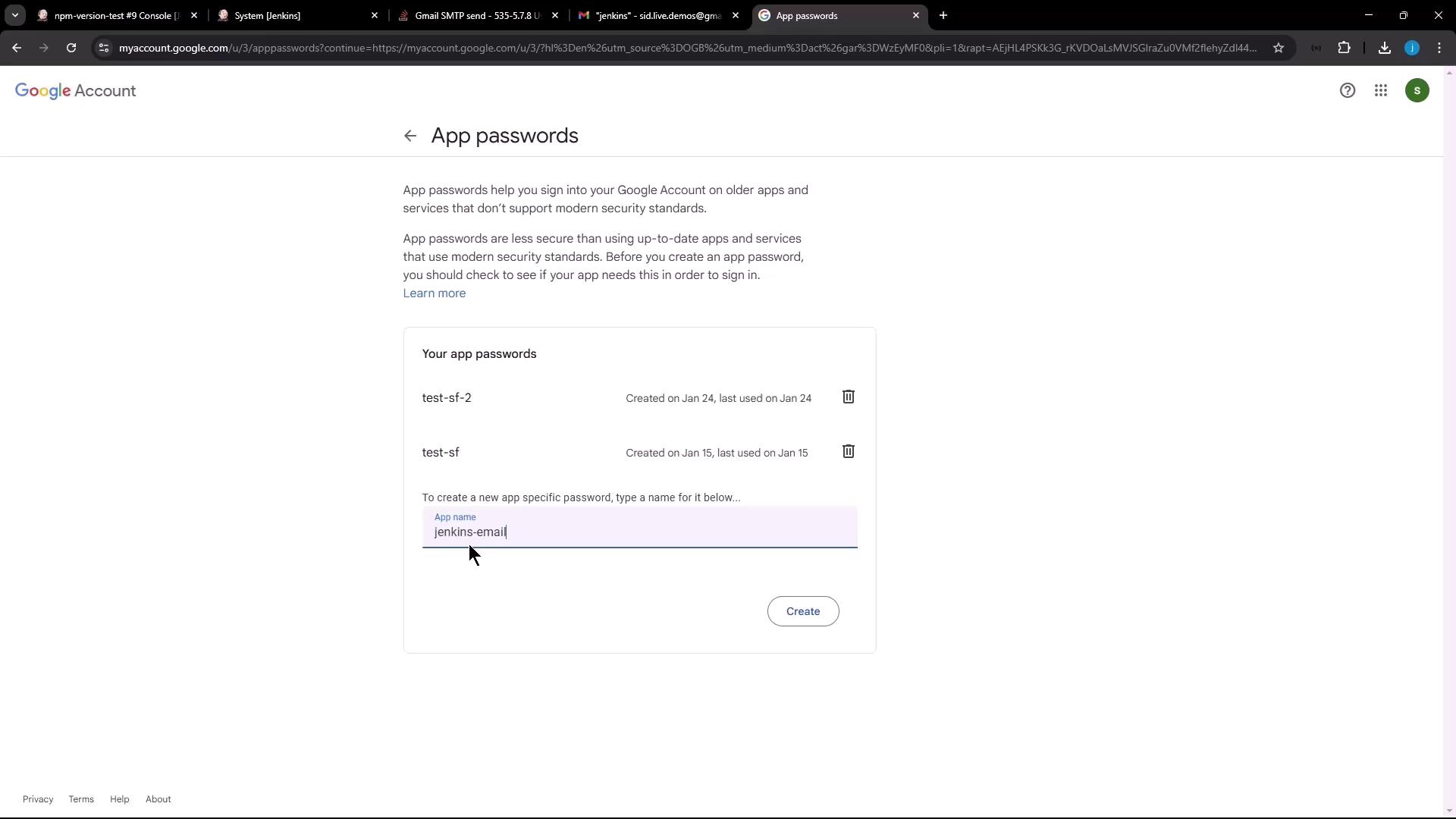
3. Under **App passwords**, click **Select app** → **Other (Custom name)**, name it (e.g., "Jenkins email service"), then **Generate**.
<Frame>
  ![The image shows a Google Account page for managing app passwords, with existing passwords listed and an option to create a new app-specific password named "jenkins-email."](https://kodekloud.com/kk-media/image/upload/v1752870340/notes-assets/images/Certified-Jenkins-Engineer-Demo-Built-in-Email-Notification/google-account-app-passwords-management.jpg)
</Frame>

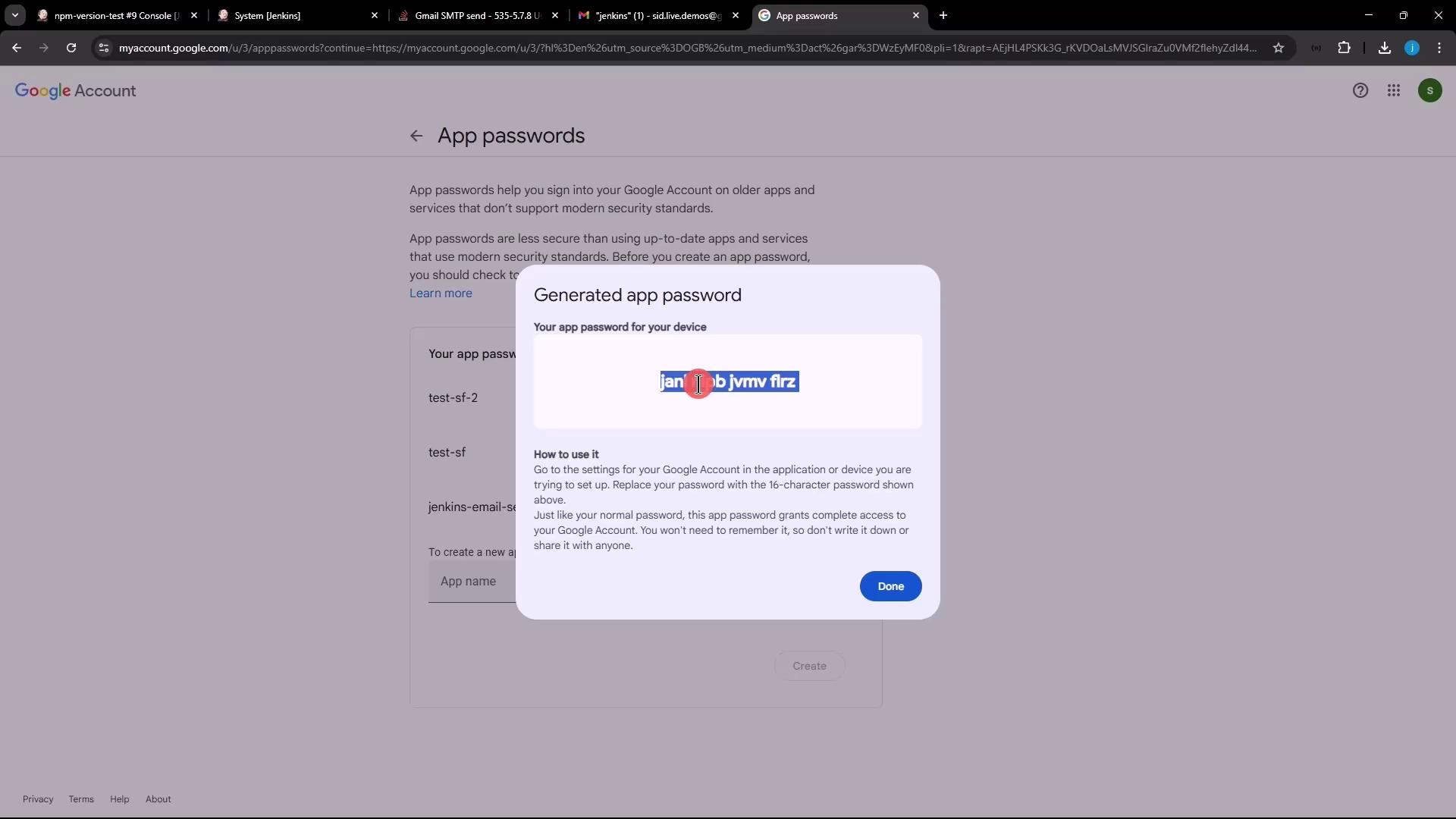
4. Copy the 16-character app password.
<Frame>
  ![The image shows a Google Account page with a pop-up displaying a generated app password and instructions on how to use it.](https://kodekloud.com/kk-media/image/upload/v1752870342/notes-assets/images/Certified-Jenkins-Engineer-Demo-Built-in-Email-Notification/google-account-app-password-popup.jpg)
</Frame>

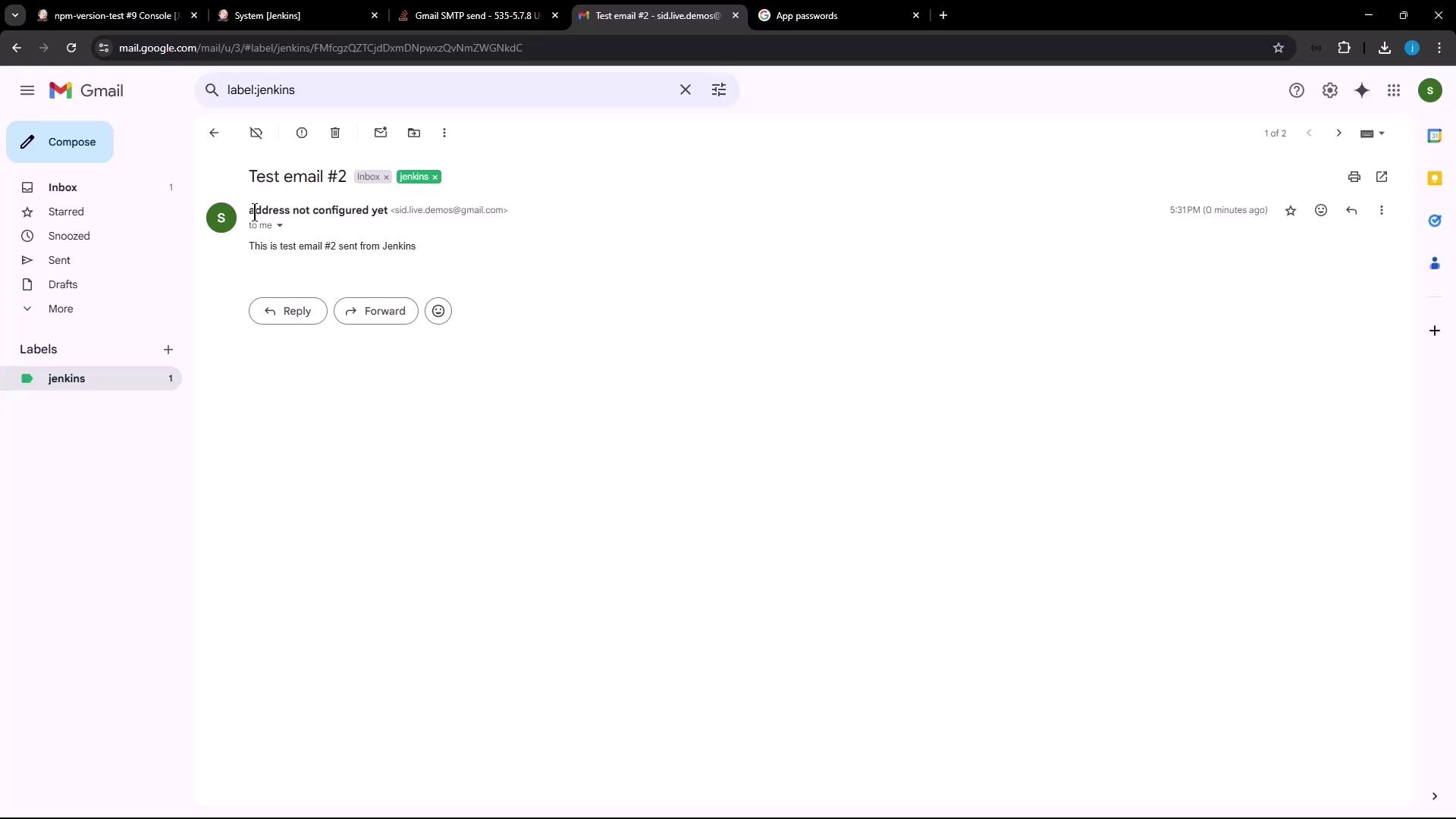
5. Replace the SMTP **Password** in Jenkins with the new app password and click **Test Configuration** again. You should see a success:
<Frame>
  ![The image shows a Gmail inbox with an email titled "Test email #2" from a sender associated with Jenkins. The email content mentions it is a test email sent from Jenkins.](https://kodekloud.com/kk-media/image/upload/v1752870343/notes-assets/images/Certified-Jenkins-Engineer-Demo-Built-in-Email-Notification/gmail-inbox-test-email-jenkins.jpg)
</Frame>

***

## 4. Set System Admin Email Address

To customize the "From" address on outgoing alerts:

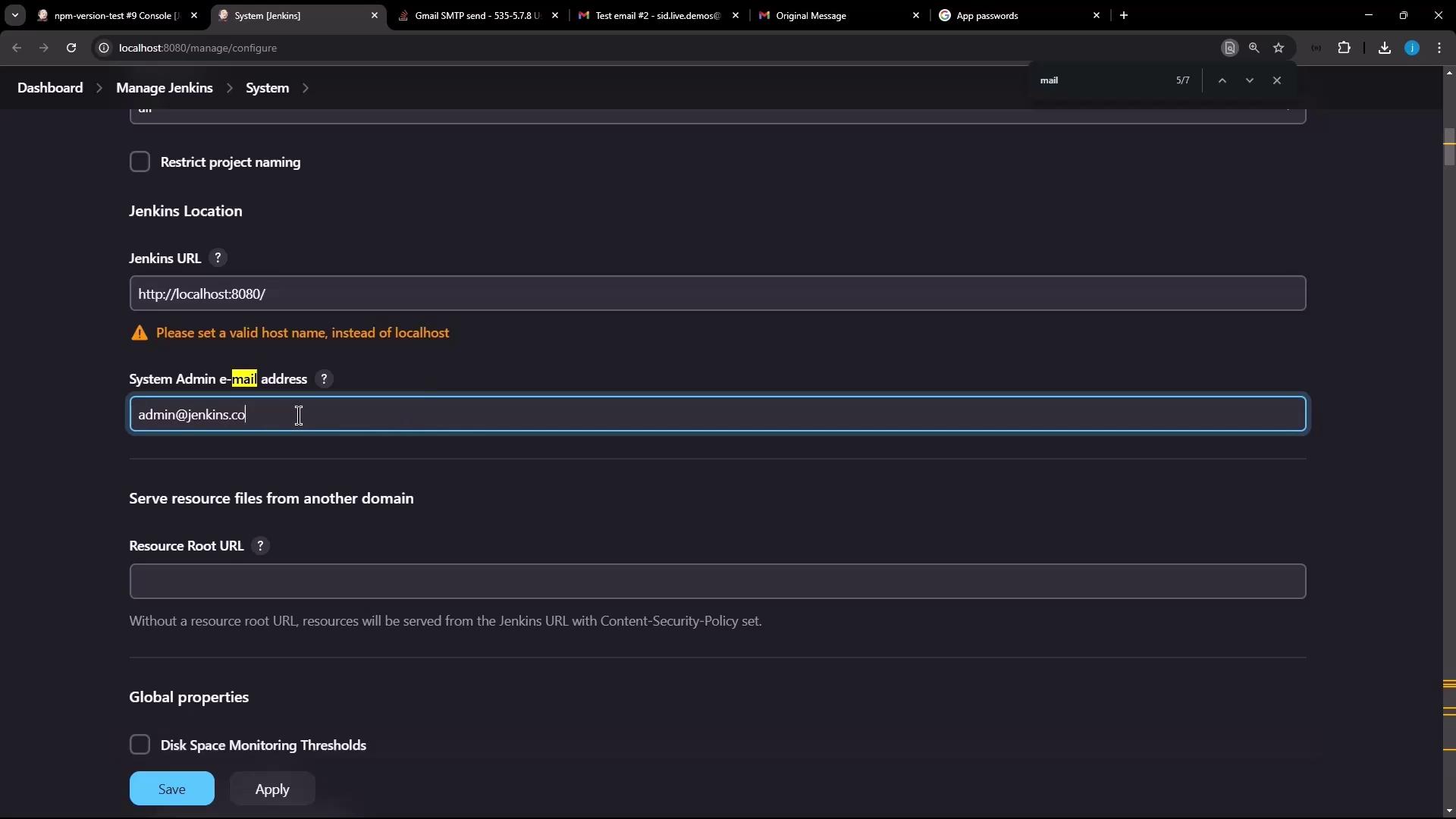
1. In **Manage Jenkins** → **Configure System**, set **System Admin e-mail address** (e.g., `admin@jenkins.com`).
2. Click **Save** and then **Test Configuration** once more.
<Frame>
  ![The image shows a Jenkins configuration page where the user is setting the Jenkins URL and the system admin email address. There is a warning to set a valid host name instead of "localhost."](https://kodekloud.com/kk-media/image/upload/v1752870344/notes-assets/images/Certified-Jenkins-Engineer-Demo-Built-in-Email-Notification/jenkins-configuration-url-email-warning.jpg)
</Frame>

You’ll receive another test email showing the updated **From** address:
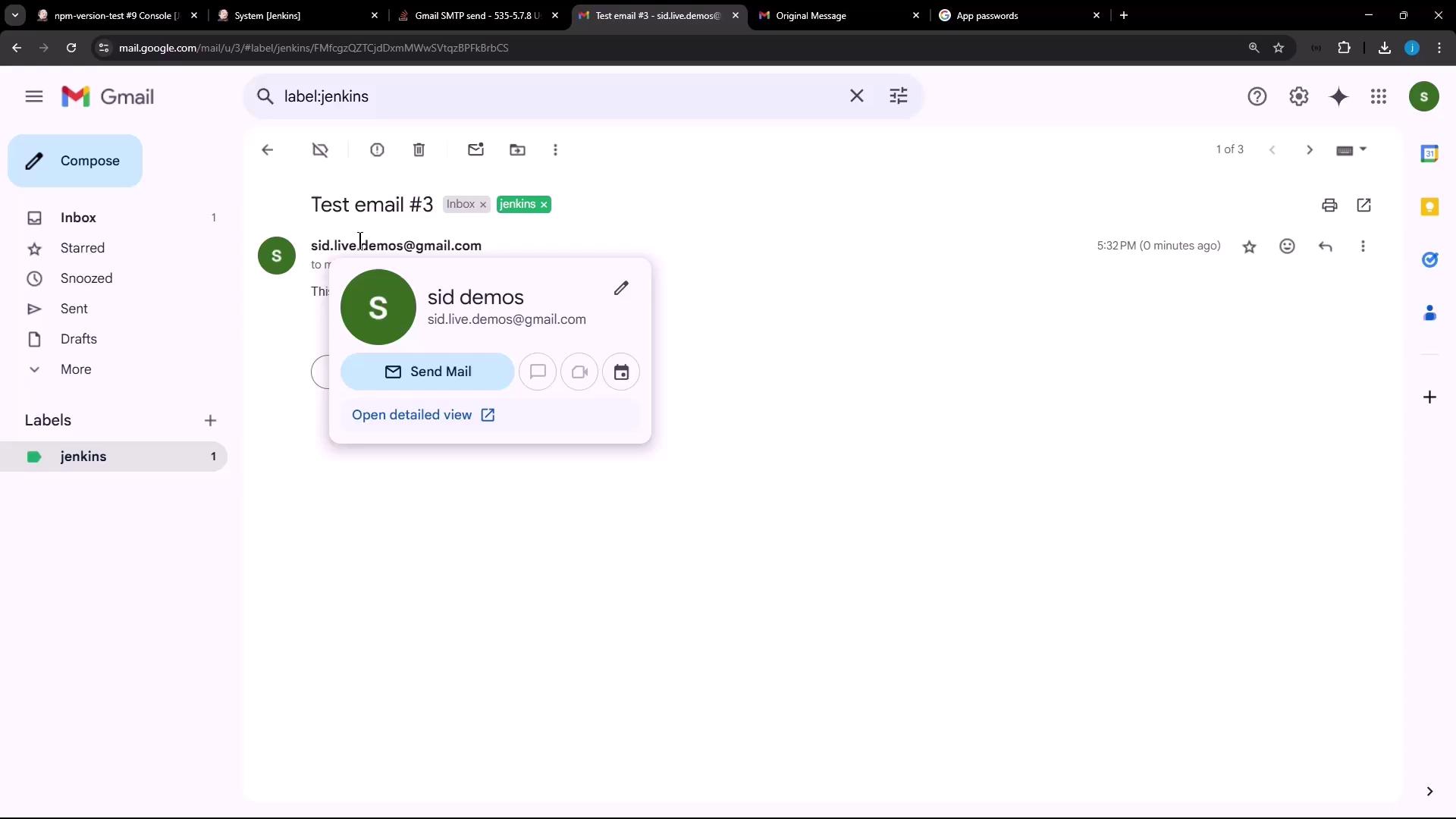
<Frame>
  ![The image shows a Gmail interface with an open email labeled "Test email #3" from "sid demos." A contact card is displayed, showing options to send mail and view details.](https://kodekloud.com/kk-media/image/upload/v1752870344/notes-assets/images/Certified-Jenkins-Engineer-Demo-Built-in-Email-Notification/gmail-interface-test-email-sid-demos.jpg)
</Frame>

***

## 5. Verify Notifications on Job Builds

1. Return to the **npm-version-test** job and rebuild with the same `exit 1` script.
2. Build #10 will fail and trigger an email:
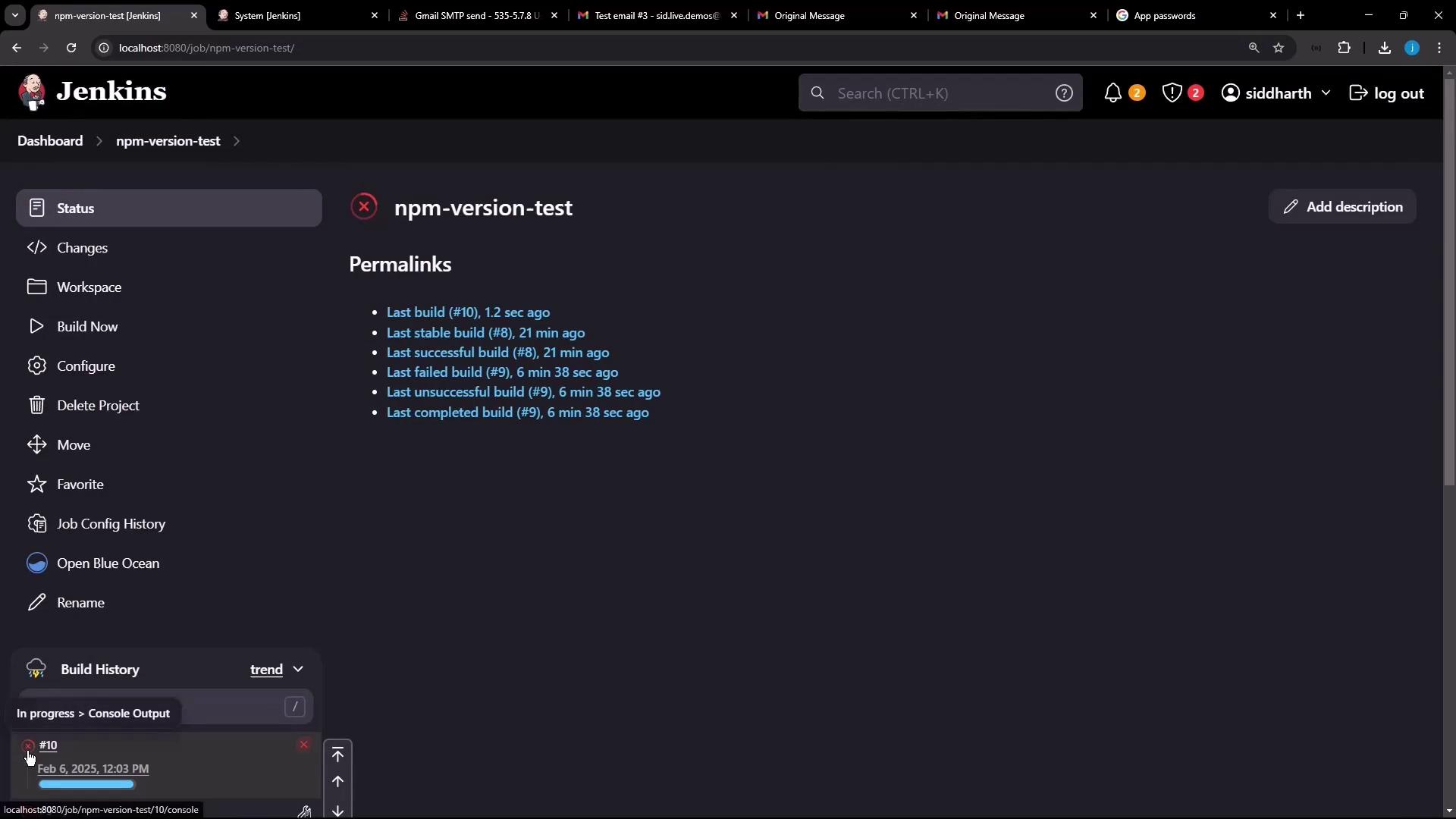
<Frame>
  ![The image shows a Jenkins dashboard for a project named "npm-version-test," displaying build history and permalinks for recent builds. The sidebar includes options like "Build Now," "Configure," and "Delete Project."](https://kodekloud.com/kk-media/image/upload/v1752870346/notes-assets/images/Certified-Jenkins-Engineer-Demo-Built-in-Email-Notification/jenkins-dashboard-npm-version-test-2.jpg)
</Frame>

**Console Output:**

```text theme={null}
Started by user siddharth
...
+ exit 1
Build step 'Execute shell' marked build as failure
Sending e-mails to: sid.live.demos@gmail.com
Finished: FAILURE
```

You’ll receive an email titled **Build failed in Jenkins: npm-version-test #10**, complete with console logs and direct links:
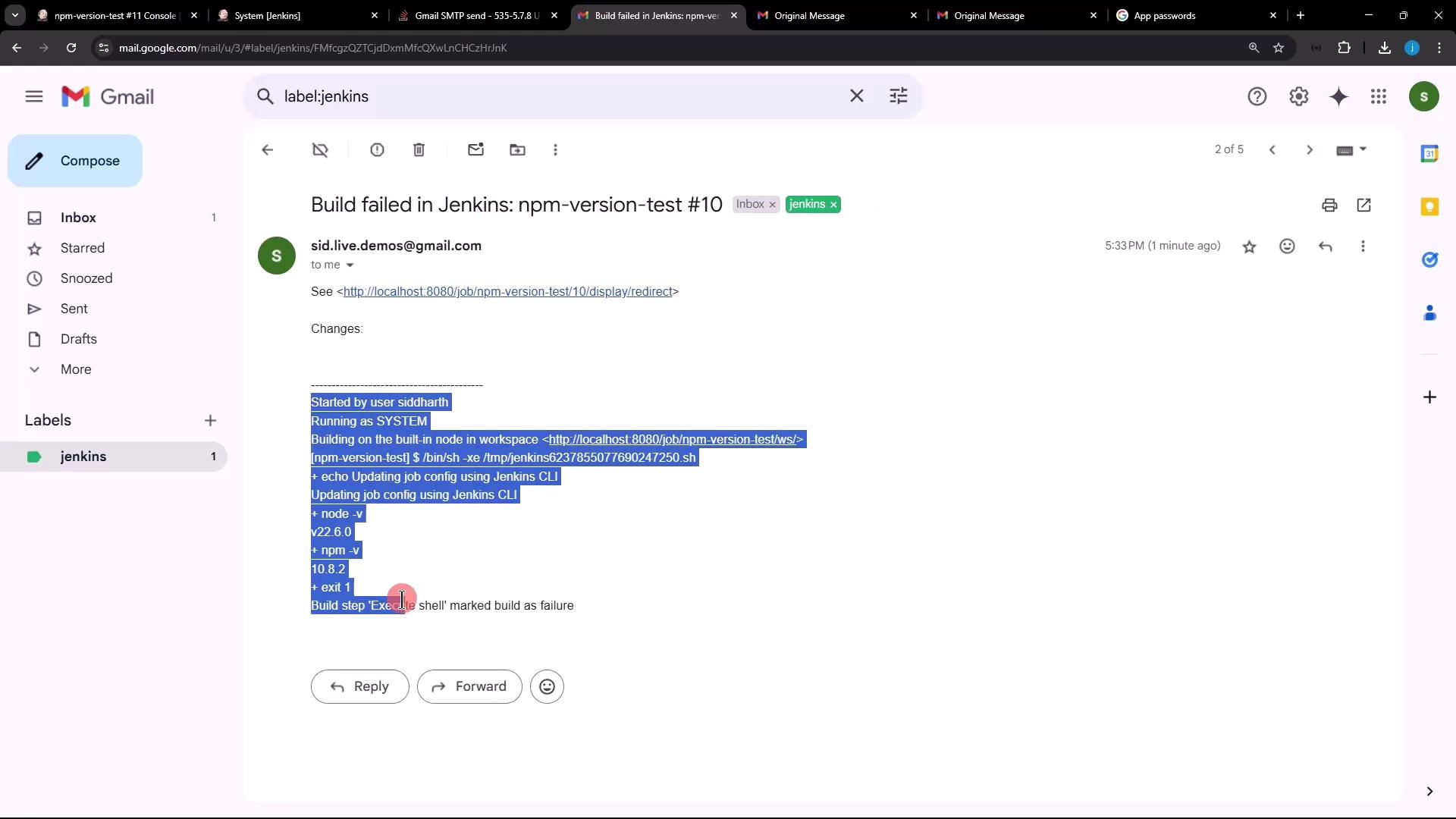
<Frame>
  ![The image shows an email notification in Gmail about a Jenkins build failure for "npm-version-test #10," including details of the build process and error message.](https://kodekloud.com/kk-media/image/upload/v1752870347/notes-assets/images/Certified-Jenkins-Engineer-Demo-Built-in-Email-Notification/gmail-jenkins-build-failure-notification.jpg)
</Frame>

Finally, remove the `exit 1` from the build script and run again. Build #11 will succeed and send a "back to normal" message without console logs, confirming your notification pipeline is fully operational.

***

## Links and References

* [Jenkins Email Extension Plugin](https://plugins.jenkins.io/email-ext/)
* [Jenkins: Configure SMTP](https://www.jenkins.io/doc/book/managing/system-configuration/#email-notification)
* [Google Account App Passwords](https://support.google.com/accounts/answer/185833)

<CardGroup>
  <Card title="Watch Video" icon="video" cta="Learn more" href="https://learn.kodekloud.com/user/courses/certified-jenkins-engineer/module/4d6d1f39-307c-4fdb-8d2b-834c1650e792/lesson/bc25e146-dcfc-489e-b35a-086f8661e051" />
</CardGroup>