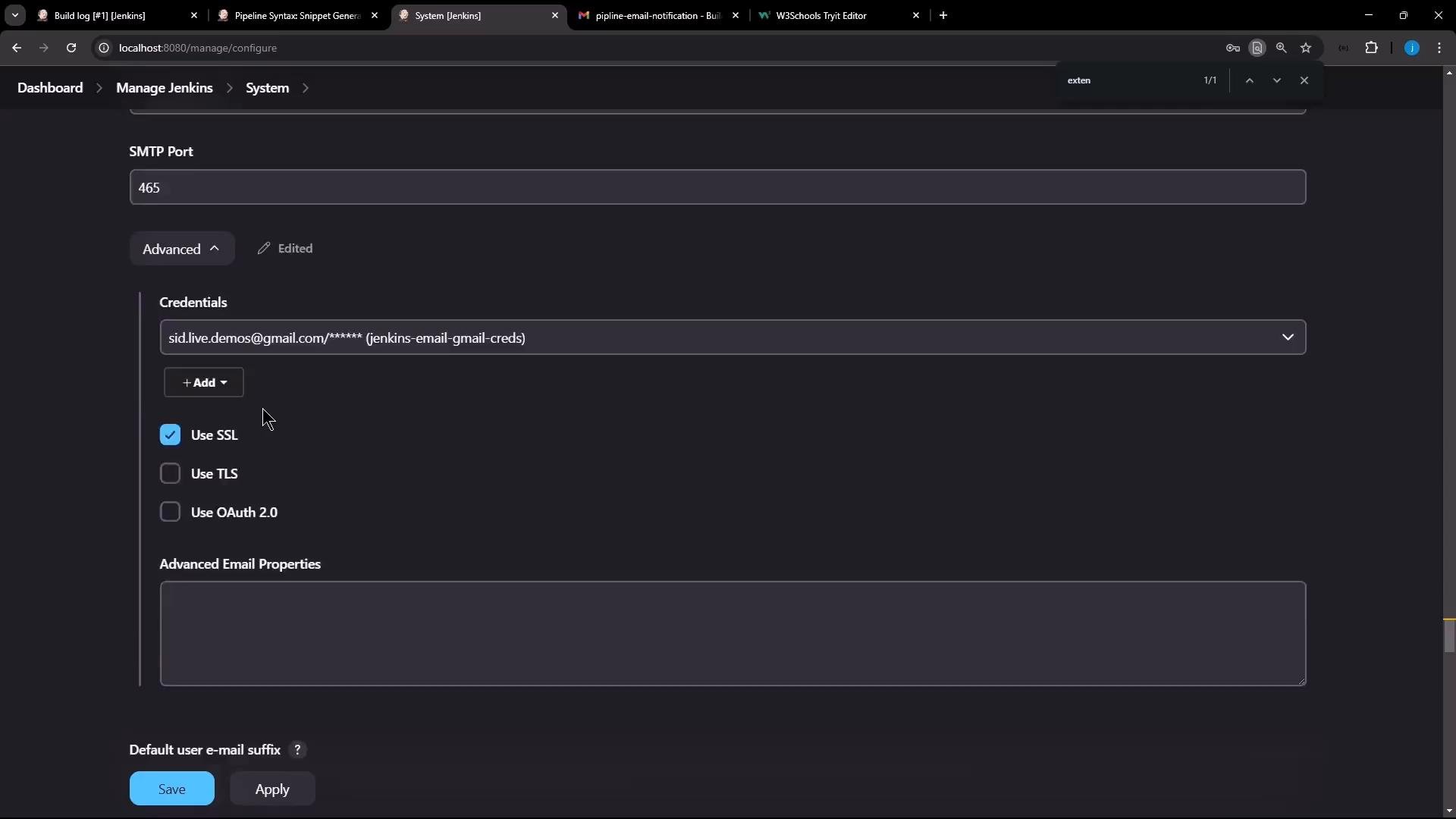
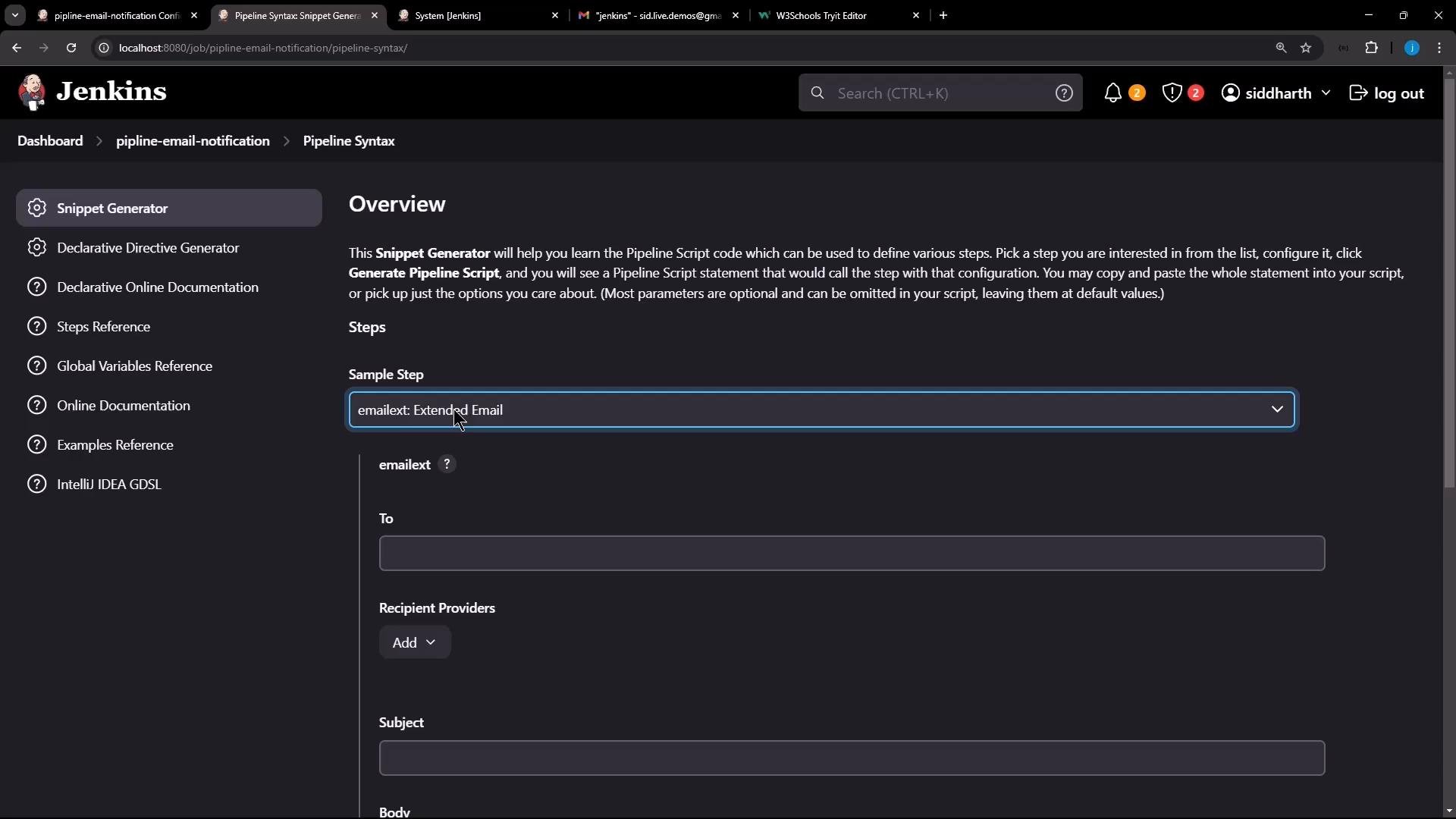
 Use the snippet generator to choose the "emailext" step (from the Extended E-mail plugin). Populate fields such as To, Recipient Providers, Subject, Body and Advanced options (for example, Attach Logs). The generator outputs a Groovy snippet you can paste into your pipeline. A minimal generated snippet looks like:
```groovy theme={null}
emailext body: '', recipientProviders: [developers()], subject: ''
```
Common default variables supported by the plugin (usable in pipeline arguments and in the Extended E-mail configuration) include:
| Variable | Meaning |
| - | - |
| `$DEFAULT_RECIPIENTS` | Default recipient list configured globally |
| `$DEFAULT_SUBJECT` | Default subject set in Extended E-mail Notification |
| `$DEFAULT_CONTENT` | Default message body (can be HTML) |
Below is a minimal Declarative pipeline example. It creates a file during a stage and then sends an email in the `post` section. Note `emailext` is invoked as a step with named arguments (`attachLog`, `body`, `subject`, `to`, `attachmentsPattern`):
```groovy theme={null}
pipeline {
agent any
stages {
stage('Hello') {
steps {
sh "echo 'Testing pipeline-email-notification' > testFile.txt"
}
}
}
post {
always {
emailext attachLog: true,
body: '$DEFAULT_CONTENT',
subject: '$DEFAULT_SUBJECT',
to: '$DEFAULT_RECIPIENTS',
attachmentsPattern: 'testFile.*'
}
}
}
```
How it works:
* The `Hello` stage generates `testFile.txt`.
* The `post` block runs after the build and calls `emailext`.
* `attachLog: true` attaches the console log.
* `attachmentsPattern` attaches any files matching the glob (here, `testFile.txt`).
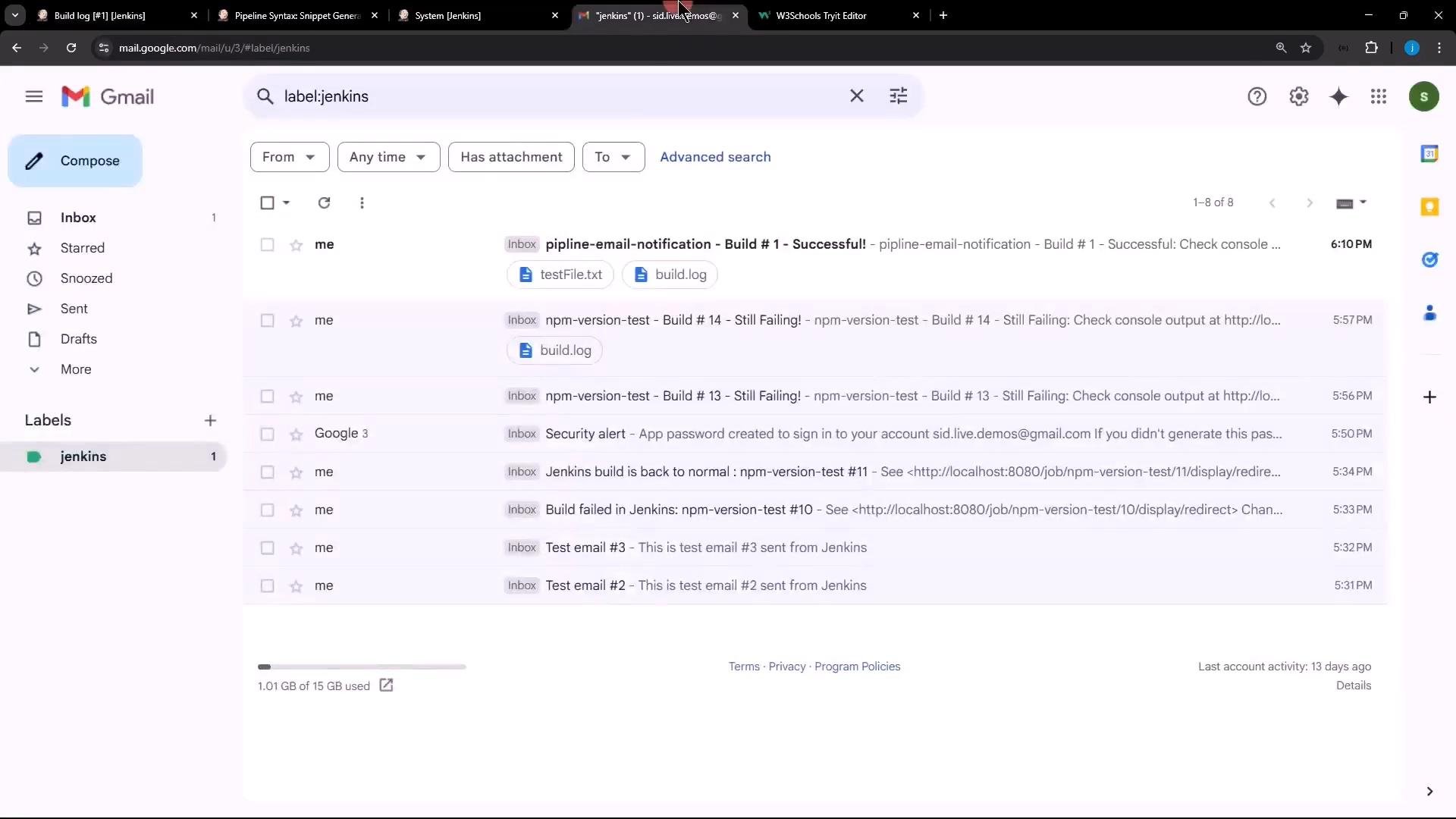
When the job finishes, Jenkins will send an email with the console log and the generated `testFile.txt` attached. Example: Jenkins notifications appearing in a Gmail inbox.
Use the snippet generator to choose the "emailext" step (from the Extended E-mail plugin). Populate fields such as To, Recipient Providers, Subject, Body and Advanced options (for example, Attach Logs). The generator outputs a Groovy snippet you can paste into your pipeline. A minimal generated snippet looks like:
```groovy theme={null}
emailext body: '', recipientProviders: [developers()], subject: ''
```
Common default variables supported by the plugin (usable in pipeline arguments and in the Extended E-mail configuration) include:
| Variable | Meaning |
| - | - |
| `$DEFAULT_RECIPIENTS` | Default recipient list configured globally |
| `$DEFAULT_SUBJECT` | Default subject set in Extended E-mail Notification |
| `$DEFAULT_CONTENT` | Default message body (can be HTML) |
Below is a minimal Declarative pipeline example. It creates a file during a stage and then sends an email in the `post` section. Note `emailext` is invoked as a step with named arguments (`attachLog`, `body`, `subject`, `to`, `attachmentsPattern`):
```groovy theme={null}
pipeline {
agent any
stages {
stage('Hello') {
steps {
sh "echo 'Testing pipeline-email-notification' > testFile.txt"
}
}
}
post {
always {
emailext attachLog: true,
body: '$DEFAULT_CONTENT',
subject: '$DEFAULT_SUBJECT',
to: '$DEFAULT_RECIPIENTS',
attachmentsPattern: 'testFile.*'
}
}
}
```
How it works:
* The `Hello` stage generates `testFile.txt`.
* The `post` block runs after the build and calls `emailext`.
* `attachLog: true` attaches the console log.
* `attachmentsPattern` attaches any files matching the glob (here, `testFile.txt`).
When the job finishes, Jenkins will send an email with the console log and the generated `testFile.txt` attached. Example: Jenkins notifications appearing in a Gmail inbox.
 Example relevant console output (trimmed):
```text theme={null}
Started by user siddharth
[Pipeline] Start of Pipeline
[Pipeline] node
Running on Jenkins in /var/lib/jenkins/workspace/pipeline-email-notification
[Pipeline] stage
[Pipeline] { (Hello)
[Pipeline] sh
+ echo Testing pipeline-email-notification
[Pipeline] }
[Pipeline] // stage
[Pipeline] stage
[Pipeline] { (Declarative: Post Actions)
[Pipeline] emailext
Sending email to: sid.live.demos@gmail.com
```
Send HTML-formatted notifications
* By default the plugin sends plain text.
* To use HTML, provide an HTML template as the default content (or pass it directly as the `body`) and configure the default content type to `text/html`.
Example HTML template you might paste into the Extended E-mail Notification `Default Content`:
```html theme={null}
Example relevant console output (trimmed):
```text theme={null}
Started by user siddharth
[Pipeline] Start of Pipeline
[Pipeline] node
Running on Jenkins in /var/lib/jenkins/workspace/pipeline-email-notification
[Pipeline] stage
[Pipeline] { (Hello)
[Pipeline] sh
+ echo Testing pipeline-email-notification
[Pipeline] }
[Pipeline] // stage
[Pipeline] stage
[Pipeline] { (Declarative: Post Actions)
[Pipeline] emailext
Sending email to: sid.live.demos@gmail.com
```
Send HTML-formatted notifications
* By default the plugin sends plain text.
* To use HTML, provide an HTML template as the default content (or pass it directly as the `body`) and configure the default content type to `text/html`.
Example HTML template you might paste into the Extended E-mail Notification `Default Content`:
```html theme={null}
Hi team,
The latest Jenkins build status of job ${JOB_NAME} is as follows:
| Build Number | Status | Details |
|---|---|---|
| ${BUILD_NUMBER} | ${BUILD_STATUS} | Check the Build Log |
Thanks,
Your Jenkins Bot
``` Before sending HTML, verify these settings (Manage Jenkins > Extended E-mail Notification and System Configuration): * Set `Default Content` to your HTML template. * Set `Default Content Type` to `text/html`. * Confirm SMTP settings (server, port, credentials, SSL/TLS) so Jenkins can successfully deliver mail. A sample screenshot showing SMTP settings (port, masked credentials, SSL enabled):